

Channels
In this section, you can set up the order syncing from Tradebyte marketplaces directly into SCAYLE.
Prerequisites for Channel Mapping Between SCAYLE and TB.One
Before activating the channel mapping in the Tradebyte Add-on, the following prerequisites must be met to ensure successful order import from TB.One into SCAYLE:
- Marketplace Channels Must Be Active in TB.One
All marketplace channels that you intend to map in the SCAYLE Add-on must already be active in the TB.One Platform.
Only active channels can receive order updates and allow order retrieval.
If a channel is not active in TB.One, the add-on cannot fetch orders for that channel into SCAYLE. - SCAYLE Channels Must Be Created Before Mapping
The SCAYLE channels you want to map must be preconfigured in SCAYLE so they appear in the drop-down list on the right side of the mapping UI.
To create a SCAYLE channel:
SCAYLE Panel → Shops → Configurations → Channels
When creating a new channel, tenants or project teams must apply the following settings:- Disable emails and invoice generation, as these tasks are handled by the marketplace.
- Enabling SCAYLE external price overwrites, since SCAYLE only proxies the marketplace order totals provided through TB.One.
- Define a Channel Key, which is essential for external order creation.
- Define the shop country–language in SCAYLE that is mapped to the SCAYLE channel and responsible for fulfilling the orders.
Refer here more details on Channel Configuration.
Add-on Channels Configuration
Note: A Tradebyte channel can be linked to only one SCAYLE channel, while a SCAYLE channel may be linked to multiple Tradebyte channels. The mapping determines how incoming Tradebyte orders are routed to the correct SCAYLE channel for processing.
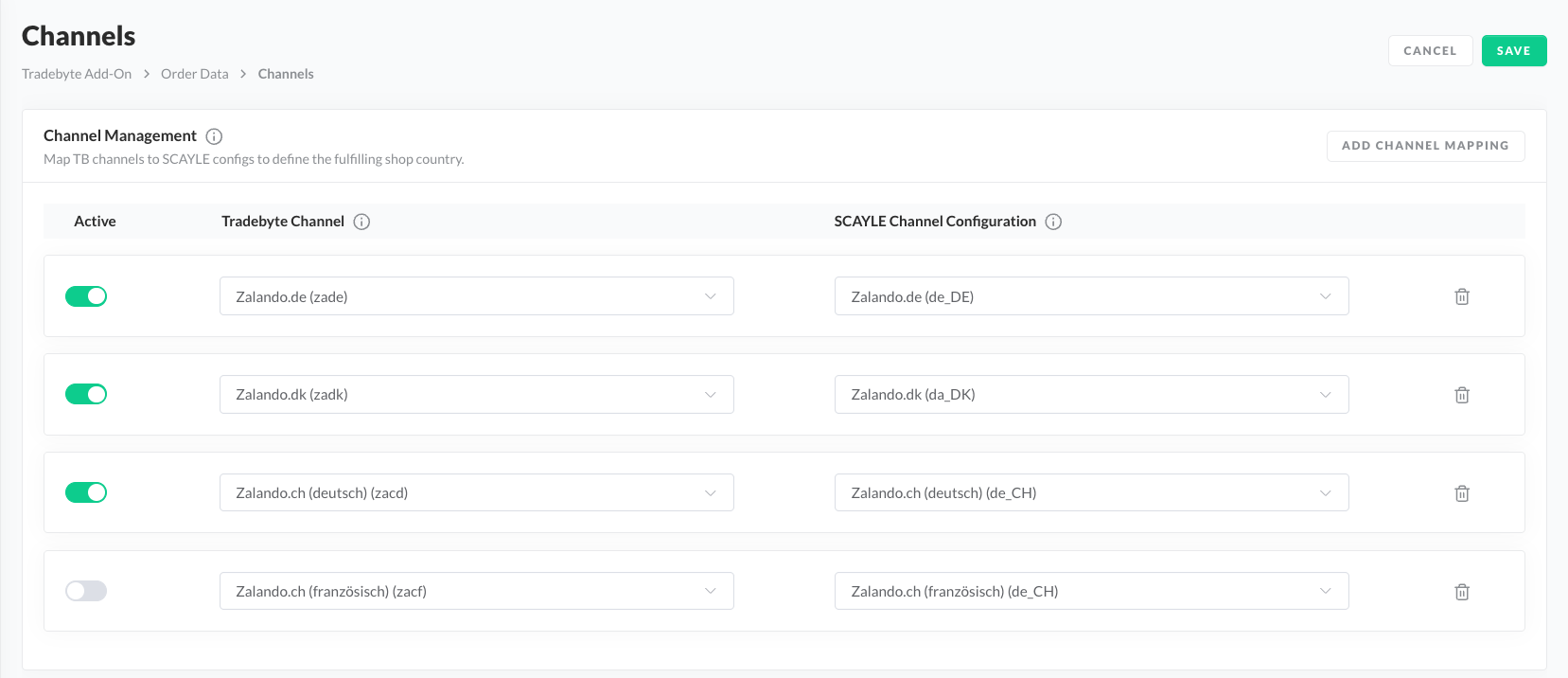
- Go to SCAYLE Panel ➜ Add-ons ➜ Tradebyte Add-on ➜ Channels.
- In the Channels section, select from the available Tradebyte marketplace channels from the dropdown, eg. Zalando Germany, About You Germany, etc.
Currently, the Add-on supports all channels of the About You and Zalando marketplaces on Tradebyte filtered by Marketplace. - Select the SCAYLE Channel you want to map to the marketplace channel to
- Add a new channels mapping by clicking on Add new channel.
- Select the SCAYLE Channel
- Click SAVE.
Deactivate a channel
- Go to SCAYLE Panel → Add-ons ➜ Tradebyte ➜ Channels
- Turn off the toggle of an existing channels mapping
- Click SAVE.
If a channel is deactivated, the add-on will stop fetching orders from Tradebyte for that specific channel.
Remove a channel
- Go to SCAYLE Panel → Add-ons ➜ Tradebyte ➜ Channels
- Select the Trash icon at the right end of the mapping row.
- Click SAVE.
If a channel is removed, the add-on will stop fetching orders and it will not send orders from Tradebyte to the existing SCAYLE channel for that specific channel. The tenant or the project team will have to maintain ( deactivate or delete* with restrictions rules) the SCAYLE channels in SCAYLE Panel under Shops → Configuration → Channels Dashboard.
Channel Key Usage for External Order Creation
The Channel Key defined in SCAYLE is used by the Add-on when creating orders via the External Order API.
When the add-on pulls orders from TB.One (every 10 minutes per channel):
- Each TB channel’s orders are assigned to the correct SCAYLE channel,
- The SCAYLE channel is linked to a specific SCAYLE shop country,
- The Channel Key is included in the payload sent to the External Order API, ensuring the correct fulfillment logic and warehouse assignment.
This ensures that every order arriving from TB.One is routed to the appropriate SCAYLE shop country and processed according to its configuration.
For more details on External Order API, refer to the SCAYLE documentation


