

Configuring and activating feed
This guide will help you to get your feed up and running by configuring and activating it.
Configuration
Select countries
Select the shops for which feeds should be generated in the SCAYLE Panel:
- Go to Add-ons ➜ Masterfeed Add-on ➜ Feeds ➜ Feed Configuration
- Select the respective shop countries.
- Click SAVE.
For each selected country, one feed file is created. Only for some preconfigured feeds to supported 3rd party partner integrations the feeds are provided as multi country files.
Set include and exclude rules
Include and exclude rules allow you to define criteria for adding or removing specific data from your feed. In this section, you'll learn how to configure these rules.
Include and exclude products to feed
Products can be included or excluded base on categories, product IDs and attribute. As an example:
- Go to Add-ons ➜ Masterfeed Add-on ➜ Feeds ➜ Feed Configuration.
- In the include criteria for products, enter a category to include.
- Click SAVE.
To define rules base on attributes, select a attribute grou from the dropdown list to narrow down the inclusion and exclusion rules.
Include and exclude categories from feed
If you selected Category as data type, you can include and exclude categories by name. As an example:
- Go to Add-ons ➜ Masterfeed Add-on ➜ Feeds ➜ Feed Configuration.
- In the exclude criteria for categories, search for a category you want to exclude.
- Click SAVE.
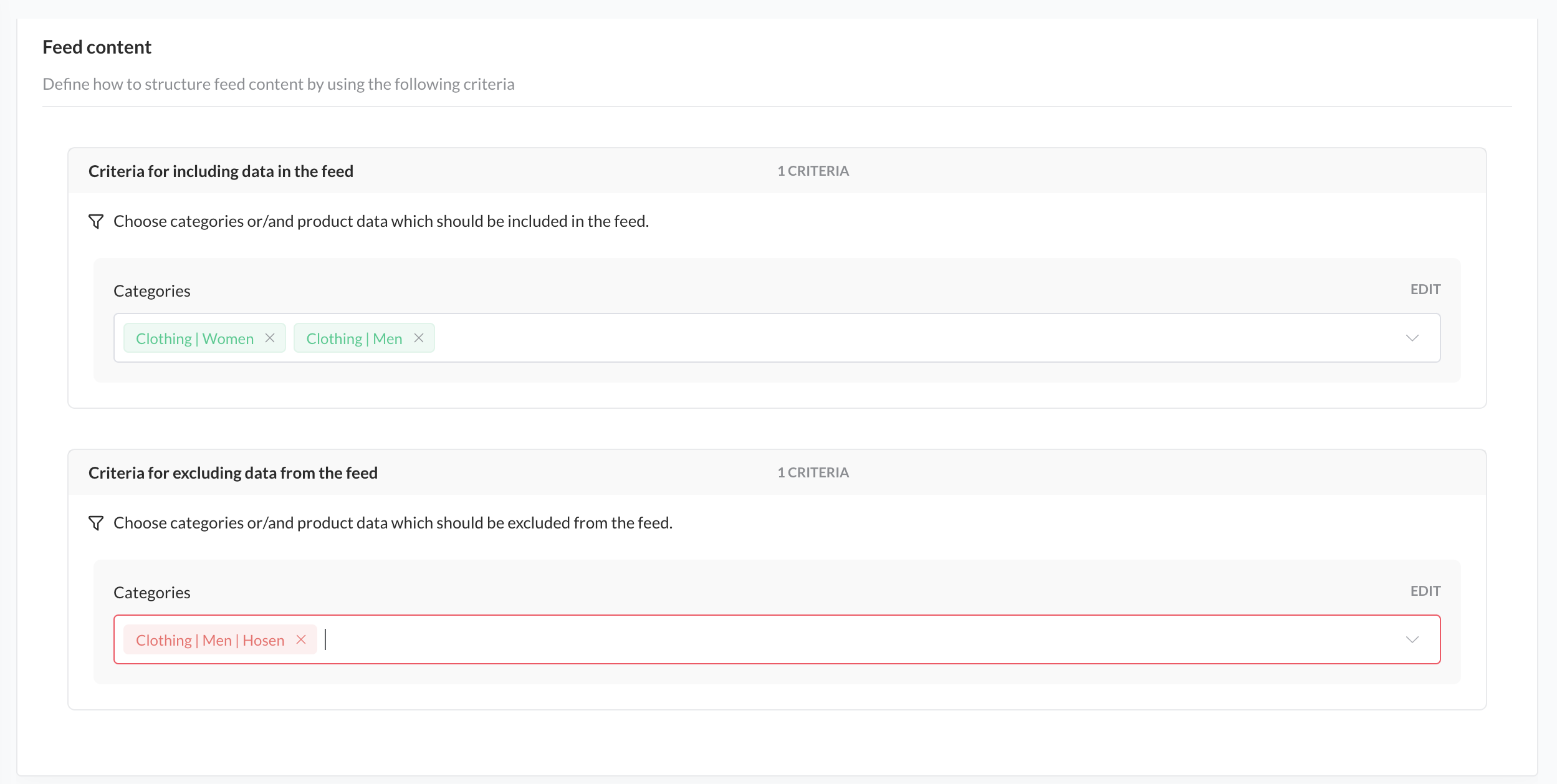
Include and Exclude Criteria
Set feed scheduler
The Masterfeed Add-on scheduler allows you to define the runtime of your feed base on pre-determined intervals.
When setting up the scheduler with the Add-on, you can choose between two main types: Full Feeds and Delta Feeds. Understanding the difference is key to optimizing data transfer and ensuring efficiency.
- A full feed considers the entire dataset each time it runs.
- A delta feed only considers changes made to the dataset since the last update. This could include new entries, updates to existing data, or deletions.
Set the interval in which the feed should be generated.
- Go to Add-ons ➜ Masterfeed Add-on ➜ Feeds ➜ Feed Configuration.
- In the Masterfeed Scheduler, select the interval from dropdown.
- Click SAVE.
For some preconfigured feeds to supported 3rd party partner integrations the Add-on offers additional scheduling options and features such as immediate availability updates or more frequent intervals to sync new products.
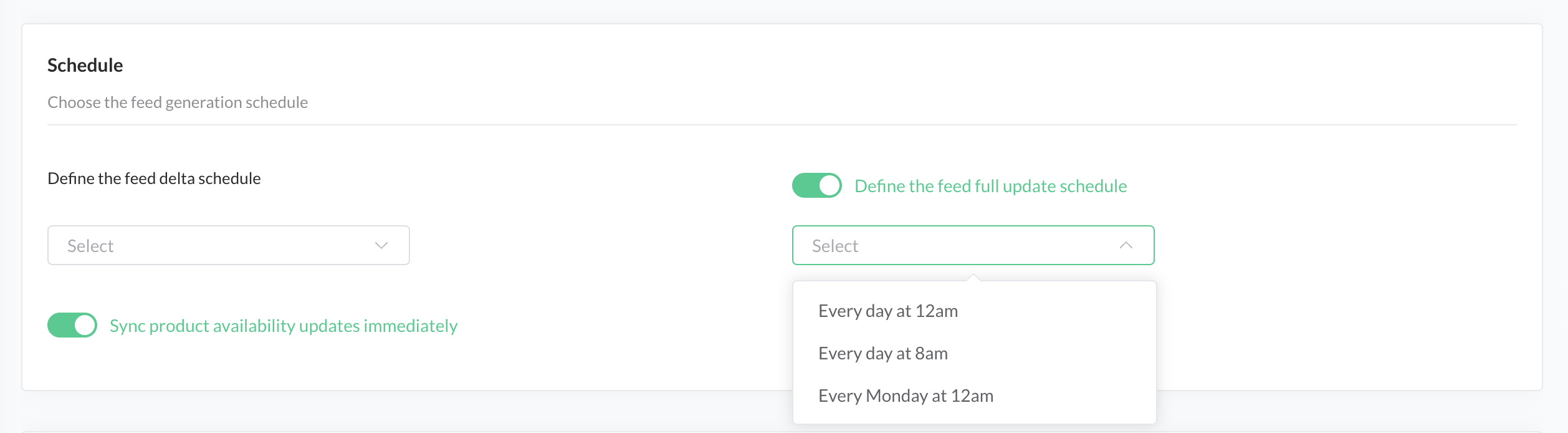
Feed Scheduler
Pick the file format
In this section, you are able to pick in which format the feed file should be generated. The masterfeed Add-on currently supports the generation of XML and CSV files.
Select the file format
- Go to Add-ons ➜ Masterfeed Add-on ➜ Feeds ➜ Feed Configuration.
- In the section Feed file, select CSV or XML.
- For a CSV file, select a separator from the dropdown options.
For a XML file, define the header. - Click SAVE.
For some preconfigured feeds have direct integrations to supported 3rd party partner solutions. For such feeds the file format is not configurable.
Choose an access option
In this section, you are able to define how you want to be provided with the feed files. The Masterfeed Add-on currently supports the following options to access the file:
| Option | Description |
|---|---|
| SCAYLE S3 | Feed files are provided on an AWS S3 bucked provisioned by SCAYLE |
| YOUR OWN SFTP | Feed files are transferred to an SFTP server of your choice |
| SCAYLE SFTP | Feed files are provided on an SFTP server provisioned by SCAYLE |
| SCAYLE API | Feed files are provided via an API exposed by the Add-on |
| YOUR OWN S3 | planned |
Configure SFTP as an access option
- Go to Add-ons ➜ Masterfeed Add-on ➜ Feeds ➜ Feed Configuration.
- In the section Feed access, select YOUR OWN SFTP from the dropdown options.
- Enter the Host, Username and Password to access the SFTP
- Click SAVE.
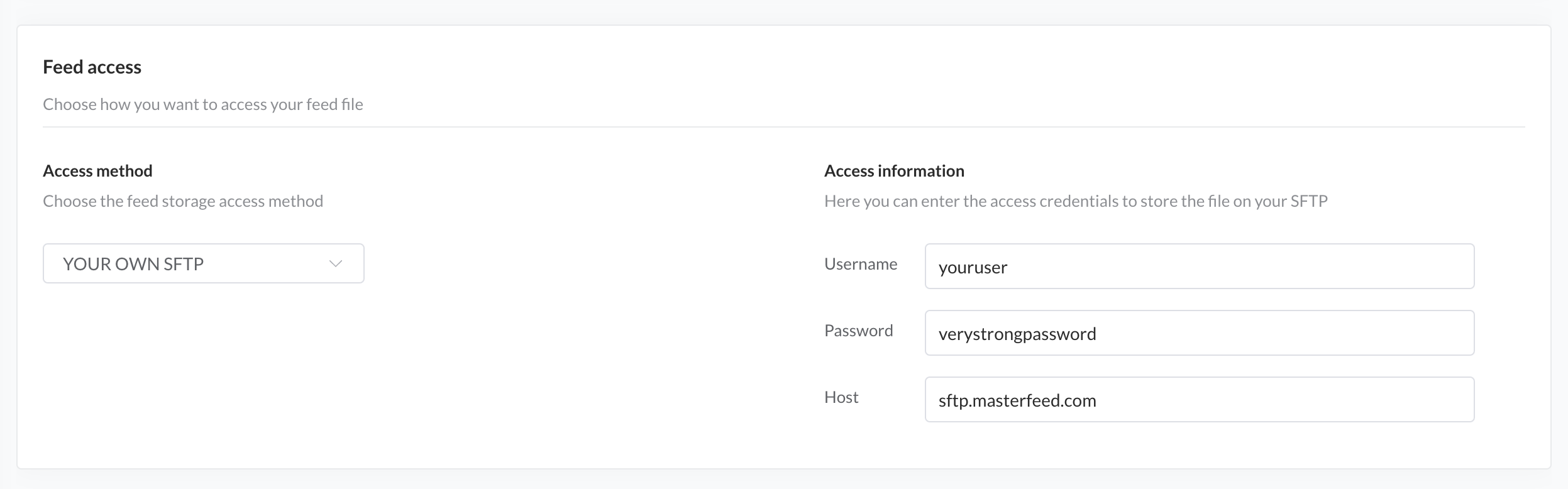
SFTP Access Option
Access feed files via SCAYLE API
Access and manage your feed files using the Masterfeed API. You can either download specific files directly or list all available generated files.
Security & Access Protection
By default, the SCAYLE API is OAuth protected.
- Protected Access: Requests require a valid Bearer Token. You can create and manage tokens in the Settings ➜ Masterfeed API Tokens page.
- Header:
Authorization: Bearer {YOUR_TOKEN}
- Header:
- Public Access: You can disable protection in the Feed Configuration ➜ Feed Access section by toggling "Enable OAuth protection" off. This allows the download URL to be used as a static link in third-party tools without authentication headers.
1. Download a Feed
Use this endpoint to download a specific feed file.
HTTP Request
GET https://{{tenant-space}}-masterfeed.addon.scayle.cloud/api/mfapp/download/feedId/shopId
| Parameter | Type | Description |
|---|---|---|
feedId | path | The unique ID of the feed. |
shopId | path | The unique ID of the shop/country. |
2. List All Feed Files
Returns a paginated JSON list of the latest generated files for each country/shop.
HTTP Request
Headers
| Name | Value |
|---|---|
| Content-Type | application/json |
| Authorization | Bearer <YOUR_TOKEN> |
Response
3. Understanding Pagination
Why are there multiple pages?
To ensure the API stays fast and responsive, we don't return every single file in one giant list. Instead, we "paginate" the results—meaning we send them in small batches (e.g., 15 files at a time).
How to read the pagination metadata:
In the meta and links sections of the response, you will see exactly where you are in the list:
| Field | Meaning |
|---|---|
current_page | The page number you are currently looking at. |
last_page | The total number of pages available. If this is "5", there are 4 more pages of data to see. |
total | The total number of files across all pages. |
per_page | How many items are shown on one page (default is 15). |
How to see the next page:
If last_page is greater than 1, you can access the next set of files by adding ?page=2 to your URL:
GET https://.../api/mfapp/feed-country-files/{feedId}?page=2
Alternatively, you can simply follow the URL provided in the links.next field of the JSON response.
Define the feed fields
In this section, you are able to define the fields your feed should contain. Depending on the selected data type of your feed, you can select from a set of System Fields and Attribute Groups to map data from SCAYLE to a corresponding field in your feed.
Beside a one-to-one mapping you can also apply advanced extraction and transformation logic to define your feed fields. Please study our documentation on Advanced field mappings to understand more about the field mapping options.
Define mapping for feed fields
- Go to Add-ons ➜ Masterfeed Add-on ➜ Feeds ➜ Feed Configuration ➜ Field Mapping.
- Click on Add Field.
- In the column SCAYLE, select e.g. Name from the dropdown options.
- In the column Feed, enter Product Name
- Click SAVE.
Remove a mapping row
- Select the Trash icon at the right end of the mapping row.
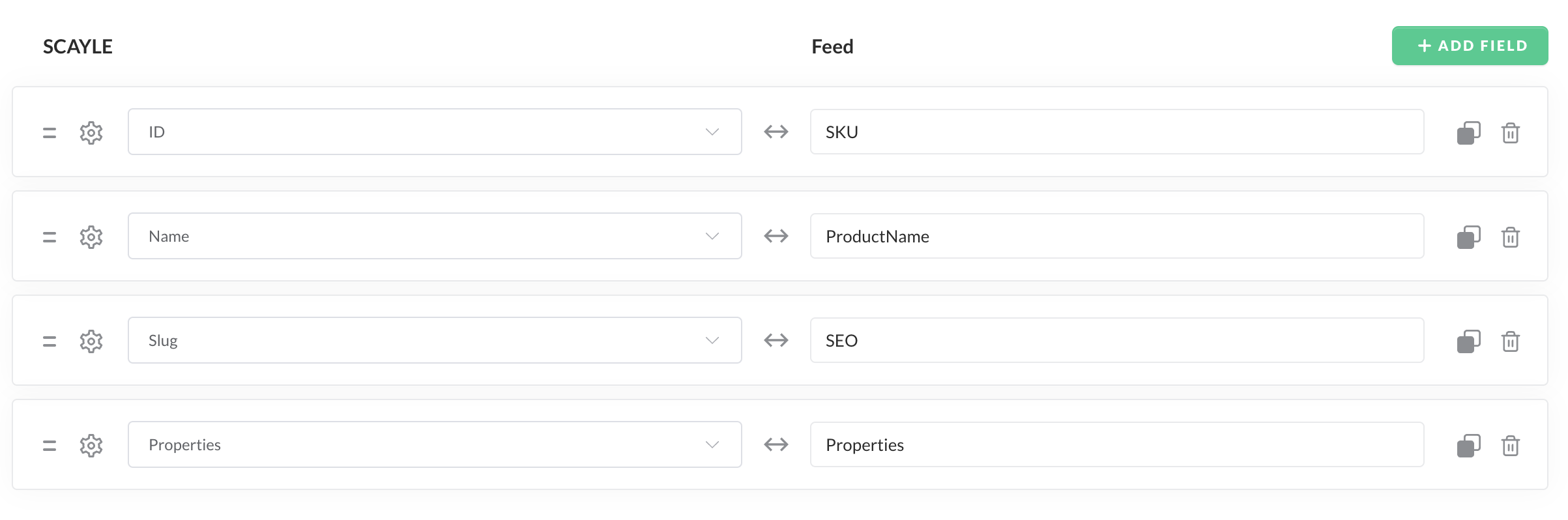
Feed field mapping table
Manage feed state
Before your feed will run you have to activate the feed. The Masterfeed Add-on features the following states of a feed.
- Draft - Use this state to for work in progress feed configuration.
- Active - Use this state to enable the generation on the feed.
- Inactive - Use this state to pause the feed generation.
Activate feed
- Go to Add-ons ➜ Masterfeed Add-on ➜ Feeds ➜ Feed Configuration.
- In the top of the configuration page, Click on Save As.
- Select
Activefrom the dropdown options. - Click SAVE.


