Field Type Plugin
The SCAYLE Storyblok Add-on comes with another application that you can install on your Storyblok space, the SCAYLE Field Type Plugin.
This extension of Storyblok allows you to search and select the SCAYLE shop data from the Storyblok sidebar. Instead of wrestling between the SCAYLE Panel and the Storyblok UI to copy Product or Category Ids to content elements you can use the Field Type Plugin to
- add products to content elements from Storyblok sidebar
- add categories to content elements from Storyblok sidebar
Enabling the Field Type Plugin
Contact your Storyblok Account Manager to set up the eCommerce integration for SCAYLE on your enterprise Storyblok space.
Once the Field Type Plugin is set up on the Storyblok side:
- Go to Add-ons ➜ Storyblok Add-on ➜ Integration.
- In the SCAYLE Field Type Plugin section, enable access to product and category data.
- Click SAVE.
Configure the Field Type Plugin
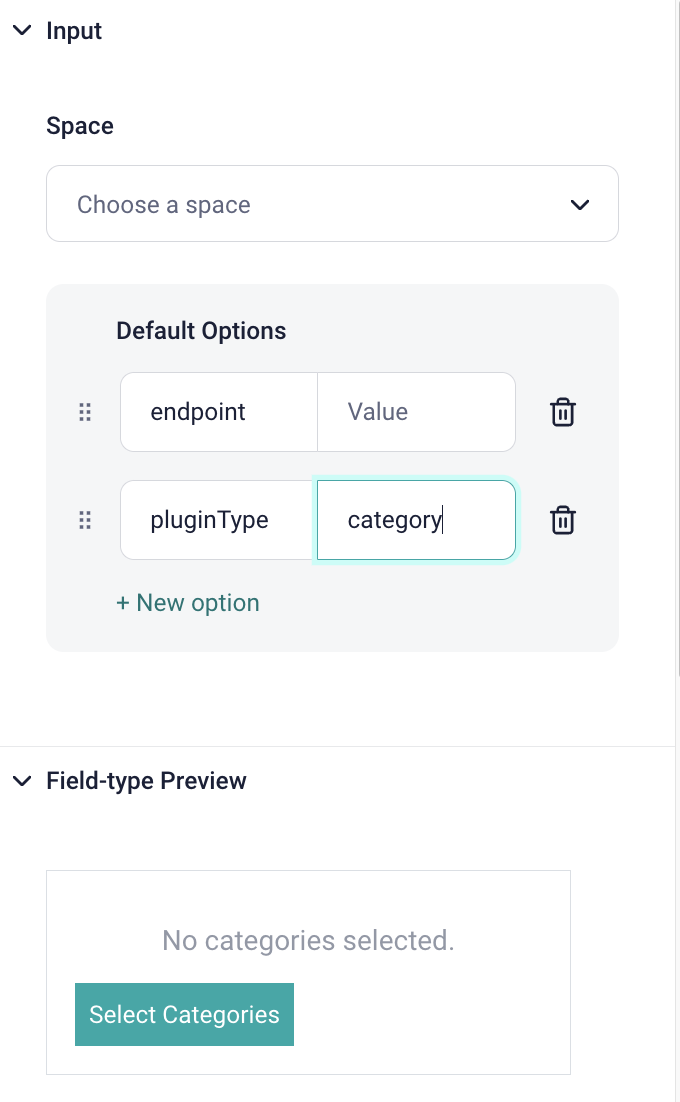
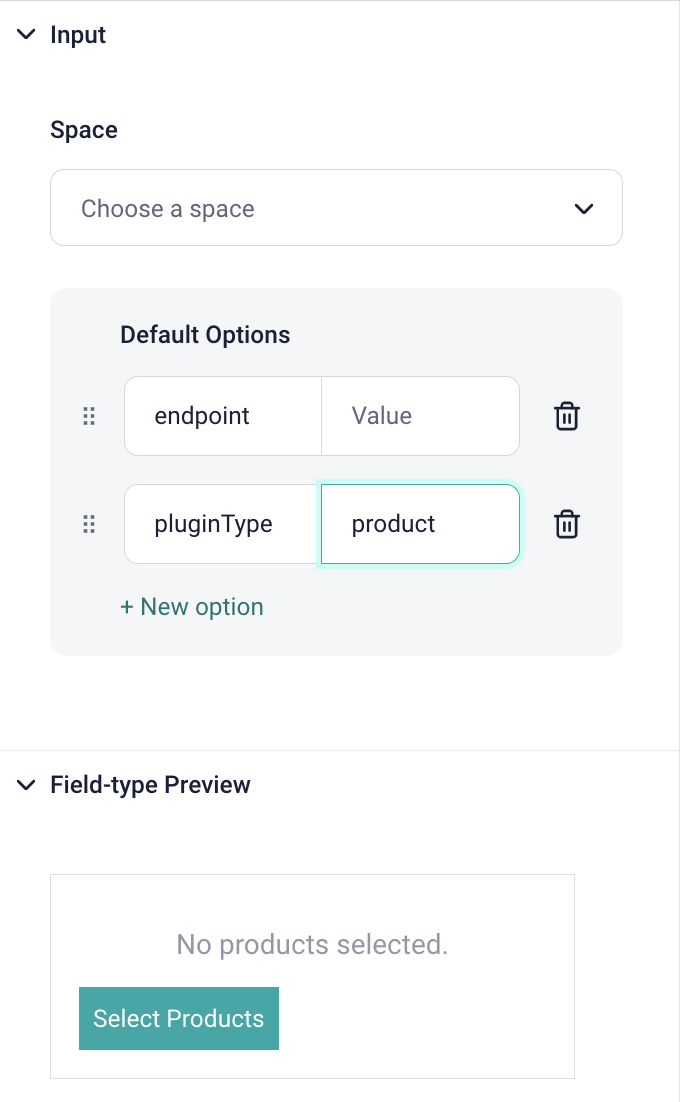
Once you have enabled access to product and categories in the SCAYLE Storyblok Add-on, you can jump to configuring your plugin within your Storyblok space. Go to the settings inside any component like the Product Slider and set the Custom Type in the Field Type Plugin on your Storyblok space. Afterwards, configure the following settings:
- endpoint: the endpoint provided by the SCAYLE Storyblok Add-on, ending with the shop ID
- pluginType: set to
productorcategoryto define which SCAYLE assortment data the field selects
| option | value |
|---|---|
| endpoint | https://shortKey-environment-storyblok.addon.scayle.cloud/api/shopKey Example: https://global-demo-storyblok.addon.scayle.cloud/api/1000 |
| pluginType | product or category |
Using products and categories to content elements
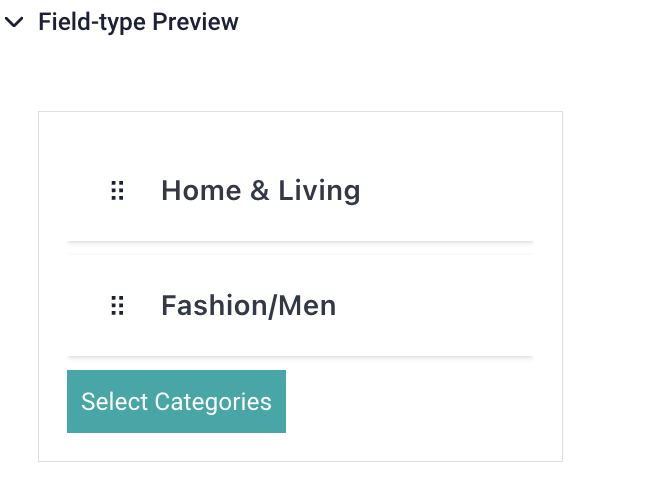
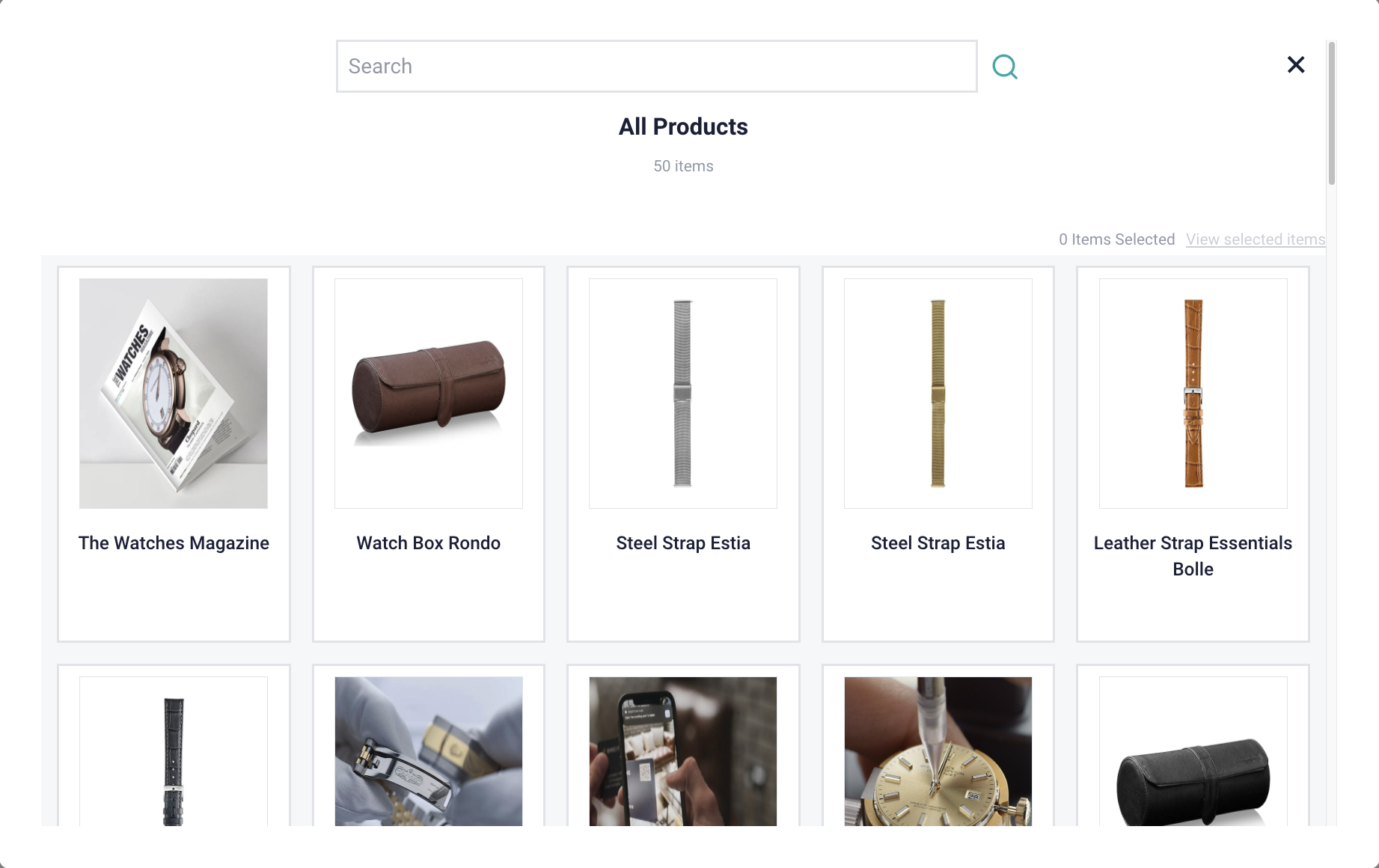
After setting up the plugin correctly, click the button select categories or select products. A window will open to allow searching the product or categories in the connected SCAYLE shop. Select the products or categories you want to add to your content elements such as Product Sliders, Category Banners, Product Cards.\