

Usage and Billing
Pricing Model
The Add-on is billed per image generation. Each generation includes the validation of the uploaded image and the image generation itself.
This means costs also apply in the following cases:
- An uploaded image fails validation.
- A customer generates a try-on for the same variant again, using a different uploaded image.
Usage and Spend Dashboard
The reporting screen in the SCAYLE Panel (Add-ons ➜ Virtual Try-On ➜ Dashboard) shows usage for a selected month and for one or more shop-countries:
- Images generated – a daily breakdown for the month and a monthly total.
- Budget – the base amount, any top-up, and the currency for the month.
- Estimated spend to date – the cost of images already generated this month. Each image is valued at the price version that applied when it was generated.
- Projected images remaining – an estimate of how many more images the remaining budget covers, based on the latest unit price.
- Disabled shop-countries – shop-countries whose budget is switched off for the selected month.
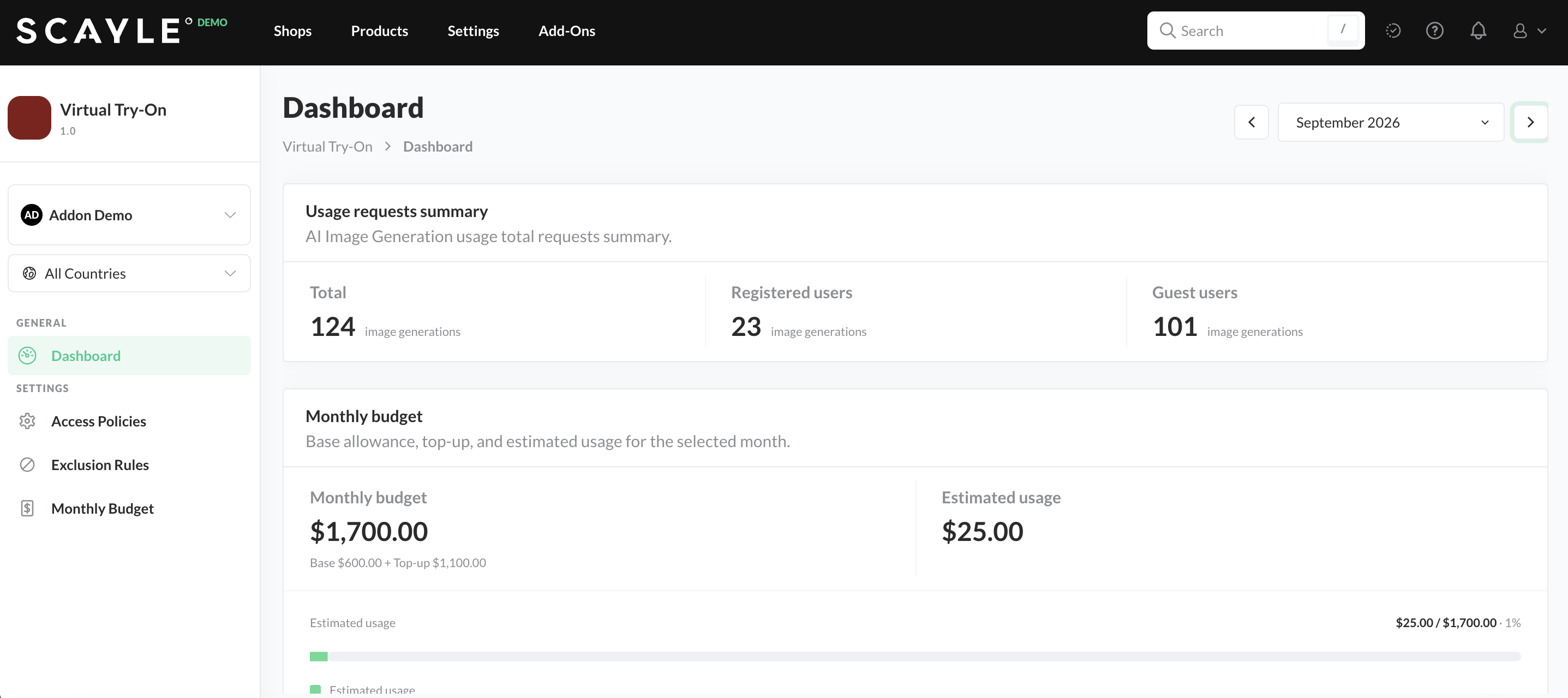
Usage and Budget Dashboard in the SCAYLE Panel
We can only estimate the costs, as we calculate the actual billable costs based on tokens spent for image validation and image generation. These costs can vary based on the images that are uploaded and the token price.
How Activation Follows the Budget
Calculate the total monthly budget
The total budget for the month is the base amount plus the top-up amount.
Calculate the remaining budget
The remaining budget is the total budget minus the spend already incurred, minus an estimate for images from the last hour that are still generating.
Determine feature activation
The feature is active while the budget is enabled and the remaining budget is at least the price of one image.
When the remaining budget can no longer cover a single image generation, the Add-on rejects new try-on requests with a feature_inactive error (HTTP 403), and the storefront settings endpoint returns isActive: false. To reactivate the feature, add a top-up. Alternatively, the feature reactivates when a new month with a fresh budget begins.
Manage Spend
To keep your spend under control:
- Set realistic monthly budgets per shop-country to limit your cost exposure. We recommend starting with a low budget and adding top-ups as necessary.
- Use top-ups to extend a month that is running low, without waiting for the next month.
- Review the daily breakdown to spot demand spikes.
- Disable a shop-country for a month to stop image generation entirely, while keeping the Add-on active for other shop-countries.
For more information on configuring budgets, see Budgets.


