

Configuration
Checkout configuration and frontend changes
When requesting the Avalara Add-on, you need to do some changes and your SCAYLE Account Manager will adjust the SCAYLE Checkout settings as needed.
Changes done by you:
- Set
basket.showNetPricestotruein the checkout configuration - Add new translation string
basket.taxes: “Estimated Taxes“, if not existing
Changes done by your SCAYLE Account Manager:
- Set
taxRate.externalService.enabledtotrue - Set
taxRate.externalService.supportedCountryCodesto[“USA”] - Request credentials to connect Avalara Add-on to the SCAYLE Checkout
These settings will lead to the following changes in the Checkout frontend for your end users.
- Prices of products and service costs are displayed with net values
- Voucher discounts on item level are not displayed
- Promotional artifacts on item levels are not displayed
- Tax is declared as Estimated Taxes
- An info message on tax exemption support process is displayed below the order summary

Checkout frontend with external tax service
Make sure your Storefront displays net prices and provides your users with a message like: "taxes are calculated during the Checkout process".
Add-on configuration
Avalara Add-on Settings
This Settings section in the Avalara Add-On Panel UI allows you to specify and test the connection to your AvaTax Production and Sandbox Account:
- Enter AvaTax API Username and Password.
- Toggle Enable Sandbox Mode on for Sandbox access, or off for Production access.
- Click Test Connection to verify credentials and fetch Company Codes once Username and Password are set.
- Select Company Code from a dropdown.
- Turn off Enable Document Commitment to disable document recording.
- Enable AvaTax API: Switch on Enable AvaTax.
- Enable client-side logging: Switch on Enable Logging.
- Click Save.
If Logging is enabled complete requests and responses for each call made to AvaTax will be saved and displayed on the Transaction Logs page for 30 days.
If AvaTax API is enabled, the Add-on will transmit sales order, order invoice and refund events to Avalara based on the following webhook subscriptions:
order-confirmedorder-cancelledorder-item-cancelledorder-item-returnedorder-item-unshippable
Define tax codes
Tax codes for products are handled via Attribute Groups. The Avalara Add-on sends null to AvaTax, if the tax code is not set as product attribute. AvaTax considers a default tax code (P000000).
For each product or variant in SCAYLE you use the SCAYLE attribute enhancement capabilities and make sure that the attribute group taxCode is set.
- Look up the tax codes for your product in the Avalara AvaTax System.
- In the SCAYLE Panel, go to Products and select the required product.
- In the Attributes section, click the
taxCodefield and enter the appropriate tax code. - Click Save.
You can also use bulk operations feature to enhance tax codes on your products, use the import capabilities of the SCAYLE Panel, or set product attributes via the Admin API.
If you leave the product attribute group taxCode blank, then Avalara AvaTax Add-on assigns the default code for physical goods tax, P000000, to your product or variant.
Manage Avalara item code
Item codes for products are also handled via Attribute Groups. Find an advanced Attribute Group named itemCode in your SCAYLE Panel after installing the Add-on. Item codes are used as item identifiers by Avalara.
You have the option to specify an itemCode for each product, which will be passed to AvaTax. This is an optional field and if provided, AvaTax will look up the item and use all information available about that item in Avalara for the transaction.
If an itemCode is provided, then AvaTax will use the itemCode for the tax calculation, not the taxCode.
Service cost code - tax code mapping
Tax codes for shipment, freight or other taxable services can be configured in the Avalara Add-on. The section Service Cost Code - Tax Code Mapping on the Settings page allows assigning of the custom cost key to a tax code value.
Add new TaxCode/CostKey mapping
- Click on Add New Row button.
This will create a new row with empty Tax Code and Cost Key input fields to assign mappings.
Free text input fields should be populated before saving. Empty fields will block the save and highlight the missing values.
Remove the mapping row
- Select the Trash icon at the right end of the mapping row.

Remove the mapping row
Transmission of origin shipping address
This mapping section allows assigning a custom Address value to a Warehouse specified by an ID.
Before assigning custom address, make sure that a mapping row exists.
- Toggle Enable transmission of origin shipping address to activate the transmission.
- Click on the Add Warehouse button to add new warehouse address mapping.
- Select Warehouse ID from the dropdown.
- Select the pen icon to edit the address input field. In the popup, enter:
- Line1 (required) - text
- Line 2 (optional) - text
- City (required) - text
- Region (required) - text
- Postal Code (required) - text
- Country (required) - select from dropdown
- Click Edit to trigger the validation of the address fields.
- To save the entire config, click Save in the top right of the page header.
If at any time Transmission of origin shipping address toggle is disabled: the address mapping row state will be preserved, but the section won’t be visible.
If the Enable transmission of origin shipping address toggle is enabled: mapping rows with valid addresses should be present.

Add Warehouse

Edit warehouse Address
Customer Tax Exemption
The Customer Tax Exemption page lets customer service agents assign entity use codes to customers. Customers with an assigned code can be exempted from taxes if they are eligible.
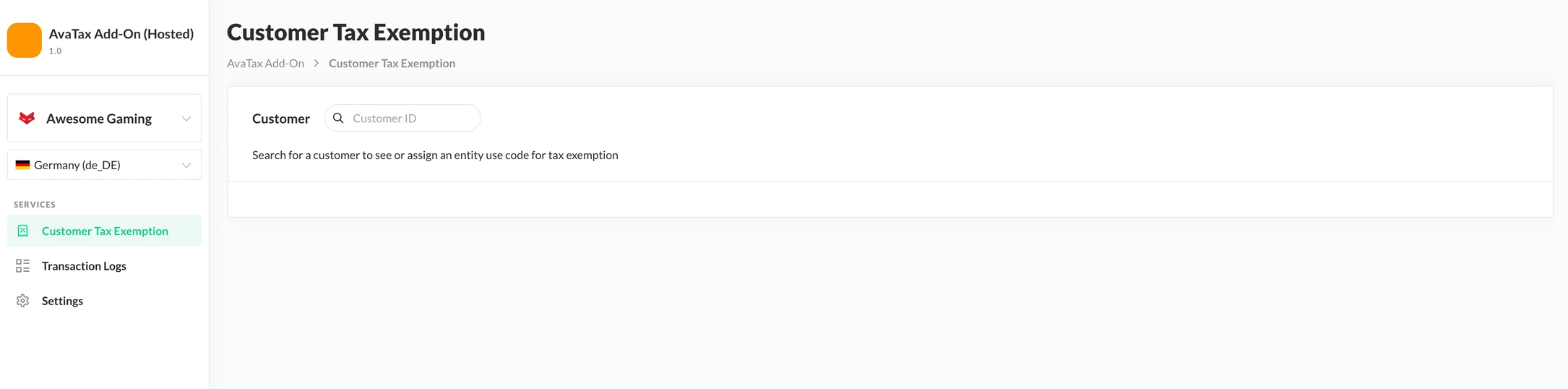
Customer Tax Exemption
Assign AvaTax code exemption to a customer
- Go to Add-ons ➜ Avalara ➜ Customer Tax Exemption.
- Search for a customer using the
customerID - In the AvaTax entity use code dropdown, select the Entity Use Code for the customer.
- Click Save.
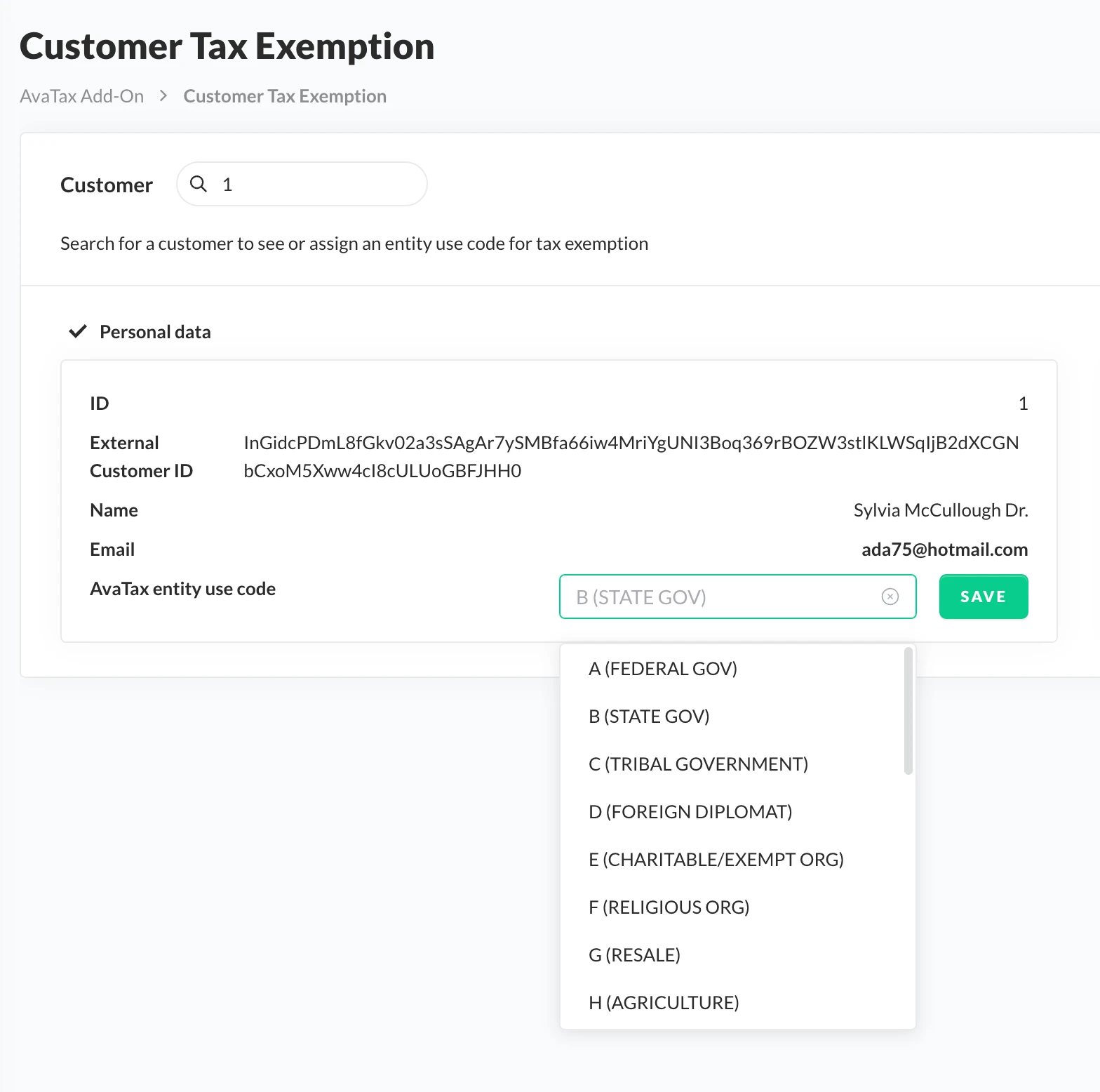
Assign Ava Tax code exemption to a customer
Connect Avalara Add-on and SCAYLE Checkout
Configuring the AvaTax credentials in the SCAYLE Panel sets up the Add-on itself. To calculate tax during the checkout process, SCAYLE Checkout also needs a connection to the Add-on's tax rates endpoint. Until this connection is established and enabled, Checkout does not request tax rates from the Add-on and the integration is incomplete.
This connection is not self-service. Activating it requires the SCAYLE team, who set the connection details in your Checkout configuration. Plan for this step before a go-live or proof of concept, and request it through your SCAYLE Account Manager.

