

SCAYLE Zendesk Sidebar App
The SCAYLE Zendesk Add-on comes with another application that you can install on your Zendesk instance. This extension allows your customer agents to see the customer data and order from SCYALE within your Zendesk instance, instead of wrestling between the SCAYLE Panel and the Zendesk UI to inspect customer information.
Installing the SCAYLE Zendesk Sidebar App
Contact your SCAYLE Account Manager to set up the eCommerce integration for SCAYLE on your enterprise Zendesk account.
The installation needs to be handled by someone on tenant side that has administrator rights in your Zendesk account.
Open Admin Center
Sign into your Zendesk account as an administator. Open the Admin Center (or visit https://<your-subdomain>.zendesk.com/admin).
Upload Private App
Navigate to Apps and integrations → Apps → Zendesk Support apps. Click Upload private app and fill in the following details:
- App name
- App file: Select the
scayle-zendesk-client.zipfile provided by your SCAYLE Account Manager. (Do not unzip; upload as-is.)
Click Upload and confirm the warning.
Configure Private App settings
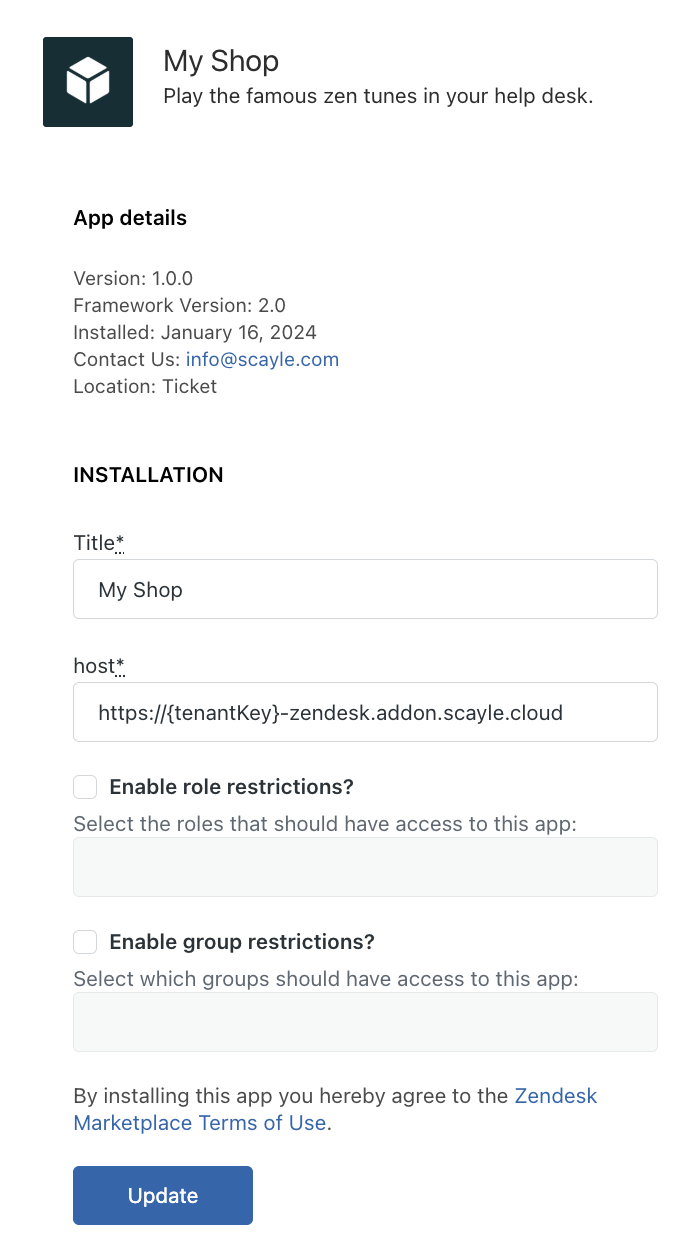
On the settings screen that appears, fill in:
- Host:
https://{tenantKey-environment}-zendesk.addon.scayle.cloud(Ensure there is no trailing slash. This is the SCAYLE service, not the Zendesk URL. Verify thetenantKeyandenvironment- adjust for live or test as needed.) - Enable role/group restrictions: Leave these unchecked to allow all agents to see the app. Only enable them if you wish to restrict access to specific teams.
Click Update. The app will now appear in the Zendesk Support apps list.
After setting up the SCAYLE Zendesk Sidebar App every agent can pin the app to the sidebar and start using it. A requirement for the usage is a valid SCAYLE Panel account in order to login and see customer data. After logging into the SCAYLE Panel the SCAYLE Zendesk Sidebar App will be usable for the customer agent.
Enable the app to make it visible in the ticket sidebar. The app appears inside an open ticket, not in the top navigation.
- Open any ticket.
- On the right-hand side, open the Apps panel by clicking the icon in the top right of the ticket.
- Find SCAYLE in the panel and click the pin icon on its header to keep it visible on every ticket.
- The app will prompt you to log in; please use your SCAYLE Panel account. (Note: Every agent requires their own individual Panel account.)
- Once logged in, the customer and order details for the ticket requester will be displayed.

