

Rule Engine
The Rule Engine lets you dynamically control checkout elements based on customer, order, or payment context. For example, you can disable specific delivery options for large items or restrict payment methods based on basket value, items, or shipping address.
To start, please ensure the Rule Engine is activated for the specific shop.
Rules are created and applied individually per environment (e.g., prev, test, live). If a rule is created in one environment, it must be manually recreated in the other environments—there is currently no export or clone function.
Rules created in the live environment will take effect for end users in the checkout as soon as they are active. It is therefore important to test all rules first in lower environments before enabling them in live.
Rules can be created and managed via the SCAYLE Panel. Each rule consists of:
- Condition → what the rule evaluates
- Result (Outcome) → what happens when the condition is met
How the Rule Engine Works
Rules Conditions
Conditions can reference data from:
| Condition Group | Condition Variable | Variable Options |
|---|---|---|
| Object | Customer |
|
| Object | Order |
|
| Object | Address |
|
| Object | Application |
|
| Object | Client |
|
| Collection | Items |
|
| Collection | Packages |
|
| Collection | Vouchers |
|
| Collection | Payments |
|
Logical Operators
Depending on the selected object or field, the following operators may be available:
| Operator | Purpose | How it Works | Example |
|---|---|---|---|
IS | Exact match | True if the value is exactly equal to the specified value | country IS "DE" → matches Germany |
IS NOT | Exact mismatch | True if the value is anything other than the specified value | customerGroup IS NOT "VIP" → excludes VIPs |
IN | Match any value from al list | True if the value exists in the provided list | country IN ["DE","AT","CH"] → matches DACH region |
NOT IN | Exclude values from a list | True if the value does not exist in the provided list | paymentMethod NOT IN ["paypal","creditcard"] |
LIKE | Partial/wildcard match | True if the value matches the pattern using % | zipCode LIKE "25%" → matches all zip codes starting with 25 → 25000, 25A, 2599zipCode LIKE "%25%" → matches zip codes containing 25 anywhere → A25B, 12500, 9925zipCode LIKE "%25" → matches all zip codes ending with 25 → 12325, A25, 0025 |
NOT LIKE | Partial/wildcard mismatch | True if the value does not match the pattern using % | zipCode LIKE "25%" → exludes all zip codes starting with 25 → 25000, 25A, 2599zipCode LIKE "%25%" → excludes zip codes containing 25 anywhere → A25B, 12500, 9925zipCode LIKE "%25" → excludes all zip codes ending with 25 → 12325, A25, 0025 |
= | Equal to | True if the value matches exactly. | orderTotal = 100 → matches orders with a total of 100. |
!= | Not equal to | True if the value does not match. | customerGroup != "VIP" → matches customers not in the VIP group. |
> | Greater than | True if the value is larger than the specified value. | orderTotal > 50 → matches orders above 50. |
< | Less than | True if the value is smaller than the specified value. | orderTotal < 200 → matches orders below 200. |
<= | Less than or equal to | True if the value is smaller than or equal to the specified value. | orderTotal <= 100 → matches orders of 100 or less. |
>= | Greater than or equal to | True if the value is larger than or equal to the specified value. | orderTotal >= 50 → matches orders of 50 or more. |
Rule Outcomes
When a condition matches, the rule can modify checkout behaviour. Outcomes currently support:
| Checkout Element | Outcome | Results |
|---|---|---|
| Delivery Options | Control how customers see delivery options/form fields at the checkout. |
|
| Shipping Options | Disable shipping methods |
|
| Payment Options / Express Payments | You can disable specific standard or express payment options based on the rule condition. | Example:
|
| Risk Assessment | Use rules to manage risk during checkout |
|
| Available Collection Point Delivery Option | Configure availability of collection points as a shipping option based on rule results |
|
How to Manage Rules in the Panel
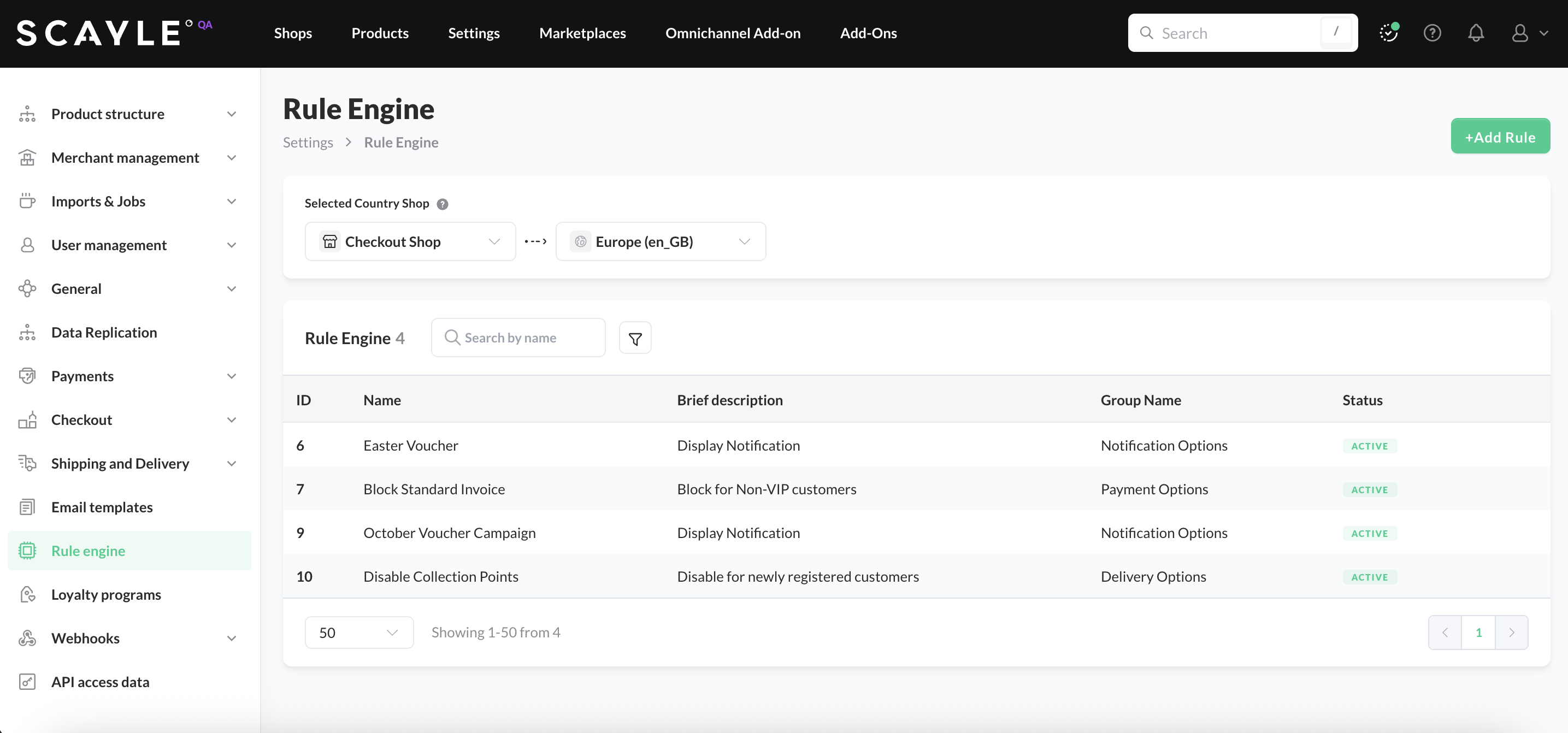
Navigate through Settings ➜ Rule Engine in the SCAYLE Panel. Rules are managed at the shop level, therefore you must select the country shop in the dropdown before searching, adding, editing and/or deleting a rule.
Creating a New Rule
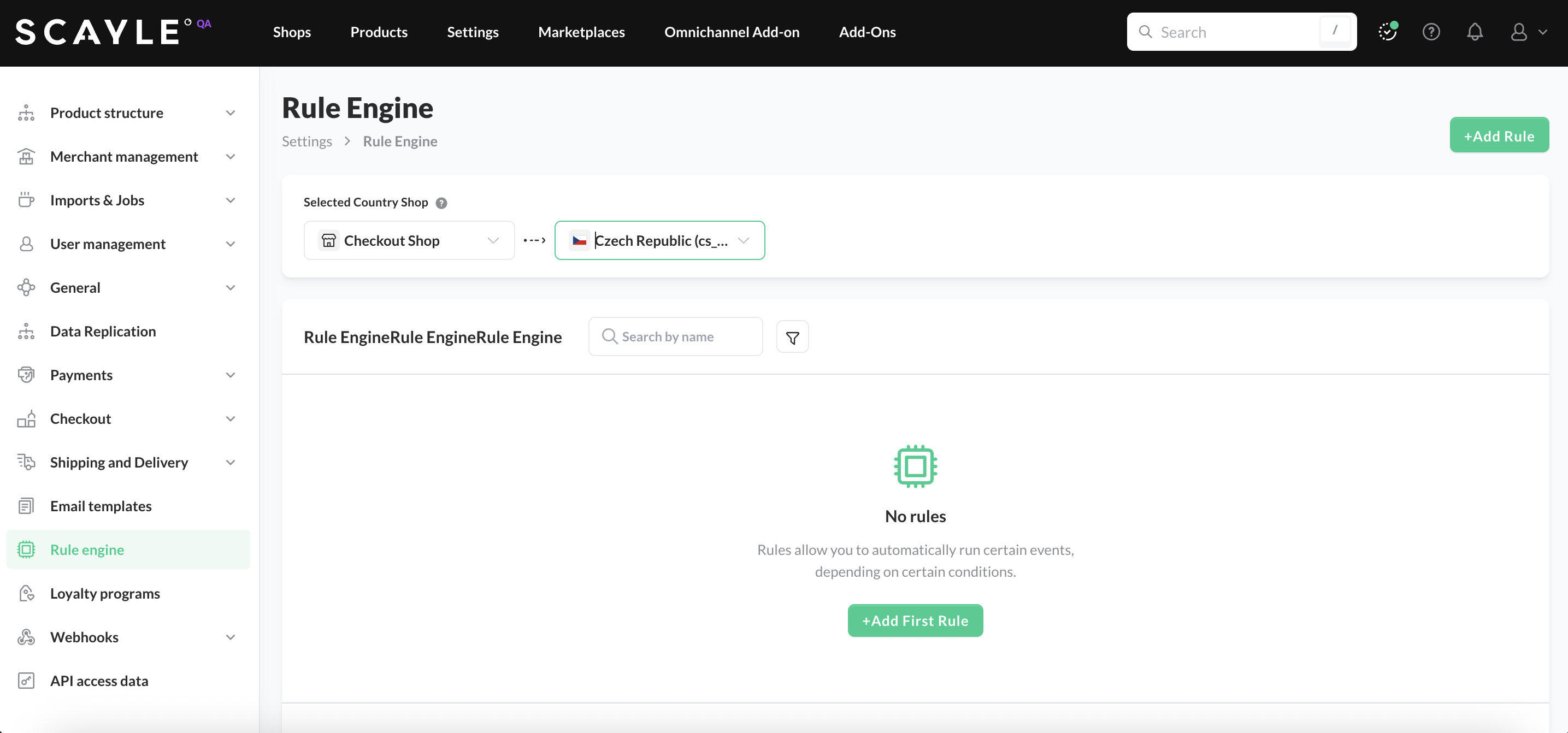
Once you are in the Rule Engine tab, select the desired country shop from the dropdown. To proceed, click the +Add Rule button. Alternatively, depending on whether you already have active rules, a +Add First Rule button will be displayed. You can also click on it to start.
You will be redirected to the New Rule page, where you must provide a name, a description, and define both the conditions and the results of your rule. These 3 steps are mandatory. The page will only allow you to proceed to the next step once the previous one is completed.
Step 1 - Add a Name and Description for the rule. These fields help you identify and search for the rule later, so make sure to provide clear and meaningful information.
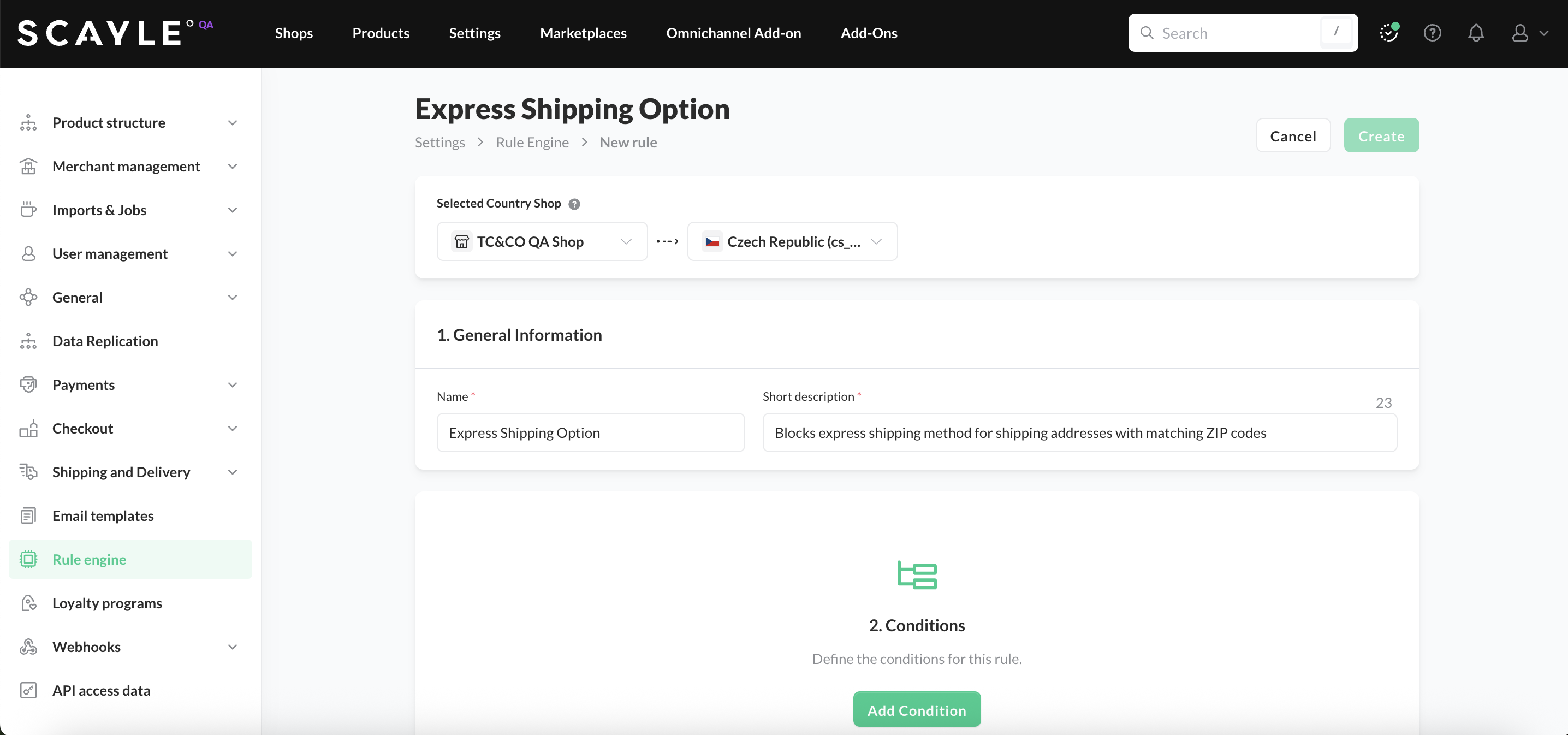
Step 2 - Click on Add Condition button to start and:
- Select an object or collection from the list.
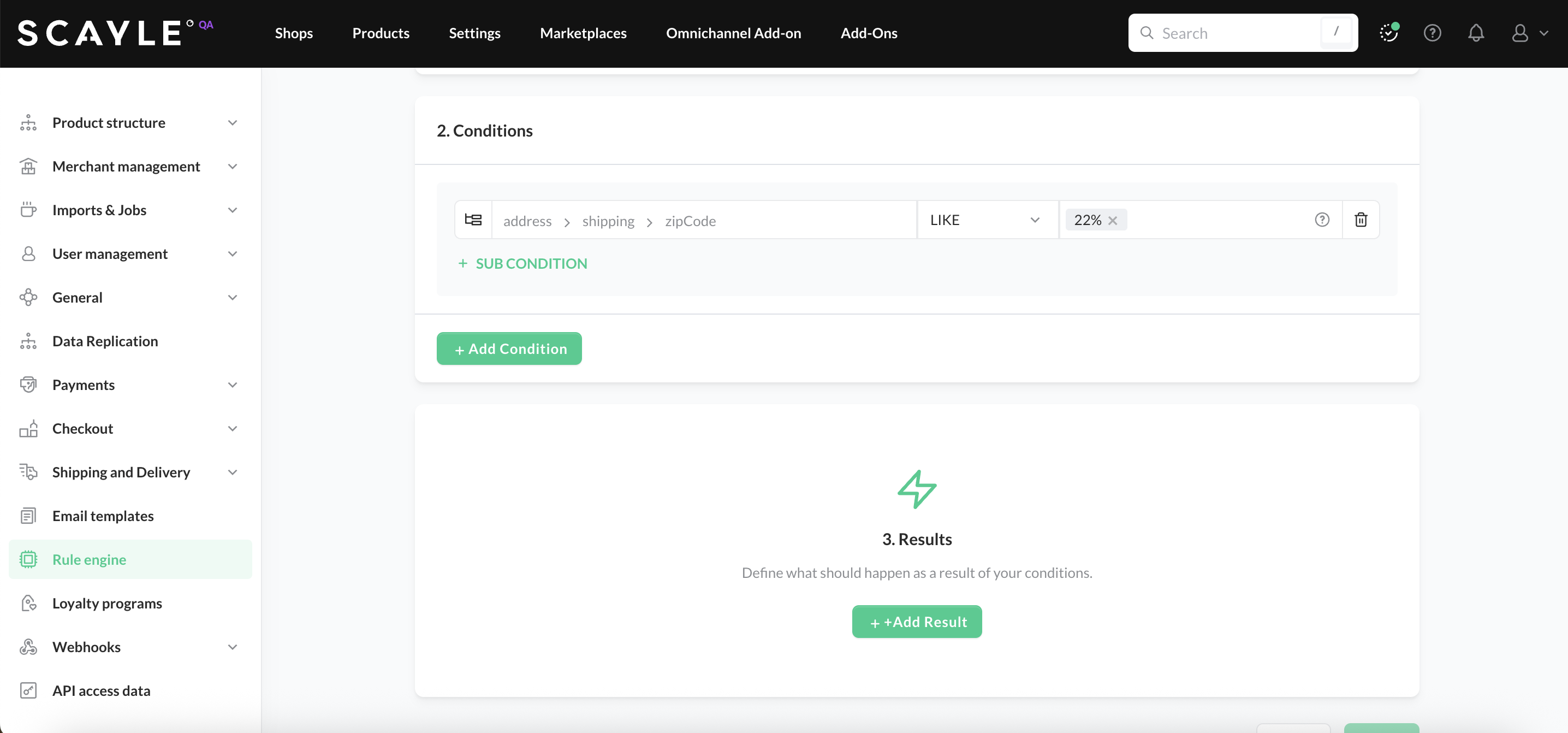
- The menus will be populated based on the previous selection (e.g.:
address→shipping→zipCode). - When the variable selection is completed, click on Add.
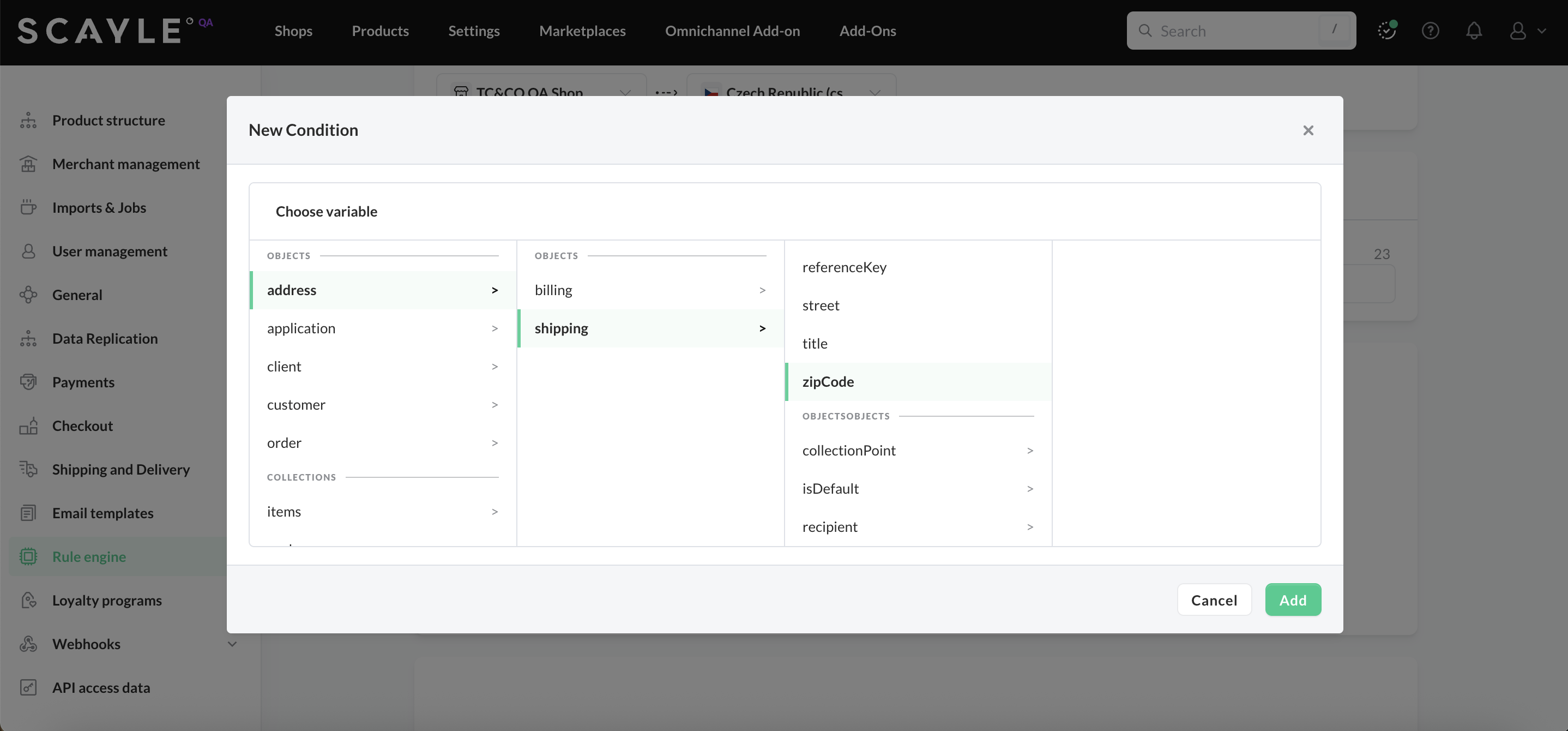
- Select the logical operator of your condition and corresponding value (e.g.,
12345,%22,London, etc), and press enter in your keyboard.
Depending on the selected operator, you might be able to add one or multiple values.
For free-text address fields such as state, the stored value may arrive in different formats depending on how the customer filled in the address. When using the IN operator, include every variation you expect to receive (see the State-Based Rule example).
Optional configurations:
- Sub conditions: You can add one or multiple sub-condition to your rule by clicking the +SUB CONDITION button. When adding it, you must to choose the same operator for multiple sub-conditions within the rule.
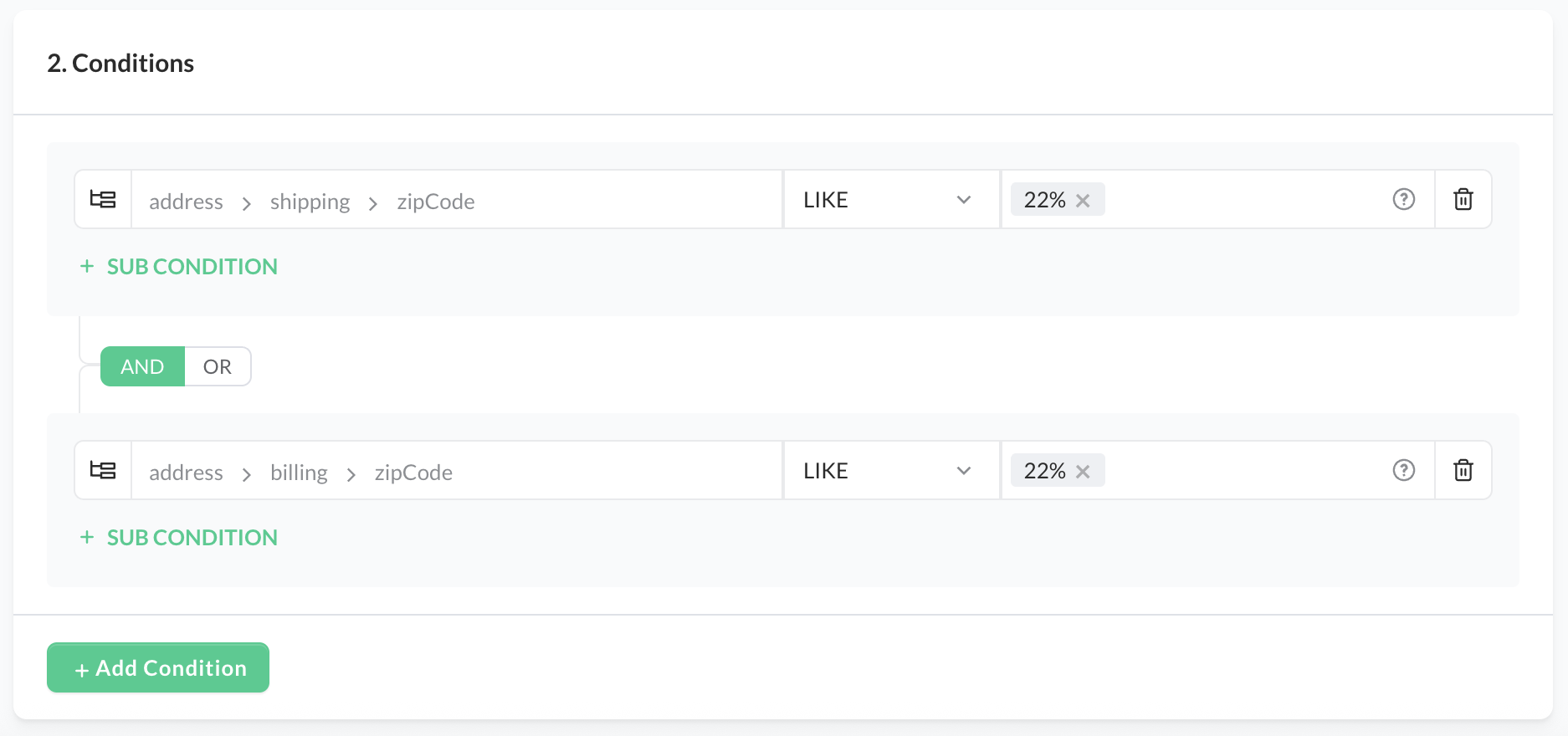
- Multiple conditions: You can add multiple conditions to a single rule by clicking +Add Condition in Step 2. Make sure to connect them using the
ANDorORoperator.
For example, if you want to disable express shipping options for addresses with ZIP codes starting with 22, the Rule Engine allows you to base this on both the shipping and billing address. In this case, you would create two conditions: one for the shipping address and one for the billing address.
AND→ Choose this operator if the rule applies only if all conditions are true.OR→ The rule applies if any condition is true.
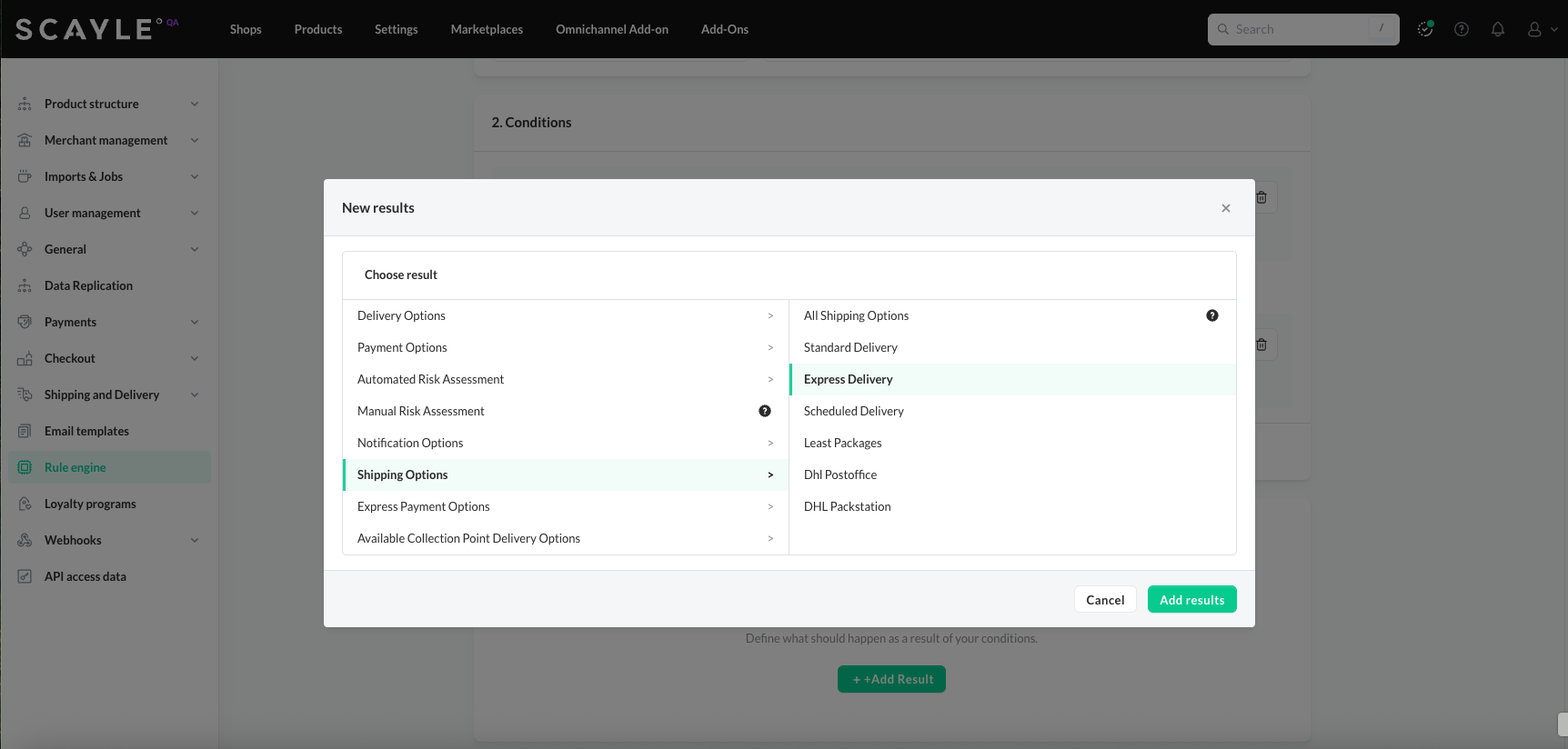
Step 3 - To define what happens when the conditions are met, click + Add Result and choose an option from the menu. In the example below, the rule modifies the express delivery option in the checkout.
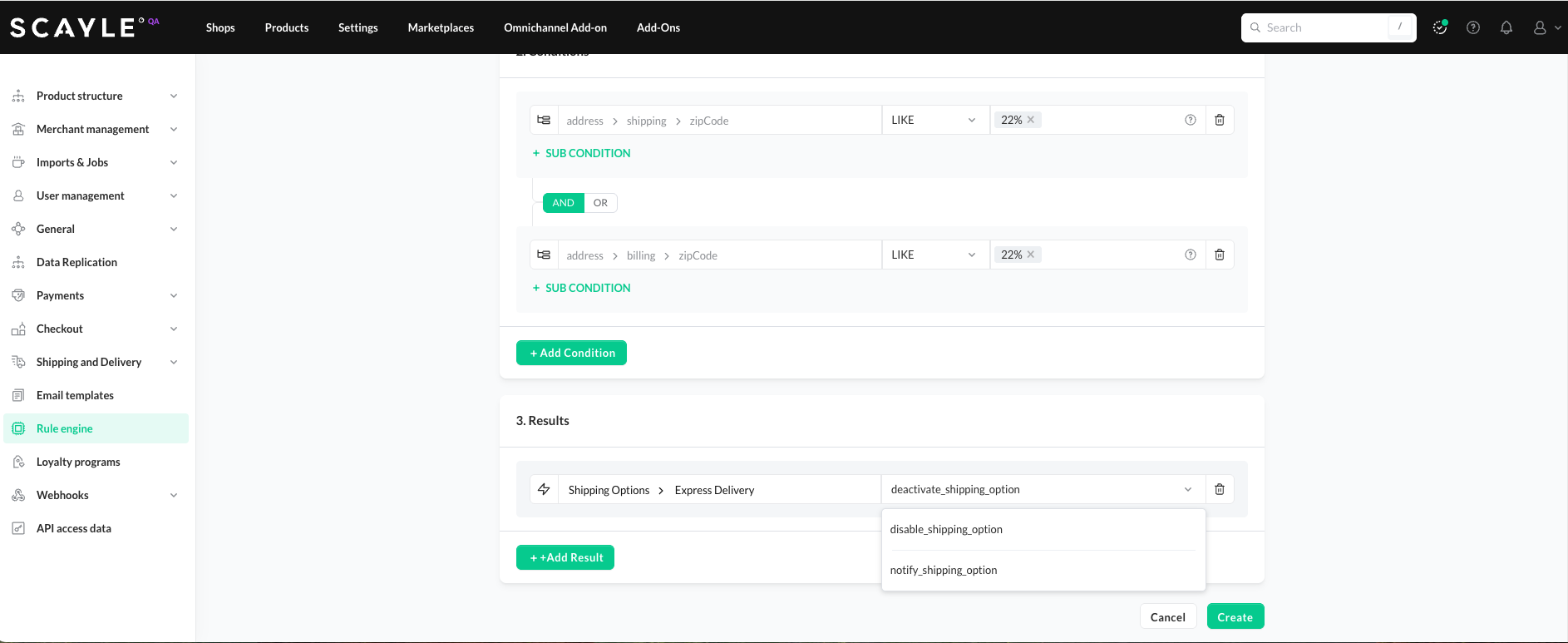
Once you add a result, you can choose whether to disable an option or trigger a specific notification.
To add multiple results, click + Add Result again. Note that multiple results can only be created when they apply to the same type of option (e.g., shipping options).
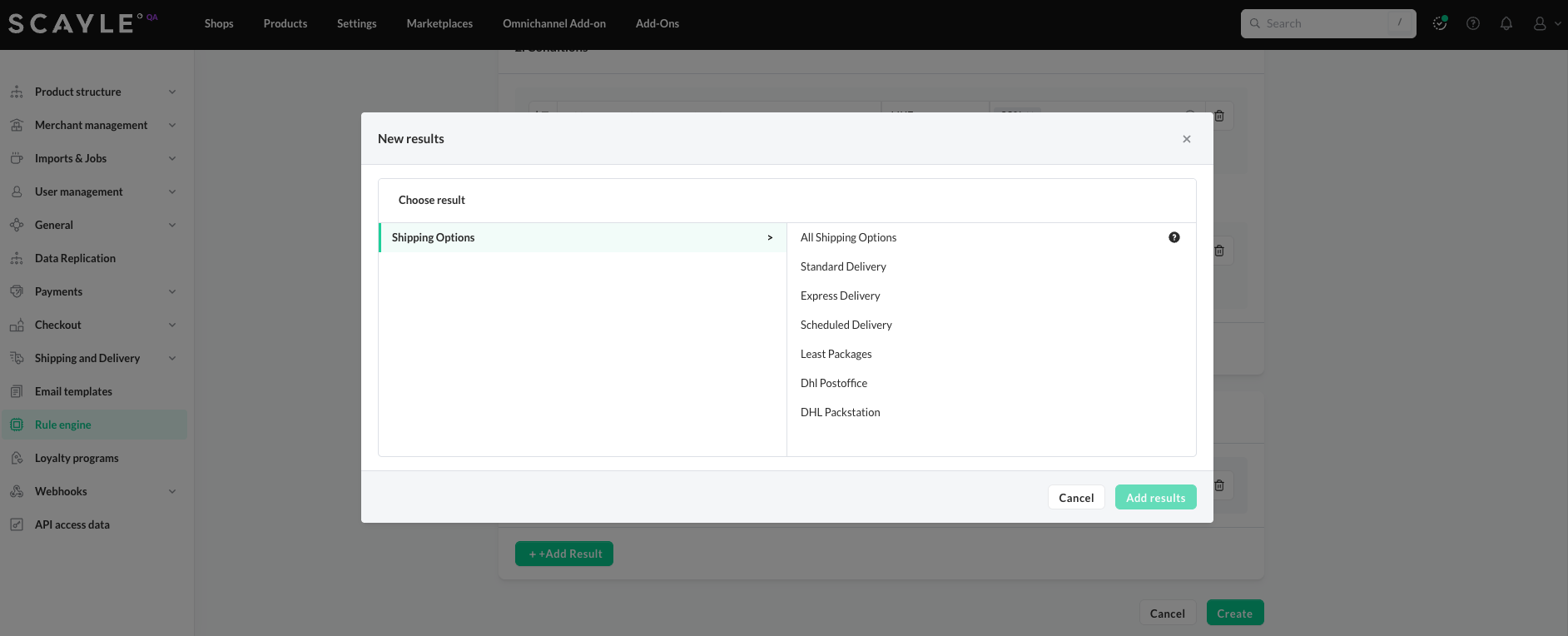
Unlike conditions, multiple results do not require AND/OR operators. All results you add will be applied to the checkout whenever the rule is triggered.
Rules in the Rule Engine disable options, not enable them.
Because of this, the recommended approach is:
- Start with broad “exclusion” rules
(e.g., disable shipping options that are never relevant for certain countries) - Then create more specific rules
(e.g., disable an additional option for a ZIP code pattern, a customer group, etc.)
This avoids having to repeat the same exclusions across many rules.
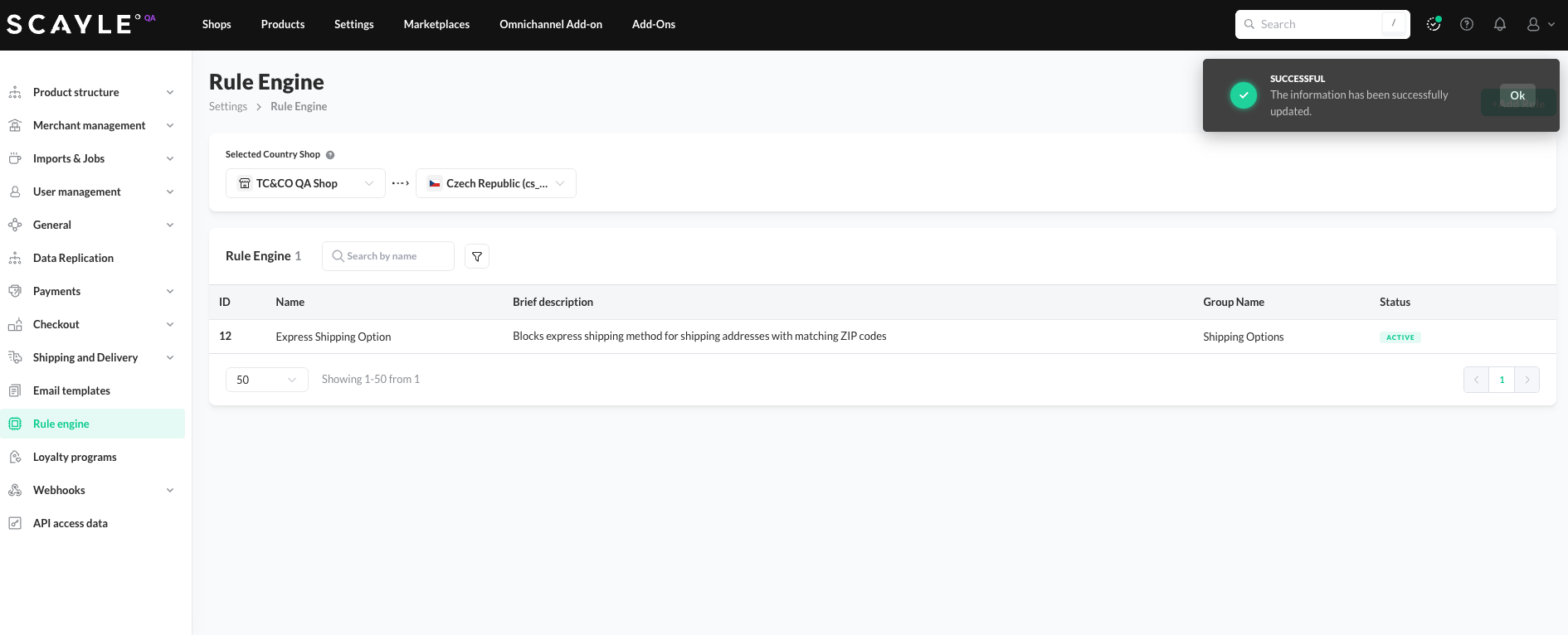
Once you finished creating the conditions and results, click on Create to apply the rule. You wll be redirected to the Rule Engine overview and a success message will be displayed:
Managing Existing Rules
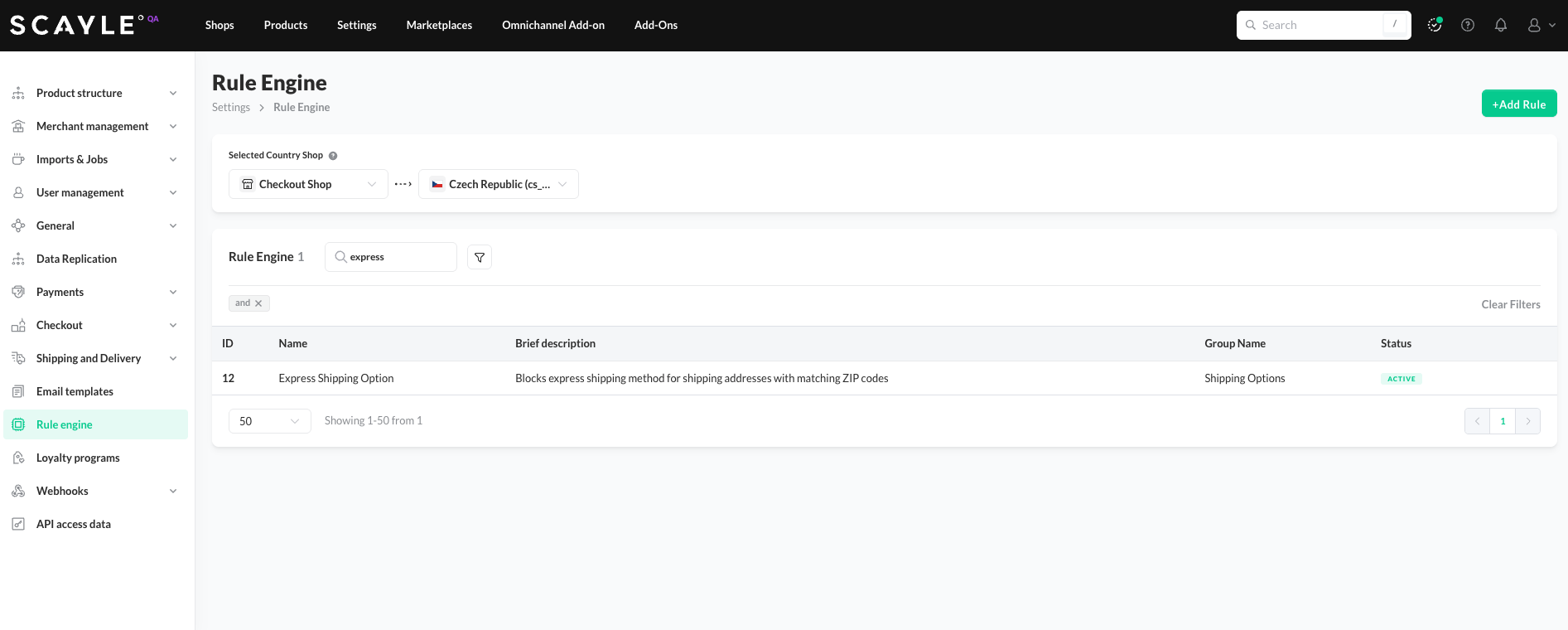
All existing rules are listed in the Rule Engine section of the SCAYLE settings. Each rule has a unique ID that helps with identification and debugging. You can search for a rule by name using the search bar, or filter the list by Name, Description, Group Name, or Status.
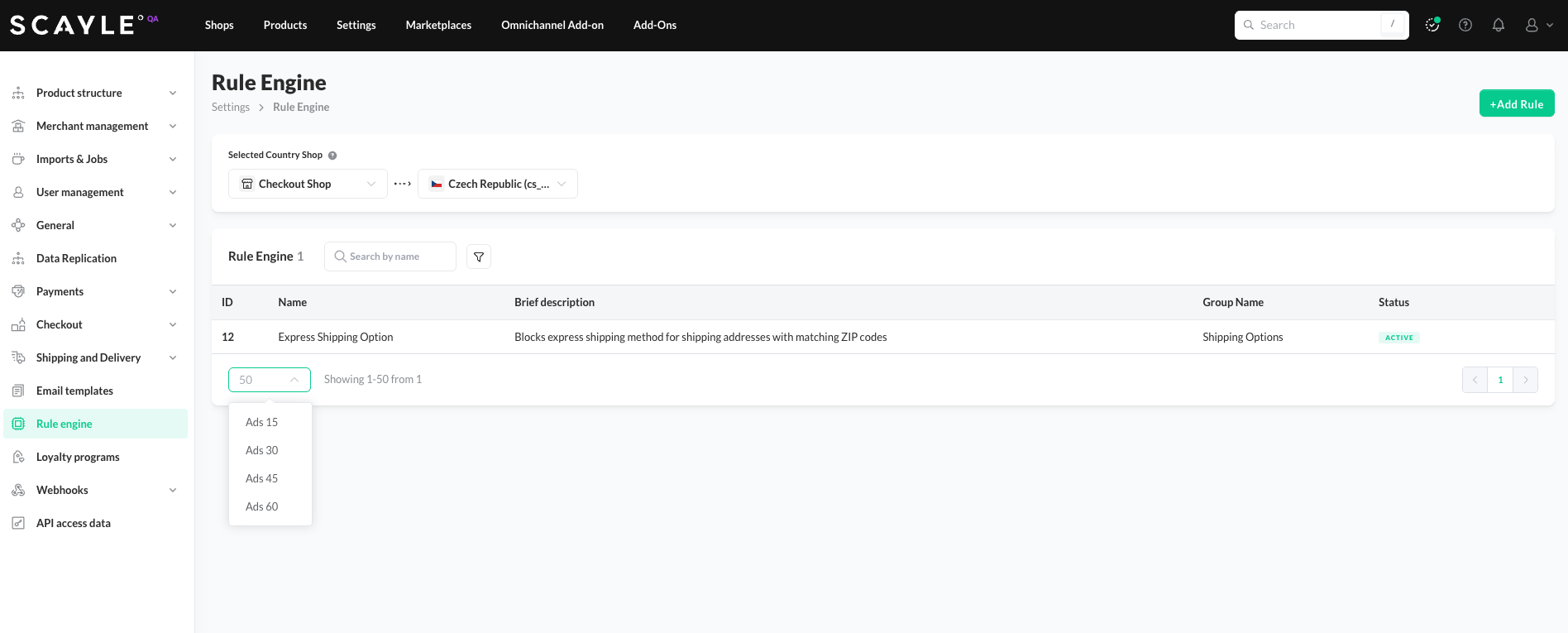
At the bottom of the list, you can choose how many rules are displayed per page.
To manage a rule, hover over the desired entry. The row will be highlighted, and an additional menu will appear when you click or hover over the three-dot icon.
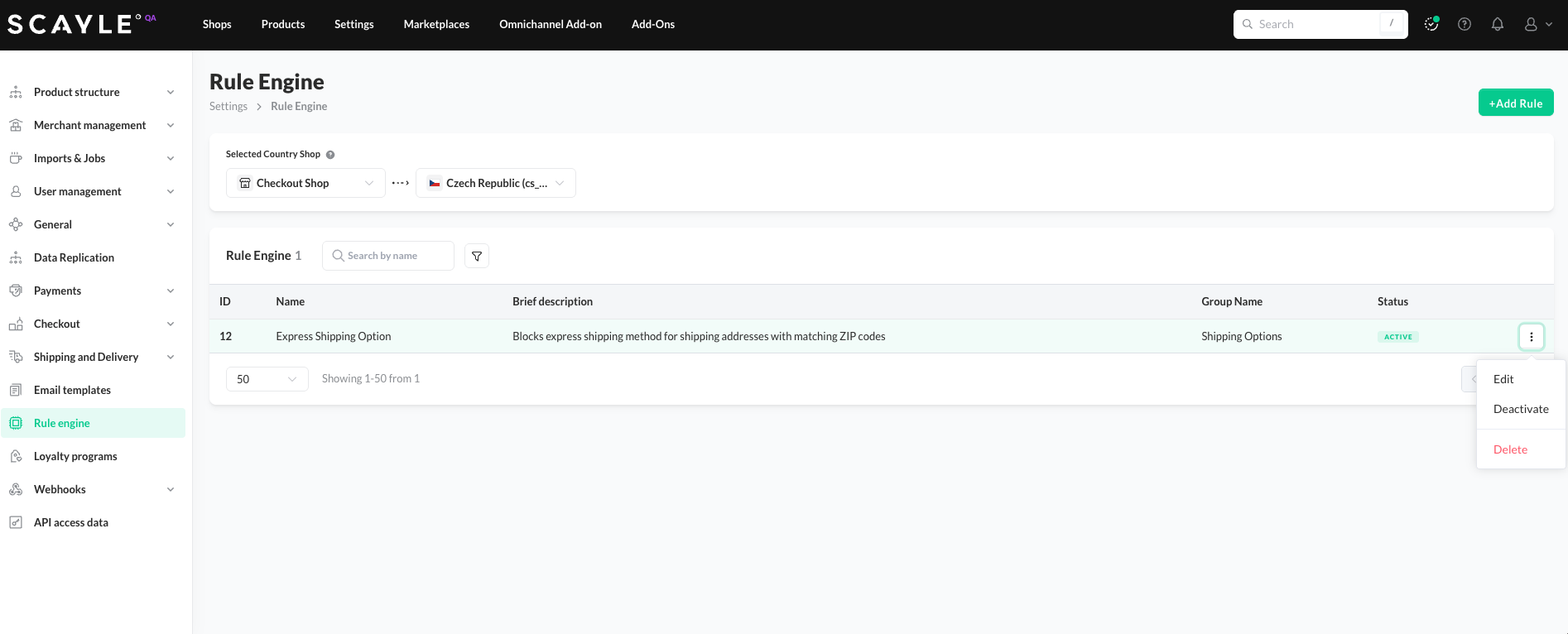
You can choose to Edit, Deativate or Delete the rule.
If you choose to edit a rule, you will be redirected to its settings. Make the necessary changes and click Update to apply them.
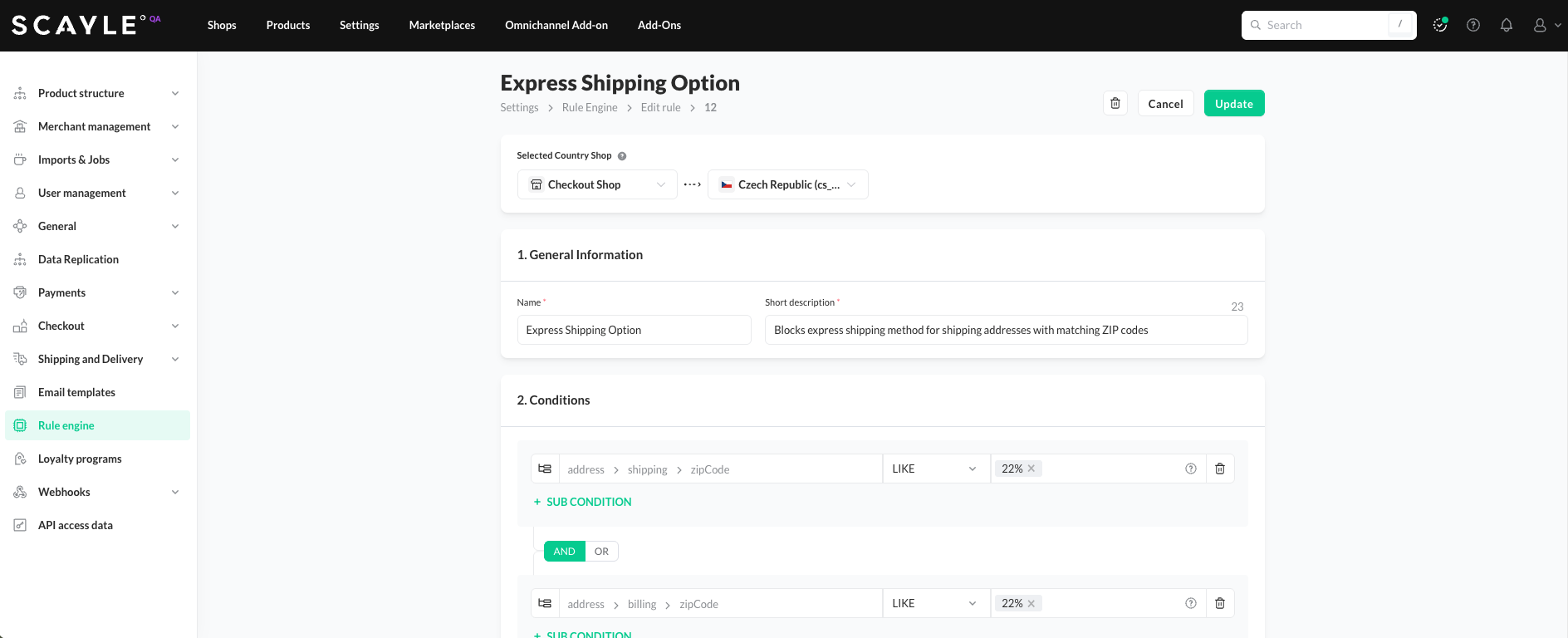
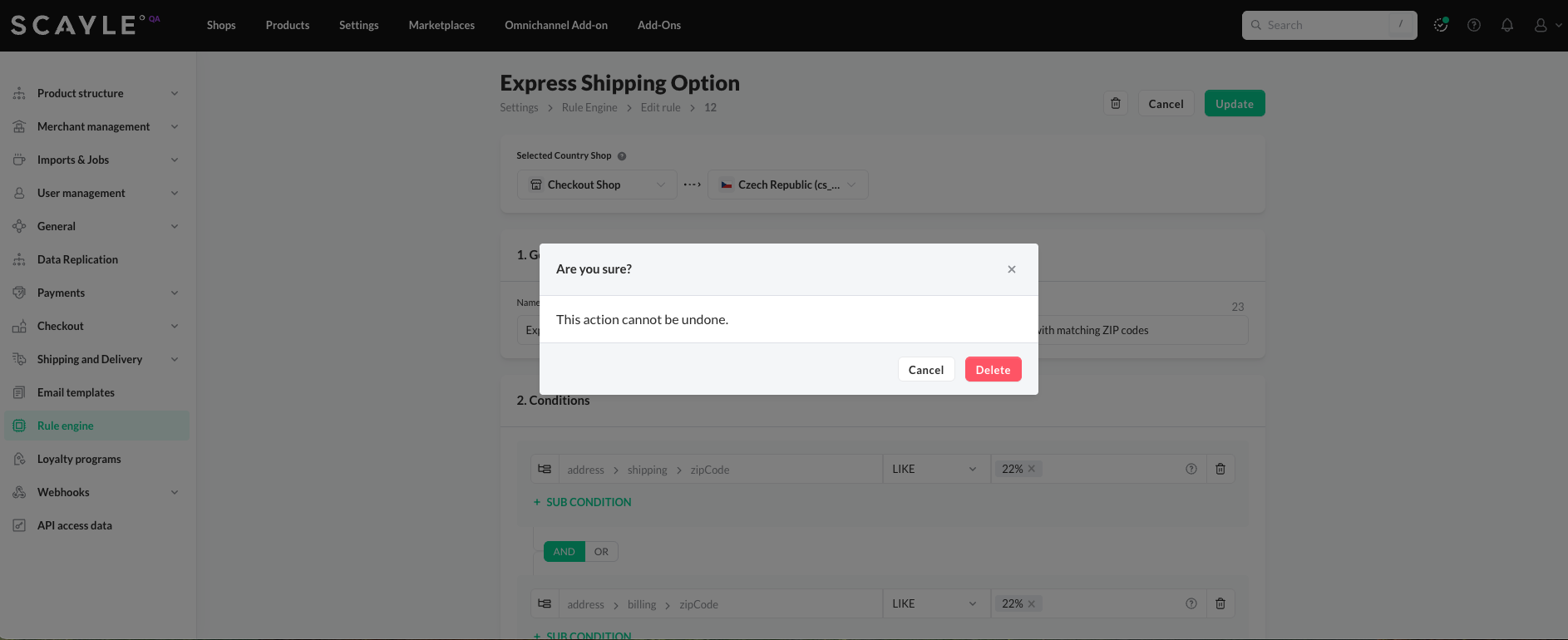
You can also delete the rule from its settings by clicking the trash bin icon. A confirmation prompt will appear before the rule is removed.
Rules Examples
The following examples illustrate real-world scenarios. More complex cases may involve multiple conditions and sub-conditions.
Minimum Order Value (MOV) for Payment Method
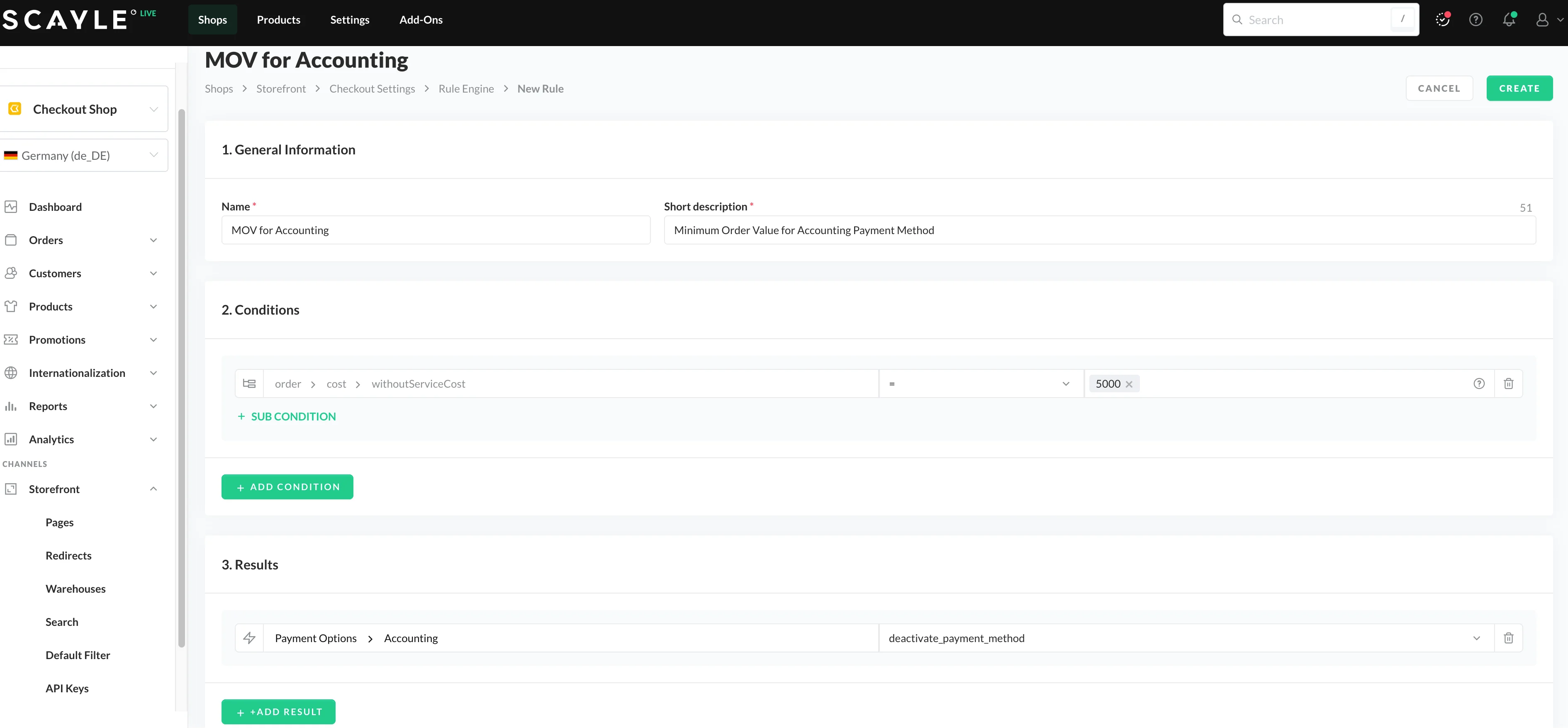
A rule can be set for payment methods requiring a minimum order value (MOV). For example, you may want to disable the Accounting (B2B) payment method for orders less than a threshold. If MOV is not reached, the payment method is deactivated and will not be displayed as an option in the checkout.
To set this rule:
- Add a Name (e.g., "MOV for Accounting") and Description (e.g., "Minimum Order Value for Accounting Payment Method")
- Add the Condition:
order>cost>withoutServiceCost<=5000(≙ 50.00€) - Select the Result:
Payment Options>Accounting|Deactivate Payment Method - Click Create to save the rule
Shipping Costs per Country
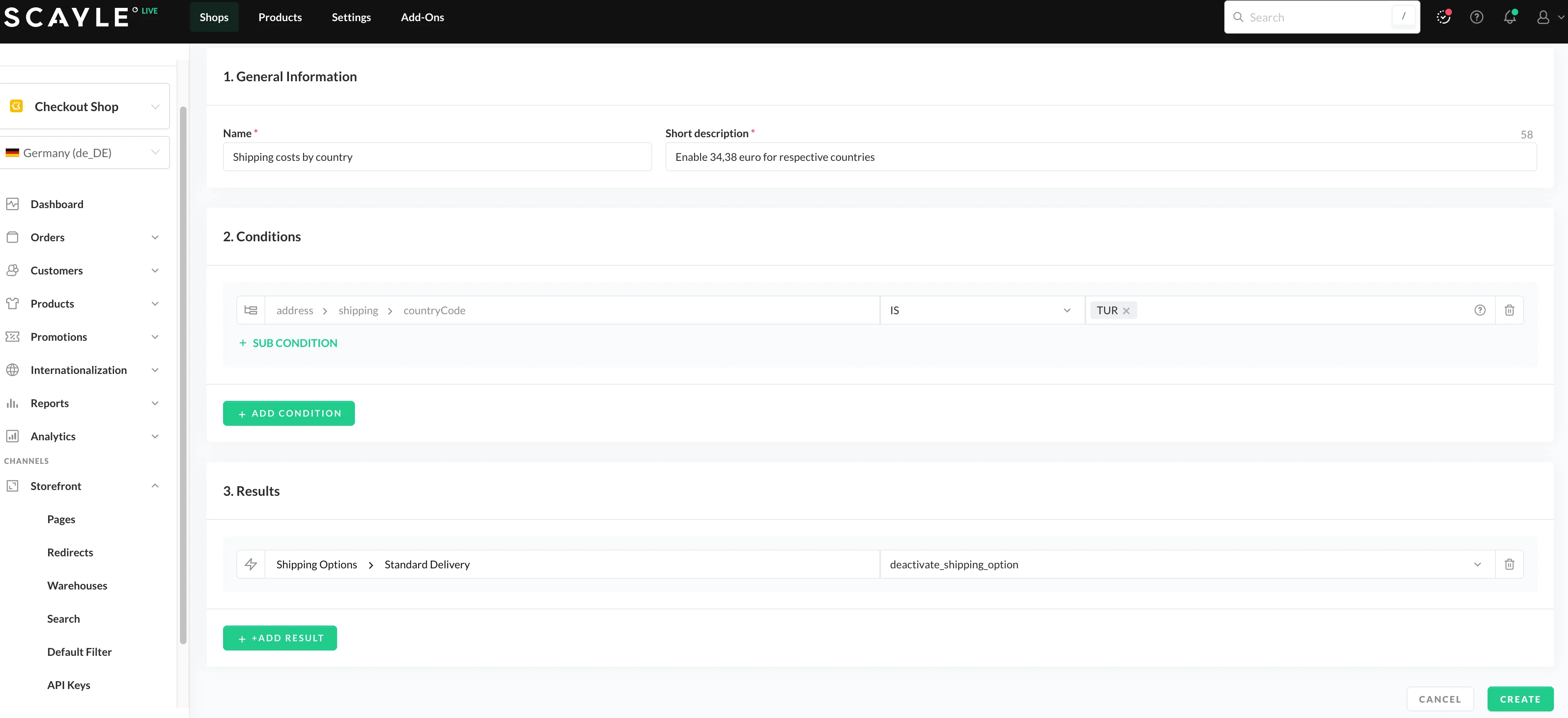
A rule can be set to enable/disable specific shipping costs for a given shipping country (global or EU shop). For example, you can create a rule where, if a customer selects a shipping country, all shipping options are disabled that do not have a specific cost.
For details on setting Shipping Options (including shipping cost) see Shipping Options.
To set such a rule:
- Add a Name (e.g., "Shipping costs for TUR") and Description (e.g., "Disables shipping options for TUR").
- Add the Condition: e.g.,
address>shipping>countryCodeISTUR - Select the Results: e.g.,
Shipping Options>rule-engine.available_shipping_options.1299|Deactivate Shipping OptionsShipping Options>rule-engine.available_shipping_options.1546|Deactivate Shipping OptionsShipping Options>rule-engine.available_shipping_options.1427|Deactivate Shipping Options- Deactivate other shipping options where shipping cost ≠ 34,38
- Click Create to save the rule.
For conditions with countryCode use the iso_alpha3 (e.g., for Germany it is DEU).
Free Shipping Campaign for Time Frame
Rules can be set to enable free shipping for a given time period (e.g., promotion campaign). This requires two rules: one to enable free shipping, and another to define standard shipping outside of the free shipping time period.
This can be done as follows:
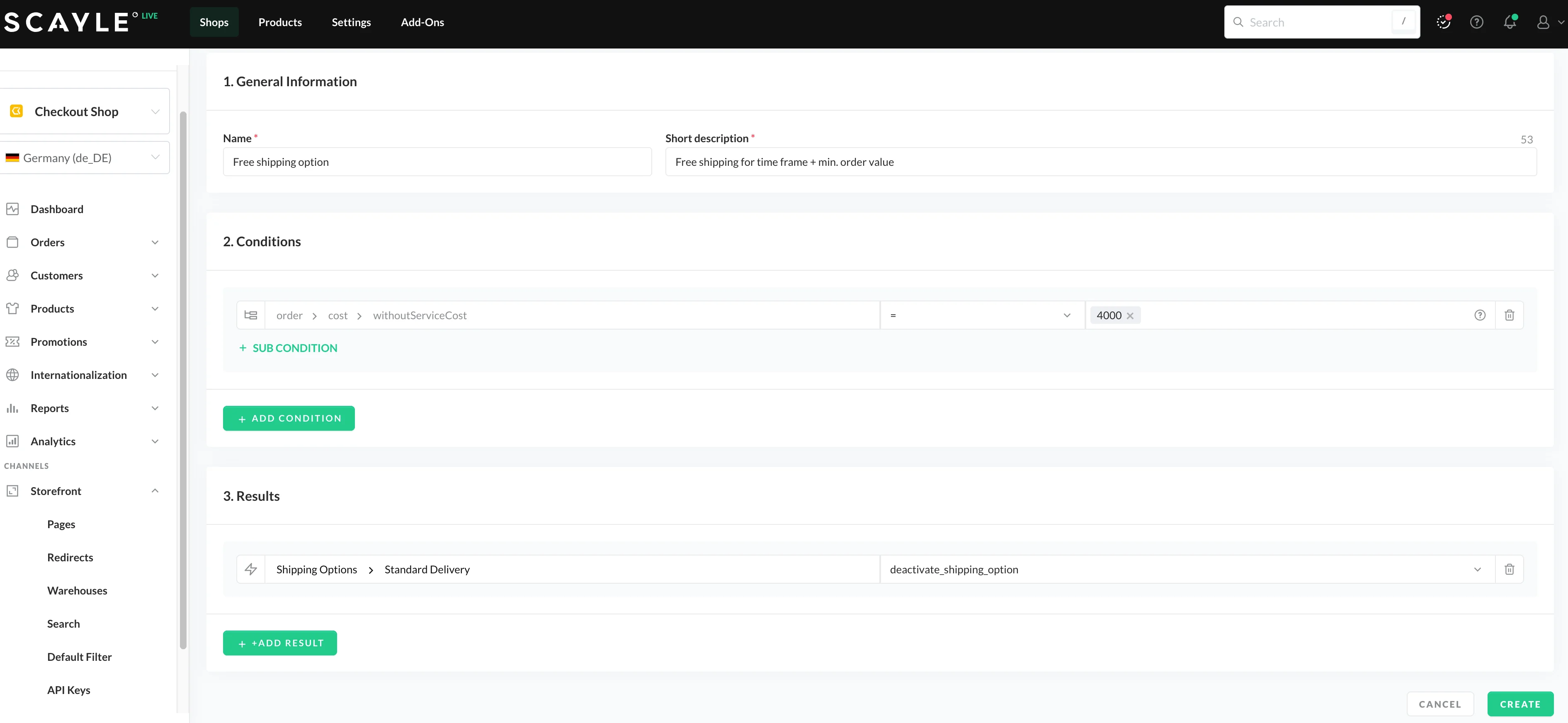
- Create a Rule for Free Shipping
- Add a Name (e.g., "Free Shipping Option") and Description (e.g., "Free shipping for time frame + min. order value").
- Add the Conditions: e.g.,
order>cost>withoutServiceCost>=4000(40.00)- AND
client>currentTimebetween06-03-2023 09:00:00 - 09-03-2023 00:00:00
- Select the Results: e.g.,
Shipping Options➜DHL Standard|Deactivate Shipping Options - Click Create to save the rule.
- Create a Rule to Disable Free Shipping
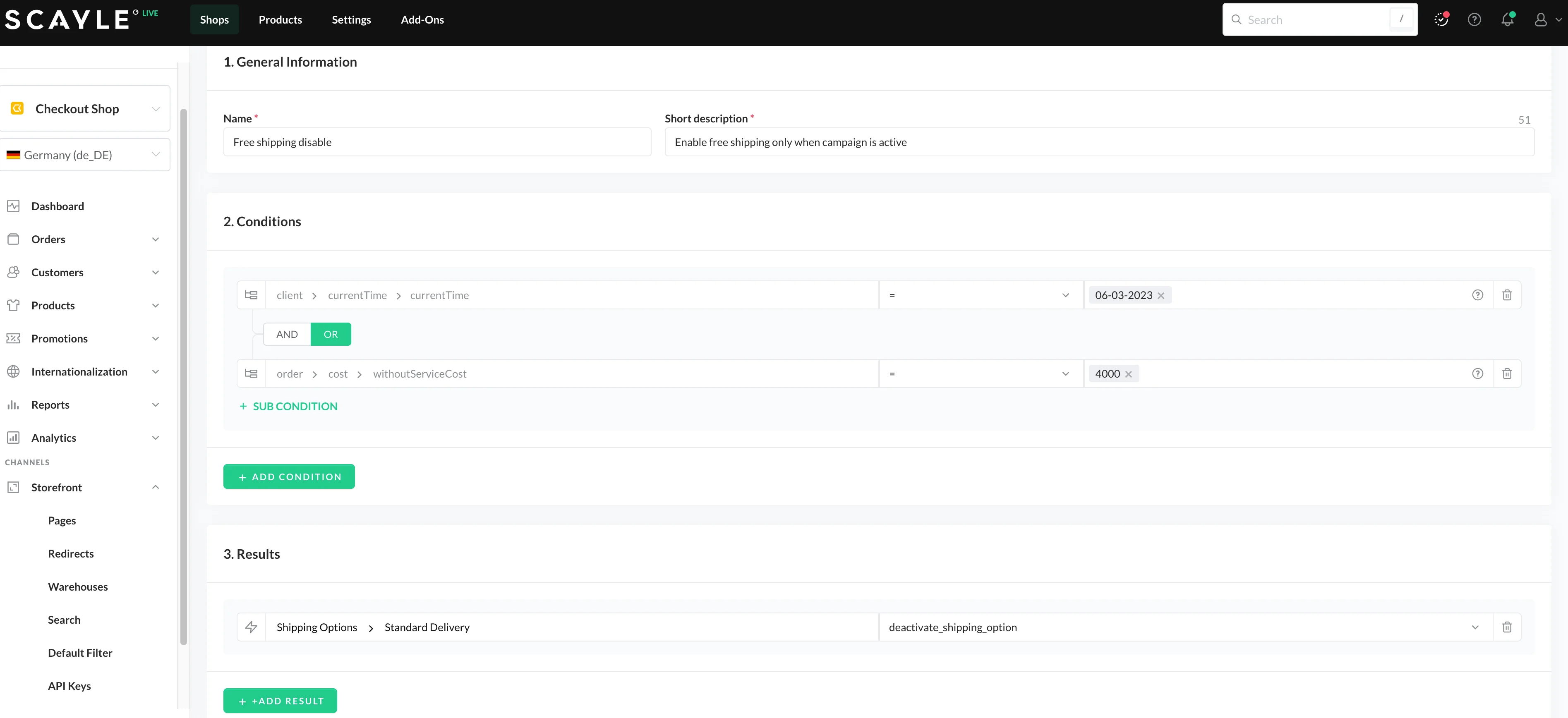
- Add a Name (e.g., "Free Shipping Disable") and Description (e.g., "Enable free shipping only when campaign is active").
- Add the Conditions: e.g.,
client>currentTimebefore06-03-2023 09:00:00- OR
client>currentTimeafter09-03-2023 00:00:00 - OR
order>cost>withoutServiceCost<=4000(40.00)
- Select the Results: e.g.,
Shipping Options>DHL Standard (free shipping)|Deactivate Shipping Options - Click Create to save the rule.
Max Order Value
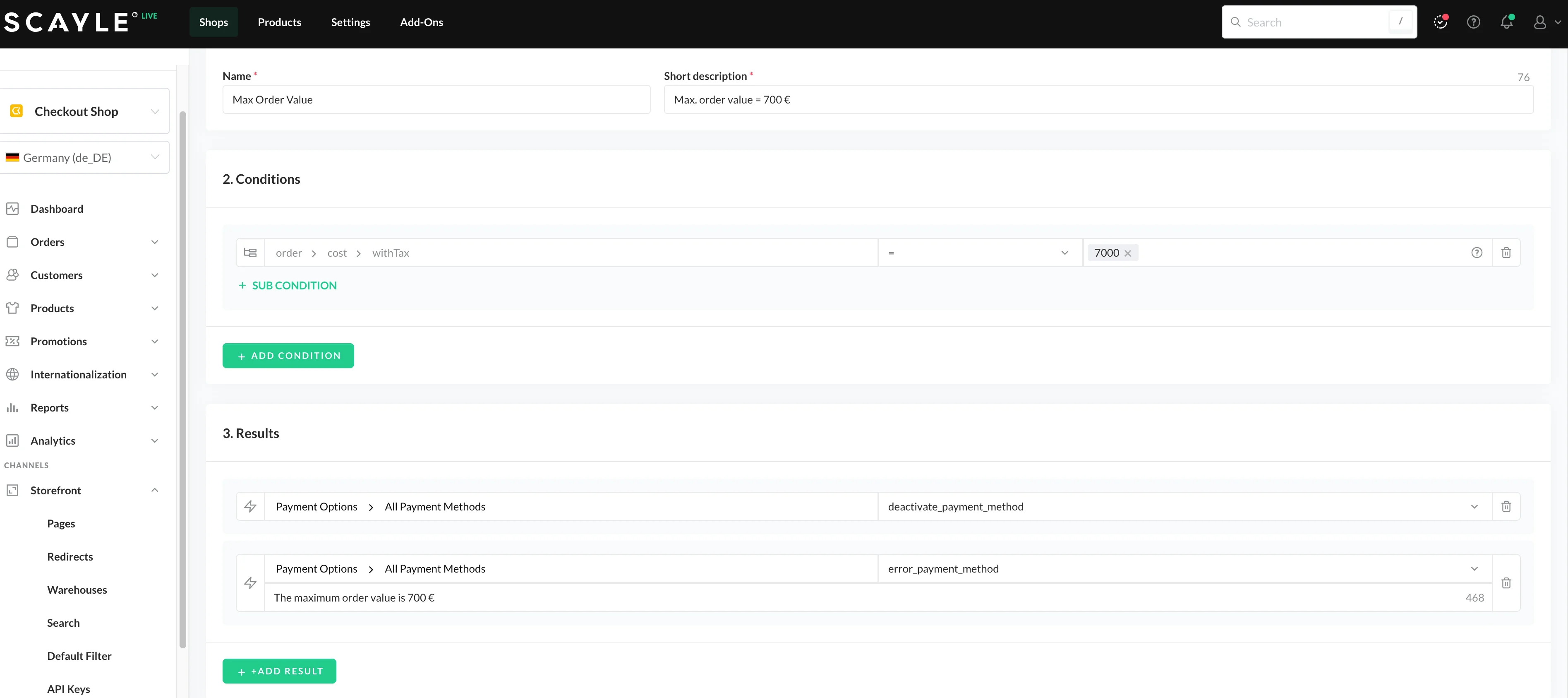
Below is a sample rule set for an order with a max value of 700 €. All payment methods will be deactivated if the customer orders items that cost higher than 700 €.
To set this a rule:
- Add a Name (e.g., "Max Order Value") and Description (e.g., "Max. order value = 700 €").
- Add the Condition: e.g.,
order>cost>withTax>70000(≙ 700.00 €) - Select the Results: e.g.,
Payment Options➜All Payment Methods|Deactivate Payment MethodPayment Options➜All Payment Methods|Error Payment Method- Add error message (e.g, "The maximum order value is 700 €")
- Click Create to save the rule.
Setting Multiple Subconditions: Free Shipping for a time period for chosen customers
Scenario: Set free shipping for all women living in Berlin or Hamburg for orders from the 7th of March until the 9th of March.
You can set a rule containing multiple statements, however within a statement, use the same operator. A single rule can contain multiple subconditions joined by one operator (such as a sub-condition AND another subcondition AND another subcondition), but you cannot mix operators within a single rule. To add a statement with a different operator, create a new rule.
For example, one rule could target:
- Main condition: is female. AND
- Sub condition: shipping after the 7th of March AND
- Sub condition: shipping before the 9th of March.
To target women who live in Berlin OR in Hamburg, we have to add a new condition, as we cannot mix operators AND/OR within the same condition statement.
- Main Condition: lives in Germany.
- Sub condition: lives in Berlin OR
- Sub condition: lives in Hamburg
To add multiple conditions and sub-conditions:
1. Go to Settings ➜ Rule Engine
2. Select +ADD RULE.
3. Add a Name and Description.
4. Click ADD CONDITION too add a new rule:
- Select
customer > gender > ADD. - Choose the
ISand selectffrom the dropdown. Specify the timeframe: - Click
+SUB CONDITION, thenorder > createdAt > datetimeOperations > ADD. Selectbeforefrom the dropdown. Pick the date and time from the calendar. - Click ADD CONDITION, then
order > updatedAt > datetimeOperations > ADD. Selectafterfrom the dropdown. Pick the date and time from the calendar.
Add new condition to specify location. Multiple locations possible using OR operator:
- Click ADD CONDITION too add a new rule:
- Select
address > shipping > city > ADD. Type a city, for example "Berlin". - Click
+SUB CONDITION, thenaddress > shipping > city > ADD. Type a city, for example "Hamburg". - Switch toggle to
OR.
Add free shipping:
- Select the Results: e.g.,
Shipping Options➜DHL Standard|Deactivate Shipping Options- Click Create to save the rule.
State-Based Rule
A rule can be set to disable a payment method, shipping option, or delivery option based on the state field in the shipping or billing address. For example, you may want to disable Amazon Pay for orders shipping to California.
Because state is a free-text field, the stored value can arrive in different formats depending on how the customer entered the address, and the configured autocompletion tools:
- The full state name typed manually (e.g.,
California). - The postal abbreviation (e.g.,
CA). - The ISO 3166-2 subdivision code — this is the format Google Places autocomplete uses when pre-filling the address (e.g.,
US-CA).
To make sure the rule catches every variation, define all expected representations in the value list using the IN operator.
To set this rule:
- Add a Name (e.g., "Disable Amazon Pay in California") and Description (e.g., "Disables Amazon Pay for orders shipping to California").
- Add the Condition:
address>shipping>stateINCalifornia,CA,US-CA. - Select the Result:
Payment Options>Amazon Pay|Deactivate Payment Method. - Click Create to save the rule.
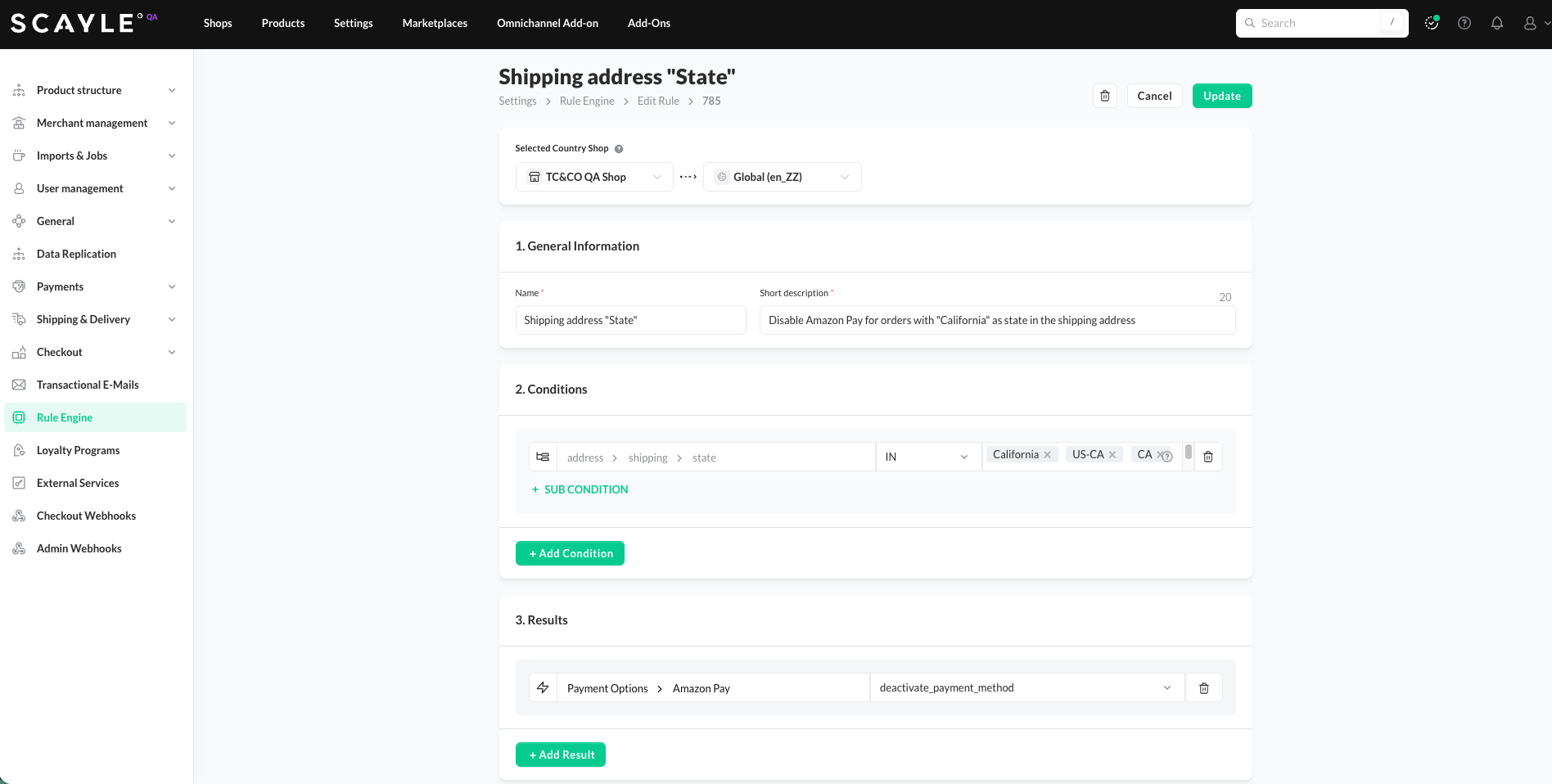
For conditions on the state field, always define every variation you expect to receive — full name, postal abbreviation, and ISO 3166-2 code. Apply the same pattern for states in other countries, for example Bayern, BY, DE-BY for Bavaria or Ontario, ON, CA-ON for Ontario. This is particularly important when the shop uses Google Places autocomplete, which populates the state field with the ISO 3166-2 code format by default.


