

Promotion Codes
Promotion Codes are a form of applying a promotion on the Basket or during Checkout. Code-based promotions require customers to enter a specific code - similar to a voucher or coupon - allowing for greater control and exclusivity. Currently only Automatic Discount types of promotions can be applied with a Code
Promotions codes can be applied in the Storefront in 2 ways:
- Entering the promotion code in the basket ➜ requires custom implementation
- Entering the promotion code in the checkout ➜ talk to your SCAYLE Account Manager to activate this feature.
Setting Promotion Codes up via SCAYLE Panel
In the SCAYLE Panel navigate to Shops and select the shop you want to create a Promotion code for. On the left hand side menu select Promotions ➜ Promo Codes.
Here you will be able to see a list of existing Promotion codes, manage them and create new Promotion codes.
Create a new Promotion code
- Select the Shop where you want to create your promotion and go to Promotions ➜ Promo Codes
- Click the + New Promo Code button.
- In the Name field, type a name for the promotion (visible internally only).
- In the Display Name field, type the name of the promotion that will be shown to the customer during the Checkout Process. It can also be used on email templates and Invoices.
- Start date: enter the date and time when the promotion starts running.
- End date: enter the date and time when the promotion becomes inactive.
- Select whether the promotion should be combinable with other promotions.
- If selected, enter Combinable promotion IDs in the Allowlist or Blocklist. For details see Multiple Promotions on Item Level
- Countries: Select which shop countries are eligible for the promotion.
- In Customer segments, select customers you want to allow or block from this promotion. See how to create a Customer segment here
- Set up what Reduction Type and Amount the customer should get:
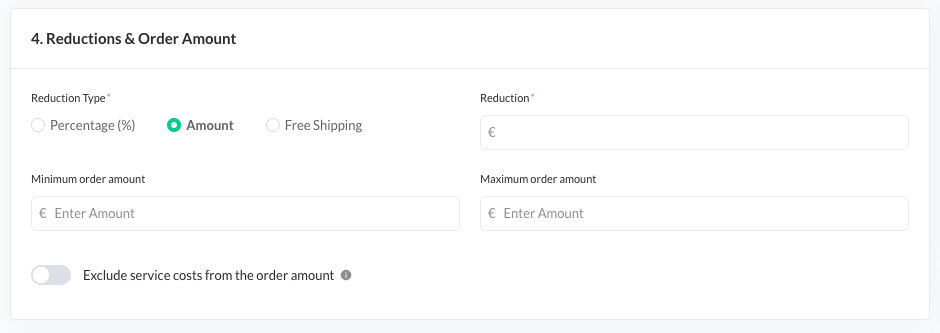
- Percentage: a percentage discount will be applied to all items where the code applies to
- Amount: a discount amount will be applied to all items where the code applies to
- Free Shipping: waives the shipping cost on the basket instead of discounting an item. See Setting up Free Shipping for how to configure it.
- You can optionally set a Minimum Order Amount and a Maximum Order Amount a customer must meet for the promotion to apply.
- Use the Exclude service costs toggle to configure whether service costs (for example, shipping fees) are included in or excluded from this amount.
- Choose how the promotion code is created:
.png)
- Generated: The system automatically generates a unique code. Enter the Code prefix and set the number of codes you want to generate.
- Custom: Manually enter your own promotion code customer needs to use.
Set the code name and define a usage limitation per customer if desired
- Code Usage Limitation: define how often the promotion code can be used
- Limited: you can choose between:
- Customer (1 Customer, gets to use the promotion code x times), or
- Total code redemption (a given code can be redeemed x times)
The "x" is defined by the amount you enter on the field "Number of code usages". Please note that none of this configurations can be changed later. - Limited: you can choose between:
- Click + Add criterion to include additional conditions (e.g., attribute group, item condition, product filters) that define when the promotion should apply.
.png)
- Finally you can enable the toggle Promotion Design if you want to change the visual appearance of the promotion and localize it.
.png)
.png)
- You can check how your promotion looks in the preview on the right-hand side.
.png)
- You can check how your promotion looks in the preview on the right-hand side.
To add a list of promotion codes in bulk, we recommend using the designated Admin API endpoint.
Export Promotion Code
The Promotion Code Export feature allows users to extract and download promotion codes from the system for reporting, analysis, or distribution purposes.
Prerequisites
Before exporting promotion codes, ensure the following:
- You have an active user account with export permission.
- The promotion codes to be exported exist in the system.
Exporting Promotion Codes
- Go to Promotions ➜ Promo Codes.
- Open the Promotion Code where you want to export the codes from
- Click on the 3 vertical dots besides Edit ➜ Export
- The export request will be initiated and might take some time to be generated.
- Once Export is finished, you can refresh the page to download the codes.
Editing or Deactivating a Promotion Code
- Select the Shop where you want to edit your promotion and go to Promotions ➜ Promo Codes.
- Select an already created Promotion.
- Click the Edit button.
- Update the rules as needed, or deactivate the promotion by setting Status ➜ Inactive.
- Click save.


