

Combo Deals
A Combo Deal provides a fixed, bundled price for a set of items. A combo can target a single item set or multiple item sets at once. When multiple item sets are configured, you choose how they are combined:
- OR logic: items from any one of the configured item sets satisfy the condition. The combo price applies as soon as the required total quantity is reached across all sets.
- AND logic: items from every configured item set must each meet their individual eligible item count. The combo price applies only when all sets are satisfied.
When a customer purchases all required items, the system calculates the difference between the total original price and the fixed combo price. This difference is applied as a single, proportional discount that is then distributed across each item in the bundle.
Example: For a combo of three t-shirts, originally €40 each (€120 total), with a fixed price of €102, the system applies a total discount of €18 (€120 - €102). This €18 is proportionally distributed, resulting in each t-shirt's price being adjusted to €34.
Setting Basic Combo Deals up via SCAYLE Panel
In the SCAYLE Panel navigate to Shops and select the shop you want to create a Combo Deal for. On the left hand side menu select Promotions ➜ Combo Deal.
Here you will be able to see a list of existing Combo deals, manage them and create new Combo deals.
Create a new Combo deal
- Select the Shop where you want to create your promotion and go to Promotions ➜ Combo Deal
- Click the + NEW COMBO DEAL button.
- In the Name field, type a name for the promotion (visible internally only).
- Enter a whole number in the Priority field. SCAYLE does not evaluate this value itself; it passes it on to your shop, which decides how to use it, for example lower numbers first, higher numbers first, or not at all. If you're unsure how your shop uses it, check with your development team.
- In the Display Name field, type the name of the promotion that will be shown to the customer during the Checkout Process. It can also be used on email templates and Invoices.
- Usage limit of a promotion. A global switch that lets you cap how many times the promotion can be applied across all customers and baskets combined. When disabled, the promotion runs indefinitely until its validity period ends. When enabled, you choose the scope of the cap:
- Total: limits the promotion across all customers globally. Once the counter is hit, no one can benefit from the promotion anymore, regardless of eligibility. Useful for "first 500 customers only" mechanics.
- Customer: limits how many times a single customer ID can use the promotion across their order history. Useful for "one-time-per-account" mechanics.
- Start date: enter the date and time when the promotion starts running.
- End date: enter the date and time when the promotion becomes inactive.
- Countries: Select which shop countries are eligible for the promotion.
- In Customer segments, select customers you want to allow or block from this promotion. See how to create a Customer segment here
- Select whether the promotion should be combinable with other promotions.
- If selected, enter Combinable promotion IDs in the Allowlist or Blocklist. For details see Multiple Promotions on Item Level
- Select the Customer Buy condition.
- Define from which group the customer should Select Items From:
- Item Sets: The promotion will be applied in case items from Item Sets are bought
- Specific Product: The promotion will be applied in case specific Product IDs or Product Variants are bought
- Specific Categories: The promotion will be applied in case items from a specific category are bought
- Specific Attributes: The promotion will be applied in case items from a specific attribute are bought
- Any product: The promotion will be applied in case any item is bought (an MOV must be set)

- Define what is the Minimum Unique Items of a Basket which needs to be bought by the customer
- Define what is the quantity logic that will define how many items the customer needs to buy (This option is hidden in case the customer selects Items from Item Sets):
- Total amount of eligible items: Count of all variants within the basket (The sum of the qty of all items)
- Total amount of unique items with the same variant ID: Count of quantity for a specific basket item (at least one variant should have the configured quantity)
- Quantity: how many items the customer needs to buy for the condition to be applied
- Set minimum order amount
- Define from which group the customer should Select Items From:
- Set the price the Customer Gets when combining the items
- Click Create Promotion.
Examples
Buy items from Item Set A for 30€.
You can build Item sets beforehand to make setting this promotion up more easy. An Item set example would be a Cycling essential - cycling glasses, a bottle of water and a Cycling t-shirt that you can sell, all together for 30€.
On the Customer Buy section, select the Item Set where the promotion will be applied to:
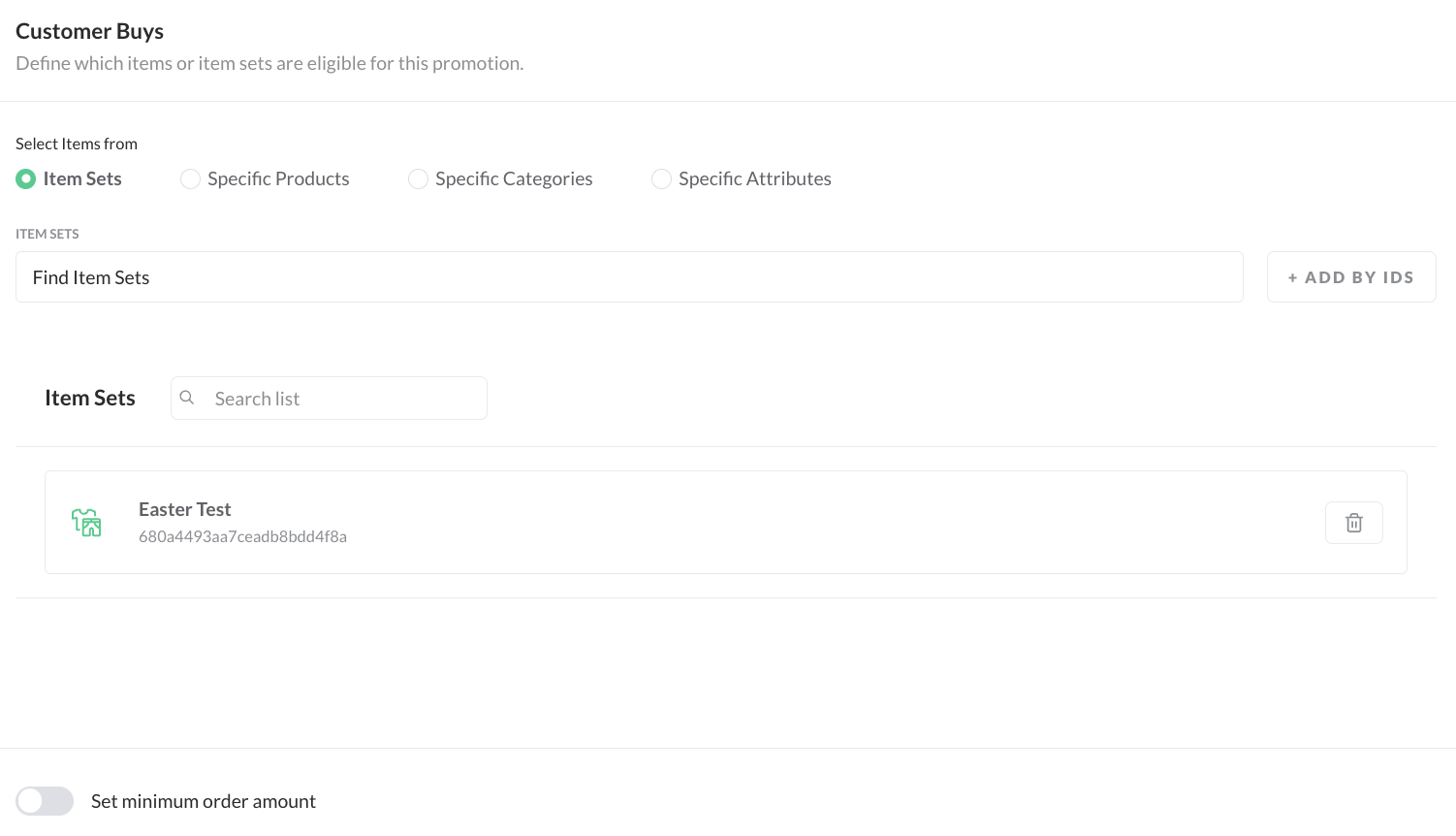
Define under Customer Gets the final price that will be applicable to the items that were bought from this item set:

Buy items from Item Set A AND Item Set B for €90 (AND logic)
When AND logic is configured, the customer must buy the required number of items from each item set for the combo price to apply.
Example: Create two item sets — Item Set A (Cycling Tops, eligible count: 1) and Item Set B (Cycling Shorts, eligible count: 1). Add both to the Combo Deal and set the combo price to €90. The promotion applies only when the basket contains at least 1 item from Item Set A and 1 item from Item Set B.
On the Customer Buy section, add both item sets. The combo price is only unlocked when all configured sets are satisfied.
Buy items from Item Set A OR Item Set B for €45 (OR logic)
When OR logic is configured, items from any of the configured item sets contribute to a shared total count. The combo price applies as soon as the required number of items is reached, regardless of which sets the items came from.
Example: Create two item sets — Item Set A (Running gear) and Item Set B (Gym gear). Configure the Combo Deal to require 2 items in total and set the combo price to €45. The promotion applies whether the customer buys 2 items from Item Set A, 2 from Item Set B, or 1 from each.
Editing or Deactivating a Combo Deals
- Select the Shop where you want to edit your promotion and go to Promotions ➜ Combo Deal.
- Select an already created Promotion.
- Click the Edit button.
- Update the rules as needed, or deactivate the promotion by setting Status → Inactive.
- Click save.
Setting up Advanced Combo Deals via SCAYLE Panel
To configure an advanced version of a Combo Deal with conditions defined in CEL, see Advanced Combo Deals.


