

Rate Limiting
Overview
Rate limiting rules throttle incoming traffic to your storefront by counting requests over a time window and taking action when the count exceeds a threshold. Use them to protect specific endpoints from abuse (login pages, checkout, search), guard against credential-stuffing attempts, or throttle bot traffic that would otherwise cost you compute or backend calls.
Rate Limiting is part of the Firewall. See the Firewall landing page for availability, rule limits, rule status, and the shared save flow.
Rate limiting rules apply after Security Rules. If a request is Blocked or Managed-Challenged by a Security Rule, it never reaches rate limiting. If a Security Rule with action Skip and "Skip all rate limiting rules" set to Off lets a request through, that request is still counted toward any matching rate limiting rule.
Where to find it
Rate Limiting lives in Shops ➜ [Shop] ➜ Hosting ➜ Settings ➜ Firewall ➜ Rate Limiting Rules.
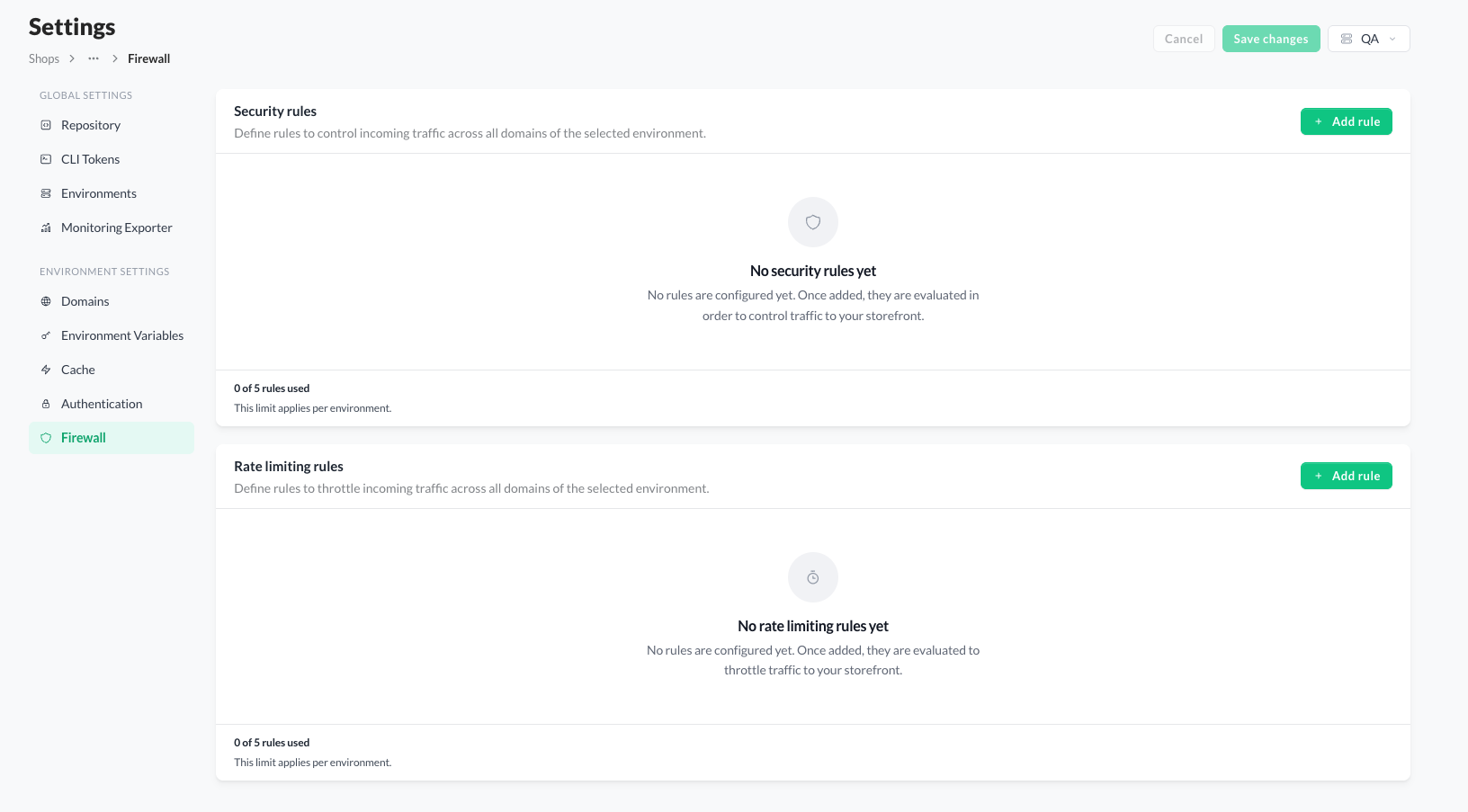
The Rate limiting rules section on the Firewall page - empty state
Match types
Every rate limiting rule matches traffic based on one of two match types.
- All traffic - matches every incoming request to the environment, regardless of path.
- Path - matches requests to a specific URL path or pattern. Wildcards are supported (e.g.,
/api/*,/c/*).
Configuration
A rate limiting rule is defined by:
- Name - a descriptive label (e.g., "Checkout throttle" or "Login flood guard").
- Match type - All traffic or Path.
- Path pattern - when Match type is Path, the URL pattern to match. Wildcards are supported.
- Max requests - the threshold. When request count exceeds this value within the time window, the action fires.
- Window - the time window over which requests are counted. Options: 1 min, 1.5 min, 2 min, 3 min, 4 min, 5 min, 8 min, 10 min, 15 min, 20 min, 30 min, 40 min, 60 min.
- Action - Block or Managed Challenge. Skip is not applicable to rate limiting rules.
- Status - Enabled or Disabled.
Actions
- Block - once the threshold is exceeded, further matching requests receive a block response until the window resets.
- Managed Challenge - once the threshold is exceeded, further matching requests are presented with a CAPTCHA challenge until the window resets. Use this when you want to filter high-volume traffic without hard-blocking legitimate users who happen to trigger the threshold.
Adding a rule
- Click + Add rule in the top right of the Rate limiting rules section.
- Enter a Name for the rule (for example, "Checkout throttle").
- Select a Match type - Path or All traffic.
- If Match type is Path, enter a Path pattern. Wildcards are supported.
- Enter a Max requests value (the threshold).
- Select a Window (the time period over which requests are counted).
- Select an Action - Block or Managed Challenge.
- Set Status to Enabled or Disabled.
- Click Save changes in the dialog, then click Save changes at the top of the page to apply.
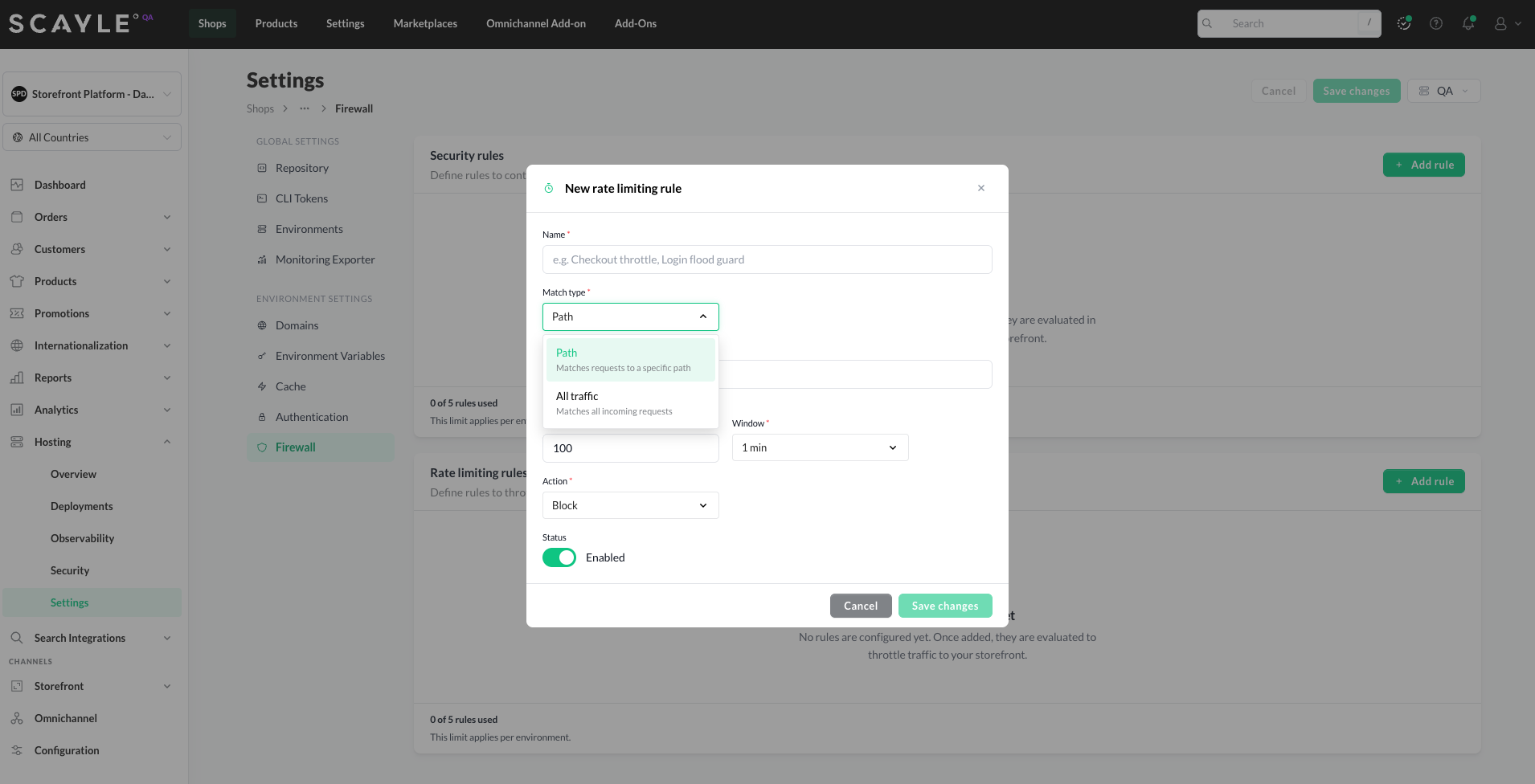
New rate limiting rule dialog for a Path match type
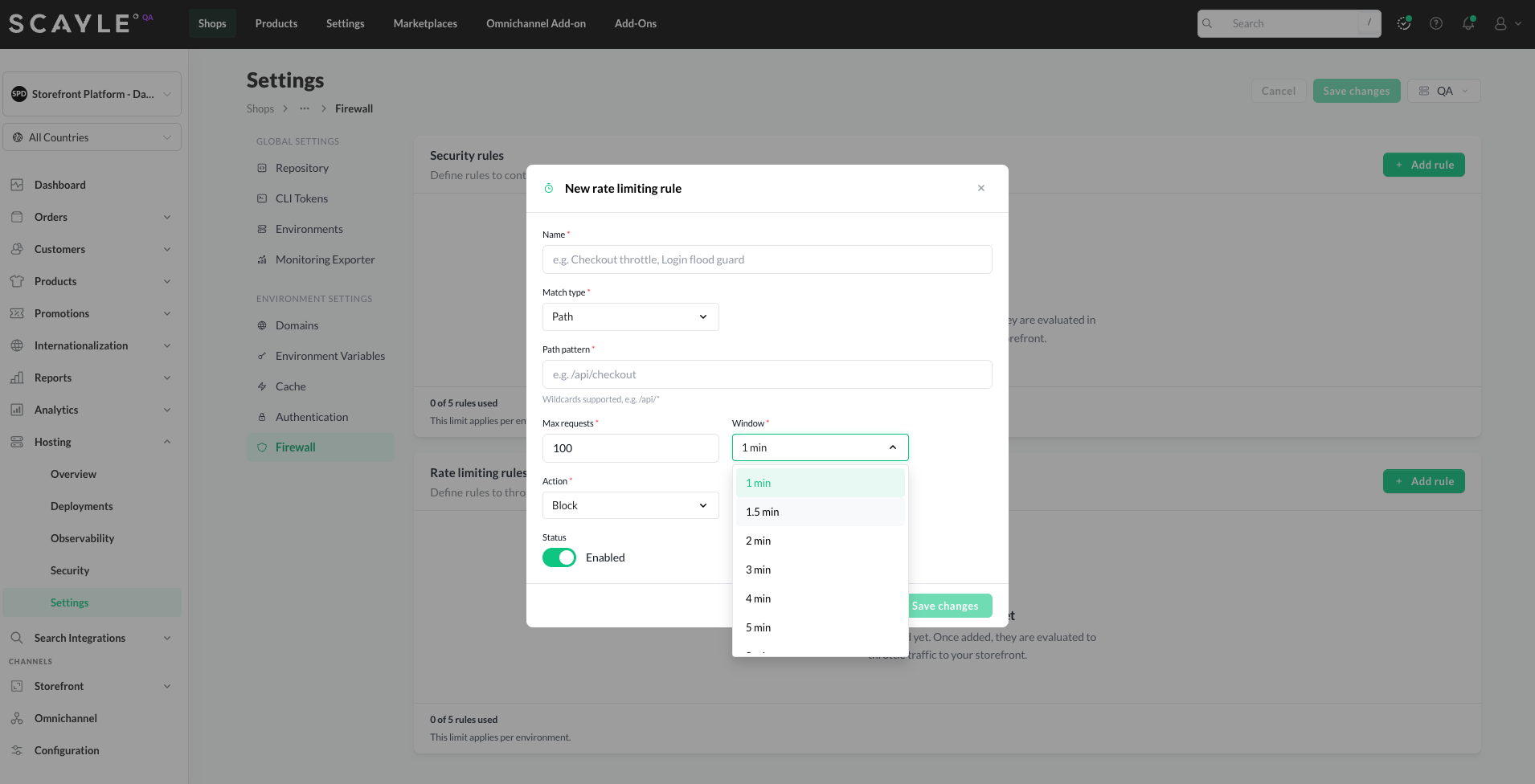
Window dropdown showing available time windows
Editing and deleting rules
Each rule has pencil (edit) and trash (delete) icons at the end of its row. Editing opens the same dialog you used to create the rule. Deleting removes the rule from your saved state; the change reaches the edge after you click Save changes at the top of the page.
Rule ordering
Rate limiting rules are evaluated top-to-bottom. When a request matches more than one rule, each rule tracks its own count independently. The first rule to exceed its threshold determines the action for the request.
To reorder rules, drag a rule up or down using the drag handle at the left of its row.
Ordering matters when you have rules with different actions that could both apply. For example, if a general "All traffic" rule uses Managed Challenge and a more specific /api/* rule uses Block, place the more specific rule higher -otherwise the Managed Challenge fires first and the Block never runs
Example
Throttle high-volume search traffic
Scenario: search endpoint traffic is unusually high - possibly automated scrapers or misbehaving crawlers generating excessive internal search requests. You want to throttle high-volume clients without hard-blocking legitimate users who trigger the threshold occasionally.
Create a rate limiting rule with:
- Match type: Path
- Path pattern:
/api/search/* - Max requests:
50 - Window:
1 min - Action: Managed Challenge
Any client sending more than 50 requests per minute to /api/search/* is presented with a challenge until the window resets. Legitimate users solving the challenge continue through; high-volume automated traffic is filtered.
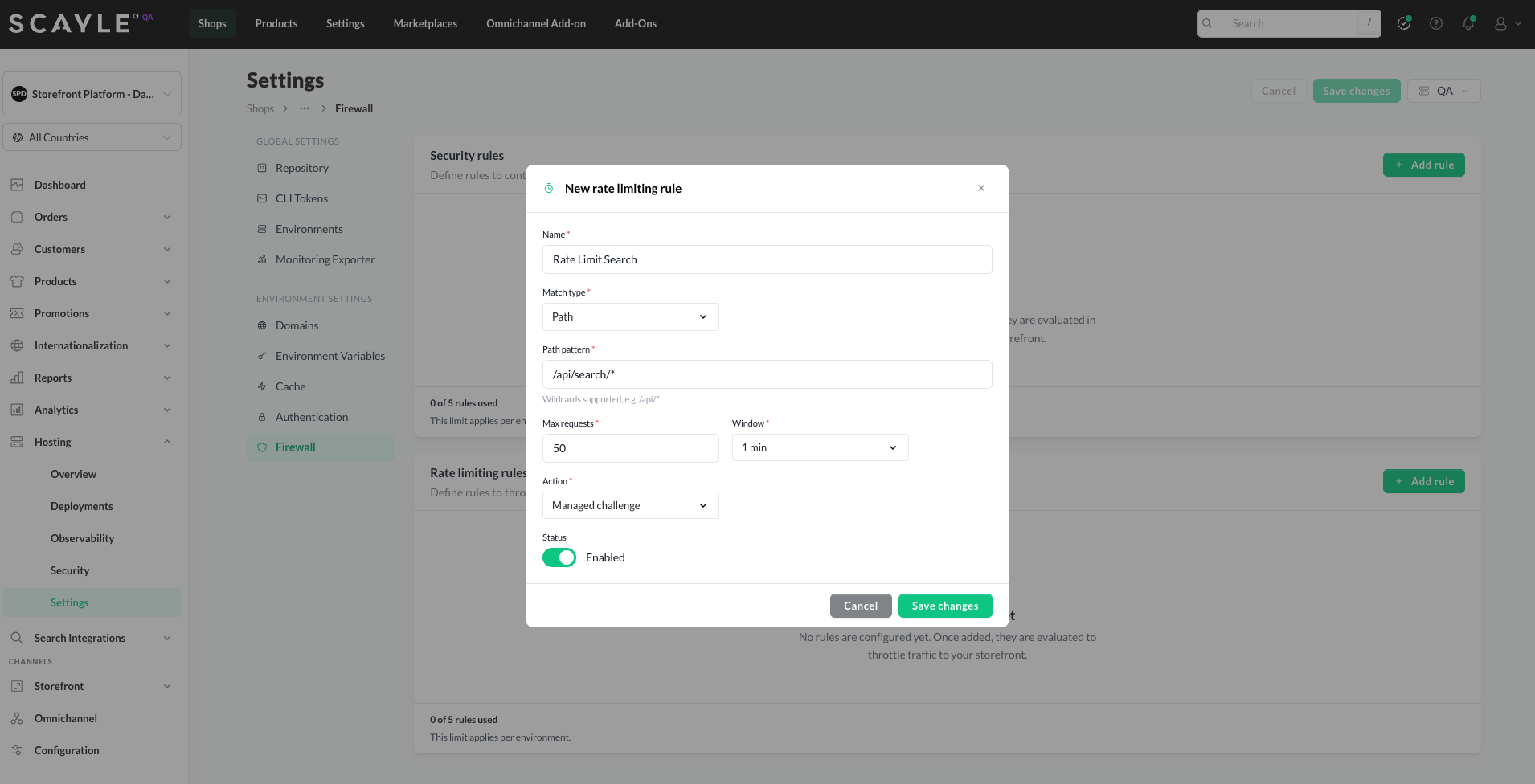
Rate limiting rule throttling search traffic with a Managed Challenge action
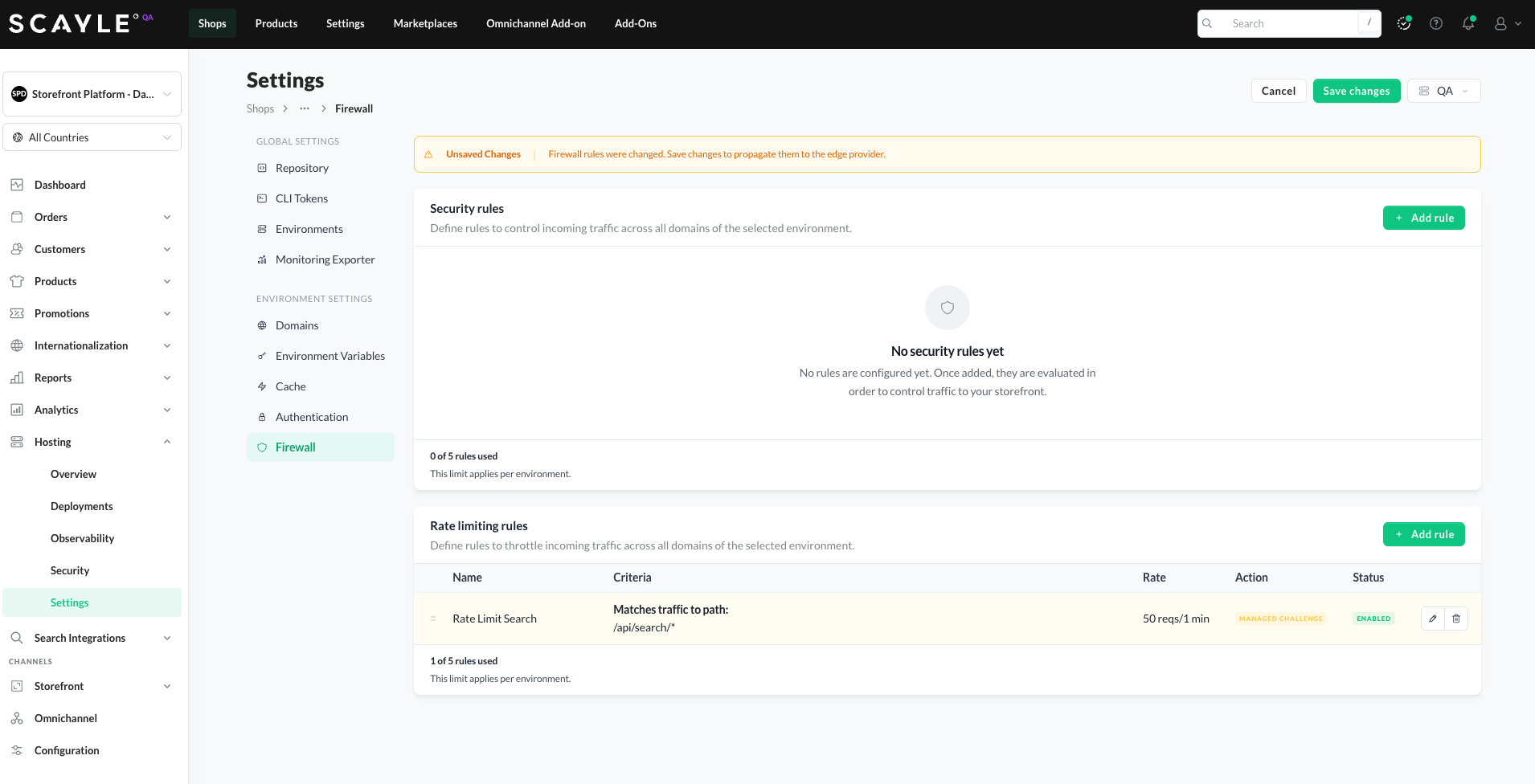
Search throttle rule as it appears in the Rate limiting rules list
Related
- Security Rules - block, challenge, or allow traffic based on IP, country, or bot characteristics. Security Rules run before Rate Limiting.
- Firewall - parent page with the overview of both rule types.


