

Setting Up a Customer Segment
A segment is a customer group defined by a rule expression. Once created, you can assign it as a condition on any promotion to control who it applies to.
A segment belongs to a company and is available across every shop and country that company has.
For example: target customers who belong to the "GOLD" group and above the age of 38.
Segment Criteria
Segment criteria are written as rule expressions that evaluate against customer attributes. You can reference customer groups, customData fields, and customer IDs. customData fields are tenant-defined — check your shop's configuration for what is available. Combine or negate conditions using the operators below
| Operator | Description | Example |
|---|---|---|
IN | Attribute exists in a list | "GOLD" IN customer.groups |
! | Negation | !("STAFF" IN customer.groups) |
== | Equals | customer.customData.country == "DE" |
!= | Not equal | customer.customData.tier != "BASIC" |
> | Greater than | customer.customData.ltv > 1000 |
>= | Greater than or equal | customer.customData.orderCount >= 5 |
< | Less than | customer.customData.age < 30 |
<= | Less than or equal | customer.customData.age <= 30 |
&& | AND – both conditions must be true | "GOLD" IN customer.groups && customer.customData.ltv > 500 |
|| | OR – either condition must be true | "GOLD" IN customer.groups || "SILVER" IN customer.groups |
contains | contains | customer.groups contains "VIP" |
Examples:
Target VIP customers in Germany with a high lifetime value:
Target any premium tier, excluding staff accounts:
Target loyal customers who have not yet reached VIP status:
Target customers from a specific market who registered recently:
Setting Up a Segment via the SCAYLE Panel
In the SCAYLE Panel, go to Customers ➜ Customer Segments. Here you can view all existing segments and create new ones.
.png)
Customer segment list
Create a New Segment
- Select + New Segment (top right). If no segments exist yet, you can also select Create a Customer Segment.
- In the Segment name field, enter a unique name for the segment. This label is shown across the SCAYLE Panel wherever the segment is referenced.
- In the Reference key field, enter a stable identifier for use in API integrations.
- The Segment is active toggle is on by default. Turn it off to save the segment as a draft without making it available for use in promotions.
- Under Segment definition, choose how to build your rule:
- Visual (default) – build conditions using attribute, operator, and value dropdowns.
- Advanced – write the rule directly as a CEL (Common Expression Language) expression.
A segment is defined once for the company and it is available in every shop and country that company has. The country can be defined inside the segment's own rules. If you want German customers only, that goes in the rules. And one segment can cover several markets at once, for example customers registered in Germany or Austria, so recreating it per market is not needed.
With the visual builder you have two options to define the audience: an AI prompt or manually selecting the conditions.
.png)
New Customer Segment builder
Build Conditions Manually
- Choose from the available customer attributes:
| Attribute | Description |
|---|---|
| Shop Countries | The country associated with the customer's shop account |
| Birth Date | The customer's date of birth |
| Registration Date | The date the customer created their account |
| Customer Groups | The groups the customer belongs to |
| Guest Customer | Whether the customer checked out as a guest |
| IDP Registered | Whether the customer is registered via an external Identity Provider (IDP) |
| Last Login Date | The most recent date the customer logged into their account |
| Newsletter Signup | Whether the customer is subscribed to the newsletter |
- Then select an operator (e.g., equals) and enter the value (e.g., True or False).
.png)
Build a segment by selecting conditions manually
- To add more conditions to the same group, select + Add sub-condition. To add an independent group of conditions, select + Add rule group. Use the And / Or toggle at the top right of each group to control how its conditions are combined.
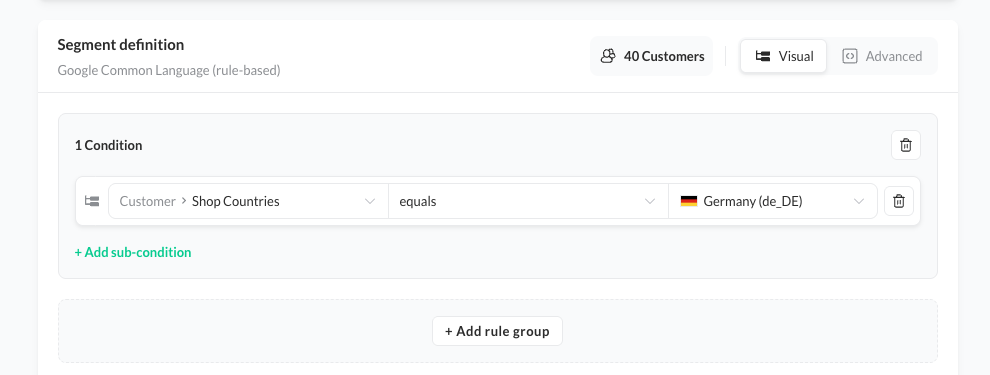
Add sub-condition or rule group
- When ready, select Save changes to save the new customer segment.
The customer count displayed next to the Segment definition heading is a live estimate of how many customers currently match your rules. The count is estimated from a statistical sample, so it is an approximation rather than an exact figure, and because membership is evaluated in real time it will also change as customer attributes change.
AI Prompt
- Type a plain-language description of your audience in the prompt field (for example, "not guests and newsletter subscribers") and submit.
- The SCAYLE Panel generates the matching conditions and populates them in Visual mode. A confirmation banner shows what was interpreted.
- You can then review and adjust the conditions as needed.
.png)
Use the AI prompt for defining a customer segment
The Guest Customer attribute matches registered customer records created through guest checkout. It does not make a promotion visible to an anonymous session, which carries no customer token and is therefore never evaluated against any segment.
Edit a Segment
- Open the segment you want to update.
- Modify the name, reference key, or criteria as needed.
- Select Save changes. The updated rule takes effect immediately for all future evaluations.
Delete a Segment
- Open the segment you want to remove.
- Select Delete.
- If any promotions reference this segment, the SCAYLE Panel lists them. Update or remove those references before confirming the deletion.
Deleting a segment does not automatically update promotions that use it.
Setting Up a Segment via the Admin API
Customer segments are managed via the Admin API at /shops/{shopKey}/countries/{countryCode}/customer-segments.
You can list segments (with optional filters and pagination), create new ones, fetch a single segment by its guid, update existing segments, or delete them. Each segment has a system guid, a business referenceKey, a human-readable name, a criteriaDsl rule string, and an active flag.
Customer segment endpoints in the Admin API:
| Method | Path | Description |
|---|---|---|
GET | /shops/{shopKey}/countries/{countryCode}/customer-segments | List segments (supports pagination, filters[name], filters[active]). |
POST | /shops/{shopKey}/countries/{countryCode}/customer-segments | Create a segment. |
GET | /shops/{shopKey}/countries/{countryCode}/customer-segments/{segmentGuid} | Get a single segment. |
PATCH | /shops/{shopKey}/countries/{countryCode}/customer-segments/{segmentGuid} | Update a segment. |
DELETE | /shops/{shopKey}/countries/{countryCode}/customer-segments/{segmentGuid} | Delete a segment. |
All five are scoped to a shop and country. Single-segment operations use the segment's guid as {segmentGuid}. The segment definition itself is shared company-wide, the shop and country in the path scope the API call, not the segment's applicability.

