

Deployment in Progress
After you trigger a deployment, the Deployment Details page becomes the place to watch it unfold in real time - from Code Checkout through Build to Deployment. This page explains each stage, the statuses you'll see along the way, and how to stop a deployment if needed.
The Deployment Details page itself is described in Deployment Overview. This page focuses specifically on what happens during a deployment.
Pipeline stages
Every deployment moves through four stages, shown as a vertical timeline on the Deployment Details page:
- Code Checkout - clones the Git reference (branch, tag, or commit) of your Storefront Application code. This ensures the deployment uses the correct codebase.
- Build - transforms your application code into a deployable artifact: installing dependencies, compiling, and packaging. For build configuration options (Node.js version and URL base path), see Build Configuration.
- Upload Assets - uploads static client assets to the Cloudflare CDN for edge delivery.
- Deployment - launches the new version of your Storefront Application and gradually shifts traffic to it. See Deployment Strategy for how this rollout works and how zero downtime is ensured.
Each stage shows its start time, end time, and duration, so you can spot bottlenecks if a deployment runs longer than expected.
Deployment statuses
The deployment status reflects which phase the deployment is in:
- Pending - the deployment is queued and waiting to start.
- Running - the build succeeded and the deployment is rolling out.
- Succeeded - the deployment finished successfully and is now live.
- Failed - something went wrong during the build or deployment. Check the Build Logs for build errors, or the Startup Logs if the build succeeded but the rollout failed.
- Canceled - the deployment was stopped manually.
- Build Expired - the application build was deleted (e.g., due to age or storage limits).
Cancelling a deployment
You can cancel a deployment that hasn't started running yet using the Cancel Deployment button on the Deployment Details page. This is available while the deployment is in the Pending state (queued but not yet started). Once Code Checkout begins, the option is no longer available.
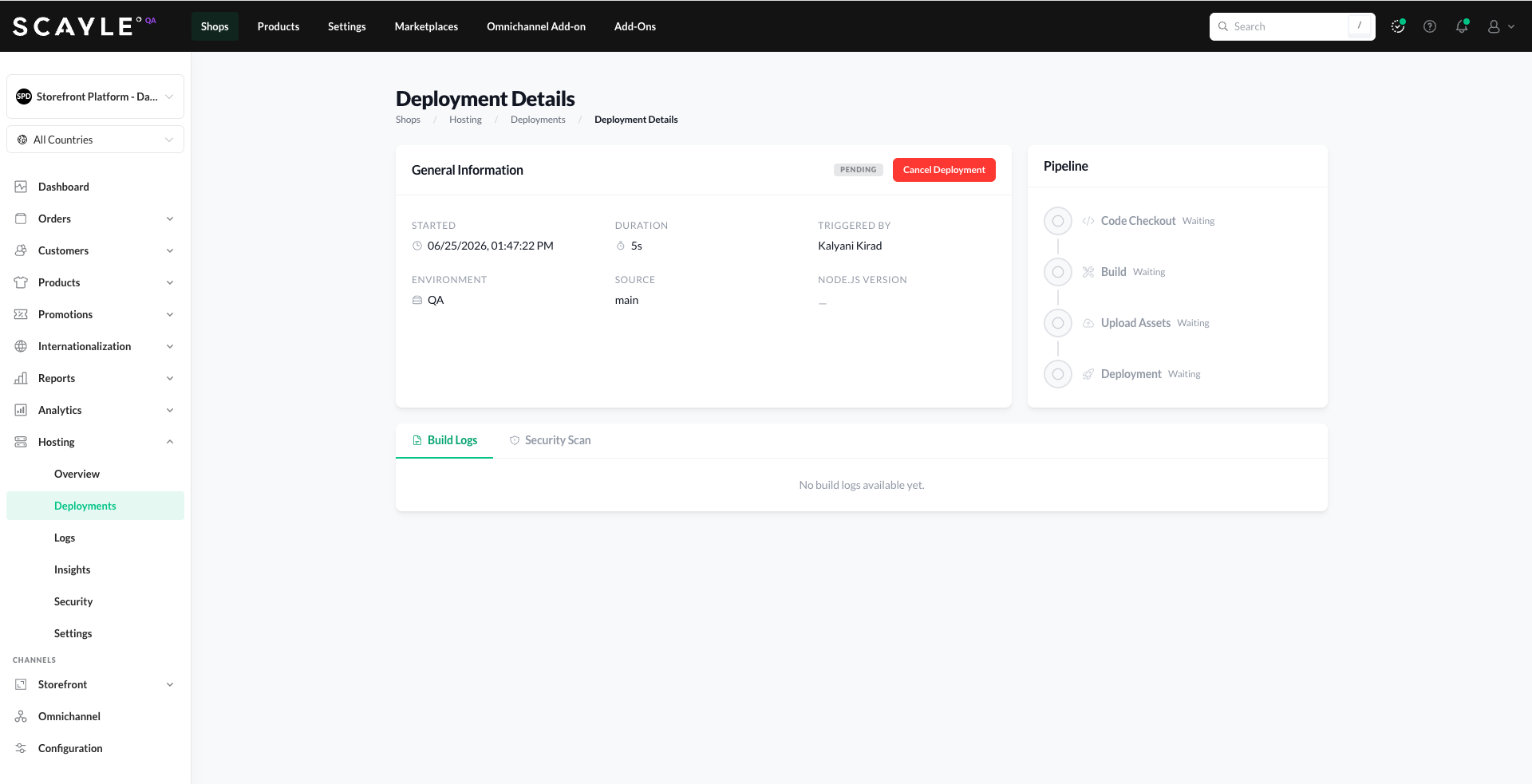
A cancelled deployment does not affect your currently active deployment — the previous successful version remains live until a new deployment succeeds and replaces it.
Build Logs
The Build Logs tab on the Deployment Details page shows a chronological record of every action during the build process- oldest entries first. Each entry includes a timestamp and a log message.


