

CDN cache
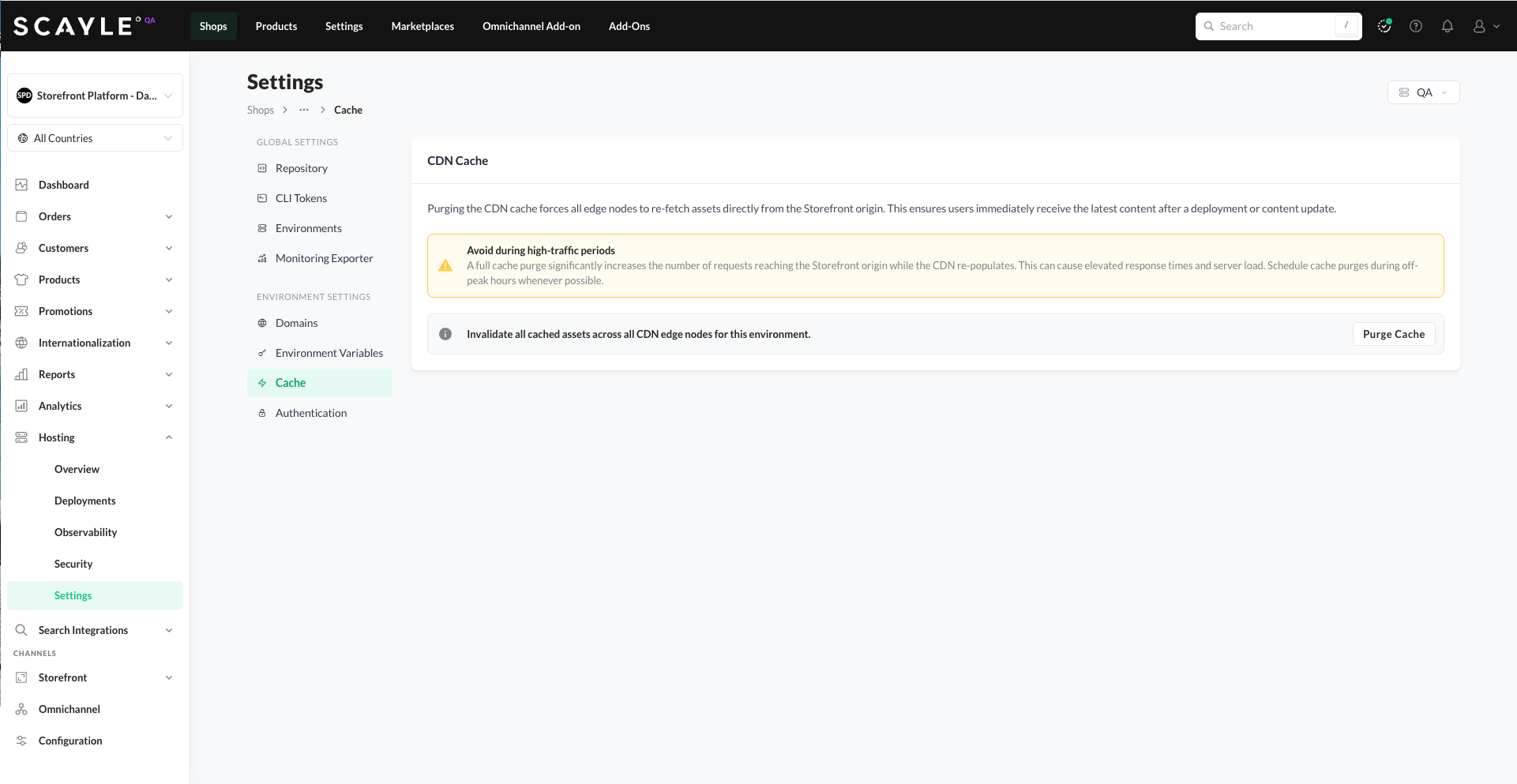
The Cache section lets you manually purge SCAYLE's CDN cache for an environment. Purging invalidates all cached assets at Cloudflare's edge nodes, forcing fresh content to be served from the Storefront origin until the cache refills.
Where to find it
Cache management lives in Shops ➜ [Shop] ➜ Hosting ➜ Settings ➜ Cache. The purge action is per-environment - use the environment selector at the top of the Settings page to switch between environments.
When to purge
The most common reasons to manually purge the CDN cache:
- After a deployment that needs new content reflected at the edge immediately, before the natural TTL would refresh it.
- After a content update (CMS changes, product updates) that needs to be visible without waiting for the cache to expire.
- When troubleshooting users seeing stale content.
How to purge
In the SCAYLE Panel
- Go to Hosting ➜ Settings ➜ Cache.
- Use the environment selector at the top to pick the environment you want to purge.
- Click Purge Cache.
All cached assets across all CDN edge nodes for the selected environment are invalidated immediately.
With the Admin API
Use the Admin API or SDKs to purge the full CDN cache or selected URL prefixes.
Purge all cached assets
Purge specific URL prefixes
Use urlPrefixes to invalidate only selected paths.
Avoid full purges during high-traffic periods. A full cache purge significantly increases the number of requests reaching the Storefront origin while the CDN re-populates. This can cause elevated response times and server load. Schedule full cache purges during off-peak hours whenever possible.
What happens after a purge
Once the cache is purged, the next request for each asset goes directly to the Storefront origin (cache miss). The edge re-caches the response, and subsequent requests are served from the edge again. For high-traffic sites, expect a brief load spike on the origin as the cache re-warms. Most caches re-populate within a few minutes for popular assets.


