

Deployment Overview
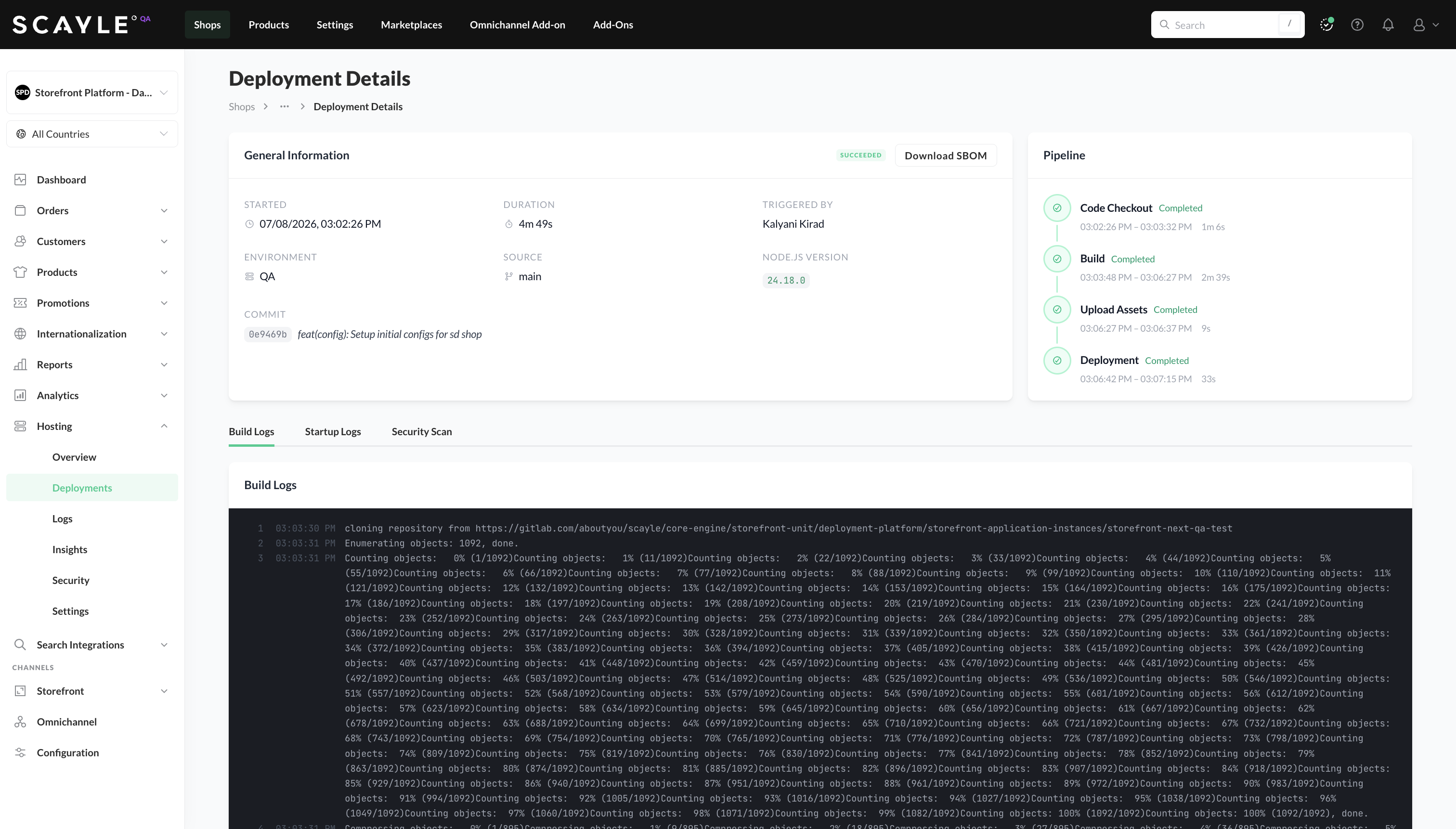
Startup Logs
Alongside the Build Logs and Security Scan tabs on the Deployment Details page, a Startup Logs tab shows the runtime logs your Storefront Application produced during the first minutes after this specific deployment came up. This gives you a focused window for diagnosing issues that surface between build success and the application becoming ready to serve traffic - such as configuration errors, missing environment variables, or slow initialization.
The scope is the first 10 minutes after the deployment finishes. For the full log history across the environment, use the Application Logs page in the Hosting sidebar.
Interface
The Startup Logs tab includes the same core controls as the Application Logs page:
- Search - filter visible logs by keyword.
- Severity filter pills - DEBUG, INFO, WARN, ERROR, each with a count for the visible window.
- Live indicator - a red LIVE dot appears while new entries are still arriving.
Each entry shows the timestamp, severity, source prefix (e.g., [next-qa-storefront-main]), and message content.
Empty states
- Waiting for logs - the deployment is still running or the application hasn't emitted any logs yet.
- No application logs in this window - the deployment completed but the application did not write any logs in the first 10 minutes.
- No matching entries - logs exist but the current search or severity filters exclude all of them. Clear the filter or re-enable the log levels to see them again.
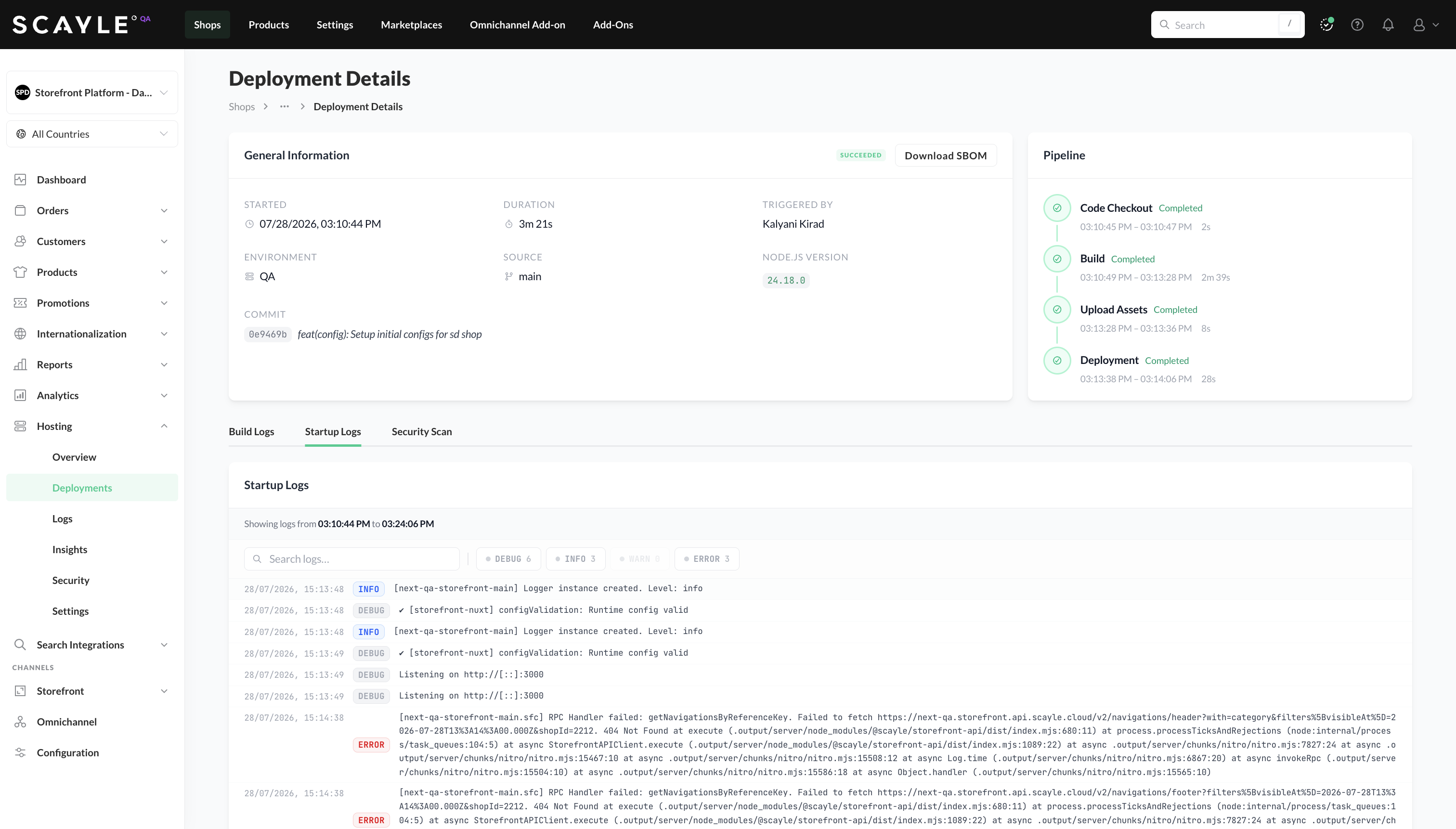
Deployment is a core functionality of Storefront Hosting. The following sections cover the main deployment surfaces - viewing your latest deployment, browsing deployment history, inspecting individual deployments, and rolling back.
Overview page
After connecting your repository and triggering your first deployment, the Overview page becomes your primary hub for deployment activity. It shows your latest deployment, your storefront's domains, and one-click access to deploy or roll back.
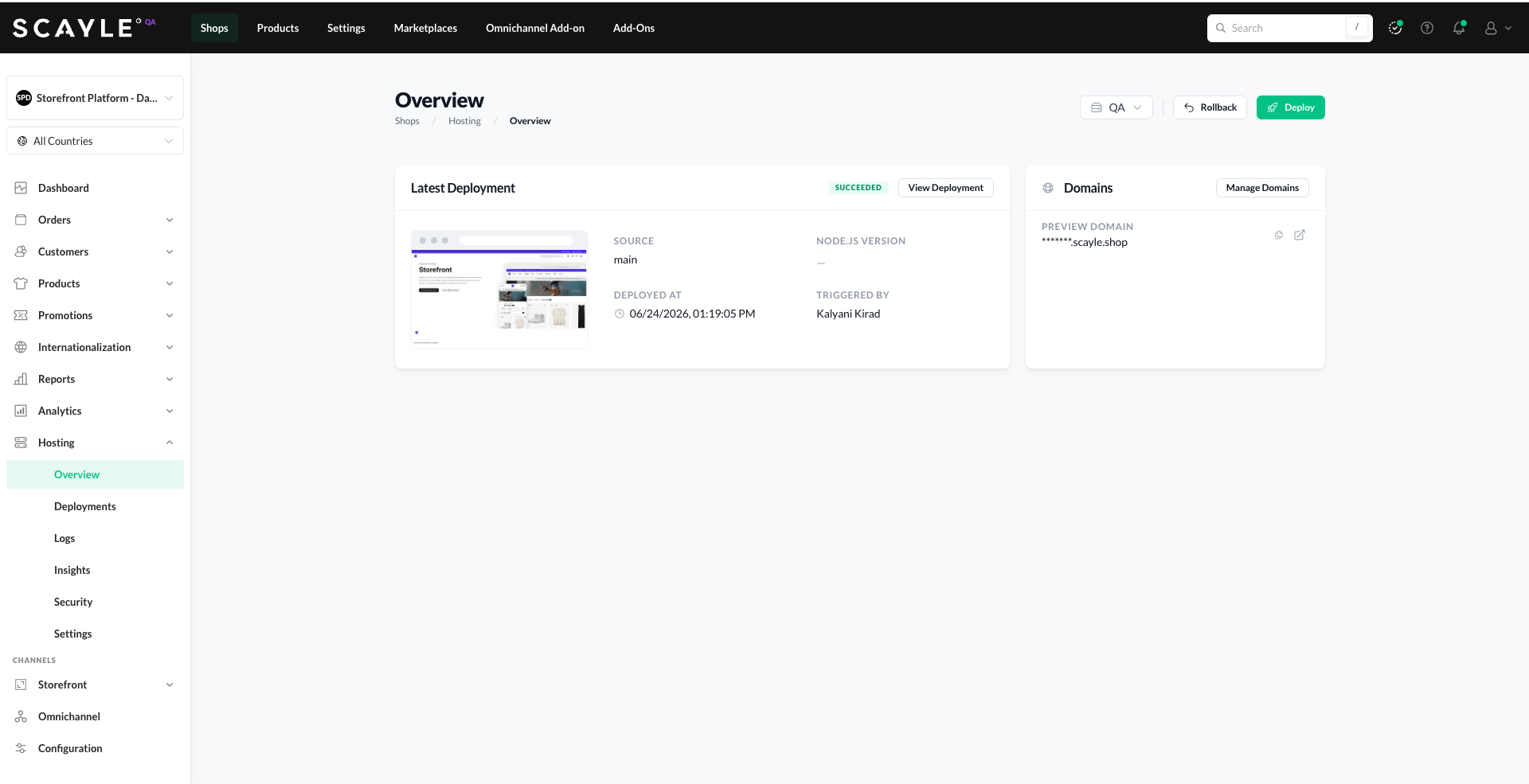
Top-right actions:
- Environment selector - switch between environments.
- Rollback - roll back to the previous successful deployment.
- Deploy - trigger a new deployment from a selected branch or tag.
Latest Deployment
A card showing details of the most recent deployment in the selected environment:
- Preview thumbnail of your storefront.
- Status badge (Succeeded, Failed, etc.).
- Source - the Git branch or tag deployed.
- Node.js Version - the Node.js version used.
- Deployed At - when the deployment completed.
- Triggered By - who initiated the deployment.
- View Deployment - opens the Deployment Details page for this deployment.
Domains
A card showing your storefront's domains:
- Preview Domain - the SCAYLE-generated domain for this environment, with quick-copy and quick-open actions.
- Manage Domains - opens the Domains settings page where you can add and configure custom domains.
Deployments page
Click Deployments in the Storefront Hosting sidebar to see all deployments for the selected environment.
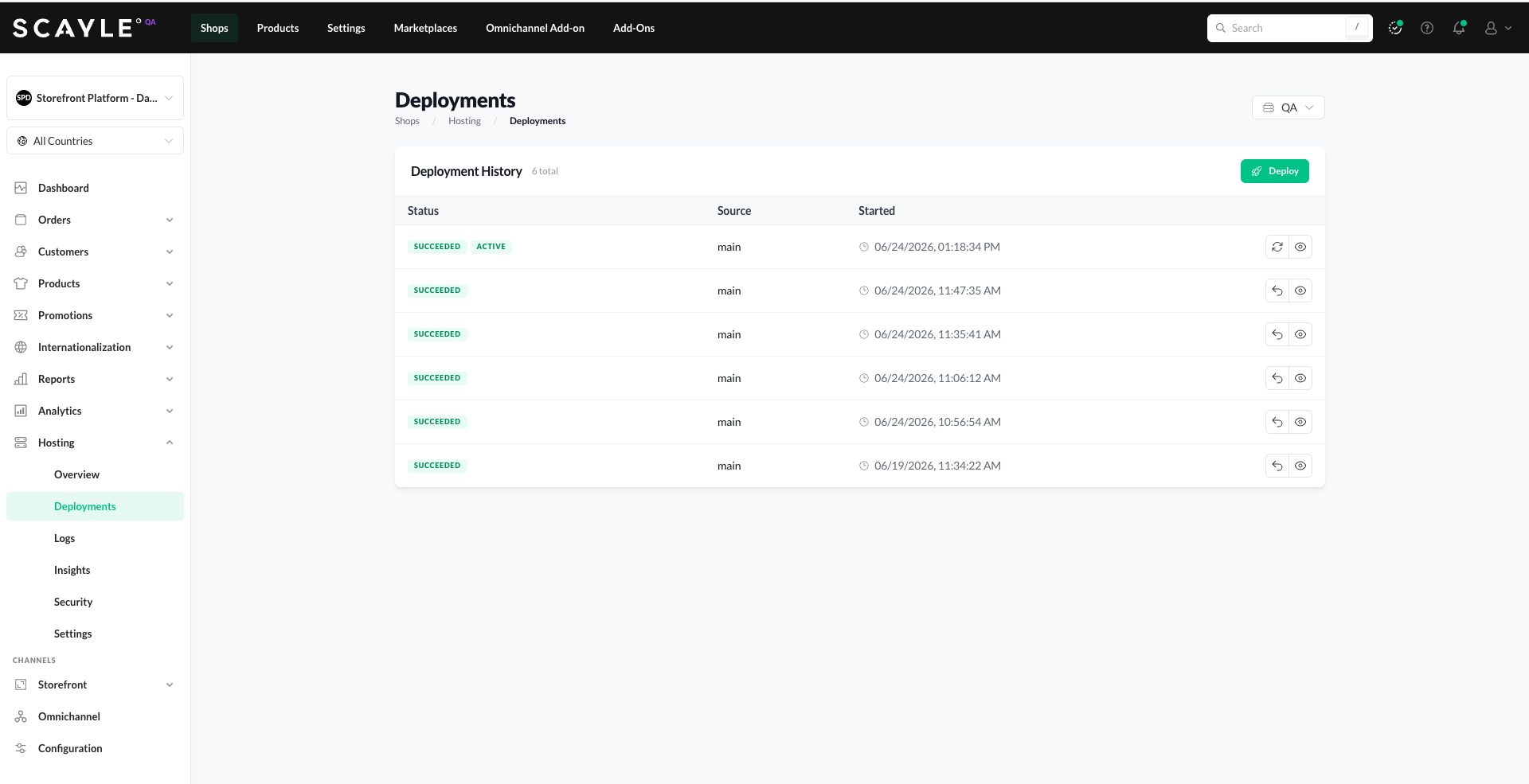
The page shows a Deployment History table with the total deployment count and a Deploy button to trigger a new deployment. Each row includes:
- Status - the deployment's status and whether it's the currently active deployment (
ACTIVEbadge). - Source - the Git branch or tag the deployment was triggered from.
- Started - when the deployment started.
Per-row actions (on the right):
- Redeploy (refresh icon) - re-run the deployment (available on the active deployment).
- Inspect (eye icon) - open the Deployment Details page.
- Rollback (curved arrow icon) - roll back to this deployment (available on past successful deployments).
Deployment Details
Clicking Inspect on any deployment (or View Deployment from the Overview page) opens the Deployment Details page, which provides everything you need to understand and troubleshoot a specific deployment.
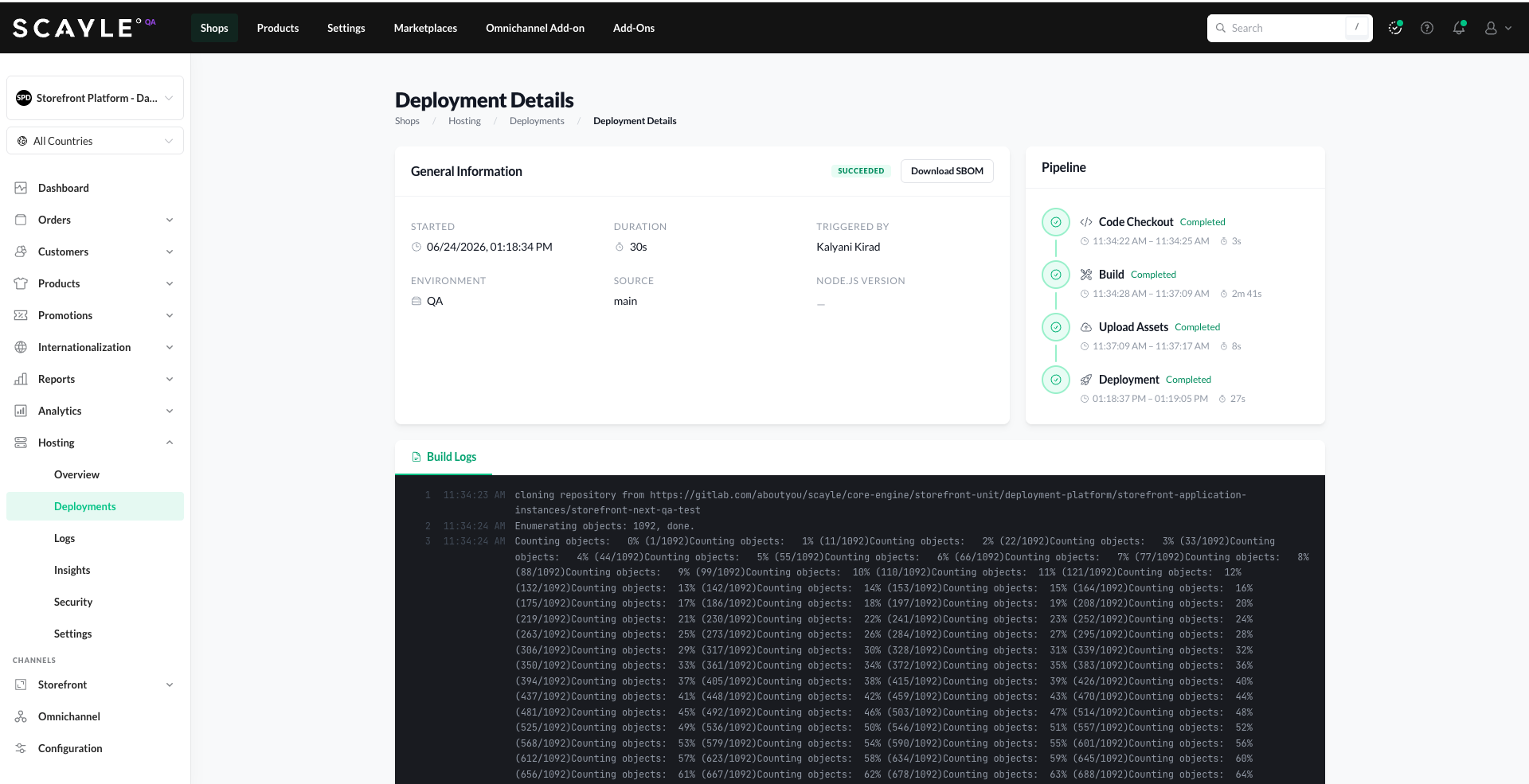
General Information
Top-level metadata about the deployment:
- Status - Succeeded, Failed, In Progress, etc.
- Started - when the deployment started.
- Duration - how long it took end-to-end.
- Triggered By - who initiated the deployment.
- Environment - the environment this deployment is for.
- Source - the Git branch or tag deployed.
- Node.js Version - the Node.js version used.
- Download SBOM - download the Software Bill of Materials for this build (see Software Bill of Materials).
Pipeline
A vertical timeline showing the stages of the deployment, with timestamps and duration for each. See Deployment in Progress for a detailed breakdown of each stage (Code Checkout, Build, Upload Assets, Deployment) and what they do.
Build Logs
The Build Logs tab shows the full output of the build process every line from git clone through dependency installation, compile, and deployment. Use this when troubleshooting build failures: errors typically include enough context to identify the problematic file or step.
Startup Logs
The Startup Logs tab shows the log output your Storefront Application produced while the new version was starting up and beginning to serve requests. Check it when a deployment failed even though the build succeeded, for example because the application crashed on startup or never passed its health checks.
Security Scan
Alongside the Build Logs tab on the Deployment Details page, a Security Scan tab shows the results of the vulnerability scan performed against your Storefront Application's dependencies for this specific deployment.
The scan runs automatically as part of every deployment and surfaces known vulnerabilities in your npm packages. Findings are advisory only - they never block the deployment from succeeding.
For details on how scanning works, what findings mean, and how to act on them, see Vulnerability Scanning.


