

Campaigns
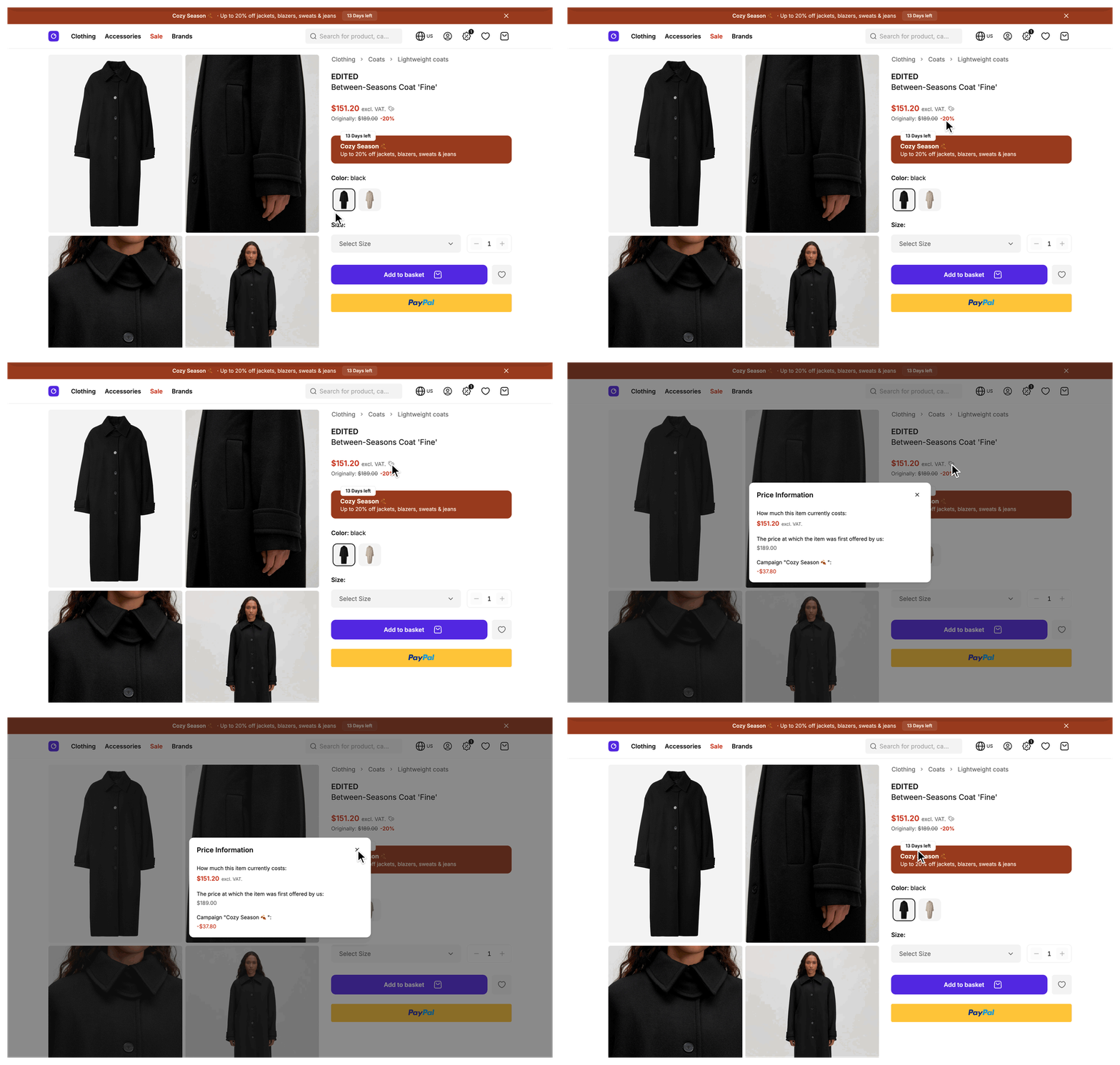
A campaign is a time-limited price reduction that your shop runs through the SCAYLE Panel. The Storefront Application V3 shows the running campaign in the page ribbon, on product badges, in deal banners, and in the basket, using the name, colors, and schedule you set in the SCAYLE Panel.
A campaign is switched on by time, a promotion by the basket. While a campaign runs, the Storefront API reduces the prices it covers, and the Storefront Application shows one running campaign at a time, the first active one. A promotion applies once the customer meets its rules, such as the items in the basket, and several can run side by side.
Why it matters
When a customer sees a campaign badge on a product card, the same campaign name and colors should appear on the product detail page, in the basket, and in the deals panel. The Storefront Application V3 resolves the running campaign once per request and hands the same value to every page and component, so every surface of that page renders the same campaign.
Try it
See the campaign ribbon, the banner and badges on the demo shop.
What's included
- Campaign page prop:
campaignis a shared prop typedCampaign | null. It is a once prop (see Shared data) and part of the first server-rendered HTML, so components render it without a loading state. - Ribbon: On pages that use the full layout, the ribbon at the top shows the campaign headline, subline, and a countdown to the end date. The ribbon never renders on the basket page. When a campaign is running, it takes the ribbon slot before the first promotion. The countdown is hidden when the campaign sets
hideCountdown, and the customer can close the ribbon. - Product badges: Product cards and sliders show a campaign badge only when the product's price carries a campaign reduction. The label is the campaign's
badgeLabel, or the translation keycampaign.dealwhen it is empty. A highlight (a page promotion or a CMS override) replaces the campaign and promotion badges with at most one badge of its own. The highlight badge can be hidden, so a highlighted product can show no badge at all. - Deal banners: The product detail page shows a campaign banner only when the selected price carries a campaign reduction. The basket page shows one only when the basket has a campaign reduction. Both banners use the campaign headline, subline, colors, and countdown, and they link to the campaign
linkwhen it is set. - Deals slide-in:
SFPromotionSlideIn.vuelists the running campaign before the promotions. The header button that opens it counts the campaign as one deal. The count appears once the promotions have loaded, becausepromotionsis a deferred prop, which the server sends after the first render. - Basket display: A basket line with a campaign reduction shows the campaign badge on its image. In the basket summary, the Discount row adds the campaign reduction to the promotion total. Expanding the row lists the campaign by headline, or by name when the headline is empty, with its amount in the campaign colors.
- Price information: The price information modal lists the campaign name and its reduction when the price carries one.
- Campaign reduction on prices: Product prices and basket prices carry
campaignReductionInCentsandhasCampaignReduction. The Storefront API sends them as applied reductions in thecampaigncategory, the way Pricing describes for other reductions. The basket cost adds them up ascampaignReductionSumInCents. - Campaign key on API requests: The SDK passes the running campaign's key as
campaignKeyto Storefront API requests for products, listings, search, recommendations, the basket, the wishlist, and checkout. - Tracking: The ribbon and the deal banners report
view_promotionandselect_promotionfor the campaign, the same way they do for promotions.
What you can change
Configure
- Campaign schedules, names, discounts, and colors are set entirely in the SCAYLE Panel under Shops ➜ Promotions. No configuration is needed in the Storefront Application V3 code.
- Set the environment variable
STOREFRONT_CACHE_DISABLED=trueto turn off the server cache while you check a campaign locally. It disables every cache entry of the application, so keep it out of production.
Theme
- Set the fallback colors with the
--color-campaignand--color-primarytokens insrc/client/design-tokens.css. They apply to campaigns whose colors the SCAYLE Panel left empty. Colors set in the SCAYLE Panel win over the tokens. - Restyle the ribbon, banners, and badges in
src/client/components/deal/andsrc/client/components/product/SFBadges.vue. They are your components.
Extend
- Add a field from the Storefront API to the campaign in
CampaignMapperService. - Change the color transform by editing the
colorentry inCampaignMapperService. It maps the Storefront API's{ background, text }colors to Vue inline styles. - Choose which campaign wins when several run at once, or change what happens when the Storefront API fails, by overriding
resolveActiveCampaignonCampaignsService. - Change how long a campaign is cached in the browser and on the server.
Constraints and limits
Permanent
- The Storefront API applies the campaign discount and returns it in the price. The Storefront Application V3 does not calculate it. The
campaignprop supplies the labels, colors, link, and schedule. Hiding the campaign components does not remove the discount from a price. - Campaign badges, the product detail banner, and the basket banner depend on the price, not only on the campaign. A campaign applies to all products or to selected ones, and a product outside the campaign has
hasCampaignReductionset tofalse. Check that flag in any component you add that shows campaign UI for a product, asSFBadges.vueandSFProductDealBanners.vuedo. Without the check, a product outside the campaign carries a campaign badge next to its regular price. The ribbon and the deals slide-in show the campaign whenever it is running. - A campaign counts as running only when it has both a start date and an end date and the current time is at or after the start and before the end. A campaign without both dates never reaches the page.
Known limitations
- A change in the SCAYLE Panel takes up to 5 minutes to reach a full page load, and about 10 for a customer who navigates inside the Storefront Application V3. See Data cache TTLs. A campaign that ends keeps showing, and one that starts stays hidden, until then. The browser keeps its copy of the
campaignonce prop for the same time again. - If your CDN caches the HTML of the routes in
cacheableRoutes, a cached page also carries the campaign as of its render. Schedule a campaign to start a few minutes before you promote it, or shorten the lifetimes with Change how long a campaign is cached. - When several campaigns are running, the SDK picks the first one in the order the Storefront API lists them. It requests the first page of the campaign list with the API's default order and applies no ranking of its own. SCAYLE allows several price campaigns per shop at once, so overlapping campaigns can produce a pick you did not intend. Run one campaign at a time, or use Choose which campaign wins.
- When the Storefront API or the cache fails, the SDK logs
Failed to fetch the active campaign, treats the shop as having no campaign for that lookup, and continues without a campaign key. It does not cache the failure, so the next lookup retries. OverrideresolveActiveCampaignto change that behavior. - The campaign condition text reaches the page props as
conditions, but no component of the Storefront Application V3 shows it. The campaign banners render the headline and subline only.
How it works
Fetching and caching
CampaignsService from @scayle/storefront/services runs once per request, because every caller of the request shares one lookup. The lookup asks the Storefront API for the campaign list and keeps the first campaign whose schedule covers the current time. It stores that raw campaign in the server cache, and CampaignMapperService maps it on every call, see Rules for cached values.
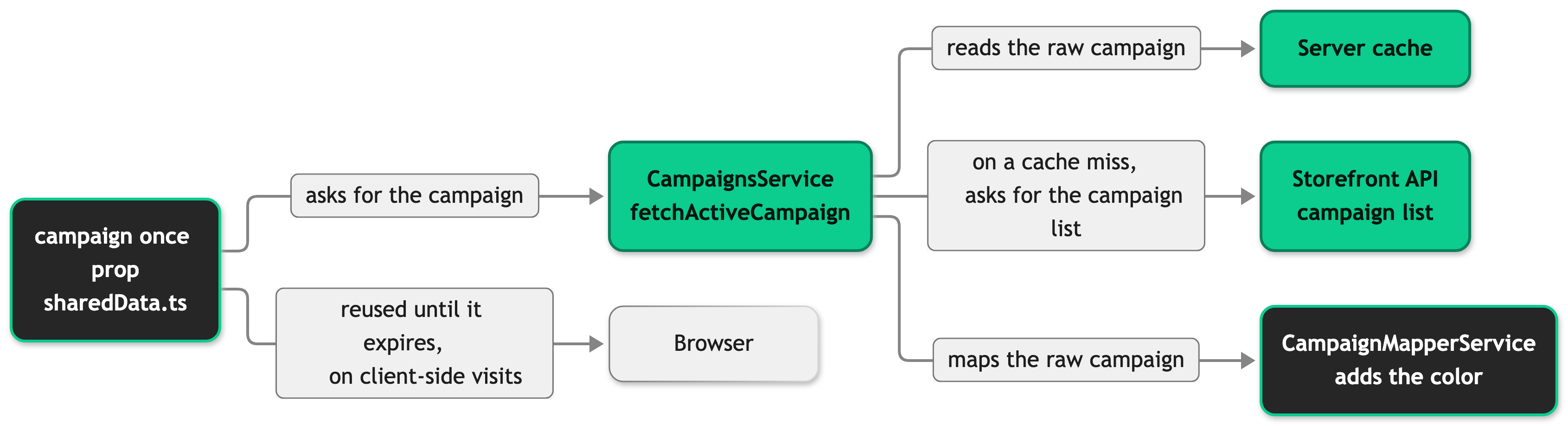
The SDK also uses the lookup to supply the campaign key for Storefront API requests, so overriding the lookup changes both the campaign the page shows and the key the API receives. The SDK's own lookup never rejects: on a failure it logs once and returns null.
Mapping
The mapped campaign that reaches the page has this shape: id, key, name, reduction, schedule with from and to, headline, subline, link, hideCountdown, conditions, an optional badgeLabel, and color. The headline falls back to name when the Storefront API sends an empty one.
The SDK's base CampaignMapper produces everything except color. The Storefront Application V3 adds color in src/server/services/mappers/campaign-mapper.ts, because the SDK has no dependency on Vue. The CampaignMapperService there turns the Storefront API's { background, text } colors into backgroundColor and color inline styles. It falls back to var(--color-campaign) and var(--color-primary) when a color is missing or empty, so both values are always non-empty strings.
Shared data
src/server/middleware/sharedData.ts shares the campaign as a once prop. A once prop is a shared prop that the browser keeps between client-side visits, see Props and when they load. The expiry for campaign is the same as the server cache lifetime, counted from the response that carried it. A full page load asks the server again, and so does the first client-side visit after the expiry.
Setup
The Storefront Application V3 reads campaigns without any code or configuration change. You need a shop with products that a campaign can include.
- Create a campaign in the SCAYLE Panel and give it a start date, an end date, a discount, and the design fields described under Configuration.
- Open a page of your shop. The server cache can hold the previous state, so reload after the delay described under Constraints and limits.
When it worked, the ribbon shows the campaign headline, products in the campaign carry a campaign badge, and the deals button in the header counts the campaign.
Configuration
SCAYLE Panel
A campaign is created and managed in the SCAYLE Panel under Shops ➜ Promotions as a Price Campaign. Create it, set the discount value and schedule, then enable the Campaign Design toggle to fill in the UI fields (headline, badge label, colors, link). If the campaign targets multiple countries, translate the fields on the Translations page after saving.
Storefront Application
Campaigns have no keys in storefront.config.ts. These are the values that shape how long a campaign stays in a cache:
| Value | Where it lives | Default |
|---|---|---|
| Server cache lifetime of the running campaign | A constant of the SDK. Change it by overriding resolveActiveCampaign. | See Data cache TTLs |
Browser lifetime of the campaign once prop | Second argument of Inertia.once for campaign in src/server/middleware/sharedData.ts | The server cache lifetime |
Customization guides
Add a field from the Storefront API to the campaign
You end up with a Storefront API campaign field, such as description, available as campaign.description in every component. The base Campaign carries the top-level fields listed under Mapping. Fields such as description, colorStyle, and customData stay on the raw Storefront API campaign until you map them.
- Add the field to the
Campaignaugmentation insrc/shared/types/Promotion.ts, next tocolor. The module name must be@scayle/storefront/types, the same as the existing block.
The typecheck now fails in every typedCampaignobject, such ascreateMockCampaigninsrc/test/mock-data/promotions.ts, the stories, and the tests, because they lack the new required field.CampaignMapperServicestill compiles, because it spreads the base result, so the field arrives asundefineduntil step 2. - Return the field from
mapCampaigninsrc/server/services/mappers/campaign-mapper.ts. - Add the field to each of the other
Campaignobjects the typecheck still reports. - Read the field in a component through
usePage().props.campaign.
When it worked, the typecheck passes and campaign.description holds the text from the Storefront API.
Test the campaign mapper
You end up with a test of CampaignMapperService that fails when an override drops a base field or breaks the color mapping. Write one like it for a field you add. A mapper depends only on its context and its input, so it tests without a browser or a Storefront API. @scayle/storefront/test ships the context doubles and createApiCampaign, which returns a Storefront API campaign you can override field by field. Import it from test files only, because it depends on vitest. The application re-exports the context doubles from src/test/utils/context.ts.
The first test catches a hand-built shape that drops a base field, and the second asserts the color mapping. Run the file with pnpm exec vitest run src/server/services/mappers/campaign-mapper.test.ts, and both tests pass. The application's docs/testing-guidelines.md covers its testing rules.
Choose which campaign wins
You end up with a campaign pick that follows your own rule when several campaigns run at once. The example prefers the campaign that started most recently. It also fixes the key the Storefront API requests receive, because the SDK reads both from the same lookup.
- Create
src/server/services/latest-campaigns-service.tsand overrideresolveActiveCampaign.isCampaignActiveis not exported, so the example repeats its date check.
Keep thetryandcatch. Thecampaignprop insharedData.tshas no catch of its own, so a rejection would reach the page render. Remove thecatchonly if you want a Storefront API failure to fail the request. - Register the subclass in
src/server/registries.tsand removeCampaignsServicefrom that file's import list when nothing else there uses it. Nodeclare moduleentry is needed, because every consumer reads only the members of the base class.
When it worked, a shop with two overlapping campaigns shows the one that started last, and its key is the value under campaign.key in the page props.
Change how long a campaign is cached
You end up with a shorter or longer window between a Panel change and the storefront. A shorter window costs more Storefront API calls for the campaign list.
- Change the browser lifetime in
src/server/middleware/sharedData.ts. Replace the second argument ofInertia.onceforcampaign.
RemoveCampaignsServicefrom the import of@scayle/storefront/servicesin that file if nothing else there uses it. - Change the server lifetime by overriding
resolveActiveCampaignas in Choose which campaign wins and passing your own number of seconds togetOrSetin place of the constant that example uses.
When it worked, a Panel change reaches a full page load within the new server lifetime, and a client-side visit within the sum of both lifetimes.
Best practices
Read the campaign from the page props in components
Components get the campaign through usePage().props.campaign, as SFProductCard.vue does. A component cannot call the campaign service, and the prop is already the mapped, typed value. Server code that needs the campaign, such as a controller, can call services.campaigns.fetchActiveCampaign(). The call shares the request's lookup, so it adds no second Storefront API request.
Treat the campaign as nullable
Check campaign for null before you read it, such as with v-if="campaign". The prop is null when no campaign is running and when the lookup failed, as Constraints and limits describes.
Use campaign.color without a fallback check
CampaignMapperService returns a non-empty string for backgroundColor and color, either from the SCAYLE Panel or from the theme tokens. Bind campaign.color as an inline style without a fallback. If you rewrite the color mapping, keep a fallback for each value so this stays true.
Keep the base mapping in your mapper override
Keep the ...super.mapCampaign(campaign) spread in CampaignMapperService. A hand-built object that satisfies the compiler can still drop an optional field such as badgeLabel, and no error points at it.
Troubleshooting
A campaign is running in the SCAYLE Panel but the storefront shows regular prices and no campaign
Issue: The campaign has started and the cache window has passed, but no ribbon, badge, or banner shows and the prices have no campaign reduction.
Possible causes: The campaign has no start date or no end date, or the campaign lookup failed. Both are described in Constraints and limits.
Solution:
- Open the campaign in the SCAYLE Panel and check that it has both a start date and an end date. Add the missing date and reload after the cache window has passed.
- Search the server logs for
Failed to fetch the active campaign. A match means the lookup failed, and the next request retries it.
Prevention: Set both dates whenever you create a campaign.
The storefront shows a different campaign than the one I expect
Issue: A ribbon, badge, or banner shows, but its name or colors belong to another campaign.
Possible causes: Several campaigns run at once, and the SDK picked the first one in the order the Storefront API lists them. This is described under Known limitations in Constraints and limits.
Solution:
- Open the page source and find the
campaignprop. Compare itskeywith the key of the campaign you expect. - If the keys differ, end the overlapping campaign in the SCAYLE Panel or use Choose which campaign wins.
Prevention: Run one campaign at a time.


