

Wishlist
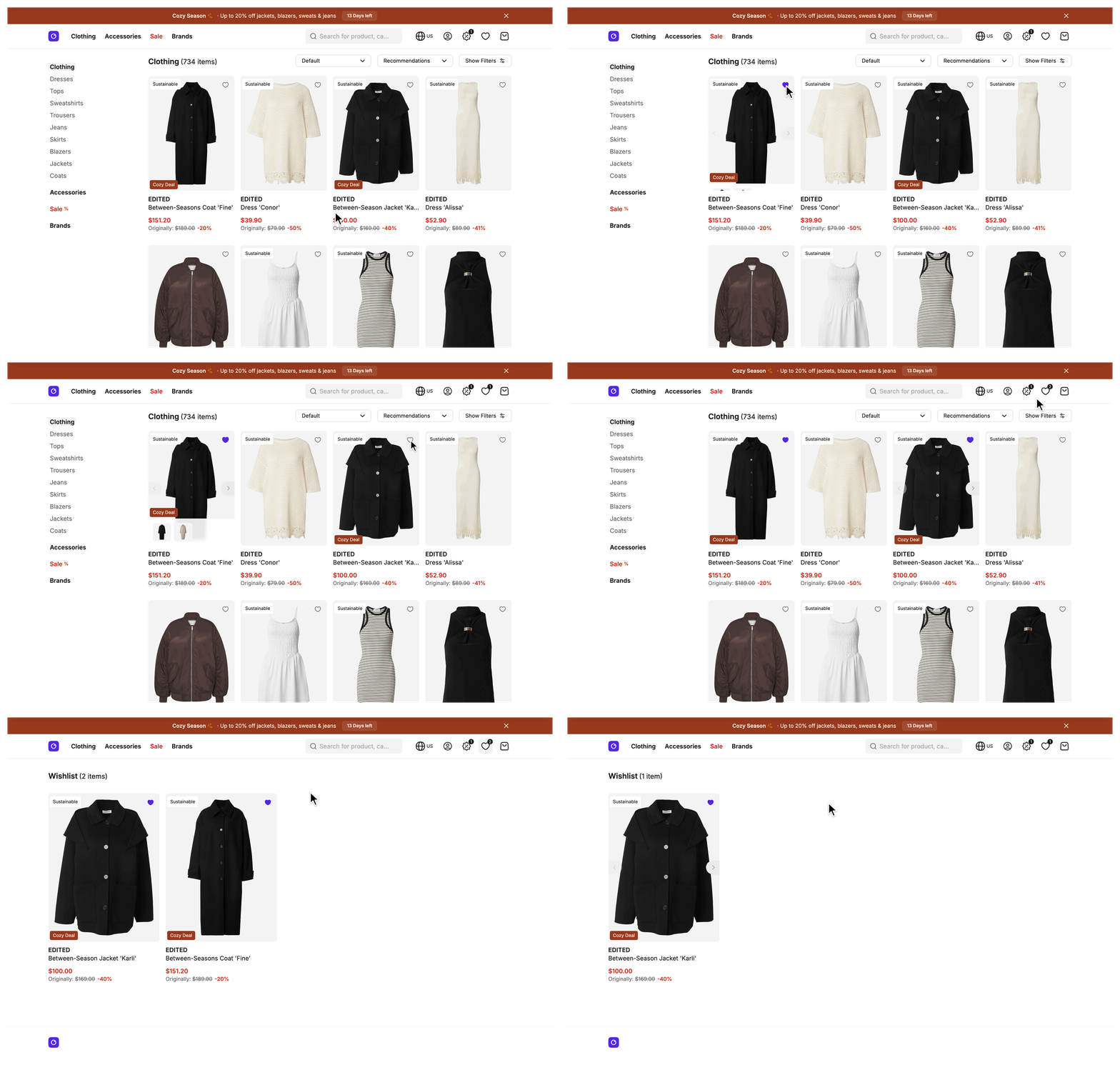
A wishlist lets a user save products from a product card or the product detail page and come back to them later, without leaving the page. Every wishlist toggle button reads and writes the same wishlist, so saving a product in one place updates its heart everywhere else on the page.
Why it matters
The Storefront API stores the wishlist, not the browser, so a signed-in customer finds it again on another device. A user who saves products before signing in keeps them, because the SDK copies that wishlist into the customer's wishlist at sign-in.
Try it
Try it: open the wishlist page in the demo shop
What's included
- Wishlist page:
src/client/pages/Wishlist.vueat/wishlist, rendered byWishlistController. It works for users and customers alike and shows each saved product as a product card. When the wishlist is empty,SFEmptyWishlist.vueoffers a sign-in button to a user who has not signed in. - Toggle button:
SFWishlistToggle.vuesaves or removes one product. It sits on product cards, on the product detail page, on the basket card and in the gift selection modal of a promotion. - Shared wishlist state:
useWishlist()returns the current wishlist, the item count, a check for whether a product is saved, and a function that toggles a product. Every component that shows wishlist state reads it from here. - Header link with count badge:
SFWishlistLink.vuelinks to the wishlist page and shows the item count. - Duplicate toggle protection: while a toggle for a product runs, every toggle button for that product shows the busy state, and a second call for the same product returns the running request instead of starting another.
- Sign-in merge: at sign-in, the products from the pre-sign-in wishlist are copied into the customer's wishlist, together with their custom data and item group. An item group ties lines together as a bundle, such as the items of one outfit.
- oRPC procedures: the SDK provides them and the Storefront Application V3 mounts them on
apiRouter. You add, remove and toggle products throughrpcClient.wishlist.add,rpcClient.wishlist.removeandrpcClient.wishlist.toggle. Add and toggle take a product id, and remove takes theitemKeyof the line, which is thekeyof a wishlist item. See RPC API for oRPC. The procedures work for users and customers alike. - Add event tracking: in the browser, a confirmed add fires
add_to_wishlistfor Google Analytics 4 (GA4) and SCAYLE Analytics. SCAYLE Analytics applies its consent gate before it sends the event. A removal fires no event.
What you can change
Theme
- Restyle or rebuild the wishlist page in
src/client/pages/Wishlist.vue, its headline inSFWishlistHeadline.vueand its empty state inSFEmptyWishlist.vue. - Change the toggle button in
SFWishlistToggle.vueand the header link with its count badge inSFWishlistLink.vue.
Extend
- Save custom data with a wishlist item by passing
customDataor an item group to the wishlist procedures. - Add a field to every wishlist item by overriding
mapWishlistItemin yourWishlistMapperService. - Change how the wishlist key is derived in
getWishlistKeyof yourWishlistMapperService. - Fetch more product data for the wishlist cards by changing the
Includesgetter of yourProductMapperService. The wishlist reads its product shape from the product mapper, so the change also reaches the product listing. - Change the wishlist page by overriding
getViewProps()in yourWishlistControllerto add props, orbeforeFetch()andbeforeRender()to redirect or stop before the page renders.
Replace
- Build a different saved-products flow with its own data shape, such as a
/favoritespage, with your own route, controller, service and procedures. The wishlist controller and procedures assume the Storefront API wishlist shape, so no hook adapts them to another data source.
Constraints and limits
Permanent
- The Storefront API stores each wishlist under a key that
getWishlistKeyderives from the shop country and one identity. A signed-in customer uses the customer id, everyone else uses the session id. A customer therefore sees the same wishlist on every device within one shop country, and a user's wishlist belongs to one session, so a new session starts with an empty wishlist. - Only the
auth.exchangeAuthCodeprocedure merges wishlists, so a custom sign-in flow has to read the pre-sign-in key before the session regenerates, or the products the user saved never reach the customer's wishlist. See Capture the basket and wishlist keys around the session change. - The merge copies and never deletes. It skips a pre-sign-in line when the customer's wishlist already holds the same item group (for a grouped line) or the same product without an item group (for an ungrouped line). A grouped line never matches an ungrouped one, so a group merges in full even when the customer saved one of its products on its own.
wishlist.toggletreats two lines as the same line when the product and the item group id are equal. A toggle without an item group only matches a line without one.
Known limitations
- Wishlist state on the client ignores item groups.
hasProductInWishlist()andtoggleItem()inuseWishlist()match on the product id alone, andtoggleItem()sends no item group, so the Storefront Application V3 only creates lines without a group. If your shop saves grouped lines, a grouped line fills the heart, and the next toggle does not remove it. The toggle tries to add a second line without a group. Scope both functions by item group id insrc/client/composables/useWishlist.ts. - Duplicate toggle protection works inside one browser tab. Two tabs can each send a toggle for the same product, and a toggle that arrives after the first one finished removes the product again.
- The sign-in merge is best effort. A line that fails to add is logged and skipped, and a wishlist that cannot be read counts as empty. Neither stops the sign-in, and the customer sees no message.
How it works
Where the wishlist comes from
The wishlist reaches every regular page as a shared prop, which Inertia adds to every page. The error page is the exception, because it renders without shared props. The prop is a once prop and a deferred prop, see Props and when they load. It sits in the customer-data group, and deferred props of one group load in the same follow-up request, here together with the basket.
The /wishlist page needs the wishlist in its first response, so WishlistController supplies its own wishlist prop. A page prop replaces a shared prop with the same name, so the shared callback does not run on that page. The SDK base controller fetches the wishlist in view() before it renders and renders the error page when the fetch fails, so the page never shows a list that is empty only because a request failed.
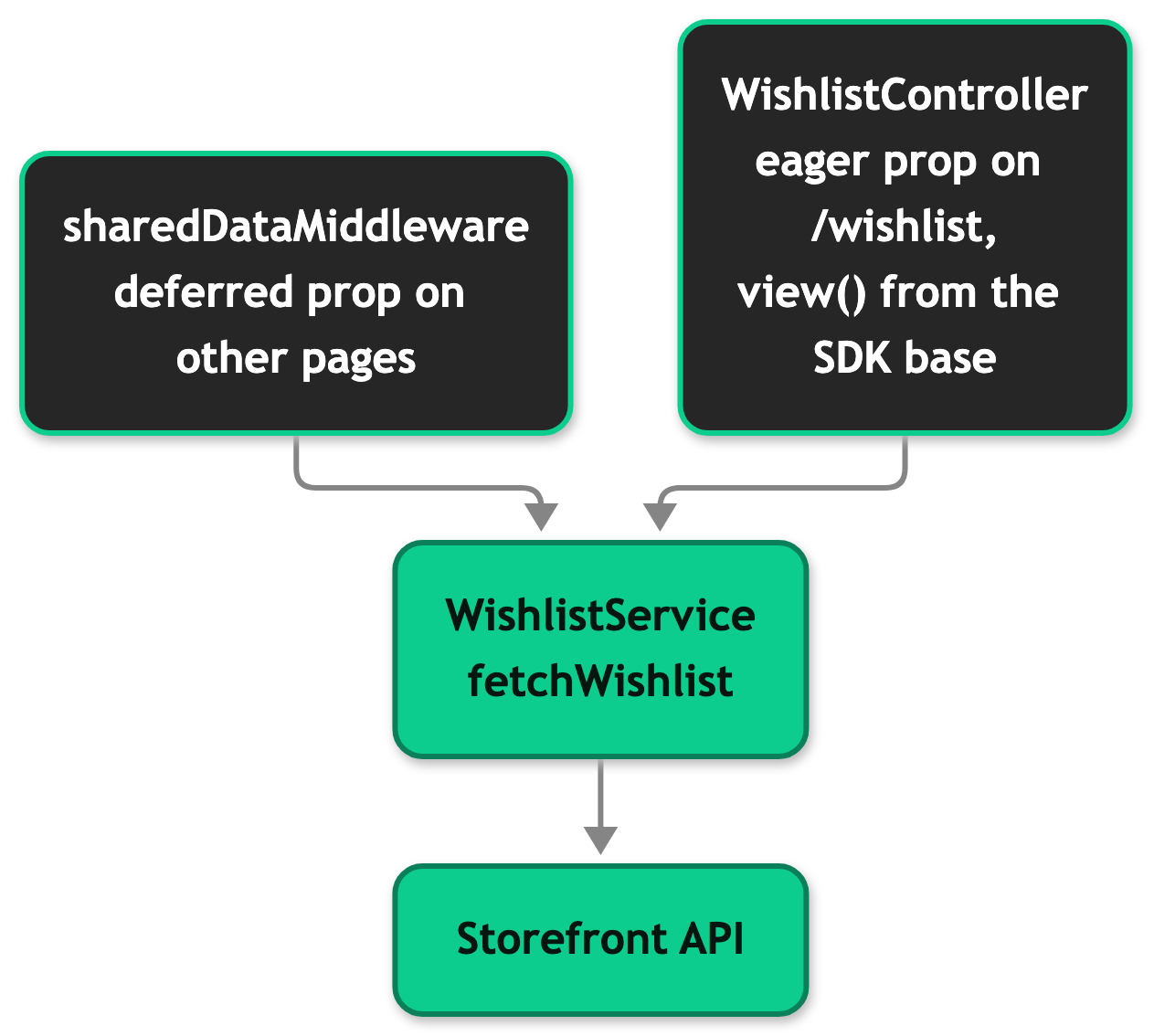
On every page except /wishlist, useWishlist().wishlist is undefined and count is 0 until the follow-up request returns. When the Storefront API call fails, the prop is null and the server logs Failed to fetch wishlist for shared prop. Because the wishlist arrives in a second request, a full page request to these pages never carries it in HTML that the response cache may store. The /wishlist route is not mounted as cacheable, so the response cache does not store its HTML, which does carry the wishlist.
Each item carries its key, its productId, the mapped listing product, the customData and the optional itemGroup it was added with.
Saving and removing a product
SFWishlistToggle.vue calls toggleItem(productId) from useWishlist(). That sends rpcClient.wishlist.toggle({ productId }). The server loads the wishlist and removes the line that matches the product, or adds a line when none matches. The client then reloads the wishlist prop with a partial reload, a request that asks the server for chosen props only, so every component that reads it updates. After a confirmed add, the toggle button tracks the add event. If the toggle fails, the client shows the wishlist_page.notification.toggle_error message. If the reload fails, the client shows the global error toast instead.
Sign-in merge
The auth.exchangeAuthCode procedure reads the pre-sign-in wishlist key and the customer's key, and mergeWishlists copies the lines across. Both key reads call your getWishlistKey. The order of the reads matters, see Capture the basket and wishlist keys around the session change.
Customization guides
Save custom data with a wishlist item
The Storefront API stores customData and an item group with a line when you add it, and both come back on every wishlist item. The Storefront Application V3 sends neither, so you add them to the call. This example flags an item as a gift. An item group takes an id, isMainItem and isRequired.
First, declare the field so TypeScript knows its type. Add it inside the existing declare module block:
Then pass the data to the procedure. The toggle applies customData only when it adds a line. The // ... markers stand for the unchanged rest of toggleItem:
The wishlist procedures have no update, so you cannot change the custom data of a line that exists. Remove the line and add it again. Without the type declaration, item.customData.isGift is unknown.
Add a field to every wishlist item
Override mapWishlistItem in your WishlistMapperService when many components need a value that you derive from the raw line. The hook is protected mapWishlistItem(item: ApiWishlist['items'][number]): WishlistItem. This example reads the isGift flag from the previous guide into a field of its own.
First, add the field to the WishlistItem type in a new file. The export {} makes the file a module, so the block augments @scayle/storefront/types instead of declaring an ambient module that replaces it:
Then assign it in the mapper. The // ... markers stand for the existing constructor and imports:
Keep ...super.mapWishlistItem(item). WishlistItem requires key, productId, product and customData, so leaving the spread out fails type checking. A field you add as required also needs a value in test fixtures such as src/test/mock-data/wishlist.ts.
Change how the wishlist key is derived
getWishlistKey is abstract on the SDK WishlistMapper, and the WishlistMapperService in your project implements it. The wishlist procedures, WishlistController, the shared prop and the sign-in merge all call it, so one change applies everywhere. Most shops keep the default. Change it only when your shop needs wishlists scoped by something other than the shop country plus the customer id or the session id.
The contract is getWishlistKey(session: StorefrontSession): string. Your project already contains this default implementation. It reads the session and passes its identifiers to generateKey. Change the identifiers where marked:
The key must be the same on every request for the same user or customer. A key that changes, for example one that includes a timestamp, gives every request an empty wishlist, and nothing throws. After you change the derivation, customers who saved products under the old key start with an empty wishlist, because those products stay on the Storefront API under the old key. generateKey throws when it gets neither a session id nor a user id.
Best practices
Read wishlist state through useWishlist
Every component that shows wishlist state reads the same shared prop through useWishlist(). A component that fetches or caches its own copy drifts out of sync when another toggle changes the wishlist.
Pass the surface to every toggle
SFWishlistToggle requires a productListType prop and accepts an optional productListId. They name the surface the product was saved from and become product_list_type and product_list_id on the add_to_wishlist event. The prop is required but can be null, so a caller can satisfy the compiler and still give analytics nothing. SFProductCard forwards its own list type, the basket card passes basket, the gift selection modal passes gift_selection with the promotion id, and the product detail page passes null.
Tell loading apart from empty
On any page except /wishlist, wishlist is undefined while the deferred prop loads, so a count of 0 does not mean the wishlist is empty. Wrap markup that needs the loaded wishlist in Inertia's <Deferred data="wishlist">, or check wishlist.value === undefined before you show an empty state. hasProductInWishlist() returns false while the wishlist loads, so it is safe on first paint.
Troubleshooting
A click on a heart shows "Could not update your wishlist"
Issue: A click on a toggle button shows the message from the wishlist_page.notification.toggle_error key, and the heart does not change.
Possible causes:
- The wishlist reached the maximum item count of the Storefront API.
- The product is already on the wishlist.
- The product is unavailable.
- The Storefront API call failed.
Solution:
- Search the server logs for
Failed to add wishlist item. An entry with akindfield is a refusal from the Storefront API. An entry withoutkindcomes from a thrown error, such as a failed network call. - Match the
kindvaluesMaximumItemCountReached,ItemAlreadyPresentandItemUnavailableto the first three causes. The server logs these three kinds at debug level, so they appear only whenSTOREFRONT_LOG_LEVELisdebug. It logs every other kind and every thrown error at warn level. - If you find no entry and the click removed a product, check the response of the
wishlist.removeorwishlist.togglecall. The server returns a failed removal in the response and does not log it. A toggle that cannot read the wishlist first returns its error the same way.
Prevention: None of these can be ruled out in code, because they depend on the wishlist and the Storefront API. To show a specific message, read data.error in toggleItem() of useWishlist(). A refused add returns Failed to add item: followed by the kind. A thrown error returns the fixed text Failed to add item, because the original message can hold the request URL and so the wishlist key. The cause of a thrown error is only in the server log.
The header count badge does not appear
Issue: A user saved products, but the header shows no count badge.
Possible causes:
- The shared
wishlistprop is still loading or its Storefront API call failed. - The user is in another shop country, which uses another wishlist.
- The user lost the session, for example by clearing cookies before signing in, so the session id changed.
Solution:
- Read
usePage().props.wishlistin the browser.undefinedmeans the prop is still loading andnullmeans the fetch failed. - For
null, search the server logs forFailed to fetch wishlist for shared prop. - Confirm that the user is in the same shop country as when they saved the products.
Prevention: Use the checks in Tell loading apart from empty so your own components do not show 0 while the wishlist loads.
Saved products are missing after sign-in
Issue: A user saved products, signed in, and the customer's wishlist does not contain them.
Possible causes:
- The session expired or the user cleared cookies before signing in, so the pre-sign-in key no longer exists.
- The customer signed in under another shop country than the one where the products were saved.
- The merge skipped lines because a Storefront API call failed, as described in Known limitations.
Solution:
- Search the server logs for
Wishlist merge partially failedandFailed to read wishlist for merge. - Ask the customer to sign in again under the shop country where they saved the products.
Prevention: None of these can be ruled out in code, because the session and the Storefront API are outside it.


