

How to set up a product to be on sale
- Add prices to your products
- Configurations
- Create shop
- Understanding Your Shop Structure
- Default Filter
- Price Campaigns
Campaigns are created in the SCAYLE Panel under Shops ➜ Promotions ➜ Price Campaigns.
Introduction
SCAYLE offers several out of the box capabilities to show products in sale. You can use the features to show a batch of products in sale or you can show categories that include sale products only.
This tutorial walks through the most common tasks:
- Set the recommended retail price as calculation basis (old price).
- Show a sale badge on the PDP and PLP for each product on sale.
- Enable a sale filter on the PLP (toggle).
- Enable a “Sale” shop category including all products under clothing in Sale.
- Create a shop category, including only products reduced by a specific campaign.
Prerequisites
Before you tackle this topic, you should have a basic understanding of how prices are handled in SCAYLE and how shop management works in SCAYLE. Please read the following chapters:
- Add prices to your products
- Configurations
- Create shop
- Understanding Your Shop Structure
- Default Filter
- Price Campaigns
How SCAYLE defines a product on sale
Whether a product variant is considered “on sale” depends on the type of reduction (regular or campaign) and, in some shop countries, on Lowest Prior Price (LPL30D) enforcement. The base rules are described first; LPL30D adds one extra condition on top and is described in its own section below.
Regular reductions
A product variant is considered on sale if all of the points below are true:
- The current
priceof a product variant is lower than theold price. - The reduction resulting from the discount exceeds the sale threshold.
If these conditions apply, the SCAYLE system automatically calculates the reduction between price and old price and provides the opportunity to show a Sale badge. The relative and absolute reduction is exposed via the Storefront API in the appliedReductions object.
Campaigns
You can schedule SCAYLE price campaigns that are short term reductions that will reduce the price on top. We will concentrate on regular reductions provided via a third party tenant’s system and SCAYLE campaigns in this tutorial. For more information on Promotions you can have a look here.
This is one example for a shoe product in a campaign:
Regular reduction (prices in cents)
- Price:
8000 - Old Price:
10000
Leads to a reduction of 20%.
SCAYLE campaign on top (prices in cents)
20%on shoe products- Campaign Price:
6400(20% discount applied on top of the reduced price of8000) - Old Price:
10000
Leads to a reduction of 36%.
A campaign is considered on sale under the same base rule: the effective (campaign) price is lower than the old price, and the resulting reduction exceeds the sale threshold.
Lowest Prior Price (LPL30D) enforcement
To comply with EU price transparency rules, LPL30D enforcement can be enabled per shop country. When it is enabled, one additional condition must be met before a product is advertised as on sale:
- The current
pricemust also be lower than the lowest prior price (the lowest price of the variant in the last 30 days).
A few things to keep in mind:
- It applies independently to regular sale prices and to campaign prices, via two separate settings. You can enforce it for one without the other. The setting does not apply to promotions.
- If the current price is not below the lowest prior price, the product is not advertised as on sale even when
priceis belowold price: no Sale badge is shown, it is excluded from Sale categories and the sale filter, and no reduction is returned. - Because the lowest prior price is based on a rolling 30-day window, whether a product qualifies can change over time without any price change.
LPL30D enforcement is configured per shop country. See Configurations for how to enable it.
Sale Thresholds
You can define an absolute or a relative sale threshold.
In case you would like to define a sale threshold of 15% that would mean the following:
- Product variant 1, sale threshold set to
15%- Price:
1800 - Old price:
2000
- Price:
Price would be 1800 and no sale shown as the relative price difference is only 10% which is below 15%.
- Product variant 2, sale threshold set to
15%- Price:
1600 - Old price:
2000
- Price:
Price would be 1600 and sale shown as the relative price difference is above 15%.
Define Recommended Retail Price (RRP) as old price calculation base
You have the possibility to add a recommended retail price as part of the price creation/ update of a product variant. In case you would like to adapt and apply the sale logic and calculation on this RRP instead of the old price, you can use the setting under Settings ➜ General ➜ Configuration ➜ Old Price (more information here) in the SCAYLE Panel:
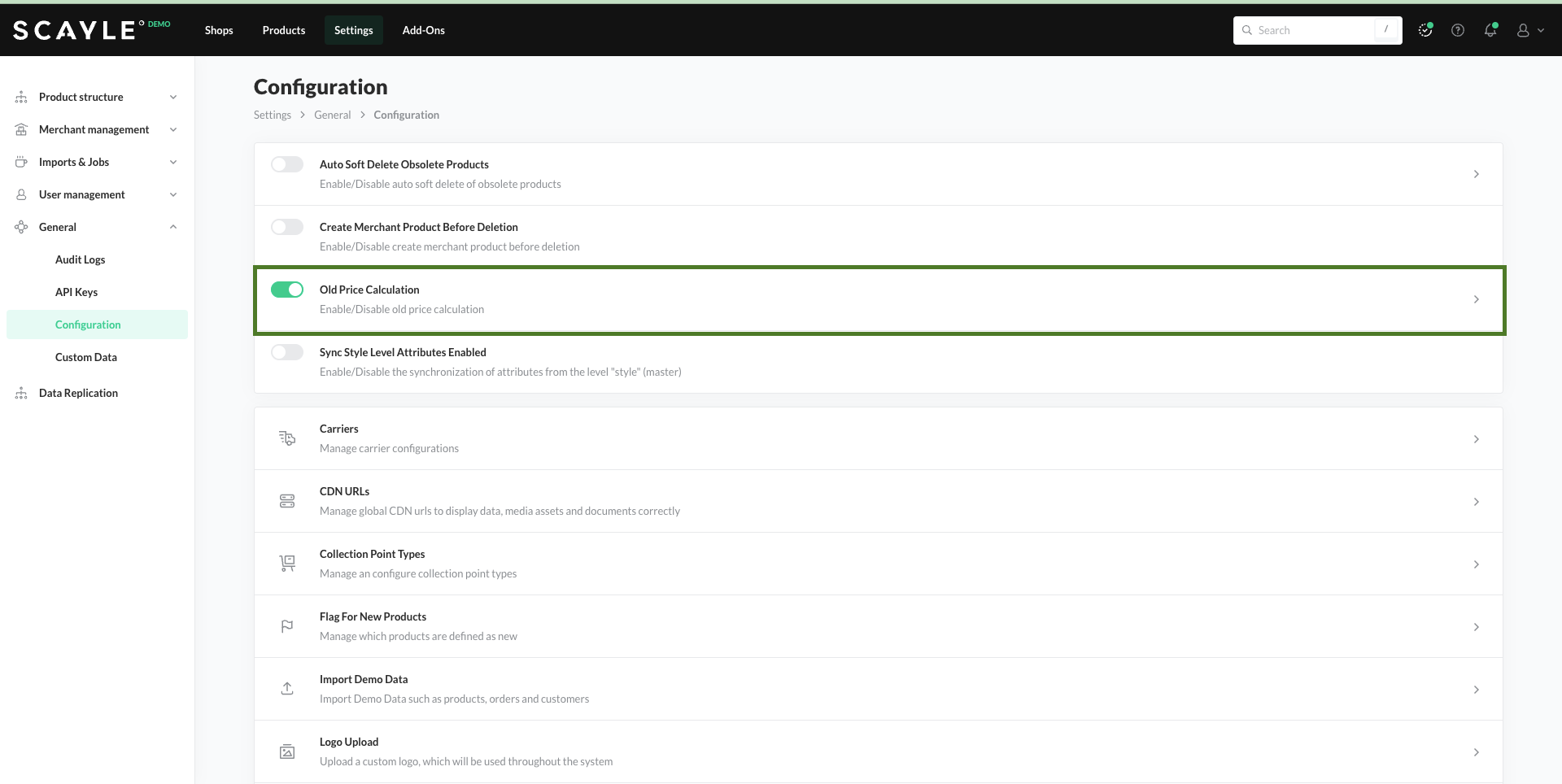
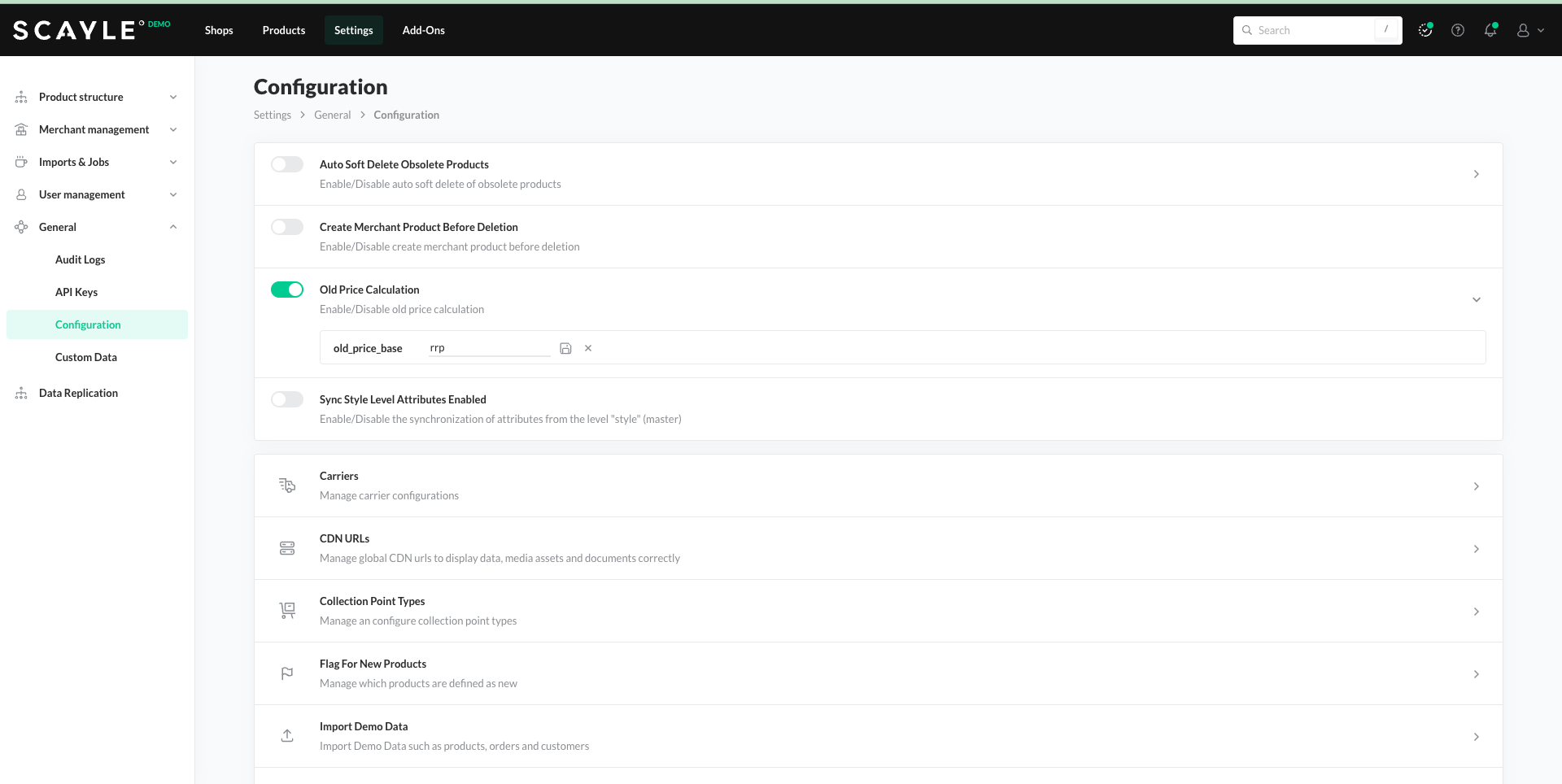
Just type in rrp instead of old_price into the field old_price_base and click on the save icon:
Show Sale Badge on your Frontend
The Sale badge marks products that are on sale or part of a campaign. A variant is reduced when its price.appliedReductions array is not empty. The category of an entry tells you whether it is a sale or a campaign reduction. To know whether a product should carry a Sale badge, check whether any of its variants is reduced.
Request the product with its variants and inspect price.appliedReductions on each one. Show a sale badge on the product if at least one variant is reduced.
In the response, each variant carries its own price.appliedReductions. Here one variant is on sale and one is not:
Variant 123 is reduced by 48% (relative: 0.48), an absolute reduction of 1400 (absoluteWithTax), so this product should show the Sale badge.
Sale filter Setup
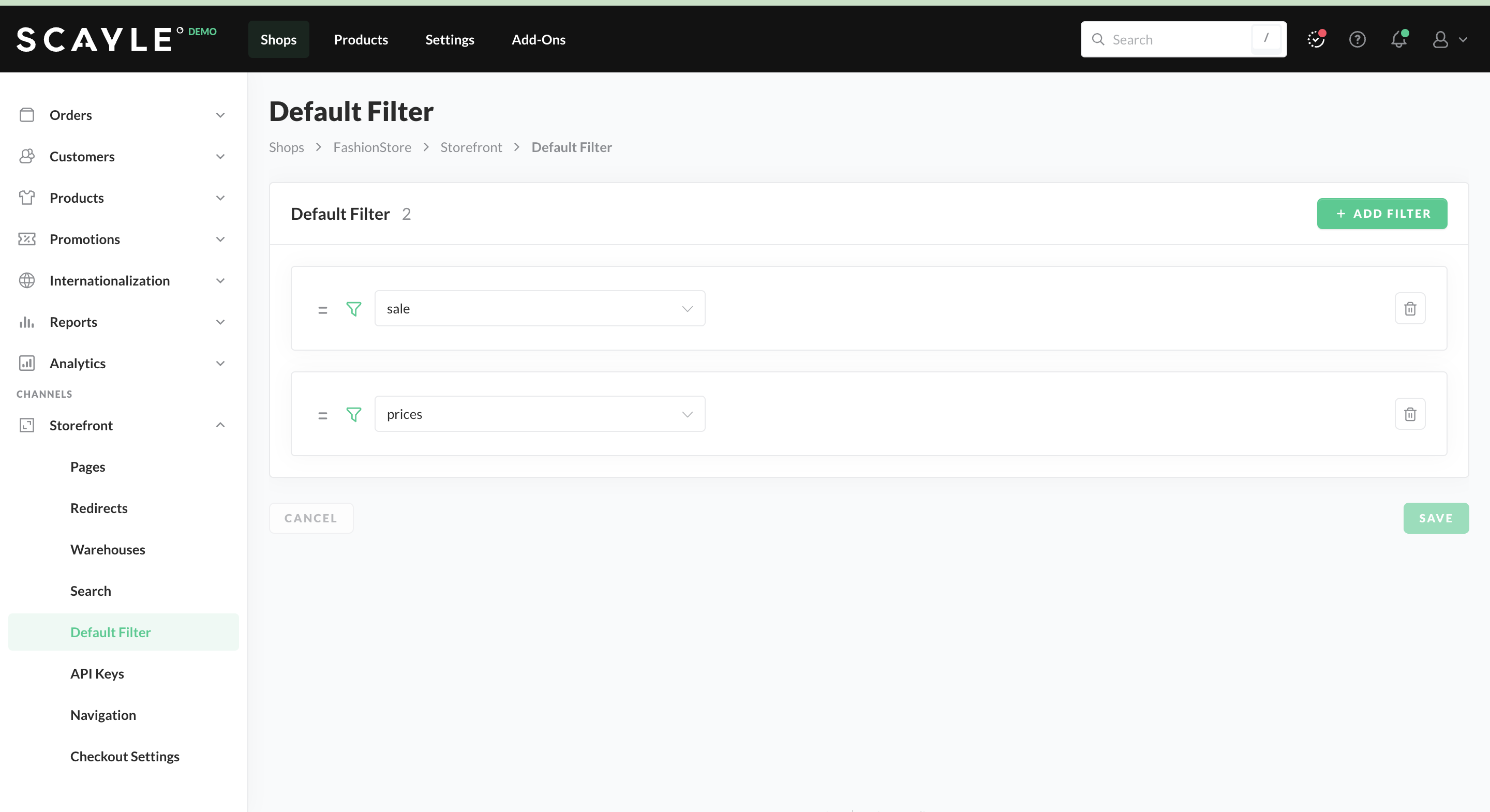
The Sale filter will filter for products in sale or in a campaign. The Sale filter (toggle) is part of the SCAYLE standard filters, you can select it for your shop under Shops ➜ Storefront ➜ Default Filter (more information here) and it will be exposed via Storefront API filters endpoint.
Sale Category Configuration
In case you would like to create a Sale category that only includes products in sale (campaign or sale reduction), you would first need to create the category on global level with all necessary settings (assortment, filters):
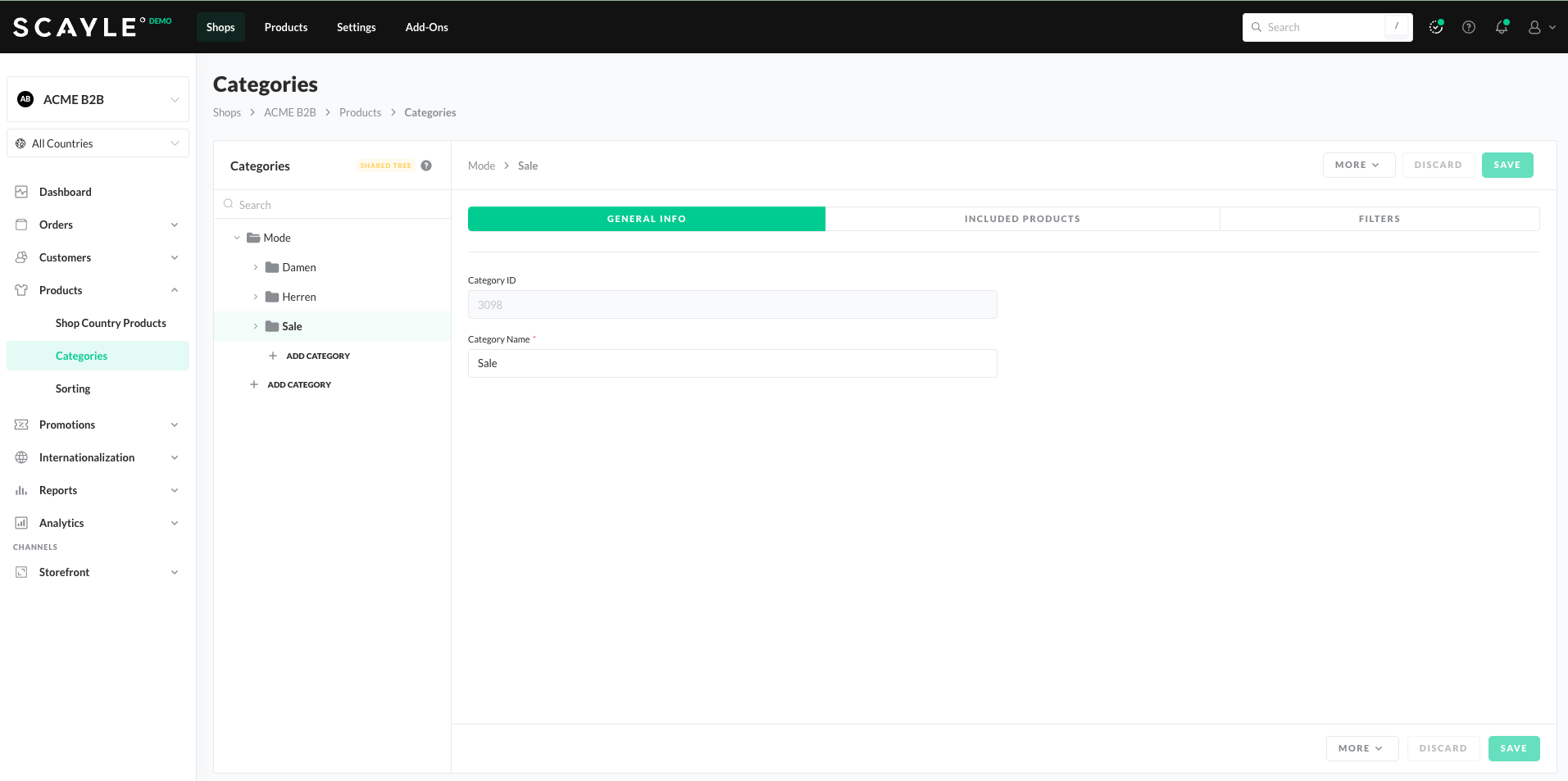
After that, you need to set the sale property on country level and save the changes:
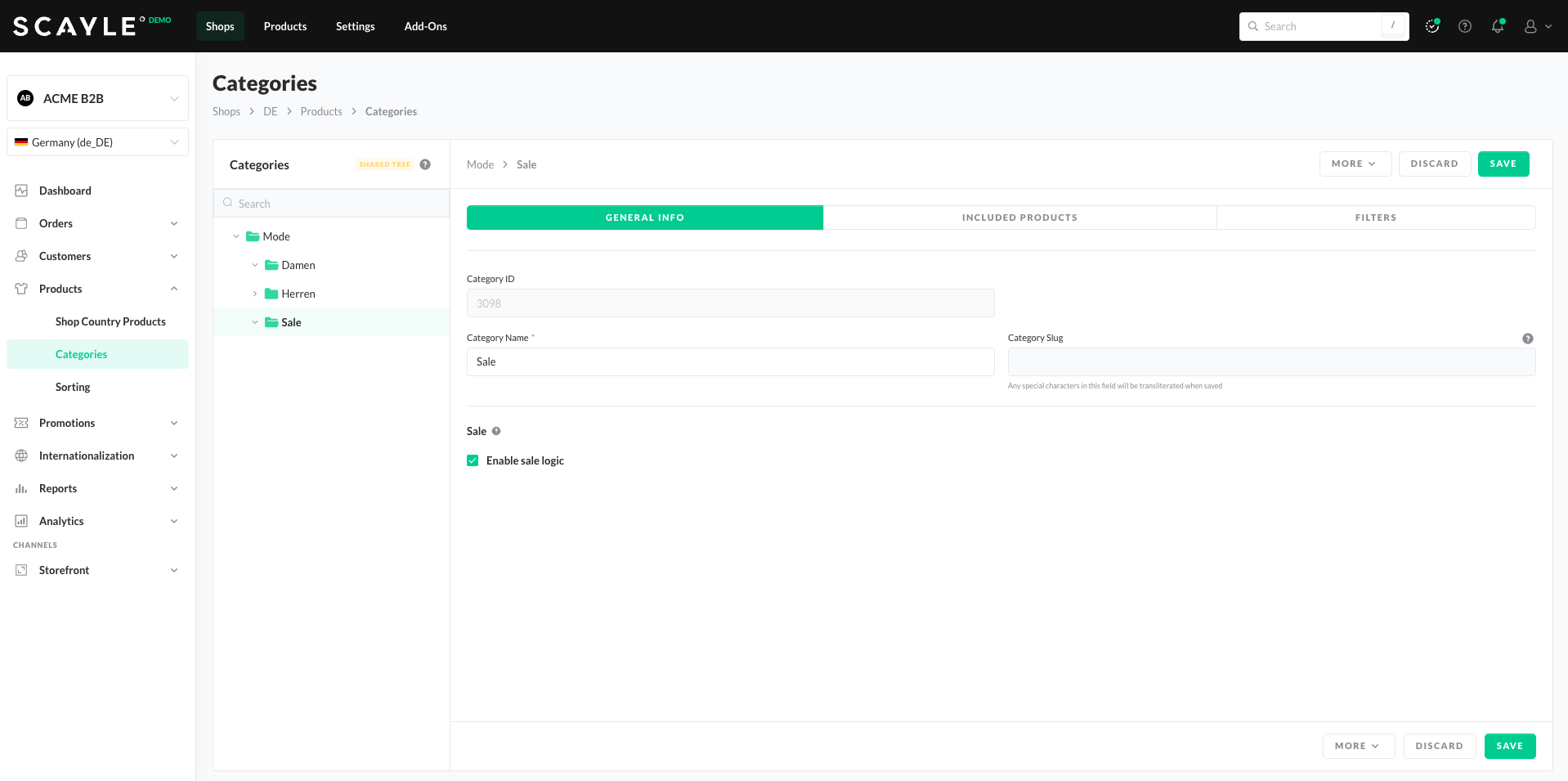
The property is inherited by all child categories, thus you only need to set it on the first level.
Shop category with campaign products only
Campaigns are created in the SCAYLE Panel under Shops ➜ Promotions ➜ Price Campaigns.
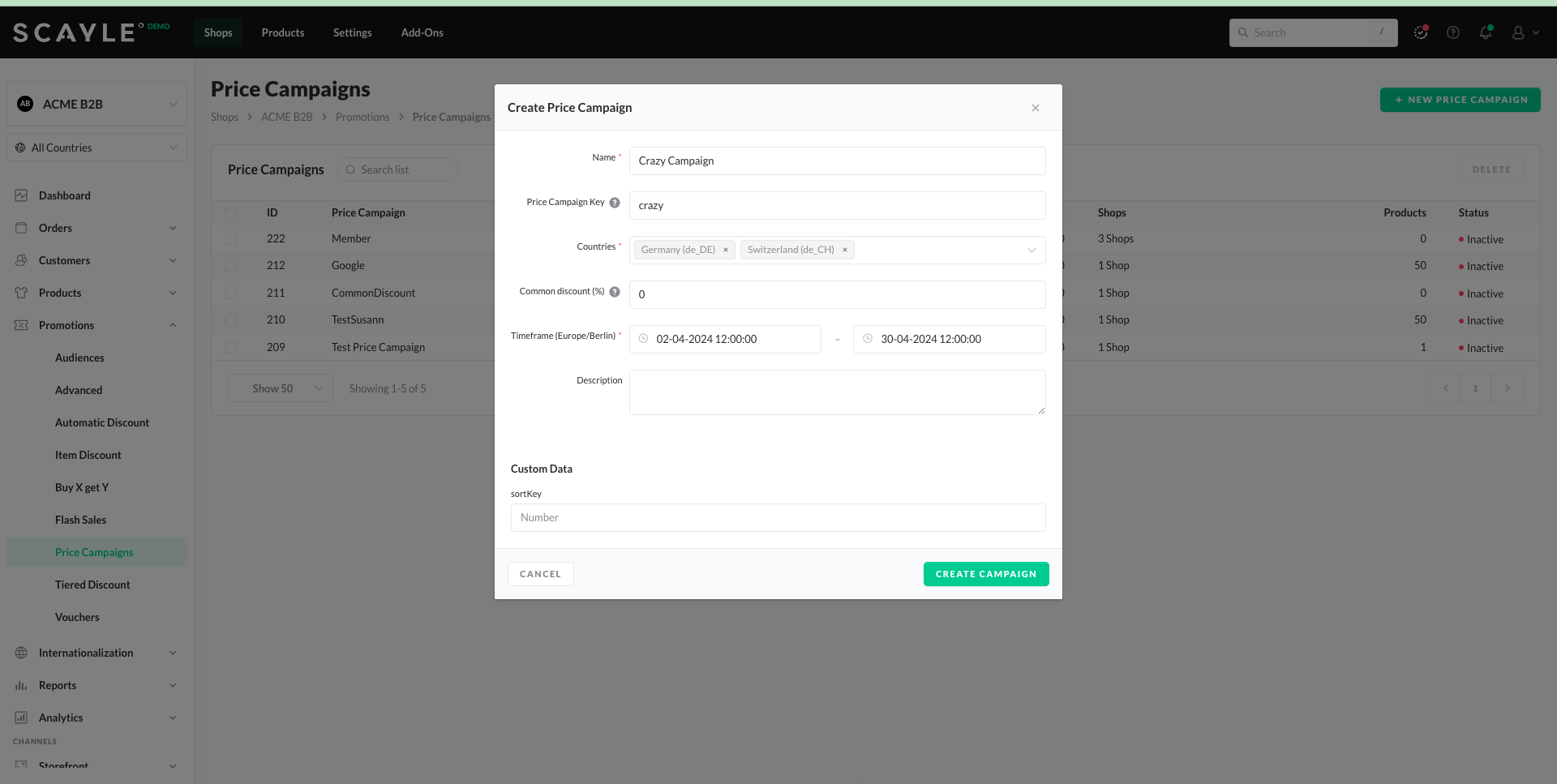
Campaign Setup
- Create your campaign and give it a name, e.g. “Crazy Campaign”.
- Provide a campaignKey you would like to use for it.
- Provide the market where the reduction is shown (Germany, Switzerland e.g.).
- Provide the timeframe.
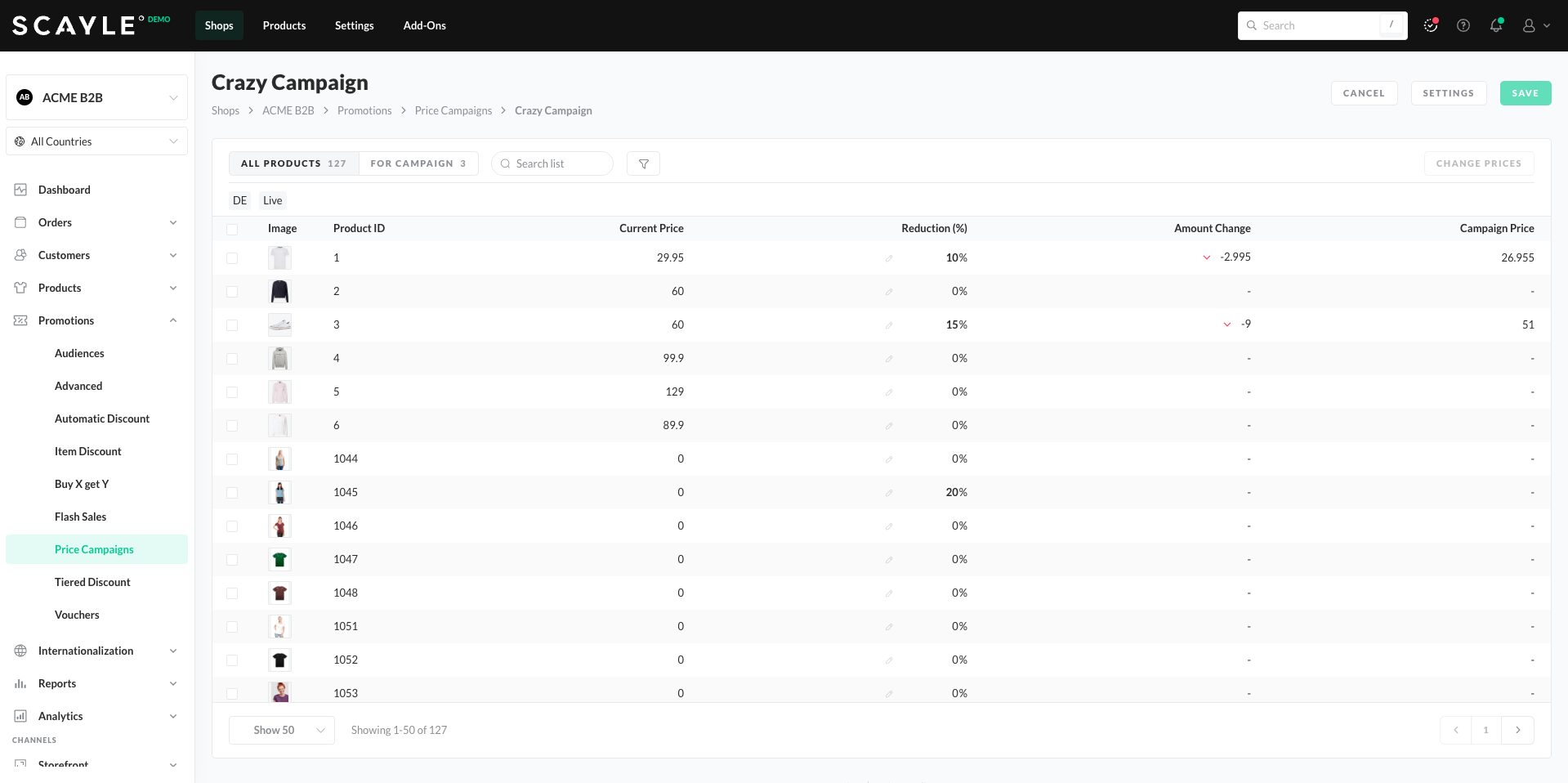
Put the products into the campaign including the reduction (manually, via Import, or via Admin API).
Category Creation
Create your category.
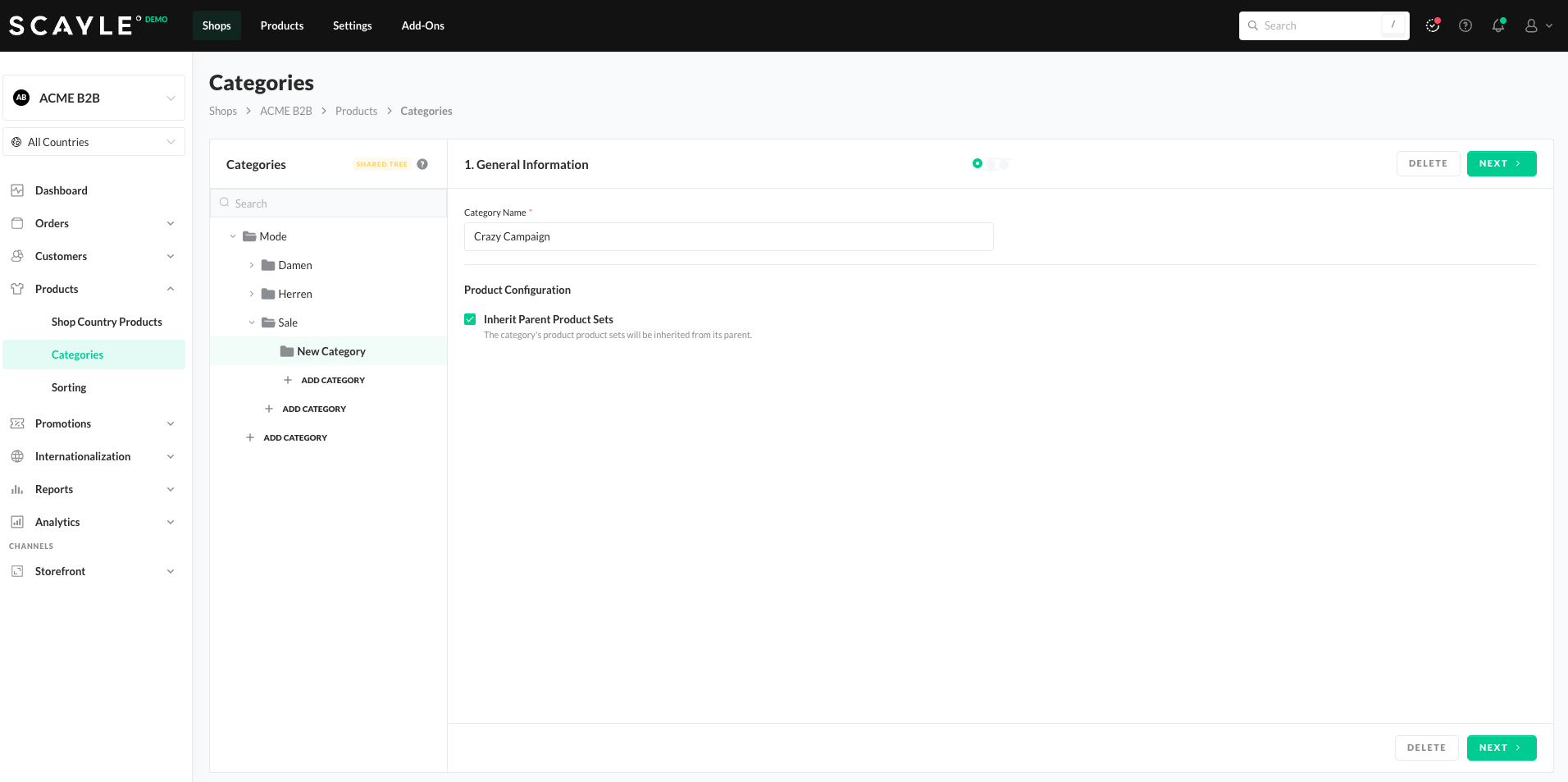
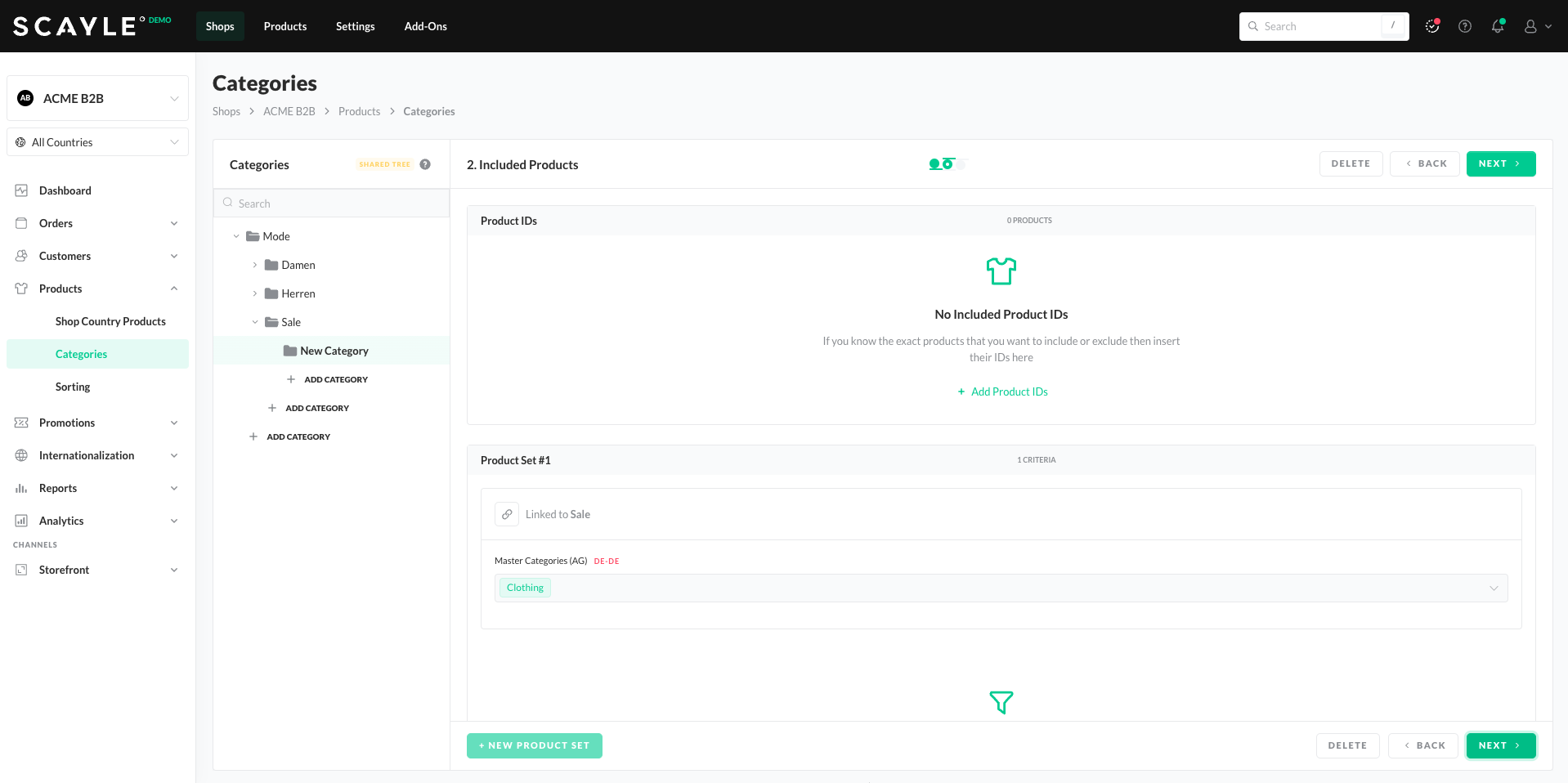
Create the product set rules (category assortment) as usual. If you do not know how to create product sets, see the documentation on shop-categories.
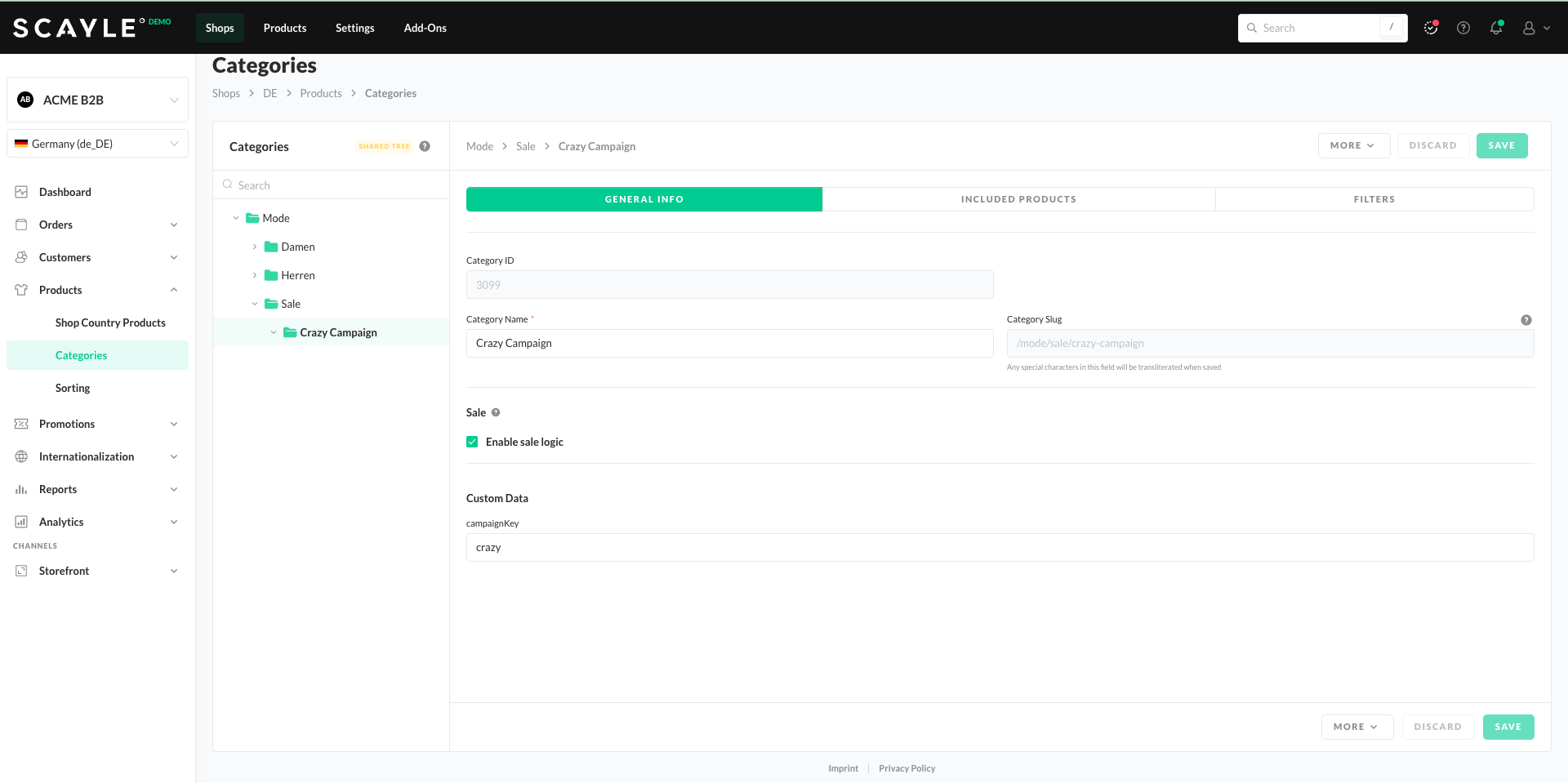
As described here, you need to activate the shop category in the respective country so that it can be shown in the shop category bar in the frontend. You could provide a campaignKey in your custom data (if set up and part of your concept) in order to provide the frontend with the information which campaignKey it needs to apply.
Frontend Implementation
You can filter products by category and campaign to power this use case: request the category's products, restrict them to those that actually have a campaign reduction (hasCampaignReduction), and pass the campaignKey so the campaign prices are applied.
You need to define how the frontend obtains the campaignKey to apply in order to receive the campaign prices. It can either call the campaigns endpoint in the Storefront API to get the current campaignKey, or you can map campaignKeys to customer groups using, for example, shop custom data. See how to set up and use shop custom data here.
Best practices
- Campaigns cannot be combined with one another in a basket. That means in case you would like to use different campaigns per target group you need to define a logic and make sure one campaign is shown / used by one client. For example, you can use custom data to define which target group should see which campaign prices. Campaign keys would need to be aligned beforehand.
- You can combine Sales Prices coming from your ERP system with SCAYLE campaigns. Campaigns are put on top of any Sales Prices and reduce the sales prices.


