

Environment Variables
Environment variables let you securely manage your Storefront Application's configuration - API keys, tokens, host URLs, feature flags, and anything else you want to keep out of your codebase. Variables are scoped per environment, so production credentials stay separate from staging or QA values.
Where to find them
Environment variables for each environment live in Shops ➜ [Shop] ➜ Hosting ➜ Settings ➜ Environment Variables. Use the environment selector at the top of the Settings page to switch between environments - each environment has its own independent variable list.
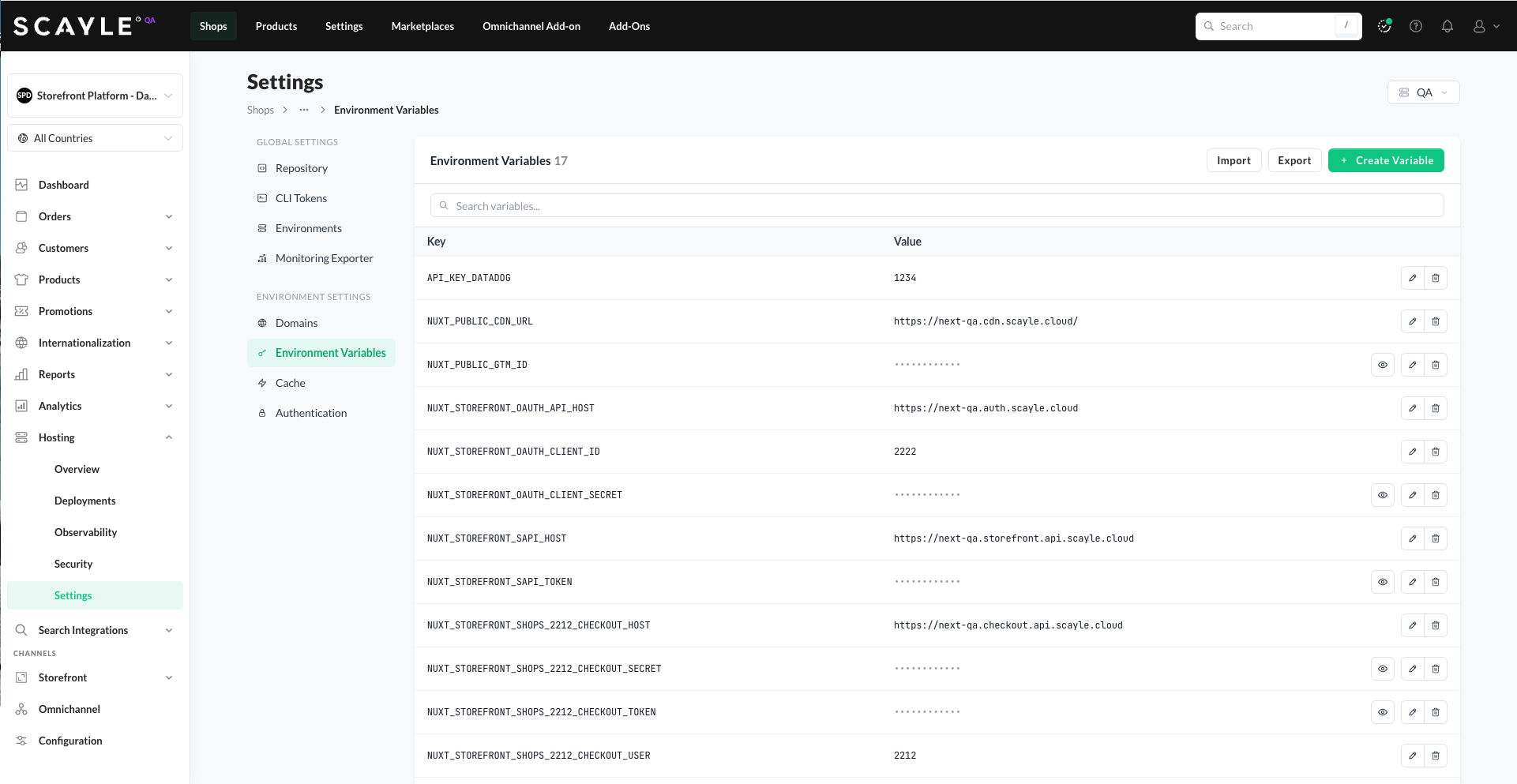
The page lists all variables for the selected environment, each with its key and value. You can search variables by name using the search bar at the top of the list.
Variable types
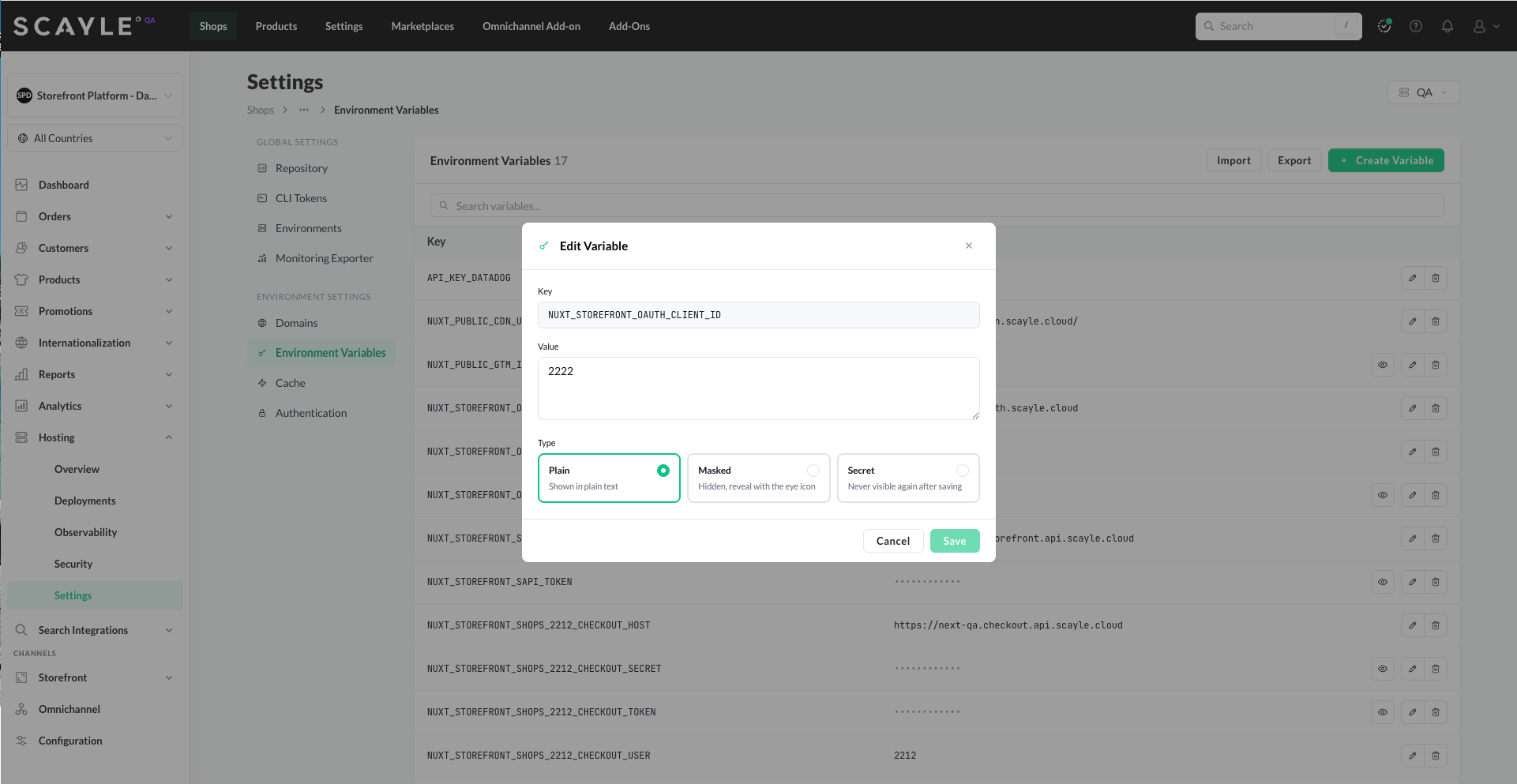
Environment variables can be created as one of three types, chosen when you create, edit, or import a variable. The type controls how the value is displayed and whether it can be revealed later.
- Plain - the value is shown in plain text. Use for non-sensitive configuration such as feature flags, non-secret URLs, or IDs.
- Masked - the value is hidden by default (shown as dots) and can be revealed by users with the read decrypted permission by clicking the eye icon. Use for values that should be hidden from casual view but that authorized users still need to retrieve - for example, API keys shared across the team. Masked variables can be converted back to Plain at any time.
- Secret - the value is hidden and never returned by the SCAYLE Panel or API after saving. There is no way to reveal a Secret once it has been set. To change the value, you overwrite it. Use for the most sensitive credentials - production API keys, private tokens, encryption keys. Once a variable is set to Secret, it cannot be converted back to Masked or Plain.
Permissions
Access to environment variables is gated by three permissions:
- read - see the list of variables. Masked and Secret values are shown as dots.
- read decrypted - reveal the value of a Masked variable using the eye icon. Secret values are never revealed, even with this permission.
- edit - create, update, and delete variables. Also required to overwrite a Secret's value.
Grant permissions to team roles based on how sensitive their responsibilities are.
Managing environment variables
The Environment Variables page supports five actions:
- Create - click + Create Variable to add a new variable. Enter a key, value, and type (Plain / Masked / Secret), then save.
- Edit - click the pencil icon next to a variable to update its value or type. Keys cannot be changed once created. Type conversion rules apply: Plain ↔ Masked is reversible; converting a variable to Secret is one-way and cannot be undone.
- Delete - click the trash icon next to a variable to delete it.
- Import - bulk-import variables from a
.envfile or by pasting.env-formatted content directly. - Export - export all variables for the current environment as a single file. Secret values are omitted from exports - they are not retrievable from the SCAYLE Panel after being set.
Importing variables
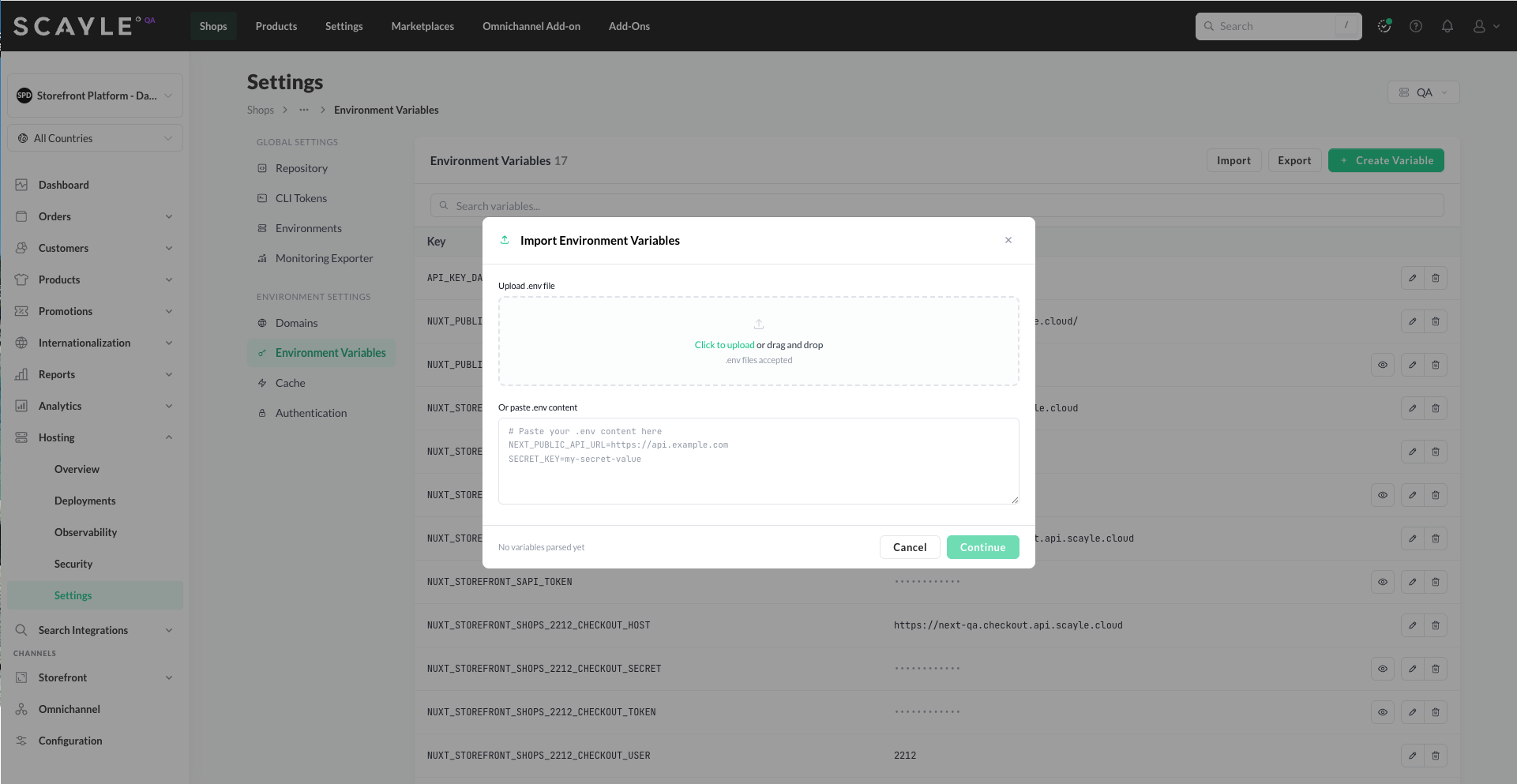
The Import feature accepts standard .env file format. You can either upload a file directly or paste the content into the dialog.
Example .env format:
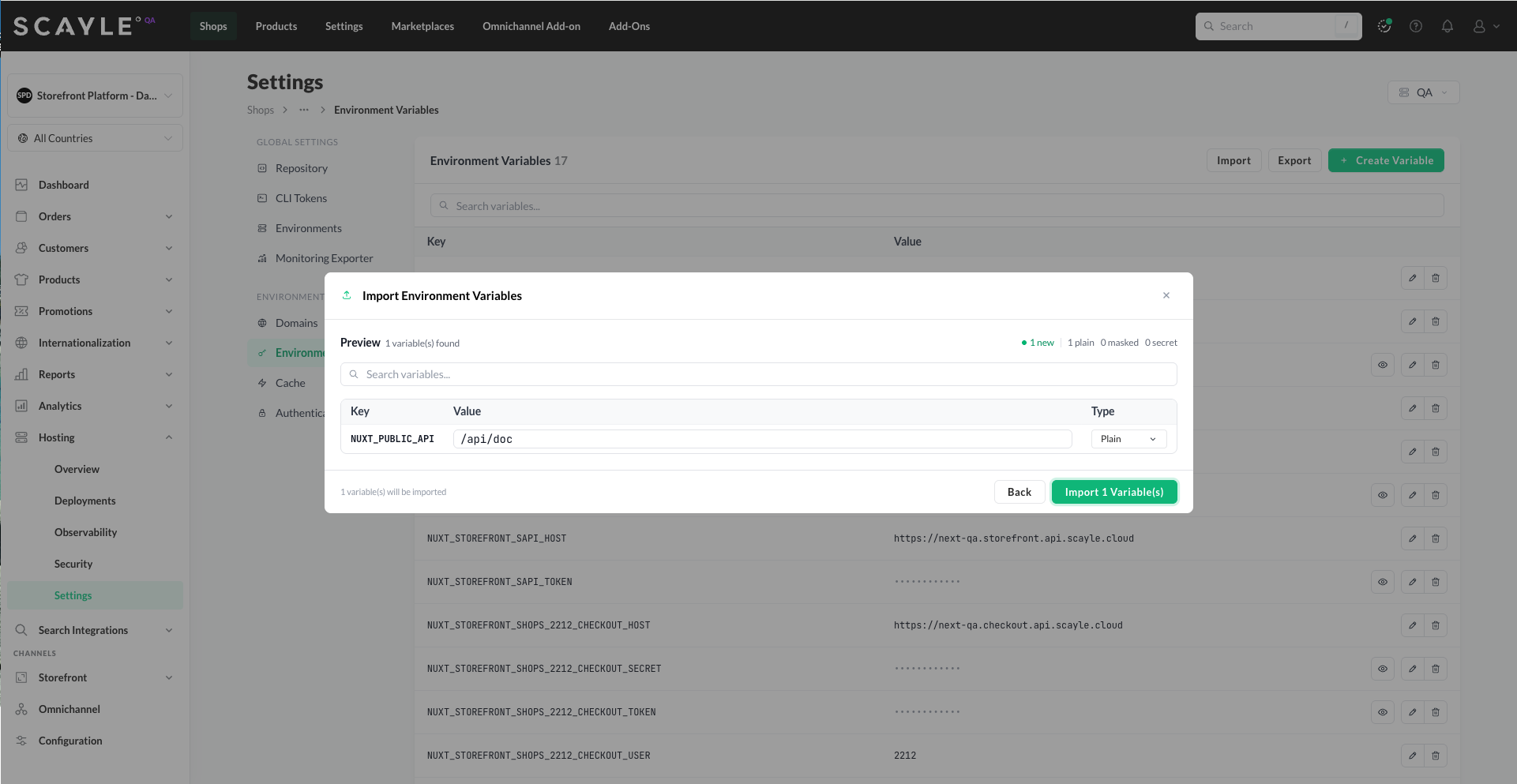
Import happens in two steps:
- Upload or paste - either drop a
.envfile into the drop zone or paste.env-formatted content into the text area. Click Continue. - Preview - each parsed variable appears with its key, value, and a Type dropdown (Plain / Masked / Secret). The summary at the top shows counts by type (e.g., "1 new · 1 plain · 0 masked · 0 secret"). SCAYLE auto-defaults its own reserved variables (checkout tokens, checkout secrets, client IDs, Storefront API tokens, and similar) to Masked. All other variables default to Plain. Override any row as needed, then click Import N Variable(s) to save.
Changes require a redeployment to take effect. When you create, update, remove, or import variables, the change is saved but not yet active in the running application. A banner appears prompting you to redeploy your Storefront Application. Click Deploy in the banner and follow the standard deployment flow.
Initialization on environment creation
When you create a new environment, the Initialize environment variables option seeds the new environment with the default set of variables the Storefront Application requires to run.
If you left this option unchecked when creating an environment, the variable list will be empty and you'll need to add the required variables manually before deployments succeed.
Modifying or removing seeded variables can break your deployment. Seeded variables exist for a reason - they're what the Storefront Application needs to function. Unless you know what a specific seeded variable controls, leave it as-is. If you're unsure, check with your SCAYLE Account Manager.
See Environment for details on creating environments and what gets initialized.
Limits
Each environment supports up to 200 environment variables. If your use case requires more, reach out to your SCAYLE Account Manager - limits can be raised on request.


