

Customization
The Product Detail Page (PDP) offers a versatile framework that allows you to modify its layout and functionalities to suit your specific business objectives. Below, you will find key areas where customization is possible, whether through our SCAYLE Panel or by editing the source code directly.
If you haven’t explored it yet, we suggest starting with our General Overview of the PDP to gain a better understanding of its features and layout options.
Product Detail Pop-Up
The Product Detail Pop-up offers a seamless way for users to preview products and add them to their basket without disrupting their shopping experience or navigating away from the current page. Initially implemented for Free Gift products, this versatile pop-up can be easily integrated into other product cards throughout the application.
For instance, you can implement the pop-up for product cards within the Recommendation Slider, allowing users to quickly view product details and add items to their cart directly from the recommendations. Additionally, the pop-up can be utilized on product cards displayed on the Product Listing Page, enhancing user interaction and streamlining the purchasing process.
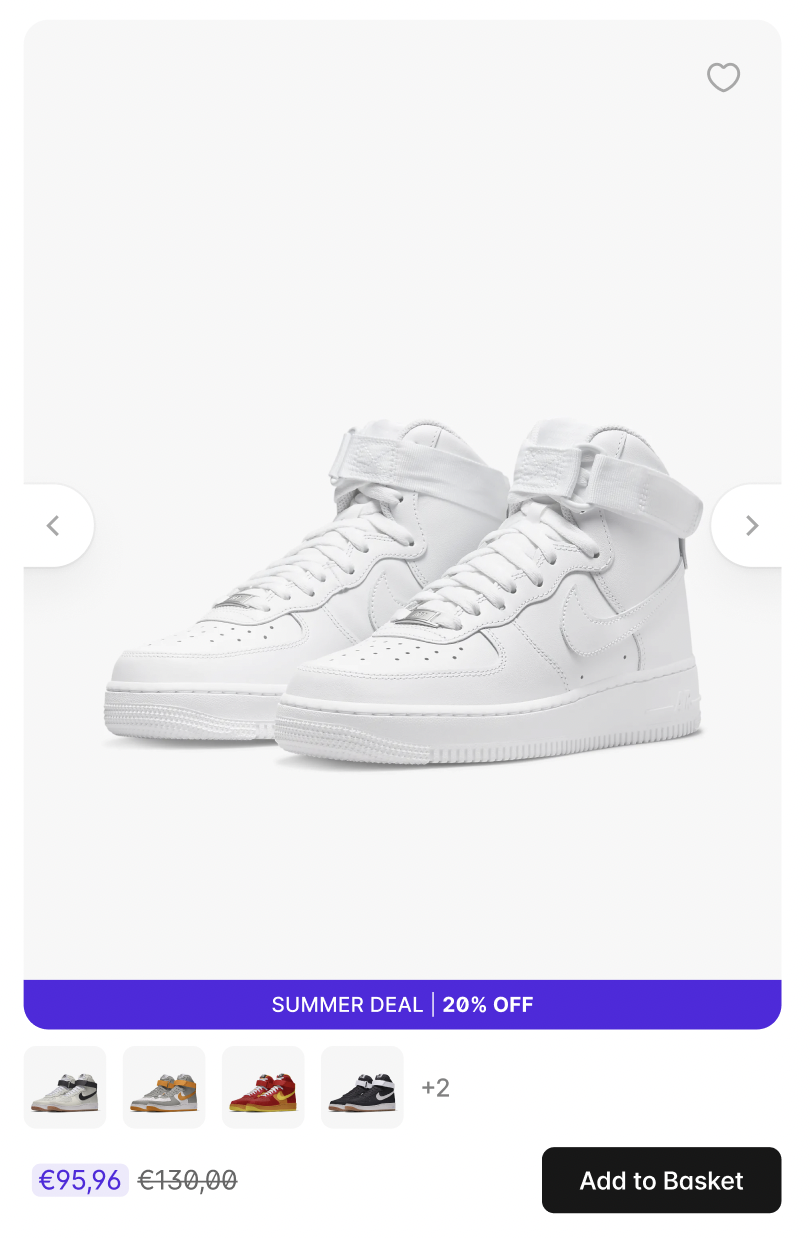
Product Card with an "Add to Basket" Button
Low Stock Urgency
To let a user know that there are only a few items of a variant left, you can check the current stock of the variant using activeVariant.value?.stock.quantity. Once the current stock is below a certain threshold and activeVariant.value?.stock.isSellableWithoutStock is set to false, you could display a hint on the PDP to create more urgency to buy the item.
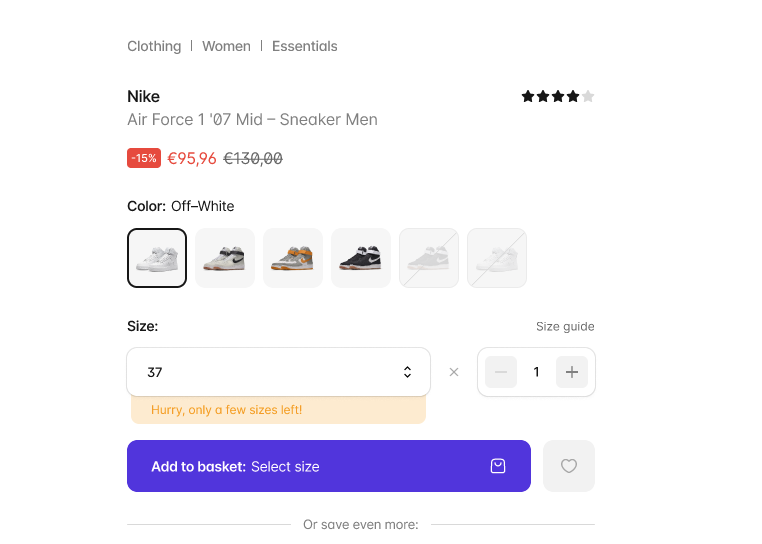
Low Stock Disclaimer
Price
The Price component can be customized through several methods, with the most common being props and slots. This flexibility allows for easy adjustments to how prices and reductions are displayed.
Slots Overview
The Price component provides three customizable slots:
- Default Slot
Use this slot to fully override the price section, including the price, badges, and reduction details. Available properties:classes: Text classes that are determined by thesizeandtypeprops.showPriceFrom: A boolean indicating whether to display "price from."appliedReductions: An array of applied reductions (AppliedReduction[]).formatCurrency: The currency formatting string.price: ThePriceobject.totalPrice: The total price as a string.promotionStyle: The style for promotions (PromotionStyle).
- Relative Reduction (Badges) Slot:
Displays percentage reductions as badges. The property available:relativeReductions: An array of relative reductions (RelativeReductions[]).
- Tax Information Slot
Displays tax information (i18n translation ofprice.including_vat).
Props Overview
The component accepts several props to control its behavior and appearance:
price(Price- Required):
The primary price object that includes details about the product's price.promotion(Promotion | null- Optional):
Represents any active promotion associated with the product. It can benullor omitted if there is no promotion.showTaxInfo(boolean- Default:false):
Determines whether the tax information should be displayed.showPriceFrom(boolean- Default:false):
Indicates if the label "starting from" (i18n:price.starting_from) should be displayed before the price. This is useful when the price shown is a starting price.showBadges(boolean- Default:true):
Controls the visibility of reduction badges that display percentage reductions.size(Size- Default:Size.MD):
Defines the size of the text used for the price display. Possible values areSize.XS,Size.SM,Size.MD,Size.LG, andSize.XL.type('normal' | 'whisper' | 'loud'- Default:'normal'):
Specifies the font style for the price text:'normal': Uses a variable font weight.'whisper': Uses a semi-bold font style.'loud': Uses a bold font style.
- lowestPriorPrice (
LowestPriorPrice | undefinedDefault:undefined):
Specifies the lowest prior price.
Lowest Prior Price
In the EU, when offering a discount, traders are required to indicate the lowest price in the 30 days before the reduction. To display this, the lowest prior price needs to be passed with the withTax and relativeDifferenceToPrice set. This can be requested as part of the product/variant details via parameters defined in /constants/withParams.ts.
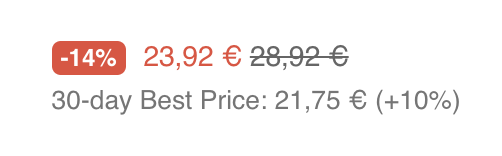
Lowest Prior Price
Price Customization Function
For more advanced customizations, use the createCustomPrice function from the product.ts utility. This function allows you to modify the price object to suit your needs. It takes two parameters:
- The base
Priceobject. - Partial overrides to modify specific properties.
The function merges the base price and overrides to return a customized Price object.
Example: Customizing for Free Gifts
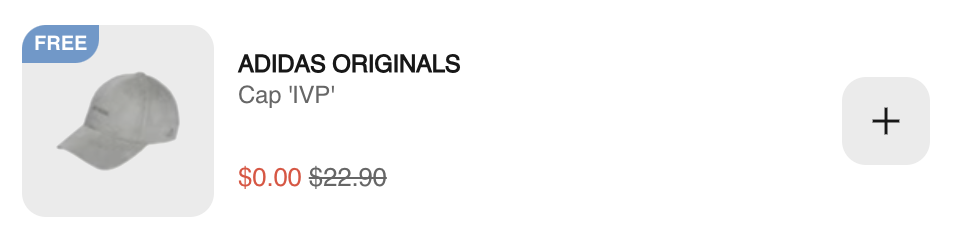
Free Gifts Price Display
In this example:
- The original price (
nonGiftPrice) is set to0(indicating a free gift). - A 100% discount (
relative: 1) is applied, categorized as a promotion.
By using createCustomPrice, the component will display 0 as the price and reflect the applied reduction, making it ideal for dynamic price adjustments, such as promotions.
Product Videos
You can play product videos on the Product Detail Page (PDP) by requesting them from the Storefront API and rendering a native <video> element. Videos are opt-in. The Storefront API omits videos unless you ask for them.
Requires @scayle/storefront-api 19.6.0 or later. That release added Product.videos, ProductWith.videos, and ProductImage.url.
@scayle/storefront-core and @scayle/storefront-nuxt re-export these types from @scayle/storefront-api. They do not declare them again, so the Product you import is the one from the @scayle/storefront-api version in your lockfile. Check the installed version of @scayle/storefront-nuxt, an older @scayle/storefront-nuxt install will not expose videos on Product until you update.
Request video data
The PDP already loads the product with PRODUCT_DETAIL_WITH_PARAMS. Add videos: 'all' there.
export const PRODUCT_DETAIL_WITH_PARAMS = {
  attributes: 'all',
  advancedAttributes: 'all',
  variants: {
    attributes: 'all',
    lowestPriorPrice: true,
  },
  images: {
    attributes: {
      withKey: [ATTRIBUTE_KEY_PRIMARY_IMAGE],
    },
  },
  videos: 'all', // Add this line
  categories: 'all',
  siblings: {
    images: {
      attributes: {
        withKey: [ATTRIBUTE_KEY_PRIMARY_IMAGE],
      },
    },
    attributes: {
      withKey: [ATTRIBUTE_KEY_COLOR, ATTRIBUTE_KEY_NAME, ATTRIBUTE_KEY_BRAND],
    },
    priceRange: true,
  },
  priceRange: true,
  lowestPriorPrice: true,
  sellableTimeframe: true,
} satisfies ProductWith
The PDP useProduct call can stay as it is. It already passes that constant:
videos: 'all' serializes to with=videos. You can also request custom data and attributes the same way you do for images:
That serializes to videos, videos.customData, and videos.attributes:key(type). Sibling products do not include videos unless you set videos on the sibling with as well.
PRODUCT_DETAIL_WITH_PARAMS is also used as the include for basket products. If you do not want videos on basket items, leave the shared constant unchanged and pass videos only on the PDP useProduct with.
Each entry in product.videos looks like this:
Use url as the playable address for <video src>. path is the raw storage path, not a playable URL. Videos have no name field.
Posters and thumbnails
SCAYLE CDN videos (https://*.cdn.scayle.cloud) can use a Cloudinary path transform to capture the first frame. Insert so_0,f_jpg at the start of the path. Cloudinary ignores query parameters for video delivery, so a query-string transform will not work.
Create app/utils/video.ts:
The Storefront API passes externally hosted URLs through unchanged. Those hosts cannot use this transform, so buildVideoPosterUrl returns undefined and you omit the poster attribute.
Render a video
To render the product videos, merge them with the gallery images into one sequence. One common layout inserts videos at index 1, so the primary image stays first and later images shift down. If the product has only one image, the videos follow it. You can use a different order if it fits your shop.
Videos play in the existing SFItemsSlider. SFProductGalleryZoom stays image-only: pinch-zoom and the zoom overlay do not play video. Keep passing images into the zoom modal.
Cap the video list at five before you merge. Videos beyond that cap never reach the gallery or JSON-LD.
Add these constants to shared/constants/product.ts:
Create app/utils/productGalleryMedia.ts:
Update app/utils/index.ts to re-export both helpers:
SFProductGallery already receives the product and reads images from useProductBaseInfo. Merge that list with product.videos, then loop the result in SFItemsSlider. muted and playsinline are what let autoplay succeed on mobile browsers.
On desktop (md and up, the same breakpoint the thumbnail rail uses), start playback on the first video. On mobile, leave videos paused until the user reaches them.
Update app/components/product/detail/productGallery/SFProductGallery.vue:
Use the same media list for the thumbnail rail so indices stay aligned with the main slider.
Use the aspect-product class so the video slide keeps the gallery 3:4 frame from PRODUCT_IMAGE_ASPECT_RATIO in config/ui.ts. That is the class the PDP loading state already uses, and it stops the slide from shifting when the file starts loading.
preload="none" keeps unused videos off the network until the user reaches them. Call play() only after mount, and ignore a rejected promise. Mobile autoplay policies reject play() when the video is not muted, or when playsinline is missing. In that case the poster stays on screen and the user starts playback with the native controls.
Play one video at a time. playingVideoIndex is the single slide allowed to play. When it changes, every other <video> pauses and rewinds to 0. If every slide autoplays, audio overlaps.
JSON-LD
The PDP already builds product JSON-LD with useProductSeoData and passes it to useJsonld. Attach VideoObject nodes as subjectOf on that existing product graph.
name and description are already returned by useProductBaseInfo on the page. Existing JSON-LD names concatenate catalog values (${name}, ${color}, ${productName} (${size})) because those strings are already localized per shop. The "Video N" suffix is an application label, so put it in a locale string. The PDP page already calls useI18n().
Add the key next to the other product strings, then copy it to every locale file:
Update i18n/locales/en_GB.json:
Use the product description when it exists, and omit description when it does not.
Emit VideoObject only when a poster is available. thumbnailUrl is required by Google for video rich results, and it provides the preview image crawlers need. We still emit an object without uploadDate when the date is unavailable, because contentUrl and thumbnailUrl remain useful to other consumers. Add uploadDate when you need Google video rich-result eligibility.
Update app/pages/p/[...productName]-[id].vue:
Add buildVideoPosterUrl to the existing ~/utils import on that page.
Google's Rich Results Test rejects video rich results when uploadDate is missing. Read it from videos[].attributes (or videos[].customData) only when you store a publication date there. The VideoObject can still sit on the product page for crawlers that only need contentUrl and thumbnailUrl.
Product image URLs
ProductImage now includes an optional absolute url next to hash. hash is unchanged, and SFProductImage should keep using image.hash with ScaylePicture. Some responses omit url, including order line items.
Troubleshooting
Videos are missing from the product payload
Confirm the product has videos in the SCAYLE Panel (Products ➜ [Product] ➜ Media), and that PRODUCT_DETAIL_WITH_PARAMS includes videos. PRODUCT_TILE_WITH_PARAMS (listing, search, wishlist) will not return them. Sibling products need their own siblings.videos include.
No poster for an externally hosted video
buildVideoPosterUrl only works for https://*.cdn.scayle.cloud. An external host, an http: URL, or a relative path returns undefined. Omit poster and skip JSON-LD for that video.
Autoplay does not start on mobile
Keep muted and playsinline on the element. Catch a rejected play() promise instead of treating it as a hard failure. The user can still start playback with the native controls.
The video slide jumps when it loads
Give the element the aspect-product class so it uses the same 3:4 frame as product images before the file is ready.
The Rich Results Test rejects the video
Google's test requires an uploadDate on VideoObject. The Storefront API does not send that field unless you add it yourself. Without it, the failure is expected.
Several videos play at once
Drive playback from the gallery activeSlide. Pause and rewind every video that is not the active slide.
The PDP payload is larger than before
A slightly larger PDP payload is expected once the product response includes videos. To trim what Nuxt sends to the client, pass pick or transform on the PDP useProduct call. Those options come from useAsyncData, which useProduct wraps.
Both can omit data from the payload that the page does not use. pick keeps only the top-level product keys you list. transform can cap videos at MAX_GALLERY_VIDEOS, or drop other unused fields, before the payload is serialized. They do not shrink the Storefront API response. They only shrink what is sent from the server to the client. See Minimize payload size in the Nuxt data-fetching docs.
Update app/pages/p/[...productName]-[id].vue:


