

Deployment Actions
Storefront Hosting provides several ways to manage deployments - triggering a new deployment, redeploying the current one, and rolling back to a previous version. This page covers each action.
Triggering a deployment
Deployments can be triggered from the SCAYLE Panel or via the SCAYLE Storefront CLI. Both produce the same result.
From the SCAYLE Panel
Click the Deploy button on either the Overview page or the Deployments page. A dialog opens where you select the Git reference (branch or tag) to deploy. Use the search field to find a specific reference name in the list.
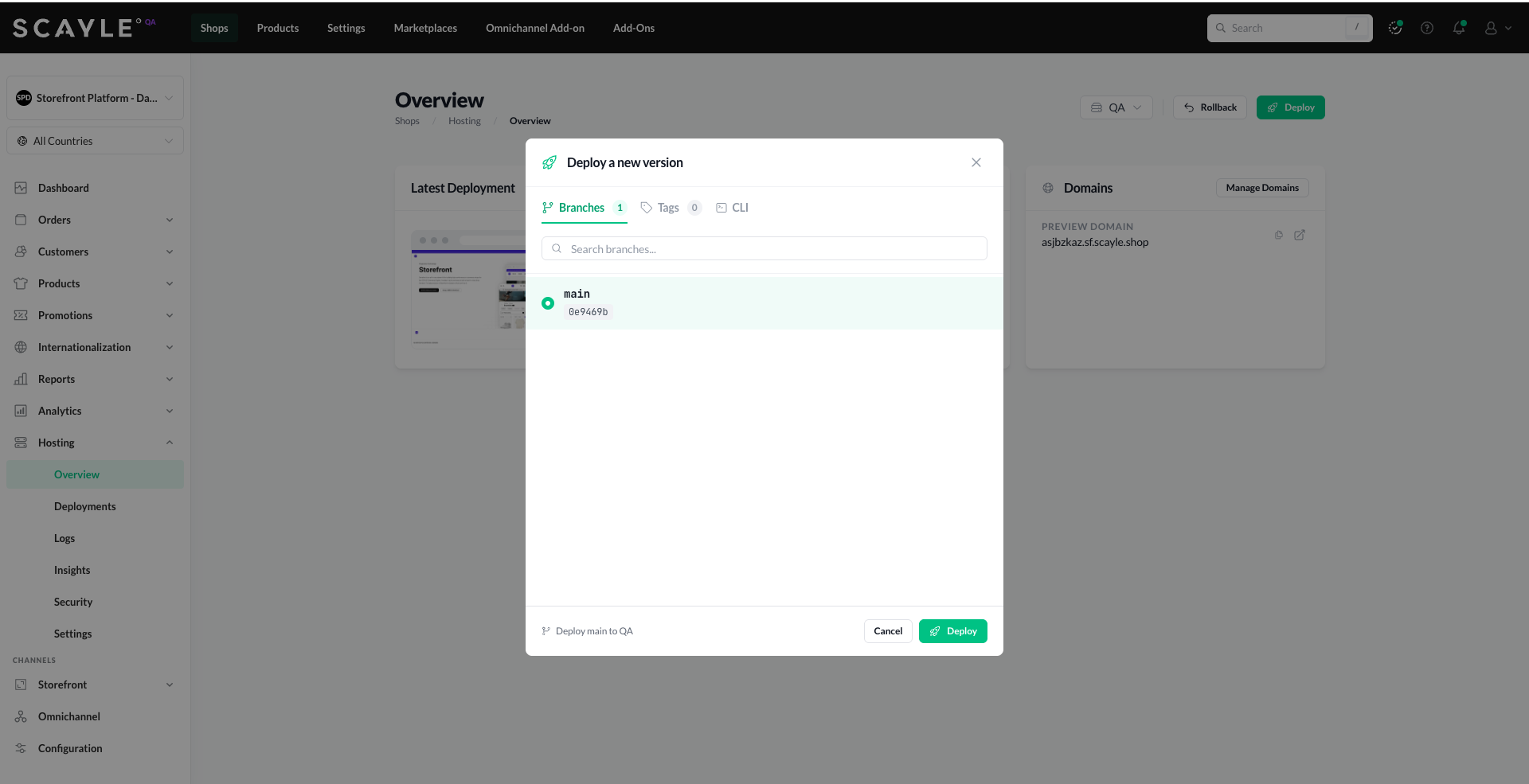
After triggering, you'll be taken to the Deployment Details page. See Deployment in Progress for what happens next.
From the Storefront CLI
The @scayle/storefront-cli package provides a deploy command to initiate deployments from your terminal or a CI/CD pipeline.
Before you deploy, ensure your setup is in place:
- Environments - the deployment target.
- Environment Variables - required configuration for your application.
- CLI Tokens - the token used for authentication.
The required flags:
--tenant-space- your SCAYLE Core tenant space identifier.--shop-key- the key of the shop. Found on the shop dashboard page in the SCAYLE Panel.--env-key- the environment to deploy to (e.g.,mainfor the default environment).--deploy-token- your CLI token for authentication.--git-ref- the Git ref (commit hash, branch, or tag) to deploy.--no-config-file(optional) - disables generation of a config file. Useful in CI environments where interactive input or persistent configuration files aren't desired.
Example with npx:
Or with pnpx:
On successful execution, the deploy command initiates the deployment and streams build logs directly to your terminal, so you can monitor progress in real time.
For installation options and the full CLI reference, see Storefront CLI.
Redeploy
To re-run the currently active deployment - for example, to re-pull updated dependencies or refresh runtime state click the Redeploy (refresh icon) action next to the active deployment in the Deployments table.
A redeploy uses the same Git ref and configuration as the original deployment, but goes through the full build pipeline again.
Rollback
Rolling back restores your application to a previously successful deployment, quickly resolving issues introduced by a problematic release. Rollbacks are fast because they reuse the previous build artifact no rebuild needed.
The rollbacks described here are manual actions. The platform also rolls back automatically when a deployment fails its health checks during a rollout. See Deployment Strategy.
There are two ways to roll back:
Instant Rollback
To quickly revert to the last successful deployment, click the Rollback button on the Overview page. This rolls back to the most recent successful deployment without you having to pick which one.
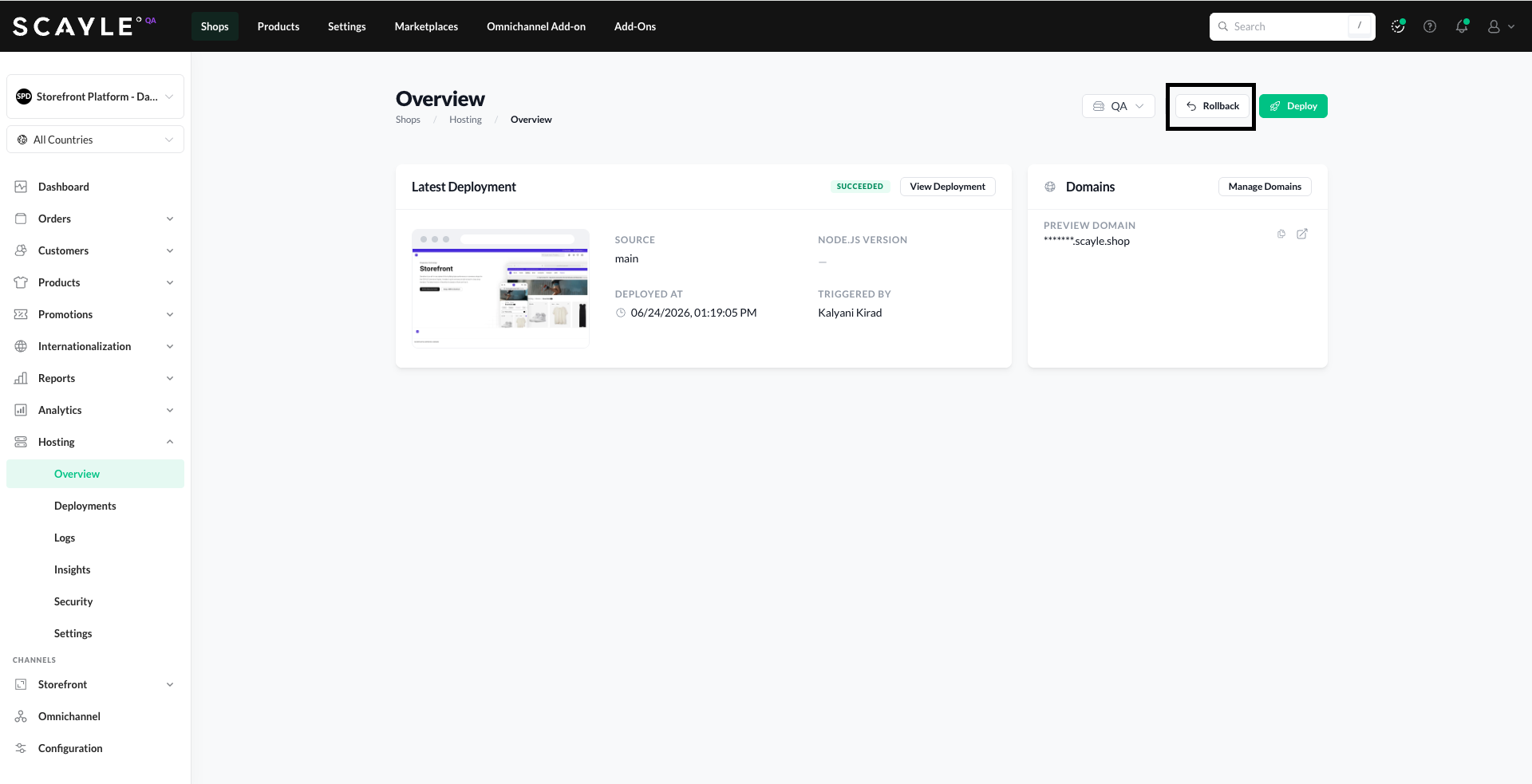
Rollback to a specific deployment
For more flexibility rolling back to any previously successful deployment, not just the most recent - go to the Deployments page. Click the Rollback (curved arrow icon) action next to the deployment you want to restore.
When branches and tags can't load
If Storefront Hosting cannot reach your configured Git repository, the Deploy a new version dialog cannot list branches or tags. Instead, the dialog shows a warning:
"Can't load branches or tags. Failed to reach [repository]. Last successful connection: [timestamp]. This is usually an expired access token or a change to the repository. You can still roll back to a previous deployment from the Deployments page."
Click Repository Settings in the dialog to open the Repository page and fix the connection. See the Connection health section on the Repository page for the full troubleshooting steps.
Rollback to a previous deployment continues to work while the connection is broken - use the Rollback action from the Deployments page to restore service quickly.
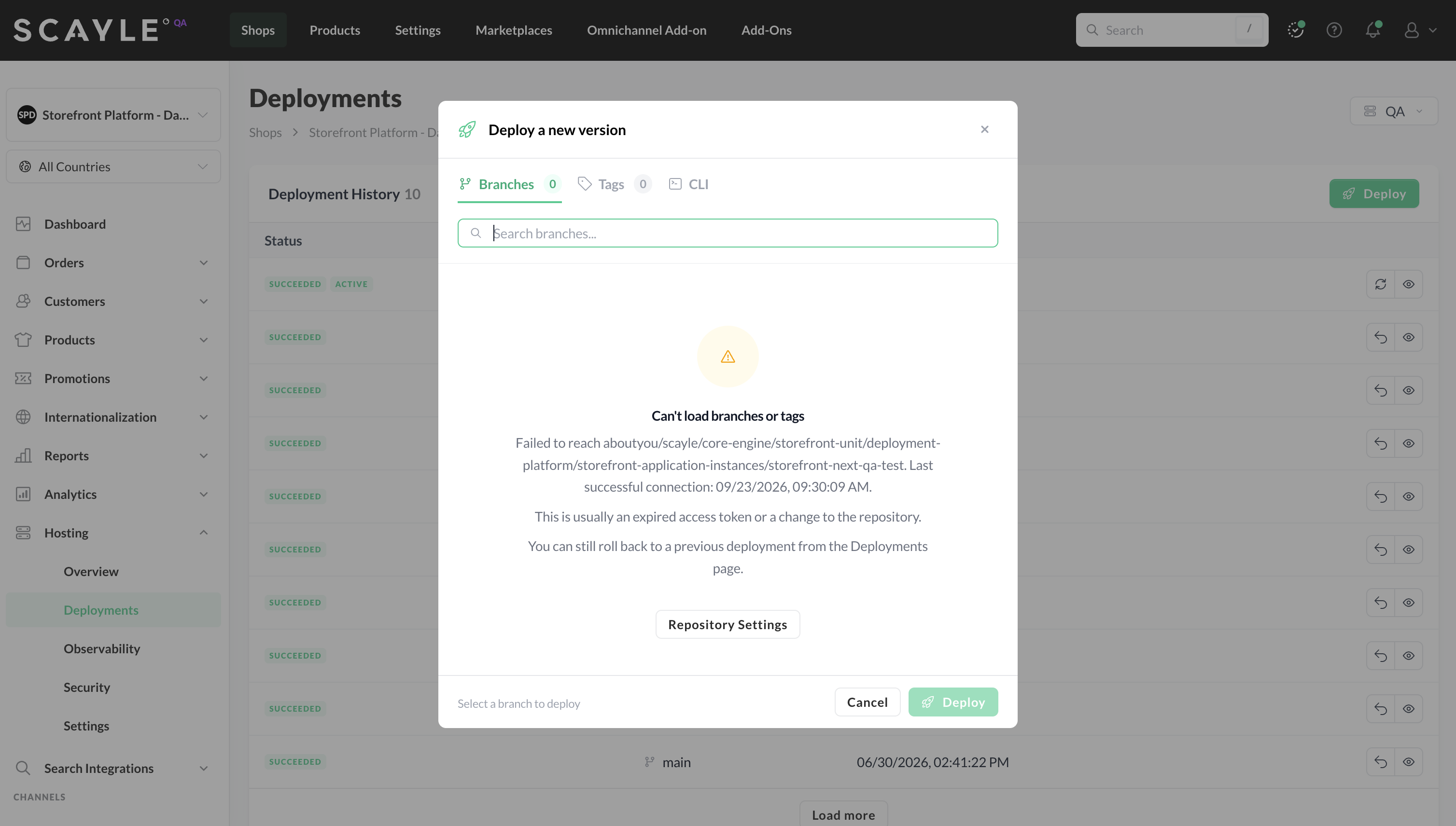
Deploy dialog when the repository connection has failed


