

Customize Collection Point
Here you can understand how to configure the following aspects of checkout:
- Suggest Collection points
- Forward to Collection points
- Change default view of collection points from a map to a list
- Adjust Collection point Options to display based on distance
- Enable Google autocomplete to make address suggestions
- Auto select collection point as default delivery option
- Checkout Experience
- HTML slots
Configuration surface: all settings on this page belong to the Checkout frontend configuration under Settings ➜ Checkout ➜ Customization. They change how collection points are presented in the Checkout Webcomponent. Which collection points exist is backend configuration, see Configure Collection Point. For the difference between the two surfaces, see Backend and Frontend Configuration.
Suggest Collection Points
In the SCAYLE Panel go to Settings ➜ Checkout ➜ Customization ➜ Shipping Step ➜ Delivery Options. Here you can turn on and off the auto selection of collection point.

Suggest collection point on

Suggest collection point off
Forward to Collection points
In the SCAYLE Panel go to Settings ➜ Checkout ➜ Customization ➜ Shipping Step ➜ Delivery Options. Here you can enable forwarding to collection points.
This will make it so the frontend does not display the usual collection point search screen, but rather give the user the option (via checkbox at the end of the address form) to forward their order to a collection point.
If the user selects said checkbox then we submit this value via shipping address endpoint as true. Backend systems will assign this to a specific collection point.
If the user does not select the checkbox the package gets delivered to the shipping address set in the form.

Enabled checkbox "Package to post office..."
Change Default View of Collection Points from a Map to a List
When customers search for a Collection Point, the results can be displayed either on a map or as a list. You can easily toggle between these options in the SCAYLE Panel. For default configurations, please refer to the Checkout defaults.
This can be done in the SCAYLE Panel under Settings ➜ Checkout ➜ Customization ➜ Shipping Step ➜ Collection Points.
Configuration steps
To change the default view of Collection Points, use the Preferred View toggle to switch between Map and List as needed.

Change Default View of Collection Point from Map to List
Preview
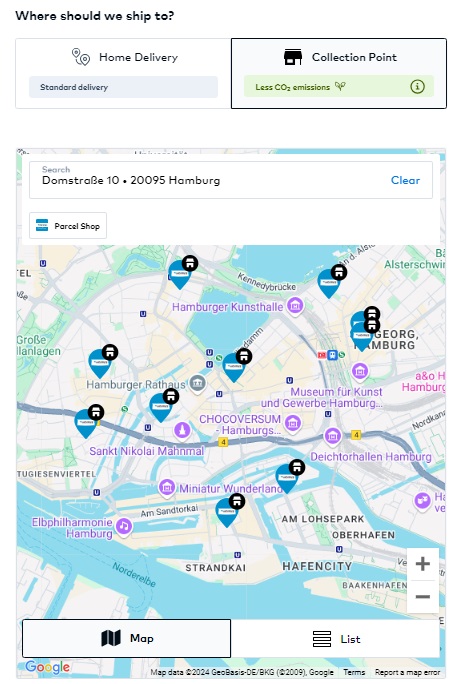
Preferred Collection Point View "Map"
Adjust Collection Point Options Displayed based on Distance
When a customer enters an address in the Collection Point Search, options within a predefined radius are shown. Both the default selection and more detailed options in the dropdown can be individually configured.
This can be done in the SCAYLE Panel under Settings ➜ Checkout ➜ Customization ➜ Shipping Step ➜ Collection Points.
Configuration steps
Collection Points Options based on distance is defined by Default Maximum Distance and Maximum Distance Options.

Adjust Collection Point Options based on Distance
| Parameter | Description |
|---|---|
Default Maximum Distance | The distance defining the initial search radius around the selected address (10 by default). The unit — kilometres or miles — is controlled by the Distance Unit setting below. Please enter only numeric values. The Collection Point API accepts a search radius of at most 100 km, so the value must not exceed 100 when the unit is kilometres or 62 when the unit is miles. A larger value causes every search using that radius to fail. The SCAYLE Panel does not check this limit and saves a larger value without a warning, so check the value yourself before saving. |
Maximum Distance Options | Defines the dropdown options within the Collection Point component. Each value represents the search radius used to find the closest collection points. To change these values, replace the current numbers with new ones, keeping them in a numeric array separated by commas (e.g., [2, 4, 6, 8]). Ensure that the Default Maximum Distance is included in this list. Every value is subject to the same limit as the Default Maximum Distance: at most 100 with kilometres or 62 with miles. A larger value causes every search using that radius to fail. The SCAYLE Panel does not check this limit either. |
Preview
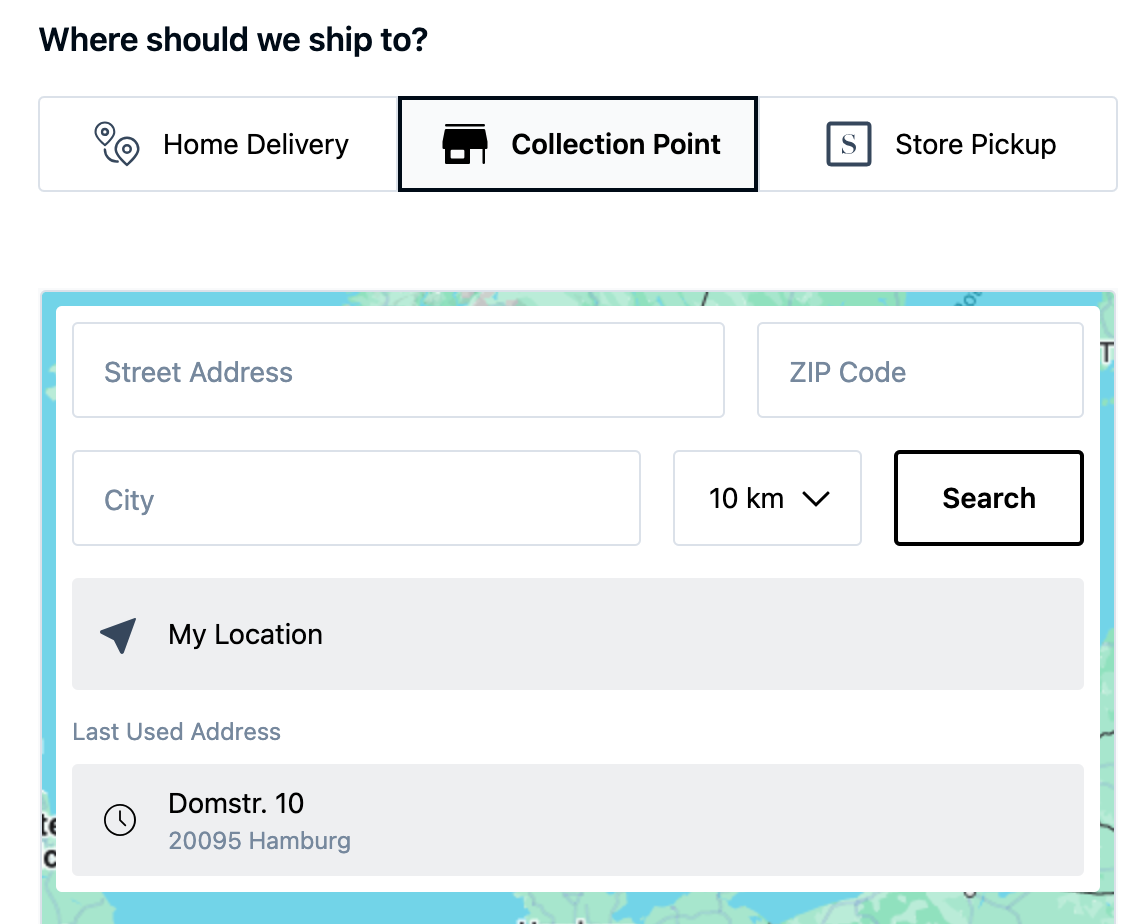
Choose the distance unit (kilometres or miles)
Collection Point distances can be displayed in either kilometres or miles, configurable per shop and locale. This lets tenants running storefronts in imperial-unit markets — such as the US or UK — show distances in the unit their shoppers actually think in, while other shops in the same setup continue to use kilometres.
Rounding and number formatting follow the locale convention across the Collection Point list view, the map view, and distance sorting.
This can be done in the SCAYLE Panel under Settings ➜ Checkout ➜ Customization ➜ Shipping Step ➜ Collection Points ➜ Distance Unit.
Configuration steps
The default unit is Kilometres. To switch to Miles for a specific shop or locale, use the Distance Unit setting. The chosen unit applies to both the Default Maximum Distance and the Maximum Distance Options values above.
Switching Distance Unit to miles does not convert your existing values. A radius configured as 75 is 75 km in kilometres but 75 mi (about 121 km) in miles, which exceeds the API limit and breaks the collection point search. When changing the unit, review Default Maximum Distance and Maximum Distance Options and keep all values at or below 62.
| Parameter | Description |
|---|---|
| Distance Unit | Toggle between Kilometres (default) and Miles. A tenant running a US storefront can show "3.0 miles" there while its German shops keep kilometres in the same setup. |
Enable Google Autocomplete to use address suggestion
Another useful enhancement is the Google Autocomplete feature for Collection Point Search. As customers type in their address within the Collection Point component, Google Autocomplete will suggest addresses in a dropdown, eliminating the need to manually enter full details like street address, city, and zip code.
This can be done in the SCAYLE Panel under Settings ➜ Checkout ➜ Customization ➜ Shipping Step ➜ Collection Points.
Please note that Google Autocomplete is currently free of charge and operates through SCAYLE's GCP account. For more details, contact your SCAYLE Account Manager
Configuration steps
To enable Google Autocomplete, simply turn on the Google Maps Autocomplete toggle. SCAYLE will automatically apply internal API keys for the respective environment.

Preview

Collection Points with Google Autocomplete disabled
Autoselect Collection Point as default Delivery Option
When a customer enters the Checkout flow for the first time, SCAYLE can autoselect a specific Delivery Option within the Shipping step. This feature helps promote certain Delivery Options over others.
This can be done in the SCAYLE Panel under Settings ➜ Checkout ➜ Customization ➜ Shipping Step ➜ Delivery Options.
Configuration steps
To Autoselect Collection Point as the default Delivery Option, change the Preferred selection within the Delivery Option configuration from Home Delivery to Collection Point.

Autoselect Collection Points as Default Delivery Option
Change the following parameter below to change Autoselect Logic for Collection Points
| Parameter | Description | Preview |
|---|---|---|
| Home Delivery | By default, the Delivery Option Selection component "Home Delivery" is autoselected |  |
| Collection Point | The Delivery Option Selection component "Collection Points" is autoselected |  |
| Store Pickup | The Delivery Option Selection component "Store Pickup" is autoselected |  |
Checkout Experience
Notifications
In SCAYLE's Checkout Frontend, notifications are crucial for giving customer feedback and guidance throughout the process. They enhance the customer experience by updating customers on their actions and alerting them to any issues that need attention.
Below are the customer notifications along with a detailed explanation of their root causes.
| Notification key | Displayed error message | Root cause |
|---|---|---|
validationError | "The input provided is invalid. Please revise your input and try again." | A generic error to indicate that an entered value by the customer does not match the expected REGEX or schema. |
noDeliveryMethods | "Currently there are no delivery methods available." | No delivery methods are available for this order in this moment. HINT: A configuration might be missing |
collectionPointUnavailable | "The pickup location has unfortunately become unavailable. Please select an alternative delivery address." | A previously or pre-selected collection point has become unavailable. |
noCollectionPointsFound | "There are no collection points available in this area. Please try again with an increased search radius or a different search address." | No collection points were returned by our back end for the searched area. |
noCollectionPointsFoundAutocomplete | "There are no collection points available in this area. Please try again with a different search address." | No collection points were returned by our back end for the searched area. |
incompleteAddressComponents | "Unfortunately, this address cannot be used to search for collection points. Please try a different input." | The address is missing a crucial element for the search (for example house number), OR although it matches schema needs for a specific API it might still look incomplete. |
myLocationUnavailable | "Unfortunately, we cannot use your location to search for collection points at this time. Please enter an address manually." | User might have disabled location search on browser. |
noDeliveryType | "Please select a delivery type to proceed to the next step." | User tries to proceed without selecting any delivery type. |
noCollectionPointSelected | "Please select a collection point to proceed to the next step." | User has searched for but not selected a Collection point. |
HTML Slots
HTML Slots serve as dynamic placeholders within the Webcomponent. They act as small portals through which the parent website can inject customized content into the checkout Webcomponent, offering a flexible way to change the appearance.
Please refer to the general documentation to understand how to setup Dynamic Slots for Collection Points.

Example for HTML Slots: Highlighting Collection Points as the more sustainable Delivery Option


