

Domains
Overview
In Storefront Hosting, domains are the web addresses that connect directly to your deployed Storefront Application. Alongside the pre-generated SCAYLE Domain provided after the successful repository setup, our platform offers intuitive tools for managing both custom domains and the SCAYLE domain itself, streamlining how users access and interact with your e-commerce store. A custom domain is a unique, personalized web address that you own and use for your e-commerce application, instead of the default address provided by us.
The Domains section, located within Settings, acts as your primary tool for domain management. It provides core functionalities, allowing you to:
- Add a custom domain
- Edit an existing custom domain (available when the domain has wildcard enabled)
- Remove a custom domain
- Manage the SCAYLE domain - including disabling it once you have a custom domain in place
All actions are specific to each environment.
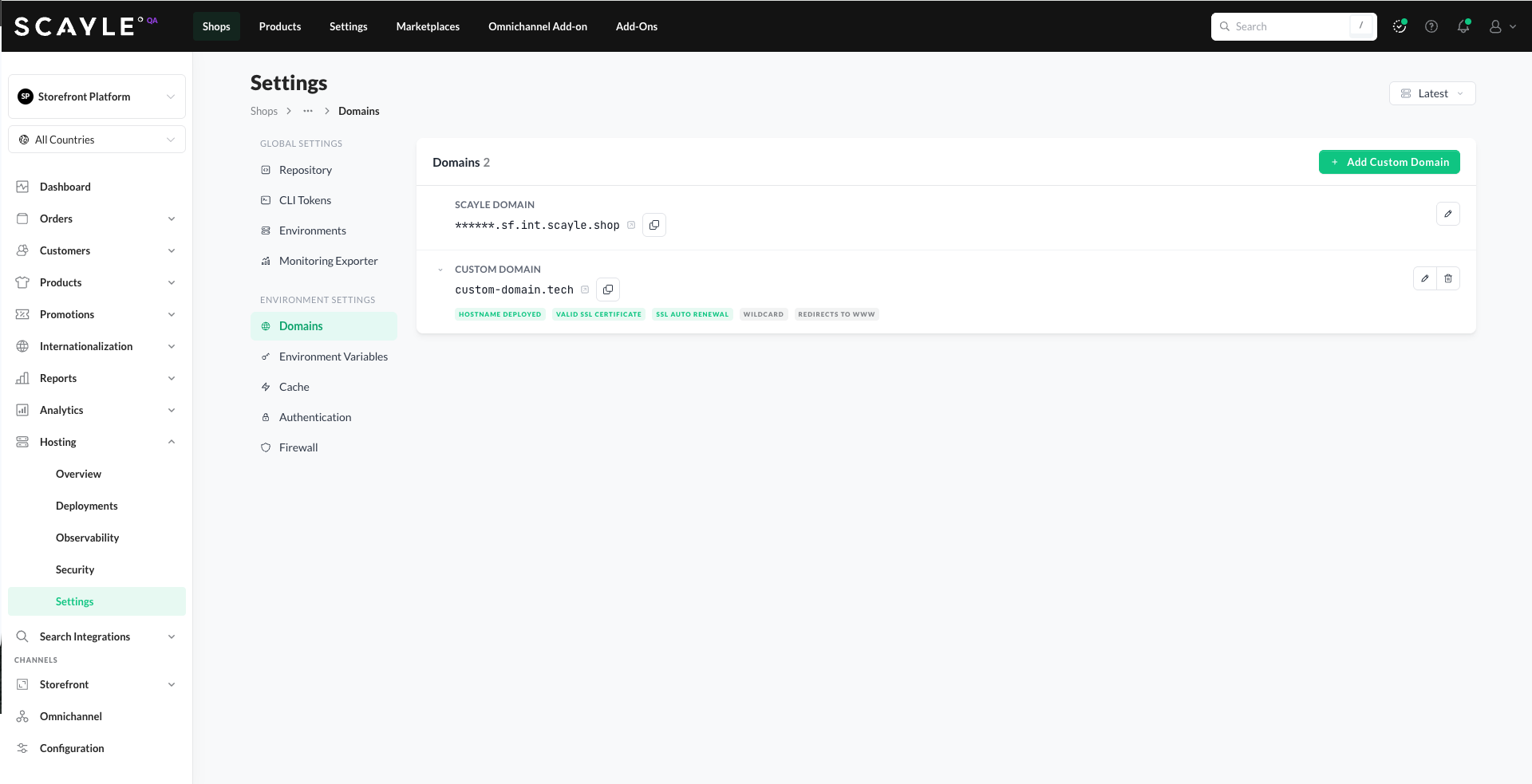
The Domains section in Settings - add, edit, remove custom domains and manage the SCAYLE Domain, all per environment
Create a Custom Domain
If you wish to create a custom domain for your application, simply click the Add Custom Domain button to be guided through the creation process.
Each step in the creation process is dependent on the previous one, meaning you can only move to Step 2 once you've completed Step 1. In Step 1, you can also opt in to Enable Wildcard Domain and Redirect Apex Domain to www - both described below.
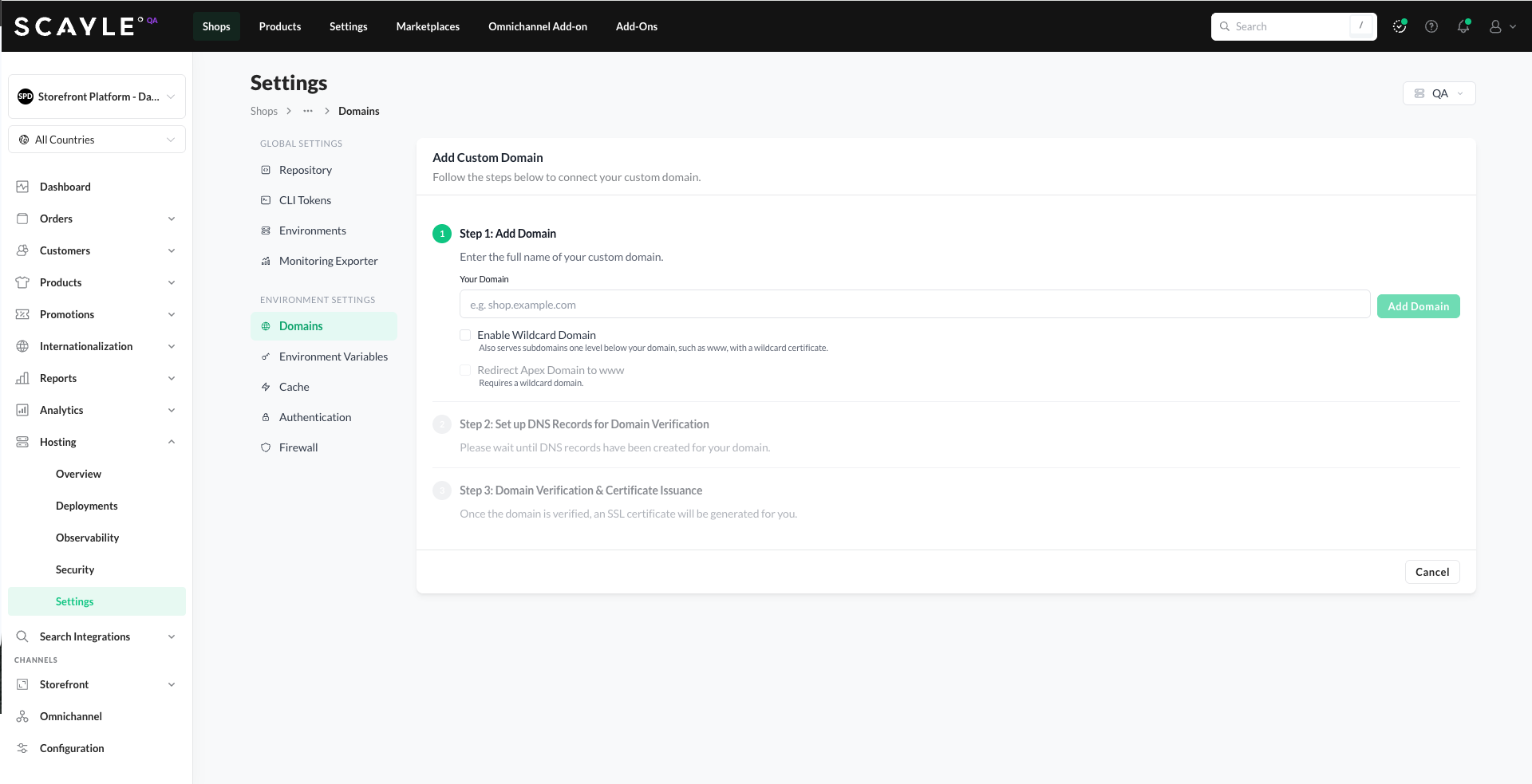
Clicking Add Custom Domain opens a three-step dialog. Step 1 starts empty - Redirect Apex Domain to www is disabled until Enable Wildcard Domain is checked
Step 1: Add Domain
- For the first step, you'll need to enter your preferred domain (like scayle.com) for your application. This must be a domain your organization already owns, not just any domain. Optionally, choose the settings below, then click the Add Domain button.
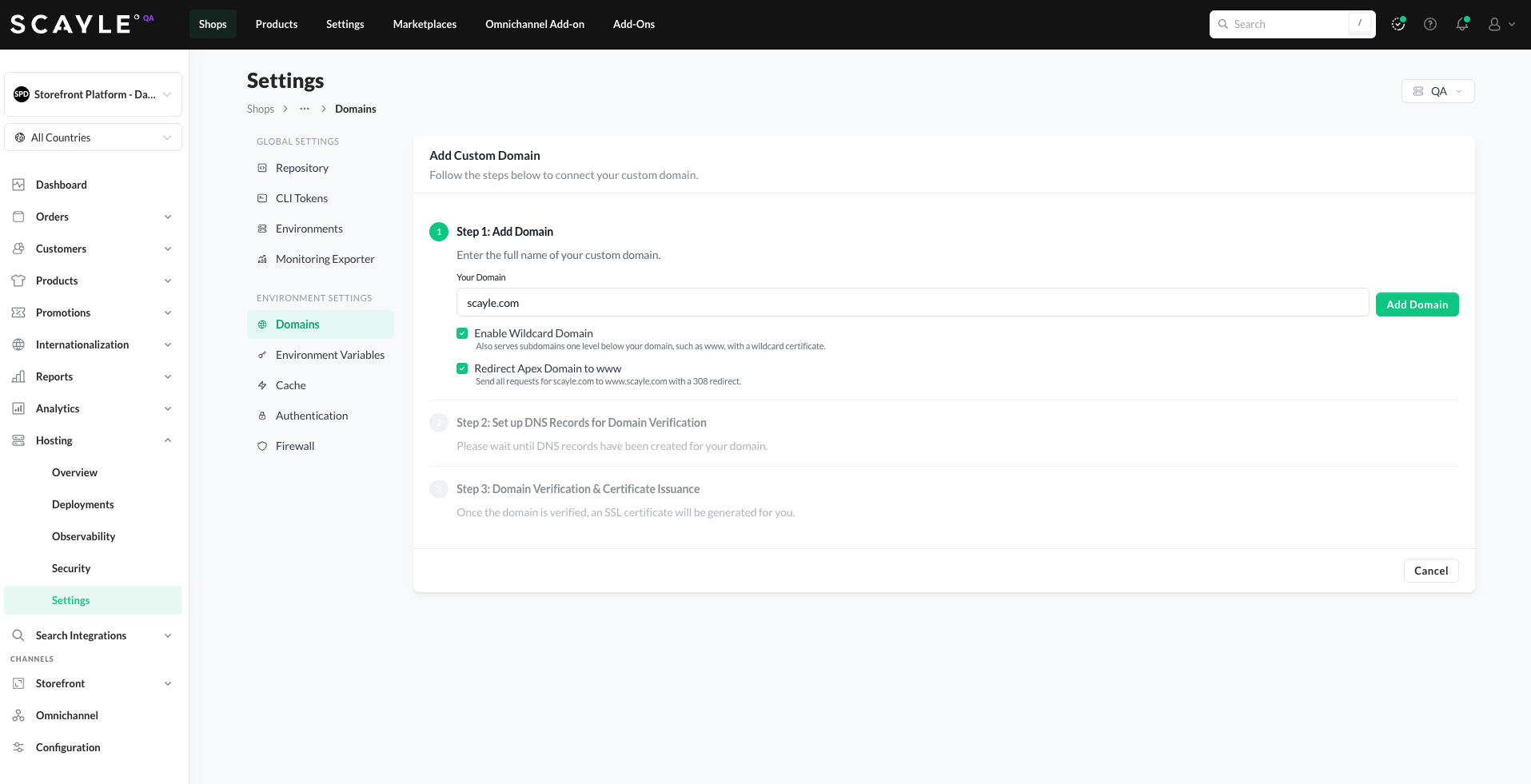
Step 1 ready to submit - domain entered, wildcard enabled, and the apex-to-www redirect selected.
Optional settings
Two optional settings are available before you click Add Domain:
- Enable Wildcard Domain - check this if you wish to support multiple subdomains using only one custom domain entry. With this setting, we allow a single application configuration to serve traffic for an unlimited number of subdomains (such as
de.scayle.com,en.scayle.com,nl.scayle.com, and others) under your main domain. - Redirect Apex Domain to www - check this to automatically redirect requests from your apex domain (e.g.
scayle.com) to thewwwsubdomain (www.scayle.com) with a 308 redirect. The helper text under the checkbox shows the exact source and destination for the domain you entered. The 308 preserves the HTTP method, path, and query string, so links and form submissions survive the redirect intact.
Dependency: This option is disabled by default and only becomes available once you tick Enable Wildcard Domain - the redirect needs a wildcard certificate to serve thewwwsubdomain. If you add a custom domain without wildcard, the redirect option can't be added later. To change this, delete the domain and recreate it with both options checked.
Step 2: Set up DNS Records for Domain Verification
- Once you request domain creation, SCAYLE automatically generates a TXT record and a CNAME record for you. This may take a few minutes to complete. These records are used to verify your domain ownership and enable auto-renewing SSL for your domain.
| Type | NAME | VALUE |
|---|---|---|
| TXT | This is the specific subdomain or host associated with the TXT record. | This type of DNS record allows you to store arbitrary text data associated with your domain. |
| CNAME | This is the specific validation label, which Cloudflare uses to confirm domain ownership for automated SSL renewal. | This is the unique destination address to which the verification process is directed to enable auto-renewal. |
In most cases, the TXT Record and CNAME Record should be created shortly after adding a domain. After these values are provided, use them to set TXT and CNAME DNS Records inside your DNS Provider according to the instructions provided in the section below.
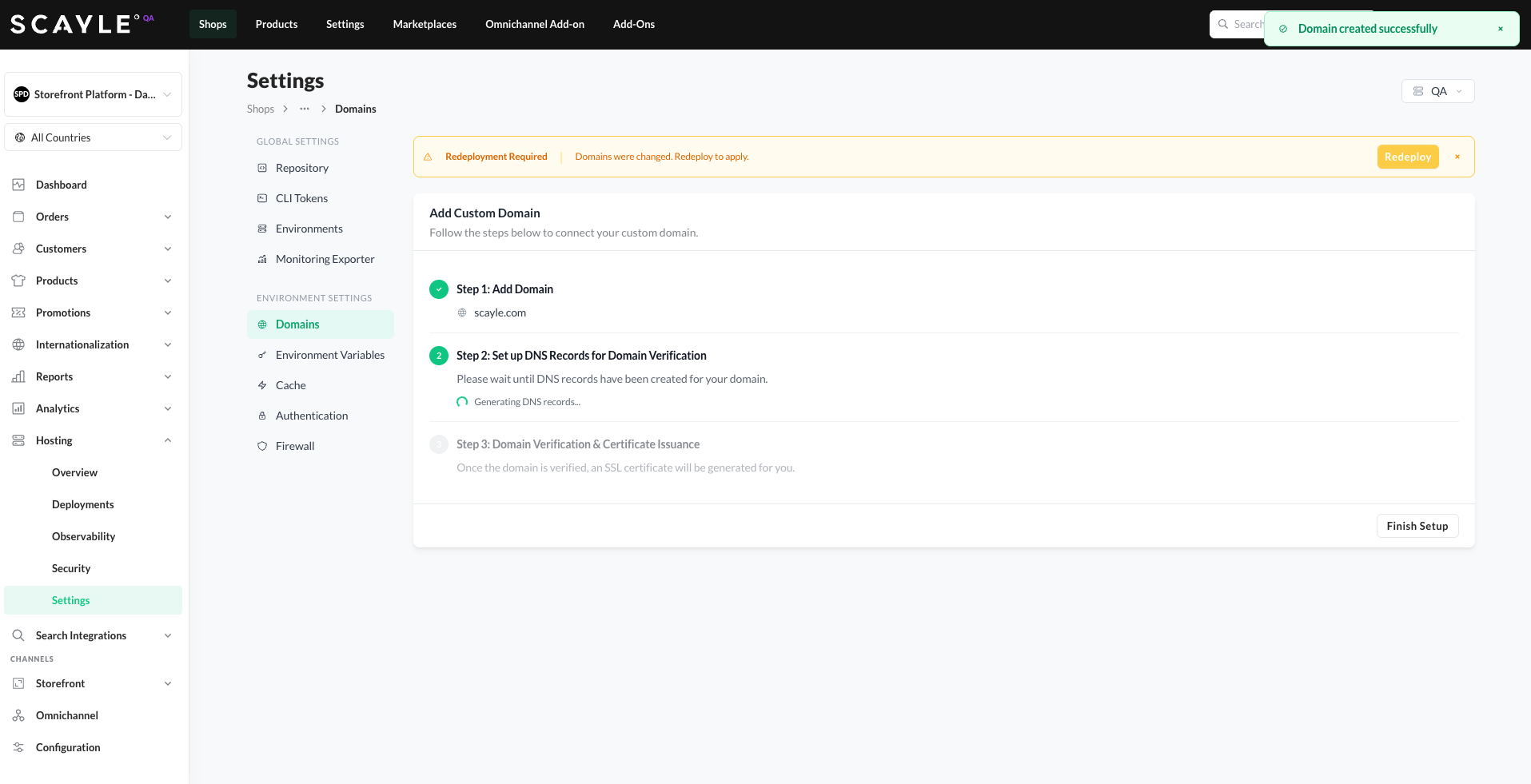
Step 2 provides the TXT and CNAME records you need to add to your DNS provider for ownership verification and SSL issuance.
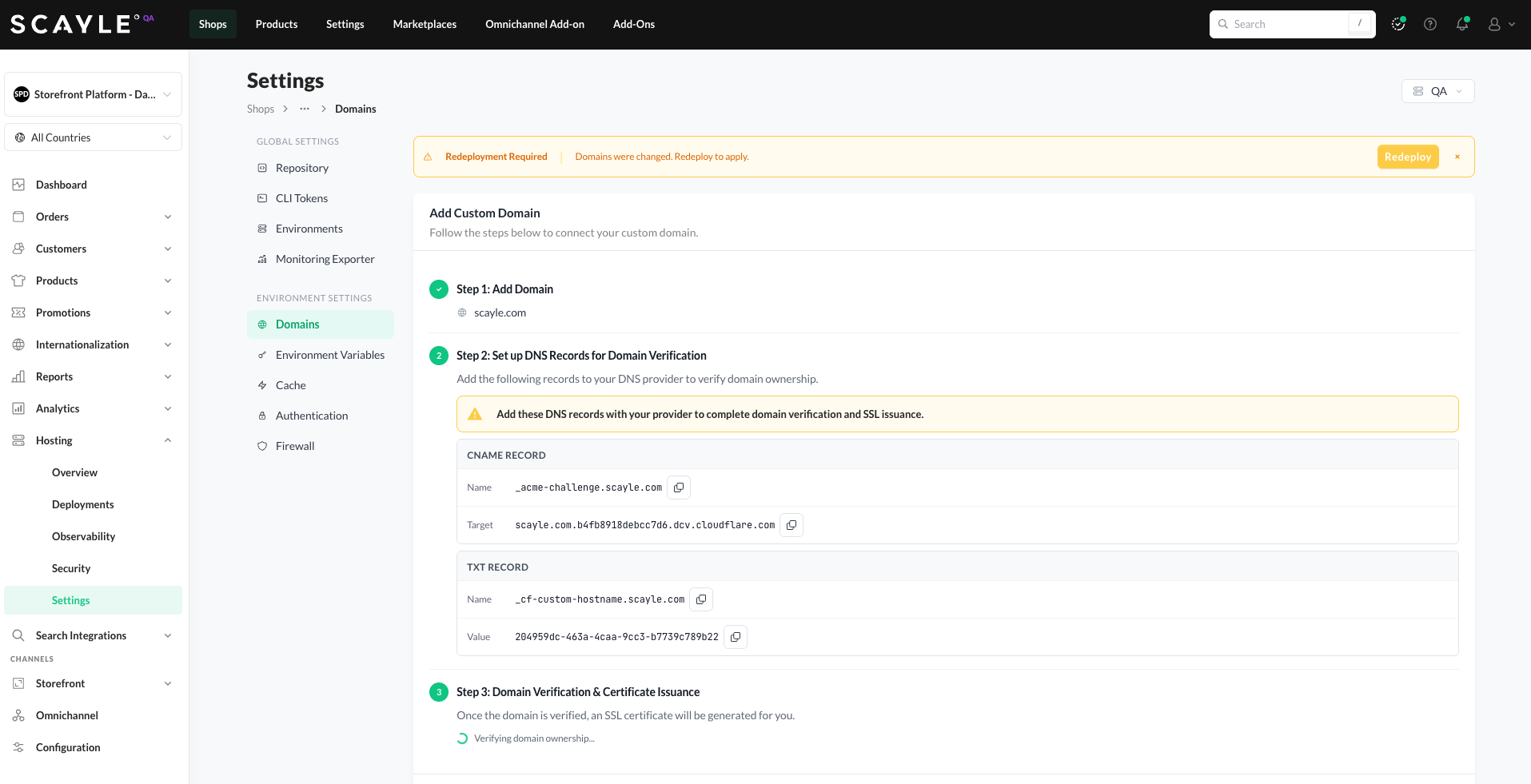
Once the TXT and CNAME records are generated, Step 3 begins automatically. You can click Finish Setup and continue with other tasks while verification completes.
Step 3: Domain Verification & Certificate Issuance
- Once we provide you with the TXT and CNAME records, Step 3 in the domain creation process begins.
- This verification is a prerequisite for securing your Storefront Application with an SSL certificate and enabling HTTPS.
Depending on Cloudflare, this process might take some time. Therefore, you can click the Finish Setup button and proceed with other tasks while the domain verification and certificate generation complete in the background.
On the main Domains Overview Page, Ownership Verification Pending status indicates that your domain is still being verified and SSL Certificate Pending status that a certificate is still being generated. Once the status changes to Valid SSL Certificate, your domain has been successfully verified, and the necessary SSL certificate is provided.
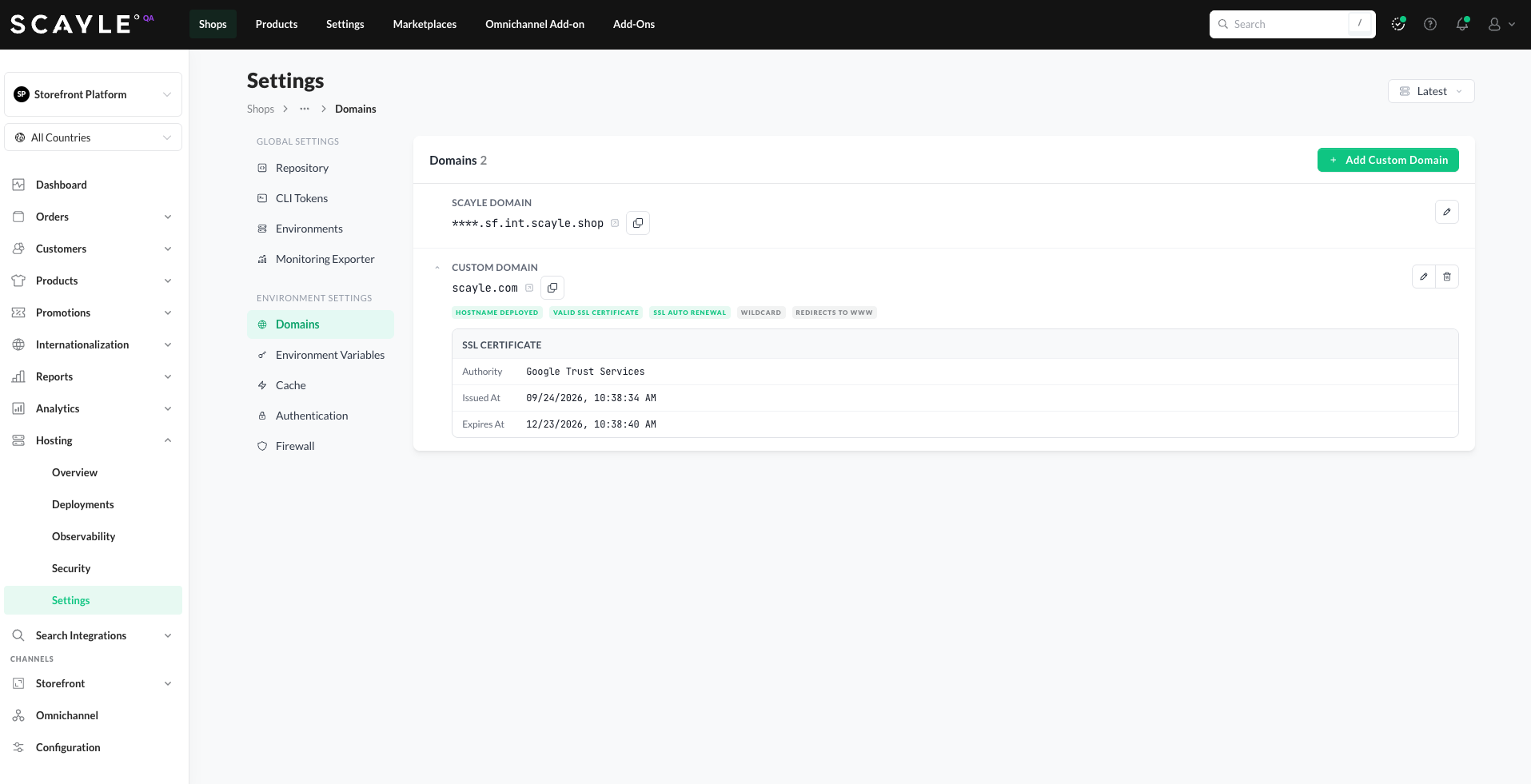
A fully verified custom domain with a valid SSL certificate, ready to receive traffic.
Keep in mind that whenever you create a new custom domain, the change will only take effect upon redeploying your Storefront Application. To do so, simply click Redeploy in the banner that appears and follow the regular deployment process as described in the Deployment in Progress section.
Here are additional statuses that can be shown for your domain:
- Wildcards status: Shown only in case you decided to enable wildcards for your custom domain, as explained in Step 1.
- Auto Renewal status: Shown next to the domain with a Valid SSL Certificate status. It indicates there's no further action required from you, as we'll automatically handle the renewal process for that domain.
- Redirects to www status: Shown only when you enabled Redirect Apex Domain to www for your custom domain, as explained in Step 1.
- Hostname Deployed status: Shown next to Auto Renewal & Valid SSL Certificate ones. It indicates that our Storefront Hosting Platform successfully provisioned the domain and is ready to receive traffic.
Custom Domain Limits
Only one custom domain can be created per environment.
Wish to increase the limit? Please contact your SCAYLE Account Manager for support.
Adding TXT and CNAME Records for your DNS Provider
After setting up a new custom domain on Storefront Hosting, upon successful completion of Step 2, you will be provided with two records:
- TXT: Used to verify the ownership of your custom domain and activate the hostname on Cloudflare.
- CNAME: Used to enable the auto-renewing SSL for your custom domain.
Both of these records help us confirm you own your custom domain by matching the specific text strings that only you could have placed in your DNS records. You will need to complete these two verification steps and place the records in your DNS provider before you can direct traffic from your custom domain to your Storefront Application, hosted on SCAYLE.
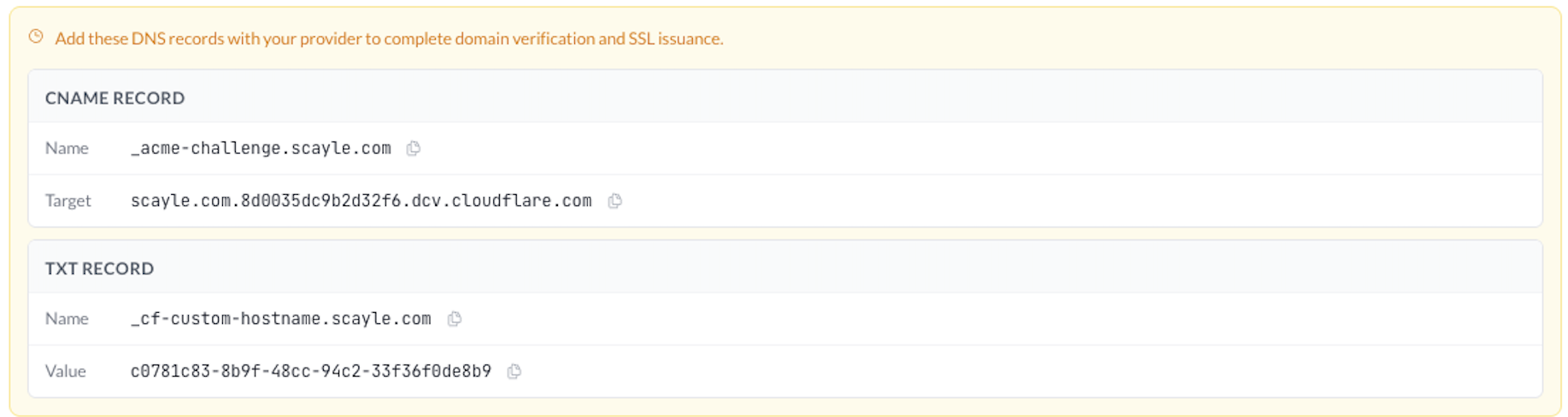
Example TXT and CNAME values generated for your custom domain. Copy the Name and Value fields into the matching record types in your DNS provider.
Here's a quick general guideline on how to add a TXT Record and CNAME Record for your DNS provider:
- Log In to Your DNS Account: Access your DNS provider's dashboard (e.g., Cloudflare, GoDaddy, AWS Route 53).
- Go to DNS Settings: Select the domain you want to edit and open its DNS Settings or Manage DNS section.
- Add a TXT Record:
- Type: Select TXT.
- Name: Enter the TXT Name provided (e.g. _cf-custom-hostname.scayle.com).
- Value: Paste the TXT Value provided (e.g. 2248259d-b805-46df-892a-fa35bc649bce).
- TTL: Leave as default (e.g. 1 Hour).
- Save Changes: Click Save to add the TXT record. Changes may take up to 48 hours to propagate.
- Add a CNAME Record:
- Type: Select CNAME.
- Name: Enter the CNAME Name provided (e.g. _acme-challenge.scayle.com).
- Value: Paste the CNAME Value provided (e.g. scayle.com.8d0035dc9b2d32f6.dcv.cloudflare.com).
- Proxy Status: Set as DNS Only.
- TTL: Leave as default (e.g. 1 Hour).
- Save Changes: Click Save to add the CNAME record. Changes may take some time to propagate.
- Verify the Changes: Return to our platform and wait until the domain is verified, which will be indicated by the statuses next to the domain.
Once you have completed this task, the custom domain will be active from our side and is ready to receive traffic.
To then send traffic from your custom domain to your Storefront Application hosted on SCAYLE, simply change the DNS Record for your custom domain inside your DNS Provider to a CNAME Record with the value of the internal SCAYLE Domain (*.sf.scayle.shop).

With this as a last step, you are ready to use your new custom domain fully.
Editing a Custom Domain
To change settings on an existing custom domain, click the pencil icon next to the domain in the Domains list. The Edit Domain Settings dialog opens.
The pencil icon is only enabled for domains with wildcard enabled. The only editable setting - Redirect Apex Domain to www - requires wildcard, so for non-wildcard domains the pencil icon is shown disabled (there's nothing to change).
What you can change:
- Redirect Apex Domain to www - toggle this on or off at any time.
What's locked after creation:
- Domain name - if you need to change it, delete the custom domain and add a new one.
- Wildcard setting - fixed at creation. To add wildcard to an existing non-wildcard domain, delete it and recreate with Enable Wildcard Domain checked.
Applying your changes
Click Save to update the settings. A Redeployment Required banner appears - click Redeploy and follow the standard deployment flow for the change to take effect.
Note on turning off the redirect: The redirect stops with the next deployment, but browsers can keep redirecting returning visitors to www for a while, depending on browser caching .This is expected and clears up on its own.
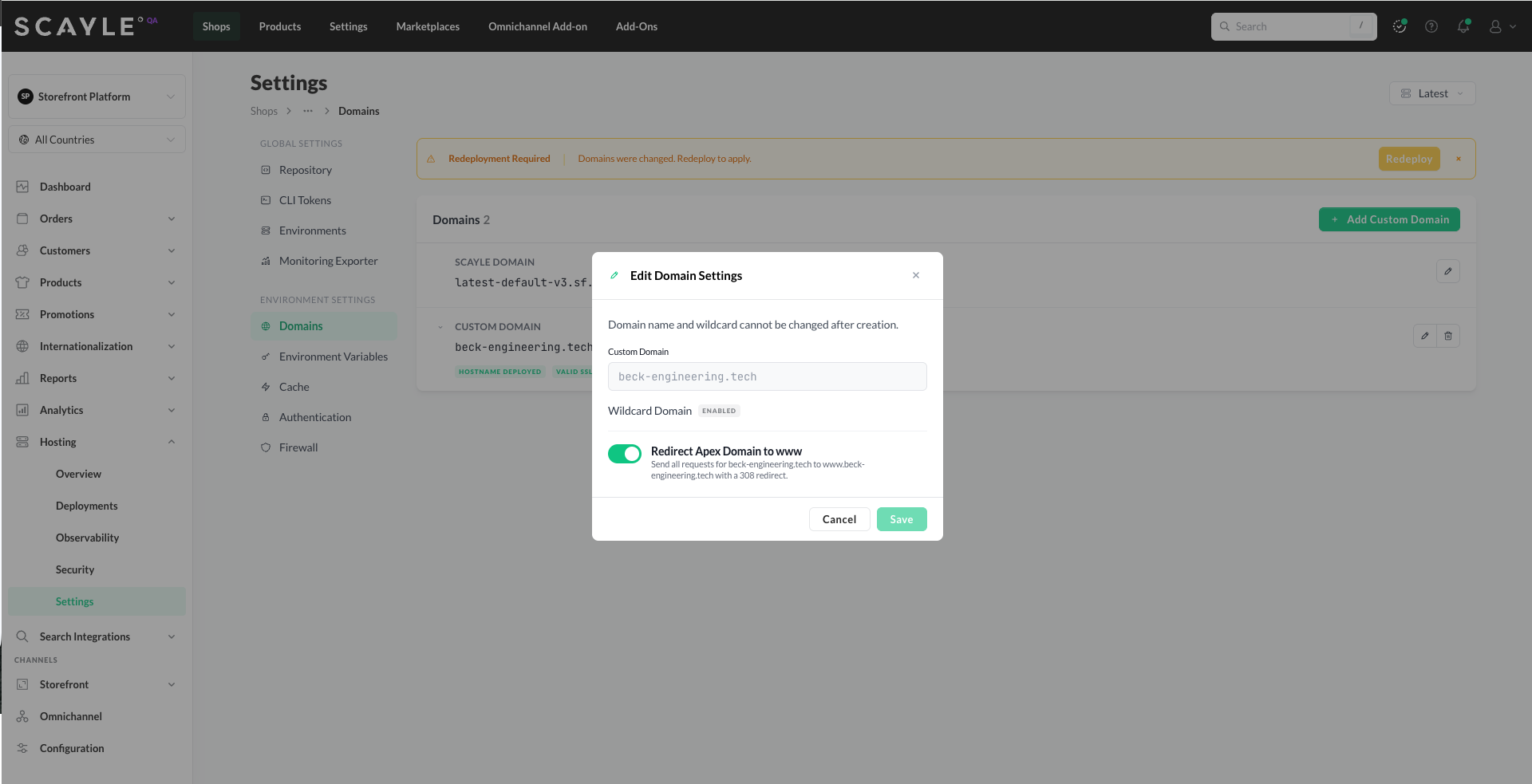
The Edit Domain Settings dialog lets you toggle the apex-to-www redirect on a wildcard-enabled custom domain.
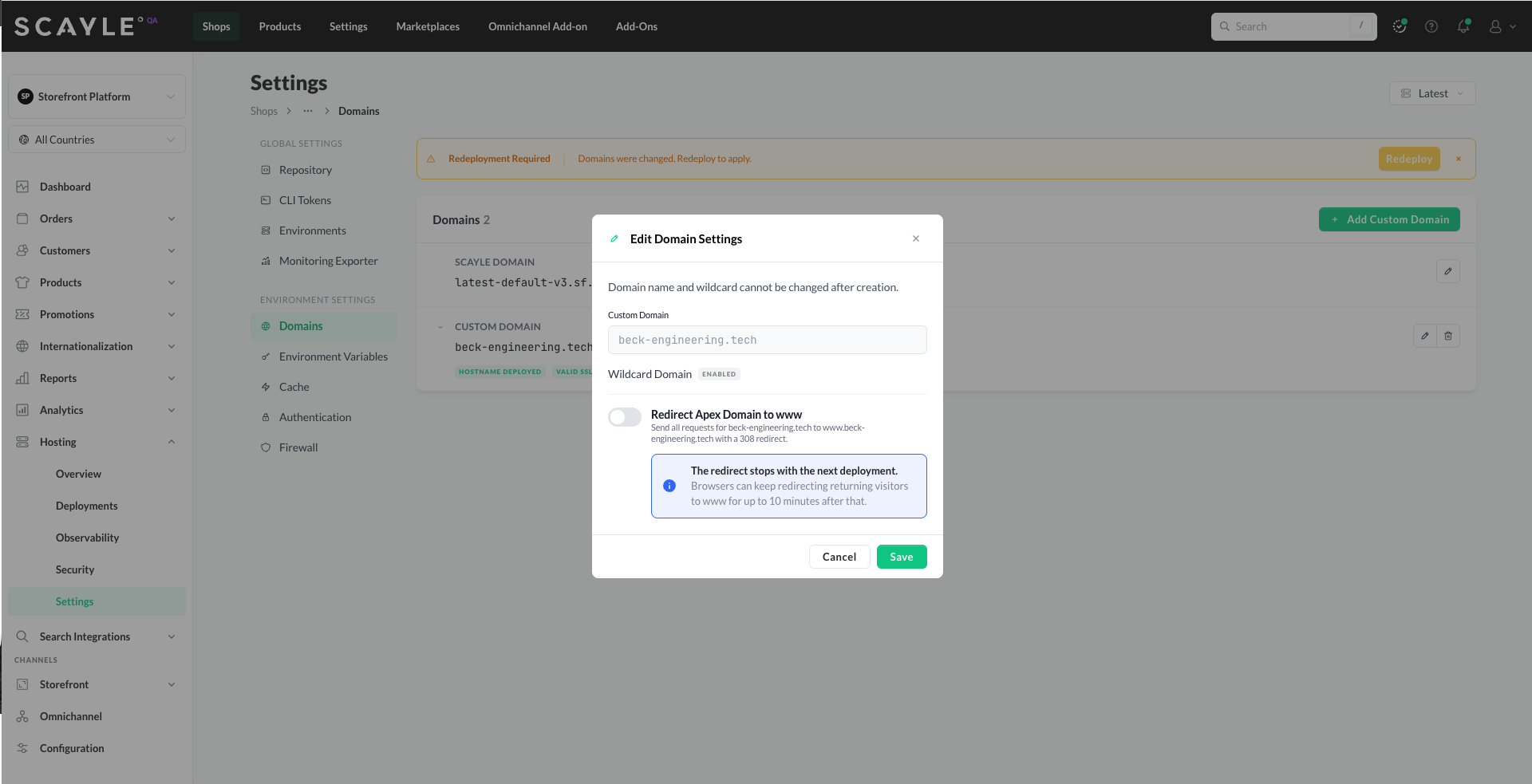
When you turn the redirect off, a note explains that browsers may still redirect returning visitors to www for up to 10 minutes.
Managing the SCAYLE Domain
Every environment is assigned a SCAYLE Domain - a default hostname under .sf.scayle.shop (for example, asjbzkaz.sf.int.scayle.shop). The SCAYLE Domain is managed by SCAYLE and serves traffic from the moment the environment exists.
You can disable the SCAYLE Domain so that your storefront is reachable only through the custom domains you've configured. This is useful when:
- You want all traffic to flow through branded custom domains only.
- The SCAYLE Domain has appeared in search indexes or shared links and you want to shut it down.
- The SCAYLE Domain is subject to trademark or brand-protection concerns.
To disable the SCAYLE Domain:
- Click the pencil icon next to the SCAYLE Domain in the Domains list.
- In the SCAYLE Domain Settings dialog, turn off Serve your storefront on [SCAYLE Domain hostname].
- Click Save. A Redeployment Required banner appears - click Redeploy and follow the standard deployment flow.
Once disabled and redeployed, visitors who reach the SCAYLE Domain receive a 403 response. Custom domains continue to serve traffic normally. The SCAYLE Domain row shows an ACCESS BLOCKED badge to indicate the disabled state.
Make sure a custom domain is configured before disabling the SCAYLE Domain. If you disable the SCAYLE Domain without having any custom domain set up, your storefront becomes completely unreachable - visitors to any URL will see a 403 error. The Domains page shows a Storefront unreachable banner when this state occurs, with instructions to add a custom domain or turn the SCAYLE Domain back on.
The SCAYLE Domain stays reserved for your environment even when disabled. You can re-enable it at any time by toggling the setting back on (followed by a redeploy).
This setting is per environment. Use the environment selector at the top of the Settings page to configure it independently for each environment.
![CAYLE Domain Settings dialog with the Serve your storefront on [SCAYLE Domain hostname] toggle switched off.](/documentation/.gitbook/assets/Screenshot 2026-10-05 at 13.14.31.png)
Switching the Serve your storefront toggle off disables the SCAYLE Domain so your storefront is reachable only through custom domains.
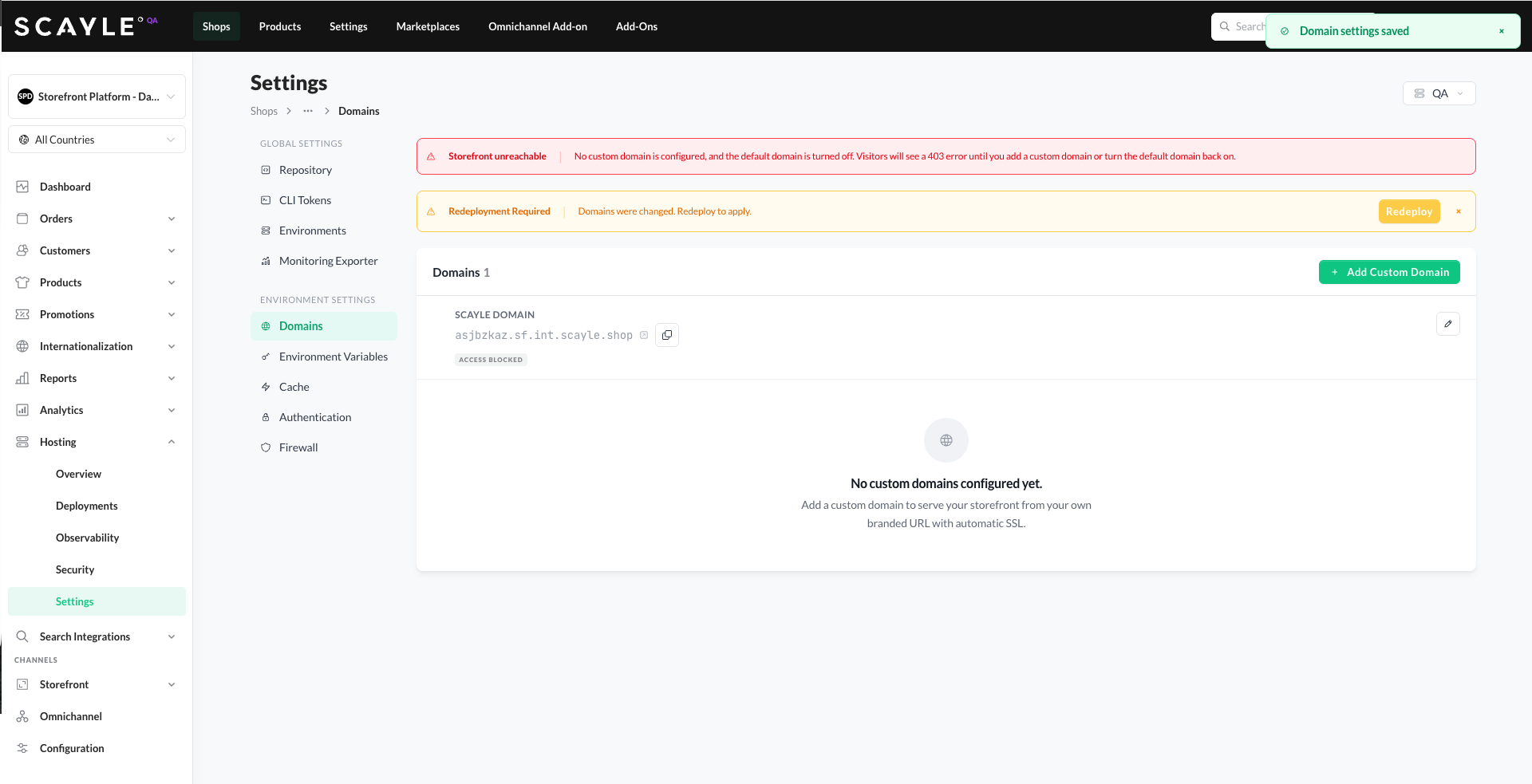
If the SCAYLE Domain is disabled while no custom domain is configured, the storefront becomes unreachable and a red banner warns you to add a custom domain or re-enable the SCAYLE Domain.

