docs

Firewall

Overview

The Firewall lets you create edge security rules that control traffic to your storefront before it reaches your Storefront. Rules are evaluated at the platform edge, so blocked or challenged requests never consume your application's resources.

Common use cases include blocking traffic from known-bad IP addresses, restricting access by country, and managing how bot traffic is treated.

Where to find it

Firewall settings live in Shops[Shop]Hosting ➜ Settings ➜ Firewall. The configuration is per-environment - use the environment selector at the top of the Settings page to switch between environments.
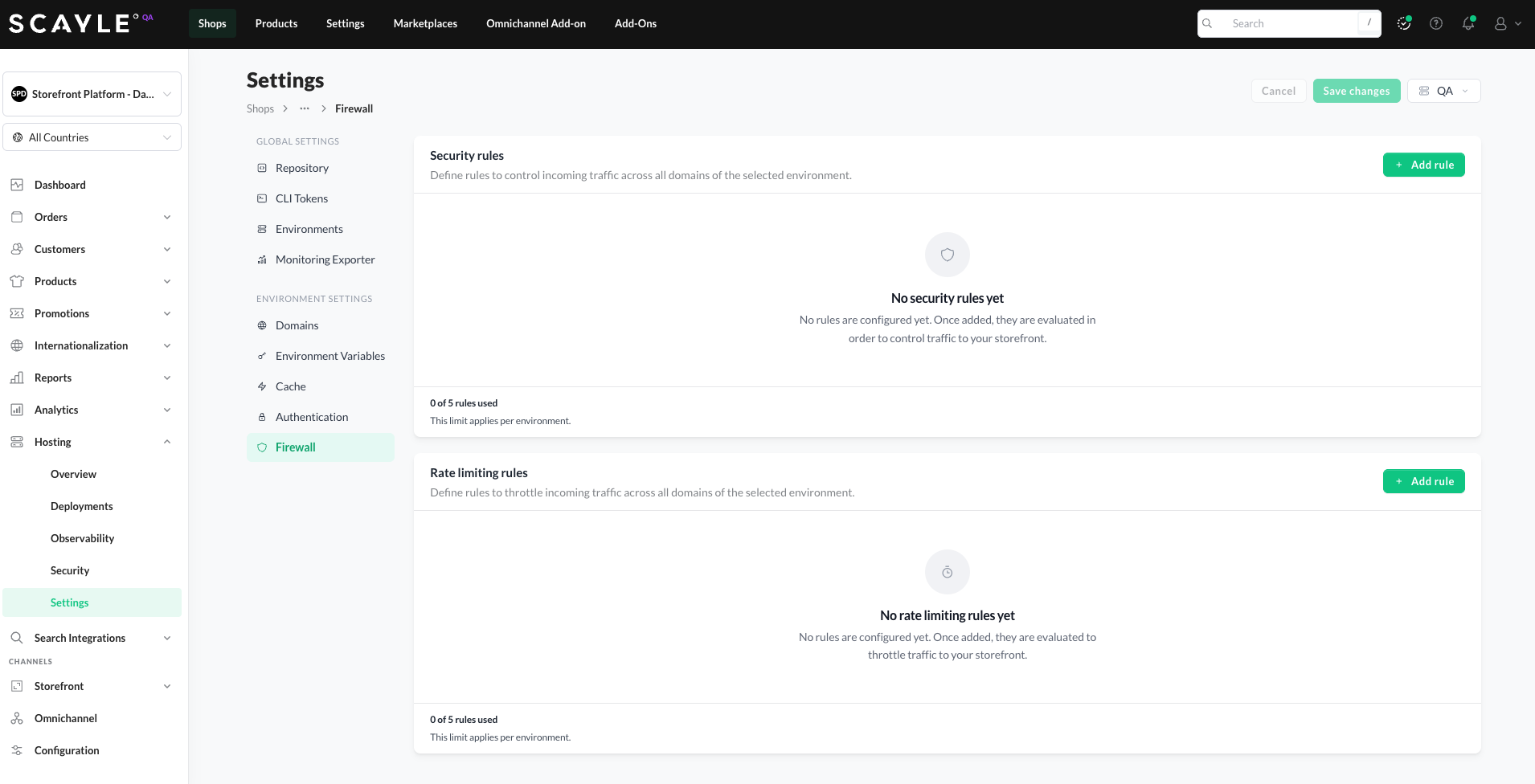
Firewall page with no security rules configured

The Firewall page in the SCAYLE Panel - empty state

Firewall rules are available only in live environments, with a limit of 5 rules per environment. Non-live environments do not support Firewall rules. Please reach out to your SCAYLE Account Manager if your use case requires more.

Rule limits

Each production environment supports up to 5 security rules. The current count is shown at the bottom of the Firewall page.

Rule types

Every rule matches traffic based on one of four match types. Match type is chosen when you create a rule.

IP / CIDR

Match traffic from specific IP addresses or CIDR ranges. Enter one or more IPs and CIDR ranges as tags in the match value field. Both IPv4 and IPv6 are supported. Within each IP / CIDR rule, up to 50 IP addresses or CIDR ranges are supported.

Bulk paste is supported. Paste multiple IPs from your clipboard - entries separated by whitespace or commas are detected and added as individual entries to the firewall.

Available actions: Block, Skip, Managed Challenge.

Country

Match traffic by the visitor's country of origin. Select one or more countries from the dropdown. All selected countries are combined into a single rule.

Available actions: Block, Skip, Managed Challenge.

Known bot

Match traffic identified as coming from a verified bot. You can either:

  • Select All verified bots to match every verified bot the platform recognizes, or
  • Select specific bot categories: Search Engine Crawler, Search Engine Optimization, Monitoring & Analytics, Advertising & Marketing, Page Preview, Academic Research, Security, Accessibility, Webhooks, Feed Fetcher, AI Crawler, Aggregator, AI Assistant, AI Search, Archiver, Other.

Selecting All verified bots checks every category. Selecting individual categories unchecks All verified bots.

Available actions: Block, Skip, Managed Challenge.

Bot score

Match traffic based on how likely it is to be automated. Two levels are available:

  • Automated - highest confidence that the request is a bot. Lowest false-positive risk.
  • Likely automated - probably a bot. Includes scrapers, credential stuffers, and similar tools.

Available actions: Block, Managed Challenge. Skip is not applicable to bot score rules.

Actions

Every rule has an action that determines what happens when a request matches.

  • Block - the request is rejected at the edge. The visitor receives a block response and the request never reaches your storefront.
  • Managed Challenge - the visitor is presented with a smart CAPTCHA challenge. Legitimate users typically pass without disruption; automated traffic is filtered out. Recommended over Block when you want to filter suspicious traffic without hard-blocking legitimate users.
  • Skip - the request is allowed through. As with any match, no later rules are evaluated. Use this to exempt trusted traffic (for example, your office IPs) from broader Block or Managed Challenge rules that follow.

The "Skip all rate limiting rules" toggle

When the action is Skip on an IP/CIDR, Country, or Known bot rule, an additional toggle - "Skip all rate limiting rules" - controls whether the skipped traffic also bypasses rate limiting.

  • Off (default) - matched traffic bypasses only security rules; rate limiting still applies.
  • On - matched traffic bypasses both security rules and rate limiting.

The default is Off across all rule types. A common pattern: allow verified bots through security rules but still throttle them via rate limiting (e.g., allow Googlebot but rate limit it to a fixed number of requests per minute).

Note: Tenant-configurable rate limiting isn't yet available in the SCAYLE Panel - the toggle is present today as a placeholder. Once tenant-configurable rate limiting rules ship in a future release, the toggle will determine whether the Skip action also bypasses them.

Adding a rule

  1. Click + Add rule in the top right of the Firewall page.
  2. Enter a Name for the rule (for example, "Office VPN" or "Block AI bots"). Names help you identify the rule when reviewing changes.
  3. Select a Match type - IP / CIDR, Country, Known bot, or Bot score.
  4. Fill in the match value fields for the chosen type.
  5. Select an Action - Block, Skip, or Managed Challenge (depending on the match type).
  6. If applicable, adjust the Skip all rate limiting rules toggle.
  7. Set Status to Enabled or Disabled.
  8. Click Save changes in the dialog, then click Save changes at the top of the page to apply.
New rule dialog with IP/CIDR match type selected, showing IP address input

New rule dialog for IP / CIDR match type

New rule dialog with Country match type selected, showing country selector

New rule dialog for Country match type

New rule dialog with Known bot match type selected, showing bot categories

New rule dialog for Known bot match type

New rule dialog with Bot score match type selected, showing Automated and Likely automated options

New rule dialog for Bot score match type

Editing and deleting rules

Every rule has a pencil icon (edit) and a trash icon (delete) at the end of its row.

  • Edit - opens the rule in the same dialog you used to create it. Update fields and click Save changes.
  • Delete - removes the rule from the list straight away, but the change only reaches the edge after you click Save changes at the top of the page

Rule ordering

Rules are evaluated top-to-bottom. The first rule that matches a request determines what happens - subsequent rules are not evaluated.

To reorder rules, drag a rule up or down using the drag handle at the left of its row.

Ordering matters most when you combine Skip rules with Block or Managed Challenge rules. A Skip rule earlier in the list will let traffic through before a later Block rule can act on it. Example: to allow your office network but block a country that includes your office, put the Skip rule for your office IP above the Block rule for the country.

Rule status

Every rule is either Enabled or Disabled.

  • Enabled - the rule is active at the edge and evaluated against incoming traffic.
  • Disabled - the rule is saved to your configuration but not enforced.

You can toggle a rule's status when creating it or editing it later.

Saving changes

The Firewall page shows a Save changes button in the top right. It is inactive until you make a change (add, edit, delete, or reorder a rule).

When you click Save changes, your entire ruleset is pushed to the edge in one operation. Changes may take some time to propagate - a request made immediately after saving may still hit the previous ruleset for a brief window.

Examples

The following examples show how to combine match types, actions, and rule ordering to solve common access control scenarios. Screenshots below each example show the resulting rule as it appears in the SCAYLE Panel.

Block traffic from a specific country

Scenario: you don't sell into Australia and want to reduce noise and load on your storefront.

Create a rule with:

  • Name: Block Traffic from Australia
  • Match type: Country
  • Countries: Australia
  • Action: Block

Requests from Australia now receive a block response at the edge and never reach your storefront.

Firewall rule configured to Block traffic from Australia

Country Block rule for Australia in the SCAYLE Panel

Allow trusted traffic without any restrictions

Scenario: your office network needs unrestricted access for internal testing, admin access, and monitoring - no security rules or rate limiting should apply.

Create a rule with:

  • Name: Office VPN
  • Match type: IP / CIDR
  • Entries: your office VPN IP addresses or CIDR ranges (e.g., 203.0.113.0/24)
  • Action: Skip
  • Skip all rate limiting rules: On
Firewall rules list with an Office VPN Skip rule at position 1, Skip all rate limiting rules enabled

Office VPN Skip rule placed at the top of the rule list

Drag this rule to the top of the list so it evaluates before any Block or Managed Challenge rules that might otherwise catch office traffic.

All traffic from your office VPN now bypasses every subsequent rule, including rate limiting.

Firewall rules list with Office VPN Skip rule at position 1 and Australia Country Block rule at position 2

Office VPN Skip rule ordered above the Australia Country Block rule, so trusted office traffic is evaluated first

Allow verified search bots while blocking generic automated traffic

Scenario: your storefront needs to stay indexable by legitimate crawlers (Google, Bing, and similar) while blocking generic automated traffic like scrapers or credential stuffers.

Create two rules.

Rule 1 - Allow verified search crawlers:

  • Name: Allow verified search crawlers
  • Match type: Known bot
  • Bot categories: Search Engine Crawler (and any others you want to allow, e.g., Monitoring & Analytics, Security)
  • Action: Skip
  • Skip all rate limiting rules: Off (so rate limiting still applies to bot traffic)

Rule 2 - Block generic automated traffic:

  • Name: Block automated traffic
  • Match type: Bot score
  • Score: Automated (highest confidence)
  • Action: Block

Drag Rule 1 above Rule 2 in the list. Verified search crawlers are evaluated first and skipped through. Any remaining automated traffic that isn't a verified crawler hits Rule 2 and is blocked.

Firewall rules list showing Allow Search Engine Bots Skip rule at position 1 and Block Automated Bots rule at position 2

Two bot rules in order: allow verified crawlers above, block automated traffic below

Challenge likely bots without hard-blocking

Scenario: you want to filter probably-automated traffic (scrapers, credential stuffers) without hard-blocking. Legitimate users who happen to score as "Likely automated" should still be able to pass through by solving a challenge.

Create a rule with:

  • Name: Challenge likely bots
  • Match type: Bot score
  • Score: Likely automated
  • Action: Managed Challenge

Requests matching Likely automated are now presented with a smart CAPTCHA. Real users pass silently; automated tools are filtered out before they reach your storefront.

Firewall rule configured with Managed Challenge action for Likely automated bot score

Managed Challenge rule for Likely automated bot score