

Configure Carrier
To make a Carrier available for your users, you need to follow these three steps.
Configuration surface: all settings on this page belong to the Checkout backend configuration under Settings ➜ General ➜ Configuration and Settings ➜ Merchant Management. Nothing on this page is configured under Settings ➜ Checkout ➜ Configurations. For the difference between the two surfaces, see Backend and Frontend Configuration.
Create a new Carrier Type
A Carrier Type bundles different information about a Carrier having a distinct carrierKey and carrierGroupKey combination.
Once set up globally, the Carrier Type can be configured for the Checkout in each shop country, with its generic parameters automatically applied. While each shop operates at a country level, a new Carrier Type MUST first be created globally to ensure the Carrier is recognized across the platform.
Note: Carriers are strongly linked to Merchants. Therefore, each new Carrier MUST be assigned to Merchant countries BEFORE you can configure a Carrier for a specific shop country.
After the initial setup, the individual Checkout experience per shop country can be tailored by e.g. adding Carriers to the Checkout flow of each shop country, dedicated Shipping Options assigned, or the specific Carrier assigned to Collection Points.
Start by defining your carriers globally, including carrier names, codes, and tracking URLs. This step ensures that the carriers are recognized across your platform.
You can do this in the SCAYLE Panel under Settings ➜ General ➜ Configuration ➜ Carriers.
Company scope: Carriers are scoped by company. A shop belongs to exactly one company, and each company is technically a separate database. Carriers are not aggregated across companies, so a carrier that is needed in two companies has to be created in both. A carrier created in the wrong company does not exist for the intended shop, and no error is shown.
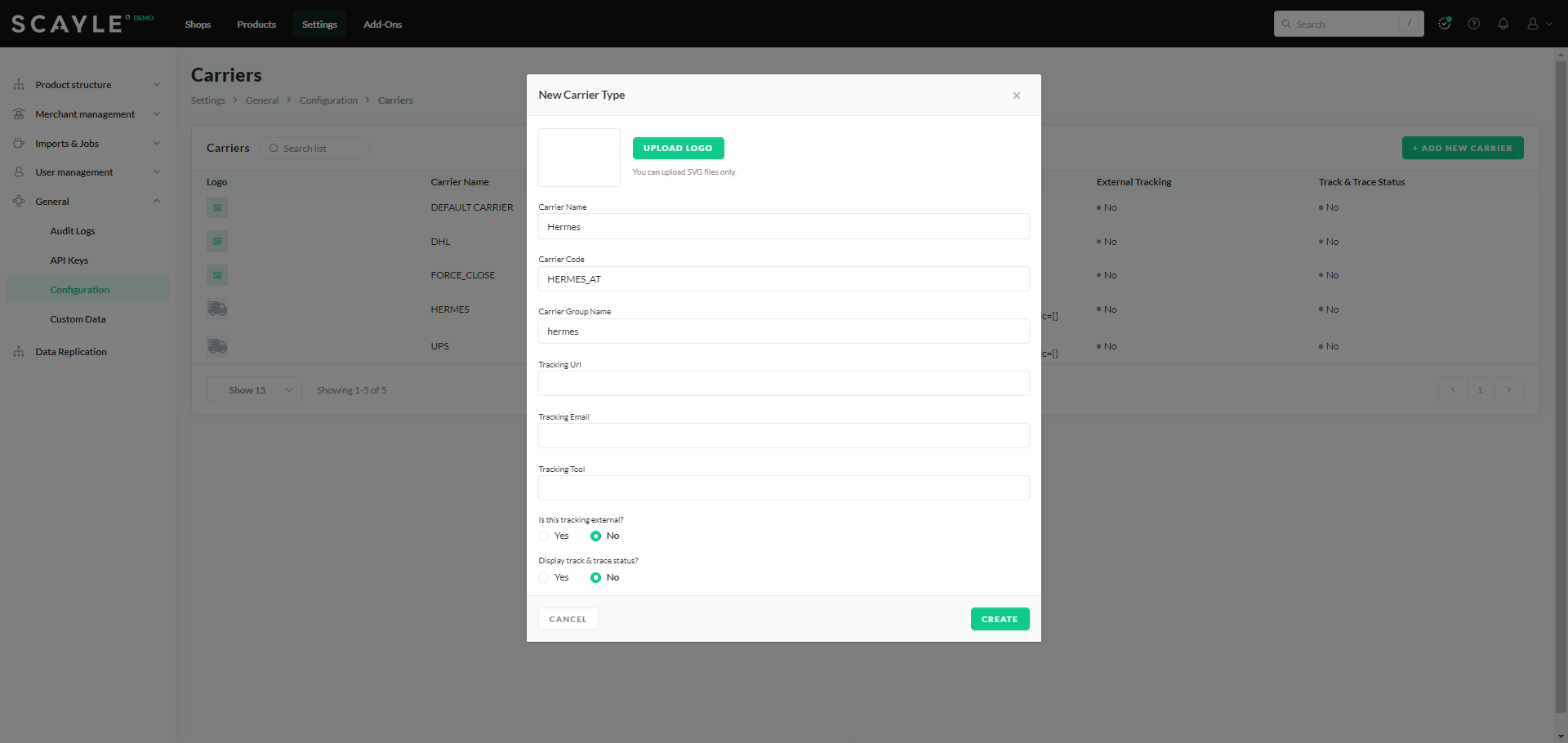
Create a new Carrier Type
Since logos and translation keys can be shared across countries, multiple Carrier Types may use the same carrierGroupKey. For example, Hermes Austria and Hermes Germany would both use the same logo. However, a one-to-one relationship between Carrier Type and carrierKey must be maintained, as Hermes Austria and Germany could be managed differently within their respective logistics systems.
The setup of a Carrier Type will be defined by the following parameters:
Carrier settings such as a logo, a tracking email, a tracking tool, or track and trace display options are not part of the general carrier configuration and are not available in the SCAYLE Panel.
| Parameter | Mandatory | Example | Description |
|---|---|---|---|
| Carrier Name | ✅ | Hermes | Display name in the SCAYLE Panel. The field is mandatory, but the value is not used in any downstream process. |
carrierKey (Carrier Code) | ✅ | HERMES_AT | Assigned to a Carrier during the Checkout flow, allowing warehouses to identify the actual carrier responsible for fulfilling the shipment. Enforced: the Carrier Code must be written in uppercase and must be identical in the global carrier settings and in the Checkout configuration of the shop country, see Data Mapping. If the codes differ, the carrier does not appear in checkout, and no error is shown. |
carrierGroupKey (Carrier Group Name) | ✅ | hermes | Defines how the carrier is visually presented during the Checkout flow. It determines the carrier’s logo and translation key that are pre-configured by SCAYLE. Convention: the field accepts any string, but only the keys listed in Carrier Group Keys resolve to a carrier-specific logo and translation. Any other value falls back to a generic logo and translation without an error. Keys are case-sensitive and not uniformly lowercase, for example |
| Tracking URL | ✅ | https://acme.com/tracking?code={{ key }}&zip={{ zip }} | A carrier tracking URL is used to provide customers with real-time updates on the status of their orders during the shipping process. It is typically provided by the shipping carrier and must contain at least one placeholder, see Tracking URL. |
Tracking URL
The Tracking URL must contain at least one placeholder. SCAYLE replaces every placeholder in the URL with the value of the shipment and converts spaces to %20. A tracking URL without a valid placeholder is rejected.
The following placeholders are available:
{{ key }}– the shipment key (tracking number){}– the shipment key, legacy syntax kept for backward compatibility{{ language }}– the language code{{ zip }}– the zip code of the delivery address
Example: https://acme.com/tracking?code={{ key }}&zip={{ zip }}
{{ language }} is only substituted for the carrier codes DHL, DHL_STD_NATIONAL, DHL_STD_WORLD, DHL_BPOST_BEL, POST_CH, and SWISS_POST. For any other carrier code, the literal text {{ language }} stays in the URL and is sent to the customer in the shipping confirmation. The language is resolved from the country code of the carrier and falls back to en. For the supported languages per carrier code, see Carrier Codes With Language Substitution.
The form in the SCAYLE Panel accepts one placeholder per tracking URL. To use more than one placeholder, set the tracking URL via the Config API endpoint PUT /settings/carriers/:code, which replaces all placeholders.
For the complete list of placeholders and their enforcement, see Tracking URL Placeholders.
Assign Carrier Type to a Merchant
After creating a Carrier Type, link it to the relevant merchant and specify the country in which the merchant operates. This is crucial when managing multiple merchants with different operating regions.
You can do this in the SCAYLE Panel under Settings ➜ Merchant Management ➜ Merchant ➜ Edit.
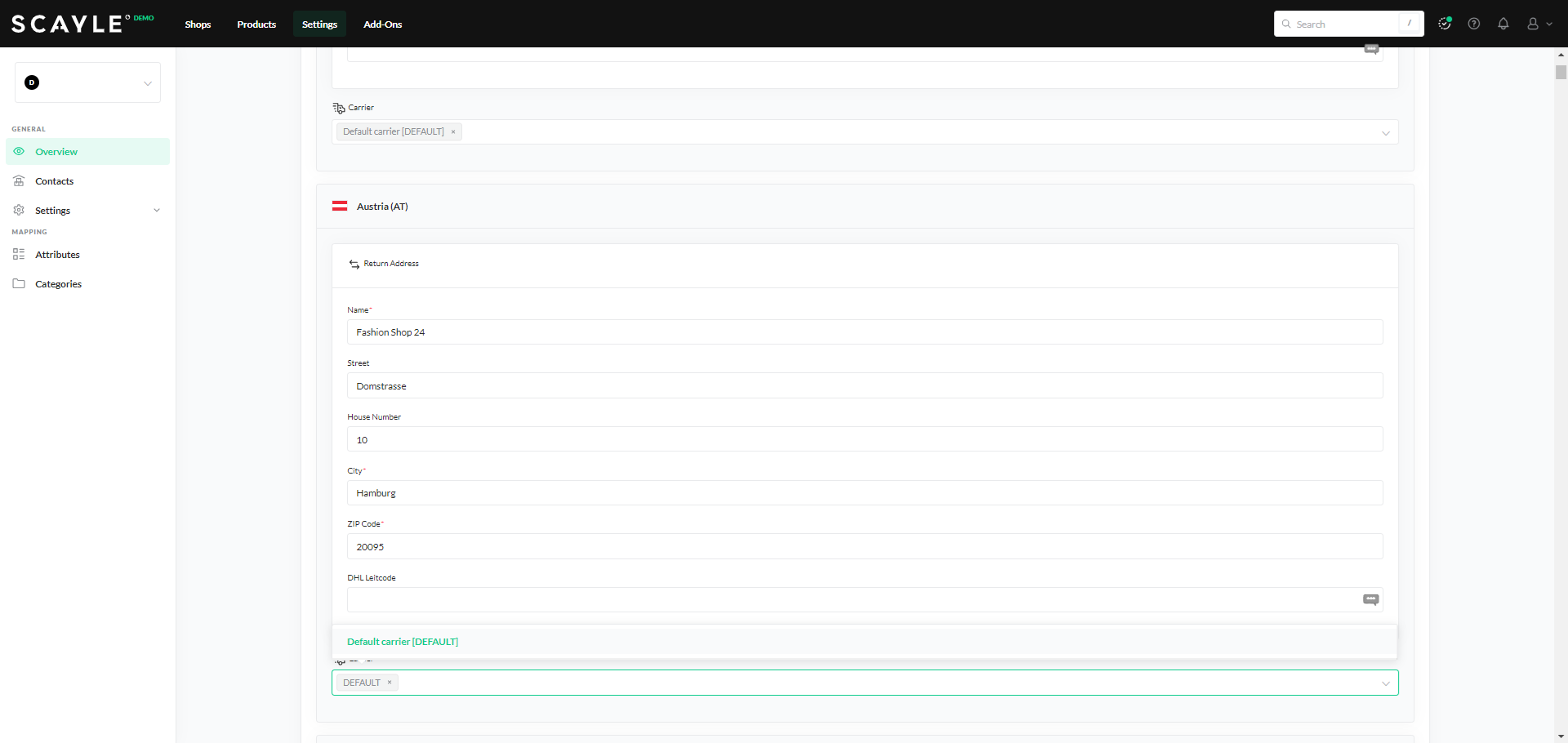
Assign Carrier to a Merchant and a Country
Simply use the dropdown below each Merchant country and assign Carrier.
Add Carrier to a Shop Country
Once the Carrier Type is created and assigned to the Merchant country, the Carrier is available in the corresponding shop country. There is no separate step to add a Carrier to a shop country in the SCAYLE Panel.
To make the Carrier selectable in the Checkout Webcomponent, define the Shipping Options for the shop country under Settings ➜ Shipping & Delivery ➜ Shipping Options and assign the Carrier in the Carrier field of each Shipping Option.
Since logos or translation keys can be shared across countries, a carrier used in multiple shop countries may use the same carrierGroupKey. For example, both Hermes Austria and Hermes Germany would share the same logo. However, it's essential to maintain a one-to-one relationship between the carrierKey, Tracking URL and Carrier Name assigned to the Carrier Type and the Carrier used in each shop country.

