Configure Shipping Options
Shipping options define how delivery methods are set up and configured for each shop country in SCAYLE. This includes linking a shipping method to carriers or collection points, and assigning pricing.
Shipping options are created in two parts:
- A global shipping policy, which defines the option as a logical delivery type.
- A shop-level configuration, where that policy is applied to a specific country and given behavior such as cost and carriers.
Configuration surface: all settings on this page belong to the Checkout backend configuration under Settings ➜ General ➜ Configuration ➜ Shipping Options (global shipping policy) and Settings ➜ Shipping & Delivery ➜ Shipping Options (shop-level configuration). How the resulting delivery options are presented in checkout is frontend configuration, see Customize Delivery Options. For the difference between the two surfaces, see Backend and Frontend Configuration.
Prerequisites
Before configuring shipping options you must have at least one carrier and/or collection point configured in the SCAYLE Panel.
Naming Conventions & Scheduled Delivery Configuration
When configuring shipping options, naming conventions must be defined correctly from the beginning.
The shippingOptionKey and related identifiers are directly used for translations and frontend integration. Please ensure that clear, consistent, and meaningful naming is applied during setup and aligned with your existing frontend terminology. Below a list of the Checkout Default Translations for shipping options:
| Default Shipping Option Key | Default Translation |
|---|---|
express_delivery | "Express Delivery" |
free_delivery | "Free Delivery" |
scheduled_delivery | "Scheduled Delivery" |
standard_delivery | "Standard Delivery" |
least_packages | "All Items in One Delivery" |
If you want to use the scheduled_delivery functionality, the key must match this naming exactly. Renaming it to something like dhl_scheduled_delivery would prevent the scheduled delivery logic from working correctly — for instance, the date picker would no longer be triggered in checkout.
For the complete list of reserved keys and the behavior they trigger, see Reserved Shipping Option Keys in the Configuration Reference.
Note that scheduled_delivery is supported exclusively for Home Delivery shipping options. It cannot be applied to Collection Point or Store Pickup, and the date picker will not be triggered for those delivery options.
A correct initial setup ensures a smooth checkout integration.
Setting up Shipping Options in SCAYLE Panel
The next section explains how to create shipping policies and shop-level configurations step by step using the SCAYLE Panel, and how each field maps to the entity relationship described above.
Step 1: Create a New Shipping Policy Key (Global Definition)
Shipping options are based on shipping policies. A shipping policy defines the type of shipping method, and generates a unique Shipping Policy Key that serves as the reference for all shop-level configurations.
Why create a shipping policy first?
- It ensures the shipping option is recognized across SCAYLE and in checkout.
- The policy key becomes part of the API and checkout logic.
- You can reuse a policy across multiple shop countries with different settings.
To create:
- In the SCAYLE Panel, go to Settings ➜ General ➜ Configuration ➜ Shipping Options
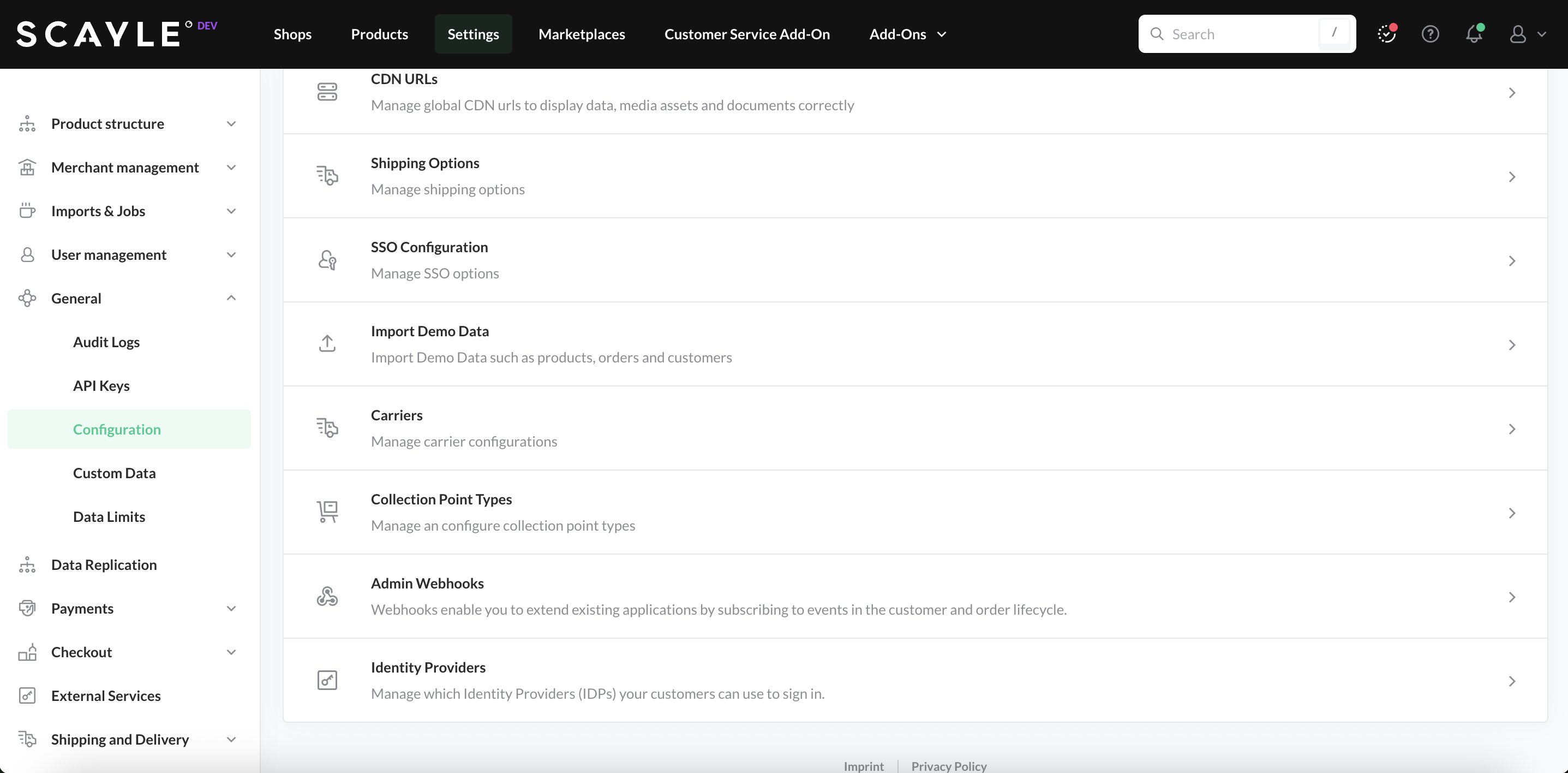
- Click on +Create Shipping Option.
- Enter a new shipping policy key in snake_case (for example,
standard_deliveryrather thanStandard Delivery). Please check the Checkout Defaults to ensure correct configuration.
Using spaces or mixed casing can cause errors in API calls.
When creating a shipping option, you can specify whether the customer must select a delivery date and/or a time slot. If enabled, the customer will be prompted with a calendar or time-slot selection during checkout when choosing this shipping option, provided the option is linked to Home Delivery.
By default, both settings are disabled, but you can enable them as needed.
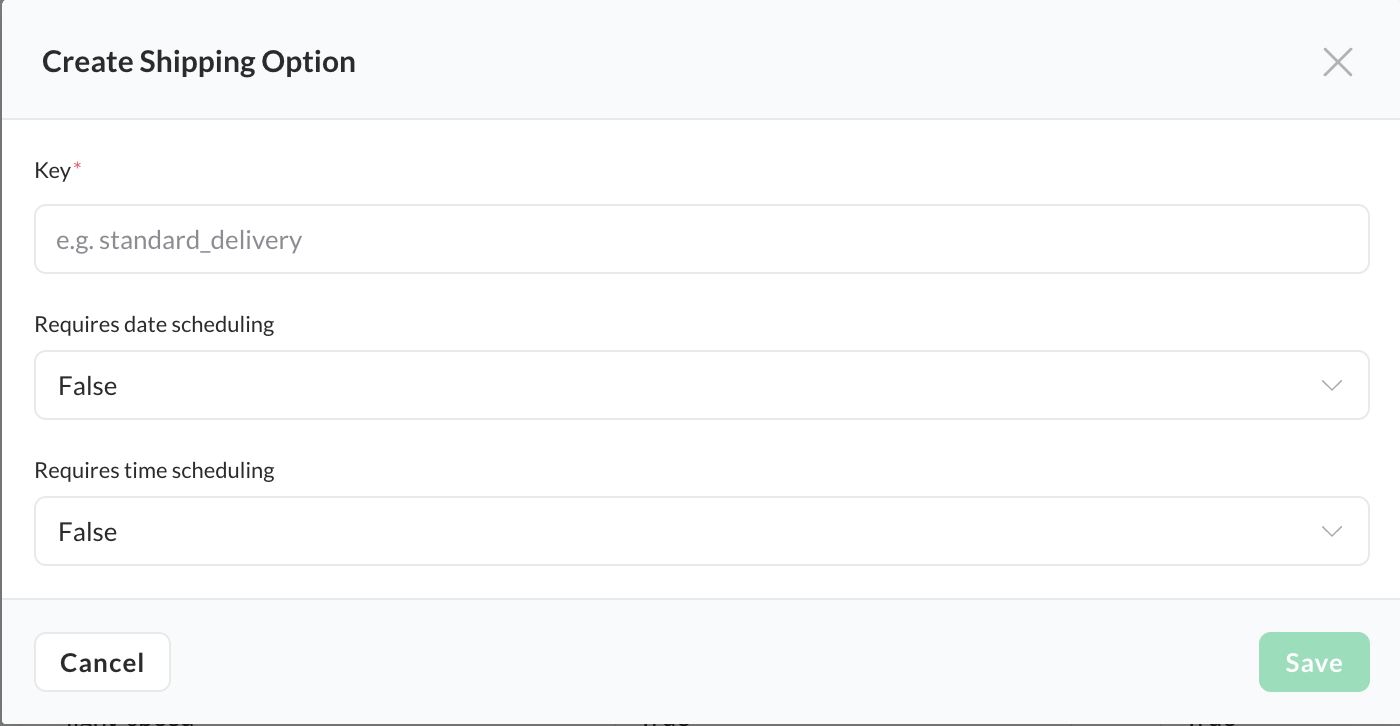
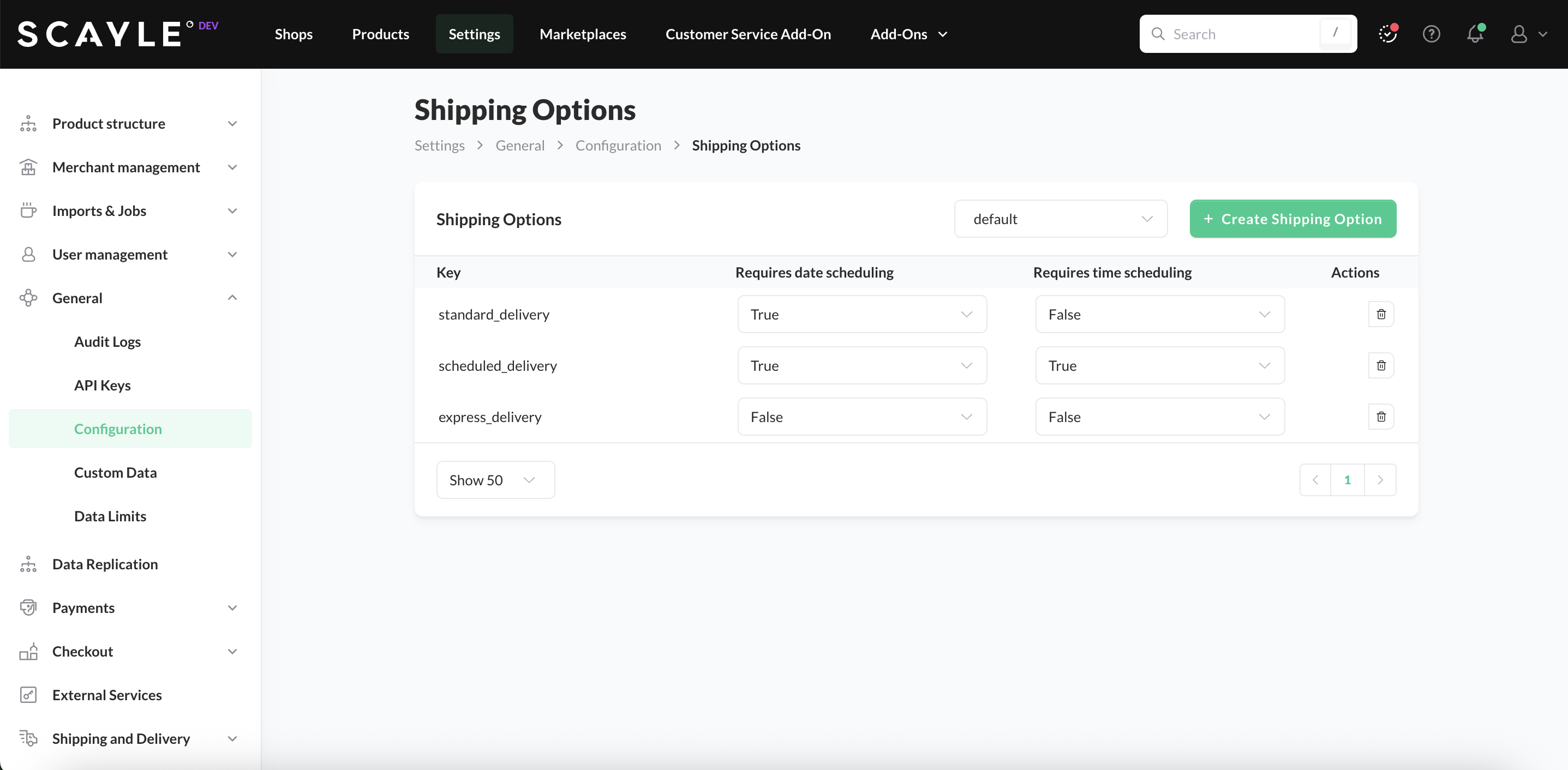
Once you completed the form, click on Save. All the created shipping options will be listed in the overview:
Step 2: Apply the Shipping Policy to a Shop Country
After creating a global shipping policy, you assign it to one or more shop countries and configure how it should behave there.
In the SCAYLE Panel:
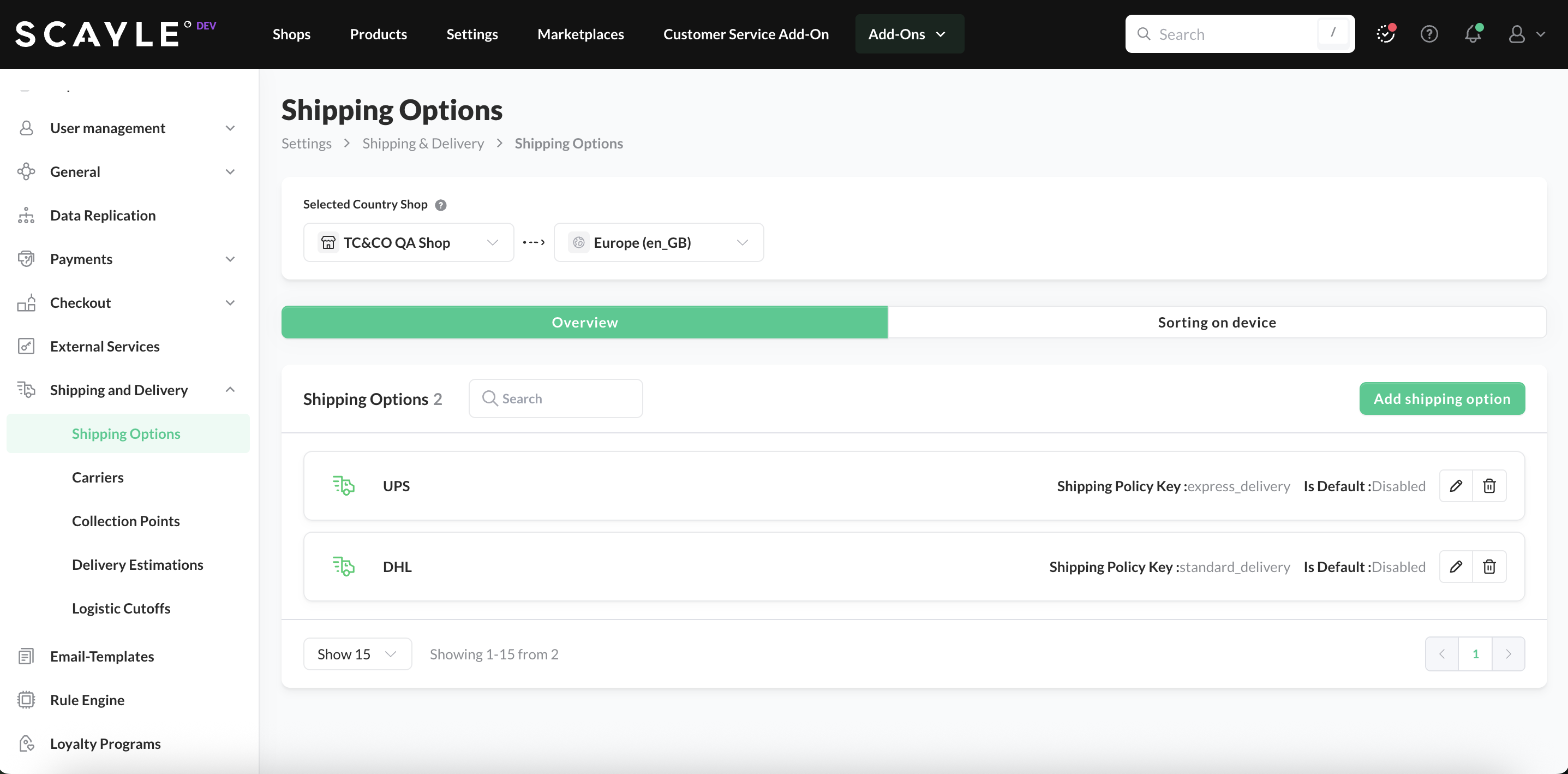
- Go to Settings ➜ Shipping & Delivery ➜ Shipping Options
- Select a shop country from the dropdown
- In the Overview tab, click Add shipping option
- In the Carrier field, assign one or more carrier groups (
carrierGroupKey) that determine which carriers can fulfill the option. For the available keys, see Carrier Group Keys in the Configuration Reference.
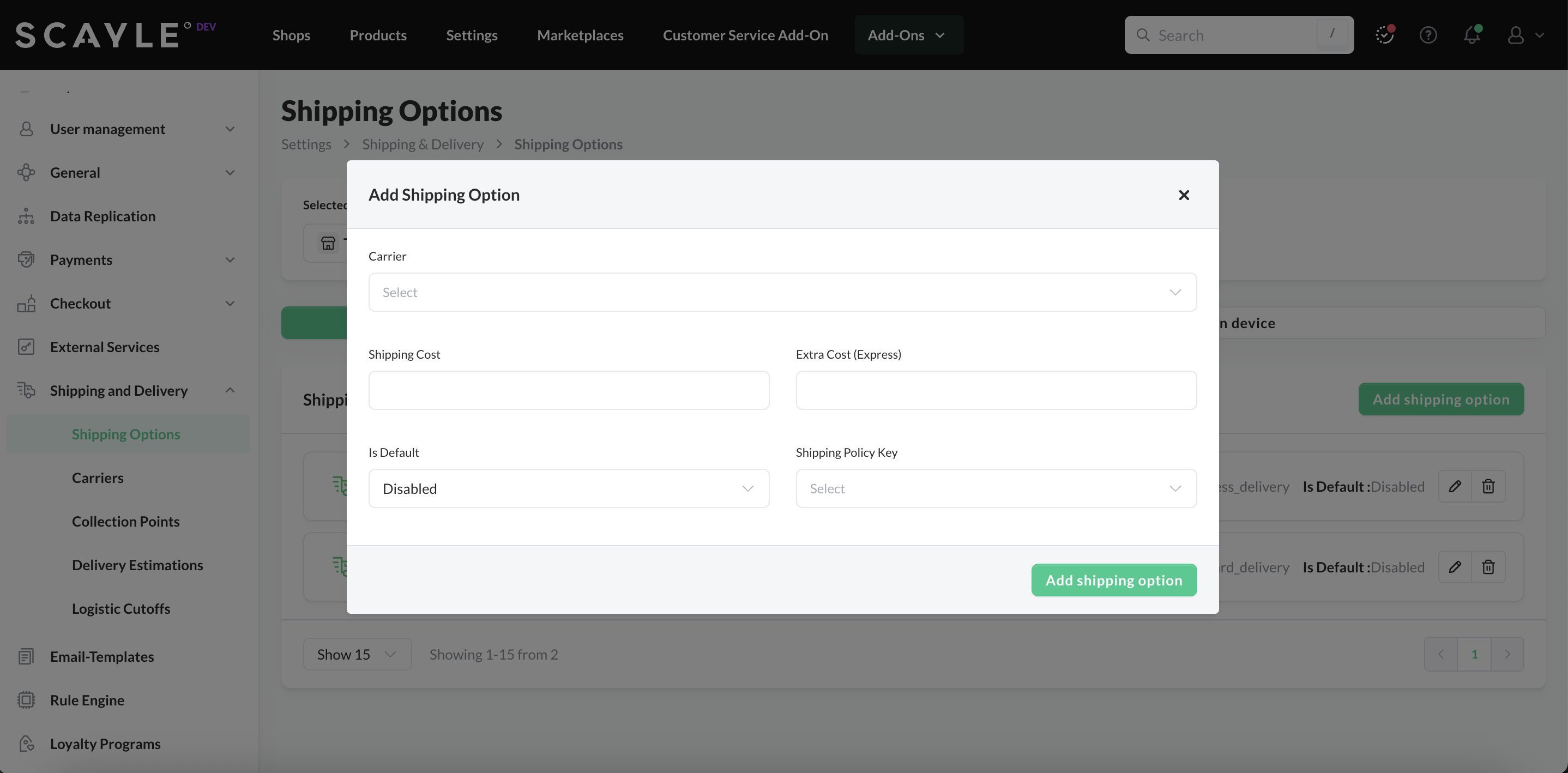
- Define Shipping Cost, and optional express or additional fees.
The Shipping Cost represents the baseShippingServiceCost, and the Extra Cost (Express) represents additionalExpressShippingServiceCost that will be charged if the customer selects this Shipping Option.
Costs must be entered as integers in minor currency units (for example, cents). Decimal values are not supported.
SCAYLE automatically divides the value by 100 when displaying the price in checkout.
Example:
- Input:
995 - Displayed in checkout: €9.95
- Select the Shipping Policy Key you created earlier.
You can optionally mark a shipping option as the default selection in checkout. When enabled, this option is pre-selected for new or guest customers as soon as they enter the checkout.
This setting is disabled by default, but you can enable or change it either during creation or later by editing the shipping option.
- Click Add Shipping Option to submit the changes.
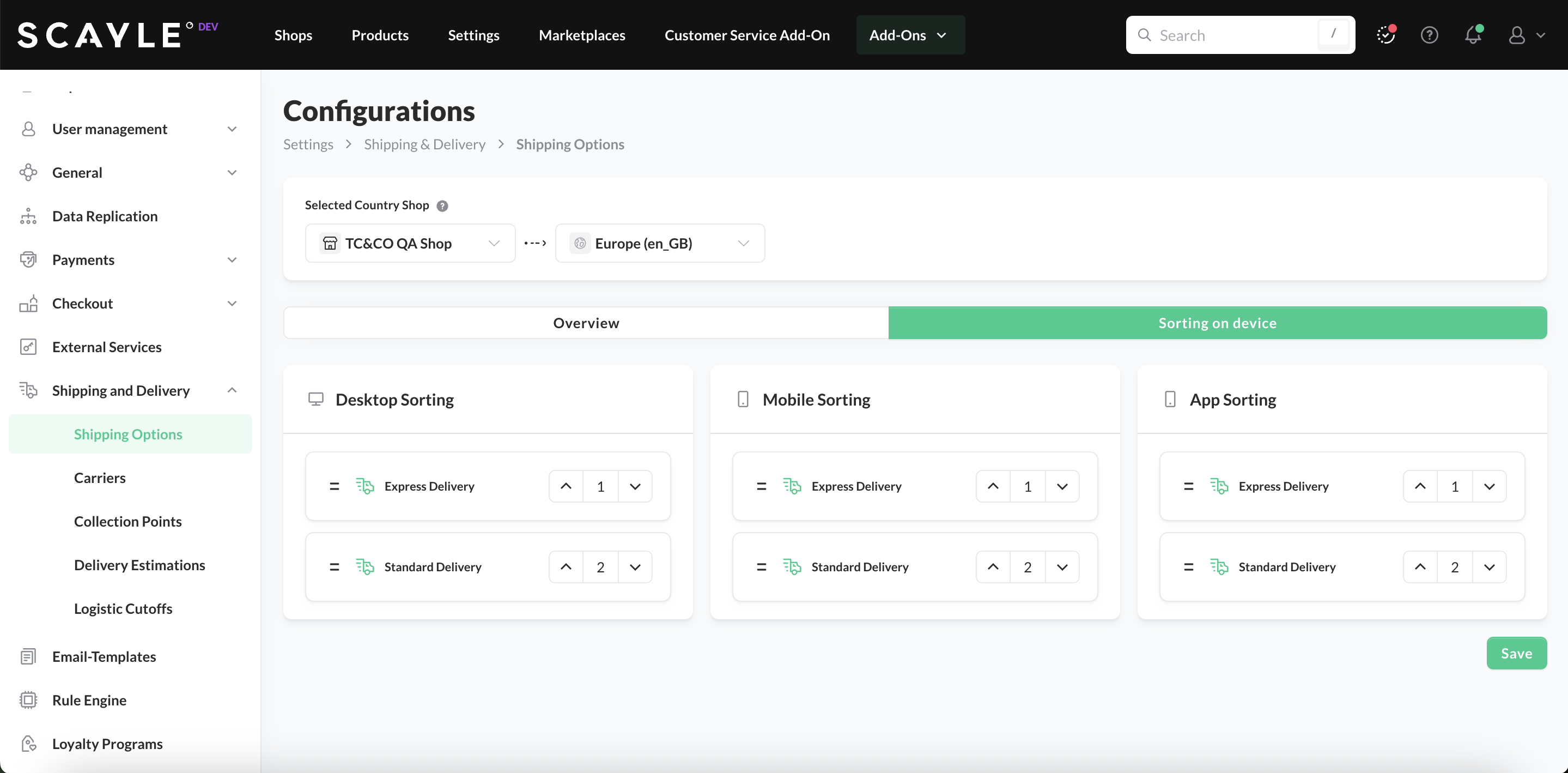
Configure Shipping Option Sorting per Device
After creating all shipping options for a specific shop country, open the Sorting on Device tab in the configuration overview. From there, you can reorder the options using drag and drop or the up and down arrows.
The order defined here is the order in which shipping options are displayed to customers during checkout.