

Data Replication
Introduction
The data replication feature is a powerful tool that facilitates the seamless transfer of data between different environments, such as from a preview environment to a live or test environment. This feature ensures that your data is accurately and efficiently moved, maintaining consistency and integrity throughout the process.
Data replication operates by initiating an export (backup) of the selected data-replication tasks. Once all export tasks are successfully completed, the import process is triggered. To ensure the reliability of the import, an additional export is created in the target environment prior to the actual import. This export serves as a rollback mechanism in case one or more import tasks fail, providing a safety net to revert to the previous state if needed.
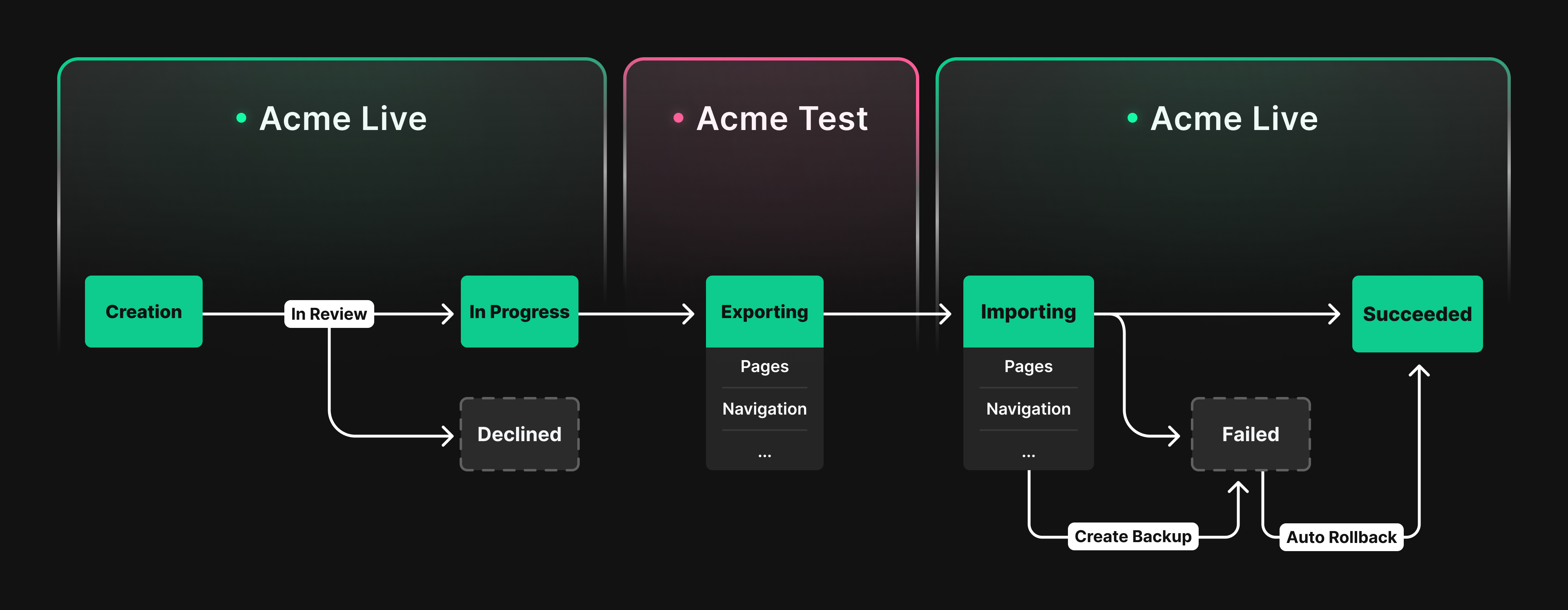
Process of replicating data from acme-test into acme-live.
To minimize the risk of conflicts and ensure smooth operations, only one data replication job can be run per environment at any given time. This restriction helps to prevent parallel jobs from interfering with each other, maintaining a stable and predictable replication process.
The replication strategy for each data set is predetermined. Whether the IDs of the source environment are kept in the target environment depends on the data set: for example, an attribute group with the ID 123 in the source environment keeps the ID 123 in the target environment, while a master category that is newly created in the target environment gets a new ID. See Data Sets for the rules of each data set.
For detailed information on the types of data that can be replicated, refer to the section on Data Set Types. This section provides a comprehensive list of data types supported by the data replication feature, helping you understand what can be moved and how it will be handled during the replication process.
By following this guide, you will be equipped to effectively use the data replication feature, ensuring your data is accurately transferred, and your environments are consistently updated.
Before you start
Keep the following in mind before you replicate data:
- Data replication copies configuration data, such as Shop Countries, Master Categories, Shop Categories, Attribute Groups, Translations and Search Configuration. It does not copy products. Where a configuration refers to products, for example the assortment of a shop country or the product sets of shop categories, the products are matched in the target environment by merchant key and merchant product identifier. References to products that don't exist in the target environment are skipped.
- The import of a data set is not atomic. The data is imported in chunks, so if an import fails, the data that was already imported stays in the target environment until the automated rollback has run (see Rollback limitations and Exceptions).
- Imports start background jobs in the target environment. For example, Master Categories can trigger a re-evaluation of product states, and Shop Countries and Shop Categories trigger a rebuild of product and category caches.
The Shop Categories data set deletes all shop categories in the target environment, for all shops, before it imports the shop categories of the source environment.
The Attribute group configurations data set deletes all attribute group configurations in the target environment before it imports those of the source environment. This includes the configurations of attribute groups that only exist in the target environment. The data set is selected automatically together with Attribute Groups.
Data replication is a tool for advanced users and requires an understanding of dependencies and data flows. A verification step is required from a second user for additional security. The approver needs the data-replication__update permission and access to the selected shop.
Manage Data Replication
Data Replications will be deleted automatically
- Export failed after 30 days
- Import failed after 90 days
- Rollback failed after 120 days
- Succeeded after 120 days
List
Located under Settings ➜ Data Replication, the Data Replication Listing page provides a comprehensive table displaying all critical information related to data replication processes. The table includes details such as the tasks involved, source environment, creator, approver, shop, status, and timestamps for key events like creation, approval, start, and completion.
To access this page, users must have the data-replication__list permission. The listing page also features a search functionality, enabling users to easily find specific replication records based on their needs. Ensure to review the status and details of each replication process for accurate tracking and management.
Create
On this page, you can set up data replication processes by selecting specific tasks, choosing the target shop, and assigning an approver. To create a replication, you must have the data-replication__create permission. Once submitted, the replication request will be reviewed and approved before execution. Ensure all selections are accurate to streamline the process and maintain data integrity.
Use Data replication feature
- Log in to the target environment where the changes should be applied.
- Navigate to Settings ➜ Data Replication.
- Press the Button NEW DATA REPLICATION on the top right.
- Select the Source System where the data is exported from.
- In the
Select Data for Replicationsection, choose from our Data Sets. - In the Double Confirmation section, choose a user to approve. Only users with the
data-replication__updatepermission and access to the selected shop can be selected.
&#xNAN;The replication creator cannot select himself/herself as approver - Click GET APPROVAL.
- The reviewer is notified by email.
Once the data replication has been submitted for approval, its status changes to APPROVAL NEEDED. It is possible to have multiple data replications in approval state, but only one can be executed at the time.
The creator cannot also be the approver for security reasons.
Approve
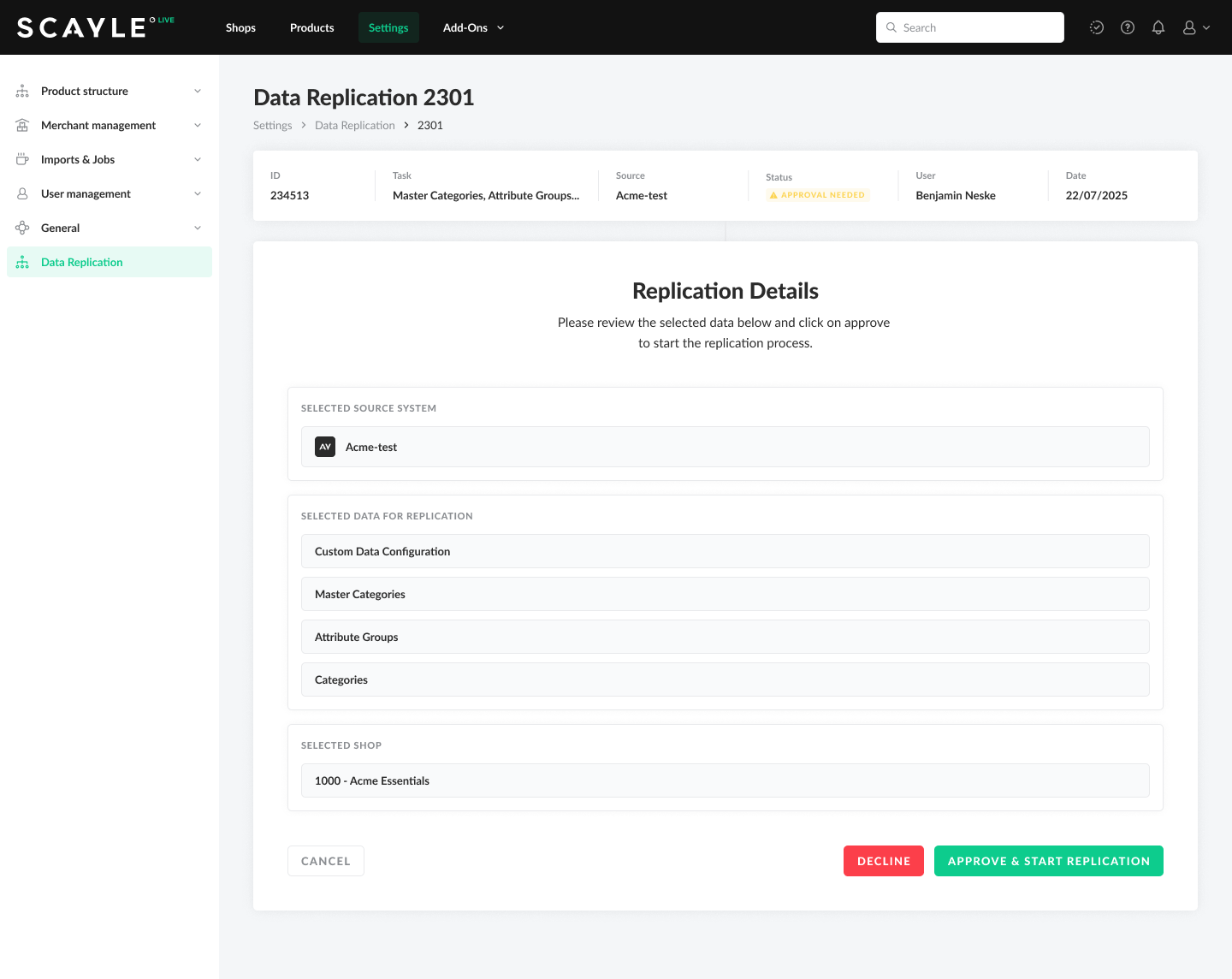
The Data Replication Approval page provides a detailed summary of the data replication request. This page mirrors the information from the Creation Form, including selected tasks, source environment, shop, creator, and assigned approver.
Here, the assigned approver can review all the details of the replication request. The page includes action buttons for decision-making: “Decline” to reject the request and “Approve & Start Replication” to authorize and initiate the replication process. This ensures that all data replications are thoroughly reviewed and approved before proceeding, maintaining data integrity and security.
Approving starts the replication immediately: the data of the source environment is exported at the time of approval, not at the time of creation. A replication can only be approved if no other replication is pending or in progress in the target environment. Replications cannot be scheduled.
The creator cannot also be the approver for security reasons.
Details
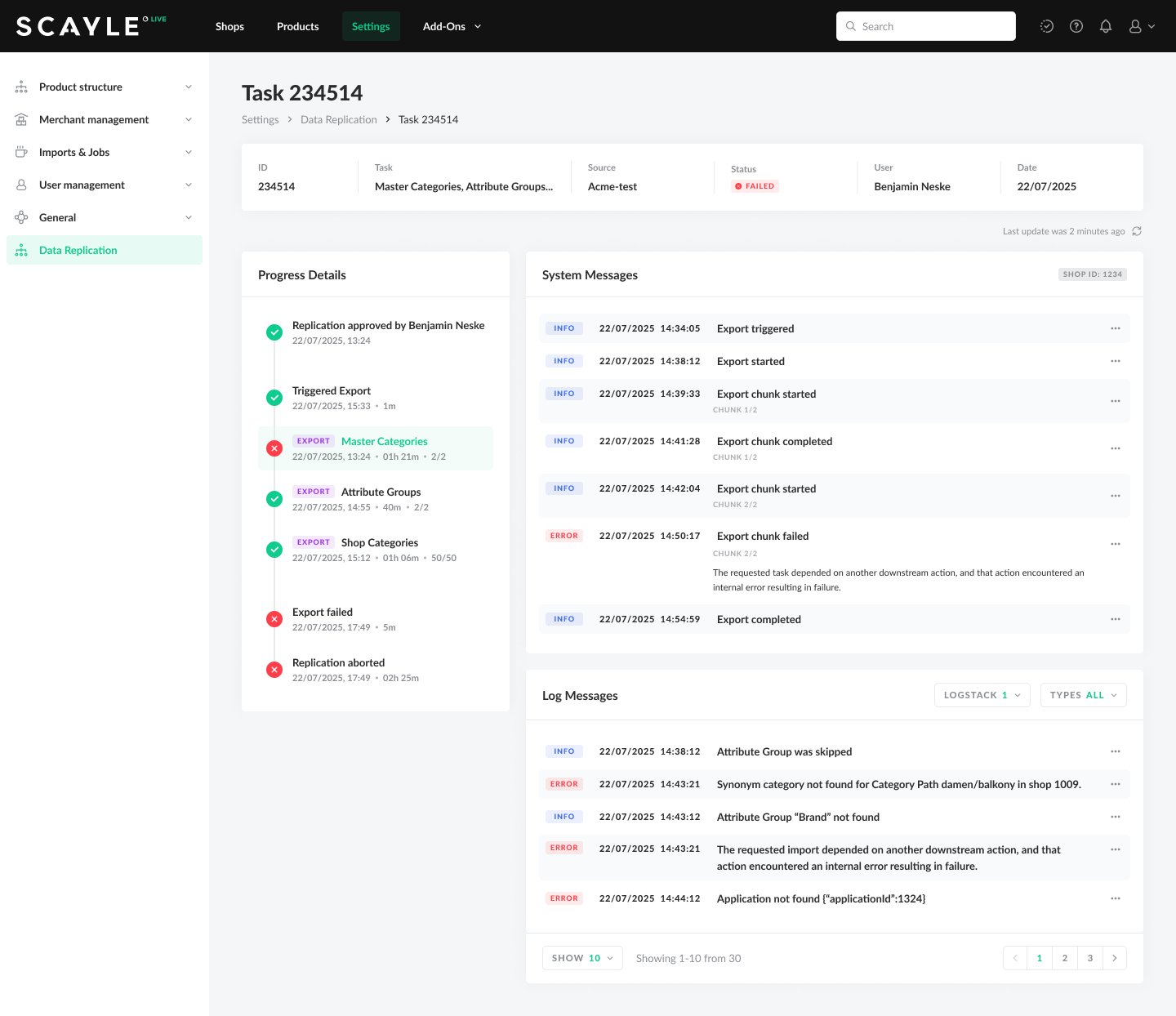
The Data Replication Detail Page provides a comprehensive view of each replication task’s status using a linear timeline, despite the asynchronous nature of the tasks. The timeline distinctly separates export, import and rollback tasks, displaying the sequence in which export tasks must all succeed before any import tasks can begin.
Each task, whether import or export, is selectable on the timeline and consists of two main sections: “System Messages” and “Logs.”
System Messages
This section displays the event messages associated with each task. Every replication task includes at least five key messages, providing a detailed account of the process:
1. exportTriggered - The export process has been initiated.
2. exportStarted - The export is confirmed and the process has begun.
3. exportChunkStarted - A specific portion of the data export has started. Can be one or many
4. exportChunkFailed or exportChunkCompleted - Indicates whether the specific portion of the export succeeded or failed.
5. exportCompleted - The export process has finished successfully.
Additionally, if a task is aborted due to unmet preconditions, the message exportAborted/importAborted is displayed immediately after exportTriggered/importTriggered, indicating that the task was not processed. Each system message includes a Trace ID for tracking purposes and provides a human-readable error message that clearly explains the event.
Logs
The “Logs” section provides a chronological list of all human-readable log messages, offering further insights into the replication process. These logs include detailed descriptions and additional context to help users understand the events and any issues that may have arisen. To view system messages and logs, users need the data-replication__detailed_message__show permission.
This detailed view enables users to track the progress and status of each task within the replication process, ensuring transparency and clarity throughout the data replication workflow.
Rollback
In the context of the data replication process, an automated rollback mechanism is in place. It ensures that data integrity is maintained and necessary corrections can be made if issues arise during replication.
Automated Rollback
The automated rollback is triggered automatically when all import tasks are completed and at least one of these tasks has a status of “failed.” In this case, an automatic rollback process is initiated. It restores the selected data sets from the backup created in the target environment before the import started. Some data sets are not rolled back if their own import succeeded; see Rollback limitations.
When a data set is rolled back (see Rollback limitations), the rollback works as follows:
- Master Categories, Attribute Groups and Shop Countries: The rollback removes the entities that the failed import created and then restores the backup.
- Translations: All translation tables are emptied before the backup is restored.
- Shop Categories: All shop category tables are emptied before the backup is restored.
- Search Configuration: The backup is restored.
- Pages, Redirects, Navigation and Default Filters: The rollback deletes all entries of the selected shop and then restores the backup.
- Attribute group configurations: All attribute group configurations are deleted before the backup is restored.
- Roles: See Exceptions.
As the rollback is a critical change to the data, our core teams closely monitor these processes and respond immediately to any errors. This monitoring ensures that any issues are addressed promptly, and that data integrity is preserved.
Rollback limitations
Data Sets that will not be rolled back in case their replication was successful:
- Attribute Groups
- Translations
- Master Categories
- Search Configuration
- Shop Categories
- Shop Countries
Navigation item synonyms are removed in the target environment when Search Configuration is imported (see Data Sets). A rollback does not restore them.
Exceptions
Data Set: Roles
In case of a rollback of Roles, the replicated data will not be removed from the target environment but the former configurations will be re-added additionally to the replicated ones.
This means that by rolling back the Data Set Roles, it is not possible to reinstall the state that was present on the target environment before the data replication was initiated.
Manual Rollback
A rollback cannot be triggered manually. If the automatic rollback fails, contact your SCAYLE Account Manager or the Customer Success Team.


