

Rule-Based Recommendations
Show a ranked product slider that needs no reference product. The product detail page ships a trending slider for the product's category, and your editors can place a smart sorting slider on any CMS page and pick the ranking rule in the CMS.
Why it matters
A "trending in this category" slider works from category data alone. The same ranking rules are available to your editors on homepages, landing pages and collection pages. They choose the rule, an optional category, an optional brand and a product count in the CMS, and your team ships no code for it.
Try it
Try it: Rule-based recommendations
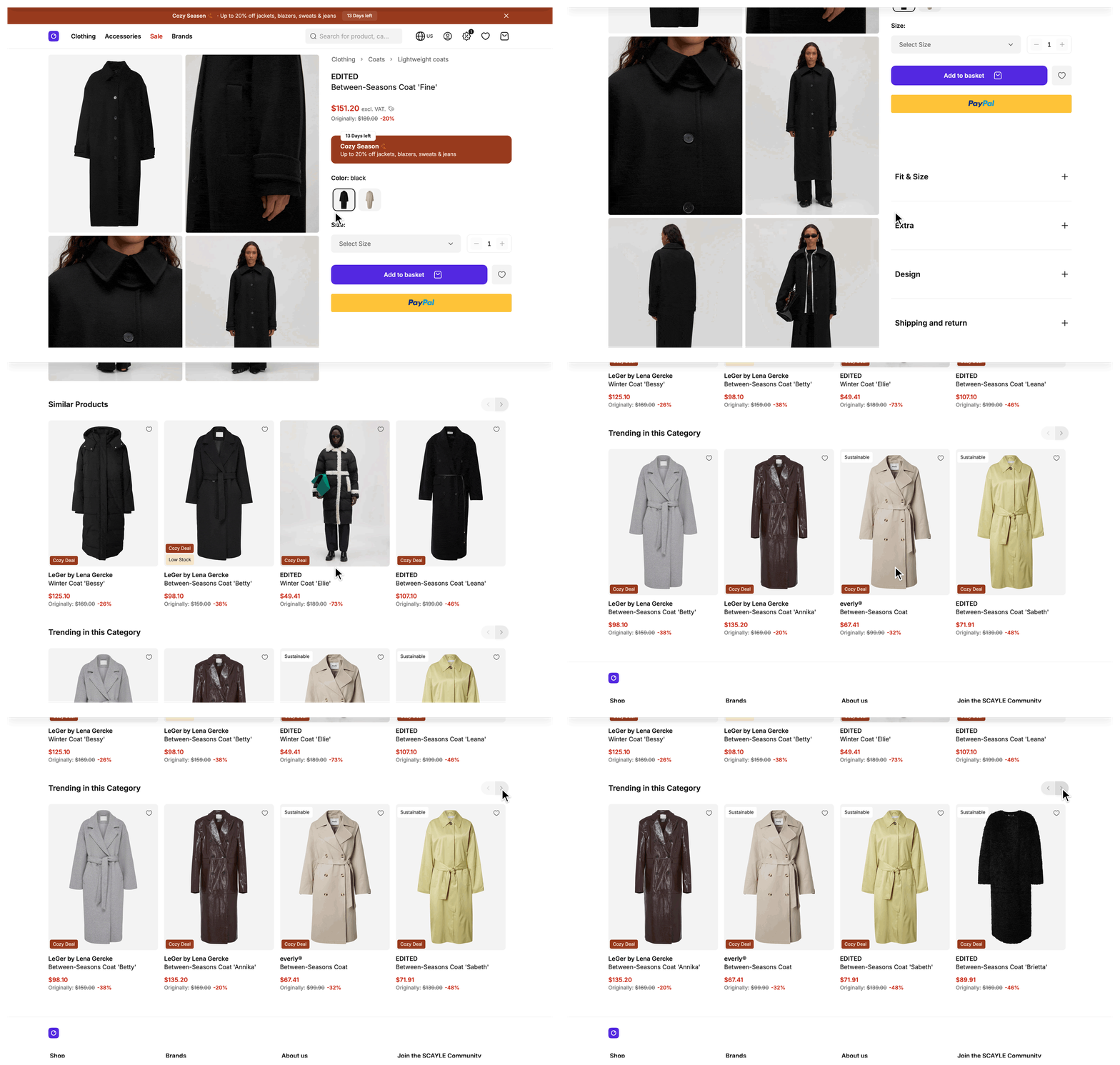
Try the trending slider on a live product detail page.
What's included
- Category recommendations:
RecommendationsService.fetchCategoryRecommendationsfrom@scayle/storefront/servicesfetches the products of one category in the order of a smart sorting key, leaves out one product you name, and caches the result. - Trending slider on the product detail page: The
trendingProductsprop of the product detail page is a deferred prop, so the slider loads after the first render. The add-to-basket slide-in reuses the same products. - Smart sorting RPC for CMS blocks: The oRPC procedure
cms.getProductsBySmartSortinginsrc/server/api/cms.tsreturns ranked products for a smart sorting key and an optional category and brand. The client calls it throughuseRpcClient(). - Smart sorting slider blocks: Each of the four supported CMS providers has a
SmartSortingProductsSliderComponentthat maps the block's fields to a query. All of them share theuseCmsSmartSortingProductscomposable, which calls the RPC.
What you can change
Configure
- In your CMS, choose the smart sorting key, the category, the brand and the product count for each slider block.
- In the SCAYLE Panel, give every product at least one category, because the trending slider on the product detail page ranks the product's deepest category.
Theme
- Restyle the slider by editing
SFProductSliderinsrc/client/components/product/slider/SFProductSlider.vueor the block component of your CMS provider insrc/client/cms/providers/<provider>/components/SmartSortingProductsSliderComponent.vue.
Extend
- Use a different sorting key or limit for the trending slider by editing
fetchTrendingProductsin yourProductDetailController. - Subclass
RecommendationsService, overridefetchCategoryRecommendations, and register the subclass in therecommendationsslot ofsrc/server/registries.tsto change how the Storefront API is queried for the trending slider. - Transform or filter the products of every CMS slider block in
useCmsSmartSortingProductsinsrc/client/cms/shared/useCmsSmartSortingProducts.ts. A change in the block component of one provider affects that provider only. - Change the cache time of the CMS slider with
SMART_SORTING_CACHE_TTL_SECONDSand its brand filter inbuildSmartSortingWhere, both insrc/server/api/cms.ts.
Constraints and limits
Permanent
- The Storefront API ranks the products. The Storefront Application V3 sorts nothing itself, so the order changes only through the sorting key or the key's setup in the SCAYLE Panel.
- The trending slider leaves out the product you are viewing. The CMS RPC has no product to leave out, so it returns the first products of the ranking up to its limit.
Known limitations
- The default
ProductDetailControlleralways asks for theTRENDINGkey and ten products. The SCAYLE documentation states that the Trending key only works with SCAYLE native Checkout, while the other system keys still work from the remaining variables without it. If your shop does not use SCAYLE native Checkout, switch the key with the guide below. - The trending slider needs a main category. The main category is the deepest category on the product's longest category path, so a product without any category gets no slider.
- The trending slider can hold fewer products than the limit. The query asks for one extra product so it can drop the current one, then trims the list to the limit. A category with fewer products than the limit gives a shorter slider.
- A failed Storefront API call gives an empty slider. For the trending slider, the controller logs the error and returns an empty list, so the slider is not rendered. For a CMS slider,
useCmsSmartSortingProductslogs the error and the block shows no products. - The add-to-basket slide-in shows the first six trending products and only on a product detail page. On every other page it has no
trendingProductsto show. A limit below six shrinks it. - The RPC accepts only the system Smart Sorting Keys, so a Custom Smart Sorting Key from the SCAYLE Panel fails validation. It also accepts only a limit from 1 to 100 and whole numbers for the category and the brand. A rejected request leaves the slider empty and logs an error.
- A CMS slider without a smart sorting key sends no request and shows no products.
- A CMS slider is empty when its filters match nothing.
- The brand filter matches the product attribute with the key
brand. If your shop stores the brand under another key, the filter finds nothing until you changeATTRIBUTE_KEY_BRANDinsrc/shared/constants/attributeKeys.ts. The product mappers read the same constant. - A new ranking, or a product that becomes sellable, reaches the page after the cached entry expires. The server caches the trending slider for up to 15 minutes and the CMS slider for up to 5 minutes, see Data cache TTLs. The products of a CMS slider are part of the server-rendered page, so on the cacheable routes for the home page and CMS content pages (600 seconds in
cacheableRoutesinstorefront.config.ts) a CDN that honorss-maxagecan serve the old ranking for longer.
How it works
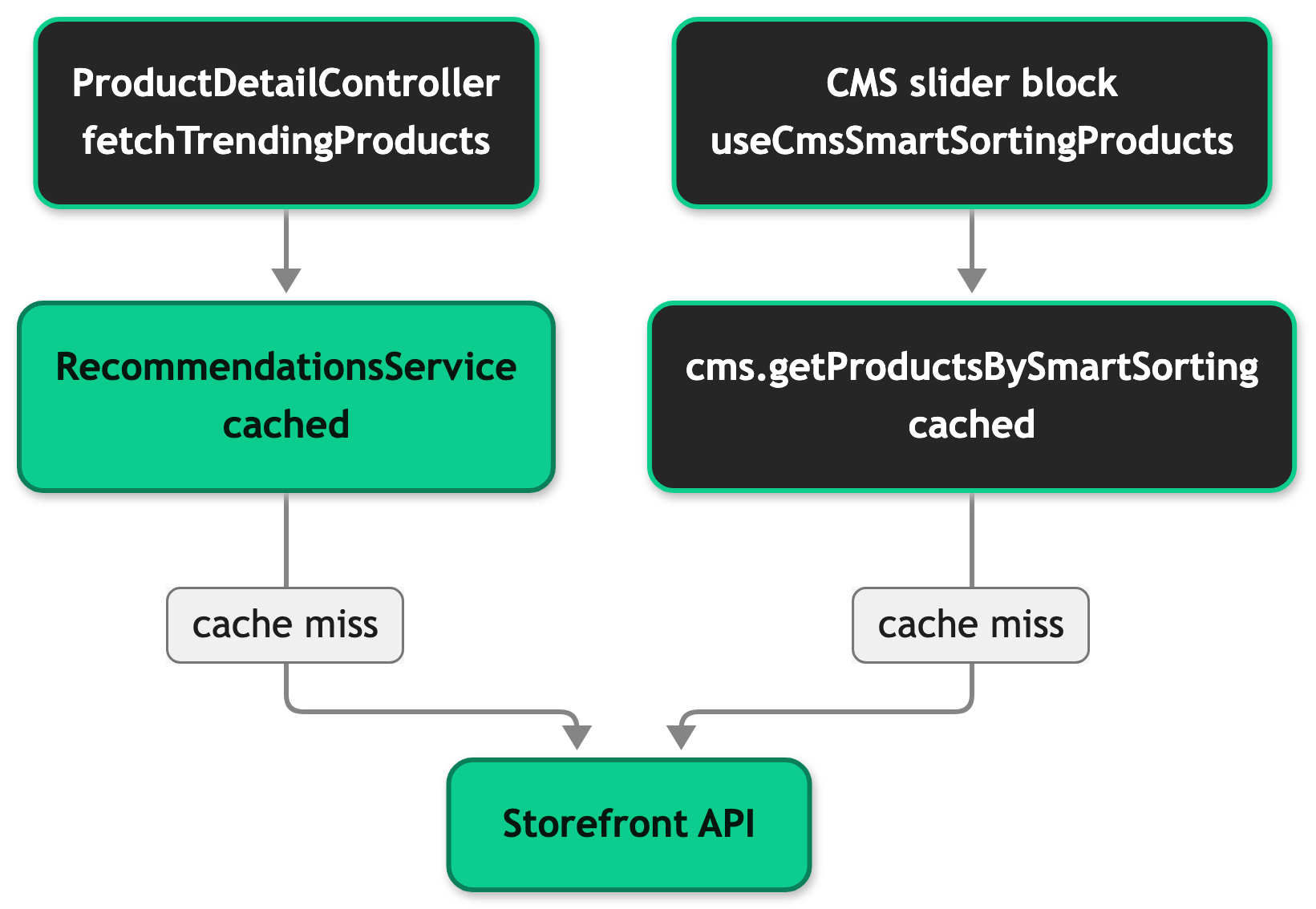
On the product detail page, ProductDetailController returns trendingProducts as a deferred prop in the recommendations group, next to the similar products. The page renders first with a skeleton in place of the sliders, then the browser requests the group. The controller calls fetchCategoryRecommendations with the product's main category, the TRENDING key and a limit of ten. The signature is:
The service restricts the query to products that are sellable at the sellableAt time. It also passes the active campaign key to the Storefront API. A product that becomes sellable appears after the cached entry expires.
The CMS slider takes the other path. Each provider's block component turns its own fields into a CmsSmartSortingQuery and hands it to useCmsSmartSortingProducts. The composable calls cms.getProductsBySmartSorting and refetches whenever the query changes, for example during live preview. The block awaits the first fetch inside its Suspense boundary, so on a full page request the products are part of the server-rendered HTML. The Storyblok block parses its fields with parseOptionalInt first, because Storyblok number fields are free-text strings and authors can save any text.
The RPC builds the query from the key, the optional category, the optional brand and the limit. A brand becomes a filter on the brand product attribute. The RPC restricts the query to sellable products and includes the campaign key in the same way as the trending slider.
Setup
The trending slider ships with the Storefront Application V3 and needs no setup. The smart sorting slider block is part of the content model of all four supported CMS providers, so your editors add it to a page from the block picker of your CMS.
Configuration
SCAYLE Panel
The system Smart Sorting Keys, for example Trending, Sales Push and Topseller, are listed under Shops ➜ [Shop] ➜ Products ➜ Sorting. The keys draw on revenue and stock turnover data.
Assign categories to each product under Products ➜ [Product] ➜ Categories.
CMS blocks
Each provider names the block fields in its own way, for example smart_sorting_key in Contentstack and Amplience and smartSortingKey in Storyblok and Contentful. The block component maps them to the input of cms.getProductsBySmartSorting, which has these fields and validates them as follows.
| Field | Required | Rule |
|---|---|---|
smartSortingKey | Yes | One of the system Smart Sorting Keys. |
categoryId | No | A whole number. Without it the ranking spans all categories. |
brandId | No | A whole number. |
limit | No | A whole number from 1 to 100. The RPC defaults to 10. |
The RPC also accepts an optional pricePromotionKey. The slider blocks do not send it.
In your code
| Setting | Where | Value |
|---|---|---|
RECOMMENDATION_LIMIT | src/server/controllers/product-detail.ts | 10 |
SMART_SORTING_CACHE_TTL_SECONDS | src/server/api/cms.ts | 5 minutes |
The cache time of the trending slider is fixed in the SDK. Data cache TTLs explains how to use another one.
Customization guides
Use a different sorting key or limit for the trending slider
You end up with a trending slider that ranks by a key you choose, for example because your shop does not use SCAYLE native Checkout.
Before you start, pick a key from the Smart Sorting Keys in the Storefront API. The SmartSortingKey object in @scayle/storefront-api lists them.
- Open
src/server/controllers/product-detail.ts. - Replace
SmartSortingKey.TRENDINGinfetchTrendingProductswith your key. - To change the limit of the trending slider only, pass a number to the call in
getViewProps, for examplethis.fetchTrendingProducts(product, 12). ChangingRECOMMENDATION_LIMITchanges the similar products slider too. - Change the slider title in the
product_detail_page.trending_productskey in every locale file insrc/i18n/locales/. - Open a product detail page.
After a rebuild, the slider shows the products in the order of your key. A new key or limit starts a new cache entry, so the change shows on the next page load.
The // ... markers stand for the other imports, the log and RECOMMENDATION_LIMIT constants and the other members of the class. Keep the mainCategory check, because product.mainCategory.id throws for a product without a category. Keep the try and catch, because without them a failed Storefront API call has no empty list to fall back to and the slider can stay on its loading skeleton.
Best practices
Keep the CMS content model and the sorting keys in step
When the Storefront API adds a smart sorting key, add it to the smart sorting block in your CMS content model. The RPC accepts the new key once you update @scayle/storefront-api. For Contentful, also add the label to SORTING_KEY_MAP in the block component. The other three providers store the key itself in the content model.
Read the trending products from the page props
A new component on the product detail page reads trendingProducts through usePage<'ProductDetail'>(), the way the add-to-basket slide-in does. It then shows the same ranking without a second Storefront API call and without a copy that can go stale.
Troubleshooting
A slider stays empty and the log shows a failed fetch
Issue: The trending slider or a CMS slider has no products, although the category holds products and the key and filters are valid.
Possible causes: The Storefront API call failed, or your own override of fetchTrendingProducts or fetchCategoryRecommendations threw. Look for the log message Failed to fetch trending products for the trending slider or Failed to fetch CMS products by smart sorting for a CMS slider.
Solution:
- Find the log message and read its
errfield. - If the error comes from the Storefront API, check its status and reload the page after it recovers. The next request after the cache entry expires fetches the ranking again.
- If the error comes from your override, fix the override.

