

Consent Management
Consent management holds back third-party scripts and services until a user agrees to them. The Storefront Application V3 ships a consent manager that any component can ask whether the user consents to a vendor. An adapter fills the consent manager from your consent management platform (CMP). The Usercentrics adapter ships as an example, and another platform needs an adapter of your own. You turn consent management on per country.
Why it matters
Loading an analytics tag, a payment widget, or a map embed before a user has agreed to it is a compliance problem in regulated markets. Components ask the consent manager and don't talk to the CMP, so you can switch consent platforms by writing a new adapter and leave every component untouched.
Try it
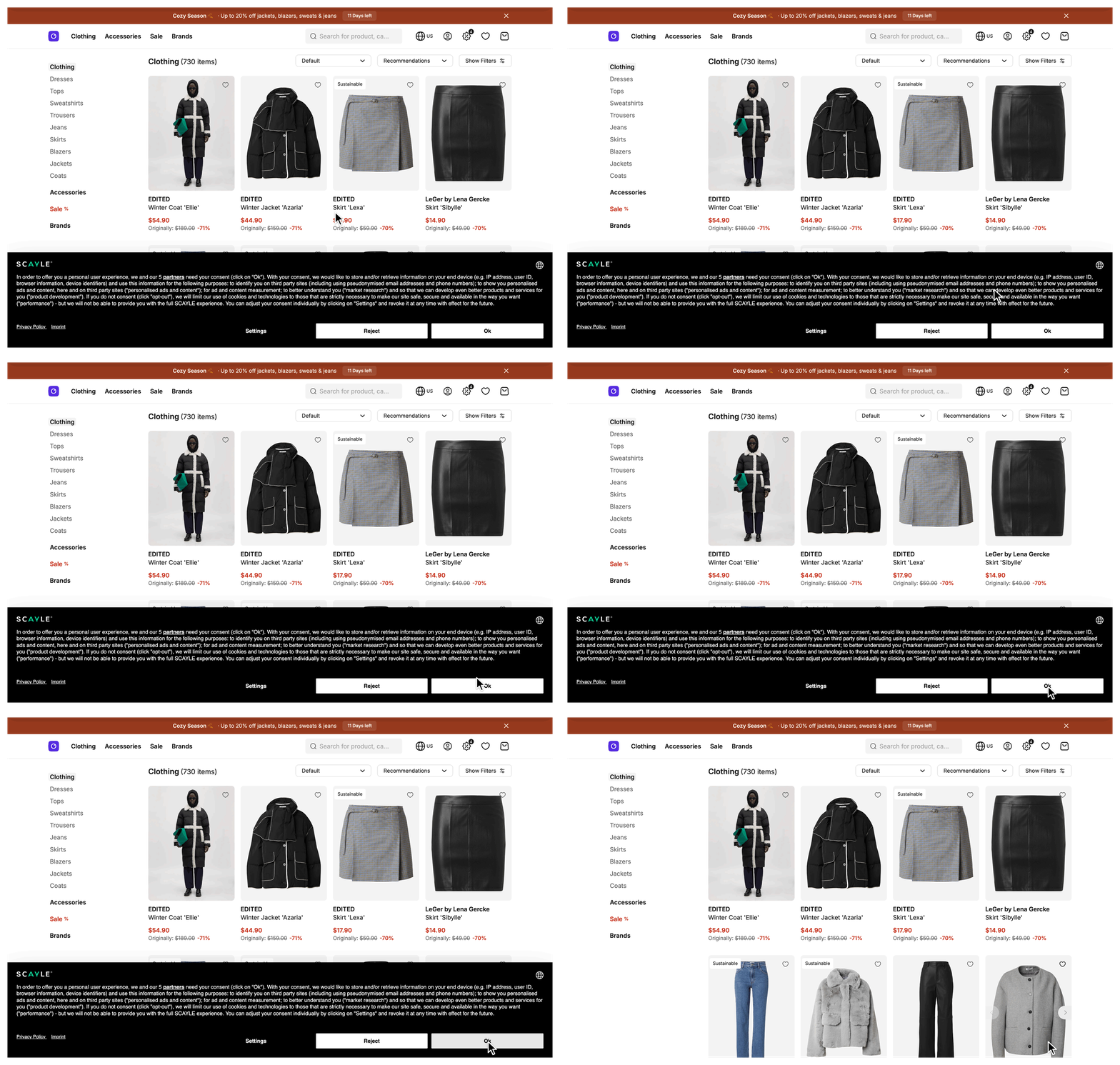
The public demo shop has consent management turned off, so it has no consent dialog to open. To see the feature, enable it for a country in your own shop as described in Setup.
What's included
- Consent manager plugin: Holds the reactive consent state per vendor, the consent ID, a flag that marks the CMP as still loading, and the function that opens the CMP dialog. It installs on both the server and the client entry point (
src/client/plugins/consentManager.ts). useConsent(vendor): Returns a reactiveconsentboolean for one vendor and anopenConsentManagerfunction.useConsentManager(): Returns the consent manager plugin itself, for code that needs the dialog function or the country flag without a vendor.- Vendor mapping:
src/client/consent-vendor.config.jsonmaps readable vendor keys such aspaypalto the service IDs of your CMP. - Per-country flag:
consentManagementRequiredin the country'spublicFieldsturns consent management on or off per country. - Privacy Settings link:
SFBottomFooter.vueshows a link that reopens the dialog in countries that require consent. - Consent gates:
SFExpressCheckoutBase.vueandCheckout.vuepass consent for payment providers such as PayPal and Klarna to the checkout web component. Which payment providers apply depends on your shop's setup.Checkout.vuealso passes thescayle-analyticsconsent, which the checkout web component needs for its SCAYLE Analytics events. The SCAYLE Analytics plugin sends events only with consent for thescayle-analyticsvendor, where the country requires consent. - Usercentrics adapter (shipped example): Turns Usercentrics consent reports into consent state and replaces the dialog function with one that opens Usercentrics. It installs on the client entry point only (
src/client/plugins/userCentricsAdapter.ts). - Usercentrics loader:
SFAnalyticsHead.vueadds the Usercentrics script to the document head for countries that require consent.
What you can change
Configure
- Which countries require consent, with
consentManagementRequiredinstorefront.config.ts. - Which Usercentrics settings your shop loads, with the
STOREFRONT_USER_CENTRICS_APP_IDenvironment variable.
Theme
- Restyle or move the Privacy Settings link in
SFBottomFooter.vue.
Extend
- Gate your own script or widget on consent by calling
useConsentwith a vendor key. - Add a vendor to
consent-vendor.config.json, then calluseConsentwith its key. The key is type-checked from that file.
Replace
- Swap Usercentrics for a different CMP with your own adapter against the
ConsentManagerPlugininterface thatgetConsentManagerInstance()returns.
Constraints and limits
Permanent
consentManagementRequiredis set per country instorefront.config.tsand read once when the app boots. There is no runtime toggle. The shop switcher loads a full page, so a user who switches country gets the new country's value.- The Usercentrics adapter runs in the browser only. During server rendering the consent state is empty, so in a country that requires consent
consentisfalsein the server-rendered HTML. In a country that doesn't require it,consentistrueon the server too. - Usercentrics renders the consent dialog. The Storefront Application V3 only adds the loader script and the Privacy Settings link, so the dialog's look and texts come from your Usercentrics settings.
- One adapter ships, for Usercentrics. Another CMP needs your own adapter, its own script in the document head, and its hosts in the Content Security Policy, which lists the Usercentrics hosts and no other CMP. See Allow a third-party origin.
- The adapter must install after
createConsentManagerPlugin. Without the plugin the adapter throws at install. - Consent management gates SCAYLE Analytics, the payment providers of express checkout and of the checkout page, the checkout web component's own SCAYLE Analytics events, and the code you gate with
useConsent. It doesn't gate Google Tag Manager or the GA4 tracking plugin. The browser loads Google Tag Manager after hydration whenevergtmIdis set, and the tracking plugin only adds the consent ID to its events. The one exception ispurchase, which waits for the consent report and usesgoogle-analyticsconsent to avoid sending an order twice. Tags inside Google Tag Manager have to respect consent through your Google Tag Manager and Usercentrics setup. useConsentaccepts only keys fromconsent-vendor.config.json. In a country that requires consent, a key that gets past the type check through a cast logs a warning andconsentstaysfalse.
Known limitations
- Without
STOREFRONT_USER_CENTRICS_APP_ID, Usercentrics can't load your settings, so a country that requires consent never receives a consent report. SCAYLE Analytics sends nothing there, and express checkout and the checkout page stay gated. The server logs a warning at boot that names the affected countries.
How it works
The consent manager plugin holds the consent state, and components read it through useConsent. An adapter fills the state from the reports of your consent management platform. The Usercentrics adapter that ships does this for Usercentrics, and another platform needs an adapter of your own. The state is a record from a service ID of your platform to true or false, and useConsent looks the ID up from the vendor key you pass.
The diagram shows the browser in a country with consentManagementRequired set to true. Usercentrics is an external system.
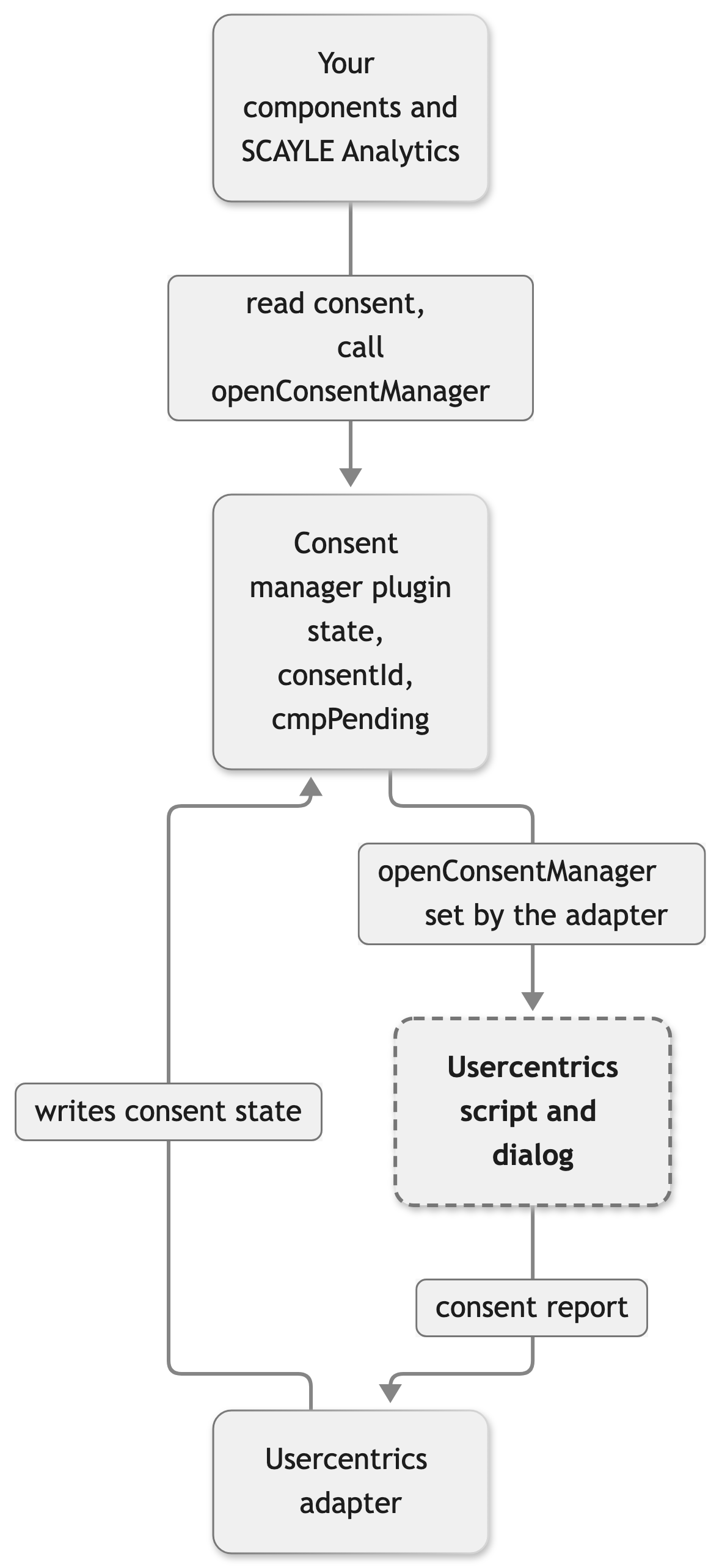
Both entry points install createConsentManagerPlugin with the country's consentManagementRequired value. The client entry point then installs createUserCentricsAdapterPlugin. The server render installs the consent manager plugin and no adapter.
In a country that requires consent, the adapter marks the CMP as loading by setting cmpPending to true. It then waits for the first Usercentrics report. The report arrives as a UC_CONSENT event. If Usercentrics initialized before the app hydrated, that event is already gone, so the adapter reads the stored report back from Usercentrics instead. Each report writes the consent state for every Usercentrics service, writes consentId from the report's controller ID, and sets cmpPending back to false, all in the same tick.
The cmpPending flag exists for SCAYLE Analytics, which holds events while it is true. See Consent.
useConsent(vendor) returns true for every vendor in a country that doesn't require consent. Otherwise consent is the state entry for the vendor's Usercentrics service ID, or false while no entry exists. openConsentManager opens the Usercentrics dialog once the adapter has replaced the plugin's default function. Before that, the plugin's own function only writes a debug log entry.
Setup
Both plugins already ship in the Storefront Application V3 and install on the entry points. Follow these steps to turn on consent management for a country with the shipped Usercentrics adapter. You end up with the Usercentrics script in the document head and a Privacy Settings link in the footer. For another platform, write an adapter instead.
- Set
consentManagementRequiredtotruein the country'spublicFieldsinstorefront.config.ts. The excerpt shows only the setting you change: - Set
STOREFRONT_USER_CENTRICS_APP_IDin your environment to the settings ID from your Usercentrics Admin Interface.storefront.config.tsreads it into the globaluserCentricsAppIdpublic field, and.env.examplelists it. - Replace the service IDs in
src/client/consent-vendor.config.jsonwith the ones Usercentrics reports for your vendors. See Vendor mapping. - Restart the server and load a page in that country. The document head contains a script with the ID
usercentrics-cmp, and the footer shows a Privacy Settings link that opens the dialog.
Configuration
Storefront Application settings
| Setting | Where | Type | Description |
|---|---|---|---|
consentManagementRequired | Country publicFields in storefront.config.ts | boolean | Turns consent management on for the country. When false, useConsent returns true for every vendor, the Usercentrics script doesn't load, the adapter does nothing, the footer hides the Privacy Settings link, and SCAYLE Analytics sends events without waiting for consent. |
userCentricsAppId | Global publicFields in storefront.config.ts, read from STOREFRONT_USER_CENTRICS_APP_ID | string | The Usercentrics settings ID that SFAnalyticsHead.vue passes to the Usercentrics script as data-settings-id. Needed for every country that requires consent. |
STOREFRONT_USER_CENTRICS_APP_ID has no default. The server reads it when it starts, so a change needs a restart and no rebuild.
Vendor mapping
The vendor mapping file translates the readable keys you call useConsent with into the service IDs Usercentrics reports in its consent report. The excerpt shows the shipped keys and replaces the shipped service IDs with placeholders:
Each value has to match the service ID Usercentrics reports for that vendor in your settings. Add a new vendor as a new key before you call useConsent with it.
| Key | Read by |
|---|---|
paypal, klarna | SFExpressCheckoutBase.vue, as examples of payment providers |
scayle-analytics | The SCAYLE Analytics plugin in src/client/plugins/analytics.ts and Checkout.vue |
google-analytics | useOrderEvents, to remember a sent order |
google-maps, google-tag-manager, usercentrics | No code in the Storefront Application V3. These keys are ready for your own useConsent calls. |
Customization guides
Run code when a user consents
Initialize a script or widget only after the user grants consent for its vendor. You end up with a composable that loads a script once consent becomes true, including when the user accepts after the page has loaded.
- Add a vendor key to
consent-vendor.config.jsonif the vendor has none. This guide uses the shippedgoogle-mapskey. - Create a composable that calls
useConsentand reacts toconsentwithwatchEffect. - Guard the browser-only code with
import.meta.env.SSR. In a country that doesn't require consent,consentistrueduring server rendering too.
If you enforce the Content Security Policy, add the host as in Allow a third-party origin.
Pass consent to a payment widget
SFExpressCheckoutBase.vue and Checkout.vue read the consent of the payment providers they know, paypal and klarna as shipped, and pass it to the checkout web component. Which payment providers your shop uses depends on your setup. See Express Checkout for the consent gate and the consent-missing event, and Checkout for the attributes of the checkout page.
Reopen the consent dialog from your own link
Call openConsentManager from a link or button to let users change their choices. SFBottomFooter.vue renders its Privacy Settings link only when consentManagementRequired is true. In other countries the openConsentManager from useConsentManager() only writes a debug log entry, and the one from useConsent does nothing. The excerpt keeps the consent lines of the real file and trims the other attributes, imports and code:
Write an adapter for a different CMP
An adapter connects your CMP to the consent manager plugin. You end up with an adapter that replaces the Usercentrics one while every useConsent caller and SCAYLE Analytics keep working.
The adapter reaches the plugin through getConsentManagerInstance(). It has to do four things: replace openConsentManager, set cmpPending to true while the CMP loads, write each vendor's decision into state, and write consentId. The keys of state are the values in consent-vendor.config.json, so put the vendor IDs your CMP reports there. A vendor you leave unset in state reads as unknown, and the SCAYLE Analytics dispatcher can then warn about an unknown vendor ID, which points at the wrong fix. In a country that requires consent, SCAYLE Analytics sends events only when state grants the scayle-analytics ID and consentId is set.
Write the vendor states, then consentId, then clear cmpPending, all in the same callback and the same reactive tick. Without cmpPending, the dispatcher reads the loading state as a decline and drops the events of a returning user who already consented. myCmp in the example stands for the browser API of your CMP. Replace its calls with the real ones.
Install the adapter in src/client/main.ts in place of createUserCentricsAdapterPlugin, right after the consent manager plugin. Keep src/client/ssr.ts as it is, because the server render installs no adapter. Replace the Usercentrics script in SFAnalyticsHead.vue with your CMP's script.
Best practices
Keep vendor IDs in the config file
useConsent resolves the CMP-specific ID from consent-vendor.config.json, so a component only needs the readable key. A vendor ID hard-coded in a component ties that component to the current CMP and breaks when you install another adapter.
React to consent changes with a watcher
In a country that requires consent, consent is false until the CMP reports and can turn true after the page has loaded. Run consent-gated code inside watchEffect or watch so it runs again when consent.value changes.
Troubleshooting
The consent dialog never appears in a country that requires consent
Issue: No Usercentrics dialog shows in a country where you expect one.
Possible causes: consentManagementRequired is false for that country in the running environment. The Usercentrics script is blocked in the browser. You enforce the Content Security Policy for scriptSrc or connectSrc and it no longer lists the Usercentrics hosts.
Solution:
- Read
storefront.country.publicFields.consentManagementRequiredin the page props and confirm it istrue. - Look for the script with the ID
usercentrics-cmpin the document head. If it is missing, the country's flag isfalse. - Check the script's
data-settings-idattribute. An empty value is the Known limitations under Constraints and limits. - Open the browser console and the network panel and look for blocked requests to Usercentrics hosts.
Prevention: Keep the Usercentrics hosts in the policy when you edit it, see Security Headers.
`consent.value` stays `false` after the user accepts
Issue: A vendor's consent stays false although the user accepted it in the dialog.
Possible causes: The service ID in consent-vendor.config.json differs from the one Usercentrics reports for that vendor.
Solution:
- Run
window.addEventListener('UC_CONSENT', (event) => console.log(Object.keys(event.detail.services)))in the browser console, then change a choice in the dialog. - Compare the logged service IDs with the vendor's value in
consent-vendor.config.jsonand correct the file.
Prevention: Copy the service ID from your Usercentrics settings instead of typing it.
SCAYLE Analytics sends no events in a country that requires consent
Issue: A country with consentManagementRequired set to true produces no SCAYLE Analytics events, although the user accepted everything.
Possible causes: The scayle-analytics ID in consent-vendor.config.json is not one the CMP reports. A custom adapter doesn't write consentId. The consent report never reached the plugin, so it still holds events.
Solution:
- Open the browser console and look for a warning from the analytics logger.
- A warning that the vendor ID is unknown to the consent manager means the
scayle-analyticsvalue doesn't match a reported service ID. Correct it as in the previous entry. - A warning that SCAYLE Analytics was granted without a consent ID means the adapter doesn't write
consentId. Fix the adapter as described in Write an adapter for a different CMP. - If there is no warning, the plugin may still be waiting for the first consent report. While
cmpPendingistrueand consent is not granted, it holds events. Held events stop at a cap of 1000, and the oldest ones drop first.
Prevention: Build a custom adapter as described in Write an adapter for a different CMP.


