

Promotion Codes
A promotion code is a text code your customer enters in the basket to apply a promotion that is not active on its own. The Storefront Application V3 ships the input and the removable chips for applied codes on the basket page, backed by oRPC procedures that apply a code and remove a promotion. An oRPC procedure is a typed server call the browser makes under /api (see RPC API).
Why it matters
A promotion code often connects a marketing channel to a discount: an email, a printed flyer, a social post, an influencer partnership. Your customer types the code and expects the discount to appear in the basket. A customer who cannot tell a typo from a code that does not apply tends to give up.
Try it
Try it: apply a promotion code to a basket with items
[screenshot: promotion code input form on basket page]
What's included
- Apply procedure:
basket.applyPromotionCodetakes a non-emptypromotionCodestring, applies the promotions the Storefront API ties to that code, and returns{ success: true }. It throwsINVALID_CODEwhen the Storefront API does not know the code, when the code unlocks nothing for the basket, and when it answers with a successful status other than 200. Any other failure, such as another 4xx or 5xx answer or a network error, throwsINTERNAL_SERVER_ERROR. - Remove procedure:
basket.removePromotiontakes apromotionIdand removes that promotion from every basket line that carries it. Its only declared error isINTERNAL_SERVER_ERROR. - Composable:
usePromotionCodeinsrc/client/composables/usePromotionCode.tsholds the input text ascurrentCodeand exposesenterPromotionCodeandremovePromotionCode, plusisApplyingandisRemoving(promotionId)for the loading state of the add and remove buttons. - Basket form:
SFBasketPromotionCodes.vueinsrc/client/components/basket/promotions/renders a text input, an add button, and one chip per applied code. Your customer submits with the add button or the Enter key, and removes a code with the X on its chip. Several codes can be applied at once, and each chip uses its promotion's own colors.
What you can change
Configure
- Which promotions exist, the codes that trigger them, and the schedules and eligibility rules that decide when a code applies, all in the SCAYLE Panel.
- The chip colors, through the promotion's custom data in the SCAYLE Panel.
Theme
- The look of the input and the chips, by editing the Tailwind classes in
SFBasketPromotionCodes.vue. - The headline, labels, and toast messages, in the
basket_promotion_codeskeys of the locale files insrc/i18n/locales/.
Extend
- Check a code in the browser before it is sent, in
enterPromotionCodeinsrc/client/composables/usePromotionCode.ts. - Show a specific message for an invalid code.
- Reject reserved codes on the server.
- Change what the apply or remove procedure accepts, declares, or does. Chain
.errors(...)and.use(...)on it, or spread its definition from@scayle/storefront(for exampleapplyPromotionCodeDefinition) and rebuild it withbuildRpc, all insrc/server/api/index.ts. See RPC API. - Show an extra field on a promotion chip.
Constraints and limits
Permanent
- The Storefront API decides which promotions a code applies and how much they reduce the price. The Storefront Application V3 only applies the promotions the Storefront API lists as applicable, so discount amounts and eligibility cannot be changed in your application code.
Known limitations
- Every failure to apply a code shows the same error toast, including
INVALID_CODE. The composable only checks whether the call failed and never reads the error code. A failed removal shows its ownremove_errormessage. The guide Show a specific message for an invalid code changes that. - The composable sends the text as your customer typed it, with surrounding whitespace removed. Promotion codes are case-sensitive by default in SCAYLE, and your SCAYLE Account Manager can switch on a case-insensitive option.
- The input shows only on the basket page, and only while the basket holds at least one item.
- A promotion the Storefront API marks as not valid never appears as a chip, and your customer sees no message when a chip disappears. Promotions without a code never appear either.
- Removal takes the promotion's
idfrom the basket'spromotionCodeslist, not the code text. An ID that no basket line carries is not an error. The procedure succeeds, nothing changes, and the chip stays. If your own code builds the ID from a chip's label, removal fails that way.
How it works
Applying a code crosses three places: the browser, your server, and the Storefront API. The form and the composable run in the browser. The procedure and BasketService come from @scayle/storefront and run on your server. The Storefront API holds the promotions.
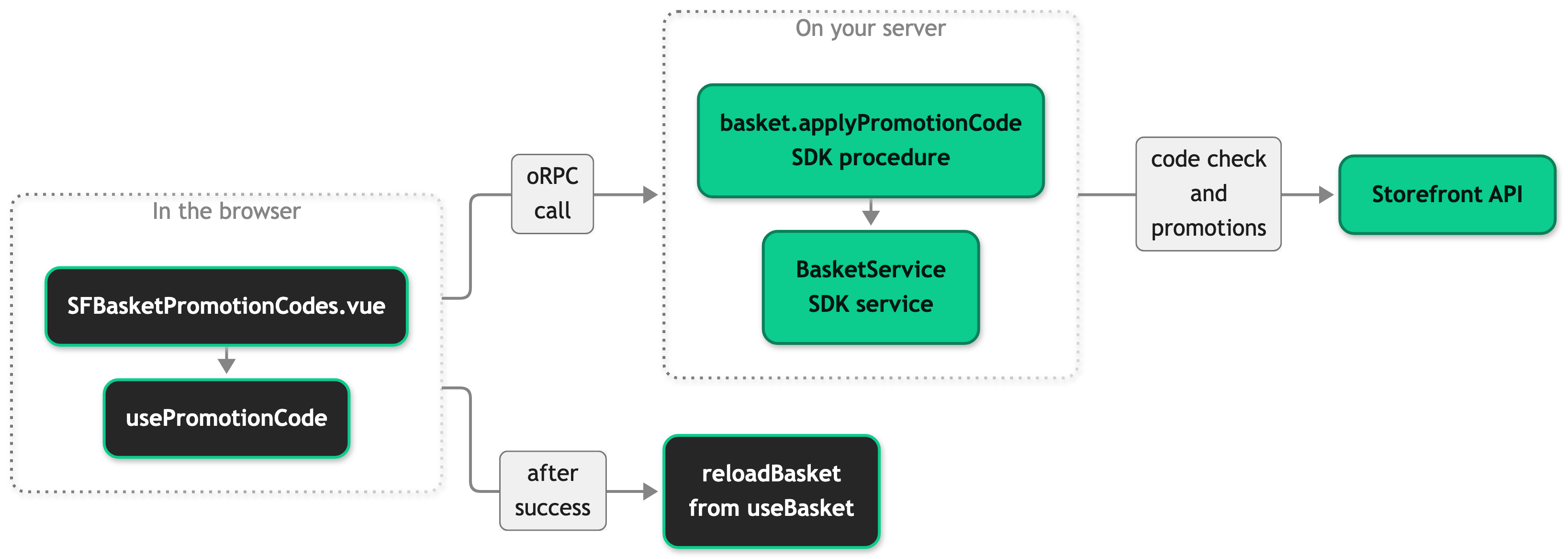
When your customer submits a code, enterPromotionCode trims it and stops if nothing is left or if another call is still pending. Otherwise it calls basket.applyPromotionCode. On the server, BasketService asks the Storefront API which promotions the code applies to the customer's basket, then applies the applicable promotions one at a time to the basket lines they belong to. The errors it throws are listed under What's included.
On an error, the composable shows the error toast and leaves the input as it is. On success, it clears the input and waits for the reload of the basket prop. It shows the success toast only if the reload worked. A failed reload shows the global error toast instead. When the new basket arrives, the basket mapper builds promotionCodes from the basket lines. It keeps one entry per code and skips promotions without a code or marked not valid. Your PromotionMapperService maps each entry, including its color. SFBasketSummary.vue passes the list to SFBasketPromotionCodes.vue, which renders one chip each.
When your customer removes a code, the chip's X calls removePromotionCode with the promotion's id. BasketService reads the basket, finds the lines that carry the promotion, and removes it from all of them in one Storefront API call. The composable then reloads the basket the same way. A failure shows the error toast.
Configuration
SCAYLE Panel
Promotion codes are created and managed in the SCAYLE Panel per shop. From Shops, select your shop, then Promotion ➜ Promotion code to see existing codes, manage them, and create new ones. See the Setting up Promotion Codes guide for detailed setup and configuration instructions. Here you define the discount effect, the code activation type, and code validity.
The chip colors come from the promotion's custom data, the background and text values under color. Set the background and text color under the promotion's visual styling in the Panel. A promotion without them still renders. The chip then uses var(--color-promotion) as the background and var(--color-primary) as the text color, so default colors do not mean the Panel setting failed. The same colors apply to the deal badge on a basket line image and to the product card highlight, because both read the mapped color.
Storefront Application
Promotion codes have no storefront.config.ts keys and no environment variables. All texts on the form (headline, button labels, placeholder, toast messages) come from the locale files, under basket_promotion_codes in src/i18n/locales/en_GB.json. The keys are headline, add_code, remove_code, input_placeholder, input_label, add_success, add_error, and remove_error.
Customization guides
Show a specific message for an invalid code
You end up with a toast that tells your customer the code is invalid or does not apply, instead of the generic failure message. Other failures keep the generic message.
Prerequisites: you can run the translate-locales skill, and the input already works in your shop.
- Add the message to
en_GB.jsonas a new key underbasket_promotion_codes: - Run the
translate-localesskill to add the key to every other locale file. - In
enterPromotionCode, readisDefinedfrom the call and choose the message by error code.isDefinedistruewhen the error is one the procedure declares, soerror.codeis then narrowed to its declared codes (see RPC API). The lines before and after the snippet stay as they are:
When your customer enters a code the Storefront API does not accept, the toast shows the new text and the input still holds the code. If you skip step 2, ESLint fails because the other locale files lack the key.
Reject reserved codes on the server
You end up with a procedure that refuses codes you reserve for another system before the request reaches the Storefront API. A check in the browser alone does not stop a direct call to /api, so the server enforces the rule.
Prerequisites: the basket procedures already run on your base in src/server/api/index.ts.
- Chain an error code and a check onto
basket.applyPromotionCode, and put the result back under the same key: - Optional: map the new code to its own message with the previous guide, in the same
isDefinedcheck.
A reserved code now fails with RESERVED_PROMOTION_CODE and never reaches the Storefront API. Without step 2, your customer sees the generic failure toast.
Show an extra field on a promotion chip
You end up with an extra text on each chip, for example a short discount label such as "10% off", read from the promotion's custom data. The type change alone is not enough. If the mapper does not set the field, it compiles and arrives as undefined, and the chip shows nothing.
Prerequisites: you can add the value to the promotion's custom data in the SCAYLE Panel. The snippets show only the lines you add and mark the rest with // ....
- Add the field to the promotion's custom data and to the mapped
Promotionby following steps 1 to 3 of Add a field from the promotion's custom data. Name the fielddiscountLabeland declare it optional onPromotionasdiscountLabel?: string. A required field fails the typecheck in typedPromotionobjects such ascreateMockPromotioninsrc/test/mock-data/promotions.ts, but not in the mapper, which spreads the base result. An optional field compiles everywhere without the mapper step and arrives asundefined. Set it inmapPromotionasdiscountLabel: customData?.discountLabel, after the...basePromotionspread. - Render the field inside the chip in
SFBasketPromotionCodes.vue, after the code text:
A promotion with a discountLabel in its custom data now shows the label next to its code, and a promotion without one looks as before.
Best practices
Keep a rejected code in the input
usePromotionCode leaves the typed code in place after an error. A customer who mistyped one character fixes it and submits again. Clearing the input on every failure forces them to retype the whole code. If you change the composable, keep this behavior.
Call reloadBasket after you change promotions
Applying and removing a code both call reloadBasket from useBasket, which asks the server for only the basket prop in an Inertia partial reload (a visit that requests named props instead of the whole page, see Pages and Controllers). If your own code changes promotions through the procedures, do the same instead of reloading the whole page.
Troubleshooting
A code that worked before is rejected now
Issue: A promotion code that applied earlier now fails with the error toast, and the procedure throws INVALID_CODE.
Possible causes: The promotion's validity in the SCAYLE Panel has ended or the promotion was deactivated. The basket no longer meets the promotion's criteria.
Solution:
- Open the promotion in the SCAYLE Panel under Shops ➜ [Shop] ➜ Promotion ➜ Promotion code.
- Check that its status is active and that the current date falls inside its validity.
- Check that the basket still holds items the promotion's criteria match.
Prevention: The procedure throws the same INVALID_CODE error for each of these causes, so your message cannot tell them apart. Word the message so it asks your customer to check the code or contact support.
The success toast appears but no chip shows
Issue: The success toast appears after your customer applies a code, but the code does not show as a chip and the discount is missing.
Possible causes: The Storefront API accepted the code but no promotion was applied to a basket line, or updating a line failed. The procedure reports success in both of those cases. A failed basket reload does not cause this symptom, because it shows the global error toast and no success toast.
Solution:
Check the promotion's eligibility rules against the basket lines in the SCAYLE Panel. A code can be accepted without applying to any line.
Prevention: In code you write, call reloadBasket from useBasket and check the error it returns before you rely on the new basket.


