

Sorting
General
Product sorting in e-commerce is the process of arranging products in a specific order by applying sorting parameters.
Sorting has different use cases:
- Shop users may organize products based on their preferences, making it easier for them to find what they want and thus improving their shopping experience.
- You can control which products appear first in your store. This may help when you want to clear out specific stock or promote certain items.
In this guide, you will learn how to use the sorting features provided by SCAYLE and set up your own custom, highly flexible sorting for special occasions.
Sorting in a nutshell
SCAYLE offers three different sorting mechanisms to allow you to sort the products according to your needs:
Basic Sorting is a straightforward sorting based on a single attribute, such as price or recency, allowing you to quickly organize products according to the most relevant factor.
In contrast to that, Smart Sorting provides a more advanced, purpose-driven sorting that combines and prioritizes multiple attributes. This supports you in tailoring the order of the products to specific goals, like optimizing clearance or ensuring good availability across all variants for the products being shown to the customer.
In case you want to dig even deeper, you can utilize the Custom Sorting. It offers the highest grade of flexibility as it allows you to define a sorting score (sortValue) for each product of your shop, which is completely customizable depending on your needs.
For managing all sorting options within the SCAYLE Panel, use Shops ➜ [Shop] ➜ Products ➜ Sorting ➜ Sorting Methods.
Sorting direction
When sorting the products, you may decide to see the results with lower values first (asc) or higher values first (desc).
Basic Sorting
As mentioned before, the Basic Sorting uses a single attribute, such as price or recency, to let you organize products according to the most relevant factor.
Utilizing the Basic Sorting, you can sort by:
Smart Sorting
Smart Sorting takes into account different weighted factors to allow you to tailor the order of products according to specific business goals, such as stock turnover.
Under Shops ➜ [Shop] ➜ Products ➜ Sorting ➜ Sorting Methods, SCAYLE provides a set of system Smart Sorting Keys based on frequently needed features of many SCAYLE customers. To access this page, you need the permission shop__product__smart_sorting__list. You can also build your own Custom Smart Sorting Keys from the same weighted factors, called ranking factors.
The following system Smart Sorting Keys are available:
- Trending
- Sales Push
- New Arrivals Push
- Balanced Value Offerings
- Inventory Optimization
- Luxury Promotion
- Comprehensive Stock Coverage
- Topseller
- Revenue Maximization
- Recently Popular
All system Smart Sorting Keys utilize product revenue or stock turnover data to influence their rankings. However, these specific factors are not available to us if you are not using the SCAYLE native Checkout.
Under these conditions, all system Smart Sorting Keys, except for Trending, will continue to function by calculating scores based on the remaining available variables.
Setting Up Your Core Variants for Availability Calculation
The following system Smart Sorting Keys take variant availability into account when calculating sorting scores:
- Trending
- New Arrivals Push
- Balanced Value Offerings
- Luxury Promotion
- Comprehensive Stock Coverage
- Topseller
- Revenue Maximization
These Smart Sorting Keys assign a higher score to products that have a higher percentage of their variants in stock.
Since not all variants are equally important to your sales, you have the option to designate specific items as core variants. When you configure core variants for a product, the availability score shifts: it will be calculated exclusively based on the percentage of those core variants that are in stock, ignoring the availability of any non-core variants.
If you decide to define core variants, it is recommended to do it consistently across your product catalogue. Otherwise, products competing with core variant availability and general variant availability may lead to unexpected results.
You can define core variants by assigning the value true for the isCoreVariant attribute group to at least one variant of a product. The logic will then automatically take the core variants into account to calculate variant availability. This also applies to Custom Smart Sorting Keys that use the Variant availability or Adjusted variant availability ranking factor, in either direction.
If a product has no core variants defined, the system will automatically default to calculating the score based on the overall availability of all its variants.
Example Calculations:
- No Core Variants Defined
- Setup: A T-shirt has 5 sizes (S, M, L, XL, XXL). None are defined as core variants.
- Stock: 3 sizes are in stock (S, M, L), and 2 sizes are sold out (XL, XXL).
- Calculation: 3 available / 5 total variants.
- Final Score: 60%
- Most Core Sizes are Stocked
- Setup: A t-shirt has 5 sizes (S, M, L, XL, XXL). Sizes M, L, and XL are defined as core variants.
- Stock: 2 out of the 3 core sizes are in stock (M, L). The XL size and both non-core sizes (S, XXL) are sold out.
- Calculation: 2 available core variants / 3 total core variants. The sold-out non-core variants are ignored.
- Final Score: 66% (If core variants would not be defined, this product would have scored 40%, as only 2 of its 5 total variants were available).
- Core Sizes are Sold Out
- Setup: A t-shirt has 5 sizes (S, M, L, XL, XXL). Sizes M, L, and XL are defined as core variants.
- Stock: All 3 core sizes (M, L, XL) are sold out. Both non-core sizes (S, XXL) are perfectly stocked.
- Calculation: 0 available core variants / 3 total core variants.
- Final Score: 0% (If core variants were not defined, this product would have appeared decently stocked at 40%, since 2 out of 5 total variants were available).
Setting Up Core Variants with Attribute Mapping
While you can assign the isCoreVariant=true attribute manually to specific variants, it is recommended to use attribute mapping to improve efficiency.
Follow these steps to set it up:
- Verify that the
isCoreVariantattribute group is not assigned to any categories. If it is, please remove it from those categories before proceeding. - Navigate to Settings ➜ Product Structure ➜ Attributes
- Find the
isCoreVariantAttribute Group and check the "Relevant for mapping" checkbox. - In the same menu, open the desired attribute group you use for product sizes and go to the Mapping tab.
- Map your core sizes to the
isCoreVariant=trueattribute.

Mapping your core sizes
Changes to the attribute group mapping may take some time to reflect.
Find more information in the section How Shop Data is Updated.
Custom Smart Sorting Keys
With Custom Smart Sorting Keys, you decide which signals count and how much. You create a key from ranking factors and weight each factor. You can then use the key wherever you use a system Smart Sorting Key:
- As the default sorting of a shop, shop country, or shop country category.
- In a customer segment override.
- In combination with a Custom Sorting Key.
- In the
sortingKeyparameter of the Storefront API. - As the search tie-breaker of a shop country.
Custom Smart Sorting Keys and Custom Sorting Keys are different features. A Custom Sorting Key ranks selected products by a sortValue that you assign manually. A Custom Smart Sorting Key ranks all products automatically, based on their ranking factor values.
To create a Custom Smart Sorting Key, you need the permission shop__product__smart_sorting__create.
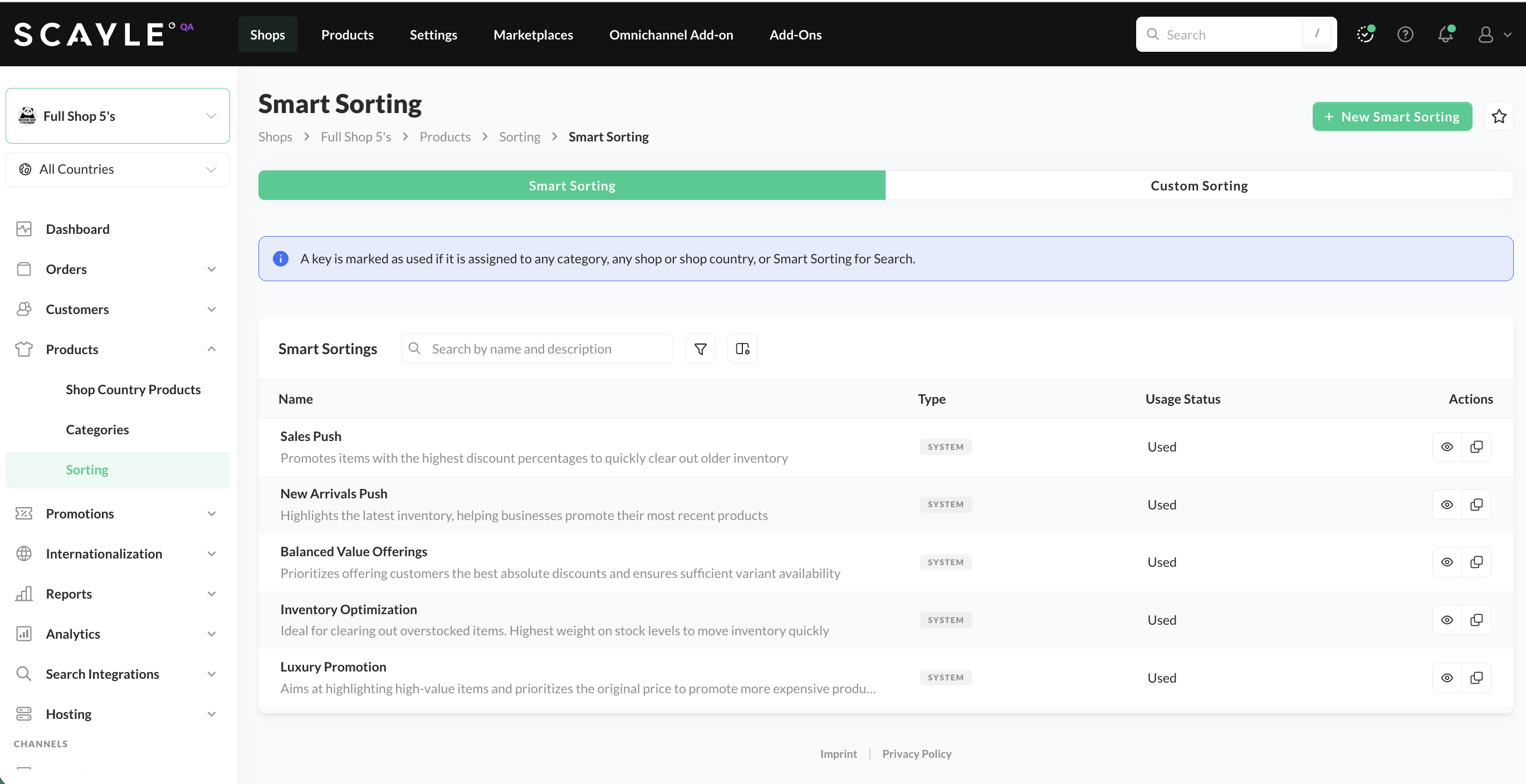
Smart Sorting Overview
How Custom Smart Sorting Keys Work
A Custom Smart Sorting Key defines:
- The ranking factors that matter for your goal. A key needs at least one ranking factor.
- The direction of each ranking factor, for example newer or older products first.
- A weight from 1 to 5 for each ranking factor.
The weights are relative to each other. A factor with a higher weight has more influence on the product order than a factor with a lower weight. Ranking factors that you leave out have no influence.
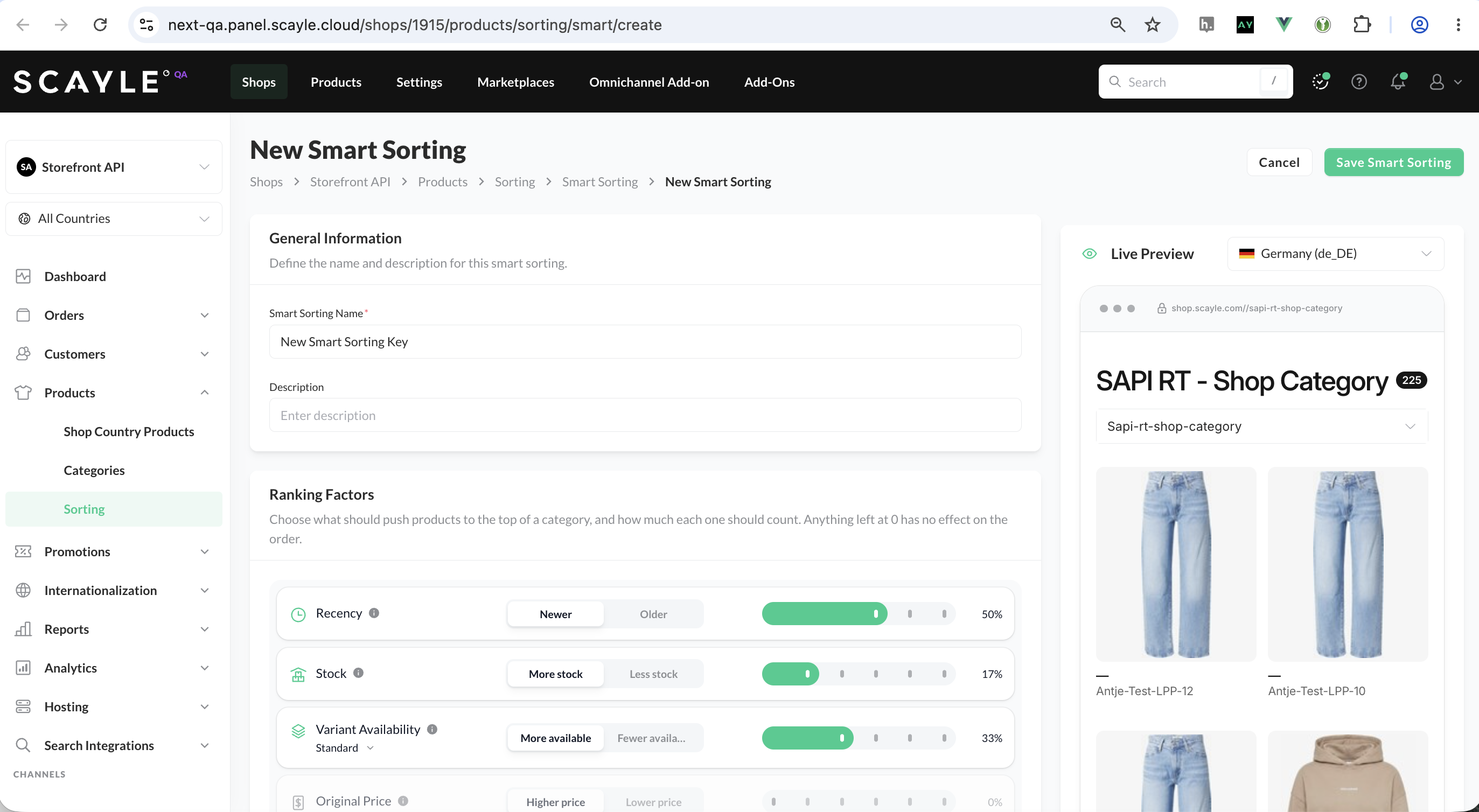
Create a Custom Smart Sorting Key
In the SCAYLE Panel, you can preview how a Custom Smart Sorting Key orders the products of any category in any of your shop countries.
To see and edit the ranking factors of existing Custom Smart Sorting Keys, you need the permissions shop__product__smart_sorting__view and shop__product__smart_sorting__edit.
SCAYLE calculates a score for every product during indexing, the same way as for the system Smart Sorting Keys.
When you create a Custom Smart Sorting Key, it is available globally across all your shops and shop countries. Edits to the composition of the Custom Smart Sorting Key are also applied globally.
The system Smart Sorting Keys use the same ranking factors. You can retrieve them through the Admin API to see their ranking factors and weights, for example as a starting point for your own key.
Each Custom Smart Sorting Key has its own key, for example end-of-season-clearance. Do not reuse the name of one of your Custom Sorting Keys. If both share a name, the sortingKey parameter and category sortings use the Custom Smart Sorting Key, and the Custom Sorting Key no longer takes effect.
Ranking Factors
Each ranking factor measures one signal per product and can favor either end of its scale. In the Admin API, each direction has its own weight name. The names for the opposite direction end in Inv.
| Ranking factor | What it measures | Favors (weight name) | Opposite direction (weight name) |
|---|---|---|---|
| Recency | How recently the product first went live in the shop | Newer products (recency) | Older products (recencyInv) |
| Stock | Average number of units in stock per available variant | More units (stock) | Fewer units (stockInv) |
| Stock availability | Total number of units in stock across all variants. Products that are sellable without stock count as fully stocked. | Well-stocked products (stockAvailability) | Products with little stock (stockAvailabilityInv) |
| Variant availability | Share of the product's variants that are available. If you define core variants, only these count. | More available variants (variantAvailability) | Fewer available variants (variantAvailabilityInv) |
| Adjusted variant availability | The same share as Variant availability, with a different emphasis. See Choosing Between Similar Ranking Factors. | More available variants (variantAvailabilityAdj) | Fewer available variants (variantAvailabilityAdjInv) |
| Original price | The product's current price, based on its lowest-priced variant. A reduction lowers this value. | Higher prices (originalPrice) | Lower prices (originalPriceInv) |
| Discount value | The amount of the product's price reduction | Bigger reductions (discountValue) | Smaller reductions (discountValueInv) |
| Discount percentage | The product's price reduction as a percentage | Higher percentages (discountPercentage) | Lower percentages (discountPercentageInv) |
| Sales | Units sold in the past 30 days | More units sold (sales) | Fewer units sold (salesInv) |
| Revenue | Revenue from the units sold in the past 30 days, valued at the product's current price | Higher revenue (revenue) | Lower revenue (revenueInv) |
| Recent sales | Units sold in the past 21 days, with the most recent days counting the most | More recent sales (weightedSales) | Fewer recent sales (weightedSalesInv) |
| Sales acceleration | Whether the product's sales are rising or falling compared to its own recent sales. Products without recent sales count as neutral. | Rising sales (trend) | Falling sales (trendInv) |
Sales, Revenue, Recent sales, and Sales acceleration use order data from SCAYLE Checkout. If you do not use SCAYLE Checkout, these ranking factors do not differentiate between products.
How Weights Affect the Sort Order
In this example, three products differ in Sales, Recency, and Stock availability:
| Product | Sales in the past 30 days | First went live | Stock |
|---|---|---|---|
| Running Shoe | Best seller | 1 year ago | Well stocked |
| Basic T-Shirt | Best seller | 1 year ago | 2 units left |
| Rain Jacket | No sales yet | This week | Well stocked |
Two keys combine the same three ranking factors with different weights. Both keys favor more units sold (sales), newer products (recency), and well-stocked products (stockAvailability). They sort the products as follows:
| Weights | Position 1 | Position 2 | Position 3 |
|---|---|---|---|
| Sales 5, Recency 3, Stock availability 1 | Running Shoe | Basic T-Shirt | Rain Jacket |
| Recency 5, Sales 3, Stock availability 1 | Rain Jacket | Running Shoe | Basic T-Shirt |
- With Sales at weight 5, selling well counts the most. Both best sellers rank above the Rain Jacket, although the Rain Jacket is newer and well stocked.
- With Recency at weight 5, being new counts the most. The Rain Jacket moves to the top, although it has no sales yet.
- The Running Shoe and the Basic T-Shirt sell equally well and went live at the same time. In both keys, only Stock availability separates them, so the well-stocked Running Shoe ranks higher.
Only the relative weights count. A key with Sales 5 and Recency 5 sorts products in the same order as a key with Sales 1 and Recency 1, because in both keys the two ranking factors count equally.
Choosing Between Similar Ranking Factors
Some ranking factors measure related signals with a different emphasis.
Variant Availability or Adjusted Variant Availability
Both ranking factors measure how many of a product's variants, usually sizes, are available.
- Variant availability rewards every additional available variant until most of the product's variants are available. Use it when every additional size in stock should count.
- Adjusted variant availability mainly separates products with a broken size run from products with a good size run. Small differences between products that are already well covered, or nearly sold out, have little effect. Use it to move products with only a few sizes left further down.
Stock or Stock Availability
- Stock rewards higher stock levels. Use it when you want to move large inventory, for example to free up warehouse space.
- Stock availability separates products that have enough units to sell from products that are about to sell out. Once a product is well stocked, more units make little difference. Use it to keep nearly sold-out products away from the top positions.
Sales, Recent Sales, or Sales Acceleration
- Sales favors products that sold well over the past 30 days. Use it for established bestsellers.
- Recent sales favors products that are selling well right now, because the latest days count the most.
- Sales acceleration favors products whose sales are growing, regardless of how many units they sell. You can combine it with Recent sales, so that products with very few sales do not move to the top.
When Changes Take Effect
SCAYLE calculates Custom Smart Sorting Keys during indexing. A new key, or a change to the ranking factors or weights of an existing key, takes effect in the Storefront API after the next indexing run. See How Shop Data is Updated.
Until the next indexing run, a request that sorts by a new key returns the products sorted by product ID.
Deleting Custom Smart Sorting Keys
You can delete a Custom Smart Sorting Key at any time, even while it is in use. You need the permission shop__product__smart_sorting__delete. Deleting a key removes it from every shop, shop country, and shop country category that uses it, from every customer segment override that uses it, and from the Smart Sorting for Search tie-breaker of every shop country that uses it. A level that loses its default sorting this way also loses its customer segment overrides and inherits the sorting of the level above. You cannot edit or delete system Smart Sorting Keys.
What happens to a customer segment override that uses the deleted key depends on whether it has a second key:
- On a shop or shop country, the override is removed, because the Smart Sorting Key is its only key.
- On a shop country category, an override that also has a Custom Sorting Key keeps it. An override without a Custom Sorting Key is removed.
Before you delete a key, replace it in your storefront requests that send the key in the sortingKey parameter, for example for a recommendation slider.
Custom Sorting
With custom sorting, you are completely flexible in ranking your products depending on your needs. You can access Custom Sortings under Shops ➜ [Shop] ➜ Products ➜ Sorting ➜ Sorting Methods ➜ Custom Sorting.
To set up a custom sorting, you need to decide:
- The name of the sorting (called
sortingKey) - The products to sort
- The ranking of the products (called
sortingValue) - The attribution of the sorting (general level, shop level, country code level)
You can configure these details manually in the SCAYLE Panel or through the Admin API.
Products without a sortValue for the respective sortingKey are returned after all products that have a sortValue assigned.
Custom Sorting Key Creation
Custom product sortings are created on the global or shop country level. The following permissions are required to maintain custom product sortings:
permission shop__product__custom_sorting__list= to see the overview of configured sortingspermission shop__product__custom_sorting__show= to see the details of the configured sortingsshop__product__custom_sorting__update= to update sortingsshop__product__custom__sorting__create= to create sortingsshop__product__custom_sorting__delete= to delete sortings
If a shop country does not have its own sorting, the sorting configuration from the global shop is used. Creating a new sorting will override the global default.
Create a product sorting:
- Navigate to Shops ➜ [Shop] ➜ Products ➜ Sorting ➜ New Sorting.
- Click New Sorting.
- Enter a Sorting Key. For every sorting, a unique Sorting Key must be defined.
- Click Add Products to add several products to the Sorting Key.
- Define a Sorting Value for each product. Use the up/down arrows or enter values manually.
- When complete, click Save Sorting.

Custom Sorting "High Priority Sneakers"
Products with a higher sortValue are ranked higher in the product listing. Since descending order is the default, the highest scores claim the top slots, with lower scores following further down the page.
For the following example, the Product Listing stream would be:
- ID = 206095:
sortValue=4 - ID = 206088:
sortValue=3 - ID = 206063:
sortValue=2 - ID = 206128:
sortValue=1
Sorting Bulk Import
The bulk import for the product sorting can be found under Settings ➜ Imports & Jobs ➜ Imports ➜ Products ➜ Product Sorting Keys.
To import product sortings, create a CSV file with one row per product and sorting key, and the following column headers:
product_id: SCAYLE Product ID, which should get a sorting value.application_id: Application/Shop ID for which the sorting should be used.sort_key: Sorting key for the product sorting.sort_value: Sorting value (Score) of the product for the sorting key.
For more general information about imports, see Imports.
Applying Sorting Keys to a Shop and Its Categories
Basic Sorting
With no sorting applied at all, the default basic sorting by Product ID will be assigned. Products will then be sorted by their Product ID in descending order. If either a basic or a smart sorting is applied to shop categories, the basic sorting will not apply anymore.
Smart Sorting
With the permission shop__edit you can assign a default smart sorting to the global shop level, which will apply to all categories in all countries of the respective shop directly under Shops ➜ [Shop] ➜ Products ➜ Sorting ➜ Sorting Methods ➜ Smart Sorting by using the "view" icon on each Sorting Key.

Applying Smart Sorting on the global shop level
You can also define a default Smart Sorting Key on shop country level. It overrides the default sorting configuration of the global shop level and only applies to the respective shop country. Assign it under Shops ➜ [Shop] ➜ Products ➜ Sorting ➜ Smart Sorting Assignment. This requires the permission shop__countries__update.
You can also give a customer segment its own sorting on shop country level with a customer segment override. The shop country needs a Smart Sorting Key, either assigned directly or inherited from the shop. A level can have up to 30 overrides, and one override per customer segment.
To add a segment override to a shop country:
- On the Smart Sorting Assignment page, click Overrides in the row of the shop country.
- Click Add segment override, select a Customer segment, and click Add customer segment. Only active customer segments of the company the shop belongs to are available.
- Select the sorting for the segment in its row. To change the priority, drag an override to a new position in the list.
- Click Save.
If the shop country inherits its Smart Sorting Key from the shop, this key is saved for the shop country as soon as you add an override. The shop country then has its own sorting and no longer inherits from the shop.
Overrides are saved together with the default sorting, so this requires shop__countries__update as well.
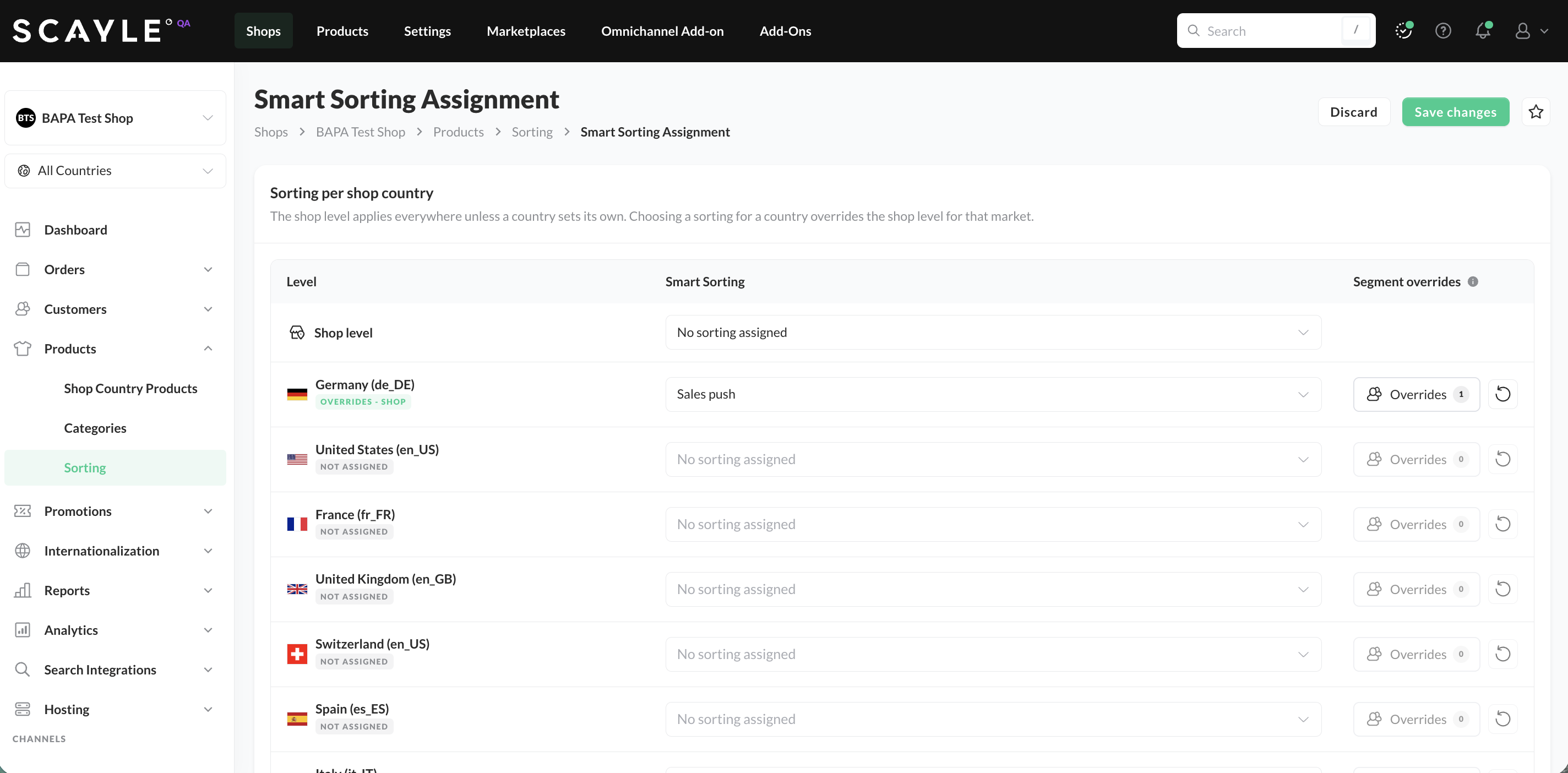
Smart Sorting Assignment
On the shop country category level, you have the possibility to further refine smart sortings category-specific.
You can assign a Custom Smart Sorting Key in the same way as a system Smart Sorting Key, as the default sorting of a shop, shop country, or shop country category.
You can also add customer segment overrides to a shop country category. The same rules as for shop country overrides apply.
To define sorting keys on category level
- Navigate to Shops ➜ [Shop] ➜ [Country] ➜ Categories ➜ General Info
- Define a Smart and/ or Custom Sorting Key
- Click Overrides in the row of the shop country.
- Click Add segment override, select a Customer segment, and click Add customer segment. Only active customer segments of the company the shop belongs to are available.
- Select the sorting for the segment in its row. To change the priority, drag an override to a new position in the list.
- Click Save.
Custom Sorting
Custom Sortings can be applied to categories at the country category level. Only one smart sorting or one custom sorting or a combination of one of each can be applied to a category. If both, a custom sorting and a smart sorting are defined for a category, products will first be sorted by the custom sorting; if multiple products have the same custom sorting key value, those products will then be sorted by the smart sorting.
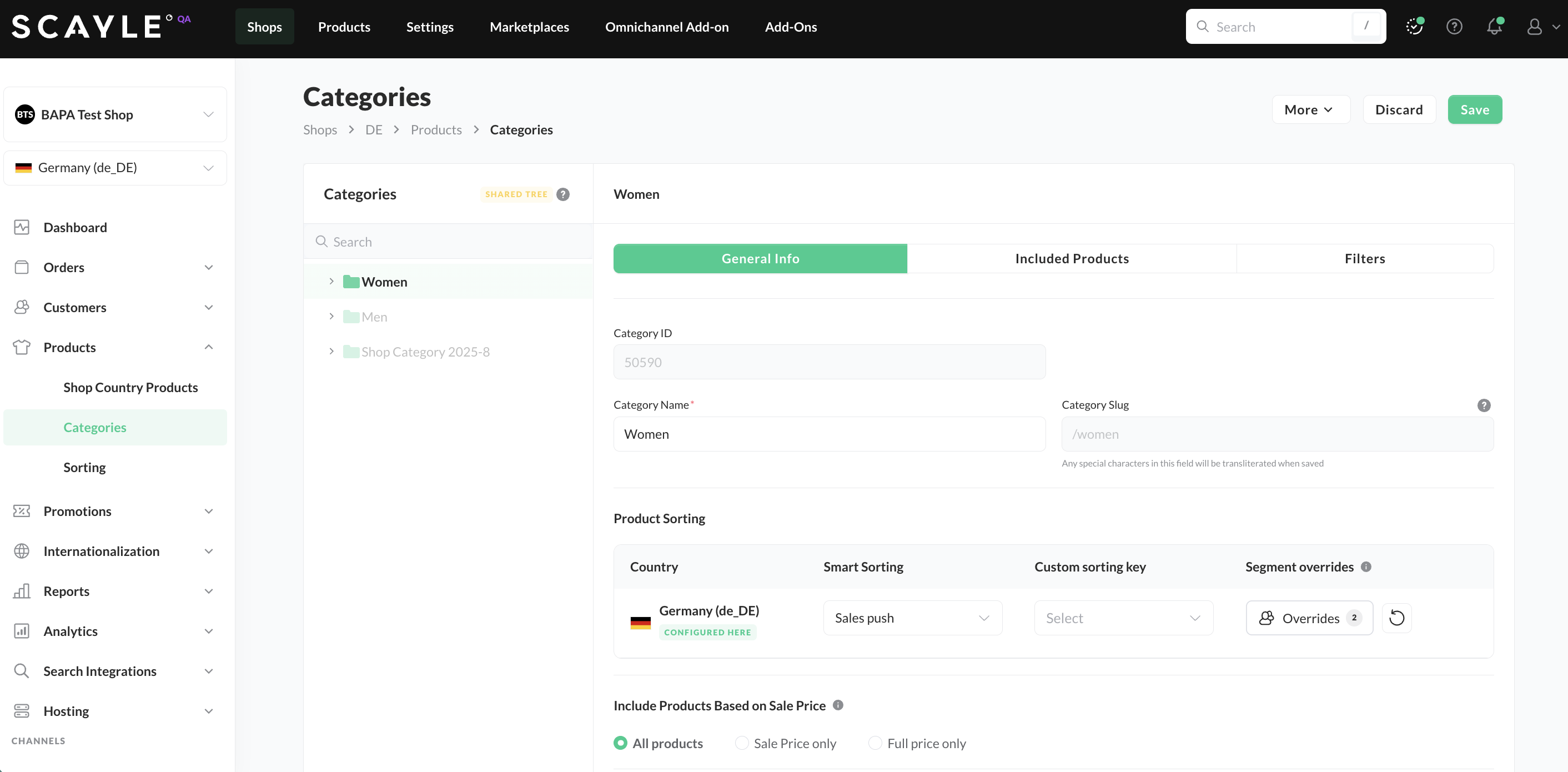
Applying Custom Sorting on the category level
A shop country category without a sorting of its own inherits the sorting of the level above. See Sorting Inheritance.
Sorting Inheritance
You can set a default sorting on the shop, on a shop country, and on a shop country category. A level without a sorting of its own inherits the sorting of the nearest level above it:
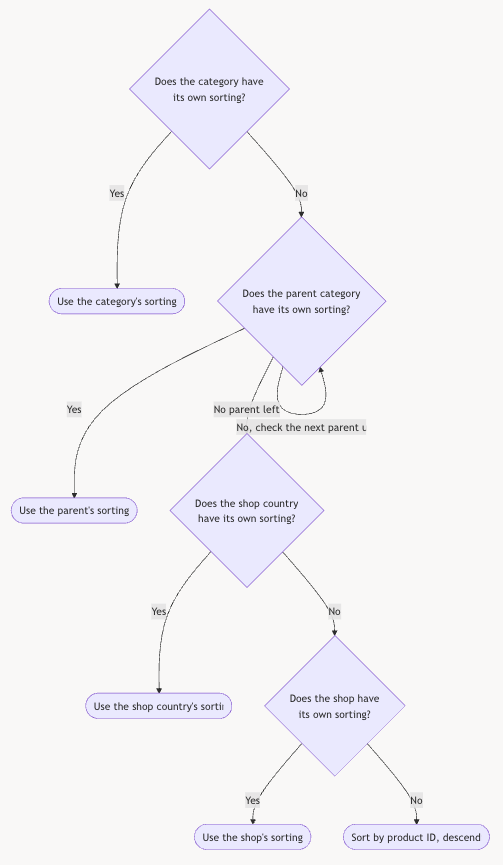
Sorting Inheritance
The following rules apply:
- A sorting applies to the level where you set it and to the subsequent levels below as long as they have no sorting defined themselves. Levels below that have their own sorting keep it and inherit it to the levels below them.
- Moving a shop category to a new parent does not change the sorting it has of its own. If it has none, it inherits from its new parent.
- A sorting is inherited as one configuration: the Smart Sorting Key, the Custom Sorting Key, and the customer segment overrides. A shop country category that sets only one of the two keys does not inherit the other one.
- A shop country category with only a Custom Sorting Key returns the products without a
sortValuesorted by product ID (and therefore defaults to descending order). - Custom Sorting Keys are available on shop country categories only. The shop and the shop countries carry a Smart Sorting Key.
In the SCAYLE Panel, a shop country category shows where its sorting comes from: configured here, inherited · [parent category name], inherited · shop country, or inherited · shop. To make a category inherit again, reset its sorting.
Customer Segment Overrides
You can set a default sorting for specific customer segments with customer segment overrides.
To add an override in the SCAYLE Panel, see Smart Sorting.
You can add overrides on every level that has a default sorting:
| Level | An override sets |
|---|---|
| Shop | A Smart Sorting Key |
| Shop country | A Smart Sorting Key |
| Shop country category | A Smart Sorting Key, a Custom Sorting Key, or both |
The Storefront API picks one sorting per shopper:
- Guests get the default sorting.
- For a logged-in shopper, the overrides are checked in priority order. The first override whose customer segment the shopper belongs to applies.
- If no override matches, the shopper gets the default sorting.
The order in which the overrides are checked is their priority. In the SCAYLE Panel, the order of the list sets it: the first override in the list is checked first. In the Admin API, every override has a priority, an integer that is unique per level. Lower values are checked first, and gaps between the values are allowed.
The following rules apply:
- An override needs a default sorting on the same level. When you remove the default sorting, its overrides are removed as well.
- A level can have up to 30 overrides, and one override per customer segment.
- Overrides are inherited together with the default sorting. A level that sets a sorting of its own does not inherit any overrides from the levels above, even if it has no overrides of its own.
- Overrides change the default sorting only. A Storefront API request that sets a sorting explicitly gets the requested sorting. See Default Sorting for Customer Segments.
Example
The shop country category Shoes has the default Smart Sorting Key scayle:v1:topseller and two overrides:
| Priority | Customer segment | Smart Sorting Key | Custom Sorting Key |
|---|---|---|---|
| 1 | VIP Members | scayle:v1:new-arrivals | vip-picks |
| 2 | Outlet Shoppers | scayle:v1:sales-push |
The shoppers get the following sorting in Shoes:
| Shopper | Sorting |
|---|---|
| Guest | Default: Topseller |
| Logged in, in neither segment | Default: Topseller |
| In VIP Members | The products of vip-picks first, the other products by New Arrivals Push |
| In Outlet Shoppers | Sales Push, no Custom Sorting Key |
| In VIP Members and in Outlet Shoppers | The VIP Members override, because it is checked first (priority 1) |
The subcategory Sneakers has no sorting of its own, so it sorts exactly like Shoes, overrides included. The subcategory Boots has its own default Smart Sorting Key scayle:v1:stock-coverage and no overrides, so every shopper gets Comprehensive Stock Coverage in Boots.
Define Sorting for a Price Campaign
You can assign a product sorting to a price campaign as follows:
- Define a sorting key to be used for the shop category via the SCAYLE Panel or the Admin API.
- Define a custom data parameter on Price Campaigns level via the SCAYLE Panel.
- Add the sorting key for the price campaign in the custom data parameter.
- The parameter will be shown as part of the price campaign creation.
Admin API
Product Sorting
Create or Update Product Sorting
To display products in the frontend in a certain order, you can specify a sorting value (sortValue) for each product to determine the product order.
Product sorting can be created for a particular shop or a shop country (in case a country code is provided). Country-specific sorting overrules shop-specific sorting for the same sortingKey.
Updating shop-specific sorting doesn't affect existing country-specific sorting.
Example: Setting Product-Sortings
This method accepts a list of a maximum of 1,000 sortings at a time.
In case there are multi-languages shop countries defined within a shop, the product sorting will be created or updated for all identified shop countries.
| Parameter | Details |
|---|---|
productId | Integer |
productReferenceKey | String |
shopKey | String |
countryCode | String ISO 3166 alpha 2 country code. |
sortKey | String The custom sorting key. |
sortValue | Integer The value used for sorting. |
When updating or creating product sorting, you either have to provide a productId or productReferenceKey.
Delete product sorting
You can delete shop-specific sorting by providing a shop key. A country-specific sorting can be deleted by providing a shop key and a country code.
When deleting product sorting, you either have to provide a productId or productReferenceKey.
Example: Delete product sortings
This method accepts a list of a maximum of 1,000 sortings at a time.
Please note that it can take some hours until the deleted sorting is reflected in the Storefront API.
Product Sorting Parameters
| Parameter | Details |
|---|---|
productId | Integer SCAYLE's internal product identifier. |
productReferenceKey | String Tenant provided product identifier. |
shopKey | String A key that uniquely identifies the shop within the tenant's ecosystem. |
sortKey | String The custom sorting key. |
Smart Sorting Keys
Use the /smart-sorting-keys endpoints to create, retrieve, update, and delete Custom Smart Sorting Keys. System Smart Sorting Keys are available through the same endpoints, read-only.
To address a single key, use its key with the key= prefix, for example key=end-of-season-clearance. Encode = as %3D when you build the URL yourself, as in the cURL examples. See Identifiers.
The smartSortingKey, customSortingKey, and customerSegmentOverrides fields return only the sorting set on that level (customSortingKey exists on shop country categories only). A level that inherits its sorting returns null for its keys and, when you request it, an empty customerSegmentOverrides list. The Admin API does not return inherited values. See Sorting Inheritance.
Create a Custom Smart Sorting Key
The following example creates a key that favors products with a high discount, high stock, and a long time in the shop, for example to clear the remaining stock at the end of a season.
The response returns the created key with the status 201 Created:
| Parameter | Details |
|---|---|
key | String, required. Unique identifier of the key, 1 to 255 characters. Must not start with scayle:. Use only lowercase letters, digits, and hyphens. You cannot change the key after creation. |
name | String, required. Name of the key, 1 to 255 characters. |
description | String, optional. Describes the purpose of the key. |
weights | Object, required. The weights from 1 to 5 per ranking factor, with at least one ranking factor. Use the weight names from Ranking Factors. |
isCustom | Boolean, read-only. true for Custom Smart Sorting Keys, false for system Smart Sorting Keys. |
Retrieve Smart Sorting Keys
To get a single key, use its identifier. The following example retrieves the system key scayle:v1:topseller.
The response shows the ranking factors and weights of the key. System Smart Sorting Keys have no description, so the response contains no description field:
To get several keys, request the collection. The following example returns only Custom Smart Sorting Keys.
The response contains the keys in entities and a cursor. A cursor.next of null means that there is no further page. See Pagination.
| Parameter | Details |
|---|---|
filters[isCustom] | Boolean, optional. true returns only Custom Smart Sorting Keys, false returns only system Smart Sorting Keys. Leave it out to get both. |
filters[search] | String, optional. Returns the keys whose key or description contains the value, case-insensitive. |
Update a Custom Smart Sorting Key
The request replaces the weights of the key. The key in the request body must match the key in the path, because you cannot rename a key. The following example adds Adjusted variant availability, so that products with a broken size run move down.
The response returns the updated key.
Delete a Custom Smart Sorting Key
A successful deletion returns the status 204 No Content. For the effect on assignments and storefront requests, see Deleting Custom Smart Sorting Keys.
Assign a Custom Smart Sorting Key to a Shop
A Smart Sorting Key on the shop applies to every shop country and shop country category without a sorting of its own. The following example reads a shop, sets its default Smart Sorting Key, and writes it back.
Assign a Custom Smart Sorting Key to a Shop Country
You assign a Custom Smart Sorting Key the same way as a system Smart Sorting Key: set its key in the smartSortingKey field. Assigning a key that does not exist returns 400 Bad Request with the error key INVALID_SMART_SORTING_KEY.
The following example reads a shop country, sets its default Smart Sorting Key, and writes it back. See Update a Shop Country.
Assign a Custom Smart Sorting Key to a Shop Country Category
The following example reads the configuration of a shop country category, sets its Smart Sorting Key, and writes the complete configuration back.
Send the configuration back as you read it and change only the keys you want to set. Setting smartSortingKey or customSortingKey to null removes that key from this shop country category only. Unlike a shop or shop country write, a shop country category write keeps the keys you leave out. Categories below this one that have no sorting of their own inherit the new key; categories with their own sorting keep it.
Errors
Besides the general Admin API errors, the following error keys (errorKey) are specific to Smart Sorting Keys:
| Error key | Status | Cause |
|---|---|---|
SMART_SORTING_KEY_ALREADY_EXISTS | 400 | A key with the same key already exists. |
SMART_SORTING_KEY_UPDATE_NOT_ALLOWED | 400 | The key in the request body differs from the key in the path. |
INVALID_SMART_SORTING_KEY | 400 | The smartSortingKey of a shop, shop country, shop country category, or customer segment override does not exist. |
UPDATE_OR_DELETE_SYSTEM_SMART_SORTING_KEY_NOT_ALLOWED | 403 | The request tries to update or delete a system Smart Sorting Key. |
SMART_SORTING_KEY_NOT_FOUND | 404 | No key exists for the identifier in the path. |
Manage Customer Segment Overrides
Use the customerSegmentOverrides field of a shop, shop country, or shop country category to manage its customer segment overrides. Read requests return the field only when you request it:
| Read | with value |
|---|---|
| Shop | customerSegmentOverrides, countries.customerSegmentOverrides |
| Shop country | customerSegmentOverrides |
| Shop category | countries.customerSegmentOverrides (the overrides of each of its shop country categories) |
| Shop country category | customerSegmentOverrides |
An override has the following fields:
| Field | Description |
|---|---|
customerSegmentId | The guid of the customer segment. The segment must be active and belong to the same company as the shop. |
smartSortingKey | A system or Custom Smart Sorting Key. |
customSortingKey | Shop country categories only. A Custom Sorting Key, or null. An override on a shop country category needs a smartSortingKey, a customSortingKey, or both. |
priority | An integer, unique per level. Lower values are checked first. |
isActive | Read-only. Whether the customer segment is active. |
Every override needs customerSegmentId and priority. On a shop or shop country, it also needs smartSortingKey.
When you write a shop, shop country, or shop country category:
- Leave out
customerSegmentOverridesto keep the existing overrides. - Send an empty list (
[]) to remove all overrides. - Send a list of overrides to replace all existing overrides of the level.
A shop or shop country write replaces the complete object. A request without smartSortingKey removes the default sorting of the level and, with it, all its overrides. A shop country category write keeps the keys you leave out.
An override for an inactive customer segment has no effect: shoppers get the sorting as if the override did not exist. A write that contains such an override fails with CUSTOMER_SEGMENT_INACTIVE, so remove it before you write the level back. Deleting a customer segment removes its overrides.
A request with overrides must also contain the default sorting of the level: smartSortingKey for a shop or shop country, and smartSortingKey, customSortingKey, or both for a shop country category. Read the level, change the overrides, and write the complete object back, as in the following examples.
Add Customer Segment Overrides to a Shop Country
The following example gives the shoppers of two customer segments in Germany their own Smart Sorting Key.
Add Customer Segment Overrides to a Shop Country Category
On a shop country category, an override can also set a Custom Sorting Key. The following example sets the overrides of the example above on the category Shoes: shoppers in VIP Members get the products of vip-picks first, shoppers in Outlet Shoppers get Sales Push.
Retrieve Customer Segment Overrides
Request the overrides with with=customerSegmentOverrides. The overrides are returned in priority order.
The response for Shoes from the example above, contains its default sorting and overrides (excerpt):
The subcategory Sneakers has no sorting of its own. Requested with with=customerSegmentOverrides, its response contains null for both keys and no overrides, although its products are sorted like Shoes (excerpt):
Remove Customer Segment Overrides
To remove all overrides of a level, write the level back with an empty customerSegmentOverrides list. The default sorting stays unchanged.
Customer Segment Override Errors
A request with more than 30 overrides on one level fails with the error key REQUEST_SCHEMA_VALIDATION_FAILED (400). The following error keys (errorKey) are specific to customer segment overrides:
| Error key | Status | Cause |
|---|---|---|
CUSTOMER_SEGMENT_NOT_FOUND | 400 | No customer segment exists for a customerSegmentId. |
CUSTOMER_SEGMENT_NOT_UNIQUE | 400 | The same customerSegmentId appears more than once on the level. |
CUSTOMER_SEGMENT_PRIORITY_NOT_UNIQUE | 400 | The same priority appears more than once on the level. |
CUSTOMER_SEGMENT_COMPANY_MISMATCH | 400 | The customer segment belongs to a different company than the shop. |
CUSTOMER_SEGMENT_INACTIVE | 400 | The customer segment is not active. Only active customer segments can be added. |
CUSTOMER_SEGMENT_OVERRIDES_REQUIRE_SMART_SORTING_KEY | 400 | A shop or shop country request contains overrides but no smartSortingKey. |
CUSTOMER_SEGMENT_OVERRIDES_REQUIRE_SORTING_KEY | 400 | A shop country category request contains overrides but neither smartSortingKey nor customSortingKey. |
CUSTOMER_SEGMENT_OVERRIDE_REQUIRES_SORTING_KEY | 400 | An override on a shop country category contains neither smartSortingKey nor customSortingKey. |
INVALID_SMART_SORTING_KEY | 400 | The smartSortingKey of an override does not exist. |
INVALID_CUSTOM_SORTING_KEY | 404 | The customSortingKey of an override does not exist in the shop country. |
Storefront API
The Storefront API offers different sorting mechanisms to allow your users to sort the products according to their preferences.
When using the filters[term] parameter, we don't recommend specifying any sorting parameter.
We then sort the products by how well the product matches the search term, which will generally be a better sorting in these cases.
A Smart Sorting Key does more than order category listings. You can also configure one per shop country as a tie-breaker for text search, so that among products with near-equal search relevance the ones favored by the key rank higher. See Business Relevancy Tie-Breaking for how this behaves, and Smart Sorting for Search for setting it in the SCAYLE Panel.
In continuation, we will list some examples on how to use Basic Sorting, Sorting Keys, and multiple Sorting Keys at a time.
Default Sorting
Default sorting will be applied if no sorting parameters are included in your request.
You can set a default sorting key or a combination of default sorting keys in the SCAYLE Panel or via the Admin API. If no default sorting is defined, the products will be sorted by ID in descending order. See Sorting Inheritance for which level's default sorting applies.
Default Sorting for Customer Segments
For a logged-in shopper, the default sorting of a category can depend on the shopper's customer segments. The Storefront API applies the customer segment overrides of a category when the request:
- filters by a single category (
filters[category]) and not by a search term (filters[term]), - contains no sorting parameters, and
- sends the shopper's access token in the
X-Customer-Tokenheader. See Using Customer Segments.
A request without a token, or with an invalid or expired token, gets the default sorting. The Categories API returns only the default sorting keys of a category, not its overrides.
The following examples use the category Shoes from the example above.
Logged-in shopper
The same request returns a different product order depending on the shopper's segments. A shopper in VIP Members gets the products of vip-picks first, a shopper in Outlet Shoppers gets Sales Push, and a shopper in neither segment gets Topseller.
Guest
Without a token, every shopper gets the default sorting Topseller.
Explicit sorting
A request with a sorting parameter gets the requested sorting, also for a logged-in shopper. The following request returns Topseller for every shopper, including shoppers in VIP Members.
To apply customer segment overrides in your storefront, request category listings without a sorting parameter and send the shopper's token. If your storefront reads the category's sorting keys and sends them as sortingKey, every shopper gets the default sorting.
Basic Sorting
Sorting by Price
Sorting identifier: sort=price
sort=pricewill sort the products by their price.- To specify the order, use the
sortDirparameter (defaultdesc, highest price first).
Sorting by Recency
Sorting identifier: sort=new
sort=newwill order the products based on when they were first shown in the shop.- To specify the order, use the
sortDirparameter (defaultdesc, most recent date first).
Sorting by Price Reduction
Sorting identifier: sort=reduction
sort=reductionwill sort products using their total reduction percentage in either ascending or descending order.- To specify the order, use the
sortDirparameter (defaultasc, highest discount first). - This takes into account both regular sale discounts and campaign-specific reductions.
Smart Sorting
To use the Smart Sorting Keys, you can:
- Set a Smart Sorting Key as the default sorting for a global shop, country shop or category in the SCAYLE Panel or
- include the
sortingKeyquery parameter in combination with any of the system Smart Sorting Keys or one of your Custom Smart Sorting Keys in your request
When you use the sortingKey parameter in the request, the sort query parameter will be ignored.
Using Sorting Key and Campaign Key Together:
Smart Sorting efficiently manages scenarios where both a sortingKey and a campaignKey are provided. In these cases, the system integrates the campaign key to ensure that the sorting takes into account campaign prices and reductions tied to price-related Smart Sorting Keys. This ensures alignment between the tenant’s smart sorting preferences and the relevant campaign data.
For an example of how to use both a sortingKey and a campaignKey in the same request, refer to the Smart Sorting in Combination with Campaign Key example.
Handling Products Without an Active or Expired Campaign:
If a product does not have an active campaign, or if the campaign has expired, the system will automatically fall back to the product's default (non-campaign) price, labeled as @no_campaign.
Smart Sorting is intended to be used with the sorting direction desc returning the most relevant results first.
Trending
The Trending Smart Sorting Key will only work if you use SCAYLE native Checkout.
Sorting Key: scayle:v1:trending
The Trending Smart Sorting Key:
- Highlights fast-emerging trend products by tracking recent sales growth compared to a baseline.
- Ensures customers can purchase the items by automatically deprioritizing products with low stock or variant availability.
- Works best in high-volume stores (ideally with at least 10k sales in the past 21 days) to accurately identify meaningful trend spikes.
Sales Push
Sorting Key: scayle:v1:sales-push
The Sales Push Smart Sorting Key:
- Promotes items with the highest discount percentages to quickly clear out older inventory.
- Prioritizes oldest products to get them out of the stock.
- Balances promotion of high-margin products with discounted items.
- Considers current inventory levels to promote available products.
import {APISortOrder, APISortOption} from '@scayle/storefront-api';

// Sort products in descending order by `scayle:v1:sales-push`
const responseDesc = await client.products.query({
  sort: {
    sortingKey: "scayle:v1:sales-push",
    direction: APISortOrder.Descending,
  },
});
New Arrivals Push
Sorting Key: scayle:v1:new-arrivals
The New Arrivals Push Smart Sorting Key:
- Prioritize products based on how recently they were added or published, with newer items ranked higher.
- Applies some weight to items with high variant availability to ensure these products are prominently displayed.
- Incorporate sales data to slightly favor products with better historical sales performance (if SCAYLE Checkout is used).
import {APISortOrder, APISortOption} from '@scayle/storefront-api';

// Sort products in descending order by `scayle:v1:new-arrivals`
const responseDesc = await client.products.query({
  sort: {
    sortingKey: "scayle:v1:new-arrivals",
    direction: APISortOrder.Descending,
  },
});
Balanced Value Offerings
Sorting Key: scayle:v1:balanced-offerings
The Balanced Value Offerings Smart Sorting Key:
- Applies some weight to recency to keep the product offerings fresh.
- Ensures sufficient variant availability to meet customer demand.
- Highlight products with significant discounts.
- Use sales data to highlight popular items while considering original prices for balance (if SCAYLE Checkout is used).
Inventory Optimization
Sorting Key: scayle:v1:inventory-optimization
The Inventory Optimization Smart Sorting Key:
- Prioritize products with higher stock levels to optimize inventory turnover.
- Consider revenue contribution to promote high-performing products (if SCAYLE Checkout is used).
- Boost products offering greater absolute discount values.
- Highlight products with attractive discount percentages.
Luxury Promotion
Sorting Key: scayle:v1:luxury-promotion
The Luxury Promotion Smart Sorting Key:
- Prioritize original price to highlight high-value luxury items (if SCAYLE Checkout is used).
- Apply weight to discounts to draw attention to luxury items on sale.
- Consider revenue contribution to promote top-performing luxury products.
- Slight preference for recently added or published luxury items to favor products with more variant options available.
Comprehensive Stock Coverage
Sorting Key: scayle:v1:stock-coverage
The Comprehensive Stock Coverage Smart Sorting Key:
- Ensures customers see products with a broad range of available variants and ample stock.
- Prioritizes well-stocked products across multiple sizes to reduce the likelihood of out-of-stock situations.
- Promote products with strong sales performance (if SCAYLE Checkout is used).
- Includes discount value to highlight items offering a good deal.
Topseller
Sorting Key: scayle:v1:topseller
The Topseller Smart Sorting Key:
- Strongly prioritize products with high sales performance.
- Prioritizes well-stocked products across multiple sizes to reduce the likelihood of out-of-stock situations.
- Boost products contributing significantly to revenue (if SCAYLE Checkout is used).
Revenue Maximization
Sorting Key: scayle:v1:revenue-max
The Revenue Maximization Smart Sorting Key:
- Strongly prioritize products with the highest revenue contribution.
- Prioritizes well-stocked products across multiple sizes to reduce the likelihood of out-of-stock situations.
- Consider sales performance to highlight popular products (if SCAYLE Checkout is used).
Recently Popular
Sorting Key: scayle:v1:recently-popular
The Recently Popular Smart Sorting Key:
- Strongly favor products with high recent sales performance.
- Applies some weight to recency to keep the product offerings fresh.
- Boost products contributing significantly to recent revenue (if SCAYLE Checkout is used).
Sort by a Custom Smart Sorting Key
To sort products by a Custom Smart Sorting Key, pass its key in the sortingKey parameter. The same rules apply as for system Smart Sorting Keys, including the combination with a campaign key and the combination with a Custom Sorting Key.
Smart Sorting in Combination with Campaign Key
Sorting Key: scayle:v1:sales-push
Campaign Key: sapiCampaignKey
The Sales Push sorting with campaign prioritization operates as follows:
- Prioritizes items with the highest campaign discount percentages to drive customer purchases and enhance sales-push efforts for featured products.
- Focuses on items that have been in stock longer, leveraging sales-push campaigns to accelerate the movement of slower-selling inventory.
- Assigns higher priority to items with substantial stock levels, ensuring prominently featured discounts align with sales-push objectives for maximum impact.
import {APISortOrder, APISortOption} from '@scayle/storefront-api';

// Sort products in descending order by `scayle:v1:sales-push` with a campaign `sapiCampaignKey`
const responseDesc = await client.products.query({
  campaignKey: "sapiCampaignKey",
  sort: {
    sortingKey: "scayle:v1:sales-push",
    direction: APISortOrder.Descending,
  },
});
Custom Sorting
You can also sort products using your own specified sorting keys using the sortingKey parameter.
Custom Sorting in Combination with Smart Sorting
Combined Sorting allows you to apply multiple sorting keys at the same time, combining the precision of Custom Sorting with the intelligence of Smart Sorting. When multiple sorting keys are used together, all products are ordered by the first sorting key first. Products that share the same value for the first key are then ordered by the second sorting key.
This gives you deliberate control over the products that matter most, while letting SCAYLE dynamically rank everything else, without having to manually curate your entire catalogue.
Combined Sorting can be configured at the shop country category level via the SCAYLE Panel or triggered directly through the Storefront API by passing multiple sorting keys in a single request.
Use Case: Pinning Products
One of the most common applications of Combined Sorting is product pinning ⇒ locking specific products into guaranteed top positions within a category listing, regardless of how the Smart Sorting Key would otherwise rank them.
This is particularly useful when you want to highlight:
- Sponsored products that have been agreed upon with brand or supplier partners and must be featured prominently within a category.
- High-priority items with significant business impact that should always appear at the top of the page.
- Hero products selected by your merchandising team, where top placement needs to be guaranteed independently of sales performance, recency, or stock levels.
Setting Up Combined Sorting
Via the SCAYLE Panel
Combined Sorting is configured at the shop country category level. Navigate to Shops ➜ [Shop] ➜ [Category] and assign both a Custom Sorting Key and a Smart Sorting Key to the category.
When both are configured, the following order of precedence applies:
- Products are first sorted by their custom sorting and then by smart sorting.
- If multiple products share the same custom sorting, those products are then sorted by the Smart Sorting Key.

Assigned Combined Sorting via SCAYLE Panel
Via the Storefront API
To invoke Combined Sorting directly via the Storefront API, pass multiple sorting keys as a comma-separated value in the sortingKey parameter. The keys are applied in the order they are listed.
- Only one Smart Sorting Key and one Custom Sorting Key can be combined per category at a time.
- Products that do not have a
sortValueassigned for the custom sorting key will not be pinned or clustered, and will be ranked entirely by the Smart Sorting Key.
Once the shop indexing process is complete and the products have been sorted, the changes will be directly reflected in your Storefront Application as explained here.


