

Delivery Estimations
Delivery estimations allow you to show customers an expected delivery timeframe during checkout. These estimates help manage customer expectations and reduce post-purchase inquiries, returns, and complaints.
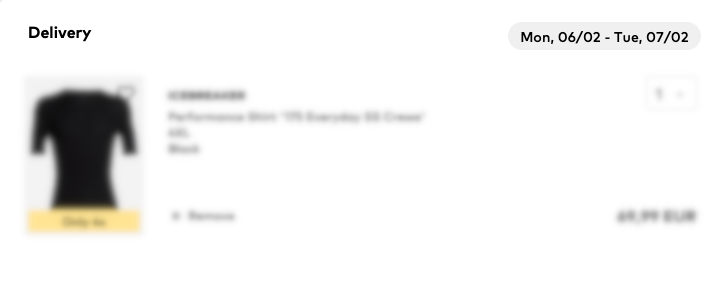
SCAYLE does not compute delivery times per carrier. Instead, delivery estimates are derived primarily from warehouse delivery times, adjusted for cut-off times and any cross-warehouse transfers (cross-docking) whenever applicable.
What Delivery Estimations Represent
A delivery estimate is the customer-facing promise of how long delivery will take after checkout. It is not a raw internal processing time or a carrier-specific transit time.
Delivery estimates combine:
- Warehouse delivery time (configured per warehouse)
- This base estimate must already include average carrier transit time.
- Internal transfer times (cross-docking)
- Added only when items must be moved between warehouses before shipping (see the Warehouses chapter).
- Logistics Cut-off time adjustments
- Orders placed after cut-off will be processed a day later (see the Logistics Cut Off chapter).
- Escalations
- Estimate delays and/or extensions for especial occasions (e.g.: public holidays, peak sales, etc).
This sum becomes the delivery window shown to the customer at checkout.
Delivery Estimation Calculation Logic
Delivery estimates are calculated dynamically, per package, whenever a basket is created or updated (e.g. when items are added, removed, or quantities change).
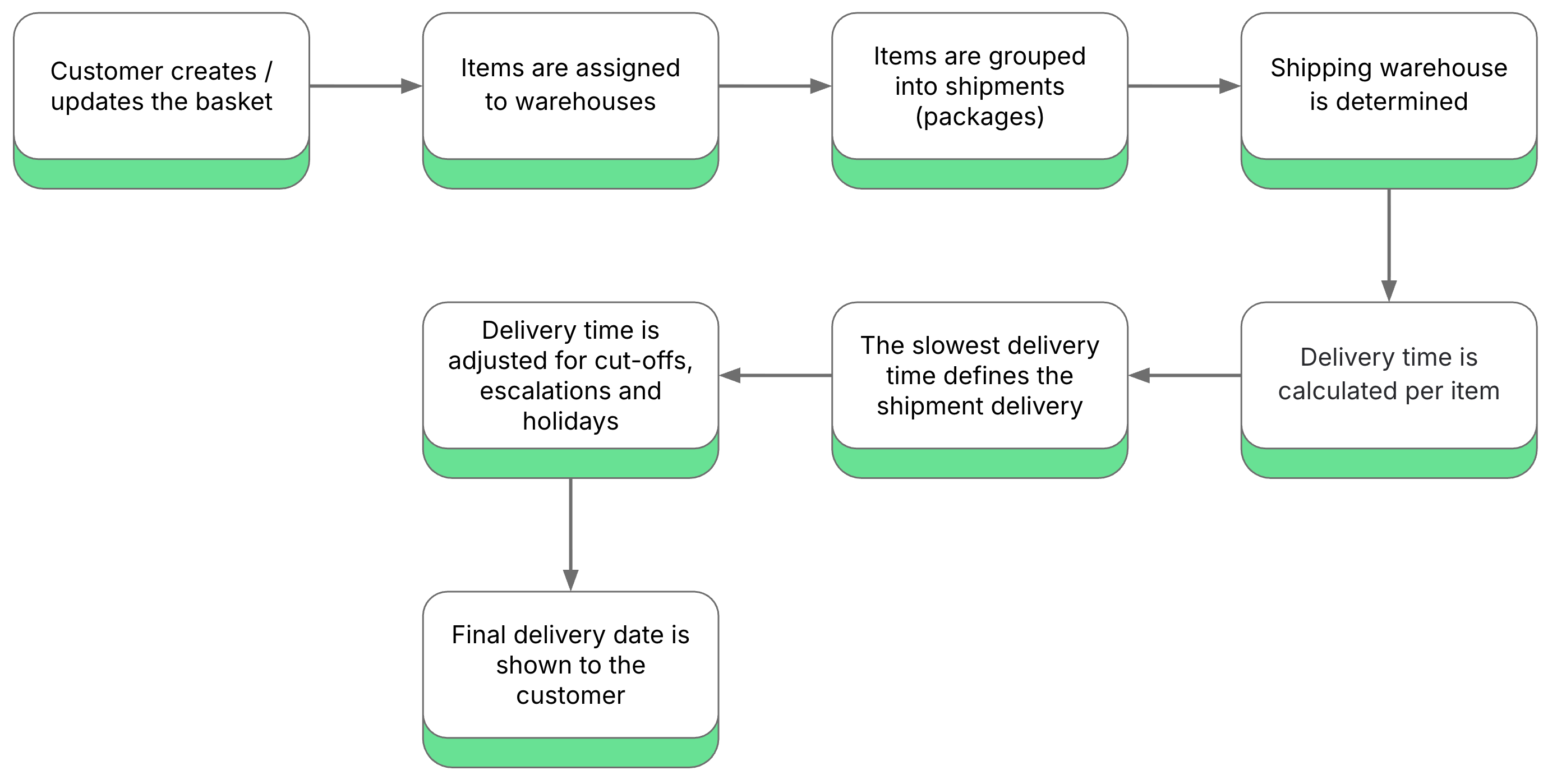
The system determines where each item will be fulfilled from and groups items into shipments (packages) based on shared logistics characteristics. For each shipment, a delivery timeline is calculated individually per item, taking into account product availability and warehouse processing (including cross-docking where items are transferred between warehouses).
To ensure a reliable delivery promise, the slowest delivery time among all items in the shipment is used as the final delivery estimate. This timeline is then adjusted for operational constraints such as cut-off times, public holidays, and non-working days.
The result is a realistic delivery date that reflects the full end-to-end fulfillment process and is consistently shown to the customer throughout the checkout journey.
How Delivery Estimations Work
Delivery estimates in SCAYLE are always defined per shop country. They are configured in two layers, which are evaluated in a fixed order:
- Default Delivery Estimates (Mandatory)
Define the baseline delivery promise for a shop country.
- They apply to all merchants and all warehouses in that shop country.
- They are required and must be configured first.
- They act as a fallback whenever no more specific configuration exists.
Without default delivery estimates, SCAYLE cannot calculate or display delivery promises at checkout.
- Merchant & Warehouse Delivery Estimates (Optional Overrides)
On top of the default layer, you can configure merchant-specific and warehouse-specific delivery estimates.
- These estimates are optional
- They apply only to the selected merchant and warehouse
- When configured, they override the default delivery estimates for that shop country
This allows you to reflect different fulfilment speeds for specific warehouses while keeping a global baseline.
How to Configure Default Delivery Estimates
In the SCAYLE Panel:
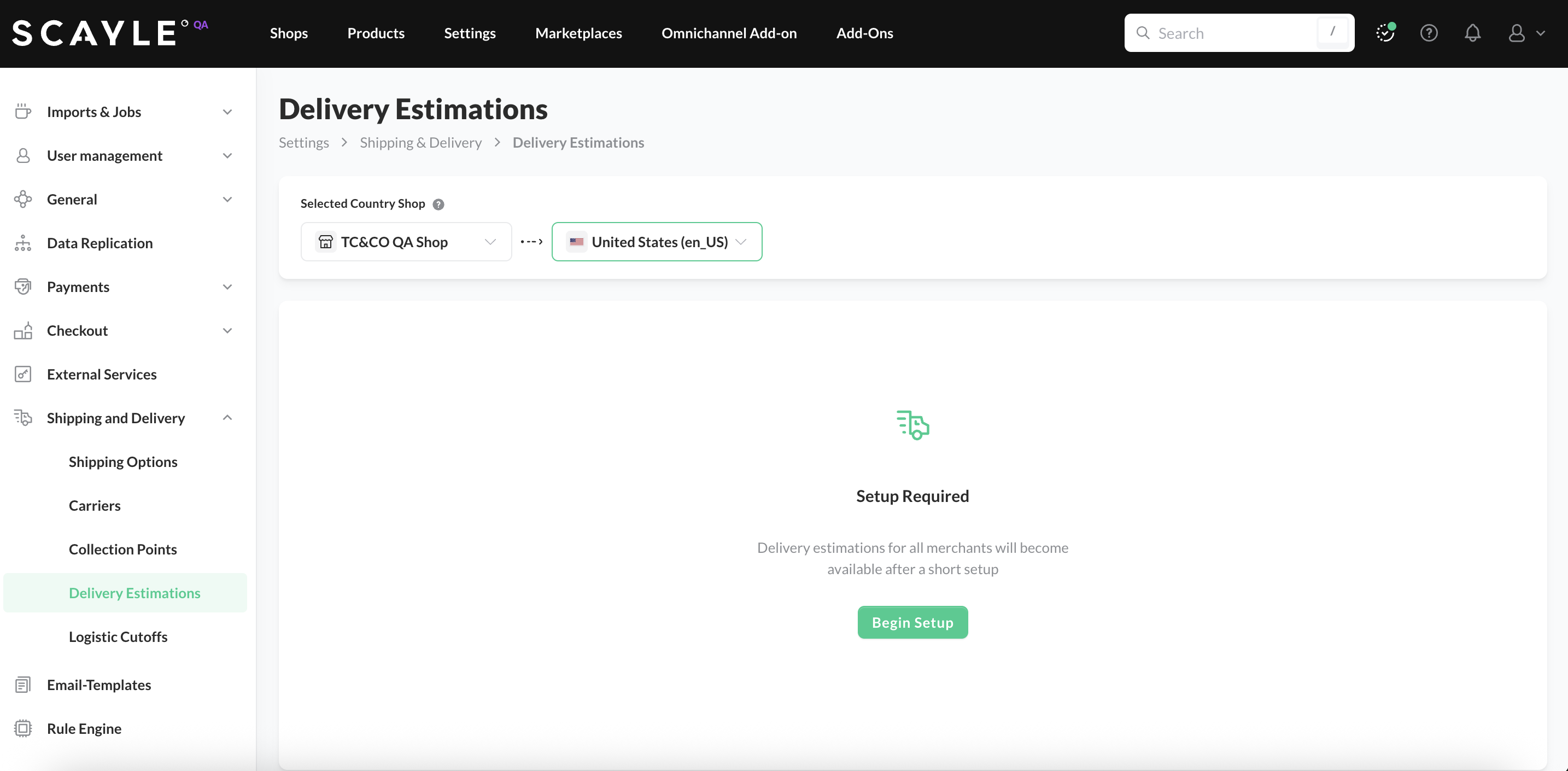
- Go to Settings ➜ Shipping & Delivery ➜ Delivery Estimations.
- Select the shop-country from the dropdown.
- If no settings exist yet, the system indicates Setup Required. Click Begin Setup to start.
- Enter delivery estimates per day/time slot.
- You can set a range for each day (e.g., 3-5 days) by clicking Edit Day or tailor individual slots by clicking on each cell.
Delivery estimates should be end-to-end delivery promises (including average warehouse processing time and carrier transit time).
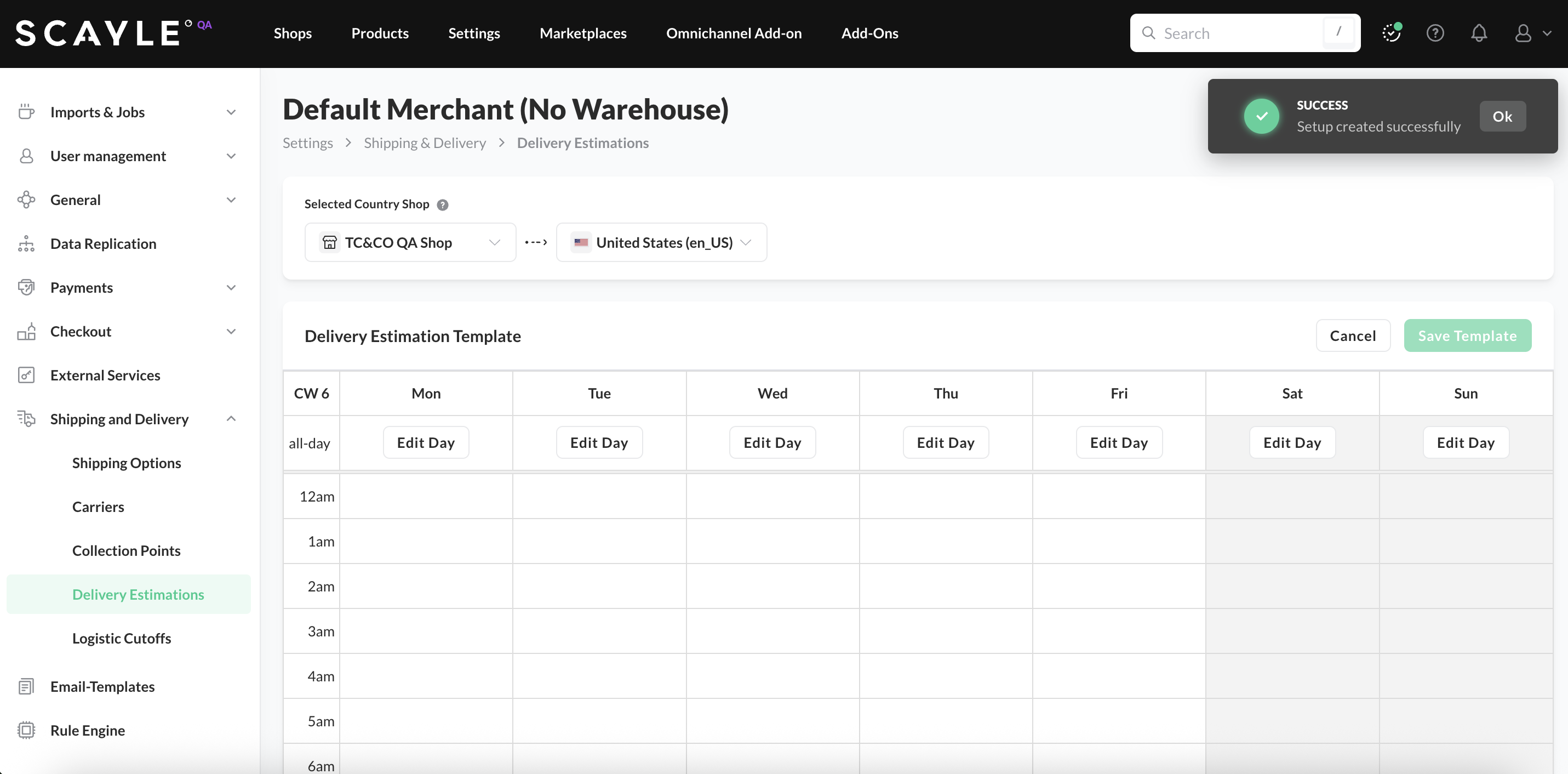
Once you finish, click Save Template to apply the changes. These values act as the baseline for all warehouse-level delivery predictions.
After the default delivery estimates are configured, you can temporarily adjust them to account for known disruptions. These are called escalations and override regular estimates for specific dates.
Use cases include:
- Weather-related delays
- Public holidays
- High volume periods
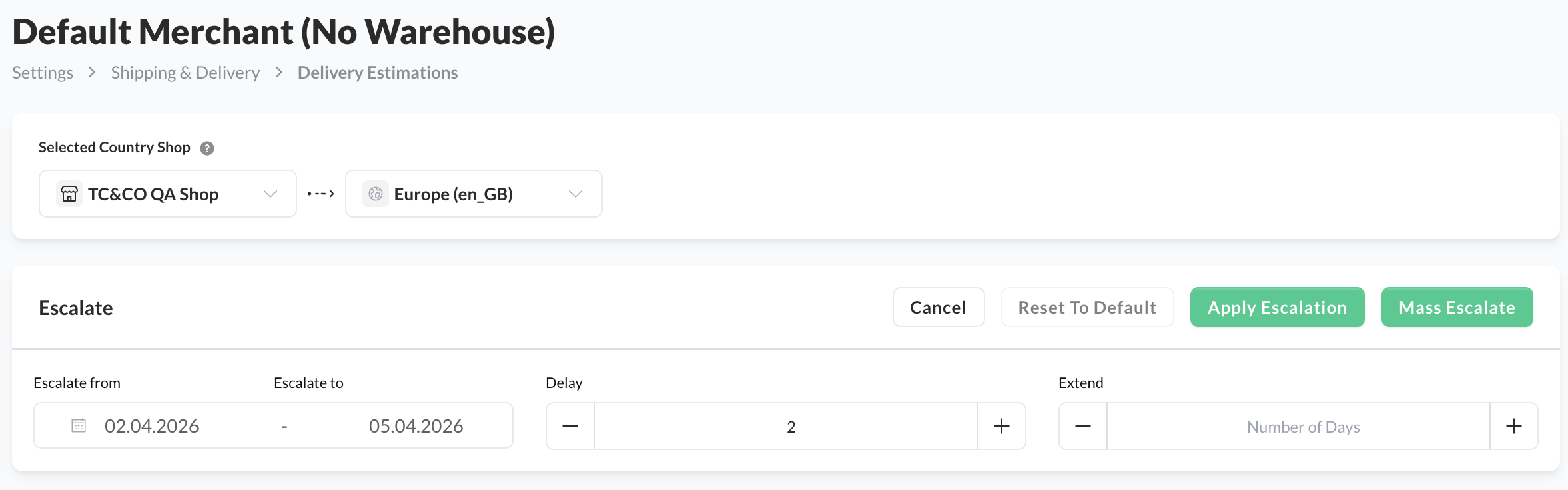
You can add them by clicking on Edit Escalations. Then:
- Select the dates (Escalate from and Escalate to).
- Select the time Delay or extension (Extend).
- Click Apply Escalation or, to set the estimation for all shops, click on Mass Escalation.
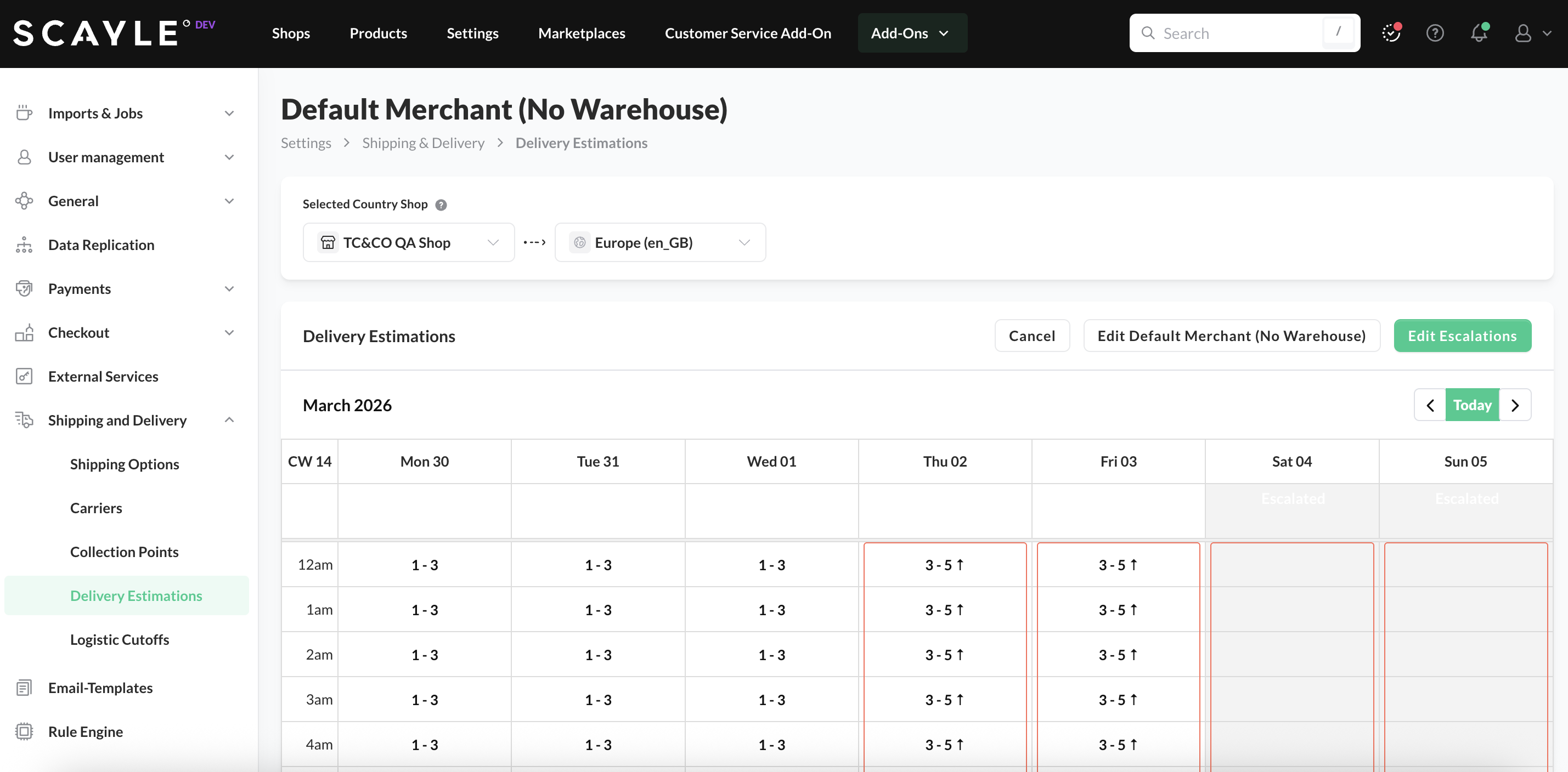
In the below example, an escalations is being added to account for a delay of 2 days in the deliveries during easter public holidays:
The escalation is indicated in the table for the affected dates:
How to Configure Merchant & Warehouse Delivery Estimations
If you have multiple warehouses/merchants and need to refine the global defaults, you can assign specific delivery time ranges to one or more warehouses. These override the defaults for orders shipped from those warehouses.
To configure:
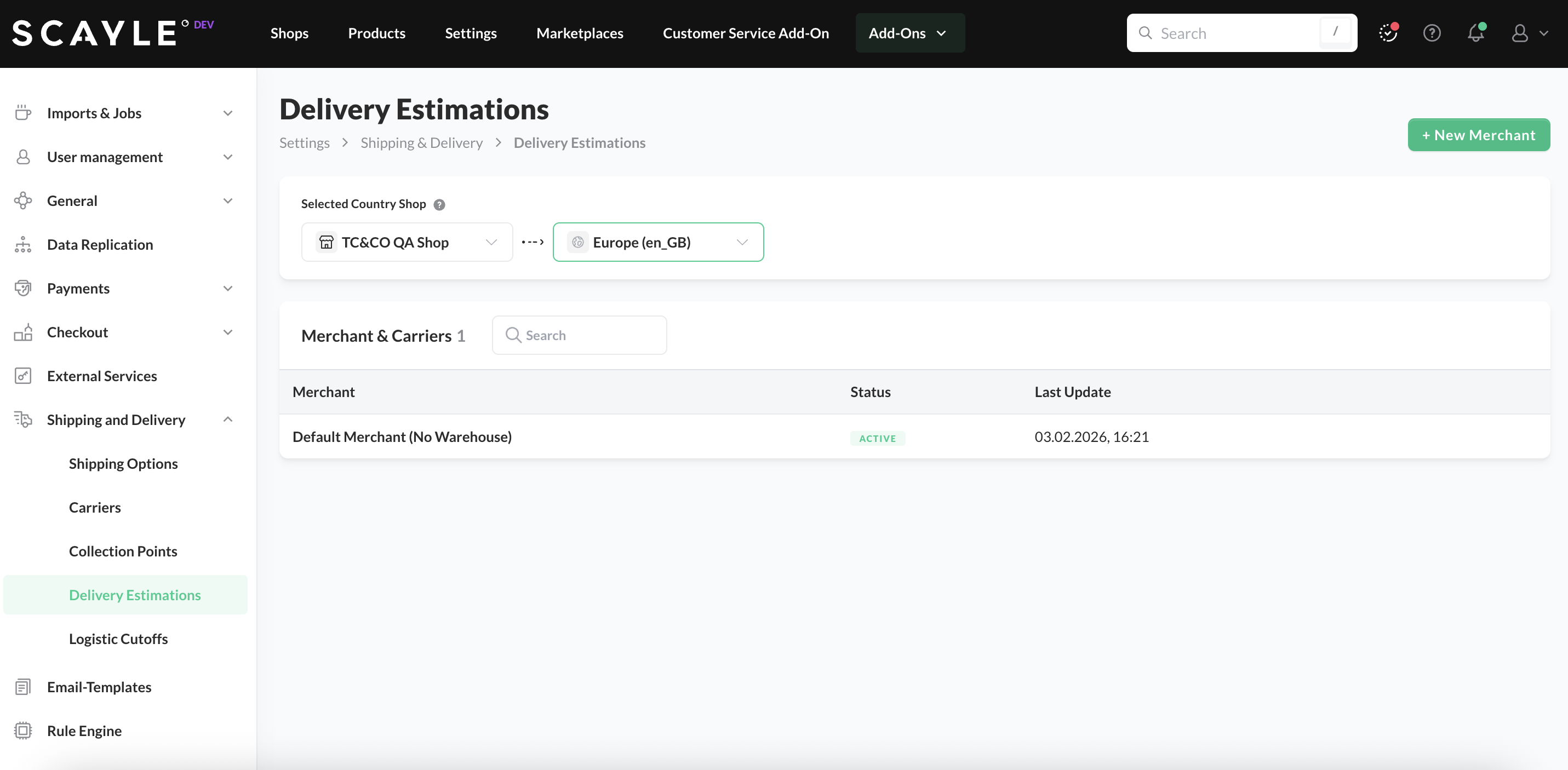
- Navigate to Settings ➜ Shipping & Delivery ➜ Delivery Estimations.
- Select the shop-country, click New Merchant.
- Select the merchant from the list
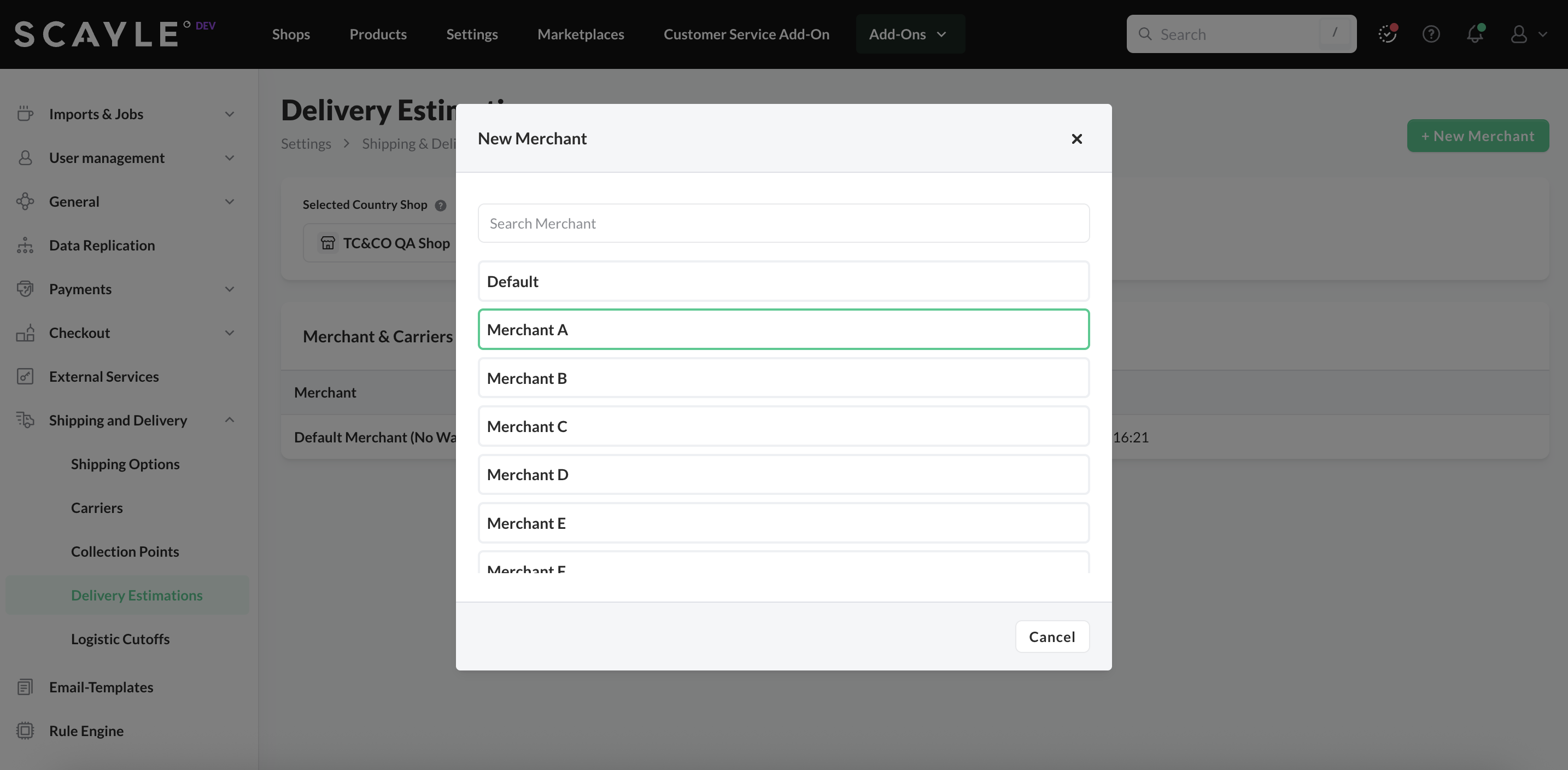
- Add estimates for the merchant.
- Click Save Template.
Optionally, you can also set delivery estimates for the warehouses assigned to the specific merchant.
- Inside the merchant estimates, select a warehouse from the dropdown menu
- Modify day ranges or time slots as needed
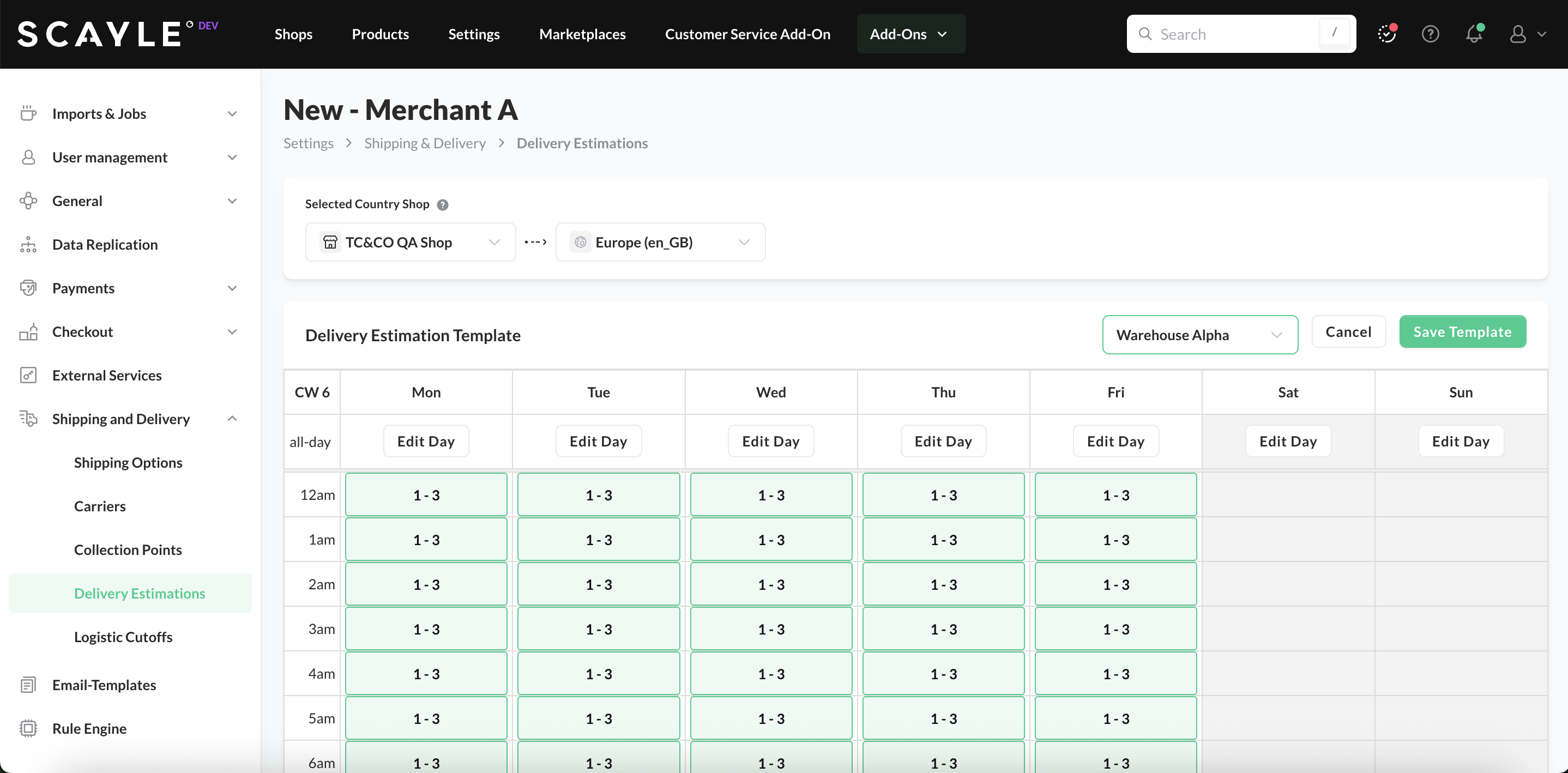
- Click Save Template.
Changes take effect immediately and influence checkout delivery displays once published.
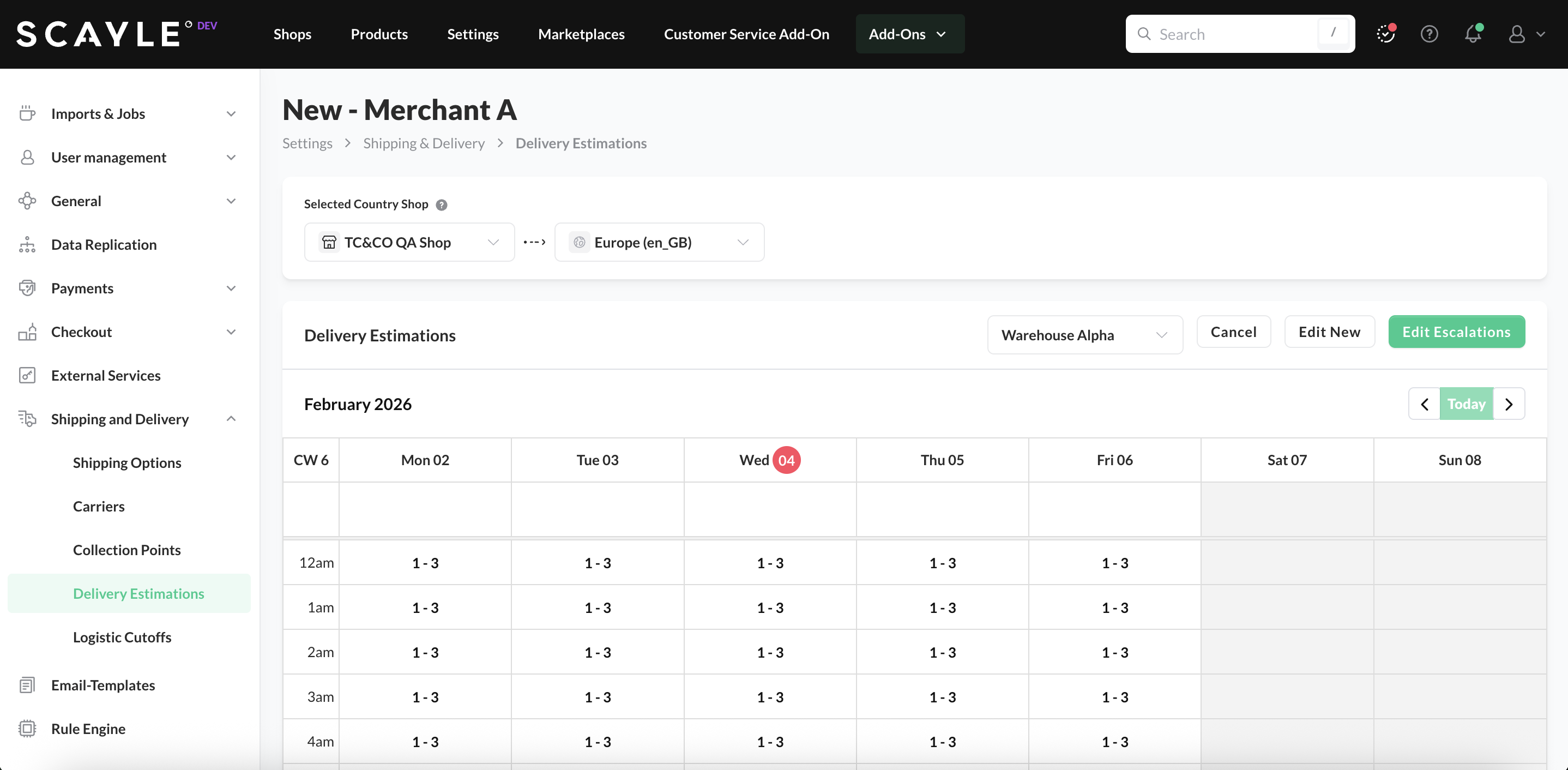
You can also define escalations for merchant and warehouse-specific configurations. After your template is saved, the button Edit Escalations will be available. Click on it to edit.
How to Edit Delivery Estimations
In the Delivery Estimates overview, both default configurations and merchant- and warehouse-specific estimates are listed. When you hover over a configuration, action icons appear in the right corner of the row.
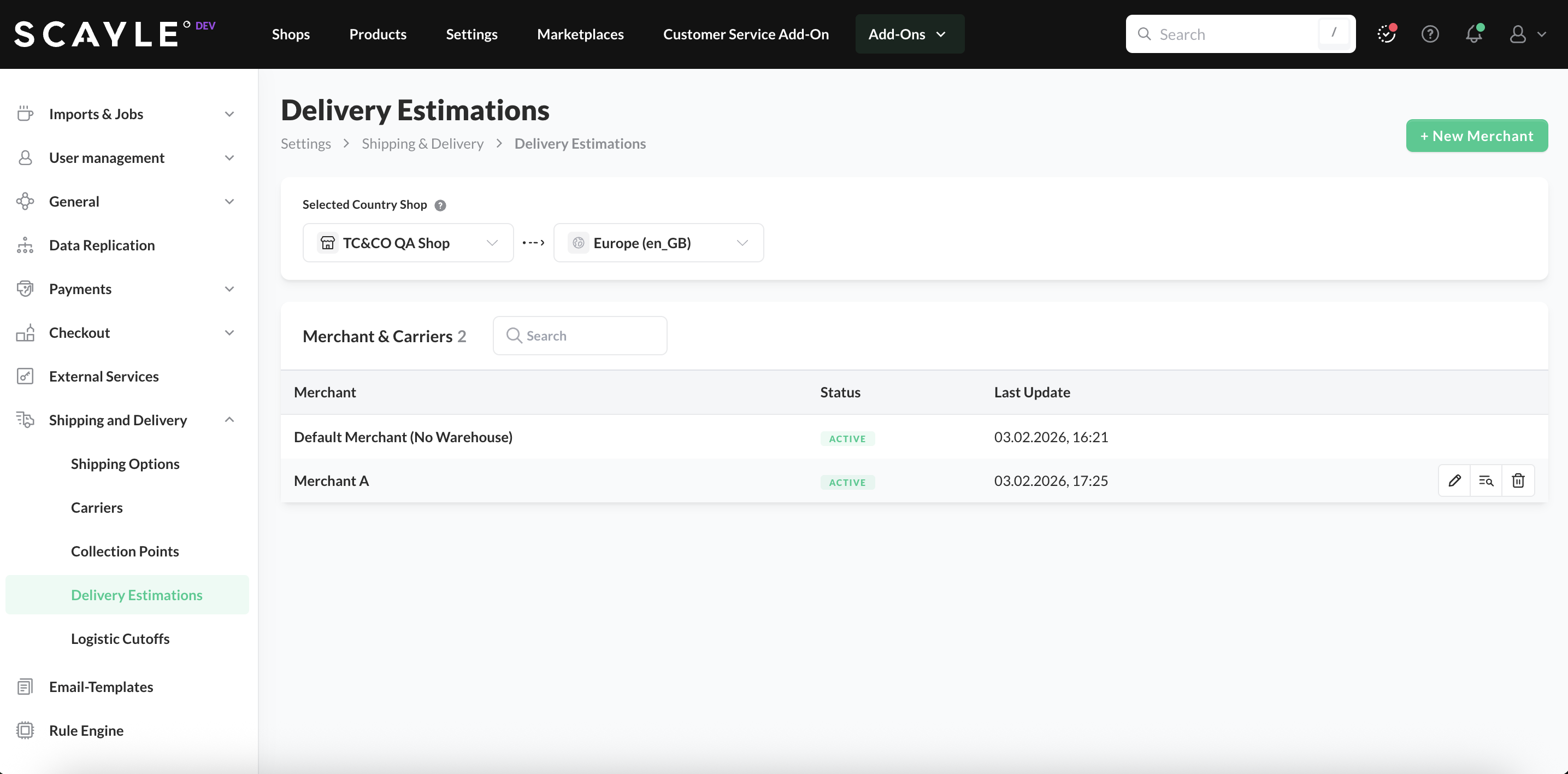
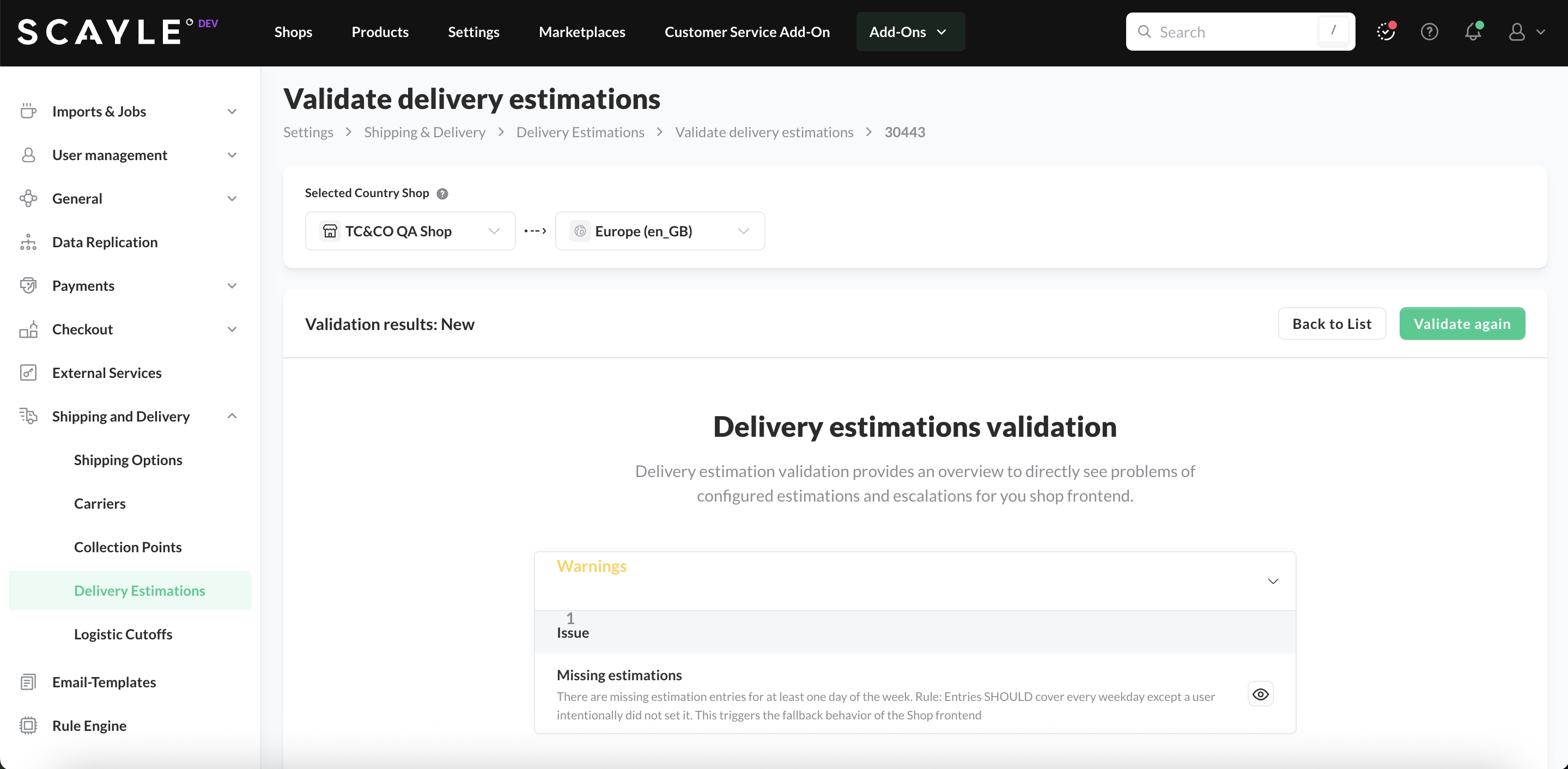
The Edit option allows you to adjust day ranges and escalations. Validate checks the configuration for missing inputs, such as days without defined estimates.
Delete removes the selected estimate.
Note that default delivery estimates cannot be deleted.


