

Configure Collection Point
Configuration surface: all settings on this page belong to the Checkout backend configuration under Settings ➜ General ➜ Configuration ➜ Collection Point Types and Settings ➜ Shipping & Delivery ➜ Collection Points. How collection points are presented in checkout (view, search radius, autocomplete, suggestions) is frontend configuration, see Customize Collection Point. For the difference between the two surfaces, see Backend and Frontend Configuration.
Prerequisites
To effectively configure Collection Points in SCAYLE, it's important to understand how Carriers and Shipping Options function within the platform. These should be set up before configuring your Collection Points.
- At least one Shipping Option has been configured
- The Shipping Option contains a Shipping Policy
- At least one Collection Point Type is created
- If custom API was used, Endpoints were configured
The configuration of a new Collection Point is done in two steps.
| Step | Name | Description |
|---|---|---|
| 1 | Setup new Collection Point Type | Creates a Collection Point Type in the database on a global level. |
| 2 | Add a Collection Point to Checkout | Enables and defines Collection Point viszalization and behavior in the Checkout Webcomponent for specific shop countries. |
Create a new Collection Point Type
Collection Point Types are configured globally. Once set up, you can add and configure these Collection Point Types individually for different shop countries and its Checkout Experiences.
To create a new collection point type in the SCAYLE Panel, navigate to "Collection Point Types" under the settings menu, and click on "Create Collection Point Type." Enter the name of the new collection point type. Ensure it follows the snake_case format (words separated by underscores)
Examples of Collection Point Types include "parcel shop," "pick-up location," or an offline "store." Since Collection Points are normally related to service stations operated by specific Carrier, it's advisable to create a separate Collection Point for each Carrier.
This can be done in the SCAYLE Panel under Settings ➜ General ➜ Configuration ➜ Collection Point Types ➜ Create Collection Point Type.
The name for the collection point type is created by combining the carrier group name and the collection point name (e.g., "dhl_packstation"). This name helps display the correct logo and translation on the website. NOTE: For click & collect, use "generic" as the key.
Add a Collection Point to a Shop Country
In order to customize the Checkout Experience for each shop country, Collection Points must be added to each shop country.
This can be done in the SCAYLE Panel under Settings ➜ Shipping & Delivery ➜ Collection Points.
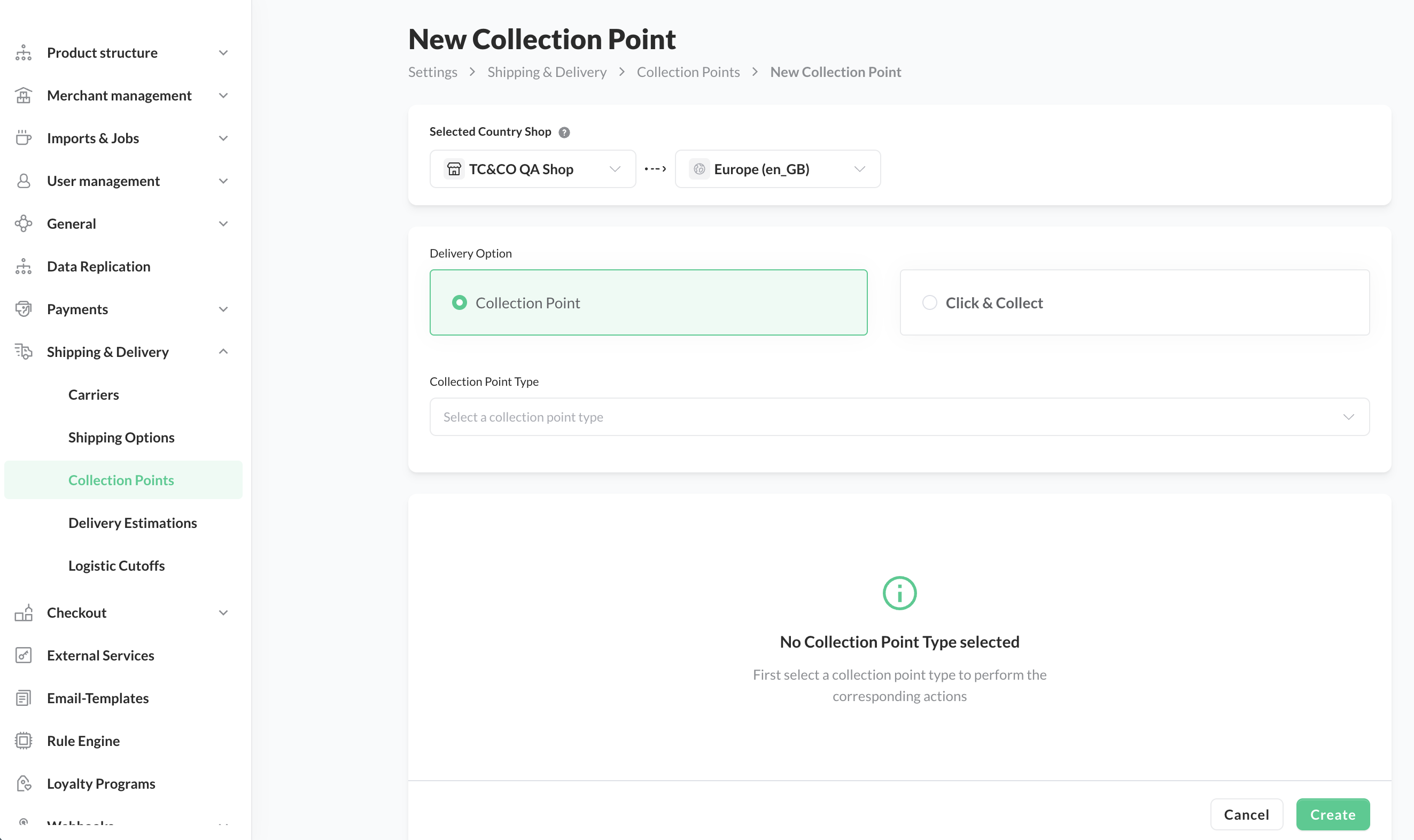
Add Collection Point to shop country
The configuration of a Collection Point will be defined by the following parameters
| Parameter | Mandatory | Example | Description |
|---|---|---|---|
| Collection Point Type | ✅ | hermes_parcelshop | List of available Collection Point Types on a global level. |
| Delegation Name | ✅ | parcel_shop | Key sent with the order delegation request. Proposed from the Collection Point Type name, see Naming Suggestions. |
| Cloud Type | ✅ | hermes_parcelshop | Key used in webhooks and Admin API responses. Proposed as the full Collection Point Type name, see Naming Suggestions. |
| Shipping Policies | ❌ | standard_delivery | When "Shipping Policy Key" is selected, a specific Shipping Policy is applied for the Collection Point. |
| Carrier Groups | ❌ | dhl | When "carrierGroupKey" is selected, only specified Carrier will be associated with the Collection Point. |
| Merchants | ❌ | fashionshop24 | When "Merchant" is selected, only specified merchants will have access to the Collection Point. If "Default" is chosen, the Collection Point will be available to all merchants. You must use Merchant ID to configure this. |
| Visibility | ❌ | Defaults to Inactive. An Inactive Collection Point does not display in the Checkout Webcomponent, so a Collection Point created without setting this field never appears in checkout. To offer it to customers, set it to Active. | |
| Api Search Type | ❌ | parcel_shop | Value sent to the external API when generating the list of possible Collection Points. Proposed from the Collection Point Type name in the same way as Delegation Name, see Naming Suggestions. |
| Preferred Carrier Key | ❌ | If set, it will used as pre-selected carrier in the list of available Collection Points filters that are fetched from external API. The API request will include this value to prioritise displaying Collection Points associated with this carrier. | |
| Customer Name | ❌ | Two checkboxes, Enabled and Mandatory. Enabled shows the customer name field in the Collection Point form at checkout. Mandatory additionally makes it a required field, so the customer cannot continue without filling it in. | |
| Customer Number | ❌ | Two checkboxes, Enabled and Mandatory. Enabled shows the customer number field in the Collection Point form at checkout. Mandatory additionally makes it a required field, so the customer cannot continue without filling it in. | |
| API Config | ❌ | Connects the Collection Point to an external API that returns the available Collection Points, see API Config. |
Once configured, the Collection Point is visible in the Standard Checkout and can be tested.
Naming Suggestions
When you select a Collection Point Type, the SCAYLE Panel proposes values for Delegation Name, Cloud Type, and Api Search Type.
Delegation Name and Api Search Type are proposed by searching the type name for one of six known keywords: generic, parcel_shop, post_office, packstation, servicepoint, and locker. The carrier prefix is not stripped, and the search ignores underscores, so hermes_parcelshop yields parcel_shop and dhl_postoffice yields post_office.
Cloud Type does not follow that rule. It copies the full type name, so dhl_locker stays dhl_locker while the other two fields become locker.
If the type name contains none of the six keywords, as in dhl_postbank, nothing is proposed and you choose the values yourself.
All three values are suggestions. SCAYLE does not check them when you save the Collection Point, so any value is accepted and stored. For the full keyword list and further examples, see Collection Point Delegation Keywords.
API Config
API Config connects the Collection Point to an external API that returns the available Collection Points. Leave it empty if you do not search through an external API.
The configuration has two parts: the host and the endpoints. The host defines where the requests are sent.
| Field | Mandatory | Example | Description |
|---|---|---|---|
| Scheme | ✅ | https | Protocol used for the requests. |
| Hostname | ✅ | api.example.com | Host that serves the Collection Point API. |
| Username | ❌ | scayle | User name for an authenticated API. Leave empty for a public API. |
| Password | ❌ | Password that belongs to the user name. Leave empty for a public API. |
Two endpoints are configured separately. search returns the Collection Points near the address the customer entered, getById returns a single Collection Point. Each endpoint has its own settings.
| Setting | Mandatory | Example | Description |
|---|---|---|---|
| URI | ✅ | /v1/collection-points/search | Path of the endpoint on the configured host. |
| HTTP Method | ✅ | GET | HTTP method used for the request. |
| Client Timeout | ❌ | Maximum time the request may take before it is aborted. If empty, the default timeout applies. |
Rule Engine integration
When a new collection point is added, the system automatically creates options within the Rule Engine. This allows you to create rules for how collection points are used. read more about how the rule engine works here.

