Attributes are used to assign detailed information to products, enhancing the data quality and enable filtering based on specific criteria. They also form the basis for managing translations.
An Attribute Group consists of attribute values. System Attribute Groups are created automatically. Master attributes are the top entity of the data structure.
SCAYLE provides System Attribute Groups, created automatically - their IDs are reserved and you can only modify the frontend name of them. System Attribute Groups describe the product structure - see the full list below.
Depending on the configuration, the product will have the 'new' flag set to true or false.
product_name
Product Name
maximumQuantityPerOrder
Maximum number of this product a customer can purchase per order.
commissionCode
For Marketplaces
isExcludedFromSearch
Product is not searchable. (Hidden from Storefront API Search Response)
isManualCaptureAllowed
Product is eligible for Home Trial. Home Trial is a feature that allows customers to try selected products at home before the payment is captured. The payment authorization occurs at checkout, but the actual charge is deferred until the trial period ends. This gives customers the flexibility to evaluate products in their own environment and only pay for what they choose to keep.
visibleWithoutStock
When set to true, the product remains visible on the storefront even when it has no stock. Intended for pre-orders, made-to-order products, or products available only in offline stores.
isCoreVariant
You can define core variants by assigning the value true for the isCoreVariant attribute group to at least one variant of a product. Smart Sorting will then automatically take the core variants into account to calculate variant availability.
Attributes described on this page are distinct from attributes created by merchants ("merchant attributes").
When creating a new attribute group, only camelCase naming of attribute groups with alphaNumeric characters is allowed.
If non-camelCase naming should be allowed, please reach out to your SCAYLE Account Manager.
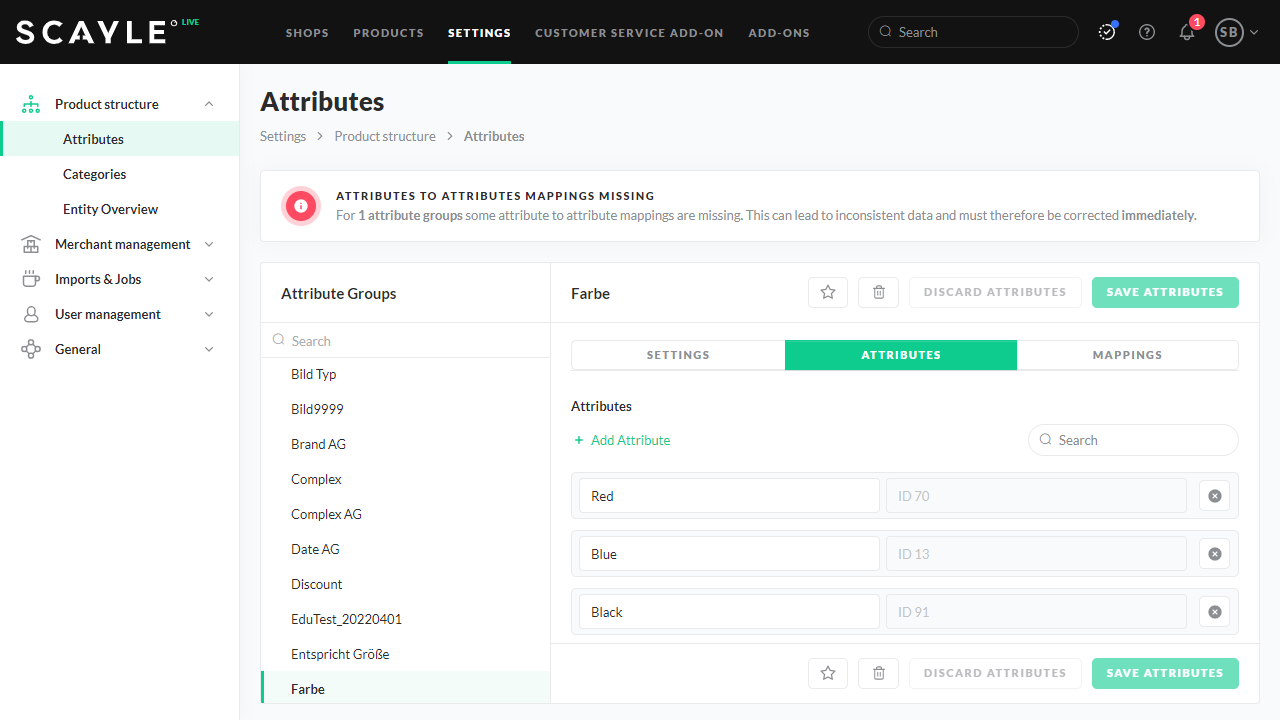
Master attributes are product characteristics (e.g., "brown", "wood", or "set"). They can also add additional information, such as care instructions. A product can have numerous attributes divided into attribute groups (e.g., an attribute group "color" and its attribute values "blue", "brown", "red", etc.).
Mandatory Attribute Groups
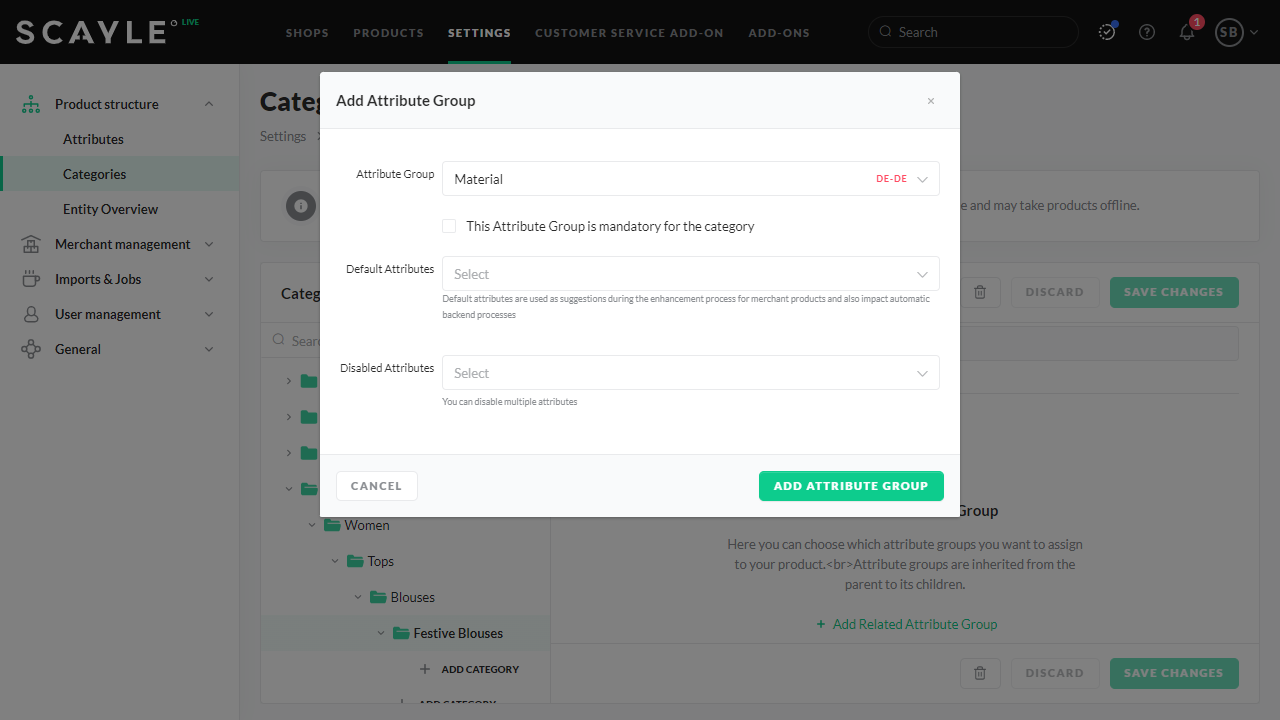
If an attribute group in a master category is configured as mandatory, it must be filled out to achieve the "live" status for a product. Mandatory Attributes are identifiable on the product detail page by an orange arrow and an asterisk (*) next to the attribute group. If the attribute is missing, the product is automatically assigned the enhancement status "Problem".
The option Default Attributes allows you to specify attribute suggestions for groups so that you do not have to define all categories individually. Attribute groups with their default values are automatically inherited by subordinate categories so that you do not have to define all categories separately.
When creating an attribute group, we recommend that the name follows the camelCase format: start with a lowercase letter and use only letters and numbers. Spaces, underscores, dots, and dashes are not allowed. For clients that joined SCAYLE after 23.07.2025, this rule is enforced.
The information stored in attribute groups will be displayed on the Product Detail Page (PDP). Users with the attribute_group__entity_overview__edit permission can reorder attribute groups shown on the PDP in the SCAYLE Panel by navigating to Settings ➜ Product Structure ➜ Entity Overview. The attribute group AG 553 ("product name") ever will be shown at first. For all other attribute groups, a lower number indicates a higher priority in the sorting order, with 0 being the lowest possible value.
For simple Attribute Groups, you can add a simple attribute (value) from a list of predefined values.
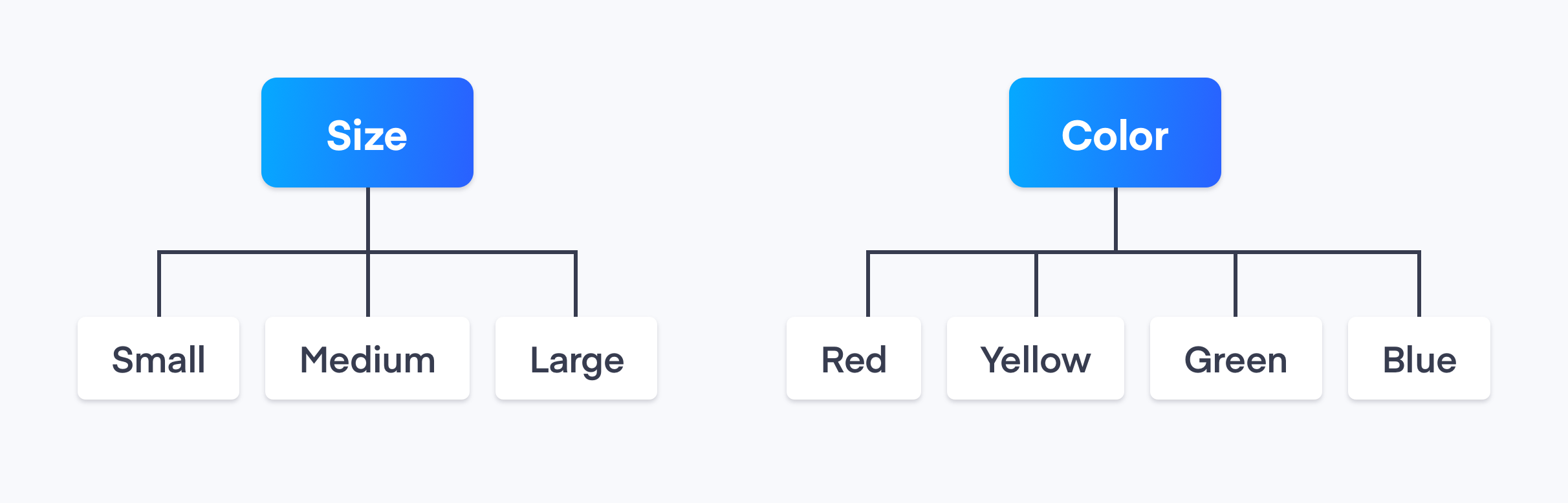
Simple attribute groups contain clearly defined individual values that are assigned to a product during the refinement process. The table below gives an example of simple attributes.
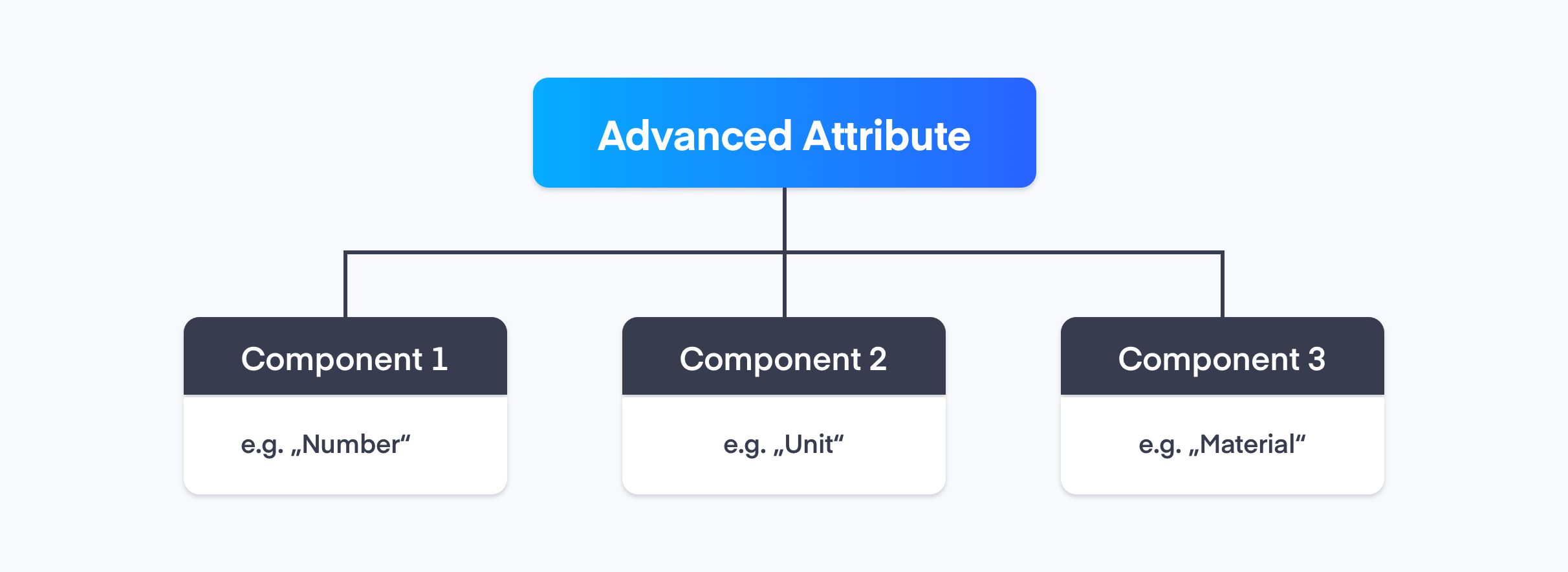
An Advanced Attribute Group is an Attribute Group that is configured as advanced and consists of fields of type text, longtext, date, number, or any combination of these.
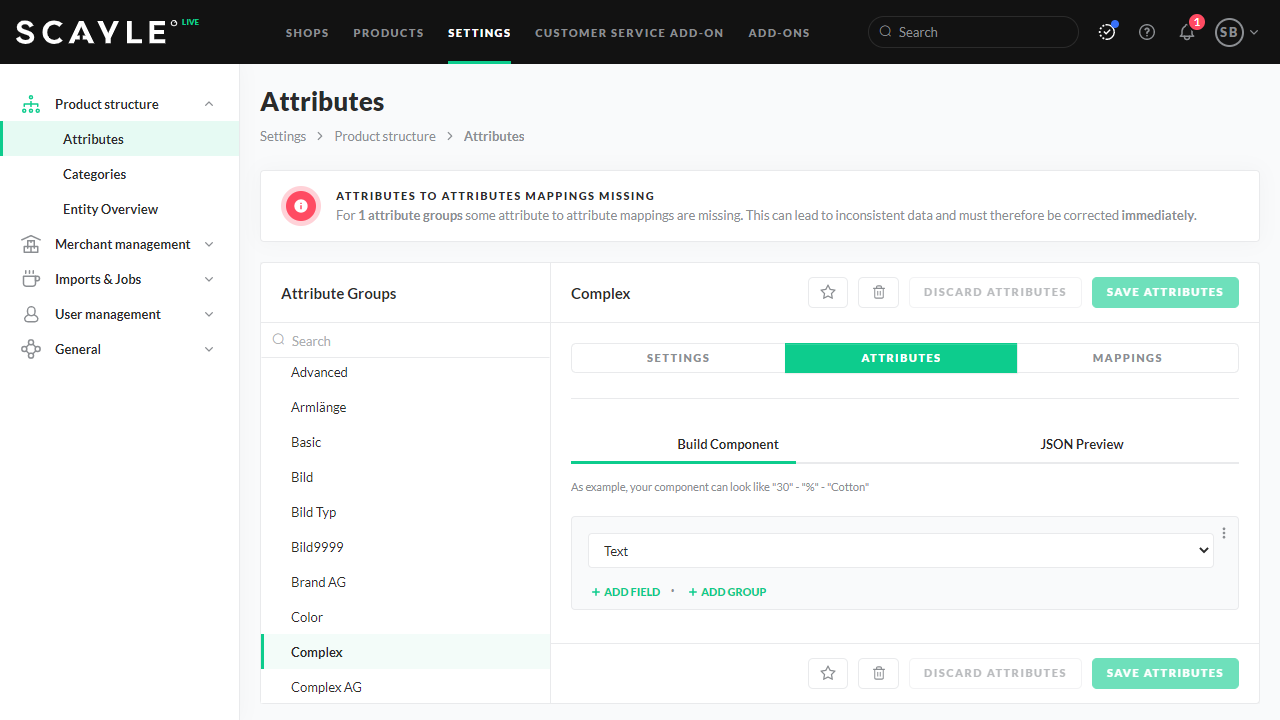
For Advanced Attribute Groups, an advanced attribute (value) is added as a Build Component. These groups can be made up of multiple components or fields, allowing the creation of a flexible and customized attribute structure.
There are two types of Advanced Attribute Groups:
1. Basic Advanced Attribute Groups – are configured with field type text,longtext, date or number . They only contain one field but can have multiple components
2. Complex Advanced Attribute Groups – are configured with field type attribute or attribute group. Or they consist of multiple fields of all available field types. They can have groups and can also have multiple components.
Additionally, neither complex nor basic Advanced Attribute Groups should be translatable if they contain a field of type date or number.
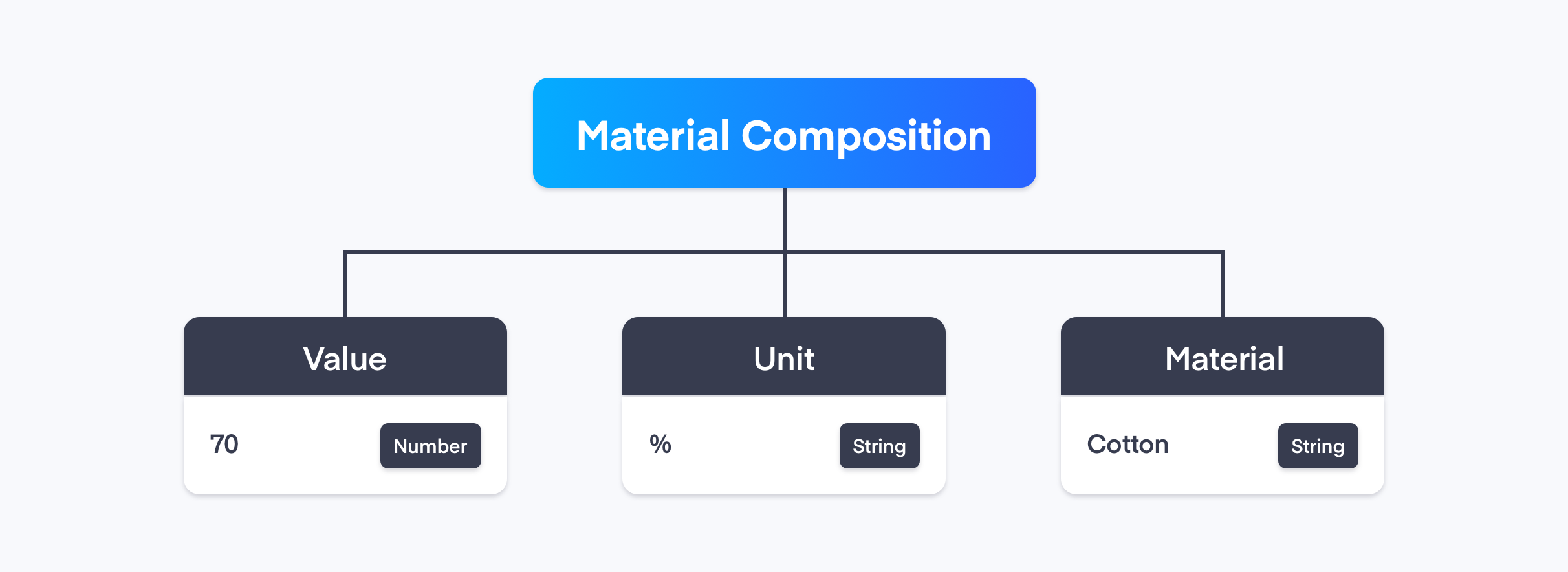
Example: A common use case for an Advanced Attribute Group is material composition, where multiple attributes (e.g., fabric type, percentage, and origin) are combined into a structured format.
Advanced Attribute Group, text component selected
Example: Multiple Options Material Composition
When using advanced attribute groups, users can define a more complex structure within this attribute group. For example, if a shirt consists of different materials in different percentages, users can set the material composition individually for each product using an advanced attribute group.
Advanced Attribute Group. Example: material composition.
Complex Attribute Groups are a type of Advanced Attribute Groups used to handle cases such as combination of different materials.
Values for complex attribute groups are set on the Product Description Page in the SCAYLE Panel after attaching the attribute group to master categories.
Navigate to Settings ➜ Product Structure ➜ Attributes.
Click Add Attribute Group.
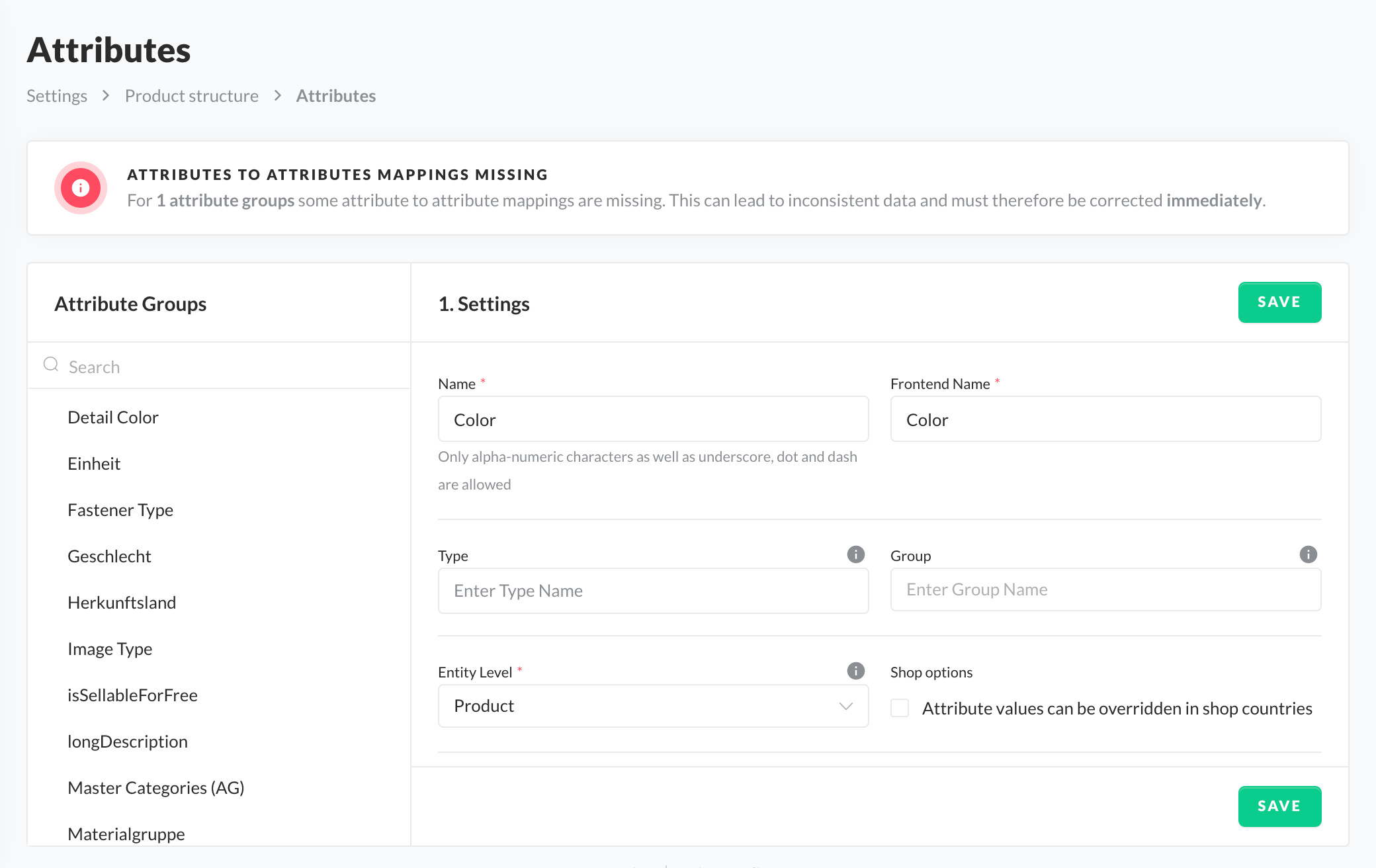
Enter a Name and Frontend Name.
Enter a Type. Type is a free text field to use as needed. For example, to label an attribute group for frontend logic.
Optional Enter a Group.
The Group field allows you to thematically group your attribute groups in the navigation column where all attribute groups are listed. For example, all attribute groups for a special product type.
Assign an Entity Level such as Master, Product, Variant, etc.
Select Shop options (optional). See Attribute Values Can Be Overridden in Shops below.
Select Attribute Structure (Simple or Advanced). See Simple Attribute Groups and Advanced Attribute Groups.
When you create new attribute groups, they are automatically displayed on the attribute overview page under Settings ➜ Product Structure ➜ Attributes. Use this page to search, edit, or delete attributes.
Assigning attributes results in the following:
An input field is added on the Product Detail Page for the corresponding attribute, in which additional, detailed product data can be entered (see refinement process).
The corresponding information is displayed in the shop's front end as soon as you define an attribute value.
Depending on your system configuration and selection, a few options may be disabled. Some options cannot be changed afterward.
Use the checkboxes to enable options for attribute groups. The options are summarized in the table below.
Option
Description
Hide on Storefront API
The Attribute Group will not be exposed through SAPI and will therefore not be visible in the Shop Storefront and will not be considered for the Search
Relevant for Blocklist
User input is checked against the blocklist.
Relevant for Mapping
Attribute is displayed as an option for attribute mapping.
Multiple Values Can Be Selected
Product can be assigned more than one value of the same attribute group (e.g., yellow and blue.)
Visible for Enhancement Process
Attribute group is visible on the product details page. Hidden attribute groups are not displayed on product details pages, but are still stored in the database. This setting can be useful if attribute groups perform certain tasks within the system but are not relevant for front end output.
Editable on Enhancement Process
Attribute group can be edited on the product details page.
Defining for Product Level
Attribute group is visible on the product details page in the variant area or is only displayed when the user opens a drop-down menu. This function can only be selected if an attribute group is created at the variant level and has no visual impact on a shop's front end.
Show on Preview of the Product Page
Attribute group is displayed during the refinement process in the header of the product details page and the overview box on the right side.
Show on Additional Filters
Attribute group can be used as a filter option.
Not Translatable
Prevents attribute groups or values from being translated. These attribute groups, in turn, are excluded from the translation module.
Show in the Product List
Attribute group is displayed as a column in the product list.
Allow automatic creation of attributes
Defines whether a new master attributes is automatically created during the merchant product import process. Precondition: the merchant AG is mapped to a master AG with this configuration set to true
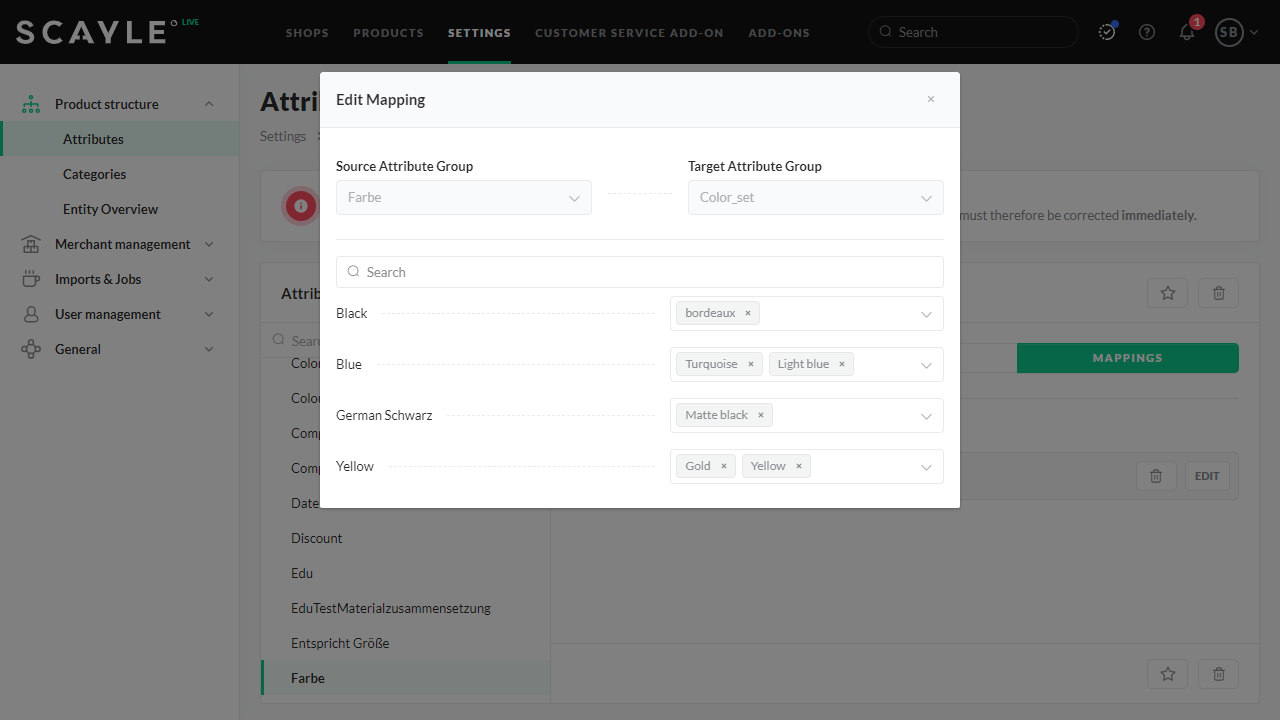
Use mapping functions to assign certain information to an attribute group. For instance, you can map the individual attributes of the source attribute group "color" to the target attribute group "search color".
This way, you specify that end customers searching for "blue" products will not only see products with the color "blue", but also products with the colors "light blue" or "turquoise".
Attribute group level
Can be mapped to
Variant
Variant and product (see note below)
Product
Style, product, and variant
Style
Style and product
Category
Category
Image
Image
A variant-level attribute group can only be mapped to a product-level attribute group if the target attribute group has the option Multiple Values Can Be Selected enabled.
Please note that creating mappings for shop-specific attributes is not possible.
To set a mapping, go to the attribute group that is not marked as Relevant for Mapping and switch to the Mapping tab. Here you can create or edit existing mappings by selecting the target attribute group and defining the attribute relations.
Edit Attribute Group Mapping
When a mapping is set or changed, a background job updates the affected products. Depending on the number of products, this process can take several hours.
If a mapping is removed by selecting "No mapping necessary", a confirmation pop-up appears. This allows users to decide whether existing products should be updated. The pop-up does not appear when switching between values.
If multiple mappings exist for a product, the most recently updated mapping is applied.
You have the option to define dedicated shop countries for which values of Attribute Groups can be overridden in the attribute group settings. This setting results in the following:
Attribute Group is editable on shop-country level which means that the values of the Attribute Group for the same product can differ from shop (country) to shop (country)
Values of the Attribute Groups are only returned for the dedicated shop countries selected. This also means that the Attribute group is only visible (and editable) for these shop countries
Overridable attribute groups cannot be selected for defining assortment and category queries.
You can edit these attribute groups for shop products (shop-specific value) and operations products (generic value). Attribute groups that cannot be overridden are visible on the shop product details page, but cannot be edited.
After configuring an attribute group to be overridden in specific shop countries, it cannot be used for configuring assortments, shop categories, or search settings.
The table below has "color" as an attribute group with individual colors as attributes (values).
Type
Example
Attribute Group
color
Attributes values
green, blue, red, yellow
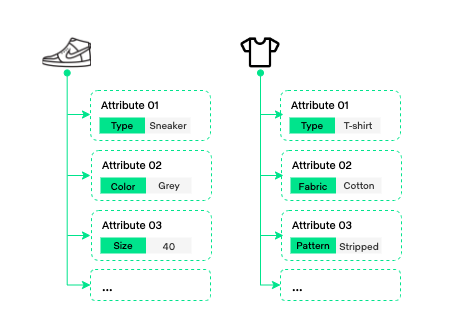
In the image below, attribute groups include "type", "color", "size", "fabric", etc. Attribute values are "sneaker", "grey", "40", "cotton", etc.
The option Disabled Attributes prevents attributes from being selected for this category on the product detail page. For example, if a merchant always uploads its products to the system with colored background images, it is possible to exclude such a "color" attribute for the "background-image" attribute group. The deactivated attribute would then have to be assigned to another, used attribute.
Depending on a user's selected language, attributes and attribute groups are translated into the respective language for drop-down menus of all product lists and product details pages as well as assortments, categories, and synonyms in the shop area. If a translation is missing, a notification appears.