

Customize Shipping Options
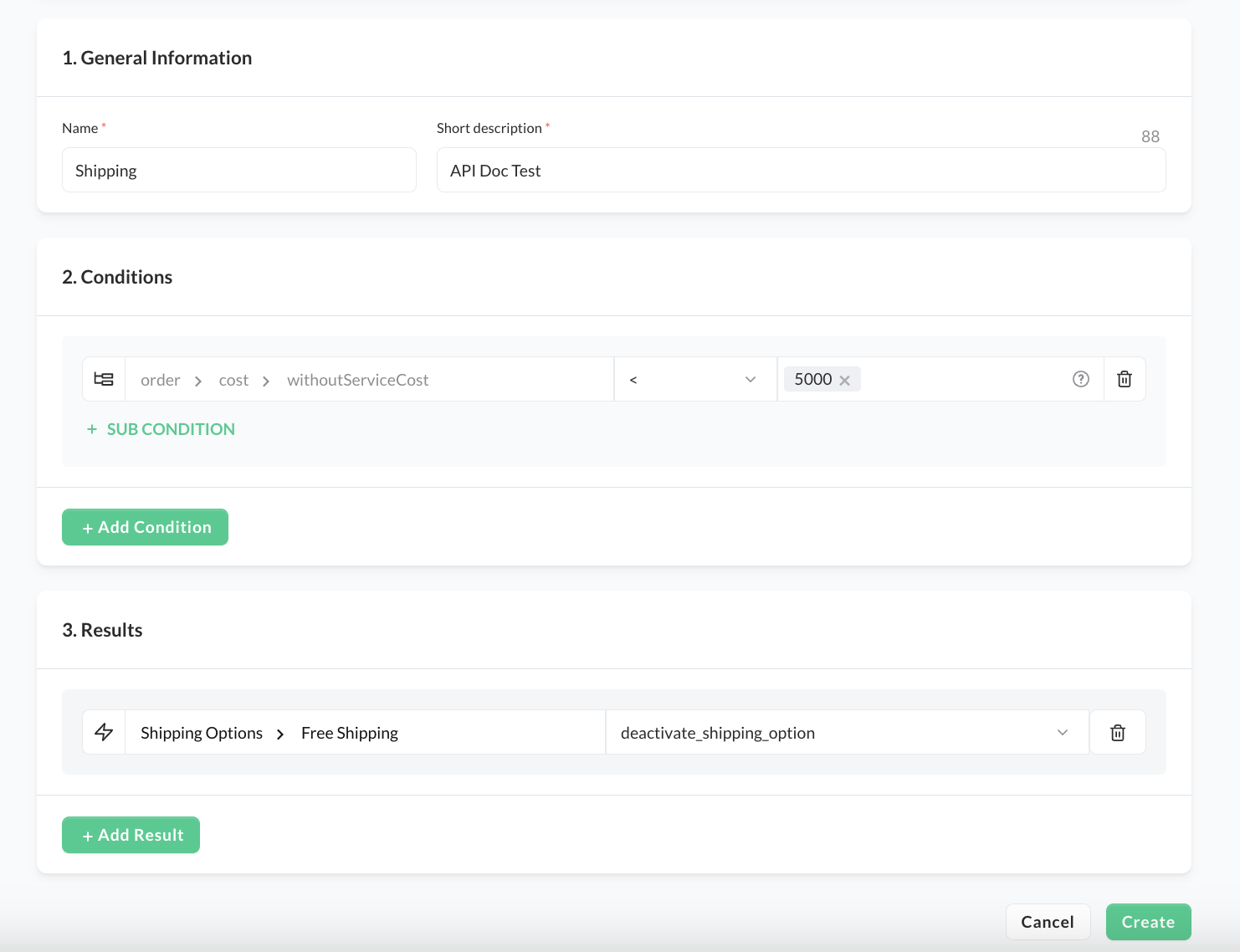
For setting up Free shipping rules for Minimum Order Value, 2 rules needs to be created on our Rule Engine.
Rule 1: Disabling all non-free shipping options for orders above MOV
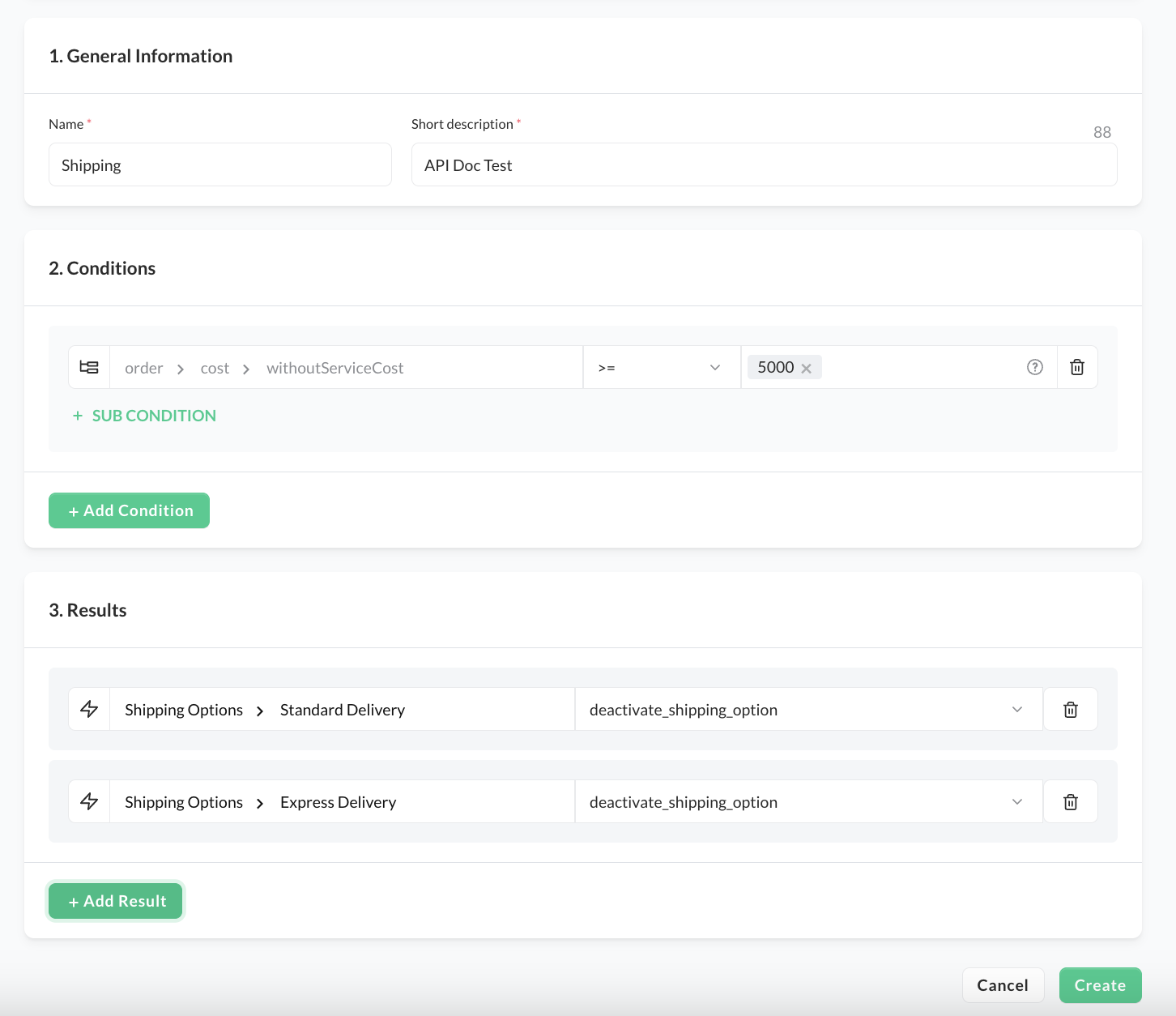
Rule 2: Enable Free Shipping Option for orders below MOV
- Click on Add Rule.
- Enter a name (i.e. " Shipping 50€-" and a short description "Shipping Costs")
- Add a condition
order>cost>withoutServiceCost<5000 - Add a result to disable the free shipping option
- Click on Create
SCAYLE’s checkout offers exceptional flexibility, allowing extensive customization across various components to meet specific business needs.
Change Shipping Option Position in the Checkout
To adjust the positioning of the Shipping Option component, refer to the Carrier positioning as both components are directly related.
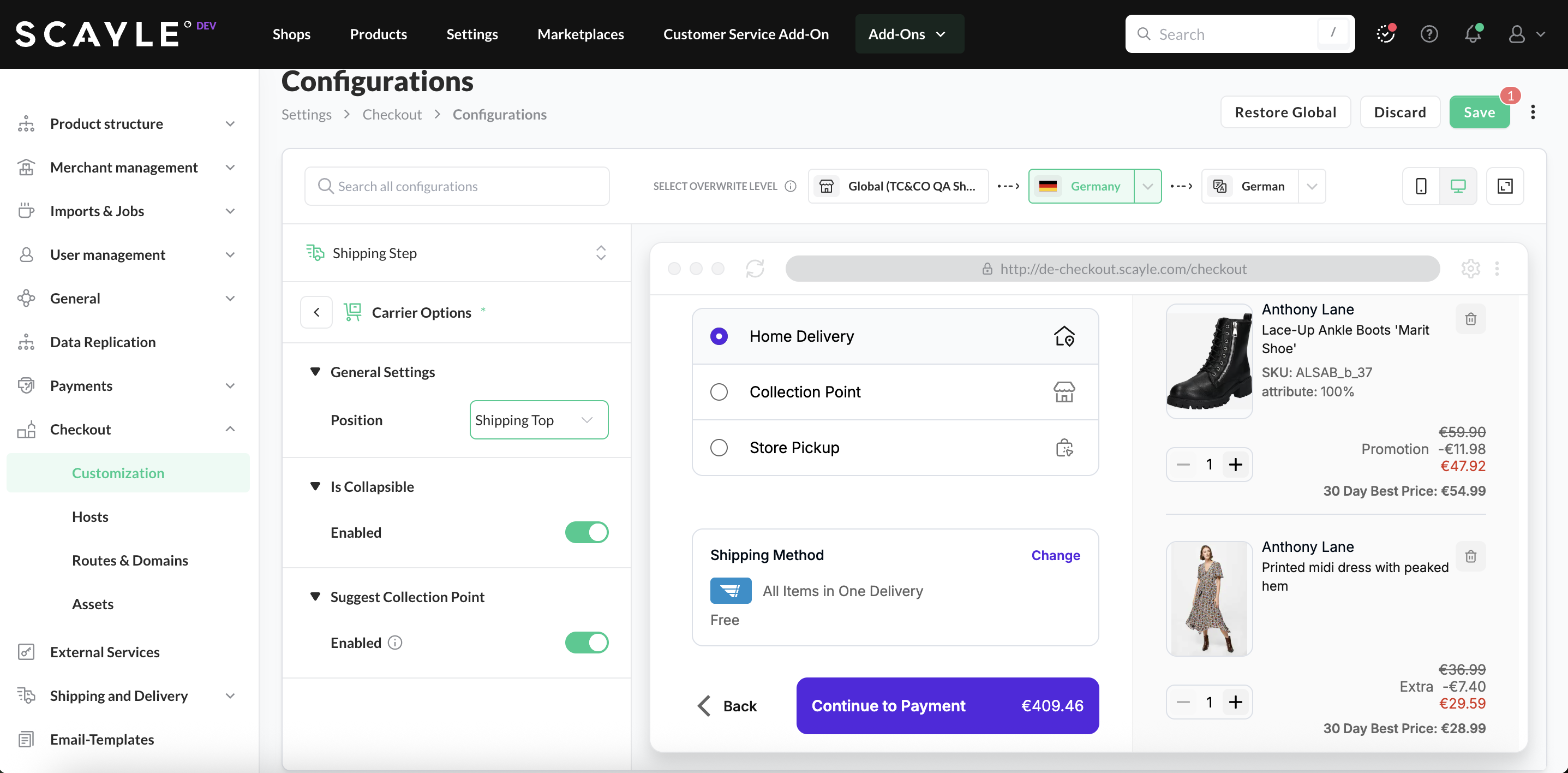
The checkout allows you to choose where to place the shipping option component:
- Shipping top: the component is rendered in the shipping step, above the shipping address form
- Shipping bottom: the component is rendered in the shipping step, below the shipping address form
- Payment Step: the component is rendered in the payment step, above the payment list
You can edit the configuration in SCAYLE Panel under Settings ➜ Checkout ➜ Customization
- Select the shop-country from the dropdown
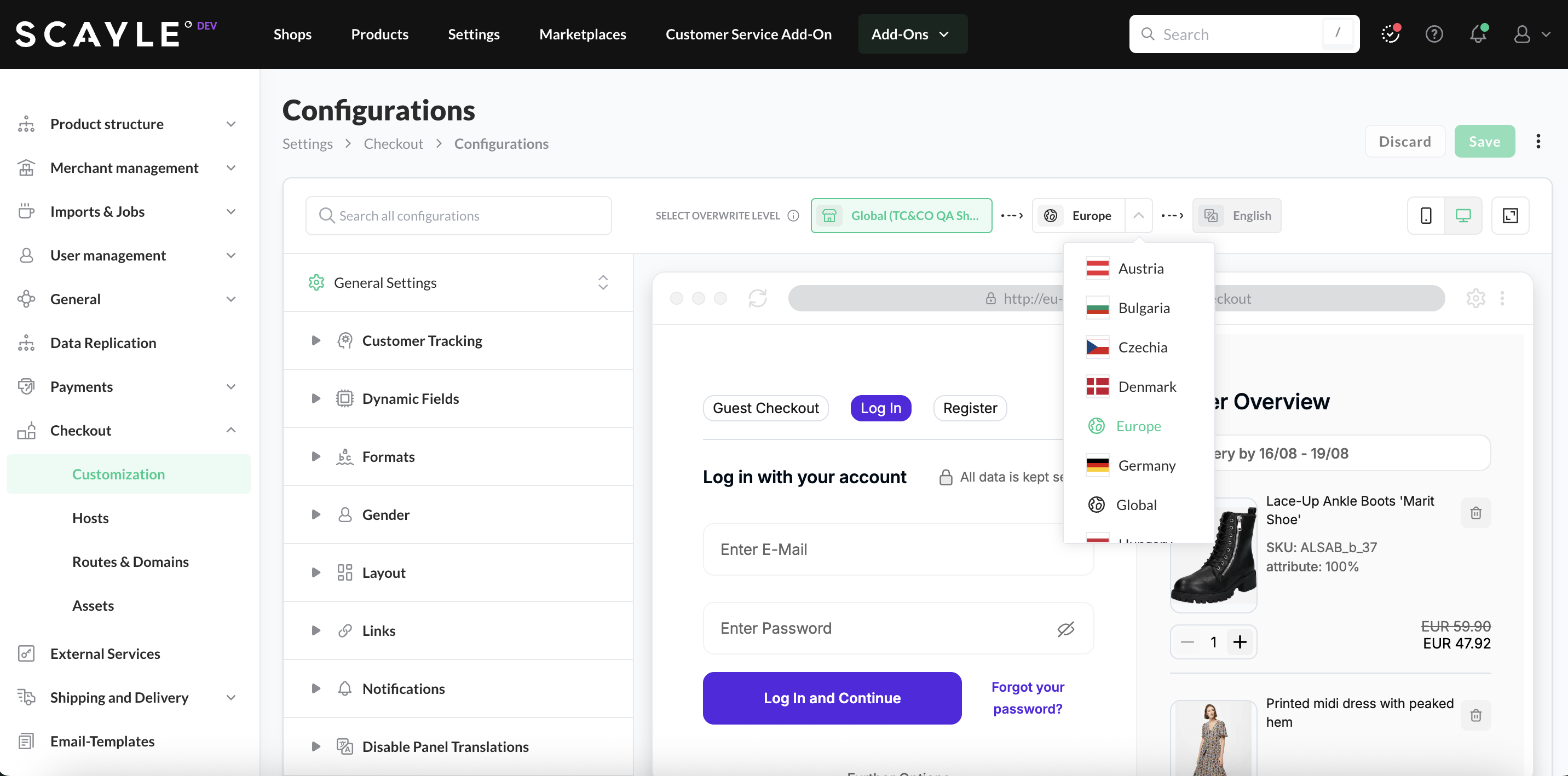
- Expand the configuration menu and change to Shipping Step
.png)
- Select Carrier Options and choose the Position under General Settings
Display Short Description and Tool Tip in the Checkout
By default, the Shipping Option component presents the customer in Checkout with the following information:
- Shipping option title
- Estimated delivery time
- Shipping cost
The view can be extended by adding a "short description" providing a more detailed explanation of the specific shipping option.
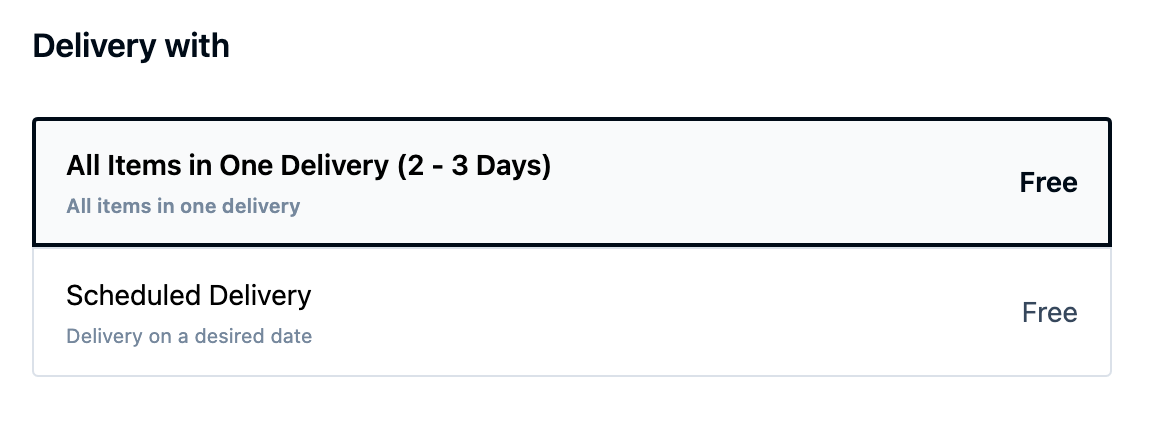
This can be done in the SCAYLE Panel under Settings ➜ Checkout ➜ Configurations .
- Select the shop-country and the Shipping Step from the configuration menu
- Toggle the Short flag under Descriptions.
.png)
Each shipping option has a corresponding translation key for the short description. To modify these translations, use the following translation key:shipping.carrier.optionDescriptions.${shippingOptionKey}.shortDescription.
If a shipping option uses the key least_packages, you can modify its translation by updating the corresponding translation key:shipping.carrier.optionDescriptions.leastPackages.shortDescription.
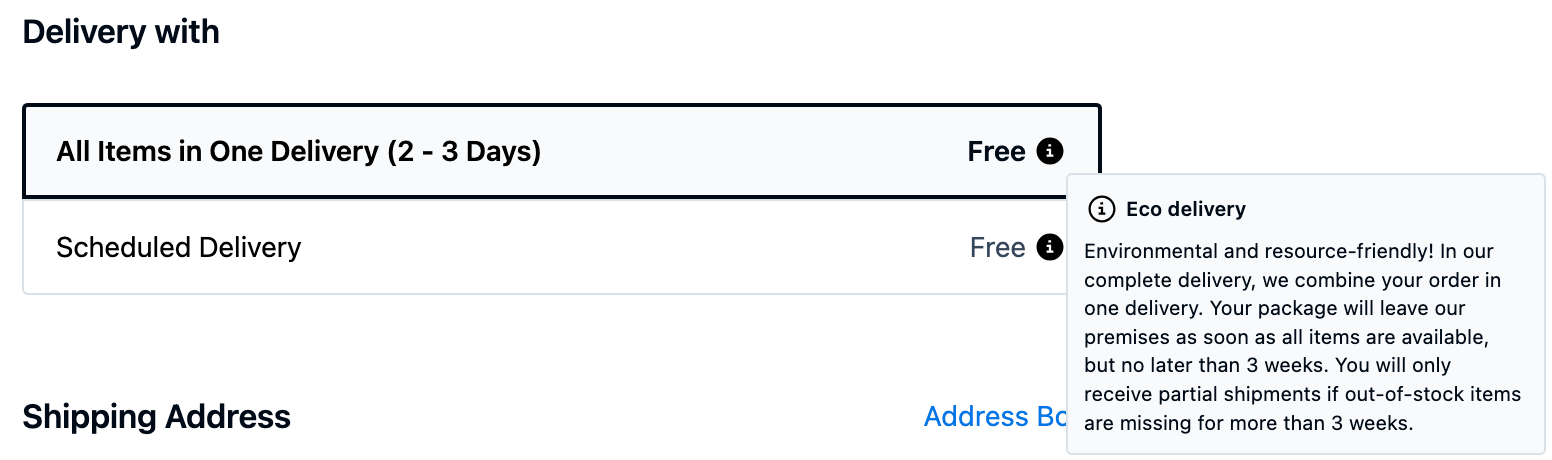
Additionally, the component view can be enhanced by adding a "tooltip" that provides an in-depth explanation of the shipping option. This additional information will appear when users hover over the info icon.
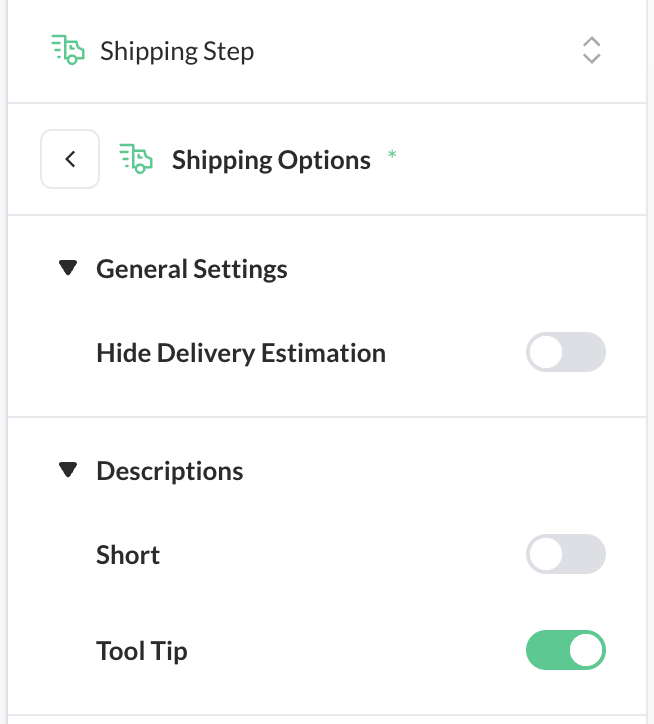
To enable, simply activate the Tool Tip toggle.
Both tool tip headline and content have dedicated translation keys which can be used to modify the text displayed.
| Element | Translation Key |
|---|---|
| Headline | shipping.carrier.optionDescriptions.${shippingOptionKey}.toolTipHeadline |
| Content | shipping.carrier.optionDescriptions.${shippingOptionKey}.toolTipText |
For example, if your shipping option has a shippingOptionKey called "least_packages," the corresponding translation key to access and modify the translation for the tooltip headline would be:shipping.carrier.optionDescriptions.leastPackages.toolTipHeadline.
Hide Delivery Estimations on Shipping Option Component
You can adjust the shipping option component view to hide the estimated delivery time if this information should not be shown to customers.
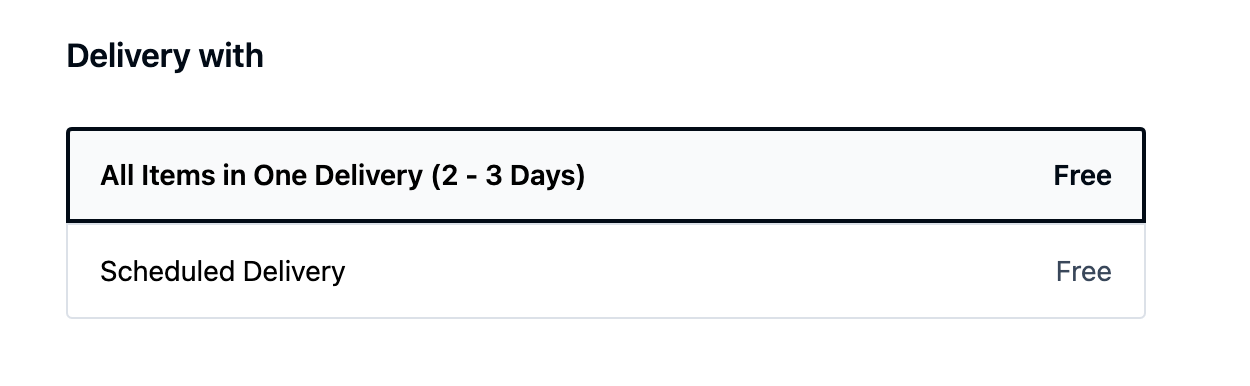
This setting is configured in the SCAYLE Panel under Settings ➜ Checkout ➜ Configurations
To disable delivery estimates for the Shipping Option component, select the shop-country and navigate to Shipping Step ➜ Shipping Option in the configuration menu.
Simply enable the Hide Delivery Estimations toggle.
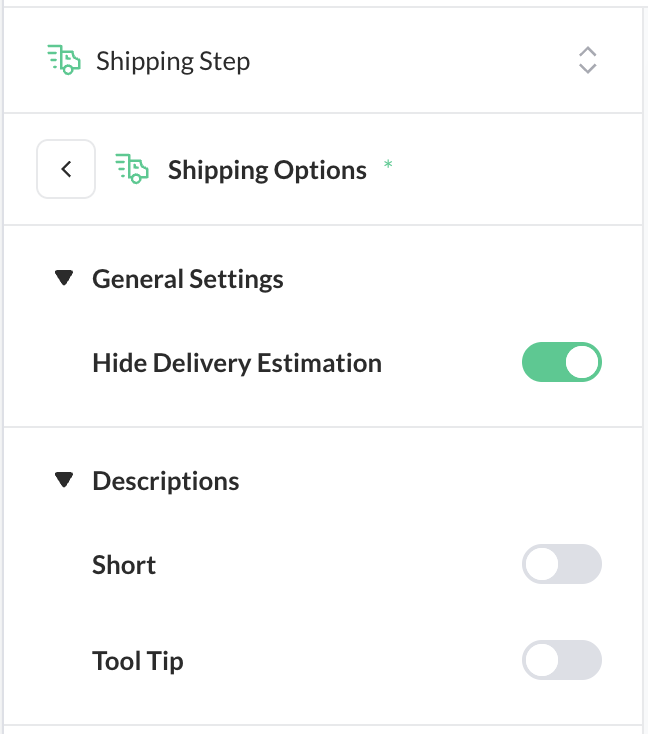
Adjust Shipping Options for Multi-Country Setups
The SCAYLE Checkout is designed to support a wide range of multi-country scenarios, allowing you to tailor the checkout experience to local requirements and regulations.
One example is the ability to hide delivery estimates for specific shop countries.
Example Use Case
Consider a setup for the United Kingdom, where delivery-related regulations are particularly strict. If you commit to a specific delivery date and fail to meet it, this may result in legal consequences, such as compensation claims.
Under the Consumer Rights Act, however, if no delivery date is communicated, you are generally required to deliver the goods within 30 days.
To reduce legal risk in such cases, you may choose to hide delivery estimates in checkout for the UK shop country. This allows delivery options to remain available without displaying a specific delivery timeframe to the customer.
This example illustrates how shipping option settings can be adapted per country to meet local legal and business requirements.
Within the SCAYLE Panel, select the desired overrite level:
- Global: Any configuration changes made will be applied globally across all country shops within the SCAYLE Panel:

- United Kingdom: This option applies changes exclusively to shops associated with the United Kingdom.

- English (en_GB): By selecting the locale dropdown, changes will be applied only to the shop in the chosen language version

In this case, the changes are intended for all UK shops, so the "United Kingdom" option is selected.
Notifications
In the SCAYLE Checkout frontend, notifications play an important role in guiding customers through the checkout process. They provide feedback on customer actions and highlight issues that require attention before checkout can be completed.
In addition to the standard checkout notifications, the frontend also displays a dedicated notification when a customer attempts to proceed without selecting a shipping option. This ensures that customers are clearly informed when a required delivery choice is missing.
Below is an overview of the customer notification, along with an explanation of the situations that triggers it.
Define Minimum Order Values for Free Shipping
SCAYLEs Rule Engine is a very powerful tool to customize the checkout. This is also used to set up free shipping from a minimum order value.
- In the SCAYLE Panel go to Settings ➜ Rule Engine.
- Pick the shop and shop country you want to configure
- Click on Add Rule.
- Enter a name (i.e. "Free shipping 50€+" and a short description "Free Shipping")
- Add a condition
order>cost>withTax>=5000 - Add a result Shipping Options → DHL Standard (Free Shipping)
- Click on Create
Customize Shipping Options with HTML Slots
The SCAYLE Checkout Webcomponent supports HTML (Dynamic) Slots, which act as predefined placeholders where the host application can inject custom content. These slots allow you to adapt the look and presentation of checkout elements without changing the core component logic.
HTML Slots can also be used to customize the presentation of shipping options in the checkout. This enables merchants and frontend teams to enrich or adjust how delivery choices are displayed while keeping the underlying shipping configuration unchanged.
For details on how to define and use Dynamic Slots — including setup and supported use cases — refer to the dedicated documentation.


