

Course
Warehouses & Stock
Configure your warehouses
- OMS
- Business


Alvaro Millan
Business Analyst
Warehouses in SCAYLE are logical entities that hold stock for specific variants (products). They help you manage inventory across different locations and optimize shipping to your customers. Think of them as the "where" in your fulfilment strategy.
A warehouse can represent:
SCAYLE uses warehouse configuration to decide how and when items are shipped. Every warehouse is assigned to one or more shop countries and can define:
Need a refresher on shop countries? Check: What is a “Shop Country” in SCAYLE?
Warehouse priorities define the order in which warehouses are evaluated for fulfilment.
When multiple warehouses stock the same product:
Priority defines evaluation order, not stock optimization.
A higher-priority warehouse will always be evaluated first, even if lower-priority warehouses have more stock available.
Package groups define which products can be shipped together.
They are used to:
Package groups operate within warehouse logic and affect how many shipments an order produces.
Most orders contain multiple products. When multiple warehouses are in use and the priority warehouse cannot fulfil all items, SCAYLE automatically applies cross-docking to consolidate the order before shipment.
Cross-docking does not require a separate configuration step. It is triggered automatically as long as:
In SCAYLE, cross-docking is modeled as a relationship between two warehouses, with a defined transfer time that is taken into account during fulfilment and delivery estimation.
When cross-docking applies:
Warehouse delivery time is not the delivery estimate shown to the customer.
It represents only the transfer time between warehouses in cross-docking scenarios and is used internally for delivery calculation. More information about customer-facing delivery promises are available here.
Cross-docking delivery times must include:
The picking warehouse is the warehouse where a specific product item is picked. It can be:
Picking warehouses are determined at item level, not order level.
The shipping warehouse is the warehouse from which the order is sent to the customer, and it is determined at order level.
In most cases, this is the priority warehouse. However, when shipment cross-docking is used, the shipping warehouse may differ from the priority warehouse.
An order is placed in Poland, where the current priority warehouse is Warehouse Alpha.
The order contains two products, and no single warehouse has both items in stock:
To fulfil the order, item cross-docking is applied:
Warehouse Assignment per Item:
| Item | Picking Warehouse | Shipping Warehouse |
|---|---|---|
| Product 1 | Warehouse Beta | Warehouse Alpha |
| Product 2 | Warehouse Alpha | Warehouse Alpha |
Warehouses are configured via SCAYLE Panel and must be setup before sending stock information as variants.
Remember, variants are the last level within SCAYLE's product structure and represent the sellable entity. See Product Structure.
First, identify the right warehouse structure. Use the following questions to determine how many warehouses you need to configure in SCAYLE and how they should be structured.
Rule of thumb: You only need multiple warehouses in SCAYLE when delivery behavior, availability, or routing differs.
The following section explains how to configure in SCAYLE Panel. In addition, a practical example can be found here.
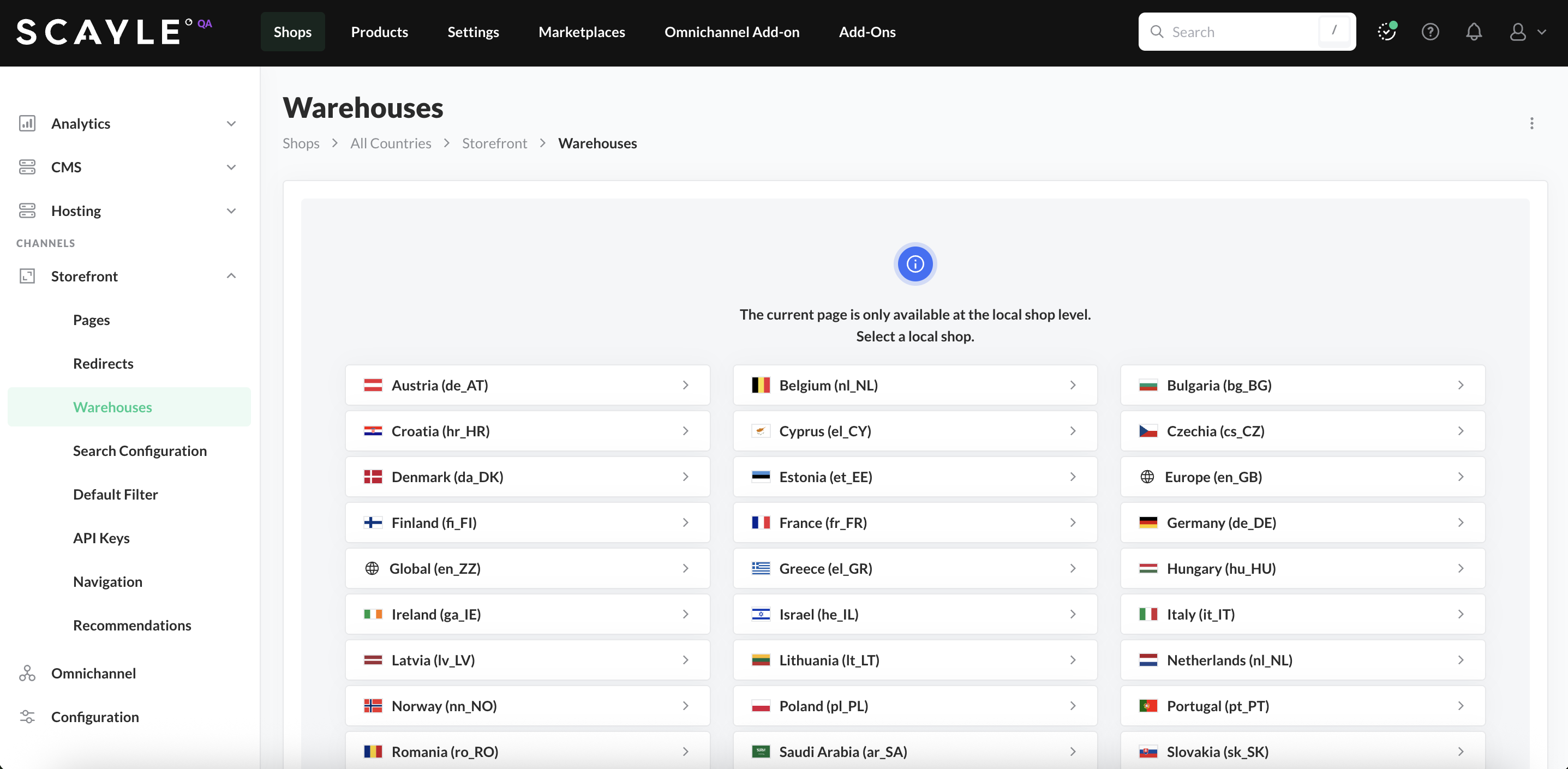
You can access warehouses through Shops ➜ [Shop] ➜ Storefront ➜ Warehouses. The warehouses page is only available at the local shop level, so first select a local shop.
On the overview tab, warehouses are listed with warehouse name, priority and package group. You can add new warehouses, edit or delete any of the existing warehouses, and use the search bar to filter for specific warehouses.
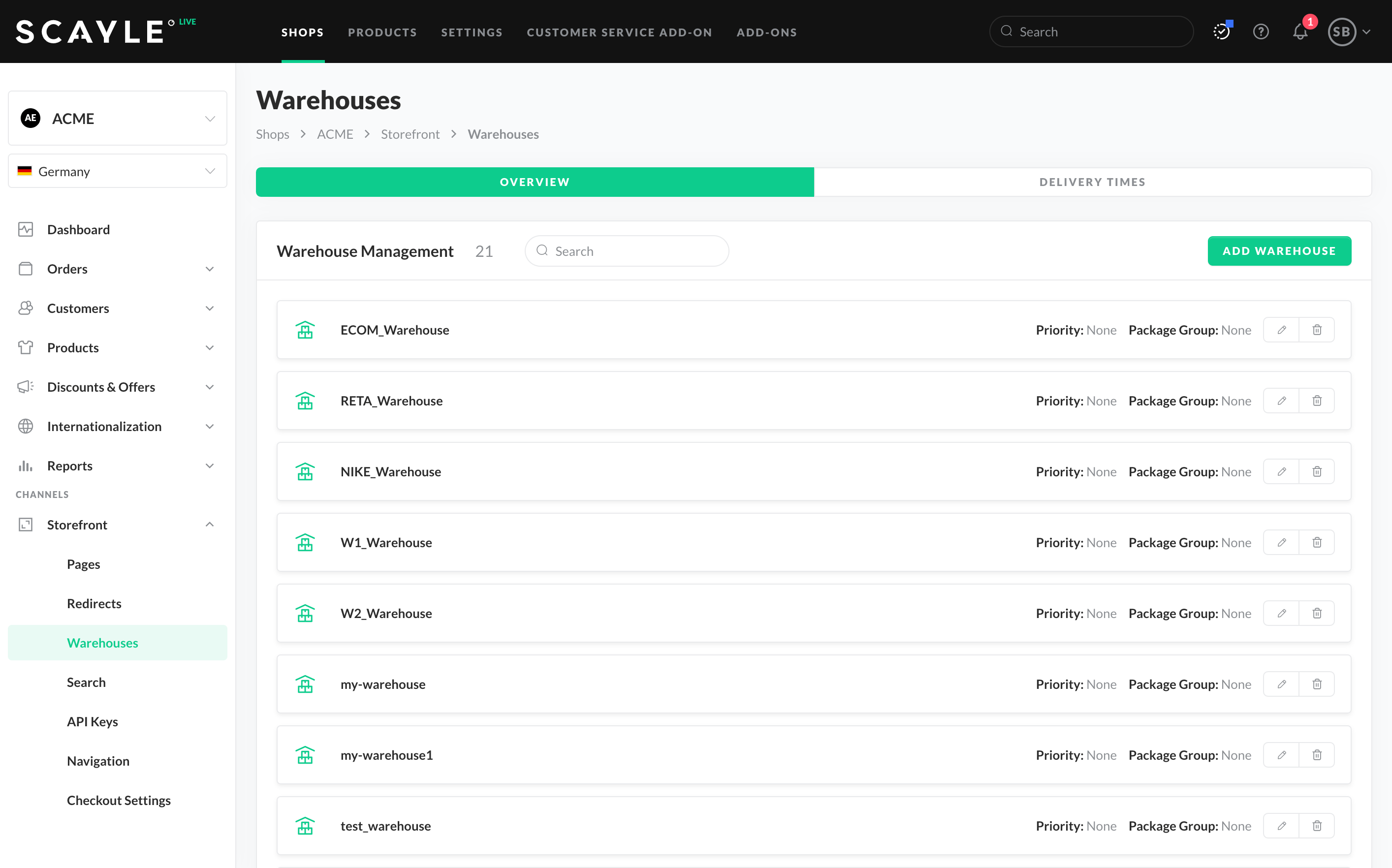
List of warehouses for a given shop
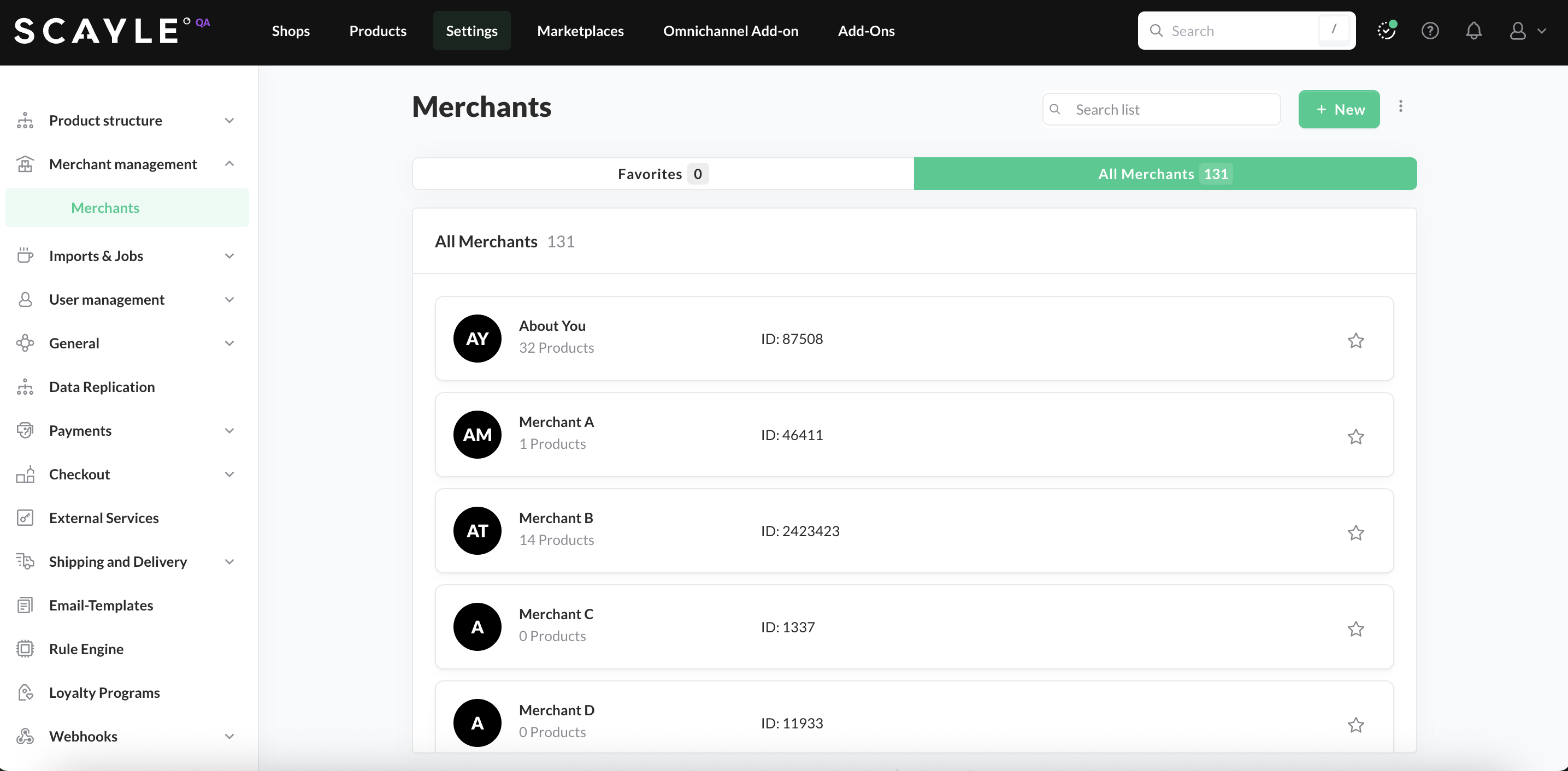
In SCAYLE, Warehouses are linked to specific Merchants. Therefore, before adding a new warehouse you must ensure all the relevant Merchants are predefined in Settings ➜ Merchant Management ➜ Merchant.
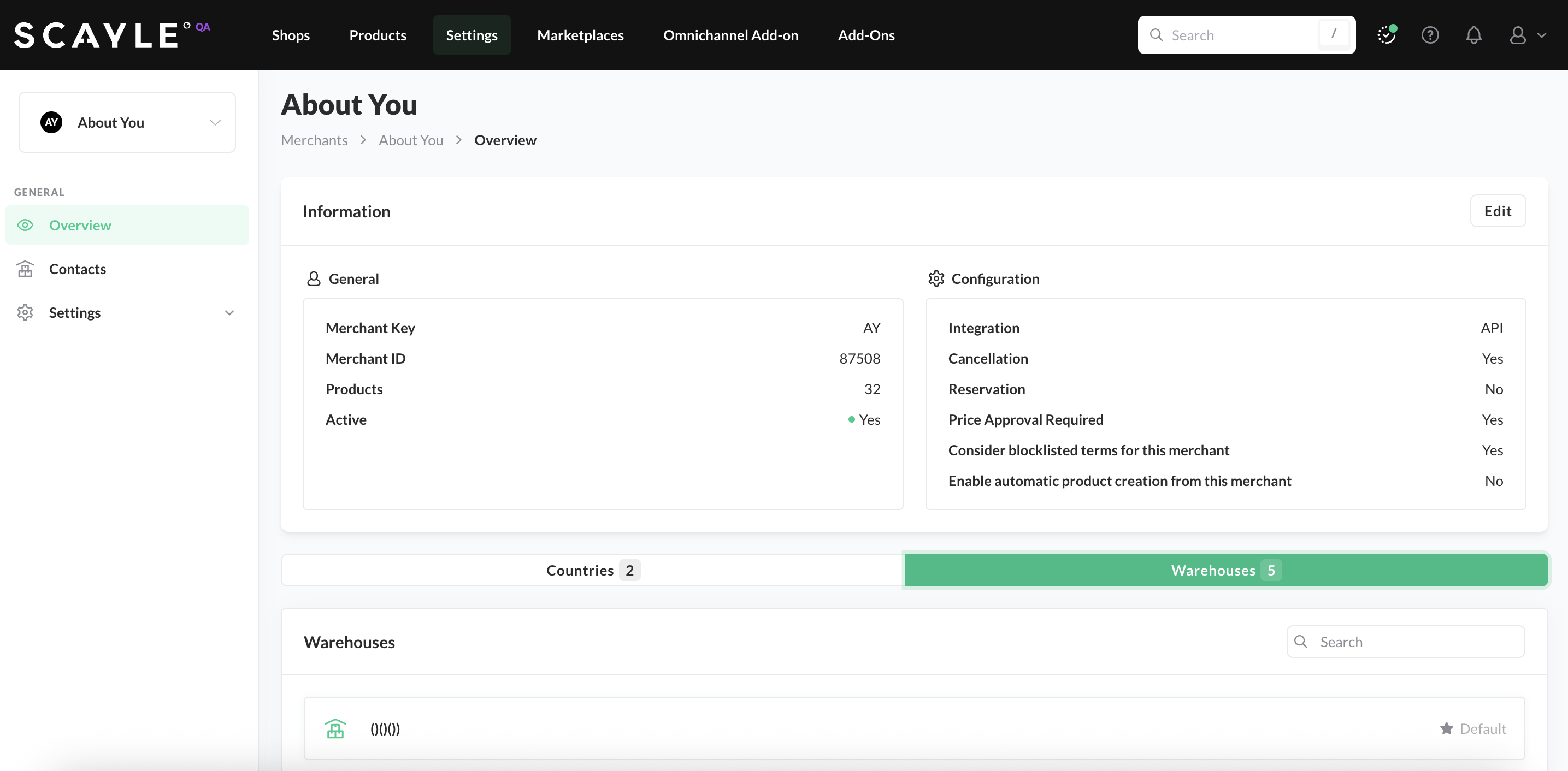
Each merchant may have as many warehouses linked as needed. Click on the merchant to view its linked warehouse(s):
Once these setting are predefined:
Shops ➜ [Shop] ➜ Storefront ➜ Warehouses and click Add Warehouse.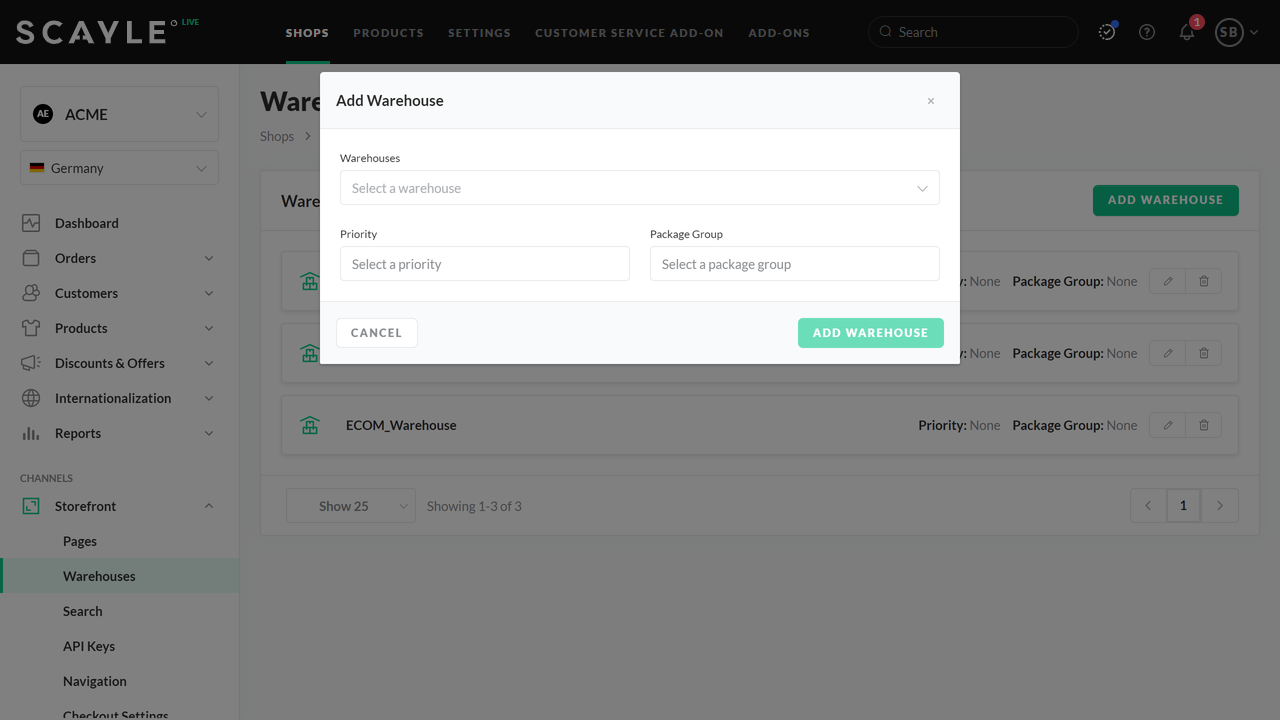
Adding a warehouse to a shop
Once you are in the Warehouse overview, search for the entry you want to update.

Edit a warehouse
Once you are in the Warehouse overview, search for the entry you want to remove.

Delete a warehouse
When a warehouse is deleted, it is removed from all warehouse relationships where it was defined as either a From or To warehouse, as described in the section below on adding warehouse delivery times.
If you have multiple active warehouses, you can define delivery times between them. This helps customers get correct information from the shop front end when multiple order items are collected from different warehouses and are then shipped together from one warehouse.
To define the transit time between warehouses, go to Shops ➜ [Shop] ➜ Storefront ➜ Warehouses and switch to the Delivery Times tab on the top right of the screen.
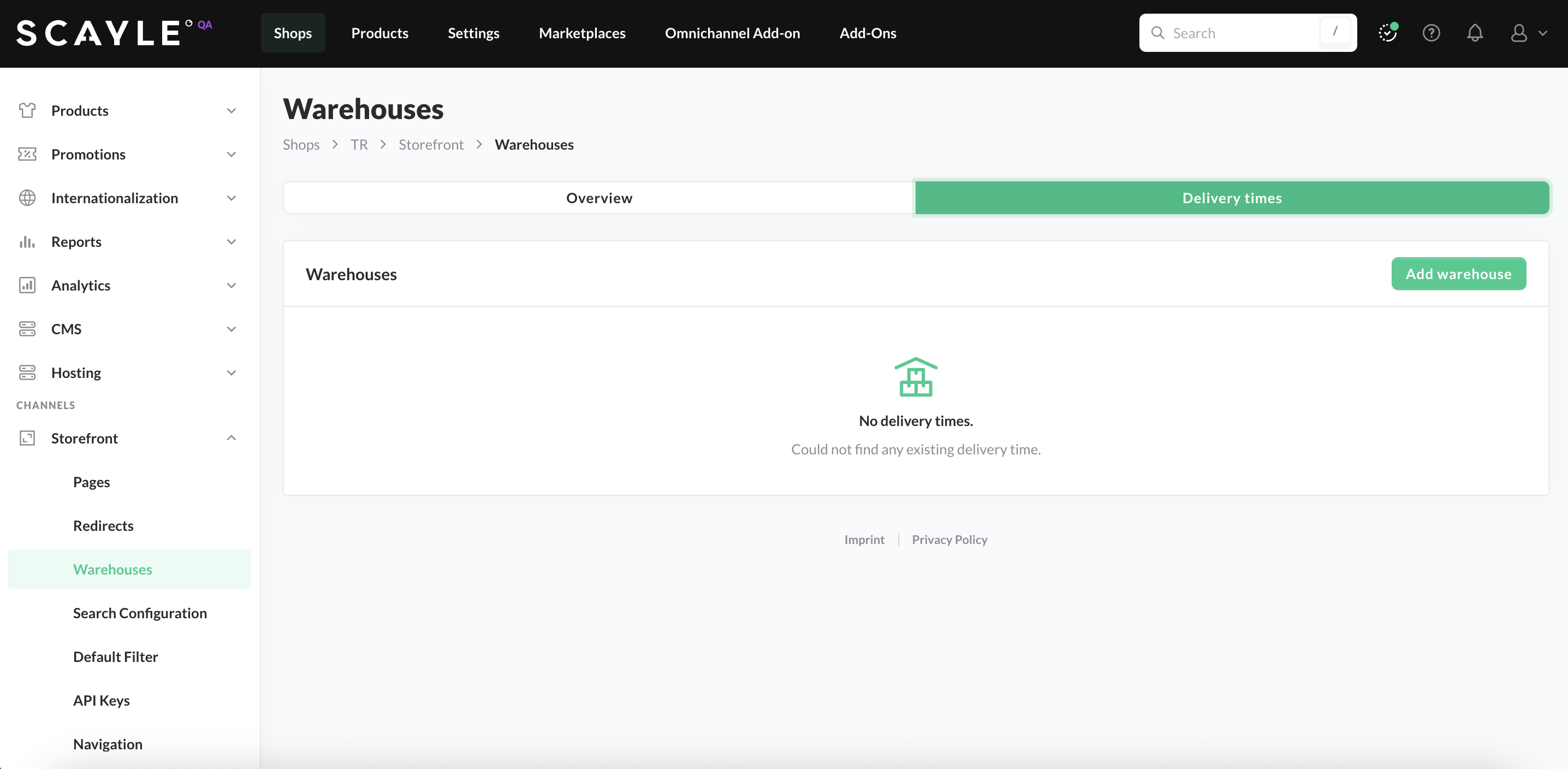
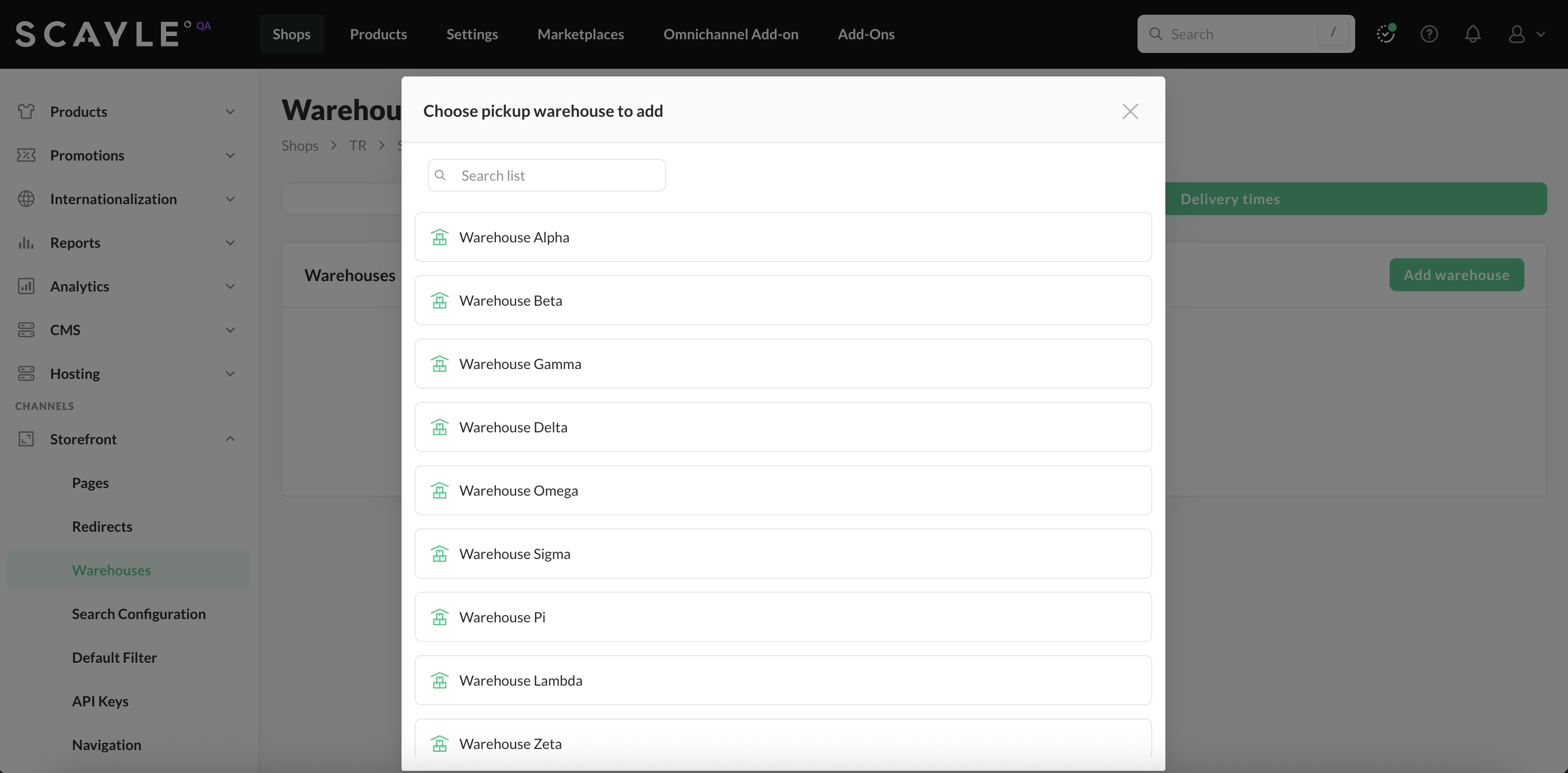
Click Add Warehouse button and choose a pickup warehouse from the list.
The selected entry is the From Warehouse. Now, click on Add Destination.
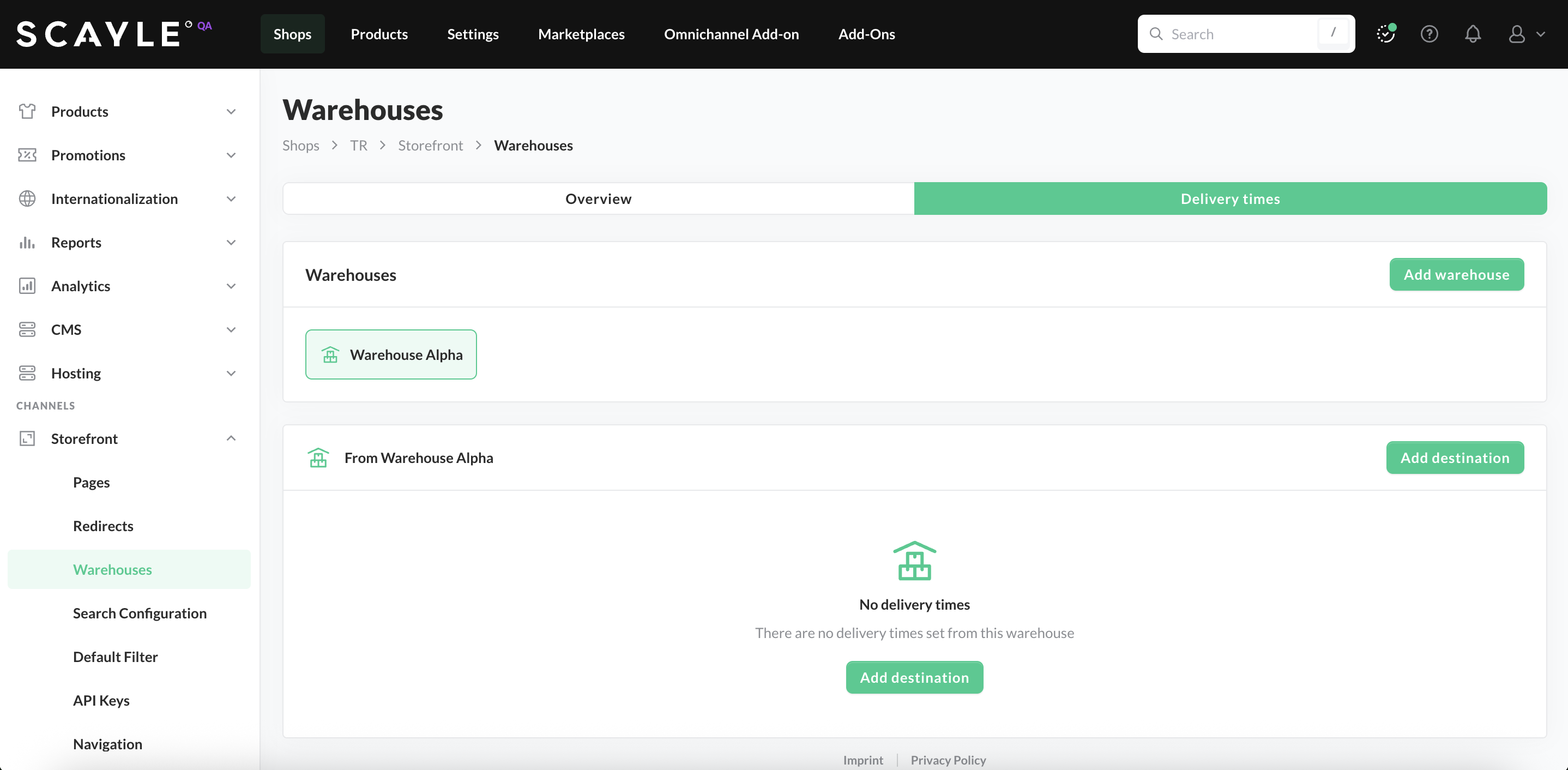
Choose a destination warehouse.
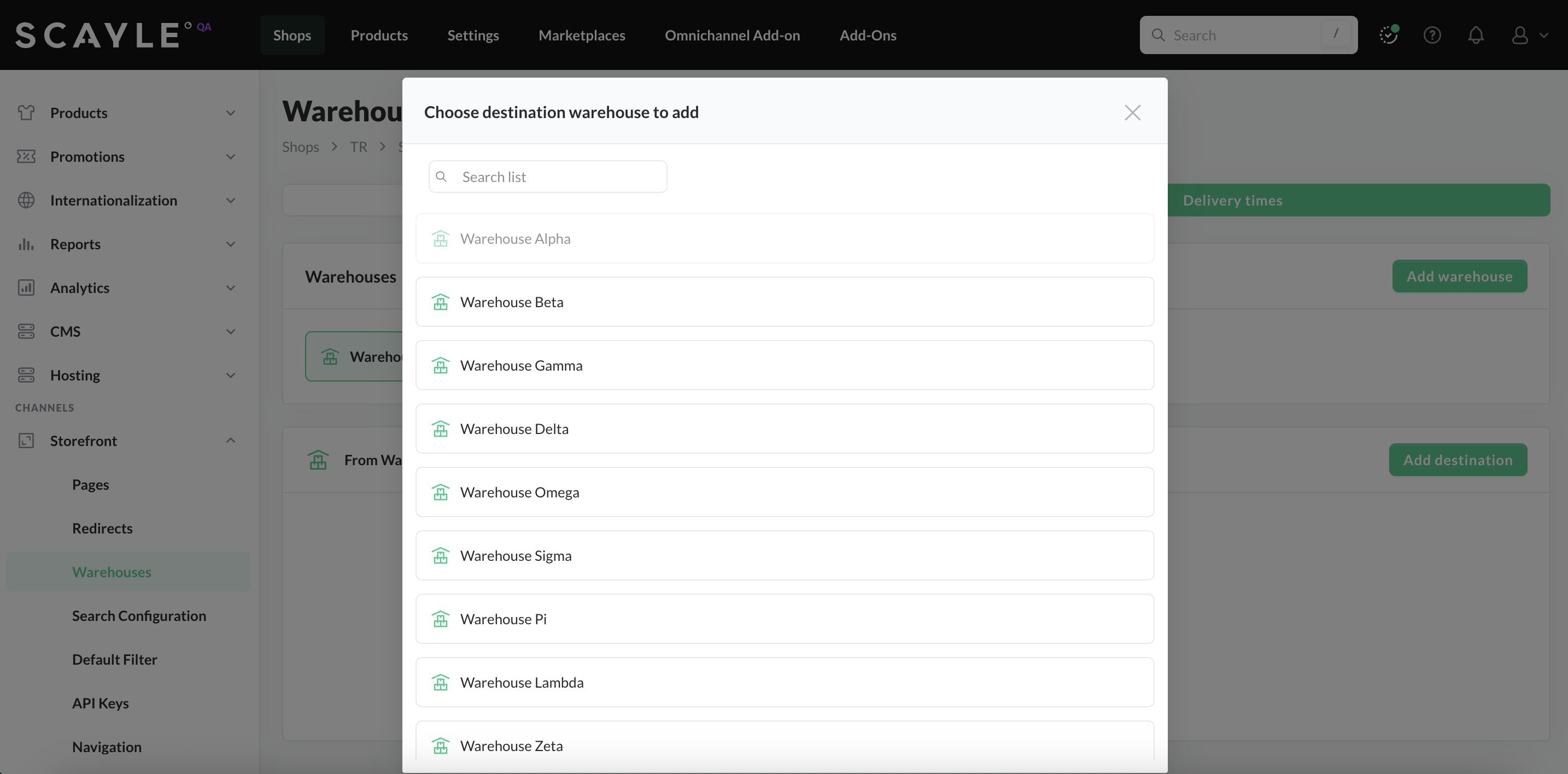
Note that the From Warehouse cannot be selected from the list as a destination. Once you finished, you can add the range of days for the delivery times between warehouses (e.g., 3-6 Days).
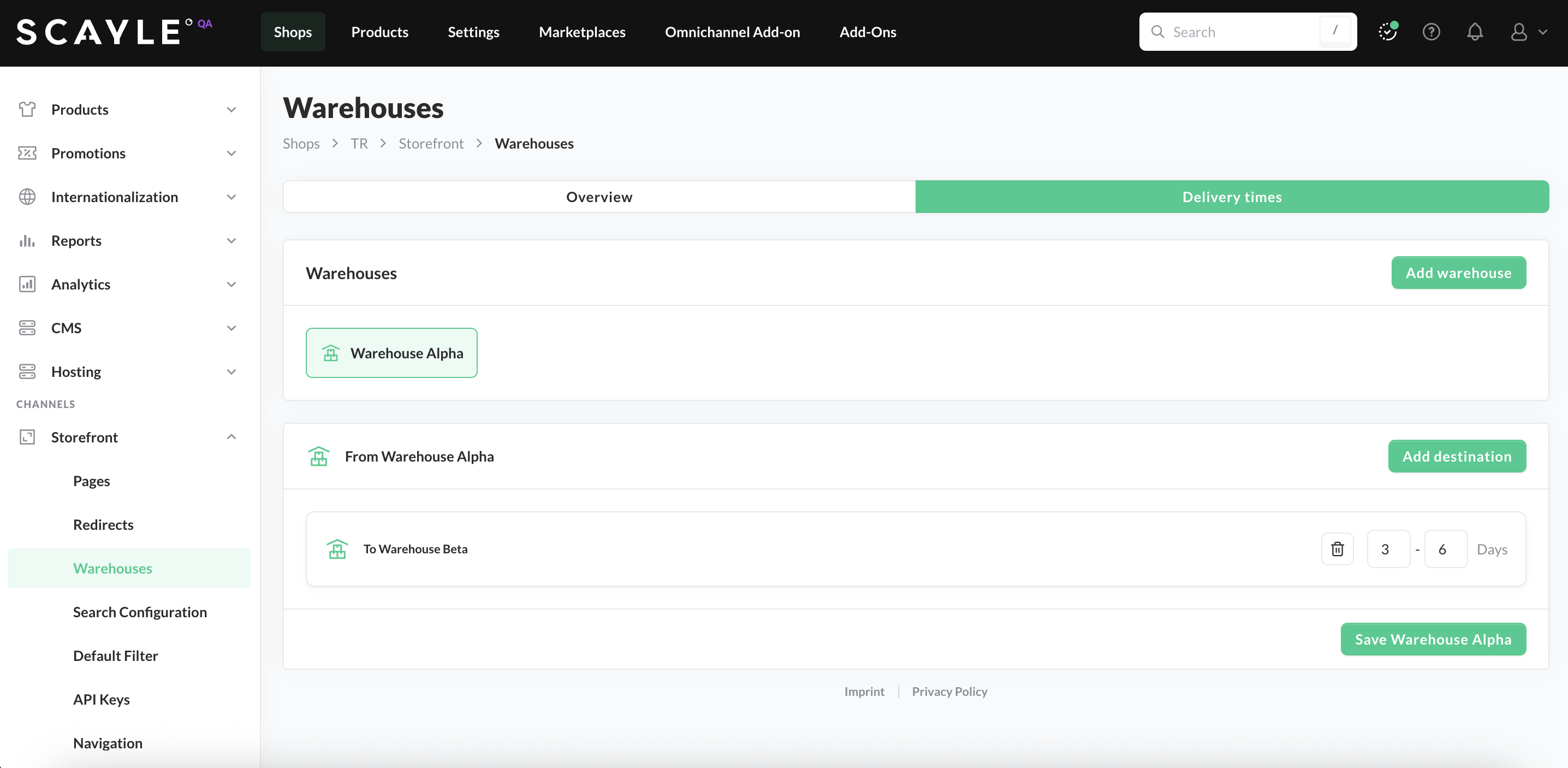
Click Save Warehouse button to complete the configuration.
You can assign multiple destination warehouses to a single From Warehouse and define a specific delivery time for each relationship. However, you cannot assign multiple From Warehouses to the same destination in a single configuration.
Each warehouse-to-warehouse relationship must be created individually.
All the created relationships will be listed in the Delivery Times tab overview:
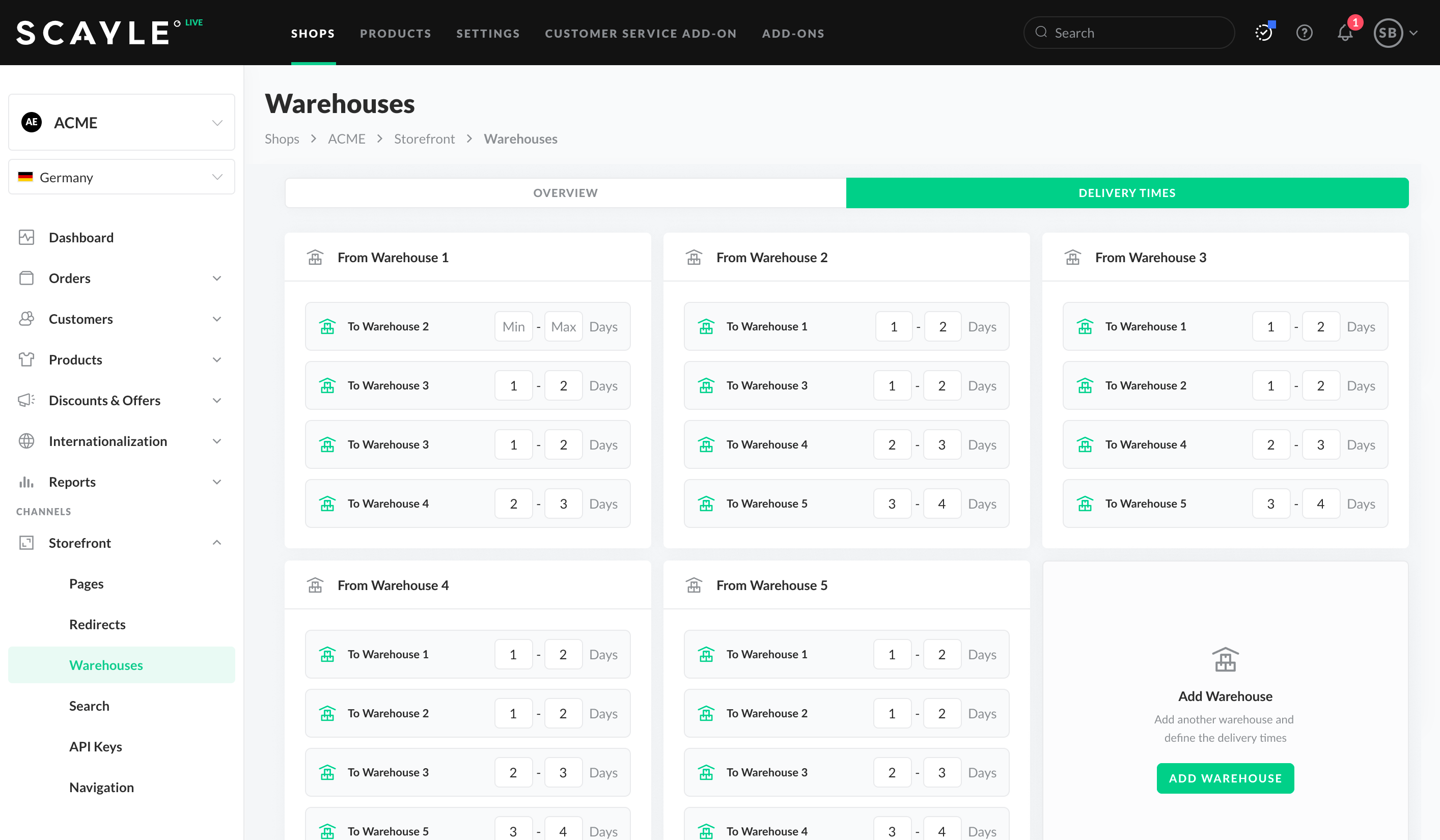
Warehouse delivery times
In this situation, we need to create two warehouses. The warehouse in Frankfurt will be assigned to all shop countries, while the warehouse in Basel will only be assigned to the 2 shop countries of Switzerland. (We identified the need to have three shop countries in this chapter: Shop Structure).
Warehouses & Stock
Alvaro Millan
Business Analyst
As mentioned earlier in this chapter, package groups are especially important in cross-docking scenarios because they ensure that once items are consolidated into a shipping warehouse, they are packaged and shipped in the correct way according to predefined packaging rules — even if they originated from different fulfilment locations.
When cross-docking is triggered:
Without consistent package group definitions, SCAYLE wouldn’t be able to apply the correct packaging logic after cross-docking has combined items from different warehouses.
Below two scenarios to help you understanding the role of package groups in cross-docking cases.
Setup: Customer in Germany orders two products:
| Item Number | Product | Package Group | Warehouse Stock |
|---|---|---|---|
| 1 | Glassware | Fragile | Warehouse Beta |
| 2 | T-shirt | Standard | Warehouse Alpha |
Cross-docking is required because no single warehouse has both items.
Flow:
Setup: Customer in Poland orders three products:
| Item Number | Product | Package Group | Warehouse Stock |
|---|---|---|---|
| 1 | Socks | Bulkable | Warehouse Gamma |
| 2 | Socks | Bulkable | Warehouse Delta |
| 3 | Jacket | Non-Bulkable | Warehouse Gamma |
Cross-docking is needed to consolidate the order.
Flow:
Package groups can be assigned when creating or editing a warehouse. When working with multiple warehouses, you can use the Admin API to apply bulk updates and minimize manual configuration.
When working with shop warehouses, you can bulk-assign a package group to multiple warehouses for a specific shop. This method assigns a package group to a provided list of shop warehouse identifiers and supports partial updates, meaning only the specified warehouses are affected.
| Parameter | Type | Details |
|---|---|---|
warehouseId | integer | read-only. The ID of the warehouse created by SCAYLE. |
warehouseReferenceKey | string | A key that uniquely identifies the warehouse within the tenant's ecosystem. |
Example
You can also bulk-replace a package group for a set of warehouses within a specific shop country.
This operation does not support partial updates: the package group will be assigned to the specified warehouses and removed from all others in that shop country.
| Parameter | Details |
|---|---|
warehouseId | Integer READ-ONLY The ID of the warehouse created by SCAYLE. |
warehouseReferenceKey | String A key that uniquely identifies the warehouse within the tenant's ecosystem. |
Example
This endpoint returns the list of package groups assigned to warehouses for a specific shop country.
| Parameter | Details |
|---|---|
| entities | A collection of package groups. |
Examples
You can delete a package group for all shop warehouses of a specific shop country.
Examples

