

Order History
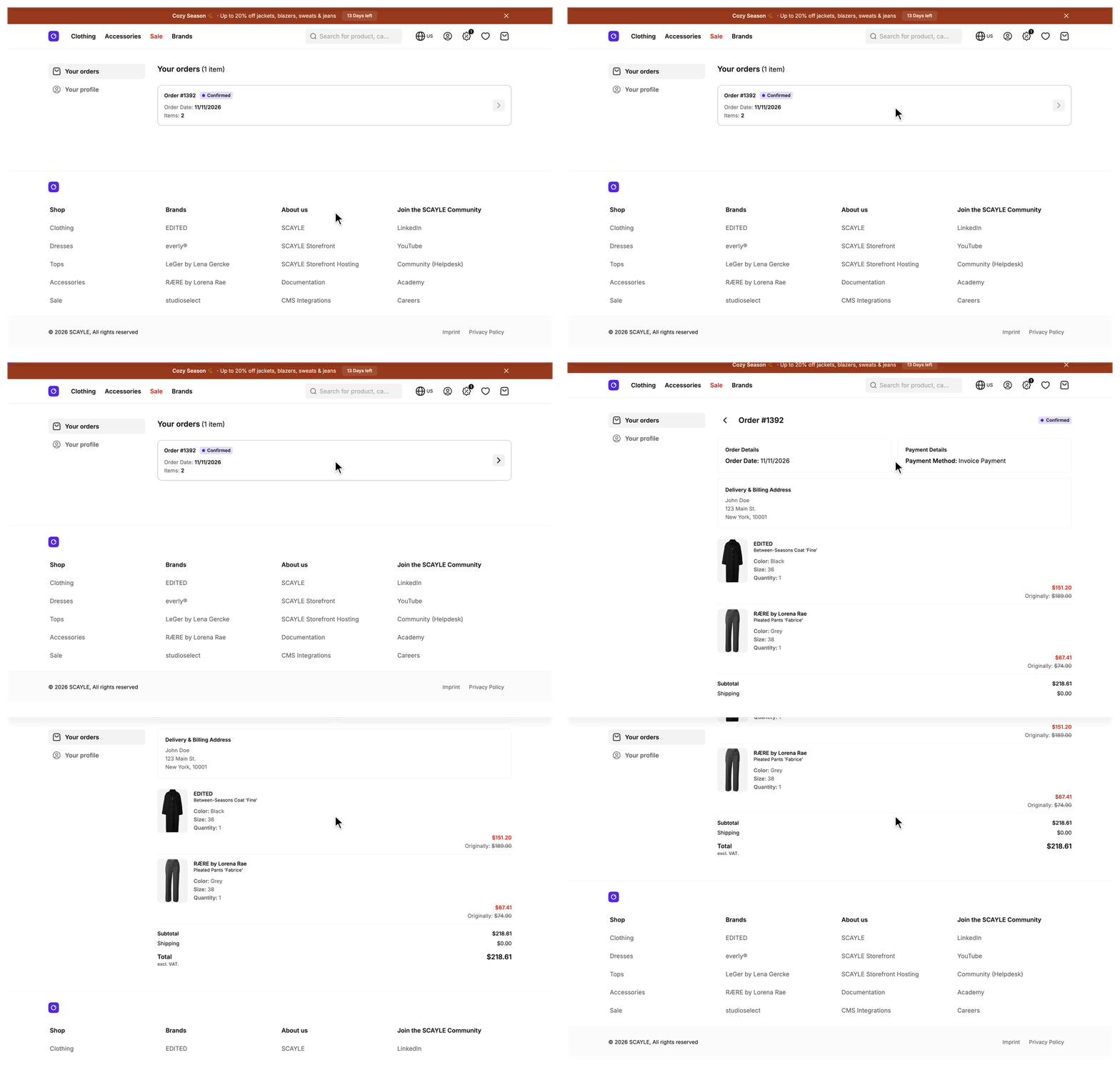
A signed-in customer checks a past purchase in one list at /account/orders. The page shows the customer's orders from the current shop, leaves out subscription orders, and splits the list into pages of eight in the browser. Each entry in the list is an order summary, a short record of one order.
Why it matters
The account area opens on this page, because /account redirects to /account/orders. A returning customer who wants to know where an order stands starts here and opens the order from its card.
Try it
Try it: open the order history page (requires signing in)
What's included
- Order cards: Each card shows the order number, a status badge, the confirmation date, and the item count, and links to the order details. The badge is missing when the order has no status, the date row when it has no date, and the item row when the count is missing or zero. Line items, addresses, and payment details stay on the order details page.
- Status labels: The badge groups the order statuses the Customer Account API reports into the labels below.
order_openandpayment_pendingread Open.payment_reservedandinvoice_partially_completedread Confirmed.invoice_completedreads Shipped.cancellation_pendingandcancellation_completedread Cancelled. A status outside this list shows as its raw value on a grey badge. - Headline with count: The headline reads "Your orders" and carries the number of orders the page received.
- Client-side pagination: The list shows eight orders per page. The pagination controls appear only when the list has more than one page.
- Empty state: A customer without orders sees "No orders yet" and a short description in place of the list.
- Page title: The title carries the shop name when the shop has one, and the page tells search engines not to index it.
What you can change
Theme
- Change the layout, spacing, and typography of each order card.
- Change the label and color of each status badge.
- Change the list layout and the empty state.
- Reword the page copy in the translation files, under
account.orders.
The order components live in src/client/components/account/orders/.
Extend
- Add a field to each order summary.
- Hide cancelled orders from the list.
- Change how the confirmation date reads by overriding
formatDatein the order mapper. It already uses the country locale, and the order details page uses the same method. - Change the number of orders per page with
ORDERS_PER_PAGE, see Configuration.
Constraints and limits
Permanent
- Subscription orders never appear on this page.
OrderMapper.mapOrderSummariesdrops every order that carries asubscriptionId. Those orders belong on the account subscriptions page. - The page lists only orders placed in the current shop. The Customer Account API returns the orders from every shop the customer bought from, and
mapOrderSummarieskeeps the ones whose shop matches the shop the request resolved to. The country selector, the setting that maps a request to a country, decides that shop: the country path prefix inpathmode, the country path prefix with the default country left unprefixed inpath_except_defaultmode, or the host indomainmode.
Known limitations
- The Storefront Application V3 sends no page size or limit with the request, so the Customer Account API decides how many orders its
/oauth/meresponse lists. The page shows every order it receives. - The page has no search, filter, or sort controls. Orders appear in the order the Customer Account API returns them, because nothing in the Storefront Application V3 sorts them.
How it works
Each summary the page receives has an id, a confirmedAt display string, an itemCount, and a status. The last three are optional.
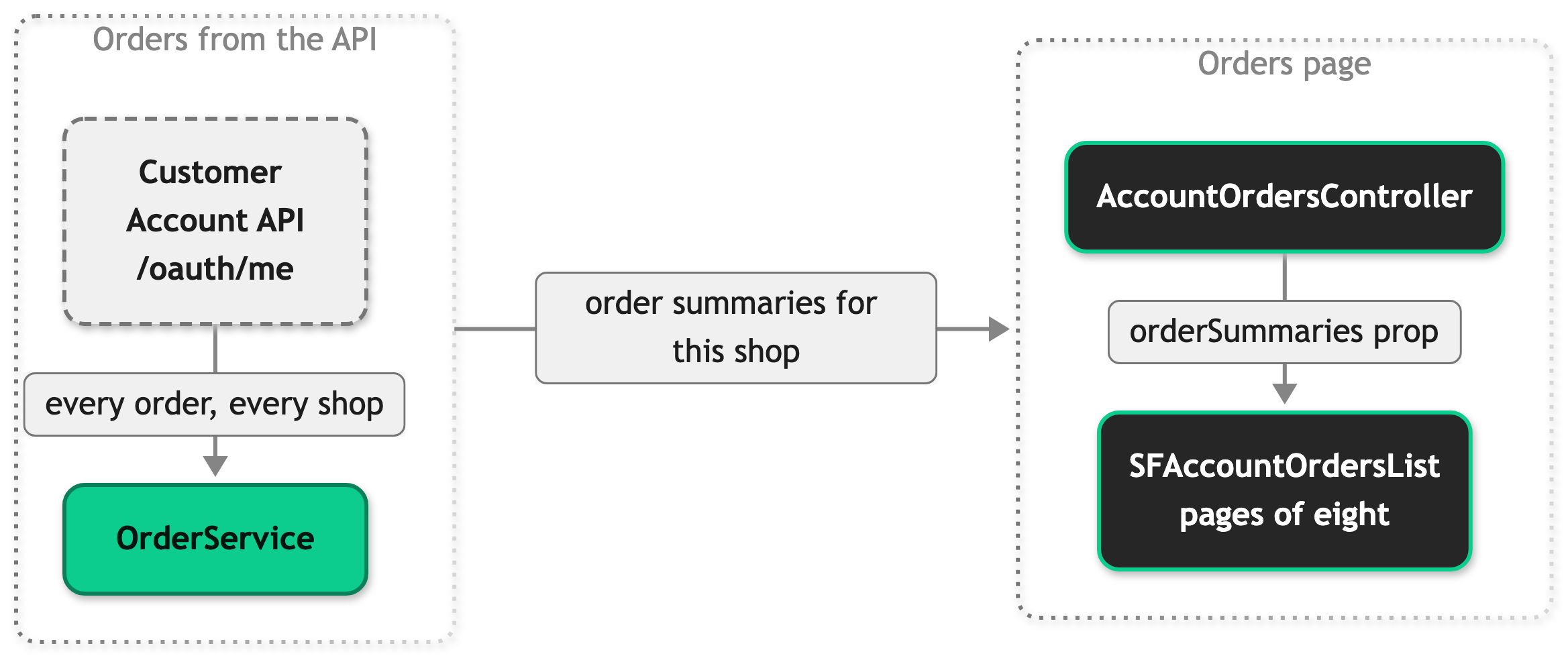
When a signed-in customer opens /account/orders, the AccountOrdersController in src/server/controllers/account-orders.ts handles the request. It extends BaseAccountOrdersController from @scayle/storefront/controllers, which runs the fetch and the render in a fixed order: the beforeFetch hook, fetchOrderSummaries(), the beforeRender hook, then the page. The controller supplies the two pieces that belong to your shop. getTemplate() returns the page name AccountOrders, and getViewProps() returns the meta prop and the orderSummaries prop. Both resolve before the page renders.
fetchOrderSummaries() calls getOrderSummaries() on OrderService, which reads the customer's /oauth/me response with the access token from the session. The service passes the order summaries in that response to mapOrderSummaries, together with the shop of the current request. The mapper keeps the orders of that shop, drops subscription orders, and formats the confirmation date with formatDate. The mapper registry in src/server/registries.ts assigns each mapper to a named slot, and the order slot holds this one, your OrderMapperService.
The route is not cacheable, because the list belongs to one customer.
src/client/pages/AccountOrders.vue shows the empty state when the list is empty. Otherwise it renders the headline with the count and passes the summaries to SFAccountOrdersList. The list hands them to SFClientPagination, which cuts them into pages of eight in the browser and renders one SFAccountOrderCard per order. The current page lives in the page query parameter, and each page turn updates it without a request. A numeric page value that is not a whole number from 1 to the last page leaves the list empty, so the empty state renders under the headline with the count.
Configuration
Translations
The page copy comes from src/i18n/locales/en_GB.json under account.orders. To add a key, see Translate a new key in all locales.
Orders per page
ORDERS_PER_PAGE sets the number of orders on each page. Edit it and rebuild.
Customization guides
Add a field to each order summary
The base mapper passes on the id, confirmedAt, itemCount, and status fields. This guide adds confirmedAtTimestamp, the raw timestamp the Customer Account API sends, so the card can render its date as a <time> element with a datetime attribute. Any other field you add must be derivable from what the mapper receives: the RawOrderSummary fields id, confirmedAt, itemCount, shopId, status, and subscriptionId.
You need the order mapper in src/server/services/mappers/order-mapper.ts. It is already registered on the order slot, so this guide needs no registry change and no MapperOverrides entry.
- Create
src/shared/types/Order.tsand add the field toOrderSummary. - Override
mapOrderSummaries(rawSummaries: RawOrderSummary[], shopId: number): OrderSummary[]onOrderMapperService. Callsuper.mapOrderSummariesfirst. It applies the shop and subscription filters, so the raw timestamps are matched back by order id. - Pass the field from the list to the card. The card only receives the props the list gives it.
- Add the prop to the card and use it in the date row.
After a rebuild, each card's date is a <time> element, and its datetime attribute holds the raw timestamp. If you skip super.mapOrderSummaries, the page also loses the shop and subscription filters, and the type check still passes.
Hide cancelled orders from the list
This guide drops orders with the status cancellation_completed from the list.
You need the order mapper in src/server/services/mappers/order-mapper.ts. Override mapOrderSummaries(rawSummaries: RawOrderSummary[], shopId: number): OrderSummary[], the method that turns the raw orders into the list. Call super.mapOrderSummaries first, because it applies the shop and subscription filters.
- Call
super.mapOrderSummariesand filter the result.
Orders with the status cancellation_pending stay in the list, because the filter names only cancellation_completed. An order without a status passes the filter too. The headline count and the pagination read the filtered list. A rule that needs a raw field the summaries don't carry can look it up in rawSummaries by order id, as Add a field to each order summary does.
Best practices
Filter orders before the page receives them
Hide or reorder orders in the order mapper, as the SDK does for the shop and subscription filters, not in the controller, the card, or the list component. The headline count and the pagination read the list the page received, so a filter in the template leaves the count and the page numbers wrong.
Add only the fields the card shows
The summaries reach the browser as page props, one entry per order, and every prop is part of the page's HTML. A field that no component reads still costs bytes on every visit to the page. Add a field to OrderSummary when a component renders it.
Troubleshooting
The order history page shows "No orders yet" for a customer who has ordered
Issue: A customer who has placed orders sees the empty state.
Possible causes:
- The URL carries a numeric
pagevalue outside the list, for example?page=99. See How it works. - A filter you added in
fetchOrderSummariesormapOrderSummariesdrops the orders.
Solution:
- Check the address bar for a
pageparameter, then remove it and reload the page. - Remove your own filter temporarily and reload the page.
Prevention: Keep a note of every filter you add to the list, so a missing order points to a known rule.
The order history page shows the Error page instead of the list
Issue: A customer opens /account/orders and the page renders the Error page.
Possible causes:
- The request to the Customer Account API failed, for example with a 403 or 5xx status.
- The customer's access token expired and the refresh failed.
Solution:
- Search the server logs for the entry with the message
Unhandled request errorand the path/account/orders. - Read the
errfield of that entry. A failed Customer Account API call carries thestatusand theurlof the request. - If the status is 401 or 403, sign out and sign in again, then reload the page.
Prevention: Alert on Unhandled request error entries for account paths, so you see a Customer Account API outage before customers report it.


