

Dynamic Slots
Dynamic slots let you add your own Vue markup, such as a delivery notice or a legal disclaimer, to named places inside the checkout. A slot is a named placeholder that the SCAYLE Checkout web component, <scayle-checkout>, renders at a fixed position. You add content as a child of <scayle-checkout> in src/client/pages/Checkout.vue. The Storefront Application V3 ships no slot content, so you add the first one yourself.
Why it matters
<scayle-checkout> owns the markup for address entry, shipping, and payment, so you can't edit those steps in your own templates. You still need to add shop-specific content there: a country-specific delivery-time notice, a legal disclaimer, a loyalty program teaser. Slots are the places where the checkout web component accepts that content.
What's included
- Named slots across the checkout: The SCAYLE Checkout web component exposes slots in the authentication, shipping, payment, review, and basket sections. SCAYLE Checkout lists the names, see Configuration.
- Common slot kinds by name prefix: A
slot_dynamic_area_*slot adds content to an area of a step. Aslot_option_*slot holds a clickable option, andslot_option_selected_*shows content only while that option is selected. Aslot_replace_*slot marks a place where your content replaces part of the checkout, such as a whole form. Other names, such asslot_basket_toporreplace_basket_item_image_{{item_id}}, follow none of these prefixes. - Events back to the checkout web component: Your content can dispatch a click event for an option slot, enable or disable a step's call-to-action button, and send a custom payload with the order confirmation. SCAYLE Checkout documents the event names and payloads.
What you can change
Extend
- Add content to a documented slot by adding a child element with a matching
slotattribute inside the<scayle-checkout>element insrc/client/pages/Checkout.vue. See Add a notice to the shipping step. - Make content in a
slot_option_*slot selectable by dispatching aCustomEventnamed like the slot. See Make a custom delivery option clickable. - Block a checkout step until your own field is valid by dispatching the step's validity event on
document. See Block a step until your field is valid. - Replace a form or another part of the checkout with a
slot_replace_*slot. Read therequiredsetting under Known limitations first.
Constraints and limits
Permanent
- SCAYLE Checkout owns the slots. The checkout web component decides which slot names exist, where each one renders, and when it shows. The Storefront Application V3 can't add a slot, it can only fill the ones the checkout web component exposes.
- Slot content uses the native HTML
slotattribute. Vue'sv-slotand#nametarget slots of Vue components, which is a different mechanism. - A child whose
slotvalue matches no slot the checkout web component renders is not displayed, and the browser raises no error. - Slot content is not part of the server-rendered HTML, because the checkout web component mounts in the browser only.
- Slot content must bring its own styles. SCAYLE Checkout documents that slot content can't inherit styles from the checkout web component. Because the content lives in your
Checkout.vuetemplate, your Tailwind utilities apply to it.
Known limitations
- Content in a non-selected option slot, such as
slot_option_home_delivery, has to dispatch aCustomEventwhose type equals the slot name to switch the checkout to that option. SCAYLE Checkout documents the event withbubbles: trueandcomposed: true, and the sample in Integrating Slots dispatches it from the content's click handler. - When you replace an entire address form, for example with
slot_replace_shipping_address_form, SCAYLE Checkout requires therequiredproperties of the Dynamic Fields and of the address form fields (for examplestate) to befalse. Read the Integrating Slots page for the details. - Slot content loses its local state when a customer authenticates inside the checkout. The checkout page remounts
<scayle-checkout>after sign-in, see Token reload after sign-in, so every slotted child is created again. Keep state that must survive in arefin the<script setup>block ofCheckout.vue, which stays mounted, and not in the slotted markup.
How it works
<scayle-checkout> renders <slot name="..."> elements inside its own markup. A child of <scayle-checkout> that carries a slot attribute with the same name appears at that position. SCAYLE Checkout describes this mechanism in its Dynamic Slots overview.
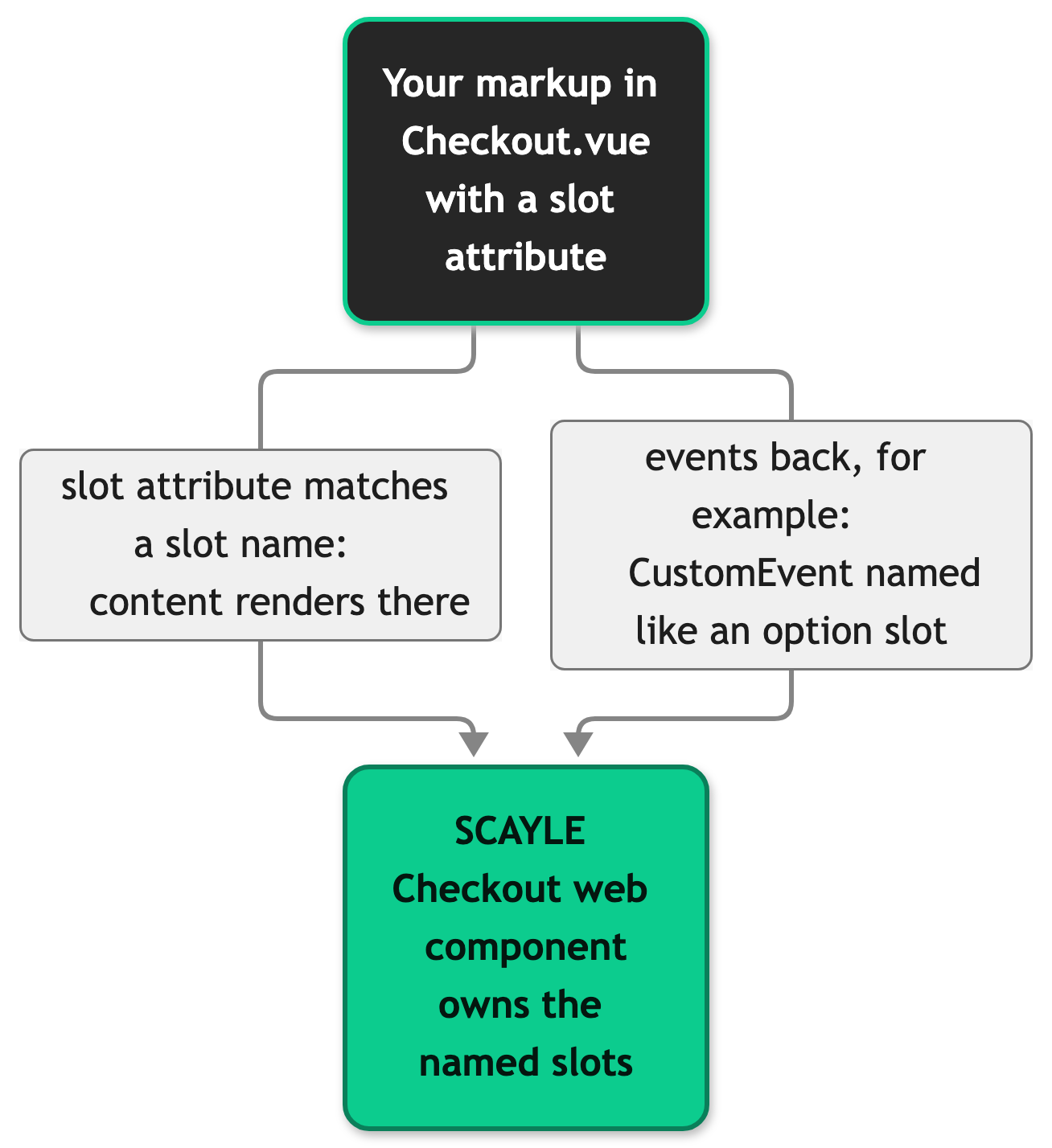
Checkout.vue renders <scayle-checkout> in its own template, so your slotted children read the page props, composables, and translations like any other markup in the file.
Configuration
The Storefront Application has no slot configuration. SCAYLE Checkout owns the slot names and lists them for the authentication, shipping, payment, review, and basket sections on its Integrating Slots page. A double-brace placeholder such as {{item_id}} stands for a value from your shop's checkout. Replace it with that value, for example the key of one of your payment options in slot_option_{{payment_option_key}}.
When the basket holds more items than the configured item limit, the full list opens in a modal. Items in the modal use their own slot names, such as slot_modal_basket_item_details_{{item_id}}, so content that should appear in both places needs a child for each name.
Customization guides
Add a notice to the shipping step
You end up with an info hint rendered inside the shipping step of the checkout. The same steps work for any slot_dynamic_area_* slot.
Prerequisites: a working checkout page and a basket with at least one item, so the checkout renders.
- Add a
shipping_noticestring next tometain thecheckout_pageobject ofsrc/i18n/locales/en_GB.json. Add the same key to every other file insrc/i18n/locales/. - Import
SFHintin the<script setup>block ofsrc/client/pages/Checkout.vue. - Add a child element with the slot name inside
<scayle-checkout>. InCheckout.vuethe element is self-closing today, so change its closing/>to>and close it with</scayle-checkout>after the child. The...in the snippet stands for the element's existing attributes, which stay as they are. - Open
/checkoutwith an item in your basket and continue to the shipping step.
The hint appears in the shipping address area once the checkout web component has rendered that step.
Make a custom delivery option clickable
You end up with your own button in the slot_option_home_delivery slot that selects the home delivery option when a customer clicks it.
Prerequisites: a working checkout page and a home_delivery_label string in the checkout_page object of every file in src/i18n/locales/.
- Add a constant for the slot name and a click handler to the
<script setup>block ofsrc/client/pages/Checkout.vue. The handler dispatches an event whose type equals the slot name. - Add the button as a child of
<scayle-checkout>and bind both theslotattribute and the click handler. Open and close<scayle-checkout>as in the first guide. - Open the shipping step with the home delivery option not selected, and click your button.
The checkout selects home delivery. If nothing changes, check the event rules under Known limitations.
Block a step until your field is valid
You end up with a checkout step whose call-to-action button stays disabled until your own field reports a valid value.
Prerequisites: a working checkout page, a basket with at least one item, and a delivery_note_label string in the checkout_page object of every file in src/i18n/locales/. SCAYLE Checkout documents validity events for the billing, shipping, payment, and review steps.
- Add two functions to the
<script setup>block ofsrc/client/pages/Checkout.vue. The first dispatches the shipping validity event ondocument. The second reads your field and reports whether it holds a value. Call both only from an event handler, becausedocumentdoesn't exist during server rendering. - Add the field as a child of
<scayle-checkout>and callvalidateDeliveryNoteon every input. Open and close<scayle-checkout>as in the first guide. - Open the shipping step, type a value in your field, and delete it again.
After you delete the value, the handler dispatches isValid: false and the step's button is disabled. It enables again once you type a value and the handler dispatches isValid: true.
Best practices
Use one constant for the slot name and the event type
Declare the name once, as HOME_DELIVERY_SLOT does above, and use it for both the slot attribute and the event type of an option slot. A typo then can't make the two drift apart.
Build slot content from the application's own components
Use SFHint, the other SF* components, and the design tokens that the rest of your shop uses. The checkout then looks like part of your shop, and you write no extra CSS.
Re-check the slot names after a checkout web component update
The checkout web component defines the names, so an update can add or change them. Compare the names you use against the Integrating Slots page after SCAYLE announces a checkout update.
Troubleshooting
Slot content doesn't appear in the checkout
Issue: An element with a slot attribute inside <scayle-checkout> renders nothing on the checkout page.
Possible causes: The slot isn't rendered in the step the customer is on, or for the current selection. A slot_option_selected_* slot shows only while its option is selected.
Solution:
- Open your browser's developer tools and inspect the children of
<scayle-checkout>. Confirm your element is there and carries theslotattribute. - Move through the checkout to the step that owns the slot, and select the option for a
slot_option_selected_*slot.
Prevention: Test each slot in the step and selection state where you expect it.


