

Basket
The basket holds the products a customer plans to buy until checkout. The Storefront Application V3 reads it from the Storefront API and shows the same state in the header, on the basket page, and in the add to basket confirmation. Every change goes through an oRPC procedure, a typed server call the browser makes under /api (see RPC API).
Why it matters
Because changes happen on the server and the browser reloads one shared basket prop afterward, the header count, the basket page, and the confirmation read the same data after each change. Each time the server reads the basket, it applies the promotions that fit it and the campaign that is active at that moment. For a customer this means the item count and the prices never differ between two screens.
Try it
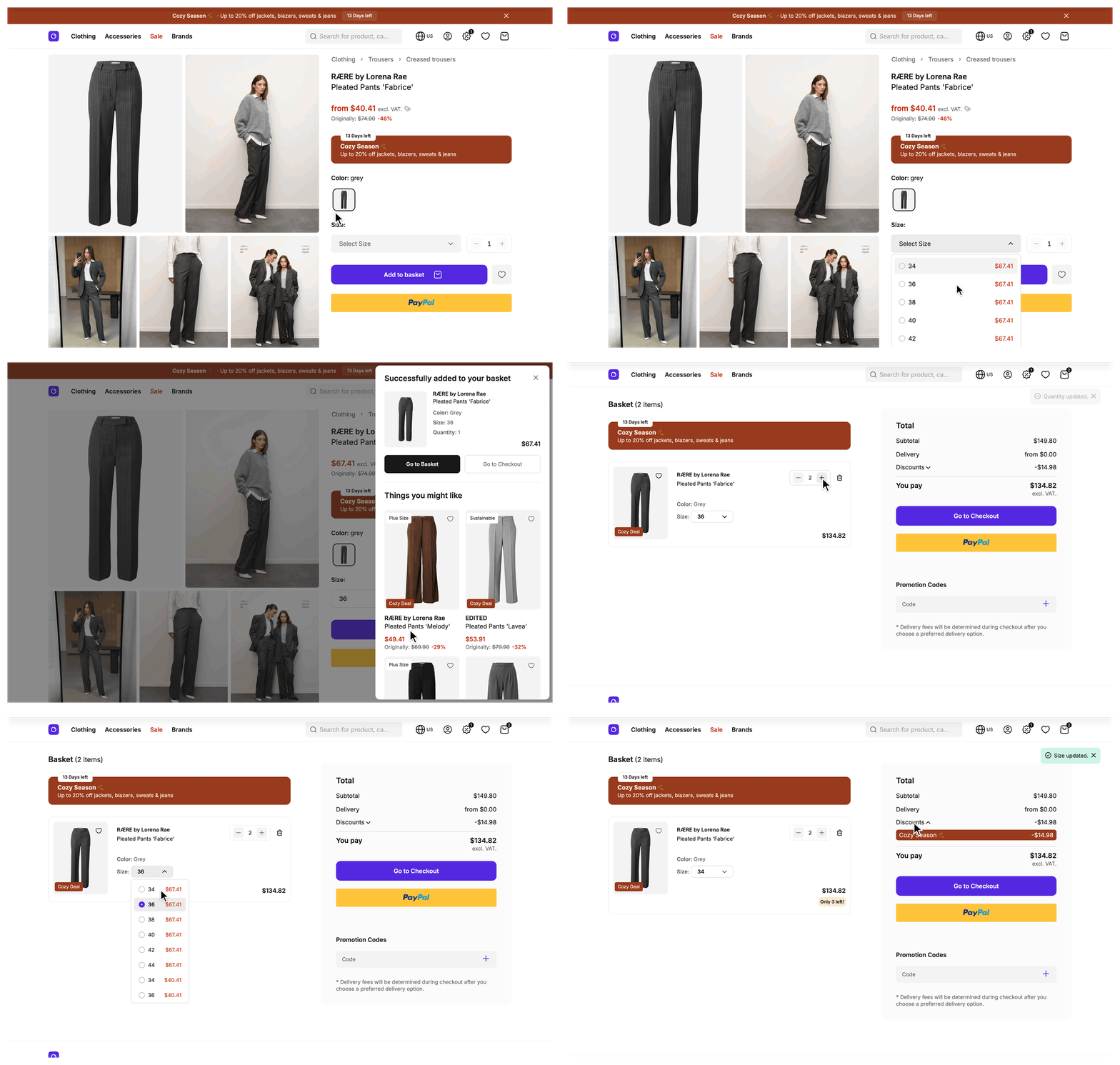
Experience the key basket workflows:
- Try it: add an item and adjust its quantity
- Try it: add a product and see the add to basket confirmation
- Try it: add an item to your basket, then open the basket to see the price summary with active discounts.
- Try it: with an item in your basket, open the basket and change the size of the item.
What's included
- Basket page:
/basketshows the basket items, quantity controls, a price summary, promotion banners, and the gift selection for Buy X Get Y promotions. - Header basket icon: Shows the number of items in the basket and links to the basket page.
- Add to basket confirmation: A slide-in that opens after a successful add. It shows the basket item that grew, with Go to Basket and Go to Checkout buttons.
- Confirmation recommendations: A "Things you might like" section in the confirmation. It shows the products of the current page's
trendingProductsprop, which the product detail page sends. - Basket item management: Each basket item has a quantity input, a size selector, and a remove action that asks for confirmation. Subscription items have no size selector.
- Unavailable items section: Products that are sold out or no longer for sale show in a separate section below the available items.
- Price summary: Subtotal, delivery costs, reductions, and the amount to pay, with a label that says whether the amount includes VAT.
- Promotion banners: Tiered and combo deals that concern the basket show as banners above the basket items. The browser derives them from the shared
promotionsprop. - Promotion codes: Customers apply a code, see which codes are active, and remove one. A failed attempt shows an error toast. See Promotion Codes.
- Basket mutations over oRPC: Add, change quantity, change size, remove, apply a promotion code, and remove a promotion run as oRPC procedures that validate their input. All of them except remove return typed error codes.
- Express checkout: The basket page offers an express checkout button for the customer's own basket. The product detail page creates a one-time checkout token for a throwaway basket instead. See Express Checkout.
- Basket merge at sign-in: When a user signs in, the items of the user's basket move into the customer's basket. A quantity is added up when the item is on both sides.
- Custom data on basket items: An add through
useBasket().addItem()can attachcustomDatato a basket item. Thebasket.addprocedure also acceptsdisplayData, whichaddItem()doesn't forward. Both stay on the item through quantity and size changes. - In-basket badge: Product cards show a badge for a product that is already in the basket, except on the basket page.
What you can change
Configure
- Delivery costs and their disclaimer per country in the SCAYLE Panel.
- Which products the confirmation recommends through the Trending smart sorting key in the SCAYLE Panel. See Rule-Based Recommendations.
Theme
- Every component that renders the basket, basket items, price summary, promotion banners, and the add to basket button: style and rearrange them all.
- The add to basket confirmation: its header, the added basket item, the two buttons, and the recommendation grid and slider live in your own
SFAddToBasketSlideIn,SFAddToBasketSlideInSummary, andSFAddToBasketSlideInRecommendationscomponents.
Extend
- Change the low-stock threshold or the number of confirmation recommendations. Both are constants, see Storefront Application.
- Change the source of the confirmation recommendations by overriding
fetchTrendingProductsin yourProductDetailController. - Store your own data on a basket item.
- Validate your own custom data keys or change a basket procedure.
- Request more variant data in the basket.
- Customize how the basket maps API responses.
- Show recommendations in the confirmation on another page.
- Add page props to the basket page or stop the request early by changing
getViewProps,beforeFetch, orbeforeRenderinBasketController.
Replace
- Build an entirely different basket page and components with your own route and controller, against the same shared
basketprop and oRPC procedures.
Constraints and limits
Permanent
- The basket key changes at sign-in. It is built from the shop country ID and the customer ID once one exists, and from the session ID before that. It never uses both IDs, so a user's key and the signed-in key are never the same. That is why sign-in merges the user's basket into the customer's basket.
- A custom sign-in flow has to capture the basket key before the session regenerates, or the merge loses the pre-sign-in basket without an error. See Capture the basket and wishlist keys around the session change.
- The Storefront API enforces the maximum quantity and the stock. When it rejects an add, a quantity change, or a size change for the maximum, the procedure answers
QUANTITY_LIMIT_EXCEEDED. When stock covers fewer units than requested, the API caps the quantity and the procedure still succeeds withaddedWithReducedQuantity: true. - The four
useBasket()mutations (add, change quantity, change size, remove) wait for the oRPC call and the reload of thebasketprop before they return. They don't change the basket prop locally before the server answers. - A basket item is identified by its variant and its item group, the group the Storefront API assigns to items that belong together, such as a subscription. A plain add of a variant already in the basket raises the quantity of that item. Two subscriptions of one variant with different definitions are two items, and an add that finds the variant under a different item group and can't merge fails with
ITEM_ALREADY_IN_BASKET. - A size change replaces the basket item. The new item has a new item key (the
keyevery basket item carries), so code that holds the old key, such as a loading flag, points at an item that no longer exists. - A size change can lower the quantity when the new size has less stock than the item holds. A size that sold out in the meantime fails with
VARIANT_OUT_OF_STOCK. - A subscription basket item can't change its size. The size selector isn't rendered for it, and the server refuses the change with
SUBSCRIPTION_ITEM_NOT_EDITABLE, because the subscription definition was verified against the variant the item was added with. See Subscriptions. - A capped add that lands zero units opens no confirmation and shows an info toast instead. Express checkout, quantity changes, and size changes don't call
addItem(), so they show no confirmation.useAddToBasketSlideIn().open()is public, so code you write can open it too. - The confirmation shows the basket item with its updated totals. If the variant was already in the basket, the quantity and price cover all its units, not only the new ones.
- The confirmation closes on every navigation, including the browser's Back and Forward buttons, its own close button, and the Go to Basket and Go to Checkout links. A partial reload, a request that asks the server for named page props only, such as a wishlist toggle inside the slide-in, keeps it open.
- A page that renders without the default layout doesn't mount the confirmation. Checkout and subscription cancellation use
SimpleLayout, the minimal layout, and have no add.
Known limitations
- Each shop has its own basket, because the basket key includes the shop country ID. A country that serves several languages as separate shop countries gets one basket per language.
- The product detail page is the only built-in page that sends a
trendingProductsprop, so a free gift selected on the basket page opens the confirmation without the "Things you might like" section. See Show recommendations in the confirmation on another page.
How it works
Where the code runs
The basket procedures ship in @scayle/storefront. src/server/api/index.ts mounts them with createBasketRouter(base), so they run on your application's own base builder and pick up the middleware and error codes you add there. BasketService also ships in the SDK. The basket mapper, BasketMapperService in src/server/services/mappers/basket-mapper.ts, is yours.
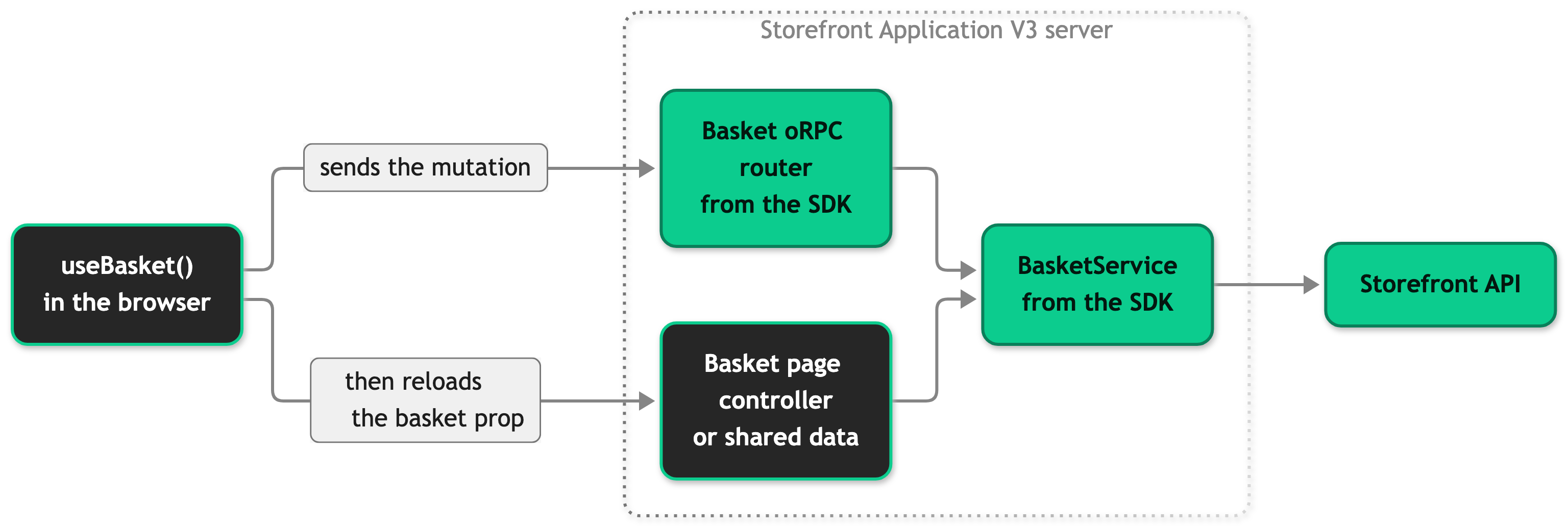
The reload after a mutation is a partial reload. On the basket page, the basket controller answers it. On every other page, the shared data middleware does, which supplies the props every page receives. In both cases the server reads the basket from the Storefront API again and applies promotions to it.
Add, change quantity, change size, and remove reload the basket prop after the call whether it succeeded or not. addItem() returns the number of units the basket gained, or false on failure. updateItemQuantity() returns true or false. changeItemVariant() returns an object with success and, on success, the key of the item the change landed on. removeItem() returns the same kind of object, without an item key. Promotion code procedures are called by usePromotionCode(), which reloads the basket after a success.
The basket page controller
BaseBasketController in the SDK owns the request lifecycle of the page: the beforeFetch hook, the basket read through BasketService, an error page when the read fails, the beforeRender hook, and the render. An empty basket is a valid page. getTemplate() and getViewProps() are abstract, so a controller that doesn't implement both fails to compile.
BasketController in src/server/controllers/basket.ts implements both. It sends the basket with the first response, so the page renders its items from the first HTML. It also supplies a checkout JWT and an access token for the checkout web component, the delivery costs, the gift rows for Buy X Get Y promotions, and the page meta. The gift rows come from the basket's own gift promotions, and a failure to load them logs an error and renders no gift rows instead of failing the page.
Add to basket confirmation
useBasket().addItem() opens the confirmation after the add succeeded and the reloaded basket arrived. It compares the quantity of every basket item before and after the add and confirms the item of that variant whose quantity grew. The same variant can sit on several basket items, so the variant alone isn't enough to find the right one.
- If the add or the reload fails, an error toast shows and
addItem()returnsfalse. An error code you add onbaseshows no toast, becauseaddItem()only knows the codes the SDK declares. - If the customer navigates away before the reload finishes, nothing shows and
addItem()returnsfalse. - If the API capped the quantity, an info toast says that all available stock is already in the basket. The confirmation still opens when an item grew.
- If an item grew and the quantity wasn't capped, the confirmation opens and screen readers get an announcement.
The state of the confirmation lives in useAddToBasketSlideIn(), shared at module level so addItem() and the slide-in read the same state without a prop chain. open() does nothing during a server render, so one customer's confirmation never reaches another customer's HTML. The default layout loads SFAddToBasketSlideIn on demand after the first add, so pages that never add a product don't load its code.
The confirmation reads the trendingProducts prop of the current page. Because it reads the live prop, an add on a page without trending products never shows the products of a previous page.
Size editing
The Storefront API has no call that changes the variant of a basket item, so the server changes a size in two steps: an add of the new size, then a delete of the old basket item. It deletes the old item only after the add succeeded, so a failed add, for example because the new size sold out, leaves the basket as it was. The add carries over the quantity, custom data, display data, item group, and promotions of the old item. The price doesn't carry over.
Each basket item carries every size of its product in BasketItem.variants, next to the held variant in BasketItem.variant, so the selector renders without a request of its own. When the customer picks a size, the basket page sends only the item key and the new variant ID to basket.changeVariant. The procedure answers like the other mutations, with addedWithReducedQuantity set to false or true. When it is true, the response also carries requestedQuantity, the units the item held before the change, and quantity, the units the basket now holds of the new size, for example { addedWithReducedQuantity: true, quantity: 2, requestedQuantity: 3 }. A capped add still counts as a success, so the procedure deletes the old item. quantity is missing when the old item couldn't be deleted, because no basket came back to read it from. useBasket() then counts the units from the reloaded basket.
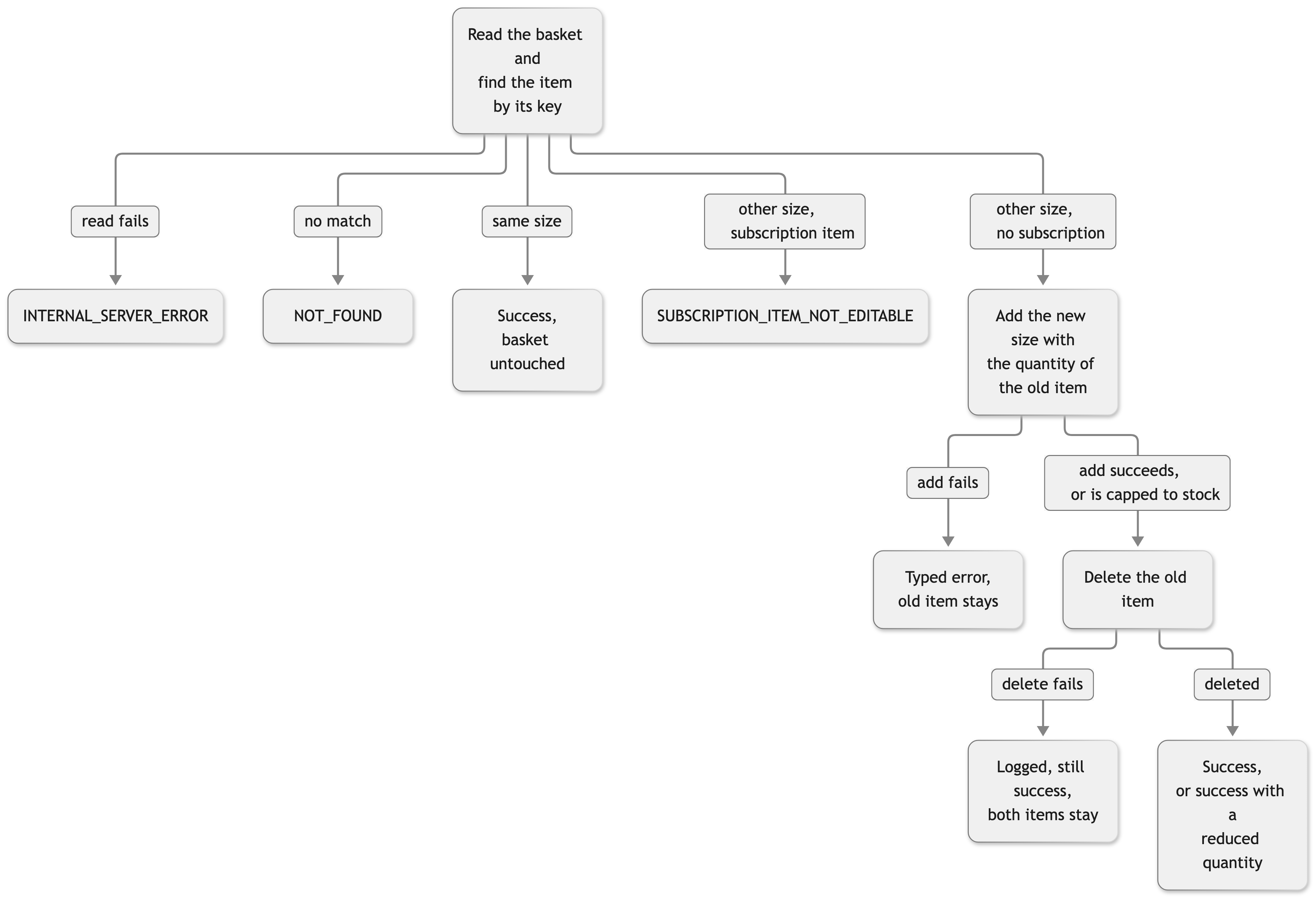
On the basket page, useBasket() reloads basket and giftPromotions afterward, announces the change to screen readers, and shows a toast: "Size updated." when the item moved to the new size, a note that it combined with an item already in the basket when it merged, an info toast with the new quantity when stock capped it, a warning toast when the old size could not be removed and is still in the basket, and an error toast when the change failed.
Configuration
SCAYLE Panel
The Storefront Application V3 reads delivery costs from custom data on the shop country, so the basket summary can show them. To display them, create a custom deliveryCosts field in the SCAYLE Panel (Settings ➜ General ➜ Custom Data ➜ Shop Country) following the Custom Data in SCAYLE Panel guide with this schema:
Then set per-country values (Shops ➜ Internationalization ➜ Countries ➜ Custom Data):
The application uses the Panel values only when value and disclaimer are both non-empty strings. Otherwise the delivery row shows the translated "from" copy with a zero amount in the country's currency, and the disclaimer uses the translation key basket_summary.delivery_fees. The basket page shows the same copy when the shop configuration can't be read.
The confirmation recommendations need each product to be assigned to a category (Products ➜ [Product] ➜ Categories). The main category is the most specific category of the product's longest category path. The ranking comes from the Trending smart sorting key. See Rule-Based Recommendations for the sorting setup.
Storefront Application
These constants live in your code and need a rebuild to change.
BasketMapperService and ProductMapperService use this threshold for isLowStock. The basket mapper flags a basket item when its available quantity is above zero and at or below the threshold. The product mapper flags a variant by the same rule on its stock. It flags a product when every variant that has stock is at or below the threshold.
The confirmation shows at most this many recommendations, three rows of two on desktop. The list it trims comes from the product detail page, which fetches RECOMMENDATION_LIMIT (10) trending products in src/server/controllers/product-detail.ts. Raising RECOMMENDATION_COUNT above that limit has no effect unless you raise the limit too.
Customization guides
Store your own data on a basket item
You end up with a typed field on every basket item that carries your data from the add to the basket page. This guide uses an engraving text as the example.
Prerequisite: the add button of your page already calls useBasket().addItem().
- Declare the key next to the existing declarations in
src/shared/types/customData.ts: - Pass the value as
customDatawhen you add the item. The snippet shows the call thatSFProductActions.vuemakes, with the one added line marked: - Read it from
item.customData.engravingTexton any basket item.
The key stays on the basket item through quantity changes and size changes. The add procedure lets unknown customData keys through without checking them, see Validate your own custom data keys to check them.
Validate your own custom data keys
You end up with a basket.add procedure that rejects a malformed value before the server stores it. Rebuild the procedure from the exported definition and swap one part. Everything else, such as the route, the output, the error codes, and the handler, stays the SDK's.
The one-time checkout token procedure for express checkout reuses the same input schema, so rebuilding basket.add doesn't change it. Rebuild it the same way if express checkout should validate your key too. The same pattern works for any other basket procedure: replace its key on the basket object.
Request more variant data in the basket
You end up with extra variant fields in the Storefront API response for every basket read. BasketMapperService builds the with selection for basket reads and mutations in its Includes getter. Each basket line's variant, and every variant in its size list, uses this.mappers.product.VariantIncludes, the same selection the product detail page uses. Add the fields there and both pages request them: Attribute Keys lists the constants and the exported SUBSCRIPTION_ATTRIBUTE_KEYS.
To change the basket only, override Includes in BasketMapperService and build the variant selection there instead of reading VariantIncludes.
Requesting a field doesn't map it, so read the new field in mapBasketItem, see Customize how the basket maps API responses.
Customize how the basket maps API responses
BasketMapperService extends the SDK's BasketMapper. The usual points to add fields are mapBasket and mapBasketItem:
public mapBasket(apiBasket)returns the mappedBasket.protected mapBasketItem(apiItem)returns one mappedBasketItem.
Override them to change promotion display, cost calculation, or item data, or to add a field. Call super.mapBasket(...) or super.mapBasketItem(...) first and layer your fields on top. The application already does this for the size options of each item:
A field you add needs a declare module '@scayle/storefront/types' augmentation of BasketItem, BasketCost, or Basket, like the one in src/shared/types/Basket.ts, so the rest of the application can read it. If you skip the super call, TypeScript flags a missing required field. It does not flag the optional ones, which then arrive as undefined at runtime.
Show recommendations in the confirmation on another page
You end up with the "Things you might like" section after an add on a page other than the product detail page. The confirmation reads trendingProducts from whichever page is open, so the page's controller sends the prop and the page component declares it. This example ranks the main category of the first available basket item. A basket item carries a listing product without a main category, so the example fetches the full product first. It shows the lines you add or change, and // ... marks the rest of each file. The controller file already declares the log logger that the example reuses.
The page doesn't need to render the prop. Declaring it on the page component is what lets the controller return it, and the confirmation reads it from the page. Keep the prop deferred so it doesn't slow down the first render. The deferred request runs the controller again, which reads the basket a second time, so weigh that cost on a page that most customers open before checkout. A gift selected before the deferred prop arrives shows no recommendations.
Best practices
Fire tracking events after the mutation succeeds
addItem() returns the number of units the basket gained, or false. Fire add_to_basket only for a truthy result, and report that number as the quantity. useBasket().updateItemQuantity() and changeItemVariant() fire their own events, so call the matching helper from useBasketEvents() only after addItem() and removeItem(). See Tracking Events.
Read the basket through useBasket()
useBasket() returns a computed basket that follows the current page prop. A component that copies the prop into its own ref renders stale data after a mutation. The header count is the typical symptom: it stops updating after an add because the copy never sees the reload.
Route every mutation through oRPC
Basket procedures validate input with Zod, and all of them except remove return typed error codes. A form that posts to your own endpoint outside this pattern loses both and drifts from the error handling of every other mutation.
Let the basket page run the size change
SFBasketVariantSelector emits the picked variant ID and nothing else. The basket page calls useBasket().changeItemVariant() because it owns the item's loading state and the giftPromotions prop that reloads with the basket. A custom selector that also calls changeItemVariant() runs the change twice. When the calls run one after the other, the second fails with NOT_FOUND because the first already replaced the item. When they overlap, the second add can merge into the item the first one created, and the new size can end up with twice the quantity.
Add products through useBasket().addItem()
A custom add button that calls rpcClient.basket.add directly skips the confirmation, the screen reader announcement, and the unit count that add_to_basket reports.
Reload page props that depend on the basket
useBasket(includeOnly) reloads basket and the prop names you pass. The basket page passes giftPromotions through useBasketItemActions(), because a change to the basket can make a gift available or take it away:
A page prop whose value depends on the basket and isn't in that list keeps its old value after an add, even though the header count updates.
Troubleshooting
The confirmation doesn't appear after adding a product
Issue: The customer adds a product, but no confirmation opens.
Possible causes:
- The add or the basket reload failed, and an error toast shows instead. The cases you can predict, such as a capped add that lands zero units or a customer who navigates away, are covered in Constraints and limits.
Solution:
- Check for an error toast or a failed
basket.addrequest in the browser's network tab. - Compare the quantity of the variant in the basket before and after the add.
Prevention: Show sold out and low stock state on the product detail page before the add.
The recommendation section is empty or missing
Issue: The confirmation opens, but "Things you might like" doesn't show.
Possible causes:
- The trending fetch failed. The controller logs
Failed to fetch trending productsand returns an empty list. A product without a category, or a page that sends notrendingProductsprop, also leaves the section empty, see Configuration and Constraints and limits.
Solution:
- Check the server logs for
Failed to fetch trending products.
Prevention: Alert on the Failed to fetch trending products log message.
Reference
Related features
- Promotions
- Promotion Codes
- Express Checkout
- Checkout
- Subscriptions
- Product Detail Page
- Rule-Based Recommendations
- Tracking Events
- RPC API


