

Product Detail Page
The product detail page (PDP) is where a customer decides whether to buy: the image and video gallery, price, size picker, and add-to-basket action all live on this one page. The Storefront Application V3 renders it from a single controller.
Why it matters
The PDP is the last stop before a customer adds an item to the basket, so clear pricing, rich images and videos, and simple size selection directly reduce drop-off. It shows the reduced price next to the original price and the lowest prior price when the Storefront API returns them and they apply. Learn how to set up a product to be on sale.
The product arrives with the first render, and content that only some products or customers need loads afterward as deferred props. See Props and when they load.
Try it
Explore these distinct scenarios on a live product.
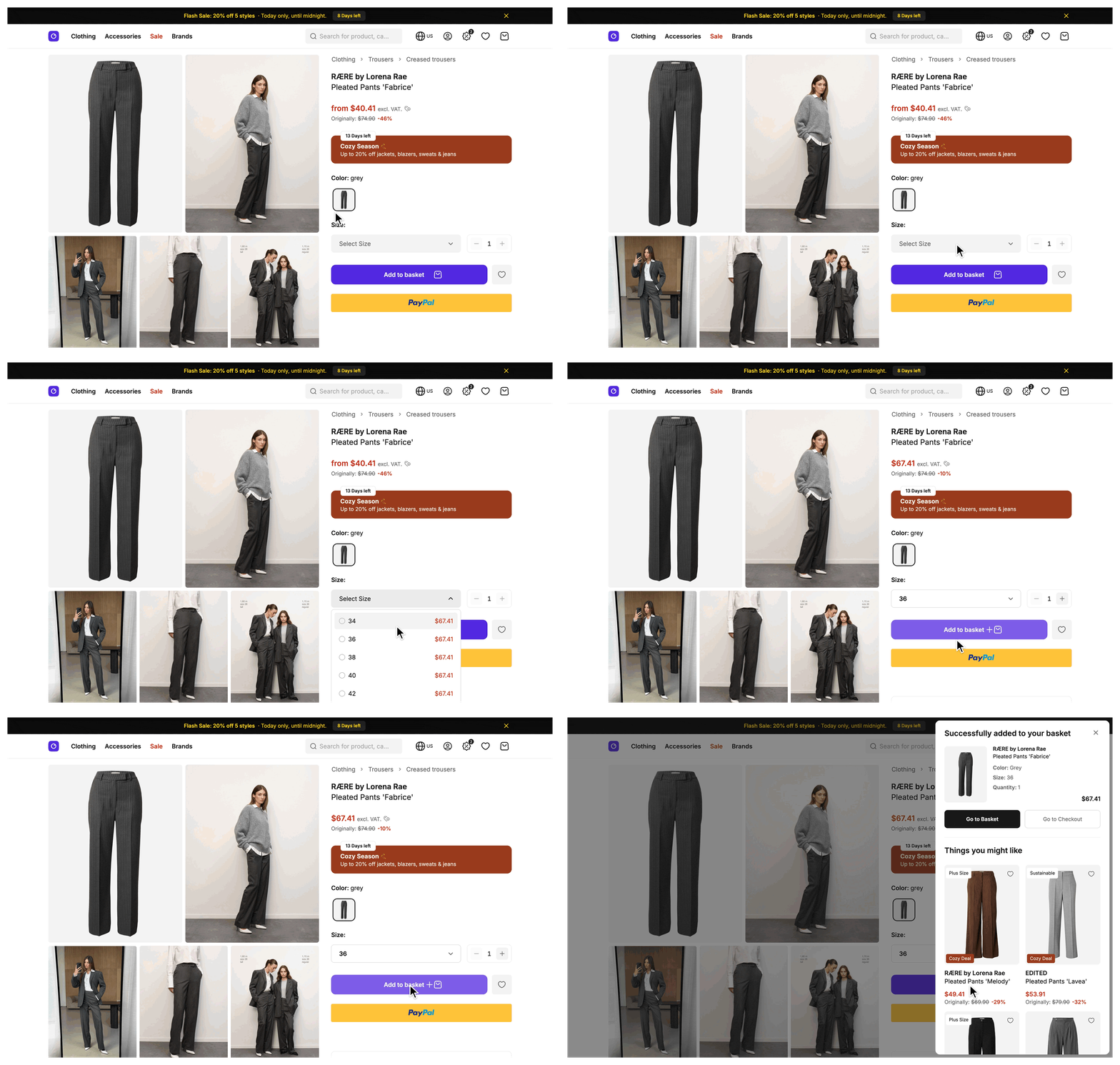
PDP (desktop)
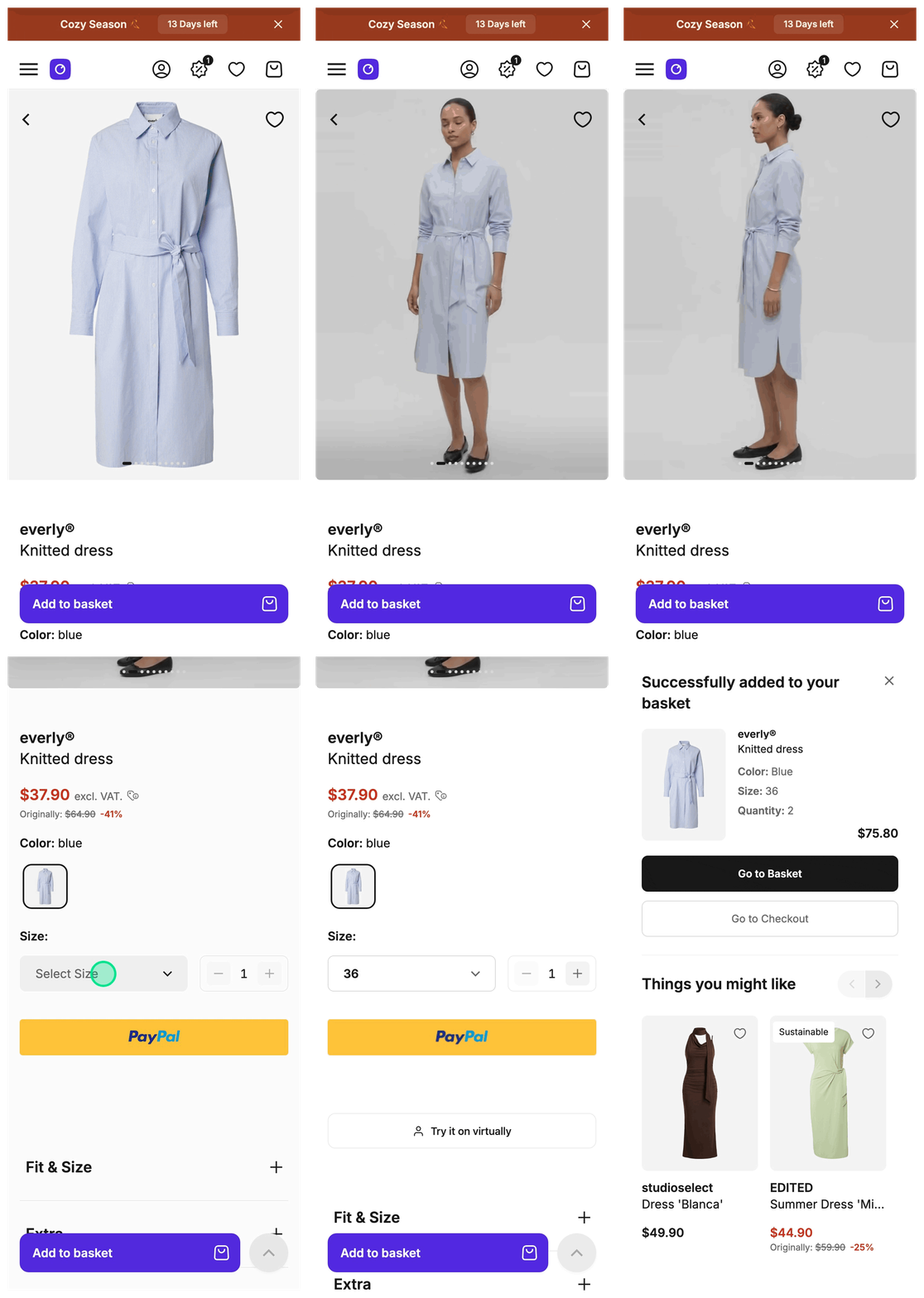
PDP (mobile)
What's included
- Product route: A route at
/p/<slug>-<id>that reads the product from the trailing id. An unknown id answers 404. A URL whose path differs from the product's current path redirects with a 301 and keeps the query string. - Product fetch: One Storefront API request for the product with its attributes, variants, images, videos, color siblings, and categories, sent after the server looks up the active campaign.
- Image gallery: A swipe slider below 640px and a grid of image and video tiles from 640px up. Clicking an image opens a zoom modal with previous and next buttons, click zoom with a mouse, and pinch and drag zoom on touch screens.
- Product videos: Videos attached to the product play inside the gallery, in the slider, the grid, and the zoom modal. They play muted and looped with the browser's native controls, and only one video plays at a time.
- Breadcrumbs: Shown from 1024px up, along the longest category path of the product. If a product has several equally long paths, the first one from the Storefront API response wins.
- Price display: The price of the selected size, or the product price when no size is selected. It shows the original price and the lowest prior price when the Storefront API returns them, together with a tax note.
- Color siblings: Thumbnails of every color of the same product, with the color on the page first and highlighted. A sold-out sibling shows as disabled.
- Variant picker: A size picker whose selection lives in the
variantIdquery parameter of the URL, so a specific size is shareable and bookmarkable. A product with a single variant has that variant selected from the start. - Quantity selector: Lets customers choose how many units to add. The upper bound is the stock of the selected size, capped at 10. With no size selected the input allows one unit.
- Add to basket: Disabled while the product or the selected size is sold out, or while the product is outside its sellable timeframe, the period in which the product can be bought. The button text then names the reason. It stays enabled while no size is selected, so the click can prompt the customer to pick one. A click without a size scrolls the size picker into view, opens it, and announces the missing selection to assistive technology.
- Subscriptions: Lets customers buy an eligible product as a recurring subscription with an interval and a preferred delivery day. Provided by the SCAYLE Subscription Add-on, see SCAYLE Subscription Add-on configuration.
- Product details accordion: Groups product attributes in collapsible sections for fit and size, extras, and design, followed by a shipping and return section with static text from the locale files.
- Promotion banner and confirmation: Shows the campaign and promotions that apply to the product and confirms when the product is part of an active promotion.
- Gift promotion products: Shows the gift products of a free-gift promotion once the basket meets its conditions.
- Product recommendations: Similar products and trending products of the product's main category, in sliders below the product. A recently viewed products slider follows them.
- Express Checkout: Lets customers buy straight from the PDP while the product and the selected size are in stock and the product is inside its sellable timeframe. A click without a size opens the size picker first. See Express Checkout.
- Low stock indicator: A banner with the remaining count for the selected size when its stock is at or below the threshold. With no size selected, a generic banner shows when every size that still has stock is at or below it.
- Unavailable state: A banner replaces the size picker and quantity selector when a product is sold out, not yet available, or no longer available. The wishlist toggle stays available.
- Page metadata: Title, description, canonical link, and a social preview image. The page is always indexable with
index, follow. - Structured data: Product group and breadcrumb structured data (JSON-LD) for search engines. Each product video with a poster adds a
VideoObjectnode to the product group.
What you can change
Configure
- Product data (attributes, variants, images, videos, sellable timeframes, attribute groups) in the SCAYLE Panel.
- Turn the subscription add-on on for a country with the
STOREFRONT_COUNTRIES_<COUNTRY CODE>_SUBSCRIPTION_ENABLEDenvironment variable, for exampleSTOREFRONT_COUNTRIES_DE_SUBSCRIPTION_ENABLED=true. The country entries instorefront.config.tsread their own variable intosubscriptionEnabled, so a country you add needs that line before its variable has any effect.
Theme
- The whole page. Every component on it is yours to reorder, restyle, or rebuild.
Extend
- Add a custom product attribute by extending
mapDetailedProductin your product mapper. - Add a section to the product details accordion in
buildProductDetails. - Change which Storefront API includes are fetched in
DetailedIncludes. An include names a part of the product, such as its variants or videos, that the request asks the Storefront API to return. - Redirect or hide a product before the page renders with the
beforeFetchandbeforeRenderhooks. - Show different content to users, customers, and segment members, for example a member note below the price.
- Change the low-stock threshold by editing
LOW_STOCK_THRESHOLDinsrc/server/constants/index.ts. Your product mapper assigns it to thelowStockThresholdproperty of the SDKProductMapper. - Return a different page for a type of product from
getTemplatein your controller. The page needs an entry in theComponentsmap insrc/shared/types/global.d.ts, and the generic of your controller names it next toProductDetail. - Add another value to the page by returning one more entry, for example another
Inertia.defer(...), fromgetViewPropsin your controller and declaring the prop inProductDetail.vue. - Change the title, description, canonical link, or social image in
getMetain your controller. - Change how long the page can be cached by editing the
[routes.productDetail]entry ofcacheableRoutesinstorefront.config.ts. - Change the number and placement of product videos with
MAX_GALLERY_VIDEOSandVIDEO_GALLERY_INDEX. - Add
uploadDateto video structured data ingetProductJsonLd. - Supply a poster for externally hosted videos by overriding
mapVideos. - Turn off product videos by removing
videosfromDetailedIncludes.
Replace
- Build a second, differently shaped detail page for a distinct product type whose data comes from a different fetch by adding a new route and controller.
Constraints and limits
Permanent
- A product with more than one variant shows no size selected until the customer picks one, or until a
variantIdmatching one of its variants appears in the URL. AvariantIdthat matches no variant leaves no size selected. - Selecting another size resets the quantity to 1.
- The PDP route is listed in
cacheableRoutes, see What a cacheable response leaves out and Logged-in customers skip the shared cache. The deferred prop requests are partial requests, so they are not cacheable and do load the session. A cacheable render has an empty session, so an eager prop,getMeta, or a decision insidebeforeFetchorbeforeRenderthat reads the session sees no customer. Return a customer-specific value as a deferred prop instead, the wayaccessTokenis returned, or readrequest.isRouteCacheableand resolve the value only when it isfalse, the way the sharedcustomerprop does. A customer's segments are one such value, see Customer Segments. - The data cache keeps the mapped product for up to 5 minutes. A change in the SCAYLE Panel, such as a video you attach to a product, reaches the page when that entry expires. After you change a mapper, an entry cached with the old shape stays in use until it expires. A production build that sets
SCAYLE_BUILD_IDstarts with an empty cache. See Data cache TTLs. ThecacheableRouteslifetime is a separate cache of the whole response, see Configuration. - The similar products, trending products, and gift promotion callbacks catch their own errors and resolve to an empty result, so a failure in one of them leaves the rest of the page alone. The
accessTokencallback does not catch. - Subscription prices are requested only when the country has
subscriptionEnabledset and at least one variant of the product can be subscribed to. The subscription block renders in the browser only. - Express Checkout adds the variant to a separate, throwaway basket, so the contents of the customer's own basket do not count toward it.
- The PDP renders a product by its id whatever its sold-out or sellable state, so a product outside its sellable timeframe stays reachable by direct URL. Product listings and search results filter on the sellable timeframe and leave such a product out.
- A section of the product details accordion shows only when it has at least one line. Each section reads the attributes whose
typeequalsfit_size,extras, ordesign, not the attributes with those keys. - Product videos appear only in the PDP gallery.
mapVideosruns only insidemapDetailedProduct, and the listing includes do not request videos, so product listings and color siblings carry none. - If you replace
SFProductVideoSlide, keepmutedandplaysinlineon its<video>element. Mobile browsers require both for autoplay, so without them the video shows its poster and does not start on its own. - If you replace
SFProductVideoSlide, keep the frame at the aspect ratio ofPRODUCT_IMAGE_ASPECT_RATIOinsrc/client/constants/index.ts, so the frame reserves its space before the video file loads. A frame sized by the file shifts the layout when the file loads. - Start a product video only through the
isPlayingprop ofSFProductVideoSlide, and set it from one active index per surface. A call toplay()from outside the component, orisPlayingon more than one slide, makes several videos play at once. See Playback.
Known limitations
- A product shows at most 5 videos, the default of
MAX_GALLERY_VIDEOS. Any further videos are dropped without a warning. To show more, raise the constant as described in Changing the number and placement of product videos. - Videos use the same 3:4 frame as product images. A video in another ratio shows with empty space around it, not cropped.
- A video that fails to load keeps its slide. The gallery has no handler that replaces it with a product image.
- Only videos on an
httpsURL on the SCAYLE CDN get a poster. An externally hosted video plays without one and is left out of the structured data, so upload your product videos to the SCAYLE CDN where you can. See Supplying a poster for externally hosted videos. - Product videos are not eligible for Google video rich results by default, because the Storefront API returns no upload date for a video. See Adding uploadDate to video structured data.
How it works
One controller renders the page. It fetches the product first because nothing on the page is useful without it, and it defers the rest so a slow or failing call cannot hold up the buying decision.
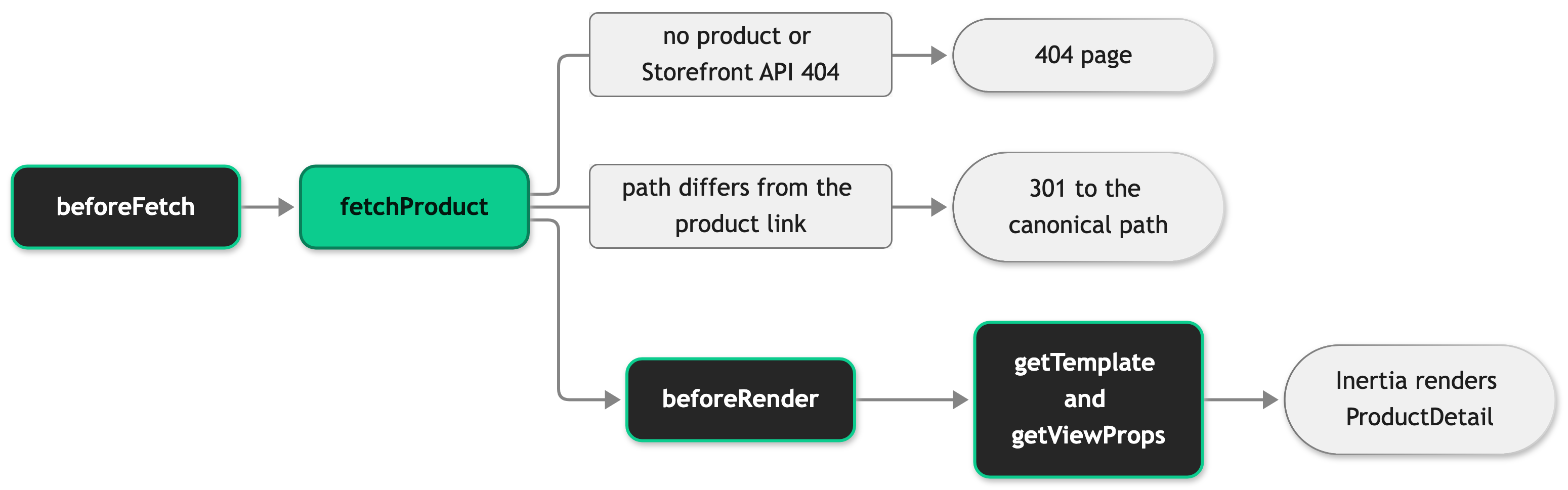
The hooks are methods you declare in your ProductDetailController. BaseProductDetailController from @scayle/storefront/controllers runs this order. Either hook can return a Response to stop the order at that point, and both let it continue when they return nothing.
Page props
The controller returns these props from getViewProps.
| Prop | When it arrives | What it feeds |
|---|---|---|
product | With the first render | Everything on the page. |
meta | With the first render | Title, description, canonical link, and social image. |
hreflangs, jsonLd | Server-rendered page only, absent after a client-side navigation | Alternate language links and structured data for search engines. |
similarProducts, trendingProducts | Deferred, group recommendations | The recommendation sliders. |
giftPromotion | Deferred, group promotion-data | The gift products of a free-gift promotion. |
accessToken | Deferred, group customer-data | Express Checkout. |
subscriptionPrices | Deferred, group subscription, only for a subscribable product in a country with subscriptions on | Subscription prices per variant. |
The accessToken is deferred because the cacheable render does not read the session, so an eager token would always be empty.
When you customize the page, keep these in mind.
- Each deferred prop resolves in its own callback, and the props of one group arrive together, so give a slow value its own group. Wrap its fetch in a
tryandcatchand return an empty value, as the recommendation callbacks do, if a failure should leave the page intact. - Everything the page displays passes through your product mapper on its way from the Storefront API to typed props. Most customizations of the page start there.
Product videos
Each video on DetailedProduct.videos carries the playable URL and, for a SCAYLE CDN video, a poster URL. An externally hosted video has no poster:
attributes and customData appear on each entry only when you request them. The server builds the list once. The gallery and the structured data both read it:
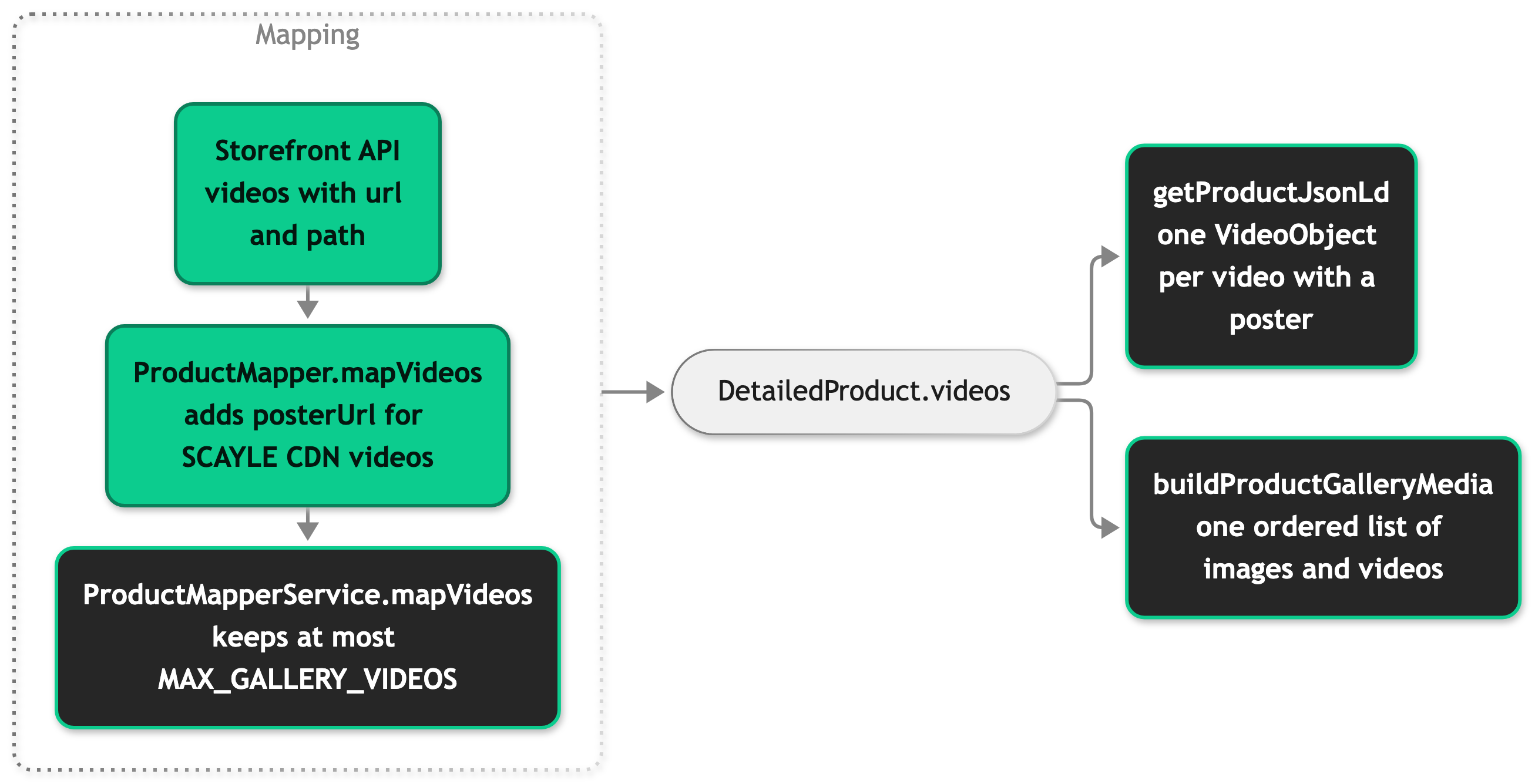
ProductMapperService.mapVideos calls the SDK method through super and then applies the cap.
Gallery order
buildProductGalleryMedia inserts all videos, in Storefront API order, at VIDEO_GALLERY_INDEX and shifts the remaining images after them. With the default index of 1, the first image stays first:
| Images | Videos | Gallery order |
|---|---|---|
| A, B, C | V1, V2 | A, V1, V2, B, C |
| A | V1, V2 | A, V1, V2 |
| none | V1 | V1 |
An index larger than the number of images places the videos after the last image.
Playback
Only one video plays at a time. Every video element is muted, loop, and playsinline, and uses preload="none", so the browser downloads nothing for a video until it starts playing and shows the poster until then.
- Below 640px (slider): The video on the active slide plays. Swiping away pauses it and rewinds it to the start.
- From 640px up (grid): The first video starts playing when the page loads. Clicking another video makes it the one that plays, and the previous one pauses and rewinds. Clicking an image opens the zoom modal and pauses the playing video. Closing the modal resumes the video that was playing, from the beginning.
- Zoom modal: The video on the active slide plays while the modal is open. Pinch, drag, and click zoom apply to image slides only.
When a browser rejects autoplay, the poster stays visible and playback starts from the native controls instead. Because every video is muted, a video that relies on narration or music loses it unless the user turns the sound on through the native controls.
Structured data
getProductJsonLd in src/server/utils/seo.ts adds one VideoObject per video with a posterUrl to the product group's subjectOf. When no video has a poster, subjectOf is left out entirely.
VideoObject field | Value |
|---|---|
name | The product_video.json_ld_name locale string, {name} (Video {index}) in en_GB. index is the video's 1-based position in DetailedProduct.videos. |
contentUrl | The video's url. |
thumbnailUrl | The video's posterUrl. |
description | The product description with HTML tags removed. Left out when the product has no description. |
Configuration
SCAYLE Panel
The product's own attributes, images, videos, variants, and sellable timeframe come from the Storefront API. Attribute types and groups are configured in the SCAYLE Panel at Settings ➜ Product Structure ➜ Attributes and Settings ➜ Product Structure ➜ Attribute Groups.
Product videos are managed on each product's detail page in the SCAYLE Panel, in the Videos section below Images in the Media area. The Panel accepts MP4, MOV, and WebM files and links the videos to the product when you save it. To attach videos through the Admin API instead, see Manage Media / Videos.
Storefront Application
| Setting | File | Default | Effect |
|---|---|---|---|
LOW_STOCK_THRESHOLD | src/server/constants/index.ts | 5 | Highest stock count that still counts as low stock. Your product mapper assigns it to the lowStockThreshold property of the SDK ProductMapper, which has a default of 5 too. |
VIDEO_GALLERY_INDEX | src/shared/constants/productGallery.ts | 1 | 0-based gallery position of the first video. Further videos follow it in order. 0 puts the videos before every image. |
MAX_GALLERY_VIDEOS | src/shared/constants/productGallery.ts | 5 | Most videos the product mapper keeps. Videos beyond it never reach the gallery or the structured data. |
cacheableRoutes[routes.productDetail] | storefront.config.ts | 600 | Seconds a shared cache or CDN can keep a response for this route. This is separate from the data cache lifetime. |
STOREFRONT_COUNTRIES_<COUNTRY CODE>_SUBSCRIPTION_ENABLED | .env | empty | Set to true to turn the subscription add-on on for that country. |
The PDP requests videos through videos: {} in the DetailedIncludes of your product mapper in src/server/services/mappers/product-mapper.ts. The video labels live under the product_video key in each locale file in src/i18n/locales/.
Customization guides
Adding a custom product attribute
You end up with a new attribute on DetailedProduct that a component can render. The steps use a hypothetical fitRecommendation attribute, so replace it with your own attribute key.
Before you start, create the attribute in the SCAYLE Panel and assign it to your products. The PDP requests attributes: 'all', so the attribute reaches the product mapper without a change to the includes.
- Add the attribute key as a constant. Keys you read from more than one place belong in this file. Attribute Keys explains the file.
- Add the field to the existing
DetailedProductaugmentation. The file is already a module, so TypeScript merges the new field into the SDK type. - Fill the field in
mapDetailedProduct, the public method that builds the detailed product. Keep thesupercall and the fields around your addition. - Render the field in a component. A field you add to
DetailedProductis available on theproductprop ofProductDetail.vue.
getFirstAttributeValue returns undefined when the product has no value for the attribute, so the field stays undefined and the v-if hides the line. If you skip step 2, the mapper does not compile. If you skip the super.mapDetailedProduct call, the result still type-checks but misses every base field. The cached product keeps the old shape until its entry expires, so the field can appear a little later.
Adding a section to the product details accordion
You end up with a new collapsible section in the product details accordion.
Before you start, make sure the attributes you want come back from the Storefront API with a type value of your choice, for example care. The accordion reads the type of each attribute group in the response.
- Add the type as a constant.
- Add the section title to
en_GB.jsonunderproduct_details.information, then run thetranslate-localesskill to fill the other locale files. - Add the section to
buildProductDetailsin your product mapper. The method isprivatein your own file, so you edit it in place. A subclass could not override it.
SFProductDetails.vue renders every entry of product.details, so no component change is needed. The section appears after the existing ones, above the static shipping and return section, and only for products that have at least one value of that type.
Changing which Storefront API includes are fetched
You end up with a PDP that requests only the data it renders.
Edit the DetailedIncludes getter of your product mapper. The SDK sends its value with the product request. Each include adds work to that request and bytes to the page payload, so remove the ones nothing renders.
If your shop does not display color siblings, remove the siblings block:
The JSDoc of DetailedIncludes notes that the Gift feature reuses this whole includes config. Removing the siblings block changes what gift products request too. When you add an include, read it in the mapper as well. A field the Storefront API returns and your mapper ignores never reaches a component.
Redirecting or hiding a product before the page renders
You end up with a PDP that answers a redirect or a 404 for products you choose, before any page props are built.
The two hooks sit on your ProductDetailController and both return Promisable<Response | undefined>. A Response stops the order and goes to the browser as it is. undefined lets the order continue.
beforeFetch()runs first and takes no arguments, because nothing is resolved yet. Use it for a decision that depends only on the request, such as a redirect for a URL pattern.beforeRender({ product })runs after the product is fetched and after the canonical redirect check. Use it for a decision that depends on the product, such as hiding a SKU.
renderNotFound() renders the not-found page. To redirect, return this.inertia.navigate(path, 301) with an unlocalized path. A request with an outdated slug redirects before beforeRender runs, so the hook sees only requests on the canonical path. The route is cacheable, so base the decision on the URL or the product. A decision that depends on who is signed in cannot work here.
Changing the number and placement of product videos
You end up with a gallery that shows the number of videos you want at the position you want. Edit both constants in src/shared/constants/productGallery.ts:
VIDEO_GALLERY_INDEX sets where the first video goes, see Gallery order. MAX_GALLERY_VIDEOS sets how many videos the product mapper keeps.
Adding uploadDate to video structured data
You end up with a VideoObject that carries an upload date, which Google needs before a video is eligible for video rich results. The Storefront API returns no upload date for a video, so store the date as custom data on each video, then request it, type it, and add it to the structured data.
- Request the custom data.
videos: {}requests the videos only, without their attributes or custom data. SettingcustomData: truein that object adds the custom data. The base mapper copiescustomDataonto each mapped video when the Storefront API returns it, so no mapper change is needed.
Every field you request ships in the PDP payload for every video. Gift products reuse the PDP includes, so they request the same fields. - Type your custom data. Add
ProductVideoCustomDatato the existingdeclare module '@scayle/storefront-api'block, next to the other SCAYLE Panel custom data types. - Add the date to the
VideoObjectingetProductJsonLd.
Supplying a poster for externally hosted videos
You end up with a poster and a VideoObject for a video that is not on the SCAYLE CDN. The Storefront Application V3 builds no poster for it, so it shows an empty frame until it plays and has no VideoObject node. Store a poster URL for the video as custom data, then override mapVideos to fall back to it.
- Request the custom data and type
posterUrlthe way the uploadDate guide does in steps 1 and 2, withposterUrl?: stringinProductVideoCustomData. - Replace the
mapVideosoverride in your product mapper.
Keep the slice in place. This override replaces the one that applies MAX_GALLERY_VIDEOS.
Turning off product videos
You end up with an image-only gallery. Remove videos: {} from DetailedIncludes in src/server/services/mappers/product-mapper.ts. The Storefront API then returns no videos, DetailedProduct.videos is an empty array, the gallery shows images only, and the structured data has no VideoObject nodes. Gift products stop requesting videos too.
Best practices
Treat the URL, not component state, as the source of truth for the selected variant
Reading and writing the variantId query parameter is what makes a specific variant shareable and survivable across a page reload. ProductDetail.vue derives the selected size from variantId and updates the URL in syncVariantToUrl, so a custom size picker passes the chosen variant there instead of keeping its own selection.
Troubleshooting
A video doesn't start playing on a mobile device
Issue: The video slide shows its poster, or an empty frame, but never starts playing on its own.
Possible causes: The browser rejected autoplay.
Solution: Check whether playback starts from the native controls. If it does, the browser blocked autoplay, and the poster staying visible is the expected result.
Prevention: None on your side. A browser decides whether to allow autoplay.


