

Promotions
Promotions let your shop run rule-based discounts that a customer earns by filling the basket, and the storefront shows each promotion from the product page to the basket. You set the rules, effect, and schedule in the SCAYLE Panel. The Storefront Application V3 loads the active promotions, matches them to products through a product attribute, and shows banners, badges, and the savings per promotion. The Storefront API returns the basket with every reduction already applied, so the storefront displays discounts and never calculates them.
Why it matters
A promotion only benefits a customer once its conditions are met. A customer might browse a product that takes part in a promotion without qualifying yet, then add more items and qualify for the full discount. The storefront shows both states: "this promotion exists and you can earn it" and "you already earned it" are two different experiences. Showing that difference clearly makes a promotion feel like a reward and keeps price changes from looking like errors.
Try it
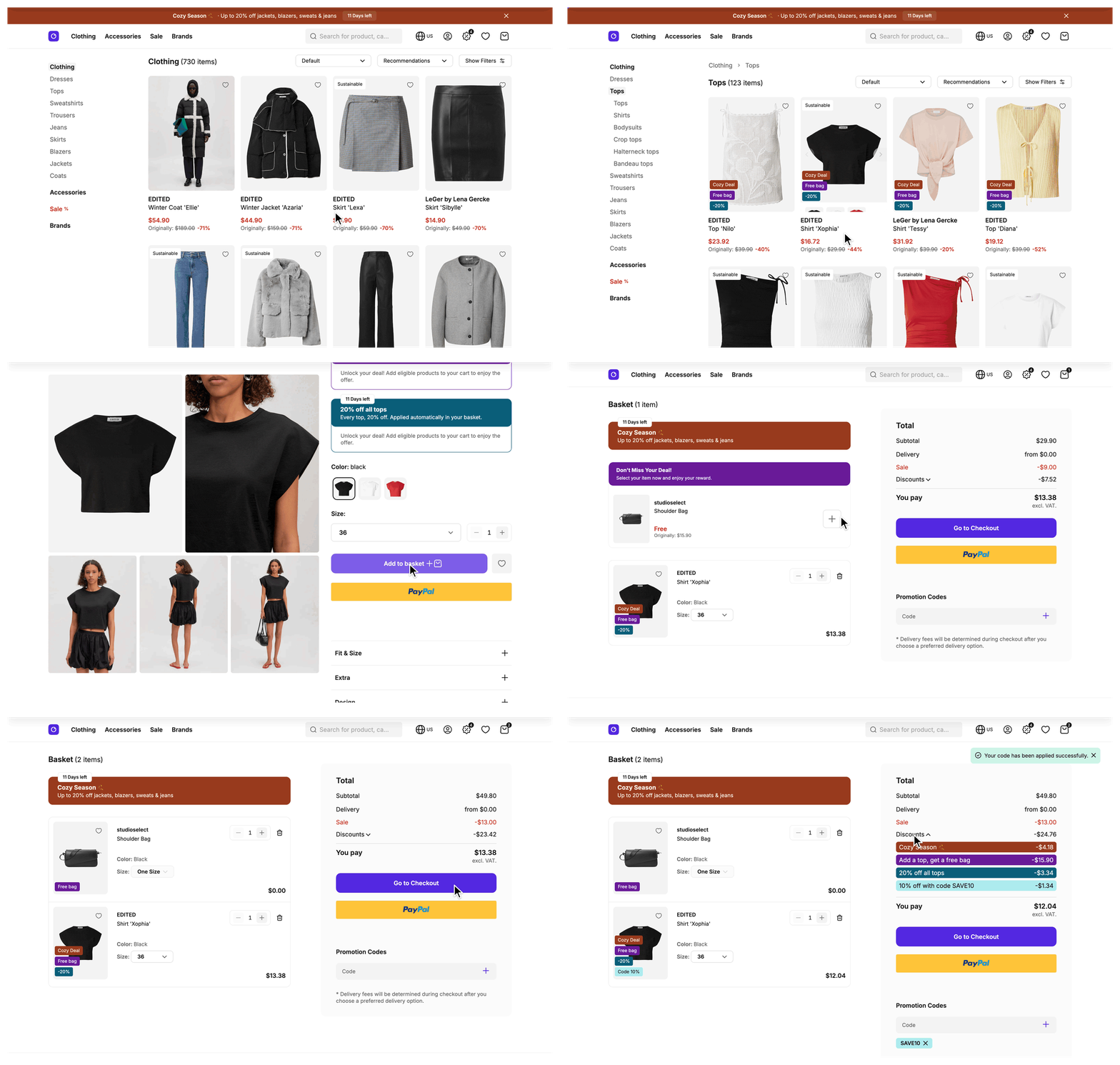
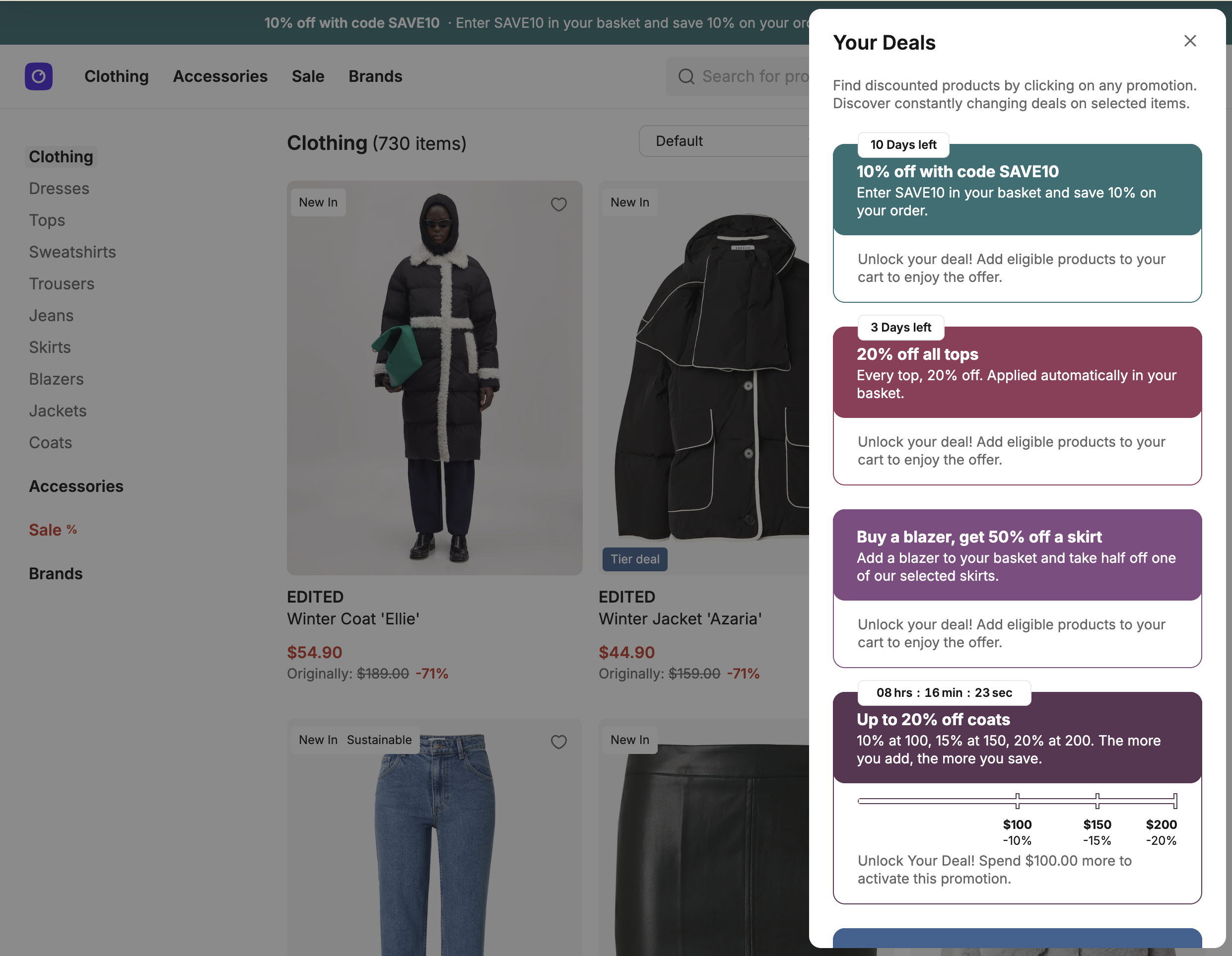
Try it: open the demo shop and select the promotion button in the header. The "Your Deals" slide-in lists the active promotions. Open a product detail page that takes part in one of them to see how the promotion shows up there.
What's included
- Shared promotions list: Every page receives the active promotions as the
promotionspage prop. It is a deferred prop, so the server sends it in a follow-up request instead of the first HTML. See Constraints and limits. - Attribute-driven product matching: A promotion targets products through one attribute value, not a product list. Panel editors add a product to a promotion by tagging it with that value, without a code change.
- Deal banner: The product detail page shows one banner per promotion that matches the product. The banner shows the headline, the subline, and a countdown to the end of the schedule unless the promotion hides it. If the promotion has a link, the whole banner links to it.
- Locked and unlocked copy: On a promotion without tiers, the banner asks the customer to add eligible products until the promotion has reduced the basket. After that, it shows the saved amount, or for a Buy X Get Y promotion (not a Buy X Get X one) it asks the customer to pick a reward. Until the basket arrives, the banner shows the locked copy, even for a promotion that is already applied.
- Progress bar: A promotion with tiers shows a progress bar instead, with one milestone per tier, measured against the basket total before promotions.
- Minimum order value tier: A promotion with no tiers from the Storefront API gets one tier when its custom data holds a minimum order value above zero and the promotion has an effect. Custom data are the free-form fields you set on the promotion in the SCAYLE Panel. The one tier shows the same bar.
- Applied confirmation: A hint below the product price links to the basket. It appears once a promotion that matches the product has reduced that product's line in the basket.
- Deals slide-in: A button in the header opens the "Your Deals" slide-in. It lists the active campaign first, then every promotion, with its conditions text when the promotion has one. The count on the button adds the campaign to the promotions.
- Layout ribbon: Every page that uses the full layout, except the basket, shows a ribbon with the active campaign, or with the first promotion when no campaign is active.
- Listing badges and highlight: Product cards and sliders show a deal badge for each matching promotion, labeled from the promotion or with the translation key
promotion.deal. A promotion that opts into card highlighting replaces the badges with one badge, a colored border, and a footer bar that shows the countdown unless the promotion hides it. - Free gift selection: A Buy X Get Y promotion that lists gift variants shows the reward options on the product detail page once the basket qualifies, and on the basket page.
- Savings per promotion: The basket summary has a promotions section that the customer expands. It lists one row per promotion with its headline and total reduction, even when several lines contribute to it. Reductions of zero or less are left out.
- Basket banners: Above the basket lines, tiered and combo deal promotions appear when the promotion already reduced a line or matches a product in the basket.
What you can change
Configure
- Promotion rules, conditions, effects, and schedule are set in the SCAYLE Panel. Which countries show the promotion is also Panel-driven.
- The headline, subline, link, conditions text, colors, badge label, countdown visibility, minimum order value, and card highlight are fields on the promotion in the SCAYLE Panel, listed in Configuration.
Theme
- Restyle the promotion components in
src/client/components/deal/, such asSFDealBanner.vue,SFDealBadge.vue,SFPromotionConfirmation.vue, andmodal/SFPromotionSlideIn.vue. - Change the fallback colors
--color-promotionand--color-primaryinsrc/client/design-tokens.css. They apply when a promotion sets no colors.
Extend
- Add a field from the promotion's custom data by overriding
mapPromotion()onPromotionMapperService. - Change the attribute key the product fetch asks for through
ATTRIBUTE_KEY_PROMOTION. - Change how promotions match products by editing the matching functions in
src/shared/utils/promotion.ts. - Change how effects or tiers map by overriding
mapEffect()ormapTiers()onPromotionMapperService. Both are public methods of the SDKPromotionMapper.
Constraints and limits
Permanent
- The storefront displays reductions and does not calculate them. The Storefront API returns the basket with each promotion's reduction on the lines, so a change to how much a promotion discounts belongs in the SCAYLE Panel.
- The
promotionsprop is deferred, so the server-rendered HTML contains no promotion banners, badges, or highlights. They appear after the follow-up request resolves. The browser then reuses the prop between visits until it expires. - Matching compares attribute group IDs and attribute value IDs. A product that does not carry the value the promotion names in that group is not part of the promotion, even if it otherwise qualifies.
- A promotion whose custom data has no product configuration matches no product, so it never gets a product badge or a product page banner. It still appears in the deals slide-in and can appear in the layout ribbon.
- The applied confirmation needs the product in the basket. The basket arrives in the deferred
customer-datagroup, together with the wishlist, so the hint stays hidden until that group resolves. - A basket line can carry several promotions. The summary adds the reductions per promotion ID, so each promotion keeps its own row.
Known limitations
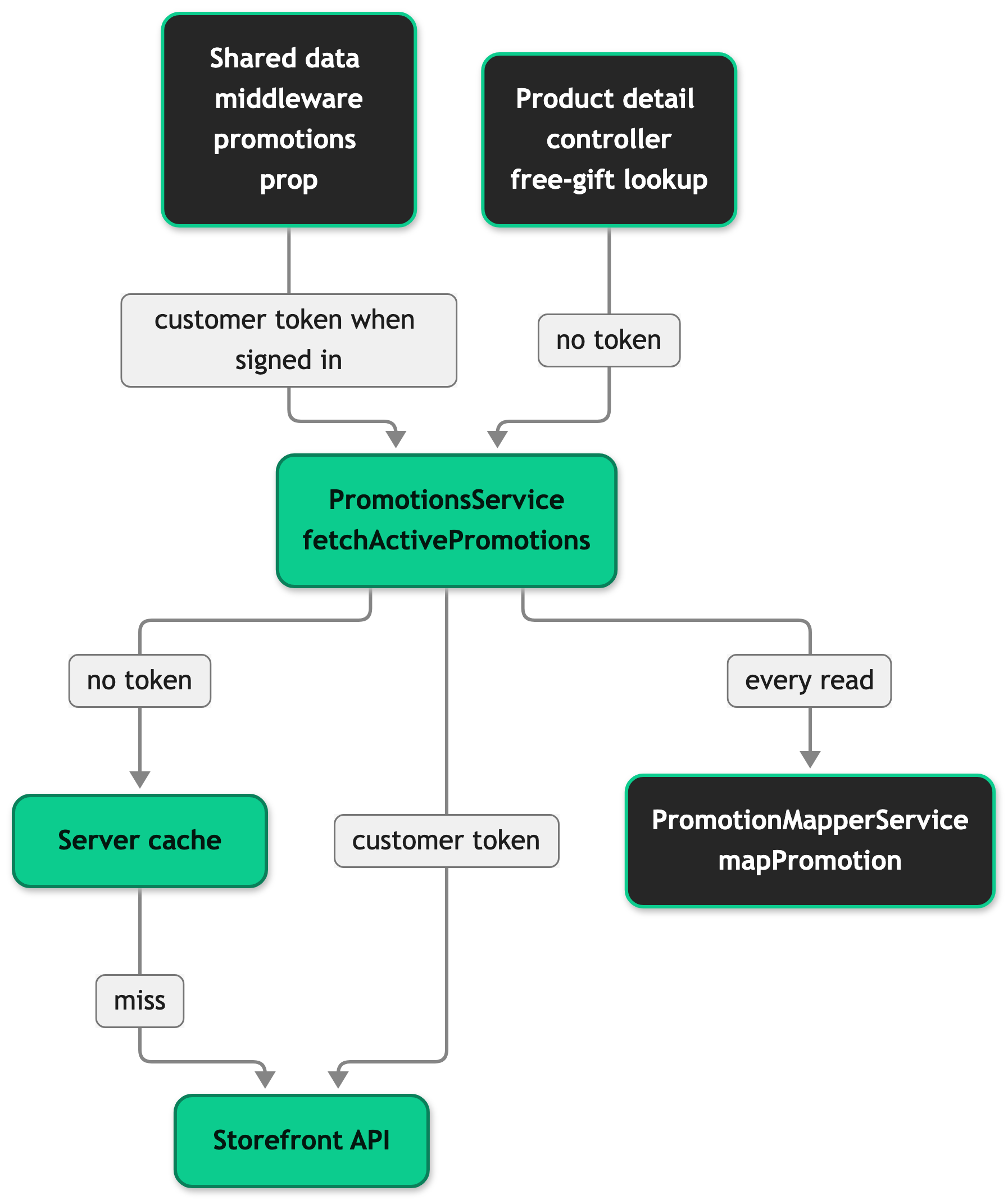
- A promotion you create in the SCAYLE Panel can take up to 5 minutes to reach a full page load of a user who is not signed in, see Data cache TTLs. A request that carries a customer token skips the shared cache. The browser keeps the
promotionsprop between visits, so a user who navigates inside the application can wait about twice as long, and a sign-in or sign-out reloads it. - The service asks the Storefront API for one page of 10 active promotions and does not request more. A shop with more than 10 promotions active at once shows only the ones that page holds.
- On the product detail page, the free-gift lookup reads the promotion list without the customer's token. It does not see promotions that the Storefront API returns only for a customer token.
ATTRIBUTE_KEY_PROMOTIONonly decides which attribute the product fetches that useProductMapperService.Includesask for, such as the listing, search, slider, basket, and wishlist fetches. The product detail page fetches all attributes. If you set the constant to a key outside the attribute group your promotions target, the product detail page keeps matching while cards and basket lines lose their promotions.
How it works
Promotions reach the page in one flow and the matching happens afterwards in the browser and on the product detail page.
Where the list comes from
The shared data middleware declares the promotions prop and fetches it with PromotionsService.fetchActivePromotions(), passing the customer's access token when the session holds a valid one. The service asks the Storefront API for the promotions active at the current minute, sorts them by priority, and maps each one through the promotion mapper, the class that turns a Storefront API promotion into the type your pages use. A failed fetch settles the prop as an empty list, so the deferred fallback resolves.
A mapper change takes effect without clearing the cache, see Rules for cached values.
The mapped promotion
The SDK PromotionMapper maps the identity, schedule, tiers, and effect of a promotion. It maps an automatic discount, a Buy X Get Y, and a combo deal. A Buy X Get Y effect with no list of gift variants and a selection type other than variant IDs becomes a Buy X Get X effect. An effect the mapper does not recognize becomes an automatic discount with a value of zero percent.
PromotionMapperService in src/server/services/mappers/promotion-mapper.ts extends it and adds the headline, taken from the promotion's display name, and what the SCAYLE Panel stores in the promotion's custom data, which the Storefront API returns as customData: subline, link, hideCountdown, conditions, color, product, and highlightProductCards. The product field holds the attribute group ID, the attribute value ID, and the optional badge label that matching uses. The same class builds the single tier for a minimum order value and the summary shape the basket uses.
Product matching
A product carries attributeValuesByGroup, a map from attribute group ID to the value IDs the product has in that group. A promotion carries the group ID and the value ID it targets. getPromotionsForProduct() in src/shared/utils/promotion.ts returns the promotions whose value ID appears under their group ID on the product. The product detail controller, useProductPromotions, and useProductCardHighlight all call it. The basket banners use getPromotionIdsMatchingBasketProducts() from the same file, which applies the same test to every basket line.
Applied state
A promotion counts as applied to a product when that product's line in the basket carries a reduction in the promotion category with the promotion's ID. The deal banner reads the basket's reductions per promotion to switch from the locked to the unlocked copy.
Configuration
SCAYLE Panel
Promotions are created under Shops ➜ [Shop] ➜ Promotion. There you choose the promotion type, define its effect and conditions, set the schedule, and choose how it attaches to products.
A promotion that stacks with others must be marked combinable. For the full set of promotion types, effects, conditions, and per-type setup details, see Promotion effects in the SCAYLE Resource Center.
The promotion's custom data carries the fields the storefront reads. The shapes live in PromotionCustomData in src/shared/types/customData.ts, and the Panel values must match them:
product: the attribute group ID, the attribute value ID, and the optional badge label of the products that take part.subline: secondary text under the headline.conditions: the conditions text.minimumOrderValue: the minimum basket value in cents, for a promotion without tiers.color: the background and text color of the banner and badge.hideCountdown: hides the countdown.link: the page the banner links to.highlightProductCards: highlights matching product cards on listings and sliders.
The headline comes from the promotion's display name and falls back to its name. Colors fall back to --color-promotion and --color-primary, and link and conditions fall back to an empty string.
Customer segments are set on the promotion in the SCAYLE Panel, and the Storefront API returns only the promotions that apply to the request, so you need no storefront code to target them. Customer Segments lists what a segment-targeted promotion needs and when it does not show. For details, see Audiences. To apply a promotion to a specific set of items, see Item Sets.
Linking a promotion to products
Products link to a promotion through a product attribute, not through a direct product list. This differs from campaigns and sales. The link is configured in the promotion's design settings, where you choose which attribute group and attribute value identifies the participating products.
Assign that attribute value to every relevant product. A product can carry several values in the group when it takes part in several promotions.
Storefront Application
Promotions have no storefront.config.ts keys. One constant sets the attribute key the product fetches ask for:
See Attribute Keys for how attribute key constants work across the application.
Customization guides
Add a field from the promotion's custom data
You end up with a new field on every mapped promotion that your components can read. You need a custom data field set on the promotion in the SCAYLE Panel.
- Declare the field on the custom data type in
src/shared/types/customData.ts, inside thePromotionCustomDatainterface.
- Add the field to the
Promotioninterface insrc/shared/types/Promotion.ts. Repeat theEffecttype parameter exactly as the file does, because interface merges require identical type parameters.
- Assign the field in
PromotionMapperService.mapPromotion(). The method keeps callingsuper.mapPromotion()first.
- Read
promotion.footnotein a component that renders aPromotion, for example inside thev-forofSFPromotionSlideIn.vue.
When it worked, each entry of the promotions page prop carries footnote. Skipping step 2 makes the mapper fail to type check. So does dropping super.mapPromotion() together with its spread, because the result then lacks the required base fields id, name, priority, and schedule.
Change the attribute key the product fetch asks for
You end up with listing, slider, and basket products that carry the attribute group your promotions target. You need the attribute key of that group.
- Set the constant to that key.
When it worked, product cards on listings show the promotion badge. The constant sits in the Includes of ProductMapperService, so it changes which attribute the fetches request and nothing else. The promotion still matches by the group ID and value ID in its custom data.
Change how promotions match products
You end up with a different rule deciding which promotions belong to a product. The two matching functions are plain exported functions in a file you own, so you edit them directly.
- Change
getPromotionsForProduct()insrc/shared/utils/promotion.ts. The product detail controller,useProductPromotions, anduseProductCardHighlightcall it. - Change
getPromotionIdsMatchingBasketProducts()in the same file to the same rule. The basket banners call it, and it does not call the first function.
When it worked, the banners, badges, and basket banners agree on which products take part. Changing only one function leaves the basket and the product pages disagreeing.
Best practices
Tell loading apart from no promotions
The promotions value from useProductPromotions is undefined until the deferred prop arrives and an empty array when no promotion applies. Keep the two apart in your own components, so a counter or a tracking event does not report zero while the list is still loading.
Read promotions through the composables
useProductPromotions and useProductCardHighlight apply the matching rule for you. Filtering page.props.promotions in a component copies the rule, and a later change to it then misses that component. Call useProductCardHighlight from a component's setup(), because it reveals promotions only after the component mounts.
Tag products with an attribute value
Limit the products of a promotion through the attribute, as the matching expects. A Panel editor then adds a product by tagging it, with no code change or deployment.
Give each banner a placement
SFDealBanner takes a placement prop that carries the surface, the position, and the total for the SCAYLE Analytics promotion events. Build it with getDealPlacement() from src/client/utils/promotion.ts wherever you render a new list of banners.
Troubleshooting
A promotion that is active in the SCAYLE Panel does not show on its products
Issue: A promotion that is active in the SCAYLE Panel does not show on the products it targets.
Possible causes
- The Storefront API did not return the promotion for this request, for example because of its schedule, shop, or audience.
- The promotion's custom data names an attribute group ID or value ID that none of the target products carries.
- The target products are not tagged with the attribute value in the SCAYLE Panel.
Solution
- Look for the promotion in the
promotionspage prop in your browser's developer tools. - If it is missing, check the promotion's schedule, shop, and audience in the SCAYLE Panel.
- If it is present, compare its
product.attributeGroupIdandproduct.attributeIdwith theattributeValuesByGroupof a target product in the page props. - Tag the products with the missing attribute value in the SCAYLE Panel.
Prevention
Tag every target product before you activate the promotion, and treat the attribute data as the source of truth for which products take part.


