

Express Checkout
Express checkout lets your customer pay with an express payment method straight from the product detail page or the basket page, without walking through the regular checkout steps first. On the product detail page, the Storefront Application V3 creates a throwaway basket for the selected item, so the customer's own basket stays untouched whether the payment succeeds or not.
Why it matters
Customers reconsider at every extra step between wanting an item and paying. Express checkout collapses "add to basket, view basket, go to checkout" into one click.
Try it
Try it: start express checkout on a product detail page
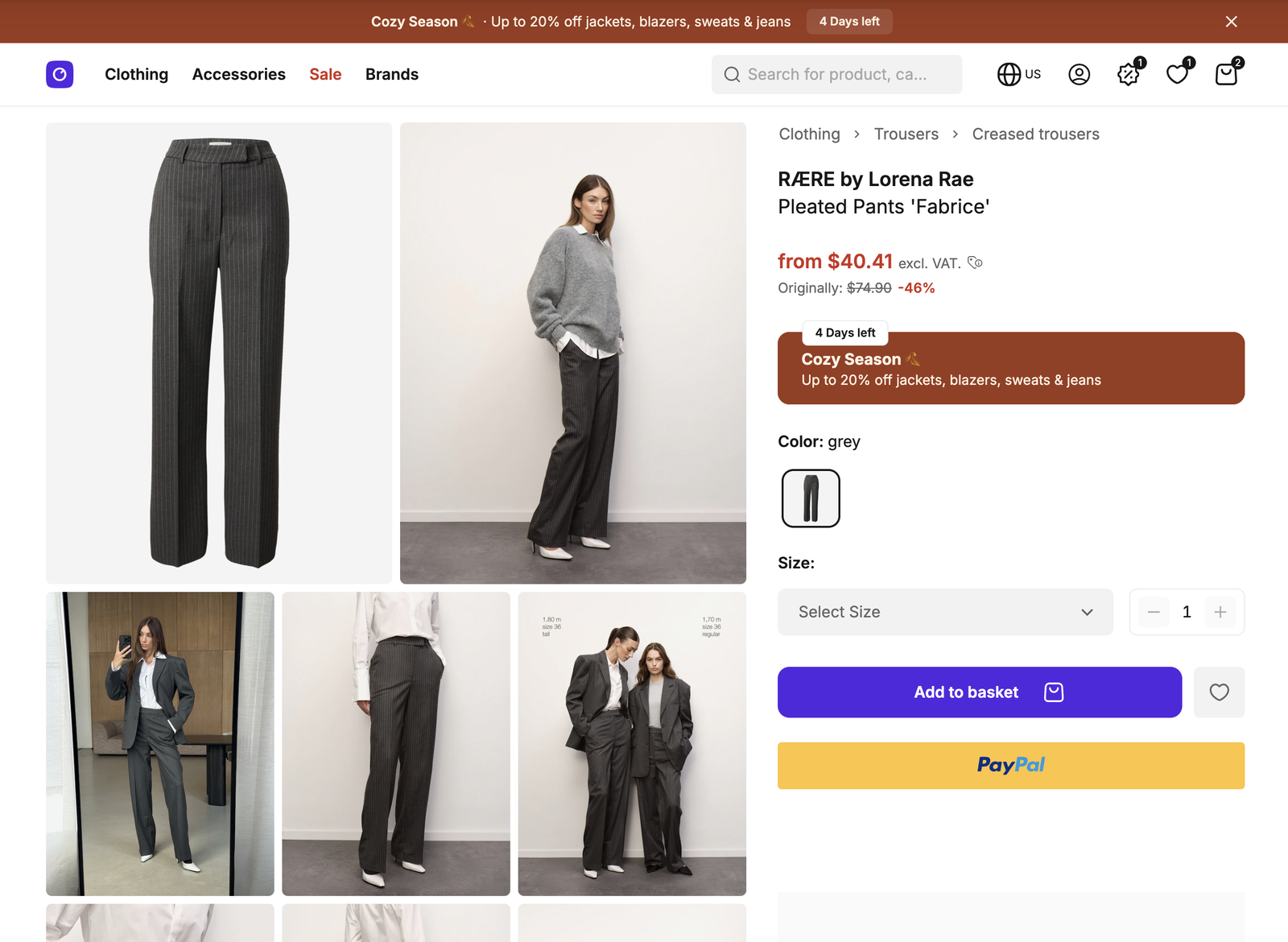
Express checkout on PDP (PayPal)
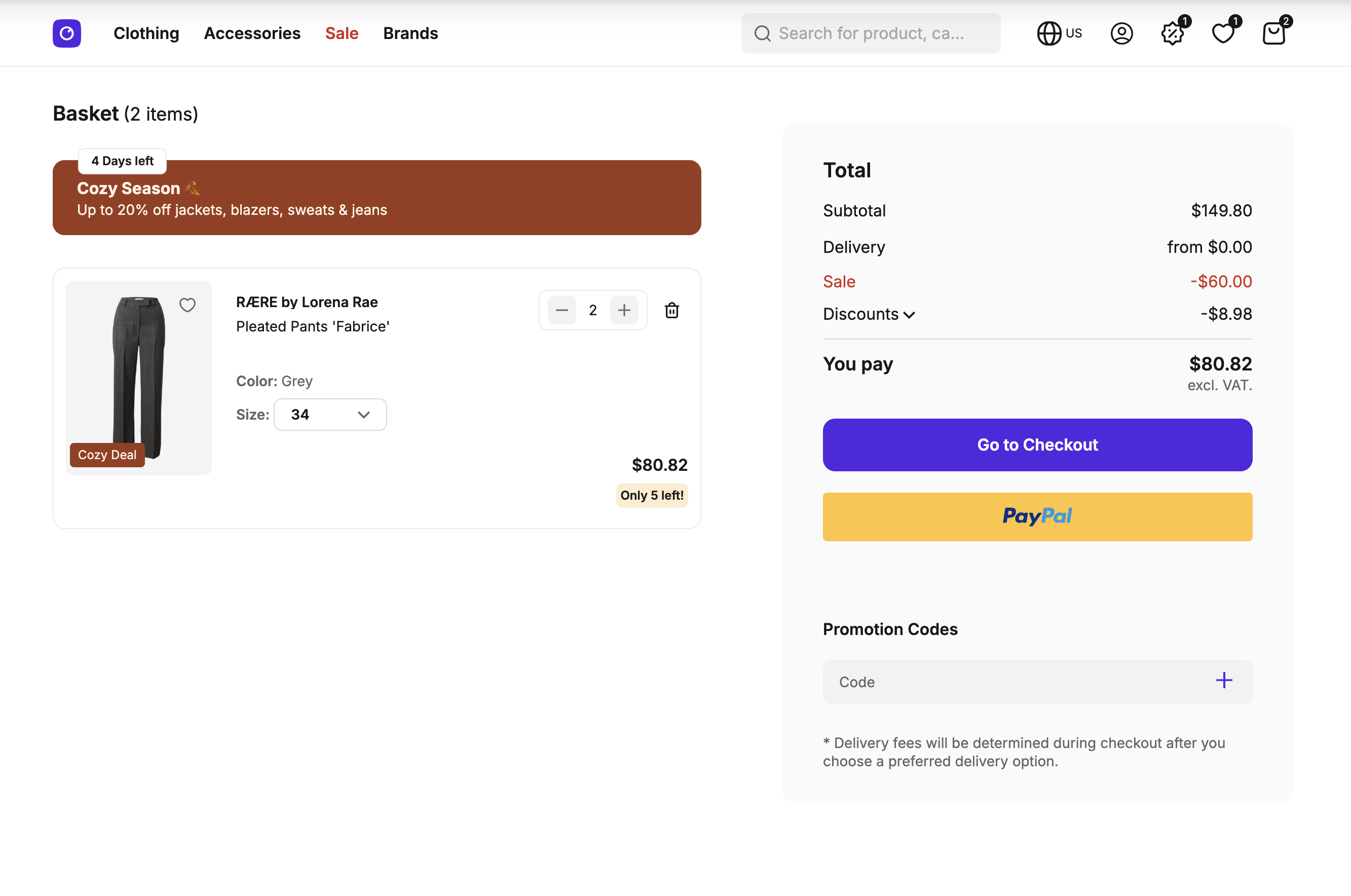
Express checkout on basket (PayPal)
What's included
- Product detail page button:
SFExpressCheckoutPDP.vuesits inSFProductActions.vueand renders unless the product or the selected variant is sold out, or the product is outside its sellable timeframe. It prepares a checkout token for the selected variant and quantity before the customer clicks. - Basket page button:
SFExpressCheckoutBasket.vuesits under the checkout button inSFBasketSummary.vue. It uses the checkout JWT of the customer's own basket, whichBasketControllerpasses to the page. - Shared base component:
SFExpressCheckoutBase.vuerenders the SCAYLE Checkout web component for both surfaces. It passes in the consent state, opens the consent manager, shows error toasts, and sends the customer on to/checkoutafter payment. - One-time checkout token RPC:
basket.createOneTimeCheckoutTokenships in@scayle/storefrontand is mounted on your API router bycreateBasketRouter(base). It creates the throwaway basket and returns a checkout JWT with the final price in cents. - Translated error messages: the
expressCheckout.error.*keys insrc/i18n/locales/hold the text of every error toast.
What you can change
Configure
- Which express payment methods your shop offers, set up in the SCAYLE Panel together with your SCAYLE Account Manager. See Configuration.
Theme
- Reword the error messages in the
expressCheckout.error.*locale keys.
Extend
- Show express checkout on another page by passing a checkout JWT from your controller's
getViewPropsand mountingSFExpressCheckoutBase.vuewith your own props. - Restrict which items qualify for express checkout by chaining
.errors(...)and.use(...)oncreateOneTimeCheckoutTokeninsrc/server/api/index.ts. - Change what the handler does by spreading
createOneTimeCheckoutTokenDefinition, swapping one part such as the input schema or the handler, and rebuilding it withbuildRpc(base, ...). ThebuildRpcdocumentation in@scayle/storefronthas a worked example foradd, and the same steps apply here.
Constraints and limits
Permanent
- On the product detail page, express checkout never reads or changes the customer's own basket. The handler of
createOneTimeCheckoutTokencreates a new basket under a random UUID key on every request, so the isolation comes from the SDK handler. If you rebuild that handler, you own this guarantee. - The application does not render or list the express payment buttons. The SCAYLE Checkout web component renders the buttons for the express payment methods enabled for your shop, and the application passes it a JWT, an access token, the consent state and the basket total. Only the consent state names PayPal and Klarna, see the limitation below.
Known limitations
- The consent state covers PayPal and Klarna only. A provider the web component supports besides these two gets no consent flag from the application. Add its vendor to
src/client/consent-vendor.config.jsonand to theconsentcomputed inSFExpressCheckoutBase.vueif your shop enables one. - Every change of the selected variant or quantity on the product detail page creates another throwaway basket. A customer who browses through sizes leaves unused baskets behind, and the application does not delete them. How long the Storefront API keeps an unused basket is platform behavior that the application does not control.
- The application does not refresh the checkout JWT, see Checkout for its lifetime. A customer who leaves a page open for longer than an hour clicks with an expired JWT. A page reload gives either express checkout page a new JWT, and a variant or quantity change does the same on the product detail page.
- The product detail page shows the generic error message for every failed token request. It does not map the error codes of
createOneTimeCheckoutTokento specific messages. A token that fails before the click fails silently, and the click then repeats the request and shows the toast. See Restrict which items qualify for express checkout to add a specific message.
How it works
The product detail page and the basket page get their checkout JWT in different ways, and both hand it to the same base component.
On the product detail page, the token is prepared before the click. SFExpressCheckoutPDP.vue watches the selected variant and the quantity, including a variant that is selected when the page loads, such as a single-variant product or a ?variantId= link. Each change calls the token RPC and stores the JWT and price. The web component reads its JWT at click time and does not resume when a token arrives later, so a token requested on click would cost a second click.
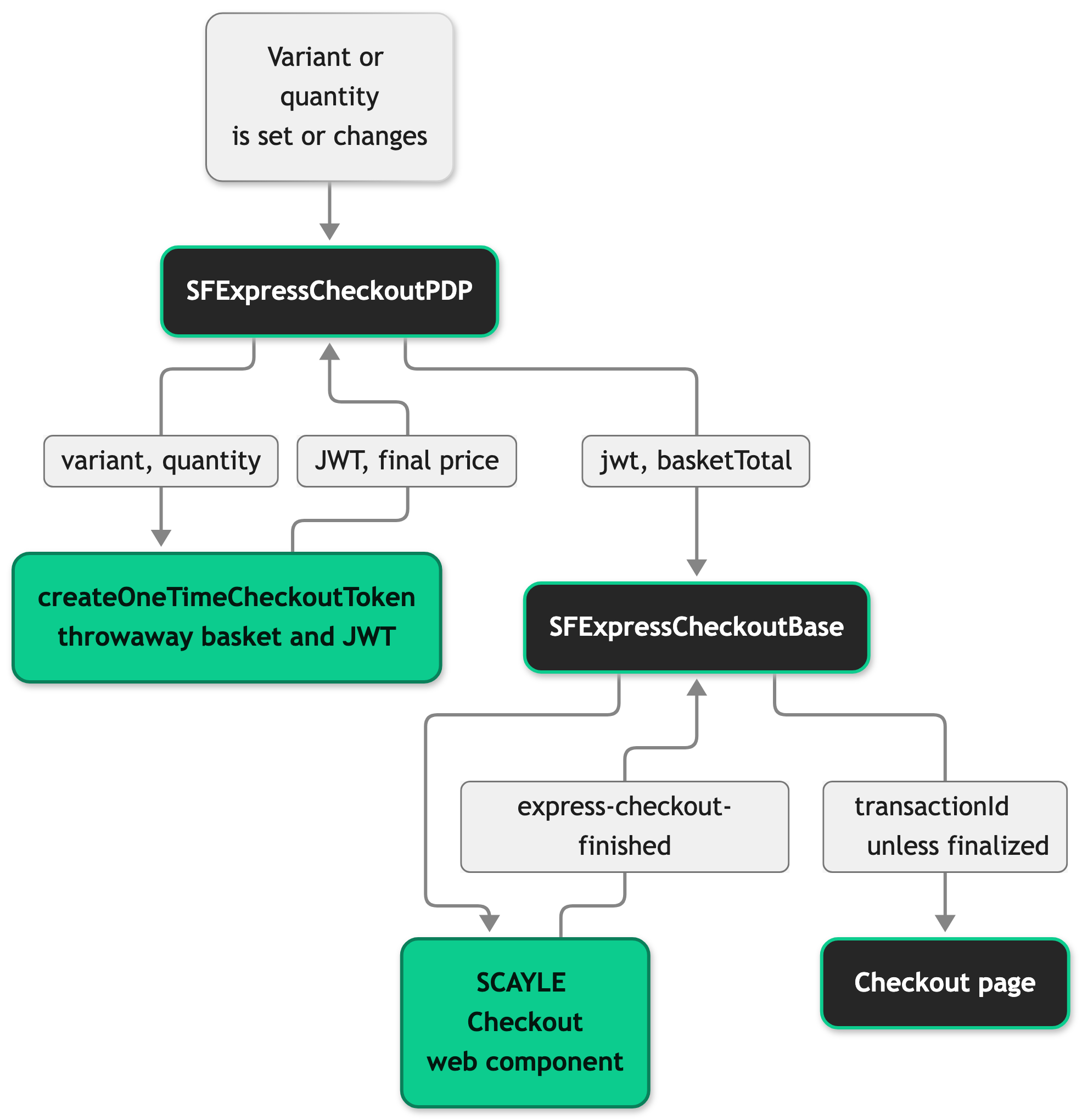
The component ignores a token response that arrives after a newer request. The reset event counts as a newer request, so a response that arrives after a reset is dropped too. The scayle:express:reset document event, exported as EXPRESS_CHECKOUT_RESET_EVENT from src/client/utils/expressCheckout.ts, returns the button to its default state and drops the stored token, so a dismissed flow cannot leave a JWT behind. The base component dispatches it after an error, and SFProductActions.vue dispatches it when the customer closes the size dropdown without picking a size.
When the customer clicks without a token, the web component emits jwt-missing. With no variant selected, the component emits sizeMissing and nothing else, and SFProductActions.vue scrolls the size picker into view when it is off screen and then opens it. With a variant selected, the component requests the token on the spot and shows the generic error toast if that fails.
The token RPC handler does four things:
- It creates a basket key with
randomUUID(). - It adds the item with
services.basket.addItem, passingvariantId,quantity,customData,displayDataand{ resolveItemGroup: false }. An empty basket has nothing to group against, so skipping the item group lookup saves one request per express checkout. - It turns a failed add into an error code and does not issue a JWT.
ItemUnavailablebecomesVARIANT_OUT_OF_STOCK,VariantAlreadyPresentbecomesITEM_ALREADY_IN_BASKET,MaximumItemCountReachedbecomesQUANTITY_LIMIT_EXCEEDED,ItemDataNotFoundbecomesNOT_FOUND, and anything unknown becomesINTERNAL_SERVER_ERROR. An item added with a reduced quantity continues. - It fetches the basket, signs a checkout JWT for it with
services.checkout.generateCheckoutJwt, and returns the JWT withfinalPriceInCents.
The RPC is unauthenticated on purpose, because express checkout runs for users who have not signed in. The input schema accepts no itemGroup and no pricePromotionKey, so a client cannot name either on this route.
On the basket page, BasketController passes checkoutJwt and accessToken as page props. The page hands them through SFBasketSummary.vue to SFExpressCheckoutBasket.vue, which forwards them to the base component. No token request happens. The component sets a componentKey that changes with the desktop breakpoint, because the web component does not render again after it moves to another DOM node.
The base component renders the web component once the checkout script has loaded and its auth API is initialized. It reserves a minimum height until then, so the page does not shift. When the customer picks a payment method without consent for its provider, the web component emits consent-missing and the base component opens the consent manager. After a successful payment, the base component navigates to /checkout?transactionId=<id>, and the checkout page finishes the order. The path gets the country prefix, such as /de/checkout, when the country selector mode is path, or path_except_default and the active country is not the default.
Setup
Express checkout is part of the product detail page and the basket page in the Storefront Application V3, so there is nothing to install. To see the buttons in your shop:
- Ask your SCAYLE Account Manager to enable an express payment method for your shop. See Setting up Express Checkout.
- Set the express checkout option for that payment method in the SCAYLE Panel. See Configuration.
- Check that
src/client/consent-vendor.config.jsonmapspaypalandklarnato the vendor ids in your consent manager, see Vendor mapping. - Open a product detail page with a variant that is in stock, and look for the express payment button below the add to basket area.
You see the button once the checkout web component script has loaded. Script loading explains where the script comes from.
Configuration
Express checkout visibility is controlled in the SCAYLE Panel under Settings ➜ Payments ➜ Payment Configuration ➜ [Payment Method] ➜ Express Checkout. You can enable or disable it per payment method. See Payment Configuration for the full set of options.
The application itself has no express checkout configuration. These are the props of SFExpressCheckoutBase. SFExpressCheckoutPDP, the variant of the product detail page, takes accessToken, variantId, quantity, and an optional customData, and emits sizeMissing when the customer clicks without a selected size.
Props of SFExpressCheckoutBase
| Prop | Purpose |
|---|---|
jwt | Checkout JWT of the basket to pay for. Without it, the web component emits jwt-missing and the click does nothing else. |
accessToken | Access token for the checkout API calls of the web component. |
basketTotal | Final price in cents that the web component shows. |
visible | Renders the component when true. Defaults to true. |
componentKey | Forces the web component to render again when the value changes. |
Events the base component handles
| Web component event | What the base component does |
|---|---|
consent-missing | Opens the consent manager. |
express-error | Logs the error, shows a toast for its errorKey or the generic toast, and resets the button. |
out-of-constraints | Shows the order value toast and resets the button. |
express-checkout-finished | Navigates to the localized /checkout?transactionId=<id> unless isFinalized is true. |
jwt-missing | Emits jwtMissing to the parent. SFExpressCheckoutPDP.vue listens to it. |
The express-checkout-finished event carries isFinalized, orderId and id in its detail. Express checkout only supports the multi-step flow with the review page, so the platform always sends isFinalized: false. The application navigates with id and keeps a guard that logs a debug message if isFinalized is ever true.
Customization guides
Reword the express checkout error messages
You end with your own text in every express checkout error toast.
- Open
src/i18n/locales/en_GB.jsonand edit the values underexpressCheckout.error. - Make the same change in the other locale files your shop uses.
The keys are deviceNotSupported, paymentMethodNotAvailable, pspSessionCreationFailed, failedToFetchSession, basketNotFound, basketInvalid, errorShippingAddressValidationFailed, failedDependency, outOfConstraints and unknownError. The onExpressError function in SFExpressCheckoutBase.vue maps each errorKey of the web component to one key, except outOfConstraints, which the handler of the out-of-constraints event shows. unknownError is the fallback for an unmapped errorKey and for an error without one. To change that mapping, edit the function in your copy of the component, because the base component has no prop for a custom error handler.
Restrict which items qualify for express checkout
You end with a rule that stops the token request for items your shop does not want to sell through express checkout, and a specific message for it. This example limits the quantity to three.
- Chain an error code and a check on
createOneTimeCheckoutTokeninsrc/server/api/index.ts. The check runs before the SDK handler and receives the validated input.
- Add an
expressCheckout.error.quantityLimitkey to every locale file. - Read the new code in the failure branch of
createOneTimeCheckoutTokeninsrc/client/components/checkout/SFExpressCheckoutPDP.vue. AddisDefinedto the destructured result ofrpcClient.basket.createOneTimeCheckoutToken(...). The rest of the function stays as it is.
A customer who picks four units gets no token. Nothing shows while they choose, and the click shows your message and resets the button.
Without step 3, your check still works and the customer sees the generic message. If you skip the .errors(...) call, errors.EXPRESS_CHECKOUT_QUANTITY_LIMIT does not exist and the file fails to type-check.
Show express checkout on another page
You end with an express payment button on a page of your own, for the basket the page shows.
- Pass a checkout JWT and an access token to the page as props.
BasketControllerdoes this ingetViewProps, withthis.generateCheckoutJwt()andgetValidAccessToken(this.request.session) ?? ''. - Mount
SFExpressCheckoutBasewith those props.SFExpressCheckoutBasket.vueis the working model:
The trimmed script section declares the accessToken and checkoutJwt props, reads basket from useBasket, and computes isDesktop from the lg breakpoint.
- Bind a condition to
visibleto hide the button on pages or states where it does not belong, and not to CSS. Whilevisibleisfalse, the base component renders nothing, including the reserved height.
Without a jwt, the web component emits jwt-missing on click, and only SFExpressCheckoutPDP.vue answers that event. On your own page, you either pass a JWT up front or handle @jwt-missing yourself.
Best practices
Mount the base component and leave the web component alone
SFExpressCheckoutBase.vue owns the consent gate, the error mapping, the isFinalized check and the navigation to the checkout page. A page that mounts <scayle-express-checkout> directly has to rebuild all four.
Request the token before the click
If your page needs a token for a choice the customer makes first, request it when the choice changes, as SFExpressCheckoutPDP.vue does, and not in a jwt-missing handler. How it works explains why.
Troubleshooting
The express checkout button is missing on the product detail page
Issue: The product detail page shows no express payment button.
Possible causes: The product or the selected variant is sold out, or the product is outside its sellable timeframe, so SFProductActions.vue does not render SFExpressCheckoutPDP. Your shop may have no express payment method enabled. The checkout script may not have loaded, so the base component never renders the web component.
Solution: Select an in-stock variant and check the sellable timeframe of the product. Open the browser network panel and look for the request to /frontend/checkout-wc/js on your checkout origin. Ask your SCAYLE Account Manager whether an express payment method is enabled for your shop.
Prevention: After you enable a payment method, test on a product that is in stock and inside its sellable timeframe.
A click on the express checkout button shows "Something went wrong"
Issue: The click ends with the generic error toast and the button resets.
Possible causes: The token request failed, for example because a variant went out of stock after the page loaded or the quantity is above the limit of the item.
Solution: Open the browser network panel and read the error code in the response of the createOneTimeCheckoutToken request. How it works lists the declared codes, and any code you added comes on top.
Prevention: Map the codes your customers hit most to specific messages. See Restrict which items qualify for express checkout.
Express checkout starts and the payment never completes
Issue: The customer starts express checkout and the purchase does not finish.
Possible causes: The payment provider reported a problem, such as an unsupported device, an unavailable payment method or a failed payment session. The web component sent it as an express-error event. A basket total outside the allowed order value sends out-of-constraints instead, and the toast says so.
Solution: Open the browser console and look for the Express checkout error log entry. Its detail carries an errorKey when the error comes from an API call of the web component, and paymentKey and provider when it comes from the payment SDK. Match an errorKey to the toast text under expressCheckout.error, and check your payment provider's session logs. An SDK error shows the unknownError text.
Prevention: Test every enabled express payment method on a real device before launch.

