

Channel Configuration Setup
The Tradebyte Add-on automatically creates the required SCAYLE Channel Configurations for all newly generated shop countries, which defines which shop country is responsible for fulfillment.
Example channels include Zalando DE, Zalando CH-FR, Zalando CH-DE, and others.
One-to-One Channel Assignment
Each Marketplace channel is linked to exactly one SCAYLE shop country. The channel key is used by the Add-on when creating orders in SCAYLE via the External Order API, ensuring that the correct shop country and its associated warehouses are assigned for fulfilling marketplace orders.
Default Channel Settings
The Add-on automatically applies the necessary channel settings for marketplace operations, including,
- Disabling customer emails and invoice generation, as these are handled by the marketplace,
- Enabling SCAYLE external price overwrites, since SCAYLE only proxies the marketplace order totals provided through TB.One.
- Where to Manage Channel Configurations
All automatically created Channel Configurations can be found in the SCAYLE Panel under:
Marketplace → Configuration → Channels. From here, users can edit existing configurations or create new ones directly in the UI.
Note: You can at any time change the default mapping between Tradebyte Channels and SCAYLE Channels under the SCAYLE PANEL → Marketplace → Tradebyte Expert Mode ➜ Channels.
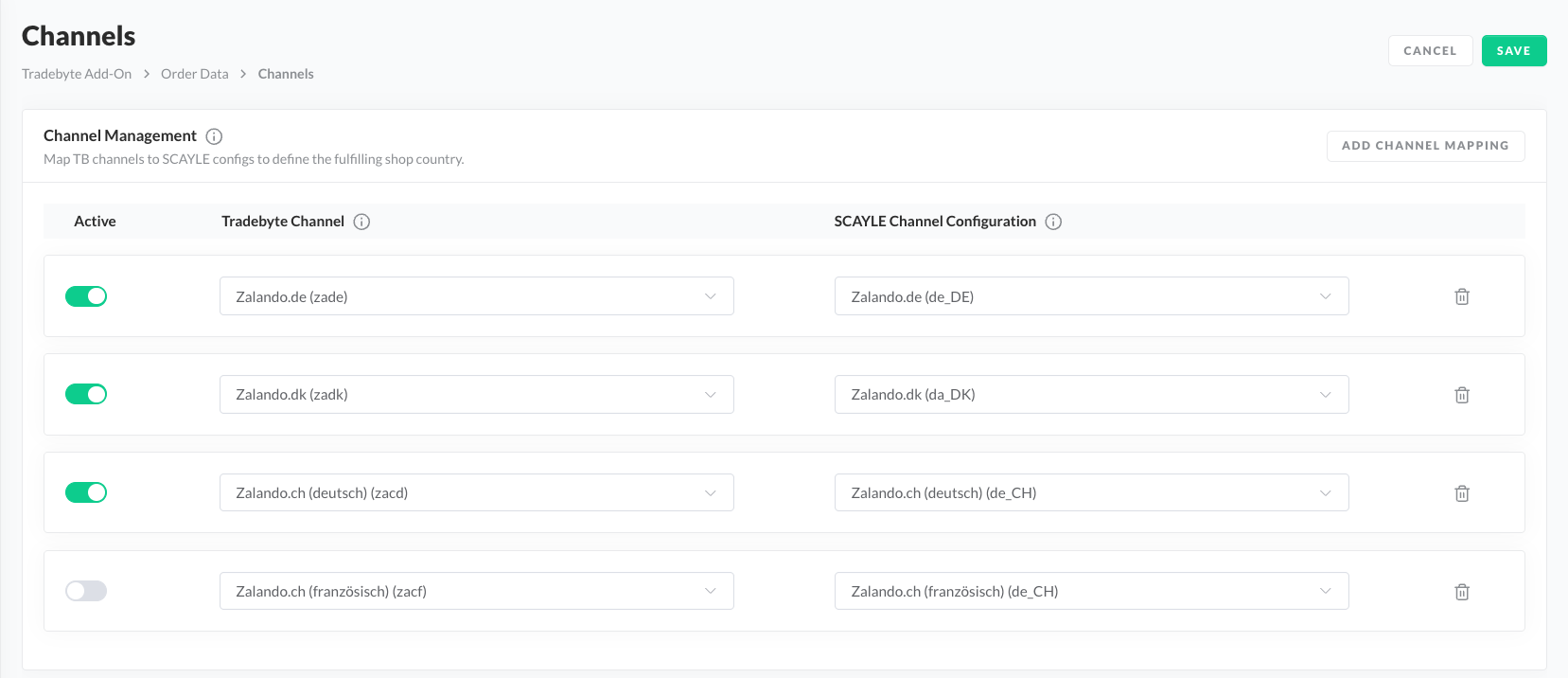
Add a new a channel mapping
Note: A Tradebyte channel can be linked to only one SCAYLE channel, while a SCAYLE channel may be linked to multiple Tradebyte channels. The mapping determines how incoming Tradebyte orders are routed to the correct SCAYLE channel for processing.
- Go to SCAYLE PANEL → Marketplace → Tradebyte Expert Mode ➜ Channels.
- In the Channels section, select from the available Tradebyte marketplace channels from the dropdown, eg. Zalando Germany, About You Germany, etc.
Currently, the Add-on supports all channels of the About You and Zalando marketplaces on Tradebyte filtered by Marketplace. - Select the SCAYLE Channel you want to map to the marketplace channel to
- Add a new channels mapping by clicking on Add new channel.
- Select the SCAYLE Channel
- Click SAVE.
Deactivate a channel mapping
- Go to SCAYLE PANEL → Marketplace → Tradebyte Expert Mode ➜ Channels
- Turn off the toggle of an existing channels mapping
- Click SAVE.
If a channel is deactivated, the Add-on will stop fetching orders from Tradebyte for that specific channel.
Remove a channel mapping
- Go to SCAYLE PANEL→ Marketplace-> Tradebyte Expert Mode ➜ Channels
- Select the Trash icon at the right end of the mapping row.
- Click SAVE.
If a channel is removed, the Add-on will stop fetching orders and it will not send orders from Tradebyte to the existing SCAYLE channel for that specific channel. You or your SCAYLE Account Manager will have to maintain (deactivate or delete* with restrictions rules) the SCAYLE channels in SCAYLE Panel under Marketplace → Configuration → Channels Dashboard
Here you can learn about the SCAYLE Channel Configuration in the SCAYLE Panel.