

TB.One Platform Configuration
To ensure the SCAYLE Tradebyte Add-on functions correctly, you must configure the following settings directly in your TB.One account.
For more details besides the steps mention below on setting up your TB.One account, please contact your Tradebyte Integration Manager and the SCAYLE project team or refer to the TB.One Info center for detailed documentation.
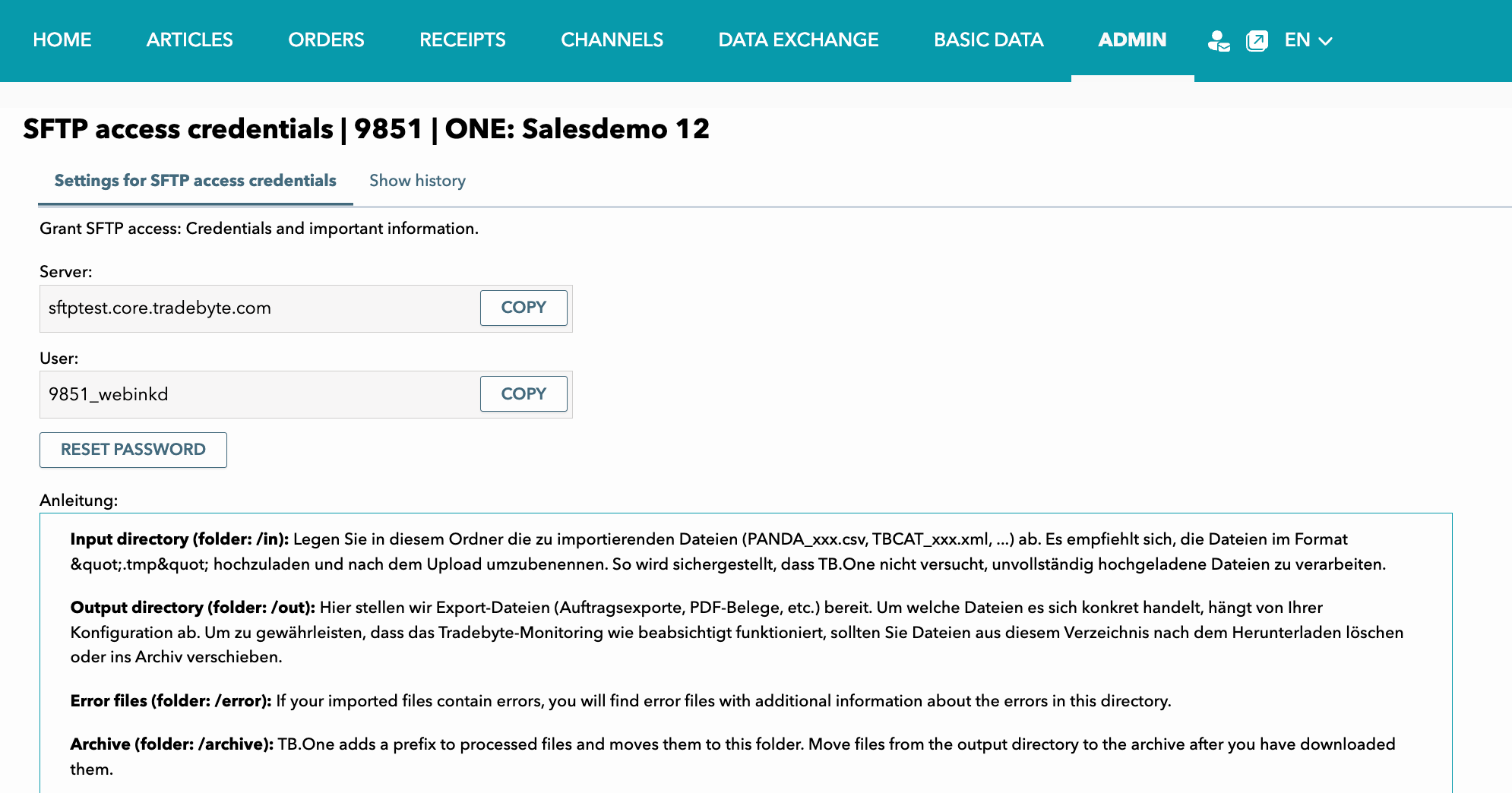
Tradebyte SFTP Credentials
- Go to TB.One Platform ➜ Admin ➜ System Settings ➜ SFTP access credentials
- Select the option to Enable the SFTP connection
- In the opened popup, you will find the password. You can choose to use the auto-generated password or set your own password. Click to Copy the password.
- Enter the Security code displayed on the screen.
- Click on SAVE to save your password.
- Your SFTP server URL and username will be shown.
Your TB.One SFTP server is now set up. Next, you must enter these credentials in the SCAYLE Panel as part of the Marketplace Quick Setup under Enter Credentials for Tradebyte API and SFTP.
You can update these credentials at any time in:
SCAYLE Panel → Marketplace → Tradebyte Expert Mode → Configuration
Tradebyte API Credentials
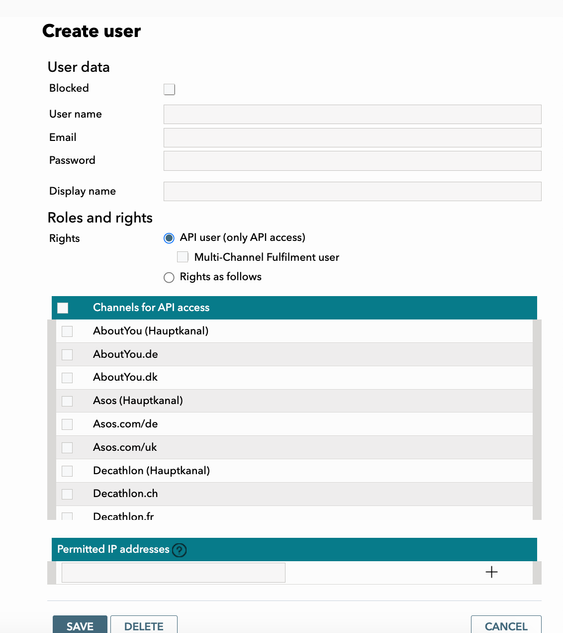
To create the API credentials in TB.One, you need to create an API User and select the marketplace channels on which it can be active.
- Go to TB.One Platform ➜ Admin ➜ User ➜ Users
- Click on the Create new employee option in the sidebar
- Under Roles and rights, select API User (Do not select Multi-Channel Fulfilment user option).
- Enter the details - username, password, display name.
- Select the Channels you want to activate it for.
- Click SAVE.
Your Tradebyte API is now set up.
Next, you must enter these credentials in the SCAYLE Panel as part of the Marketplace Quick Setup under Enter Credentials for Tradebyte API and SFTP.
You can update these credentials at any time in:
SCAYLE Panel → Marketplace → Tradebyte Expert Mode → Configuration
Feed Import Settings
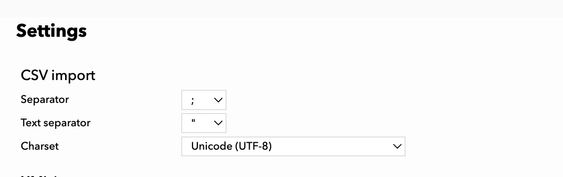
- Go to TB.One Platform ➜ Admin ➜ Import ➜ Settings
- In the CSV Import section, select the separator, text separator, and charset.
Note: To ensure accurate syncing of products, set up the same separators in both SCAYLE and TB.One. It is recommended to use UTF-8 charset, semicolon as separator (;), and double quote as text separators (") - Scroll down to Automatically create import keys from the import file.
- Select the checkboxes for Cluster attributes, Brands, Components, Attributes, Attribute values.
This will ensure that these fields get created automatically when your product feed is imported into TB.One. Otherwise they have to be manually configured in TB.One before adding them to products or articles. - Click on SAVE to save your settings.
Tradebyte Channels
To activate new Marketplace channels or sub-channels, you need to contact your Tradebyte Integration manager.
Once activated, you can set them up for syncing in the SCAYLE Tradebyte Add-on.
Channel languages
If a channel is bilingual in TB.One (for example, ABOUT YOU BE (FR + NL) or Zalando CH-FR, CH-DE etc), ensure that both languages are activated in the TB.One Platform.
You can add languages under: TB.One Platform ➜ Articles → Translation → Languages.
.png)
Tradebyte Price List
Go to TB.One Platform ➜ Articles ➜ Price catalogue
Here you will find a list of all the price lists configured in TB.One. TB.One automatically creates a price list for each sub-channel when it is activated. You can choose to use these, or create your custom price-list. Currency is also defined on the price list. In case, you choose to use a common price list for multiple channels, they must follow the same currency
To create a new custom price list:
- Go to TB.One Platform ➜ Articles ➜ Price catalogue
- Click on Create new price list from the sidebar
- Set the name, import key, currency and validity dates.
- Select the Active flag to set it to active.
- Select the channels you want to activate it for (one or more, should have same currency).
- Click SAVE to save the price list
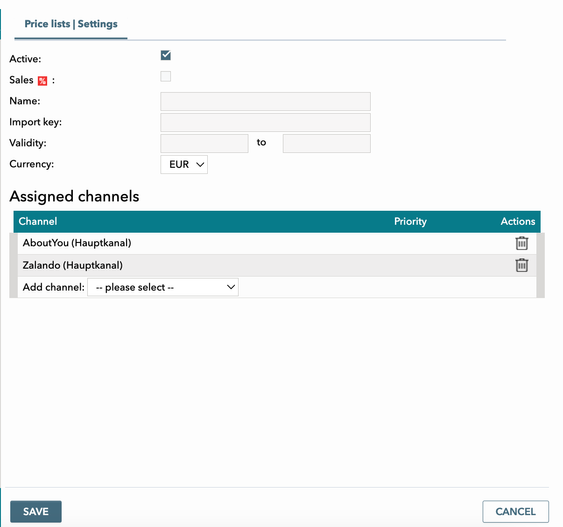
To use the price lists on your product feed, you need to use the import key for the Price list as defined in TB.One.
Tradebyte Shipping Carrier Settings
- Go to TB.One Platform ➜ Basic Data ➜ Shipping ➜ Shipping Types.
- Select from the list of existing Shipping types or click on Create new shipping type.
- Enter the name, import key and select Active flag.
Note: The carrier import key needs to match the Shipping Carrier as well as the Merchant Carriers per Shop Country defined in SCAYLE. - Select the DHL flag if its for a DHL shipping type.
- Select the channels you want to activate it on. It needs to be one of the compatible carriers for the marketplace channel to be able to activate it.
- Click on SAVE.